
The PageCrawl browser extension lets you add any webpage to monitoring in a few clicks, review what changed across your monitored pages, and mark which changes matter, all without leaving your current tab. It uses the same words, tracking modes and filters as the PageCrawl web app and the mobile app, so anything you learn in one works in the others.
Which browsers does the extension support?
The PageCrawl extension is available for Chrome and Firefox. Chromium browsers such as Edge and Brave can install the Chrome version from the Chrome Web Store.
- Chrome, Edge, Brave: Install from the Chrome Web Store
- Firefox: Install from Firefox Add-ons
- Safari or any other browser: Save the PageCrawl bookmarklet to your bookmarks bar instead. Click it on any page and PageCrawl picks up where you are, no extension required.
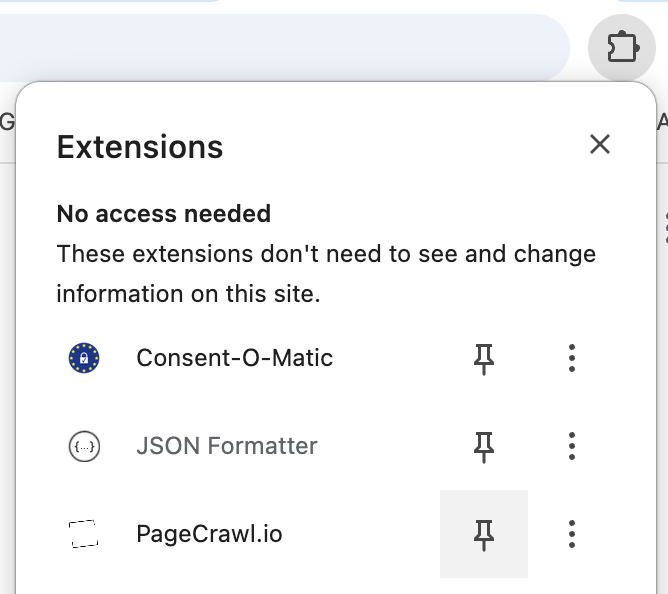
How do I connect the extension to my account?
Click the PageCrawl icon in your toolbar and choose Log in to PageCrawl. A PageCrawl tab opens where you sign in (or confirm, if you are already signed in) and click Authorize. The extension connects on its own and the tab closes.
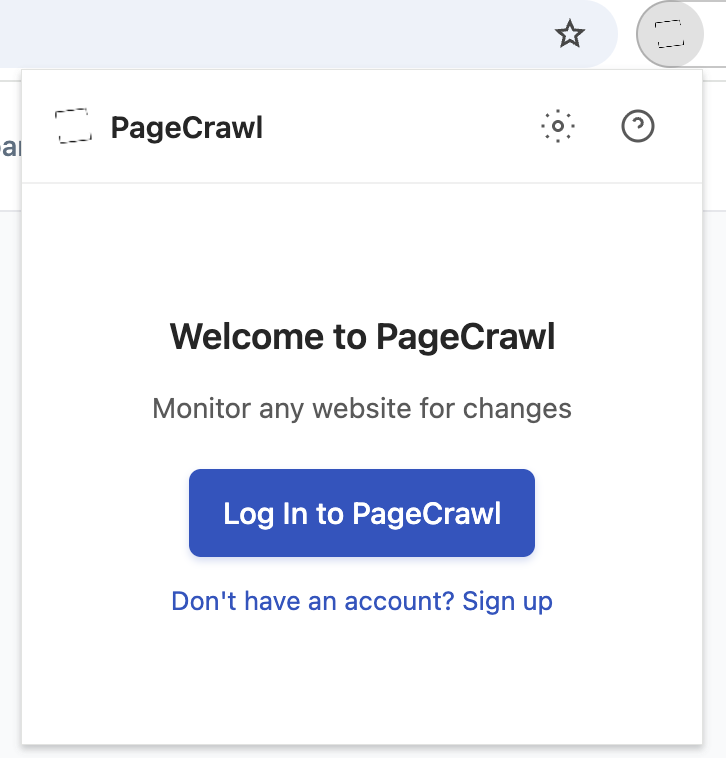
If you don't have an account yet, click Don't have an account? Sign up. To disconnect, choose Log out in the extension's Settings.
What does the timeline show?
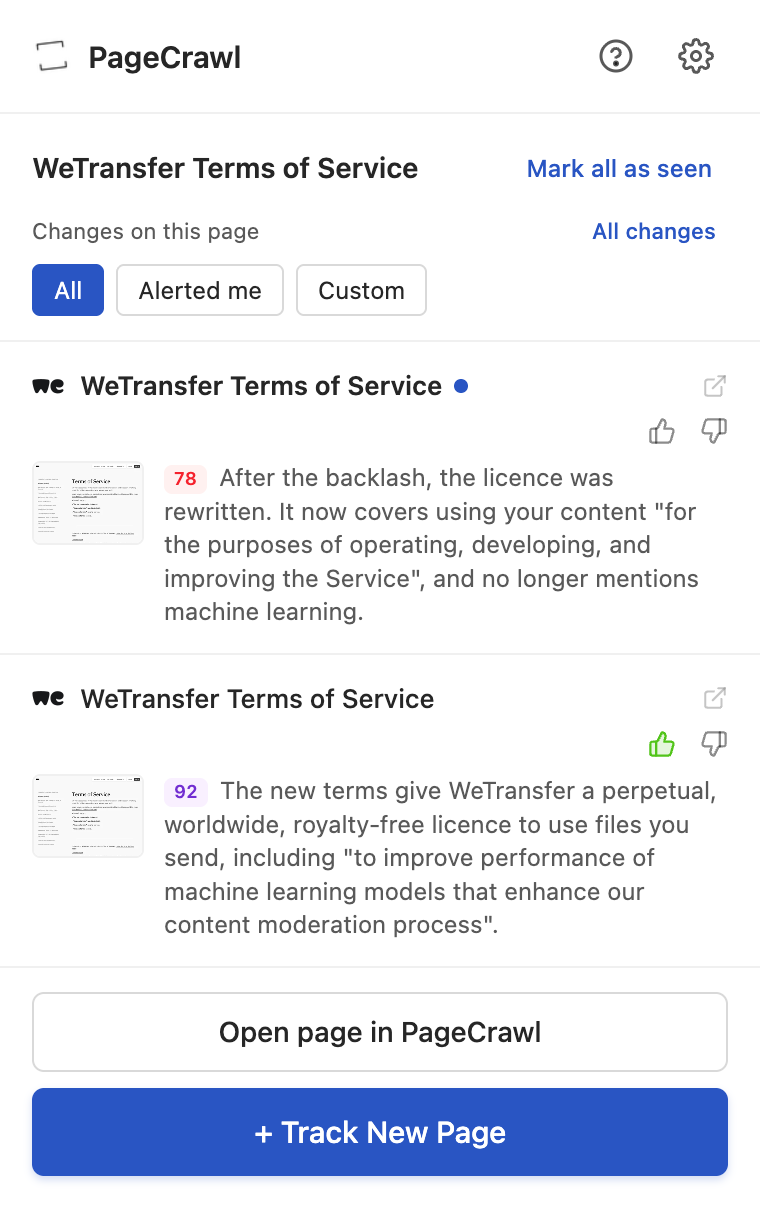
Once connected, the extension opens on your Timeline: the latest changes across your monitored pages, newest first. Each row shows the site's icon, the page name, when the change was found, its importance score and a summary of what changed.
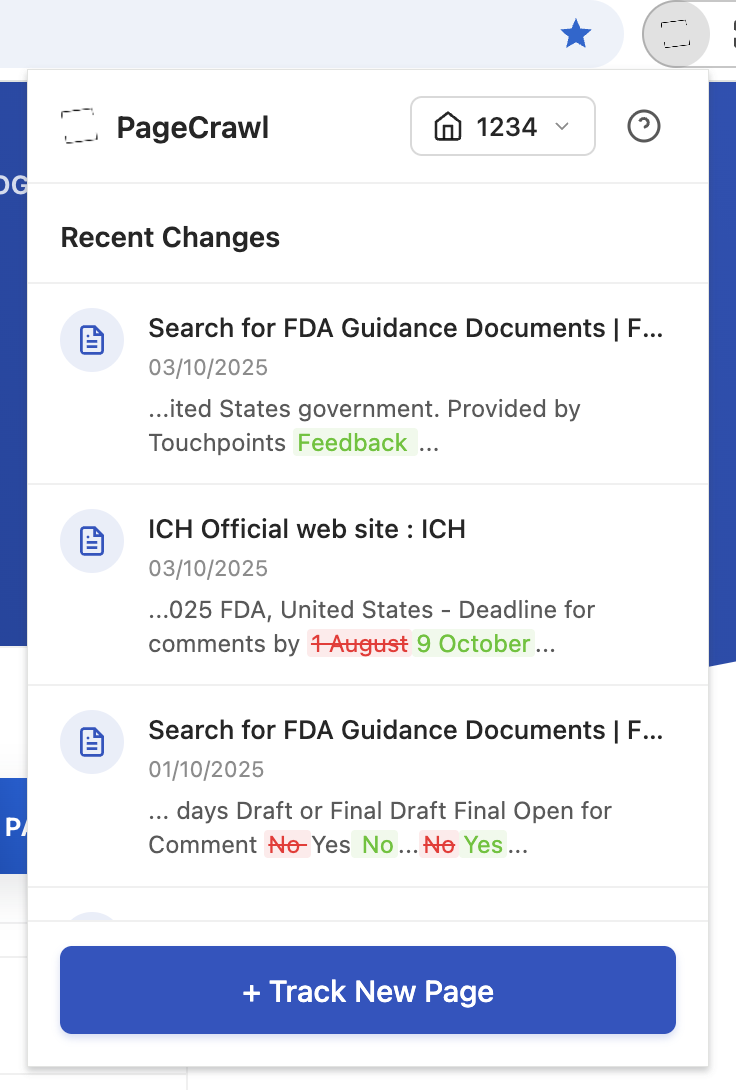
- Summary: an AI summary when one was written, otherwise the words that were added (green) and removed (red), or how a price or number moved.
- Importance score: the same 0 to 100 score and colours you see in the web app, so a change reads the same everywhere.
- Thumbnail: a small screenshot of the page, for monitors that take screenshots.
- Blue dot: a change you have not opened yet. Mark all as seen clears them.
Click a row to open that change in PageCrawl, or the arrow icon to open the monitored website itself.
How do I filter the timeline?
Use the chips above the list. All shows every change, and Alerted me shows only the changes that sent you a notification. Custom lets you set a minimum score and choose which outcomes to show, such as leaving out changes marked low importance. The extension remembers your choice for next time.
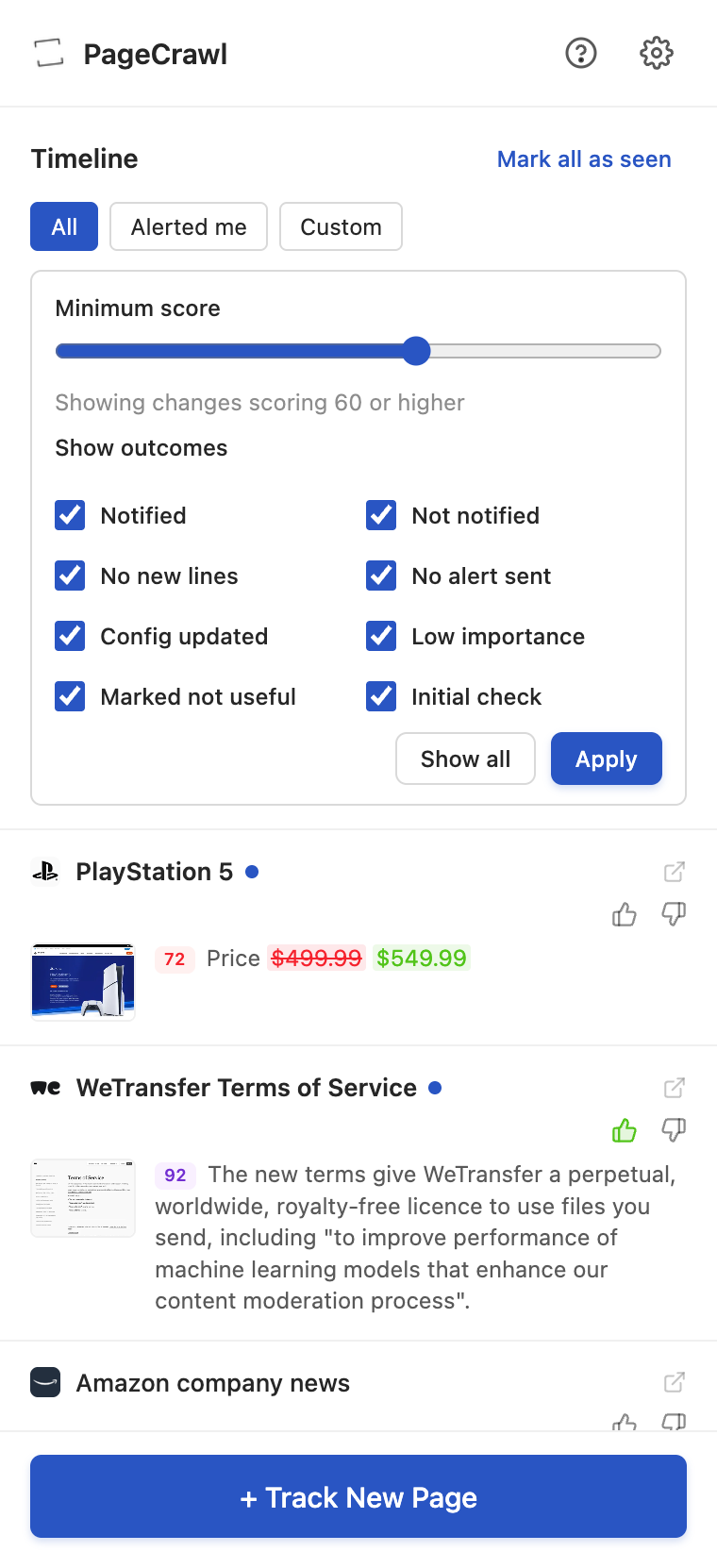
These are the same filters as the timeline in the web app and the mobile app.
What do the thumbs up and down do?
The thumbs tell PageCrawl whether a change was useful to you. Thumbs up marks it as useful and turns green; thumbs down marks it as not useful. Click a lit thumb again to clear your mark. Over time these marks help PageCrawl judge which changes deserve an alert and which are noise.
Your marks are shared with the web app and the mobile app, so a change you mark in the browser shows the same mark everywhere.
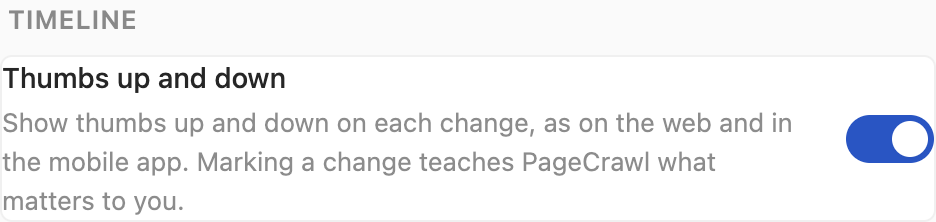
If you prefer a cleaner list, turn the thumbs off in the extension's Settings (the gear icon), under Timeline. If feedback is switched off in your team's features, the thumbs are hidden.
What happens when I open the extension on a page I already monitor?
The timeline switches to that page's own history, so you see only its changes. Click All changes to go back to everything, or Open page in PageCrawl to see the page's full history and settings.
How do I start monitoring a page?
- Open the page you want to monitor.
- Click the PageCrawl icon, then + Track New Page.
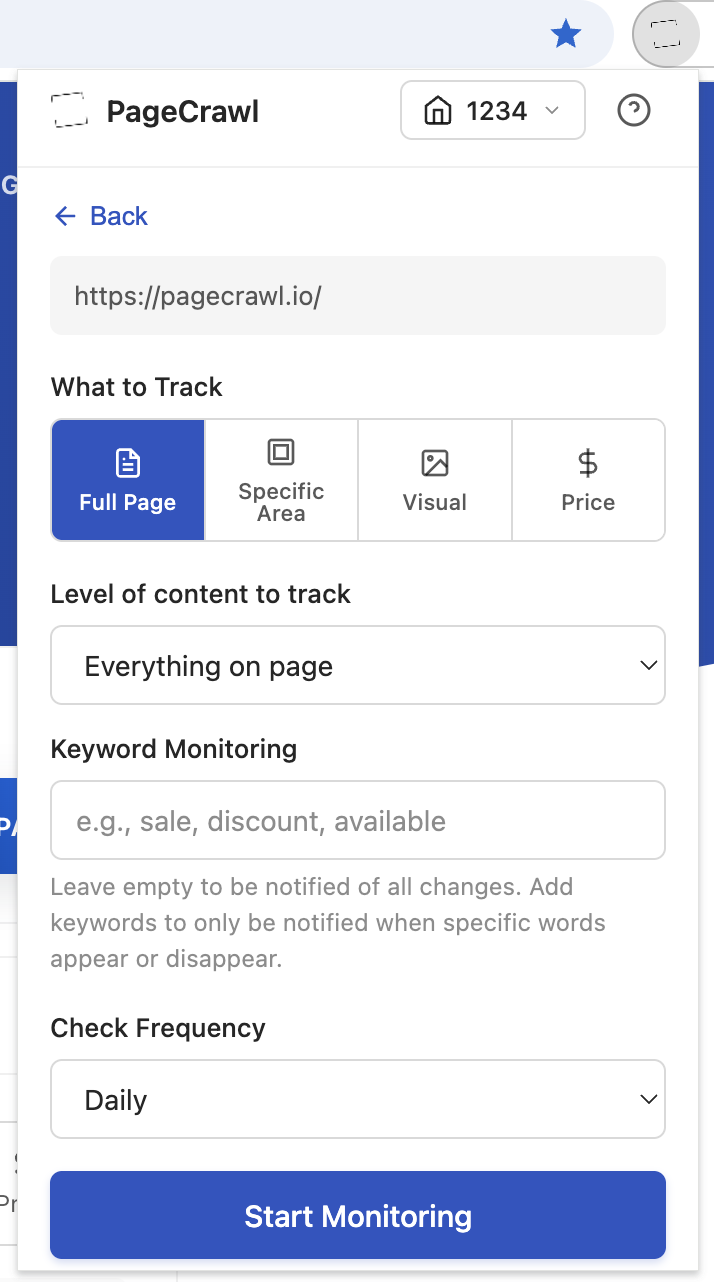
- Check the Name (it starts as the page's title) and choose What to track.
- Optionally describe What matters and choose Where to notify me.
- Pick a Check frequency and click Start monitoring.
For advanced settings (notification rules, locations, actions and more), click More options under the button. It opens the full form in PageCrawl with your choices already filled in.
Which tracking modes can I choose?
The extension offers the same modes as the web app. Restock and Feed only appear when PageCrawl finds a stock status or a list of items on the page, so you are only offered what the page supports.
Full Page Text
Best for: blog posts, news, documentation and policy pages.
Tracks the text on the page. Choose the Level of content:
- Everything: all the text on the page, menus, headers and footers included.
- Content only: the main content of the page. Menus, headers and footers are ignored.
- Main article only: only the article or post. Best for news and blogs.
Open Keyword monitoring to be notified only when specific words appear or disappear. Separate keywords with commas.
Specific Area
Best for: one value or section, such as a price, a stock message or a table.
- Click Click to select element.
- Hover over the page and click the part you want to track.
- Confirm your selection.
You can also type a CSS selector yourself. Tick Track as number to follow a numeric value over time and set alerts for when it drops below, rises above or changes by a percentage.
Visual
Best for: images, charts and layout changes.
Click Draw area on page, drag over the area to watch, and choose how much it must change before you are notified. A section (10%) suits most pages.
Price
Best for: product pages.
PageCrawl finds the main price on the page for you. Optionally tick Track availability, and set alerts for when the price drops below or rises above a value, or changes by a percentage.
Restock
Best for: sold-out products.
Notifies you when a sold-out item comes back in stock. Tick Also alert when it sells out to hear about both directions.
Feed
Best for: lists of posts, listings or jobs.
Notifies you when new items appear in the list on the page.
Parse AI
Best for: pulling a specific value out of a page, such as a plan's price or an opening date.
Describe what to pull from the page in plain words. AI reads the page on each check and extracts the value you described. Add more fields with Add another field.
How do I choose where alerts go?
Under Where to notify me, tick the places this page should alert: Email, plus any of Slack, Discord, Telegram or Microsoft Teams that your workspace has set up. Integrations you have not connected yet are not listed; connect them in your workspace settings first.
Alerts arrive when a scheduled check detects a change, so how soon you hear depends on the check frequency you choose.
What does "What matters" do?
What matters: when to notify me is an optional plain-English rule, for example "Notify me when the price drops or a plan is removed. Ignore design tweaks." When a change is found, AI checks it against your rule and only alerts you when it matches. Leave it empty to be alerted about every change.
How do I open a page in PageCrawl from the right-click menu?
Right-click anywhere on a webpage and choose Open in PageCrawl.
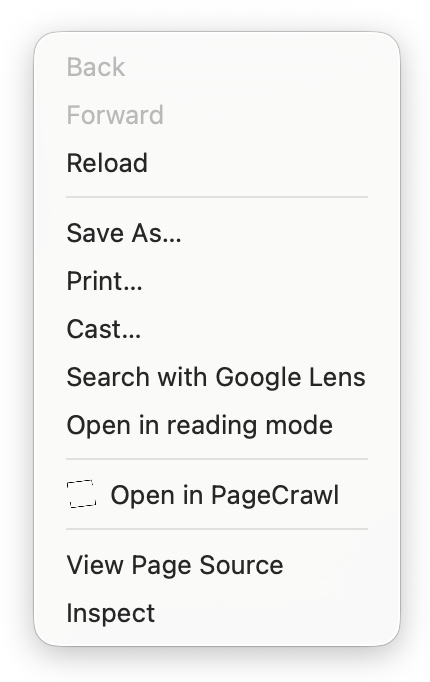
- If the page is already monitored, its page in PageCrawl opens, where you can see its history and settings.
- If it is not monitored yet, the create form opens with the address filled in.
What else is in the extension's header?
- PageCrawl logo: opens your PageCrawl dashboard.
- Workspace switcher: appears when you belong to more than one workspace, and switches both the timeline and where new pages are added.
- Help (question mark): opens this guide.
- Settings (gear): the extension's settings, including the thumbs switch and how often the toolbar badge refreshes.