
PageCrawl can automatically save page screenshots to your Dropbox whenever a change is detected. This gives you a visual archive of every change, stored in your own cloud storage for easy access and sharing.
How It Works
When a change is detected on a monitored page and screenshots are enabled, PageCrawl uploads the screenshot to your chosen Dropbox folder. Files are organized by page name and timestamp:
{your-folder}/{page-name}/{datetime}.jpgThis makes it easy to browse through the history of visual changes for any monitored page.
Setting Up Dropbox Sync
- Go to Settings > Integrations
- Click Setup on the Dropbox integration
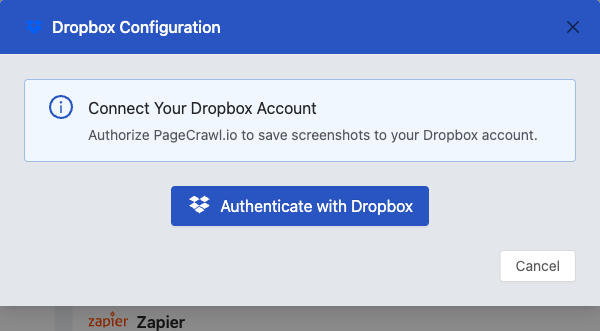
- In the modal that opens, click Authenticate with Dropbox
- Authorize PageCrawl in the Dropbox OAuth window that opens
- Select a folder in your Dropbox where screenshots should be stored
Once connected, screenshots will be uploaded automatically whenever a change is detected on any of your monitored pages that have screenshots enabled.
Managing the Connection
After connecting your Dropbox account, you can:
- View account info - See which Dropbox account is connected
- Change folder - Select a different folder for screenshot storage
- Revoke access - Disconnect your Dropbox account to stop automatic uploads
Troubleshooting
If your Dropbox access token expires, the connection is automatically disabled and you will receive a notification. Simply reconnect your Dropbox account at Settings > Integrations to restore screenshot syncing.
Availability
Dropbox screenshot sync is available on all plans.