
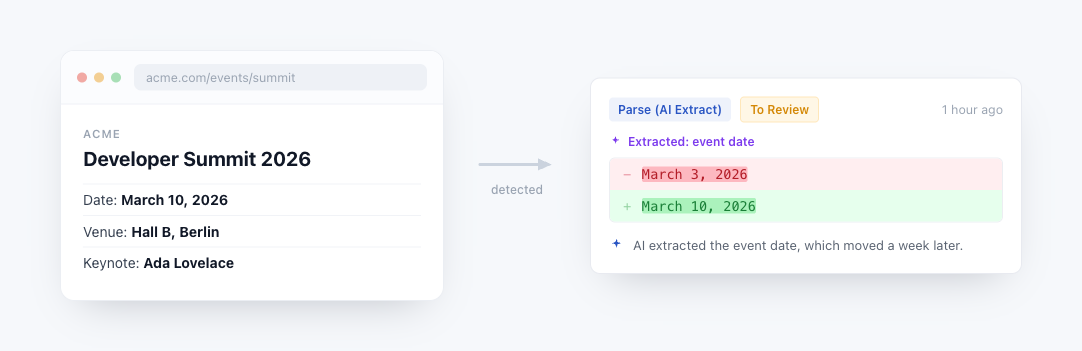
Parse is a tracked element that uses AI to read the page on every check and return one value you described in plain English. You write a sentence describing what to retrieve, and the AI returns the answer each time the page changes. There are no CSS selectors, no XPath, no manual element picking, and no scripts.
If you have ever wanted to monitor a value that "moves around" between page layouts, sits inside a paragraph of prose, or has to be derived from the content rather than scraped from a fixed spot, Parse is the mode for that job.
What Parse Actually Does
On each check, PageCrawl reads the page and uses AI to return the single value described by your prompt. That value is stored as the current value of the tracked element.
From that point on, Parse behaves like any other tracked element. The value is compared to the previous value, alerts fire when it changes, history is recorded, and the value is available in notifications, webhooks, exports, and reports.
You are not building a chatbot. You are asking for one piece of data, and the result is treated as plain text.
How to Set It Up
- Open the page you want to monitor, or create a new monitor.
- Add a tracked element and choose the Parse type from the element list.
- In the prompt field, describe the value you want, including the exact format. (See the prompt-writing guidance further down.)
- Optionally give the element a friendly label so notifications and history are easy to read (for example "Headline price" or "Next earnings date").
- Save the monitor. The first check runs immediately and populates the initial value, which becomes the baseline.
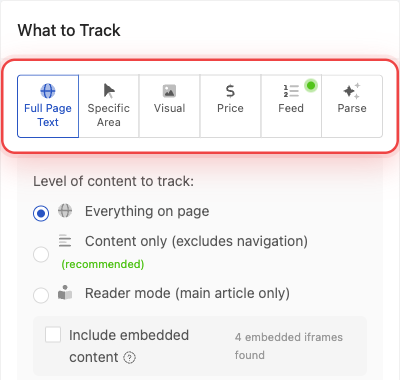
That is the whole setup. There is no selector to maintain and no script to debug.
When Parse Is Useful
Parse shines whenever the value you care about is semantic rather than positional. Good examples:
- A date hidden inside a paragraph ("Our next investor call is scheduled for March 5, 2026.")
- The lowest of several prices on a page, or the price after a discount is applied
- A name from an About / team / leadership page
- A version number, build identifier, or release tag in release notes
- A status word like "Open", "Sold out", "Beta", "Coming soon"
- A count or score that appears in different positions depending on the layout
- A field on a page that frequently gets redesigned, where a CSS selector would keep breaking
- A value that the page expresses in different units or formats, where you want the AI to normalize it
If your prompt could be answered by a person glancing at the page in under five seconds, Parse will usually handle it well.
When Parse Is Not the Right Tool
Parse is the most expensive tracking mode, and it is not always the best choice. Prefer a dedicated tracking type when:
- The value is a price you can see clearly. Use the Price tracked element. It auto-detects, normalizes, and handles availability for free.
- The value is a clean block of text. Use Text or Full Page Text. They run without AI and don't burn AI credits.
- You only want to know whether something exists on the page. Use Boolean or Availability.
- You want a number that is visually prominent. Use Number or Rating, they are cheaper and deterministic.
- You want to track every item in a feed or grid. Use the Feed tracking mode for structured item lists.
Parse is also the wrong tool when:
- The information you want is only revealed by user interaction (clicking a tab, expanding a section). Add an action to expose the content first.
- The value changes constantly for cosmetic reasons (timestamps, "as of now" counters, rotating banner text). You will get noisy alerts.
Writing a Good Prompt
The single biggest factor in getting stable, useful results is being precise about format. AI can phrase the same answer in many different ways, and any of those variations will look like a change.
Compare these:
| Vague | Explicit |
|---|---|
| "the price" | "the listed price as a plain number with no currency symbol, e.g. 24.99" |
| "when's the next earnings" | "the next earnings call date in YYYY-MM-DD format" |
| "who is the CEO" | "the CEO's full legal name as printed on the page, no titles" |
| "is it in stock" | "exactly the word Yes if the product is in stock, otherwise the word No" |
| "the latest version" | "the latest released version number in semver format (e.g. 4.2.0)" |
Rules of thumb:
- State the unit. "USD", "GBP", "as a percentage", "in days".
- State the format. "YYYY-MM-DD", "ISO 8601", "plain number", "uppercase".
- State what to do if the value is missing. For example, "If the value is not present on the page, return the word UNKNOWN." This prevents the AI from inventing something.
- Keep it to one value. Parse returns a single value per element. If you need three values, add three Parse elements.
- Reference visible cues. "The price shown in the largest red text", "the date in the section titled Upcoming Events".
What Not to Do
- Don't ask the AI to summarize a page. Parse is for extracting one specific value, not for generating prose.
- Don't ask for "anything that changed". The change comparison is automatic; your job is only to describe the value to extract.
- Don't request a list, table, or JSON object. Use multiple Parse elements instead.
- Don't include private context the AI cannot see ("the price our sales rep quoted yesterday"). It only knows what is on the page right now.
- Don't write multi-paragraph prompts. One or two sentences is plenty and usually more reliable.
Cost
Parse is the most expensive tracking mode on every plan. Use it for the values that really benefit from AI extraction, and leave routine price, text, and availability tracking to the cheaper dedicated modes.
Plan Recommendation
Parse is recommended on the Enterprise or Ultimate plan. Free and Standard plans include small AI allowances that are fine for testing the feature, but they are not sized for ongoing monitoring of many Parse elements at frequent intervals.
Troubleshooting
- The value flips between two formats and triggers false alerts. Your prompt is not specific enough about format. Add the exact format you want.
- The value is sometimes empty. Tell the AI what to return when the value is missing (for example "UNKNOWN") so the result is consistent.
- The AI returns something that is not on the page. Tighten the prompt and reference a visible cue ("from the section titled Pricing", "the value labelled Total"). If the value really isn't on the page, Parse cannot find it.
- Parse is more expensive than expected. Check whether the page changes frequently for cosmetic reasons. Consider switching to a cheaper tracking mode or reducing the check frequency.