
A false positive is a notification about a change you did not want to hear about. The page really did change, but the change was a rotating banner, a timestamp, a view counter, or a cookie prompt rather than the thing you are monitoring.
This guide is ordered by effort. The first three sections take a few clicks and fix most noise. The later sections deal with specific kinds of false positives: dynamic content, headers and footers, dates, errors, and visual monitoring.
What is the fastest way to cut noise on a page?
Raise the minimum importance for that page. Every change is scored from 0 to 100 for how significant it looks, and changes below the minimum are recorded in the history but do not notify you. It is one control, it needs no selectors, and it works on any page that alerts on every change.
Open the monitored page and look for the noise card at the top. If recent notifications were low-importance changes, the card offers Minimum importance to notify directly. Otherwise use the "Set a minimum importance score for this page" link in the card footer.
The same setting exists at three levels, and the narrowest one wins:
| Level | Where | Use it for |
|---|---|---|
| Page | The noise card on the page, or Minimum importance in the page's advanced settings | One noisy page |
| Template | The template's settings | A group of pages configured together |
| Workspace | Settings → Workspace → Integrations → AI | Everything in the workspace |
A page follows the level above it until you set its own minimum. When it is following one, the control says which level it is following and links straight to it, so you can move the default for everything instead of the page in front of you.
To change several pages at once, select them on the Tracked Pages list and choose Edit Settings. The AI section carries the same control, with a third choice the single-page form does not need: Follow the workspace or template default, which clears the minimum you had set on each selected page rather than replacing it.
Note: the default minimum for a new workspace is 20, so some low-scoring changes are already filtered. Setting it to 0 means "notify me about every change". Filtered changes are never deleted: they stay in the page history with their comparison and screenshot, and they still appear in reports and the API. See Monitoring without AI for what each AI switch does and does not filter.
Where do the changes that did not notify me go?
They stay in the page's history, and the history hides them by default so the timeline reads as the changes that mattered. Nothing is deleted: a change filtered by the minimum importance, or muted because a similar one was marked not useful, keeps its comparison, screenshot and score, and still appears in reports and the API.
On Tracked Pages, the Summary column reports the newest change that actually notified you, with a small "+4 low importance changes skipped" line beneath it counting the quiet ones since. Both link to the exact change, so nothing is hidden without a way back to it. A page whose recent changes were all below the minimum keeps one muted "Low importance change" line with a Show link, rather than an empty cell that would read as "never changed".
The filter button above the history is where they come back. Each outcome carries the number of checks it holds across the whole history, so you can see at a glance that, say, 42 changes were scored below the minimum and 8 were muted by your feedback. When a filter is hiding something, the toolbar says how many and offers Show all.
Opening one of those changes from a link takes care of itself. The Summary column on Tracked Pages, the Overview, alerts and reports all link to the exact change they describe, and if that change carries a status the history normally hides, the history shows it anyway and says why, rather than looking as though the change was never recorded.
How do I ignore text that keeps changing?
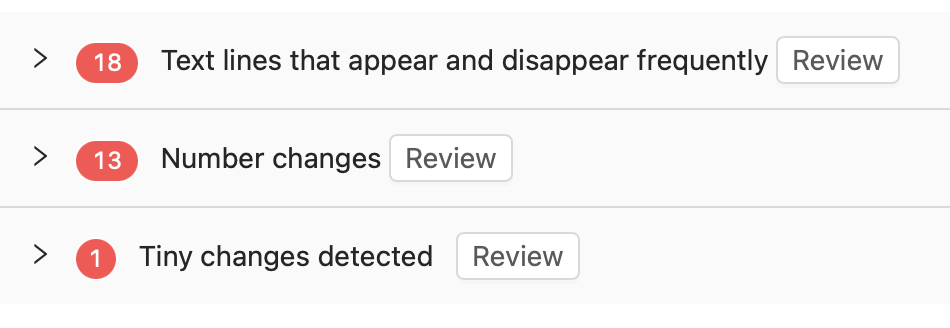
Let PageCrawl find it for you. Once a page has collected a few changes, the Frequently changing content detected panel lists the fragments that keep moving, with how many times each one changed. One button ignores all of them at once ("Ignore these 3 fragments"), or you can click a single fragment to ignore just that one.
If the same noise appears across a site, tick Also apply to N other pages on this domain before pressing the button. The box is off by default, so an ignore rule stays on the page you are looking at unless you say otherwise.
Three more ways to reach the same result:
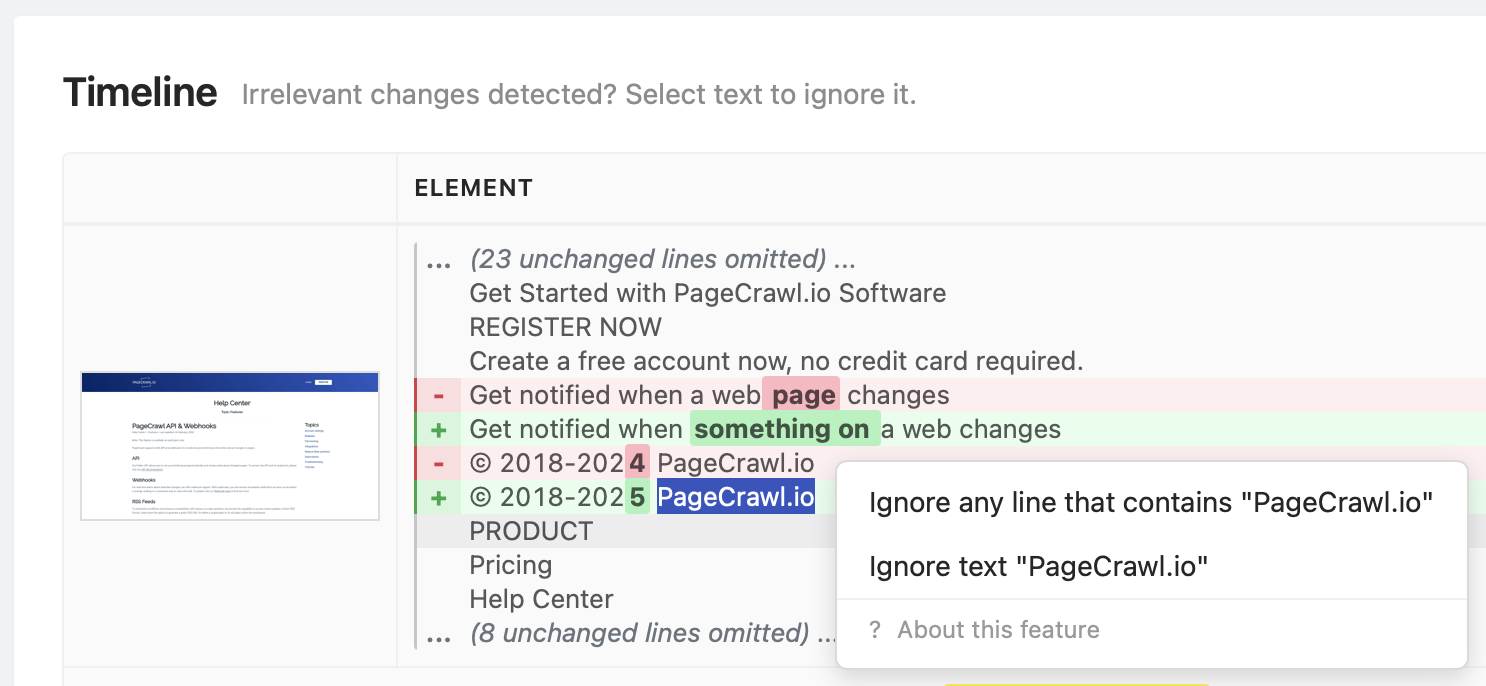
- Select the text in the change itself. In the page's timeline, highlight the offending words in a detected change and choose to ignore lines containing them.
- Add an "Ignore Text" condition in Conditions & Filters. Use
%as a wildcard, so%Latest News%ignores any line containing that phrase. - Add a global filter in Settings → Team, for text that is noise on every page you monitor, such as a shared cookie notice or a rotating strapline.
How do I stop numbers and counters from alerting?
If a change is only ever a number moving (a view count, a stock level, a price), you have two good options and they point in opposite directions:
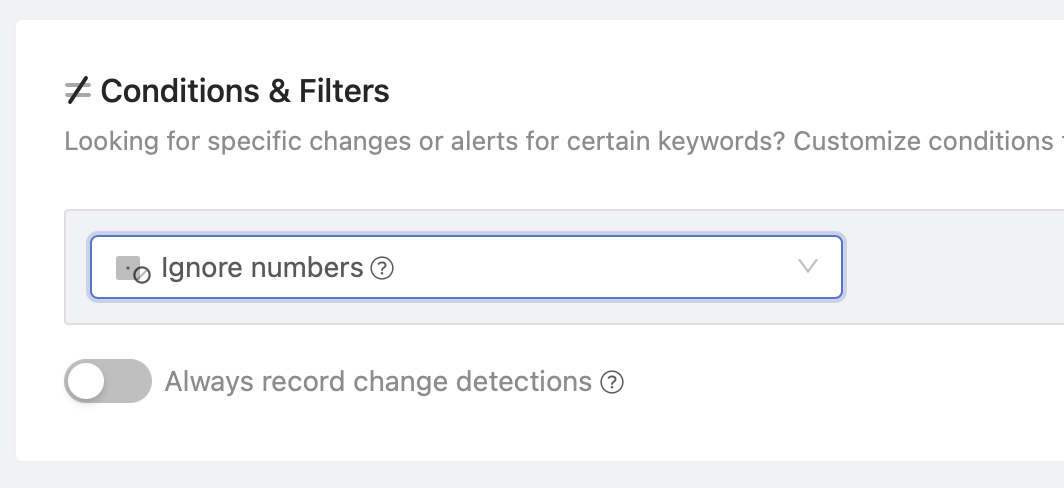
- You do not care about the number. Add the Ignore numbers condition in Conditions & Filters. Digits stop counting as a change, and the rest of the text is still compared.
- The number is the point. Track it as a number instead. A number monitor alerts on every move, however small, keeps a value chart, and lets you set rules like "only when it drops below 50". When a page's changes are all numeric, the noise card offers Track as a number instead on the element, which converts it for you.
Prices, stock availability and ratings have their own monitoring types with the same benefit. See available monitoring types.
How do I teach PageCrawl what matters on this page?
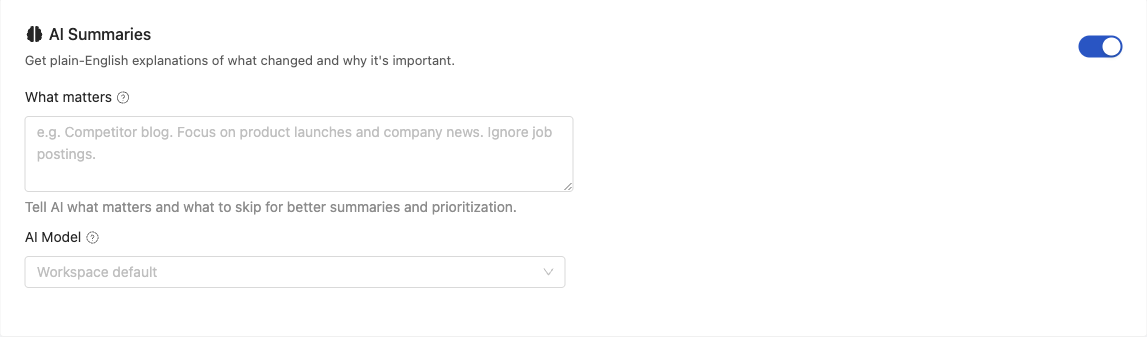
Two controls do this, and both are worth setting on a page you care about.
What matters is a plain-English note on the page (and on templates, for a whole group). Write what should reach you and what should not, for example: "Alert me when the pricing tiers, limits or terms change. Ignore blog posts, job listings and design tweaks." It steers both the summary and the importance score, so it makes the minimum importance above far more accurate.
Thumbs up and thumbs down on individual changes teach the same thing from examples. Marking a change as noise records a pattern, and similar changes on that site stop notifying you. You can give feedback on the page view or straight from an email notification. Details in thumbs up and thumbs down feedback.
Am I tracking the right thing on the page?
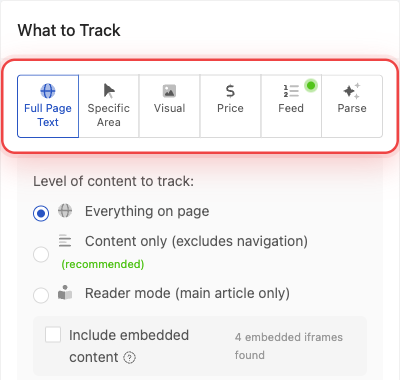
Tracking too much of a page is the most common structural cause of false positives. Start broad, then narrow only if the page is noisy.
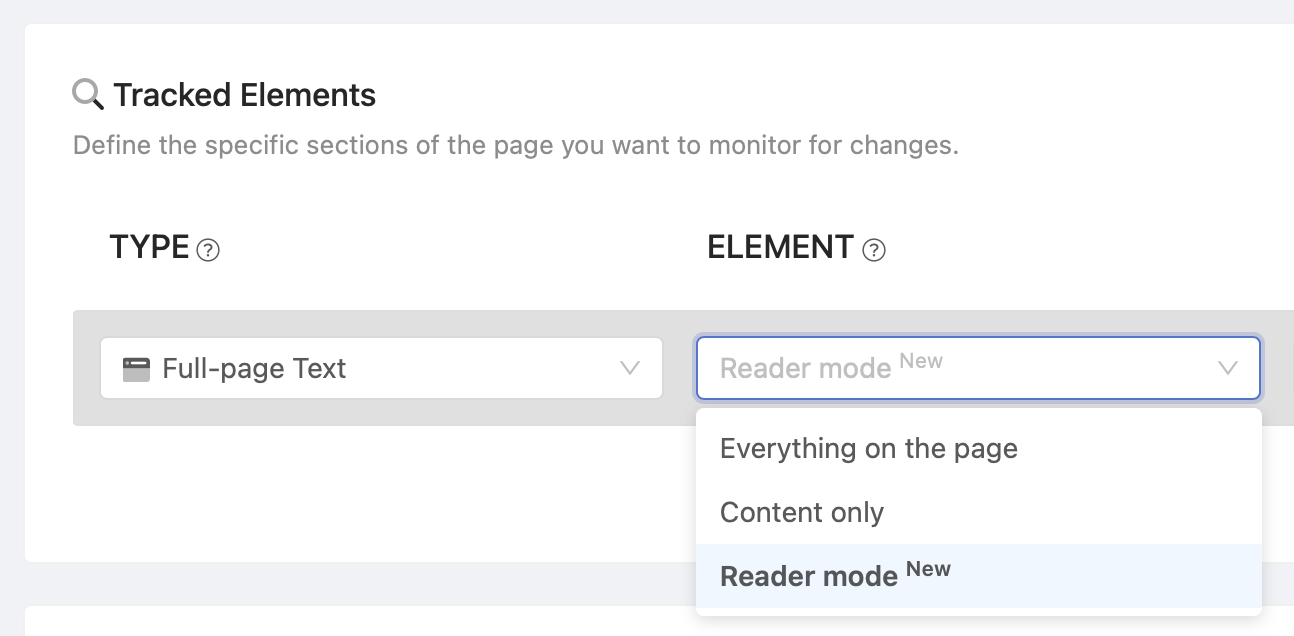
- Everything on the page compares the whole visible text. Good default for a page you do not know yet.
- Content only drops headers, navigation, sidebars and footers, which is where most recurring noise lives. This is usually the right first move.
- Reader mode keeps only the main article text. Excellent for news, blog posts, documentation, policies and legal pages. Weaker on landing pages, product pages, dashboards, pricing tables and forums, where it can cut content you wanted.
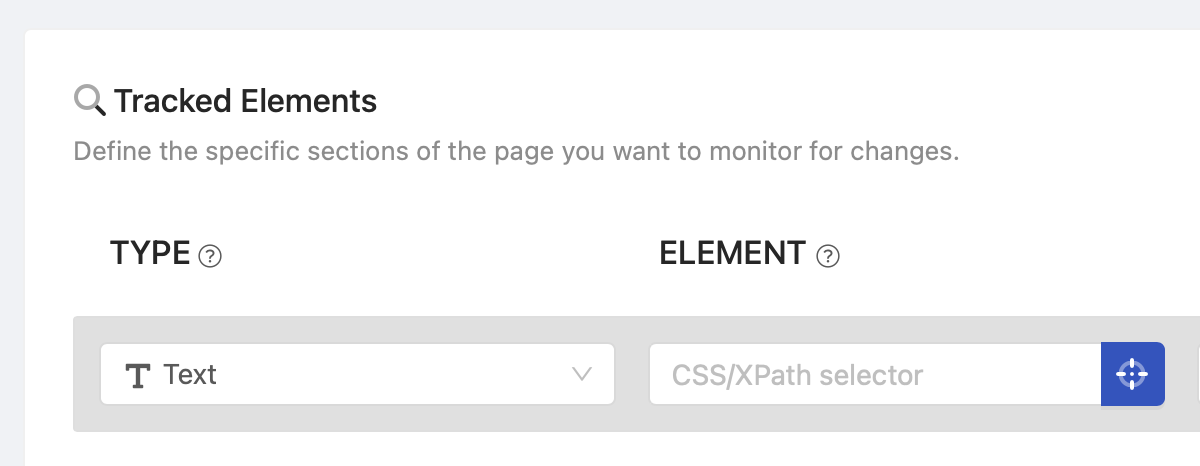
- A specific element narrows to one area. Use the visual selector to click the area, or write a CSS or XPath selector by hand for maximum precision. Note that a site redesign can break a hand-written selector, so prefer the smallest stable container rather than a deep chain.
When adding a page, AI Suggest can pick the configuration for you: describe what you want ("the price", "the availability status", "the changelog entries") and it proposes the tracking type and selector.
Can I be alerted only when specific words appear or disappear?
Yes, and it is the strictest filter available. Enter words in Keyword Monitoring when adding or editing a page, and the page only notifies you when one of those keywords appears on or disappears from the page. Other changes on the page are not recorded at all, so use this when the keyword is the only thing you care about.
You can also narrow it to one direction:
- Appears or disappears (default): both moves notify you.
- Only when it appears: use it for "Sold out", "Recall", "Deprecated".
- Only when it disappears: use it for "Add to cart", "In stock", "Available".
Note: a one-directional rule only ever matches one move, so PageCrawl switches on "Always record change detections" for it. Every check is then kept in the history (still without notifying), which is what lets the keyword flip back and match again next time.
Why do headers, footers and sidebars keep triggering alerts?
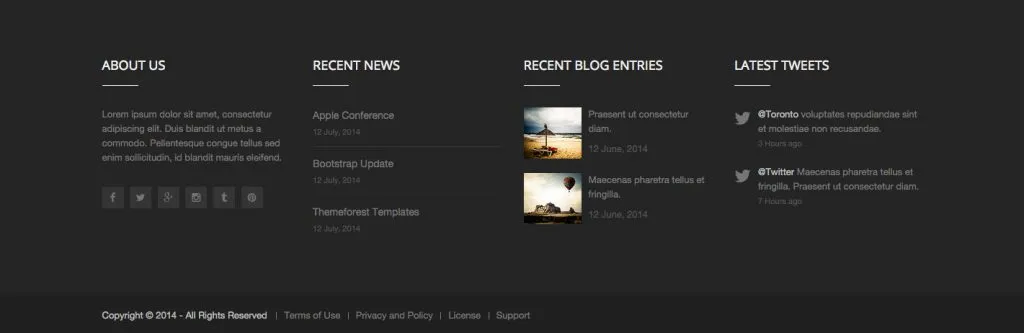
Because they carry the parts of a site that change on their own: rotating promos, "recent posts" lists, menus and timestamps. Three fixes, in order of preference:
- Switch to "Content only" when tracking full page text. It excludes those regions automatically.
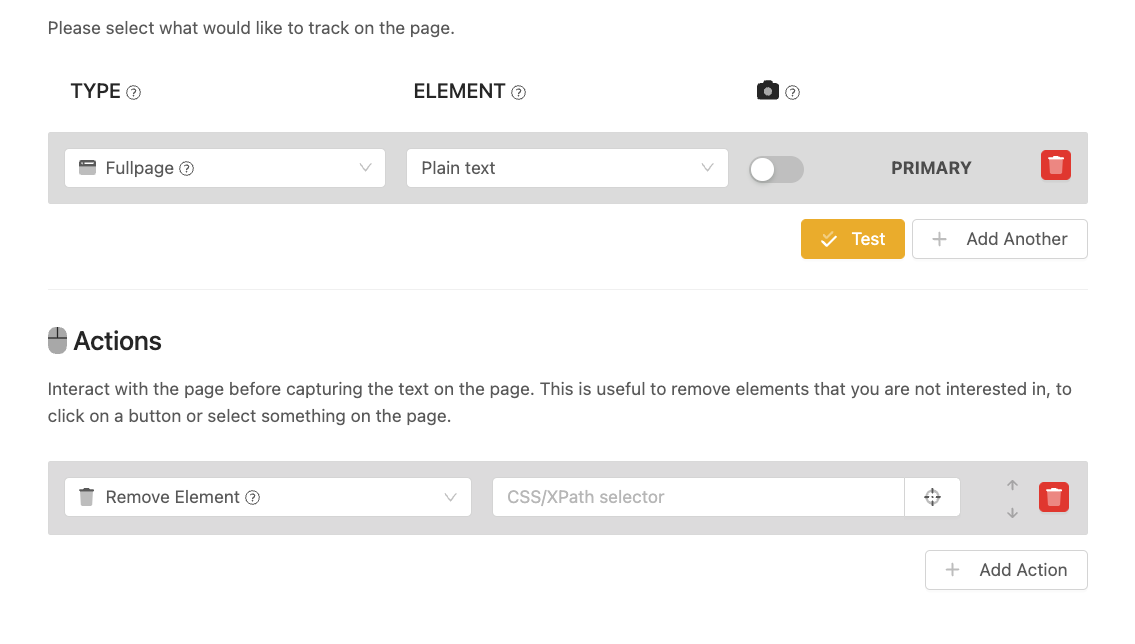
- Track the main section only, using a Text element with the
mainselector. If the site is not structured semantically you will get a "No selector found" error, in which case use one of the other two. - Remove the elements with a "Remove page element" action and a selector such as
nav,aside,footer,.footer,header. This strips them from the page before capture, so they also disappear from screenshots.
How do I stop dates and timestamps from counting as changes?

Add the Ignore dates filter. It skips dates and times when two checks are compared, so "Updated 3 minutes ago" and "Last reviewed: 2026-02-25" stop producing a change every time the page is served. The noise card offers it on the page, and it is also a condition under Conditions & Filters.
If the timestamp is the only thing that moves on an otherwise static page, this single filter usually silences it completely. The page text is saved unchanged, and because the filter works at comparison time it applies to the history you already have.
The older Remove dates action, which rewrote the page before saving it, is deprecated: the noise card offers a one-click switch to the filter on any page that still uses it. There is a short article on ignoring dates with the recognised formats and more examples.
What about content that loads late or only after a click?
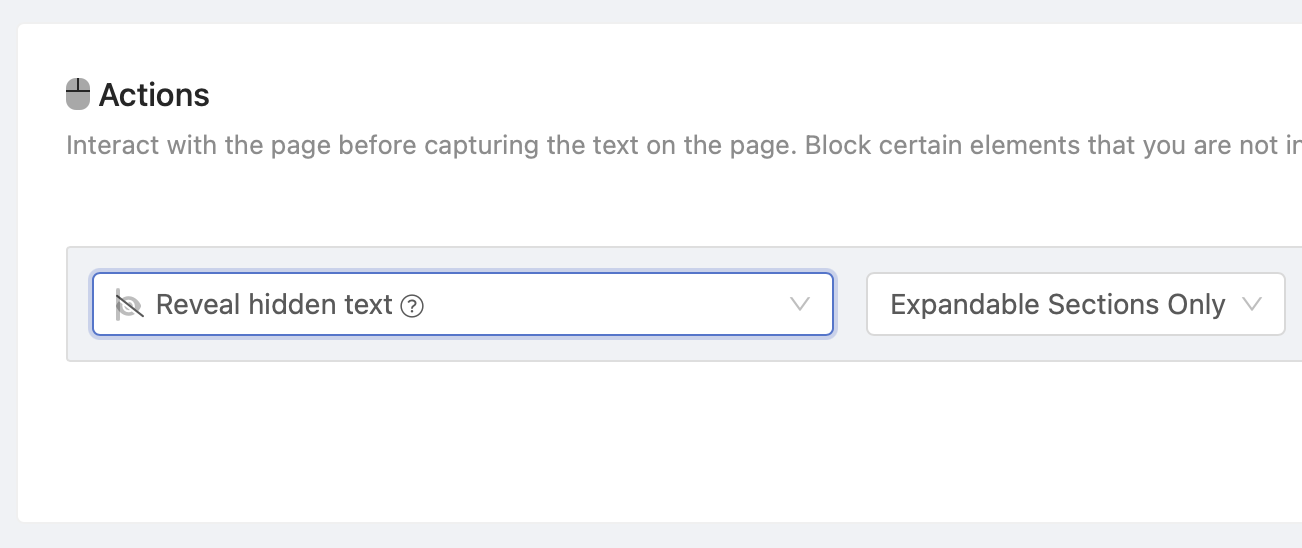
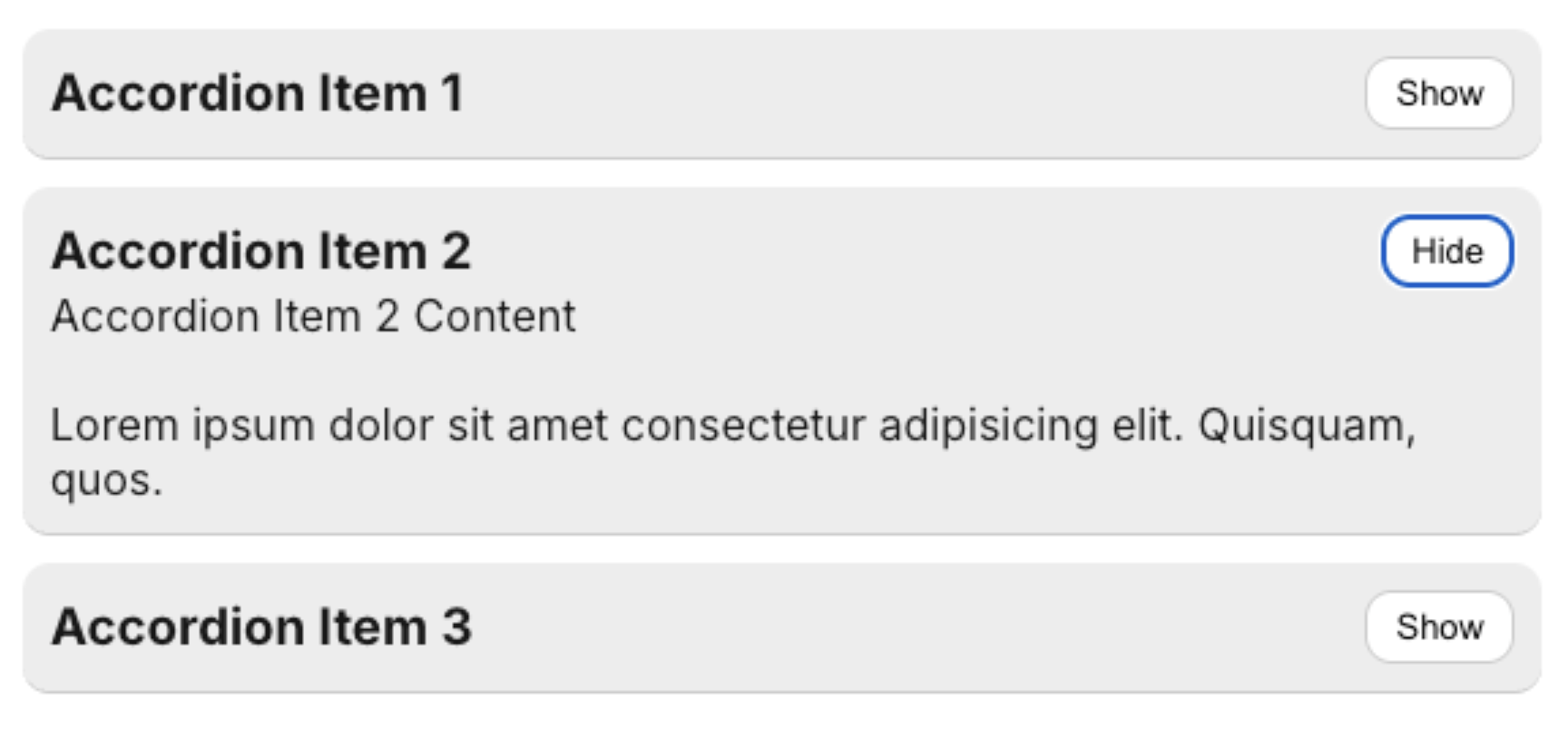
Text monitoring captures what is visible, so anything still loading, or hidden inside an accordion, looks like it appeared or disappeared on its own.
- Reveal hidden text expands collapsible sections before the capture, so accordions and tabs are compared consistently.
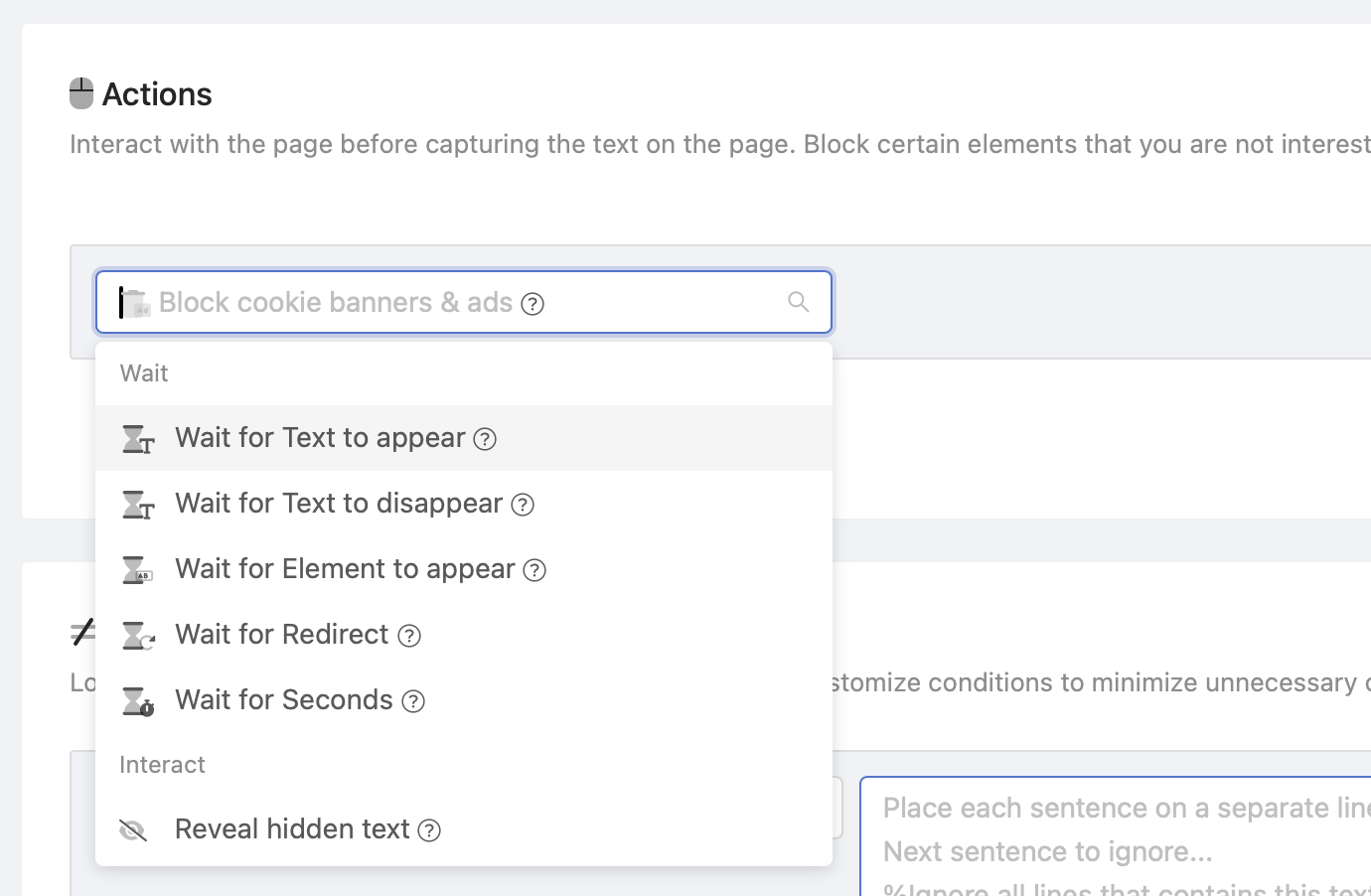
- Wait actions hold the capture until the page is genuinely ready: wait for text to appear, wait for text to disappear, wait for a page element to appear, wait for a redirect, or wait a fixed number of seconds (the least reliable option, use it last).
- Scroll to bottom triggers content that only renders as the reader scrolls.
Content that varies by visitor (session, location, recommendations) is a related case. If a page shows you different content each visit, consider turning off Intelligent Reconnect in the page's advanced preferences so the session is not reused, and pin down what you monitor to the part that does not vary.
Do cookie banners and popups trigger false positives?
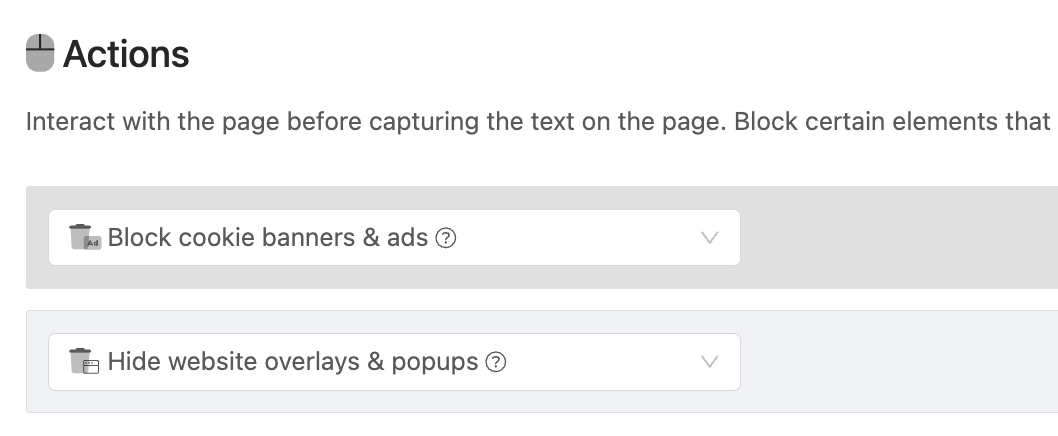
They would, so both are handled by default. Block cookie banners and ads and Hide website overlays and popups are on for new pages, which removes consent bars, newsletter modals and ad slots before the comparison. You can turn either off on a page where the banner is actually the thing you want to watch.
If a specific overlay still gets through, add a "Remove page element" action with its selector, and it will be gone from both the comparison and the screenshot.
Why do I get alerts when a page fails to load?
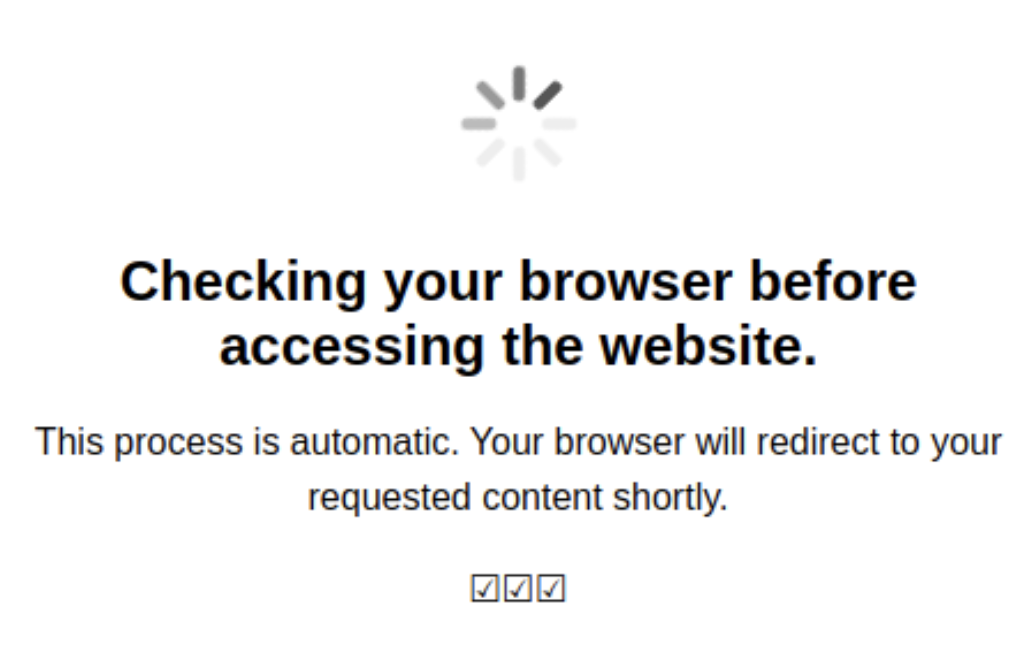
Because some sites answer with a page rather than an error: an empty template, a "temporarily unavailable" message, a price of 0, or a challenge page. PageCrawl catches most of these on its own, and you can close the gap on a page you know misbehaves.
- Mark check as failed when turns a known bad state into a failed check instead of a change. For example, mark the check failed when the text contains "Not available", and a price dropping from $9.99 to $0.00 never becomes an alert.
- Report Errors can be set to notify only after several consecutive failures, so a single blip stays quiet.
- Delay when Failed slows a page's schedule after failures. Turn it off if you check frequently and want the cadence held.
How do I reduce noise on visual monitoring?
Visual monitoring compares pixels, so it reacts to anything that moves: carousels, animations, lazy-loaded images, ads.
- Monitor a region, not the whole page. Draw the area you care about, which removes everything around it from the comparison.
- Raise the change threshold. The options are written in plain language (small edits, a line or two, and up), and a higher threshold means small pixel shifts do not count. For Top 2 screens and Entire page, the threshold is compared with what you see without scrolling rather than with the whole page, so the same setting means the same amount of change however long the page is.
- Combine with text tracking when what you actually need is the wording, and keep the screenshot as evidence rather than as the trigger.
What if the page is fine but there are simply too many emails?
Change the delivery rather than the detection. A page can send its changes to a scheduled report instead of alerting on each one, so a busy page arrives as one daily or weekly digest with the changes ranked by importance. See scheduled reports.
The Review Board is the other half of this: changes land in lanes to triage rather than in your inbox. Details in Review Board.
Note: minimum importance only applies to pages that alert on every change. A page already routed to a report is buffered by the report, so the control is not offered there.
Quick reference
| What you keep seeing | The fix |
|---|---|
| Small, unimportant changes | Raise the minimum importance on the page |
| The same phrase or line, over and over | Ignore these fragments in the noise card, or an Ignore Text condition |
| Counters, view counts, stock numbers | Ignore numbers, or track it as a number |
| "Updated X minutes ago", publication dates | Ignore dates filter |
| Menu, footer or sidebar churn | Content only, or Remove page element |
| Cookie bars, newsletter modals | Left on by default; add Remove page element for stragglers |
| Content appearing and disappearing | Reveal hidden text, Wait actions, Scroll to bottom |
| Empty pages, $0 prices, error text | Mark check as failed when, plus Report Errors after N failures |
| Pixel noise on screenshots | Monitor a region, raise the visual change threshold |
| Everything is relevant, there is just a lot | Send the page to a scheduled report, or work from the Review Board |
| A change on the Overview is missing from the page history | It is filtered, not deleted: use the history's filter button, or open it from the Overview link |
Conclusion
Most noisy pages are fixed by three things: a sensible minimum importance, the suggested ignore rules on the page, and tracking a smaller part of the page. The rest of this guide exists for the specific cases: dates, dynamic content, errors and visual comparison.
Two habits keep it that way. Give feedback on changes as they arrive, so scoring adapts to what you actually care about, and revisit a page's settings after a couple of weeks of history rather than guessing at setup time.
If a page is still noisy after all of this, contact support with the page in question. Some sites need a specific configuration, and we would rather look at it than have you turn the monitor off.