
Most monitors are created on the Track New Page screen. You paste a URL, PageCrawl opens the page in a live preview, and you pick what to watch by clicking on it. Everything you need for a typical monitor is on that one screen: what to track, how the page is opened, when to alert you and where to send it.
This guide walks through every part of Track New Page in the order you meet it. The last section covers what Advanced Setup adds for the cases Quick Setup does not cover.
How do I start tracking a page?
Go to Track New Page and choose how you want to add pages under What would you like to track?:
- Single URL - track changes for a single page
- Bulk Add - paste multiple URLs at once, one per line
- Import from File - import URLs from a CSV or Excel file
- Scan a Website - discover pages on a site and track them automatically (see Page Discovery)
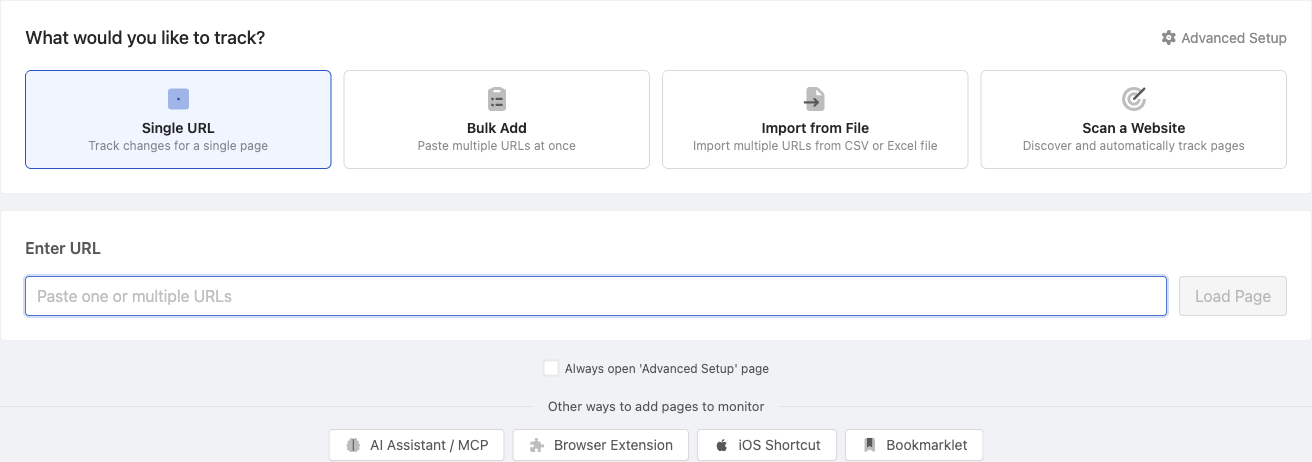
Paste a URL into Enter URL and click Load Page. A few shortcuts are built in:
- Pasting several URLs loads the first one for preview and applies the same settings to all of them.
- Pasting a URL inside other text (an email, a chat message) pulls the URL out for you.
- Custom names in bulk: add a name after each URL with
||,|, a comma or a tab, for examplehttps://example.com/product || Winter jacket. - Import from File asks you to pick the URL Column and an optional Name Column, so each monitor gets a readable name.
- Already monitored: if the URL is already in your workspace, PageCrawl tells you and links to the existing monitor so you do not create a duplicate.
Below the URL field, Other ways to add pages to monitor links to the AI Assistant / MCP, the Browser Extension, the iOS Shortcut and the Bookmarklet.
What does PageCrawl set up for me?
When a URL loads, PageCrawl suggests settings that suit the page, so most monitors need only a click or two:
- Files such as PDFs, Office documents and Google Docs open in file tracking.
- Feeds and sitemaps open in Feed mode.
- Product pages suggest Price or Restock tracking.
- Lists such as product grids or news pages can be tracked as a feed.
- The page title becomes the monitor name. You can edit it in the preview's browser tab at any time.
You can always change a suggestion before you save.
If your workspace has a saved template for the domain, PageCrawl offers it: You have saved settings for {domain}. Click Use template to set the page up like your other pages on that site, or Set up this page myself to configure it by hand. Settings a template controls are locked and marked Set by the template. Choose Customize this page to give the page its own copy of those settings.
How does the live preview work?
The preview is a real, interactive copy of the page shown inside a browser window. You can scroll, click, type, use the address bar, and go back and forward, just like in your own browser. Whatever you do to reach the content you care about is recorded as steps that every check repeats.
What you can do in the preview:
- Click the page to use it. Clicks and typing are saved as steps (for example, accepting a region selector or opening a tab). A short Undo pill appears after each click.
- Right-click (or long press on touch devices) an element for Page actions: Remove, Click, Hover, Type Text, Select Option, Submit, Reveal hidden text, Ignore dates, Wait for this to appear and Go Back.
- Navigate with the address bar, Go back, Go forward and Reload. Reload runs your recorded steps again, so you can confirm they work.
- Keyboard shortcuts work while the preview has focus: Cmd/Ctrl+R to reload, Alt+Left and Alt+Right to go back and forward, Cmd/Ctrl+L for the address bar and Esc to stop loading or leave full screen.
- Maximize the preview with the green window button for easier selection on small pages.
- Switch location below the preview reloads the page from another location, useful when a site shows different content by country.
Note: some pages do not preview but still monitor fine in the background. If you see Live preview unavailable, you can configure the monitor and start tracking anyway.
Which tracking types can I choose?
The What to Track card decides what PageCrawl compares on every check. Not sure which to pick? Full Page Text catches any wording change. The others narrow it down to one part of the page, a price, stock status, a list or data AI pulls out. See Available Tracking Types for a deeper comparison.
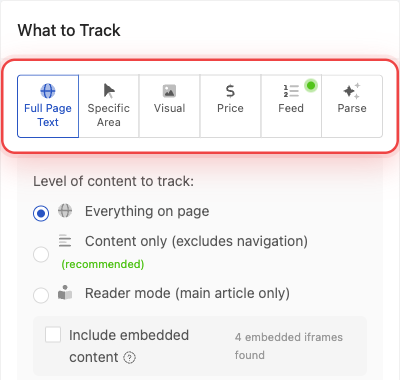
Full Page Text
Tracks the text on the page. Choose how much of it under Content to monitor:
- Everything - all visible text, including menus, headers and footers
- Content only - the main page content without menus, headers and footers
- Main article only - only the primary article or post, best for news and blogs
PageCrawl marks the best fit as (recommended) and highlights the tracked text in the preview. Tick Include embedded content to also track text inside embedded frames. A Preview of tracked content: box shows exactly what will be compared.
Specific Area
Click any element in the preview to track only that part of the page. The card shows Selected: with the chosen element, and the gear offers Choose alternative selector if the first pick is too broad or too narrow. Tick Track as number to extract the numeric value, which enables charts, statistics and percentage-based alerts (see Number Tracker).
Visual
Compares screenshots instead of text. Drag on the preview to select a Specific area, or choose a preset that covers the top of the page or the Entire page. Set the Change threshold: from Small edits (1%) up to Almost everything (80%). A section (10%) is recommended for most pages.
Note: visual monitoring can alert you when only the styling changes. Use it when text-based tracking does not suit the page.
Price
PageCrawl shows the Detected Price: on the page. If it picked the wrong one, click Other price? and click the right price in the preview, or use the gear to choose from every price found. You can also set the Currency:, ignore prices below a value with Ignore below:, and tick Track availability to record stock status alongside the price.
Restock
Alerts you when a sold-out item comes back in stock. PageCrawl reads the stock status for you and shows the current state. Tick Also alert me when it sells out to hear about both directions. If detection is wrong, click Detection wrong? Set custom out-of-stock keywords and add the words the site uses, for example "sold out" or "uitverkocht".
Feed
Tracks a list of items: an RSS or Atom feed, a sitemap, a JSON feed, or a repeating list on a normal page. Set Track first [N] items and choose what to be alerted about under Alert me about: Items added, Items removed, Content changes, Price changes (with a minimum percentage), Order changes and Numbers change. If the wrong list was detected, click the area you want in the preview to refine it. See Feed Tracking Mode.
Parse AI
Describe the value you want in plain words under What should PageCrawl find?, for example "the delivery date shown under the Add to cart button, as YYYY-MM-DD". AI reads the page on each check and pulls out that value. Use + Add another field to extract several values from one page. Be specific about the format you want. See Parse AI.
Files
For file URLs, choose Text content to extract and compare the text, or File Checksum to detect any change to the file at all. PDFs also offer Capture formatted text (Beta), which keeps headings, lists and tables. See Can PageCrawl detect changes in PDFs?.
How do I control how the page is opened?
Open Page adjustments at the bottom of the What to Track card, or from the site settings icon in the preview's address bar. These settings run before every check:
| Setting | What it does |
|---|---|
| Hide cookie banners | Removes cookie consent banners (on by default) |
| Hide overlays & popups | Removes newsletter popups and other overlays (on by default) |
| Ignore dates | Stops dates and times from triggering changes |
| Capture formatted text | Keeps headings, lists and tables (Beta, Full Page Text only) |
| Scroll to load all content | Scrolls the page so lazy-loaded content appears |
| Reveal hidden text | Includes text hidden behind tabs and accordions |
| Disable JavaScript | Loads the page without running its scripts |
| Wait | Waits until text appears or disappears, or for a fixed delay |
| Engine | How the page is loaded. Default suits most pages |
| Location | Where the page is checked from, useful for regional prices and content |
| View | Desktop website or Mobile website |
| Fail if page contains | Marks the check as failed when the page shows text like "Temporarily unavailable" |
Below the card, Record actions opens the action builder so you can click, type or navigate before the page is captured. Steps you record in the preview appear here too, and you can edit them with Edit actions. See Perform Actions.
If the page needs a login and you have saved one for the site, choose it under Login Authentication. See Can I track password protected websites?.
How do I choose when to get alerted?
Quick Setup offers several ways to cut noise so you only hear about changes that matter:
- What matters: when to notify me - write what you care about in plain words, for example "Notify me when products go in or out of stock or lead times change by more than a week". AI summarizes each change and only notifies you when it matches. See AI-Powered Change Detection.
- Keyword Monitoring - alert only when a word or phrase Appears or disappears, Only when it appears or Only when it disappears.
- Price Alerts (Price mode) and Value Alerts (Track as number) - Alert when price drops below, rises above, drops by or rises by a percentage. Leave all empty to be alerted on every change. Any one rule on its own is enough to send an alert.
How often is the page checked, and where do alerts go?
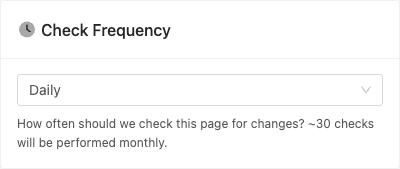
Pick a Check Frequency from every few minutes to monthly. Daily is the default, and the card shows roughly how many checks the monitor will use each month. Faster options depend on your plan. See Page Check Schedule.
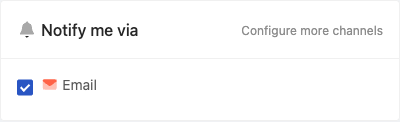
Under Notify me via, choose Email and any connected channels such as Slack, Discord, Telegram or Teams. Click Configure more channels to connect another one.
Depending on your workspace and plan you may also see:
- Web Archive - keep a verifiable archive of the page on every check (see Web Archiving)
- Folder - file the monitor into a folder, with a suggestion based on the URL
Click Start Tracking (or Start Tracking N URLs for a bulk add) to save. The button stays disabled until the required picks are made, such as selecting an area for Specific Area mode.
Note: if you turn on developer mode in your account, a Developer mode panel at the bottom shows the exact API request this screen sends, ready to copy. See API and Webhooks.
What does Advanced Setup add?
Quick Setup covers most monitors. Advanced Setup puts every setting in one form for the cases it does not cover. Open it from the Advanced Setup link at the top of Track New Page, from the preview toolbar, or from More options at the bottom. Your current configuration carries across. To skip Quick Setup every time, tick Always open 'Advanced Setup' page below the URL field.
Use Advanced Setup when you need:
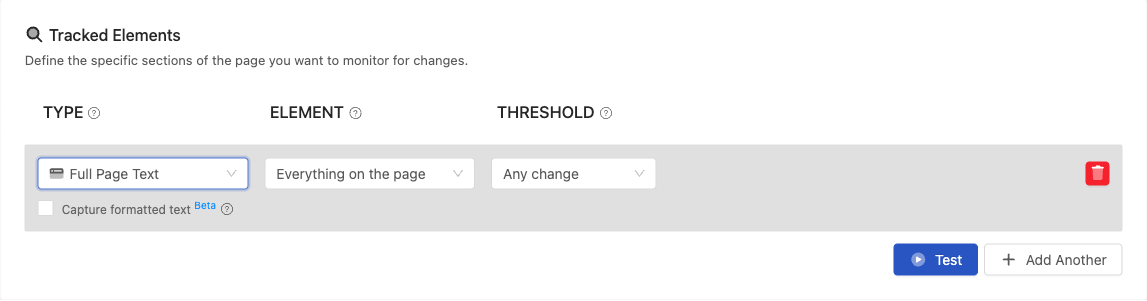
- Multiple tracked elements on one page, each with its own type and comparison settings (see Monitoring Multiple Elements)
- 30+ more tracking types, such as links, HTML, SEO tags, JavaScript values, ratings, reviews, HTTP status, redirects and DNS records
- Complex action sequences beyond what you can record in the preview
- Per-element notification conditions (see Notification Conditions)
- Templates that use settings only Advanced Setup supports
Power User mode
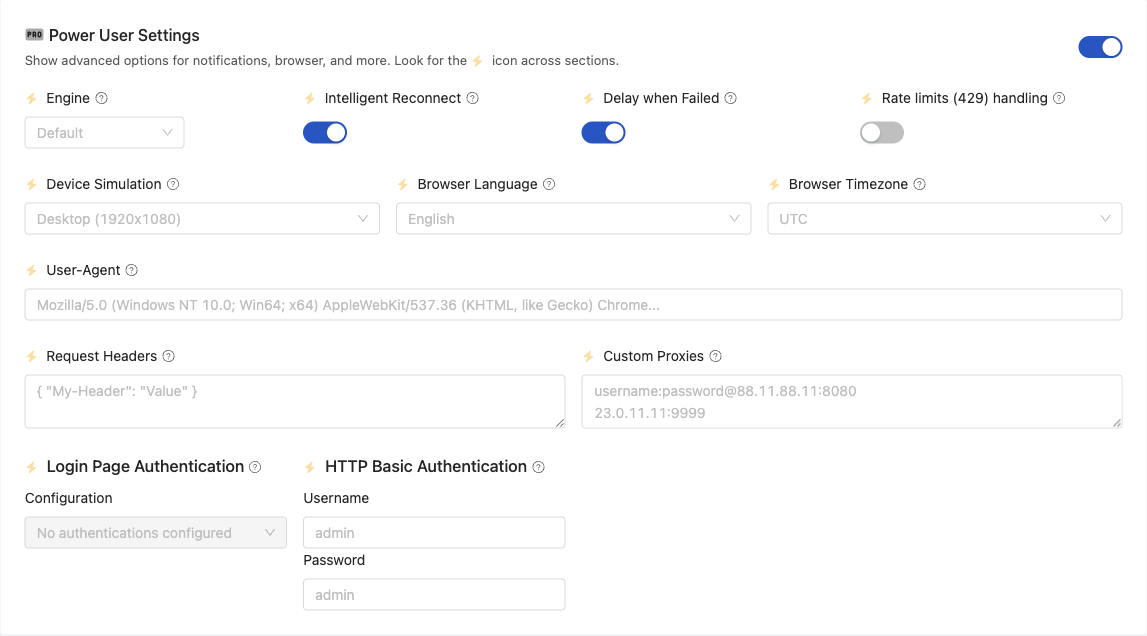
When editing a monitor in Advanced Setup, turn on Power User to reveal settings hidden by default: Engine, Intelligent Reconnect, Device Simulation, User-Agent, Request Headers, custom JavaScript and Custom Proxies. Power User settings are marked with an icon so they are easy to spot.
Templates
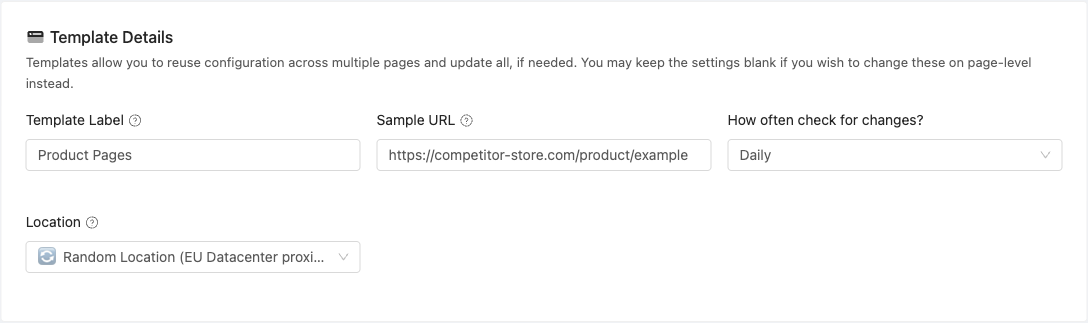
Templates save a monitoring configuration and apply it to many pages, so every page on a site is set up the same way. Combined with Page Discovery, they can monitor newly discovered pages automatically.
- Go to Settings > Workspace > Templates
- Enter a sample URL to auto-fill settings
- Configure tracked elements, actions, check frequency and notifications
- Save the template
Once saved, Track New Page suggests the template whenever you add a page on that domain.
Workspace-wide settings
A few settings apply to every monitor in a workspace rather than one page:
- Bulk editing - select pages in your page list and click Bulk Edit to change check frequency, engine, location, actions, notifications, labels or folder at once (see Bulk Edit)
- Check schedule - under Settings > Workspace > Schedule, limit checks to active hours and days in your timezone
- Global filters - under Settings > Workspace > General, ignore text patterns such as timestamps or session IDs on every page
- AI configuration - under Settings > Workspace > Integrations > AI, choose a model and set focus areas, or bring your own key
- Proxy pools - use your own proxies for pages behind firewalls or regional restrictions (see Custom Proxies)