
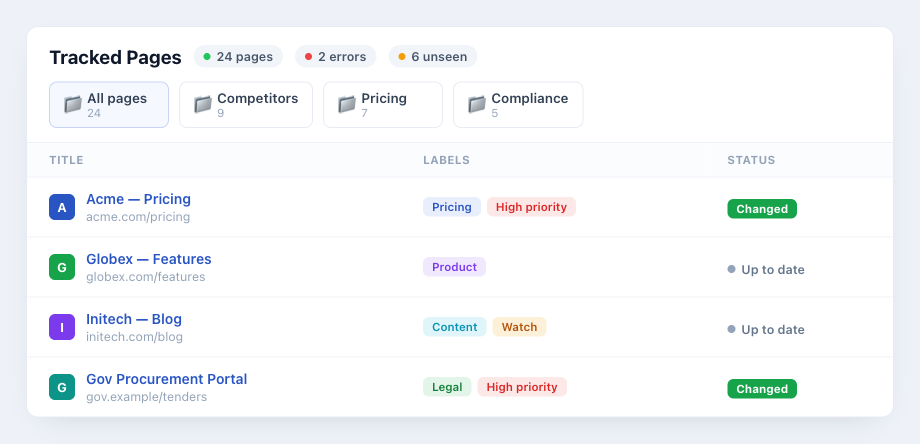
PageCrawl provides three levels of organization for your monitored pages: labels for tagging, folders for grouping, and workspaces for separating entire environments.
Labels
Labels are color-coded tags you can attach to any monitored page. Each label has a name, optional description, and a color.
| Feature | Details |
|---|---|
| Colors | Each label has a hex color, auto-generated if not specified |
| Multiple labels per page | Attach as many labels as needed |
| Filtering | Filter your page list by one or more labels |
| Bulk tagging | Apply labels to multiple pages at once via Bulk Edit |
| Workspace-scoped | Labels belong to a workspace and are not shared across workspaces |
To manage labels, go to any page list and use the label filter, or manage them when editing a page in the Organize section.

Labels can also be applied automatically by AI. See AI Label Automation for details.
Labels written as prefix:value, such as sku:WGT-500 or client:Acme, can become their own column in Excel exports and Google Sheets. See Tag Prefix Export Columns.
Folders
Folders let you group pages into a nested hierarchy with unlimited depth. Each folder belongs to a workspace and can contain both pages and sub-folders.
| Feature | Details |
|---|---|
| Nested hierarchy | Create sub-folders at any depth |
| Page counts | Each folder shows the total number of pages, including those in sub-folders |
| Bulk move | Move multiple pages to a folder via Bulk Edit |
| URL slugs | Each folder has a unique slug for direct navigation |
Workspaces
Workspaces are separate environments within your account. Each workspace has its own pages, folders, labels, notification settings, schedule, and integrations.
| Feature | Details |
|---|---|
| Separate everything | Pages, folders, labels, webhooks, and settings are workspace-scoped |
| Team access | Invite team members to specific workspaces |
| Independent settings | Each workspace has its own notification channels, schedule, AI configuration, and integrations |
| Quick switching | Switch between workspaces from the sidebar |
Use workspaces to separate monitoring by team, client, project, or environment (e.g., production vs staging).
Creating and Managing
| Action | Where |
|---|---|
| Create a folder | Click the folder icon in the page list sidebar |
| Create a label | When editing a page, or via the label filter |
| Create a workspace | Settings > Team > Workspaces |
| Switch workspace | Sidebar workspace selector |
| Bulk assign labels/folders | Select pages > Bulk Edit |
Related Articles
- Bulk Edit - Apply labels, folders, and settings to multiple pages at once
- Advanced Configuration - Templates and workspace settings
- Check Scheduling - Configure per-workspace monitoring schedules