
PageCrawl uses role-based access control to manage what each team member can do. There are five roles, each with different permission levels. Manage members and their roles on the Members page in Settings.
Available Roles
| Role | Manage Team | Manage Workspaces | Edit Pages | View Pages |
|---|---|---|---|---|
| Owner | Yes | Yes | Yes | Yes |
| Administrator | Yes | Yes | Yes | Yes |
| Standard User | No | No | Yes | Yes |
| Viewer | No | No | No | Yes |
| Billing manager | No | No | No | No |
Every member, the Owner and Administrators included, sees monitors only in the workspaces they have been added to. See Workspace Access below.
Owner
Each team has exactly one Owner (the account creator). The Owner has full control over all team settings, billing, and member management. Ownership cannot be transferred or removed.
Administrator
Administrators can manage the team on behalf of the Owner:
- Invite and remove team members
- Change member roles
- Assign workspace access to members, including themselves
- Create and delete workspaces
- Edit all team and workspace settings (notifications, integrations, AI, etc.)
- Work in every workspace they have been added to. To open another workspace of the team, an Administrator adds themselves to it in the Workspaces column on the Members page
Standard User
Standard Users can work within their assigned workspaces:
- View and edit monitored pages in assigned workspaces
- Create new pages and tracked elements
- Review changes and leave feedback
- Access all monitoring features within their workspaces
Standard Users cannot invite members, change roles, or access workspaces they haven't been assigned to.
Viewer
Viewers have read-only access to their assigned workspaces:
- View monitored pages and detected changes
- Browse change history and reports
- Cannot create, edit, or delete pages
- Cannot modify any settings
Billing manager
Billing managers look after the team's billing:
- See the plan, download invoices, and update the payment card and billing details under Plan & Billing. Changing or cancelling the plan stays with the Owner
- Cannot see monitored pages, detected changes or team settings, in the app or through an AI assistant connected to PageCrawl
Managing Team Members
To manage roles and access:
- Go to Settings > Members
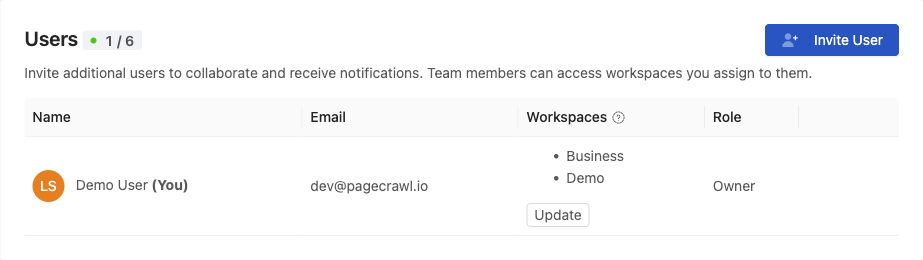
- View the member list showing name, email, workspaces, and role
- Click a member's role to change it (Owner and Administrator only)
- Click Update in the Workspaces column to assign or revoke workspace access
Inviting New Members
- Go to Settings > Members
- Click Invite User
- Enter their email address, select a role, and choose the workspaces they can open
- The invite expires after 2 weeks. You can resend it if needed.
Workspace Access
Members only see workspaces they've been assigned to, and that includes the Owner and Administrators: the workspace switcher, the monitors, and AI assistants connected through the MCP server all follow the same list. The Owner and Administrators assign workspace access per user, their own included. If all workspace access is removed from a user, they are removed from the team entirely.
This means you can have team members who only see specific projects, clients, or departments without exposure to other workspaces.