
Scheduled reports let you group monitors together and receive a single digest summarizing all detected changes on a schedule you choose. Instead of an alert for every change, you get one consolidated report covering everything that happened since the last digest.
This is especially useful when you monitor many pages and want to review changes in batches rather than reacting to each one individually.
When to Use Reports vs Per-Change Alerts
| Scenario | Recommended |
|---|---|
| Monitoring a handful of critical pages | Per-change alerts |
| Tracking 50+ competitor pages for pricing | Scheduled report (daily or weekly) |
| Legal/compliance pages that rarely change | Scheduled report (weekly or monthly) |
| Stock availability you need to act on quickly | Per-change alerts, or a report with Priority escalation |
| Executive stakeholder updates | Scheduled report with AI summary |
You can mix both approaches. A report takes over the change alerts of the monitors it covers: their changes go into the digest instead of being sent one by one (unless Priority escalation sends them on). Monitors that no report covers keep sending change alerts as usual. Alerts for failed checks still go out either way. See How Reports Interact with Per-Change Alerts below.
Creating a Report
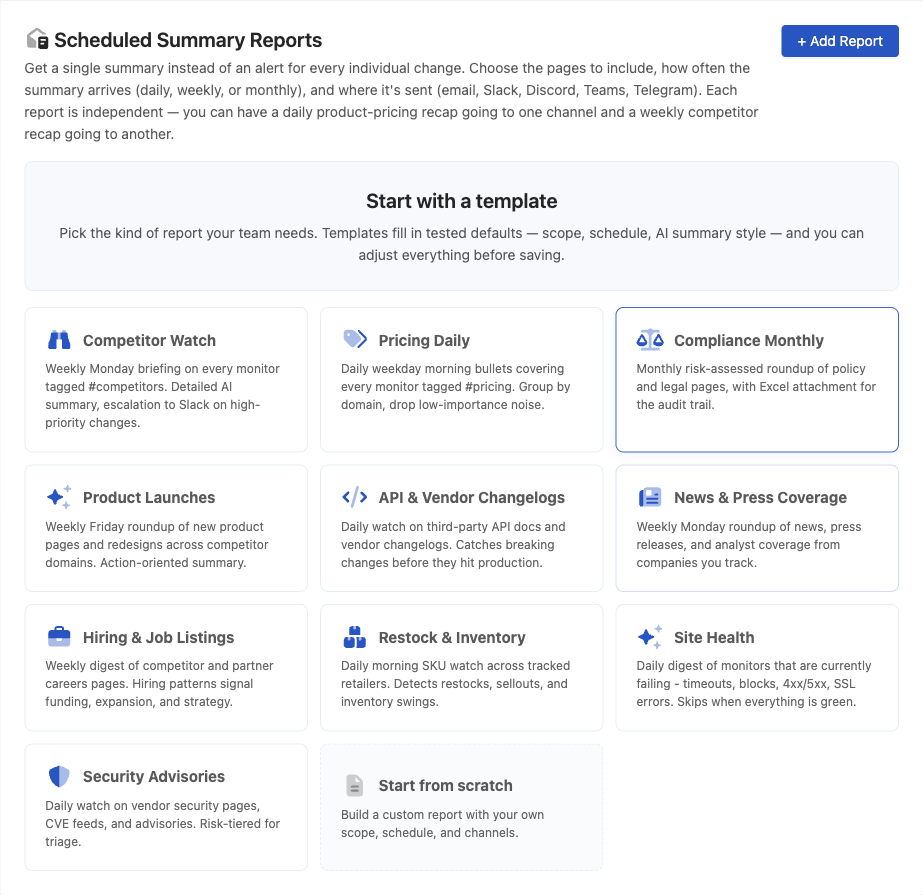
Go to Settings > Notifications and find the Scheduled Summary Reports section. Click + Add Report and start from one of the prebuilt templates, or from scratch, to configure:
Name - Give your report a descriptive name, such as "Weekly competitor pricing" or "Daily legal page updates."
Include changes from - Choose which monitors to include:
- All monitors - Every monitor in the workspace
- By tag - Monitors with specific tags (useful for grouping by category, client, or project)
- By folder - Monitors in specific folders
- By website - Monitors grouped by their website domain
- Specific monitors - Hand-pick individual monitors by name or URL
Every monitor you include stops sending its own change alerts while the report is on, so pick the narrowest scope that fits.
Send - How often the digest is generated and sent:
- Daily - Every day at your chosen Time
- Weekdays only - Monday through Friday
- Weekends only - Saturday and Sunday
- Weekly - On the Day of week you choose
- Monthly - On the Day of month you choose. A month without that day (such as the 31st in April) is skipped
- On-demand only - Only generated when you click Generate now
All times are based on your workspace timezone, which you can set in Settings > General.
When an AI assistant creates a report, schedule_day numbers the days of the week from 1 (Monday) to 7 (Sunday) for a weekly report, and is the day of the month for a monthly one.
Delivery Channels
Under Delivery, turn on one or more Channels:
- Email - Under Send to, pick team members and additional Cc emails (addresses verified under Settings > Extra Email Recipients). Click + Add Cc / Bcc for stakeholders who need a copy.
- Mobile app - Sends the digest to team members' PageCrawl apps that are set to receive summary reports.
- Slack, Discord and Teams - Enter a webhook URL, or leave it blank to use your workspace default
- Telegram - Enter a chat ID, or leave it blank to use your workspace default
- Browser - Browser notifications on devices where you allowed them
- Notion - Creates each digest as a page under a Notion page shared with PageCrawl
Leave every channel off to keep the report on the Overview page only: it still runs on schedule, it just is not sent anywhere.
Content Filters
Control which changes appear in each digest:
Minimum change importance - Every change can carry an importance score: the AI's, or for a price, number, stock, availability, yes/no, visual or file change, a rating worked out from the change itself. Choose All changes, Medium & up, Important & up, or Custom to set your own score from 0 to 100. A change with no score, such as a text change while AI analysis is off, is always included.
Show only most recent change per monitor - When a monitor detects multiple changes between digests, only the latest one is shown. This keeps reports concise.
Group by domain - Groups changes by website domain, useful when monitoring pages across many different sites.
Attach Excel report - Attaches a spreadsheet of the changes to the email. It is left out when the file is too large to send.
Include failing pages - Adds a section listing monitors that are currently failing. Failures-only digest lists only those monitors and sends the email only when something is failing.
AI Executive Summary
When Include AI executive summary is on, each digest includes a short AI-written paragraph at the top summarizing the most important changes across all included monitors. Use What matters in this report to tell the AI what to focus on.
Under Style you can choose from several summary styles depending on how much detail you want, ranging from a single headline to a full multi-paragraph briefing. Some advanced styles are available on higher-tier plans.
Priority Escalation
Reports batch changes by design, but some changes should not wait for the digest. Priority escalation sends an alert for a change whose importance reaches your Escalation threshold (0-100), through the Escalation channels you configure, when the check that finds it runs. The change still appears in the digest as usual.
Escalation channels can differ from your regular delivery channels. For example, you might receive daily email digests but get Slack alerts for critical changes. When you set a Minimum change importance, an escalated change has to pass that too. A change with no importance score is never escalated, and on-demand reports do not escalate.
Importance comes from the AI score when AI analysis is on. Price, number, stock, availability, yes/no, visual and file changes are also rated from the size of the move, so larger moves (like significant price drops or a product selling out) score higher than minor edits.
Shareable Digest Links
Every generated digest has its own link. Who can open it depends on the report's Access setting under Delivery:
- Anyone with the link - Opens the digest without a PageCrawl account. Visitors can also post comments and leave feedback; only review board actions need a signed-in team member.
- Team members only - Asks for a PageCrawl sign-in, and only members of your team can open it.
New reports created in the app start on Anyone with the link. Adding an outside email address under Send to keeps a report on Anyone with the link. The setting applies to every digest of the report, earlier ones included. Digest links do not expire: to stop a shared link from working, switch Access to Team members only (remove outside addresses from Send to first) or delete the report, which deletes its digests too.
Reports created by an AI assistant start on Team members only. Change Access in the report's settings to share a digest outside the team.
Exporting Digests
Each digest page has Print and Excel buttons. The Excel download is a spreadsheet of the digest's changes, and Attach Excel report sends the same file with the email.
How Reports Interact with Per-Change Alerts
While a report is on, the monitors it covers send no change alerts of their own (email, chat or phone). Their changes are collected and delivered in the next digest instead.
The exceptions:
- Priority escalation sends changes that reach the escalation threshold without waiting for the digest
- Alerts for failed checks still go out through each monitor's own channels, as set under Error Alerts
- Browser - If the report's Browser channel is on, each change still shows a browser notification
- Public subscriber notifications (for publicly shared monitors) are unaffected
- Webhooks still receive every change
If you delete or turn off a report, the monitors it covered go back to their per-change alerts (as set under Instant Alerts on the Notifications page) automatically, unless another report still covers them.
Plan Limits
Scheduled reports need a paid plan, and how many reports you can keep depends on your plan. Generate now works on every paid plan. If you downgrade your plan, the oldest reports beyond the new limit are paused automatically and the account owner receives an email listing which ones were affected.