
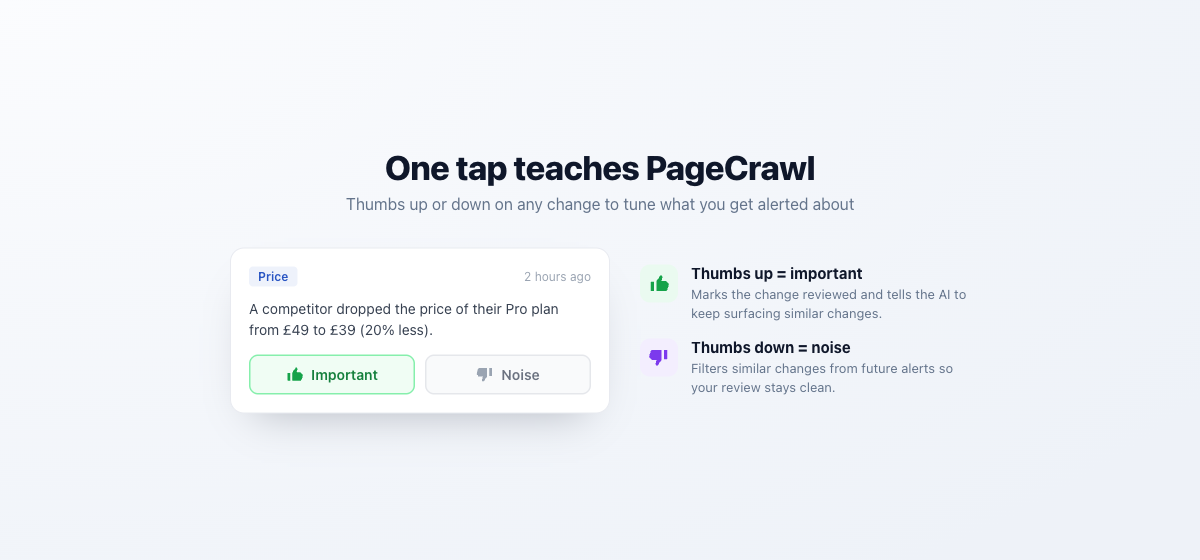
Every time PageCrawl detects a change, you can give quick feedback with the thumbs up and thumbs down buttons. This feedback helps you organize your review workflow and, over time, helps PageCrawl show you more of the changes that matter and fewer that don't.
Where to Find the Buttons
The feedback buttons appear in several places:
- Page view, next to each detected change in the timeline
- Review Board, when opening a change card
- Email notifications, as quick-action buttons at the bottom of each change email
- Slack, Discord, Microsoft Teams, and Telegram notifications, as inline action buttons next to each detected change
- Browser extension, when reviewing changes on the go

You can give feedback directly from any of the notification channels above, no login required. You are taken to a short confirmation page that records the feedback, then returned to the change (or a simple confirmation screen if you are not signed in).
What Happens When You Press Thumbs Up
Pressing thumbs up flags the change as important or useful. This tells PageCrawl:
- The change is the kind of update you want to keep being notified about
- The change has been reviewed, so it is marked as seen automatically
If your workspace has feedback auto-review enabled, the change card also moves from "To Review" to your chosen destination lane on the Review Board (for example, a "Reviewed" or "Important" lane). You can configure which lane thumbs-up feedback moves cards to from the Review Board settings.
What Happens When You Press Thumbs Down
Pressing thumbs down flags the change as noise or irrelevant. This does several things:
- The change is marked as seen so it no longer counts as unread
- Your monitor gets quieter over time as PageCrawl uses your feedback to show you fewer low-value alerts like this one
- You may be offered a one-tap option to stop similar alerts from this page. You can accept it or dismiss it
- The card moves to your configured "noise" lane on the Review Board, if feedback auto-review is enabled
If a suggested filter could also hide a change you might actually care about, PageCrawl warns you first. Read any such warning before confirming.
When Should You Press Thumbs Up?
Press thumbs up when:
- The detected change is exactly the kind of update you set up this monitor for
- You want to confirm that a pricing, availability, or content change was correctly caught
- You want to keep a record of meaningful changes in your "Important" or "Reviewed" lane
- You want PageCrawl to keep showing you this kind of update
Examples:
- A competitor dropped their price from $49 to $39
- A job listing you were tracking has been posted
- A terms-of-service page added a new clause
- A product page switched from "Out of stock" to "In stock"
When Should You Press Thumbs Down?
Press thumbs down when:
- The change is not relevant to your monitoring goal
- The detected text is noise, like a timestamp, view counter, random tagline, or rotating banner
- The same type of irrelevant change keeps triggering alerts
- You want this monitor to get quieter and stop alerting on changes like this
Examples:
- The page says "Last updated 3 minutes ago" and that timestamp keeps changing
- A "Users online: 1,234" counter triggered the alert
- A rotating testimonial or hero image caption changed
- A footer copyright year was updated
- A "Trending now" section showed a different product
Press thumbs down even if the change is minor. Over time, consistent feedback makes your monitors much quieter and more precise.
When Should You Not Press Either?
If a change is neutral (neither clearly useful nor clearly noise), you can leave it without feedback and simply mark it as reviewed. Feedback is not mandatory. Only use it when you have a clear opinion, because consistent signals produce better filtering than mixed ones.
Clearing Feedback
If you change your mind, reopen the change and press the same button again to clear the flag, or press the opposite button to overwrite the previous feedback. Clearing feedback does not automatically remove any filter you accepted earlier. Those filters can be reviewed or removed separately in the page's settings.
Tips for Better Results
- Be consistent. The more feedback you give, the better PageCrawl gets at matching what you care about.
- Accept a suggested filter when it looks right. It can stop most repeat false positives on a page in a single tap.
- Configure auto-review lanes on the Review Board so feedback also organizes your workflow, not just your alerts.
- Use feedback from notification channels (email, Slack, Discord, Teams, Telegram) when you are away from the app. They work with no login required.
- Review your filters periodically. Anything you accepted can be edited or removed at any time in the page's settings.
Related
- Review Board for organizing changes into lanes based on feedback
- Reducing False Positives for a complete guide to quieter monitors
- AI-Powered Change Detection for how AI helps prioritize the changes that matter