
PageCrawl includes a built-in MCP (Model Context Protocol) server that lets AI assistants manage your page monitors. You can add monitors, check history, trigger checks, and more, all through natural conversation with tools like Claude or ChatGPT.
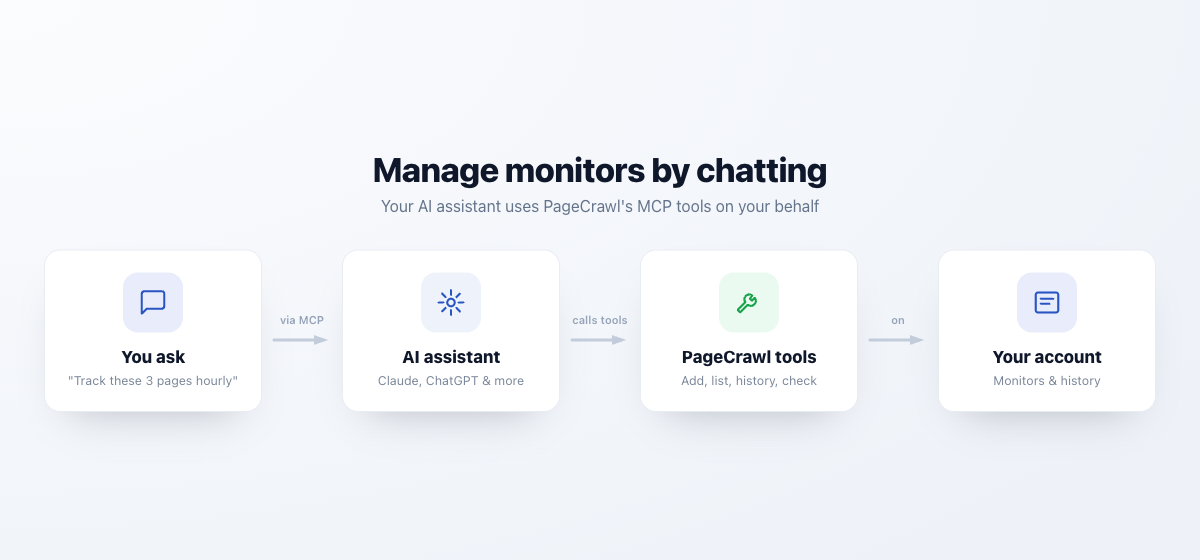
MCP is an open protocol that standardizes how AI tools connect to external services. Once connected, your AI assistant can directly interact with your PageCrawl account without you needing to use the web interface or API manually.
What You Can Do
Your AI assistant can use the tools below, on every plan. Each tool follows your plan the way the app does, so a feature that needs a paid plan in the app, such as saved site logins or scheduled reports, needs one here too, and the tool says so when it refuses. Triggering an on-demand check works on every plan, and the tool says so if a daily allowance is used up; scheduled checks are unaffected.
Reading monitors and changes
| Tool | What It Does |
|---|---|
| Search | Find monitored pages by topic using the standard search schema that ChatGPT research and company knowledge workflows expect |
| Fetch | Retrieve the current captured content for a monitor returned by search |
| List monitors | Search and view monitors in every workspace you can open by URL, domain, or name, with each monitor's workspace, folder, template and creation date |
| Get monitor details | See the full configuration of a monitor, including tracked elements, latest values and the alert settings to check before changing them: notification channels, the reports that cover it, its Minimum importance, whether alert conditions decide its alerts instead, and its template. Supports batch requests |
| Get monitor history | Retrieve historical checks and detected changes with AI summaries. Very long text values are shortened, so the exact wording comes from the check diff. Supports batch requests |
| Get latest values | Quickly retrieve just the current values for one or more monitors (e.g., current price). Supports batch requests |
| Get check diff | View the actual text differences detected in a specific check |
| Get changes since | List the changes in every workspace you can open since a given date, or since the last poll. Each change has a status (only "notified" sent an alert) and an importance from 0 to 100 |
| Get screenshot | Return a stored screenshot as an image, from the most recent check kept, a specific check, or one cropped tracked element. A tall page comes in parts. Only screenshots already captured are returned, it never fetches the live page |
| Get summary | A roll-up of one workspace over a date range: how many changes were detected, how many monitors are active or paused, and a timeline of what changed |
| Get intelligence | Which pages actually move and when, for one workspace or one monitor |
| Get archive | Archive metadata for a capture, integrity verification, the list of captured pages, and Wayback Machine lookups |
| Get statistics | Usage statistics for the account behind a workspace: checks used across the whole account, and the changes, notifications, failures and AI usage in its workspaces you can open |
| Render monitors dashboard | Draw a focused, interactive change radar for a set of monitor IDs inside supporting clients |
Creating, editing and organizing monitors
| Tool | What It Does |
|---|---|
| Add page monitor | Create a new monitor with URL, tracking mode, frequency, notifications and Minimum importance |
| Manage monitors | Update an existing monitor (name, URL, frequency, notifications, screenshots, AI focus, Minimum importance, folder, enabled state), move monitors to another workspace, permanently delete monitors, or clear a monitor's stored history. Moving, deleting and clearing work on up to 50 monitors at once. Deletion is irreversible and takes the checks, captured values, screenshots and history with it |
| Test configuration | Fetch a page once and see what a selector or tracking mode would capture, without creating a monitor. It is meant for diagnosing a monitor that captures the wrong thing, since a new monitor runs its own first check |
| Set monitor status | Enable or disable up to 50 monitors at once; disabling stops checks but keeps the monitor and its history |
| Mark changes seen | Mark the changes on one monitor, or on up to 50 monitors at once, as seen. Seen is shared with everyone in the workspace and does not move Review Board cards. Marking everything at once covers every workspace you can open, so the assistant asks first |
| Manage tags | List a workspace's tags, or add and remove tags (labels) on up to 50 monitors at once, even across workspaces |
| Manage folders | List the folder tree, create folders and nested subfolders, rename or delete folders, move monitors into folders, and move a folder with everything in it to another workspace of the same team |
| Update monitor defaults | View or update, per workspace, the defaults (frequency, notifications, screenshots, AI focus) that monitors created with Add page monitor start with. New data sources take the notifications default. Monitors added in the app, the browser extension or the API do not use them |
Templates, discovery and workspaces
| Tool | What It Does |
|---|---|
| List templates | View available templates that can be applied when creating monitors |
| Manage templates | Create, update or delete templates, run page discovery, and manage discovery filters. Filters turn matching pages into monitors on their own, with no review step |
| Manage discovered pages | List discovered pages or a summary of them, then import, pause, resume, stop or delete them. While a template has no filters, a discovered page only becomes a monitor once it is imported |
| List workspaces | View the teams and workspaces you have been added to, with their IDs and your role in each team |
| Manage workspaces | Create, rename (including timezone) or delete workspaces. Deleting a workspace also deletes every monitor in it |
Delivery, reporting and account settings
| Tool | What It Does |
|---|---|
| Manage webhooks | List, create, update, delete or test the webhooks PageCrawl posts to when a monitor changes, one workspace at a time |
| Manage reports | List, get, create, update, delete or generate scheduled reports in one workspace, and read the digests they produce. While a report covers a monitor, its digest replaces that monitor's own change alerts |
| List authentications | List the saved site logins in a workspace, without exposing credentials, so a new monitor can use one. Creating, editing or deleting a login is deliberately not available through MCP, because credentials must never pass through a chat client |
| Create data source | Create a push data source: a monitor that receives values you send in, instead of being crawled |
| Record data | Record a value on a push data source; it goes through the normal comparison, notification and AI pipeline |
| Trigger check | Trigger a one-off check on a monitor, outside its schedule |
Supported Tracking Modes
When creating monitors through MCP, your assistant picks one of these tracking modes:
- Full Page - All visible text on the page (the default)
- Content Only - The main content, without navigation, header, footer and sidebars
- Reader - The main article text, best for terms, policies, news and blog posts
- Feed - Repeating items such as job listings, product lists or release notes. It compares the first items of the list (10 by default) and alerts when new items appear; alerts for removed or edited items, and a longer list, are turned on in the monitor's settings in PageCrawl. For an RSS or Atom feed or a sitemap, monitor the feed address itself
- Price - The product price and availability, optionally with the number of units in stock
- Specific Text and Specific Number - One element on the page, chosen with a CSS or XPath selector
- AI Extract - Any value you describe in plain words
- JSON Path - One value in a JSON API response, picked with a JMESPath expression such as
items[0].price(a leading$.is accepted, but JSONPath-only syntax such as$..priceis not) - SEO - Title, meta description, canonical URL, robots tag, H1 and social tags
- HTTP Status - The response code, for pages that may go down or redirect
- Leaderboard - Ranked rows, such as rankings and charts
File URLs (PDF, Word, Excel, CSV) are detected automatically. Several values on one page can be tracked as separate elements on the same monitor.
A monitor can also have its own Minimum importance. With Importance Scoring on, a change the AI scores below it is kept in the history without an alert, which quiets a noisy page. Ask your assistant to set it on a monitor, or to clear it so the monitor follows its template or workspace again. A change the AI does not score, such as a price, stock or availability move on its own, is never held back by it. When the page text changed in the same check, as it usually does on a monitor that also tracks the page text, the AI scores the change and the Minimum importance can hold it back. Minimum importance applies only while the monitor has no alert conditions, such as a target price set in PageCrawl: once one is set, the conditions alone decide. Stock Alerts are the exception: they decide only about stock levels, so the Minimum importance still applies to the monitor's other changes.
Which Setup Path Do I Need?
Every client connects to the same address, https://mcp.pagecrawl.io/mcp. What differs is how it signs in. Apps with a built-in connector UI (Claude, ChatGPT, Notion) use OAuth: you paste the URL, get sent to PageCrawl, and click Allow access, with no key to copy. Editors and headless clients that take a config file can use OAuth too, or a personal API token if they do not support the OAuth flow.
| Your client | Where to set it up | Sign-in |
|---|---|---|
| Claude web, Claude Desktop | Customize > Connectors > + Add > Add custom connector (on Team and Enterprise, an Owner adds it first) | OAuth |
| Claude Code | The PageCrawl plugin, claude mcp add, or .mcp.json in the project root |
OAuth (sign in from /mcp) |
| ChatGPT on the web (Business, Enterprise, Edu; read-only on Pro) | Plugins > + > Add custom MCP server | OAuth |
| Microsoft 365 Copilot and Teams | Copilot Studio > your agent > Tools > Add a tool > Model Context Protocol | OAuth (Dynamic discovery) |
| Notion custom agents (Business, Enterprise) | The agent's Settings > Tools & Access > Add connection > Custom MCP server | OAuth |
| Cursor, Cline, VS Code, Windsurf (now Devin Desktop) | The client's MCP settings or JSON file | OAuth or API token |
| OpenClaw and other CLI clients | openclaw mcp add or the equivalent command |
API token |
| Anything else MCP-compatible | Custom server URL field | OAuth or API token |
PageCrawl's server uses the streamable HTTP transport (the current MCP standard), not the older SSE transport. Most clients detect this on their own. Cline and OpenClaw use SSE unless told otherwise, so their setup below sets the transport, and any client that asks should get streamable HTTP.
Add PageCrawl's Skills
The MCP server gives your assistant PageCrawl's tools. PageCrawl also publishes free, open source skills that teach agents to use them well: which tracking mode fits a page, how to report what changed in one call, and to ask before deleting anything. In Claude Code, the PageCrawl plugin installs the connection and the skills together. Cursor, GitHub Copilot, Codex, OpenClaw and other agents that read Agent Skills can add them with npx skills add pagecrawl/skills -g, where -g installs them for your user account rather than one project. Every install option is on GitHub.
Setting Up with Claude (Web & Desktop)
- Open claude.ai or Claude Desktop and go to Customize > Connectors
- Click + Add, then Add custom connector
- Enter a name (e.g. "PageCrawl") and the URL
https://mcp.pagecrawl.io/mcp, then click Continue - Keep the sign-in settings Claude detects, click Continue, then Add
- When you are sent to PageCrawl, sign in (if you are not already) and click Allow Claude access
- In a conversation, click + under the message box, open Connectors and turn PageCrawl on
On Team and Enterprise plans, an Owner adds the connector once under Organization settings > Connectors (Add, then Custom > Web). Each member then opens Customize > Connectors, finds PageCrawl and clicks Connect, so the assistant works with that member's own PageCrawl access.
Setting Up with Claude Code
The quickest route is the PageCrawl plugin, which includes this connection and PageCrawl's skills. Run this in a Claude Code session:
/plugin install pagecrawl --marketplace pagecrawl/skillsTo connect only the server, run claude mcp add --transport http --scope user pagecrawl https://mcp.pagecrawl.io/mcp, or add it to .mcp.json in your project root. Claude Code skips an entry that has a url but no "type": "http":
{
  "mcpServers": {
    "pagecrawl": {
      "type": "http",
      "url": "https://mcp.pagecrawl.io/mcp"
    }
  }
}
Either way, sign in once: run /mcp in a Claude Code session, choose the PageCrawl server, and follow the sign-in in your browser. Until you do, Claude Code lists the server as needing authentication.
Setting Up with ChatGPT
ChatGPT adds PageCrawl as a custom MCP server from Plugins, in ChatGPT on the web (custom MCP servers cannot be added in the mobile apps). There is no need to turn on developer mode first. Creating and changing monitors needs ChatGPT's full MCP support, which OpenAI offers on Business, Enterprise and Edu plans. On Business, only workspace admins and owners can add a custom MCP server; on Enterprise and Edu, an admin can allow members to. On Pro, a custom MCP server can only read.
- In ChatGPT on the web (chatgpt.com), open Plugins, select + and choose Add custom MCP server
- Enter a name (e.g. "PageCrawl") and, under Connection, the URL
https://mcp.pagecrawl.io/mcp - Choose OAuth for authentication, tick I understand and want to continue, and select Create as a plugin
- When you are sent to PageCrawl, sign in and click Allow ChatGPT access, then review the tools ChatGPT found
- Install the new plugin, then in a conversation type @ and pick PageCrawl. The choice applies to that message, so mention PageCrawl again when a follow-up needs fresh data
In a Business, Enterprise or Edu workspace, the new connection stays private to the person who added it until an admin or owner publishes it for the workspace. ChatGPT then keeps the tool list PageCrawl had when the connection was approved, so when PageCrawl adds or changes tools, an admin refreshes its tools in the workspace app settings.
OpenAI still describes the older route, Settings > Apps > Create with Scan Tools, as its legacy setup. If a label differs, follow OpenAI's guide to custom MCP servers in ChatGPT.
On Business, Enterprise, Healthcare and Edu plans you can also add PageCrawl's skill, which teaches ChatGPT which tracking mode fits a page, how to report what changed, and to ask before deleting anything. Download pagecrawl-skill.zip from the latest release, then open Plugins, select the Skills tab, click Create and choose Upload from your computer.
Setting Up with Microsoft 365 Copilot
Microsoft 365 Copilot reaches MCP servers through agents built in Copilot Studio. You add PageCrawl to an agent as a tool, then publish the agent so people can use it in Microsoft 365 Copilot and Teams. You need Copilot Studio access in your Microsoft 365 organisation.
- Open Copilot Studio and open the agent that should use PageCrawl, or create a new one
- Go to Tools, click Add a tool, then New tool, and choose Model Context Protocol
- Set Server name to "PageCrawl", give it a Server description such as "Monitors websites for changes and reports what changed", and set Server URL to
https://mcp.pagecrawl.io/mcp - Set Authentication to OAuth 2.0 and Type to Dynamic discovery, then click Create and Next
- On Add tool, choose Create a new connection. You will be redirected to PageCrawl to sign in and click Allow access
- Click Add to agent
- Click Publish, then open Channels and add Teams and Microsoft 365 Copilot so the agent appears in Copilot Chat and Teams
Copilot Studio uses the server description to decide when to call PageCrawl, so describe what it does in plain words. If Model Context Protocol is missing or the connection is blocked, your organisation's data policy may restrict custom connectors, and a Power Platform admin needs to allow it.
Setting Up with Notion
Works with Notion custom agents on Notion's Business and Enterprise plans. You need to be a Notion workspace admin for the first step.
- In Notion, open Settings > Connections and, on the Manage tab, turn on Enable custom MCP servers
- Open the custom agent's Settings and select Tools & Access
- Click Add connection > Custom MCP server, enter
https://mcp.pagecrawl.io/mcp, and name it "PageCrawl" - Click Connect. You will be redirected to PageCrawl to sign in and click Allow access
- Repeat for each custom agent that should use PageCrawl: a connection belongs to one agent and uses the PageCrawl access of the person who connected it
Notion shows a warning that it has not reviewed the server. That appears for every custom MCP connection, including ones you host yourself, and reflects who published the connector rather than whether it works.
Because the agent lives in Notion, it can write what it finds straight into your own databases. Ask it to watch a set of pages, then to update a database with what changed, and the database maintains itself. The walkthrough in monitoring website changes from Notion covers a full example.
If you want every change recorded without an agent deciding anything, PageCrawl can write the rows itself instead. See syncing changes to a Notion database. The two work independently and can both be on.
Setting Up with Other MCP Clients (OAuth)
Any MCP-compatible client that supports OAuth can connect to PageCrawl. The server details:
- URL:
https://mcp.pagecrawl.io/mcp - Authentication: OAuth 2.0 (automatic via MCP protocol)
- Protocol: MCP over streamable HTTP, with JSON-RPC 2.0
- OAuth Discovery:
https://pagecrawl.io/.well-known/oauth-authorization-server
The client will handle the OAuth flow automatically. No manual token setup is required.
Setting Up with API Token (OpenClaw, Cursor, Cline, Windsurf, and others)
For MCP clients that do not support OAuth, you can connect using a personal API token instead. This works with OpenClaw, Cursor, Cline, Windsurf, VS Code, Claude Code, and any other MCP client that supports custom headers.
Step 1: Generate an API token in PageCrawl:
- Go to Settings > API access
- Click Create Token
- Give it a name (e.g. "OpenClaw"), optionally an expiry, and click Create Token
- Copy the token. It will only be shown once.
Step 2: Add the following configuration to your MCP client. The JSON format below works with Cursor (.cursor/mcp.json for one project, ~/.cursor/mcp.json for all of them), Windsurf (now Devin Desktop) and most other clients. A few need one more field beside the URL:
- Cline treats an entry without a type as the older SSE transport, which cannot connect, so add
"type": "streamableHttp" - Claude Code skips a
.mcp.jsonentry without"type": "http" - VS Code's
.vscode/mcp.jsonuses aserverskey instead ofmcpServers, with"type": "http"
{
  "mcpServers": {
    "pagecrawl": {
      "url": "https://mcp.pagecrawl.io/mcp",
      "headers": {
        "Authorization": "Bearer YOUR_TOKEN_HERE"
      }
    }
  }
}
For OpenClaw, use the CLI. openclaw mcp add connects to the server before saving it, and its --header takes KEY=VALUE rather than KEY: VALUE:
openclaw mcp add pagecrawl \
  --url https://mcp.pagecrawl.io/mcp \
  --transport streamable-http \
  --header "Authorization=Bearer YOUR_TOKEN_HERE"
openclaw mcp add refuses a name that is already saved. To replace an earlier PageCrawl entry, save the whole definition as one JSON object instead:
openclaw mcp set pagecrawl '{"url":"https://mcp.pagecrawl.io/mcp","transport":"streamable-http","headers":{"Authorization":"Bearer YOUR_TOKEN_HERE"}}'For Cursor, you can also add and manage the server from Customize in Cursor's sidebar.
Connection Troubleshooting
The client says it cannot reach the server. Check the transport setting first. PageCrawl speaks streamable HTTP; a client set to SSE will fail to connect even with the correct URL. In Cline that means "type": "streamableHttp" in the server's settings, in OpenClaw --transport streamable-http, and in any client that asks, Streamable HTTP.
Check the URL has no trailing path or slash. Enter it exactly as https://mcp.pagecrawl.io/mcp. Adding /sse, /v1, or a trailing slash will not resolve. Connections added earlier with https://pagecrawl.io/mcp keep working, so there is nothing to reconnect.
ChatGPT has no Add custom MCP server option. It is only in ChatGPT on the web. On Business only workspace admins and owners see it, and on Enterprise and Edu an admin grants it to members. Creating and changing monitors needs a Business, Enterprise or Edu plan; on Pro, a custom MCP server can only read.
The connector is added but the assistant never uses it. Most clients require you to enable the connector per conversation. In ChatGPT, pick PageCrawl from the + menu or mention it with @. In Claude, click + under the message box, open Connectors and check that PageCrawl is on. Naming it in the prompt ("use PageCrawl to...") also helps the first time.
Claude Code shows PageCrawl as needing authentication. The server is set up but not signed in yet. Run /mcp, choose the PageCrawl server and follow the sign-in in your browser. There is no need to add the server again.
Every PageCrawl tool appears twice. PageCrawl is connected twice, for example through the Claude Code plugin and a connection you added earlier. Keep one and remove the other. A connection made with any address other than https://mcp.pagecrawl.io/mcp counts as a separate server, even when it reaches the same account.
The tools return an authentication error. The OAuth grant may have been revoked or expired. Remove the connector and add it again, or, if you are using an API token, confirm the token still exists under Settings > API access and that the header is Authorization: Bearer YOUR_TOKEN.
"MCP is unavailable: AI features are disabled for your team". A team owner or Administrator turned off AI Analysis under Active Features in PageCrawl's settings (on General for a team with one workspace, or Team Settings for a team with several), and that also turns off the MCP server for the team. Reconnecting does not help, so ask them to turn it back on. The switch that counts is the one of the team you have open in PageCrawl.
A client warns that the server is unverified. Notion, and some others, show this for every custom MCP server, including ones you host yourself. It reflects that the client has not reviewed the connector, not a problem with the connection.
A monitor or workspace seems to be missing. Your assistant sees only the workspaces you have been added to. Ask it to list your workspaces: for one that is not listed, the team owner or an Administrator adds you on the Members page in Settings. Summaries, reports, webhooks, folders, tags and templates show one workspace at a time, the one you have open in PageCrawl unless you name another.
Reading Changes and Polling
Get changes since answers "what changed?" for every workspace you can open in one call. Each change carries a status and an importance:
statussays whether the change alerted. Onlynotifiedmeans an alert went out (or the change went into the digest of a report that covers the monitor). The others, such aslow_priority(scored below the monitor's Minimum importance),learned_noise,no_channelsandstock_recorded, were saved without one.importance(0 to 100) is the AI's score, or, for a price, number, stock, availability, yes/no, visual or file change, a rating worked out from the change itself.min_priorityfilters on it and keeps changes that have none, except those saved as noise or as a stock level that sent no alert.
Called with a date, it lists the newest changes first and stops at limit. When truncated is true, the list reaches back only to covers_from, so narrow the period, or take the counts for the whole period from Get summary. Long text values are shortened in this list; the full wording of a change comes from Get check diff.
If you are building something that checks PageCrawl on a schedule rather than asking a question once, pass after_check_id instead of moving a date forward. Give it the next_cursor from your previous response and you get what is new since then, oldest first. next_cursor comes back on every response, including empty ones, so a quiet poll keeps your place.
A poll includes a check only once it is two minutes old, so a check that is still being saved is normally not passed over, and a change reaches polls about two minutes after the check that found it. A poll never repeats a change an earlier poll returned. The first poll after a call with a date can repeat that call's newest changes, so skip check IDs you already have.
Ready-Made Prompts
Some clients show a list of prompts a connected server offers, usually behind a slash command or a menu near the message box. PageCrawl ships six, so the common jobs are one click rather than something you have to phrase:
| Prompt | What it does |
|---|---|
| Watch a page for changes | Sets up monitoring for a URL, choosing the tracking mode from what you say you care about |
| What changed recently | Summarises a period, leading with what matters rather than listing everything |
| Triage unseen changes | Works through your unseen changes with you, and marks as seen only what you confirm |
| Investigate why an alert fired | Digs into one monitor and judges the change against that page's own history |
| Review monitoring health | Finds monitors that are failing, silent, or noisy, and says what to do about each |
| Reorganize and clean up monitors | Takes stock of every workspace, proposes a clearer layout of workspaces, folders and tags with a list of duplicate, failing and test monitors to remove, and changes nothing until you agree |
Clients that do not surface prompts are unaffected: the same work is available by asking in your own words.
Example Conversations
Once connected, you can interact with PageCrawl naturally:
Adding monitors:
"Monitor example.com/pricing every hour and track the full page text"
"Set up price tracking for these 3 product pages: [url1], [url2], [url3]. Check every 15 minutes and notify me on Slack when the price changes."
Checking current values:
"What's the current price on my Amazon product monitor?"
"Compare the prices across all my competitor monitors right now"
Reviewing changes:
"Show me all monitors that changed in the last 24 hours with a summary of what changed"
"Show me the diff for the terms of service page. What exactly was added or removed?"
Analysis and reporting:
"Which of my monitors have had the most changes this month? Are there any patterns?"
"Give me a weekly summary: how many changes were detected across all monitors, which ones had price drops, and which ones had errors?"
Batch operations:
"Tag all monitors tracking amazon.com with 'competitor' and 'ecommerce'"
"Check the latest values for all monitors tagged 'pricing' and tell me which products are currently out of stock"
Reorganizing:
"Move my Competitors folder and everything in it to the Research workspace"
"Find duplicate, failing and test monitors across my workspaces and list them so I can decide what to disable or delete"
Troubleshooting:
"Are any of my monitors failing? Show me the ones with errors and what the issue is"
"The pricing page monitor hasn't detected changes in weeks. Trigger a fresh check and show me what it finds"
Setting up workflows:
"Create a monitor for each of these 5 competitor pricing pages. Use the 'competitor-tracking' template and tag them all as 'q2-research'"
"Monitor the SEC EDGAR page for new filings from Tesla. Use content-only mode so it ignores the navigation, check every 30 minutes"
Working with Workspaces
Your assistant works in the workspaces you have been added to, the same ones the workspace switcher shows you in PageCrawl. That holds for team owners and Administrators too: a workspace they were never added to stays out of reach until they add themselves to it on the Members page in Settings, in the Workspaces column.
Finding a monitor covers every workspace you can open, so you do not need to know which workspace a monitor is in to find or interact with it.
- Use List monitors with the
searchparameter to find monitors by URL, domain, or name - Use List monitors with
workspace_idto filter results to a specific workspace - Get changes since lists the changes from every workspace you can open in one call
- Use List workspaces to see your teams and workspaces with their IDs
- Add page monitor only requires a
workspace_idif you have more than one workspace
Other tools work in one workspace at a time: webhooks, reports, Get summary, Get intelligence (unless it is about one monitor), folder and tag lists, templates, page discovery, saved logins and monitor defaults. They use the workspace you have open in PageCrawl unless you name another, so for a summary of a whole account, ask for each workspace in turn.
Your role in a team decides what the assistant can do there, as in the app (see User Access Roles and Permissions). Owners, Administrators and Standard Users can add, change, move and delete monitors. Viewers can find monitors, read their changes and mark changes as seen. Billing managers handle billing only, so the assistant shows them none of the team's monitors. For Viewers and Billing managers, the assistant refuses any other change, and it tells a Viewer who can grant edit rights.
Moving Monitors Between Workspaces
Ask your assistant to move monitors and it uses Manage monitors with the move action and the workspace_id of the workspace they go to. It moves up to 50 monitors per call, into any workspace you are a member of and can edit, including one that belongs to another of your teams, and can put them in a folder there (the folder is created if it does not exist). Monitors moved into another team count toward that team's monitor limits. To move a whole folder, its subfolders and every monitor in them to another workspace of the same team, it uses Manage folders reparent with target_workspace_id, which has no 50-monitor limit. Folders stay with their team, so between teams the monitors move and the folder does not.
A moved monitor keeps its check history, review status and tags. Alert channels, AI settings and scheduled reports belong to the workspace, so after a move the monitor alerts through its new workspace's channels. When a whole workspace just needs a better name, renaming it with Manage workspaces changes nothing else.
Monitors created from a template move together with that template. Asking to move only some of them is refused with a note naming the rest; put them all in one folder, then move the folder. If an earlier move left them in different workspaces, ask for all of them in one move. While a template is discovering pages, its monitors cannot move; ask again once discovery has finished. Each move reports a result per monitor, plus anything that did not carry over, such as an extra email recipient the other team has not verified.
Limits and Quotas
MCP operations respect your plan's limits:
- Monitor creation counts toward your page monitor quota
- Triggered checks are rate limited. A few at a time are picked up quickly, while triggering many checks in a row or rechecking the same monitor repeatedly queues them behind other on-demand checks, so those can take longer to complete. This is designed for occasional, manual use only (one or two checks at a time). It does not support programmatic or automated triggering - requests that exceed rate limits will be rejected with an error. Instead, configure the check frequency on each monitor and use scheduling settings to run checks at specific times.
- If you exceed your monitor limit, new monitors are created in a disabled state
- Enabling monitors counts toward your active monitor limit. Enabling several at once stops at the limit and reports the ones that stayed disabled
- If you exceed your check limit, manual check triggers will be rejected
See Check Limits and Website Limits for details on plan quotas.