
PageCrawl lets you use JavaScript in two powerful ways: as a tracked element to extract and monitor computed values, and as a custom action to manipulate the page before monitoring. Both run JavaScript directly in the browser context with full access to the DOM.
JavaScript Tracked Element
A JavaScript tracked element lets you execute JavaScript code on a page and monitor the return value for changes. This is useful when the data you want to track is not directly accessible via CSS or XPath selectors, for example computed values, data attributes, or content that requires logic to extract.
How to set it up:
- Add a new tracked element to your monitored page
- Select JavaScript as the element type
- Enter your JavaScript code in the code field
- The return value of your code becomes the monitored content
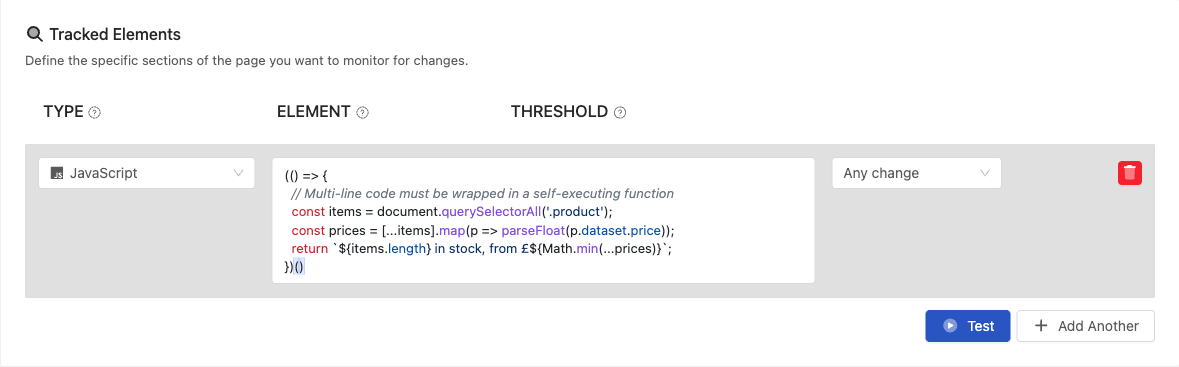
How it works: Your JavaScript code runs directly in the browser, giving it full access to the page's DOM, window object, and all standard browser APIs. The return value is captured and compared against the previous check to detect changes.
Examples:
Extract the page title:
document.titleGet text from a specific element:
document.querySelector('.status-badge').innerTextCount the number of items in a list:
document.querySelectorAll('.job-listing').lengthExtract a data attribute:
document.querySelector('[data-version]').getAttribute('data-version')Combine multiple values into one:
Array.from(document.querySelectorAll('.feature-list li')).map(el => el.textContent.trim()).join(', ')Extract JSON-LD structured data:
JSON.parse(document.querySelector('script[type="application/ld+json"]').textContent).nameCount words on a page:
document.body.innerText.split(/\s+/).filter(w => w.length > 0).lengthAdvanced Examples
For multi-line logic, wrap your code in an immediately invoked function:
Extract a software version number from a release page:
(() => {
  const text = document.querySelector('.release-header, [class*="version"]')?.textContent || '';
  const match = text.match(/v?(\d+\.\d+\.\d+)/);
  return match ? match[1] : 'Version not found';
})()
Build a summary from a table:
(() => {
  const rows = document.querySelectorAll('table tbody tr');
  return Array.from(rows).map(row => {
    const cells = row.querySelectorAll('td');
    return Array.from(cells).map(c => c.textContent.trim()).join(' | ');
  }).join('\n');
})()
Count job listings by department:
(() => {
  const jobs = document.querySelectorAll('.job-listing');
  const departments = {};
  jobs.forEach(job => {
    const dept = job.querySelector('.department')?.textContent.trim() || 'Other';
    departments[dept] = (departments[dept] || 0) + 1;
  });
  return Object.entries(departments).map(([k, v]) => `${k}: ${v}`).join('\n');
})()
Extract all outbound links from a page:
(() => {
  const host = window.location.hostname;
  const links = Array.from(document.querySelectorAll('a[href]'))
    .map(a => a.href)
    .filter(href => href.startsWith('http') && !href.includes(host));
  return [...new Set(links)].join('\n');
})()
Monitor the number of open issues or pull requests:
(() => {
  const text = document.querySelector('[data-tab-item="issues"] .Counter, .issues-count')?.textContent.trim();
  return text ? parseInt(text.replace(/,/g, ''), 10) : 'Not found';
})()
Extract and format event dates from a schedule page:
(() => {
  const events = document.querySelectorAll('.event-item, .schedule-row');
  return Array.from(events).map(ev => {
    const date = ev.querySelector('.date, time')?.textContent.trim();
    const title = ev.querySelector('.title, .event-name')?.textContent.trim();
    return `${date}: ${title}`;
  }).join('\n');
})()
Important notes:
- Your code should return a value (string, number, or any value that can be converted to text)
- If the return value is
nullorundefined, an empty string is stored - Errors in your code will cause the check to fail for that element
- A 30-second safety timeout applies. If the expression does not resolve within 30 seconds, the engine aborts it and the check fails for that element. Keep extraction logic synchronous when you can; if you need awaits or short waits, budget for the cap.
- JavaScript tracked elements require a real browser engine (not compatible with Fast mode)
Custom JavaScript Actions
Custom JavaScript actions let you run JavaScript code on the page as part of the action sequence, before the tracked elements are extracted. Use them for complex interactions that other action types (click, type, wait) cannot handle.
How to set it up:
- Open the page settings and go to the Actions section
- Add a new action and select Custom JavaScript
- Enter your JavaScript code
- The code runs during the check, before element extraction
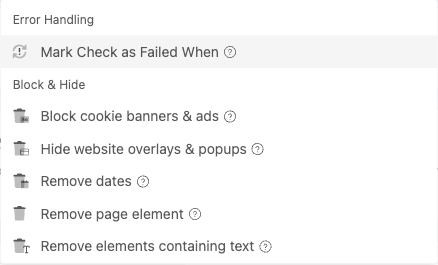
How it works: The JavaScript runs in the browser context, similar to tracked elements. The key difference is that the return value is ignored. JavaScript actions are used for their side effects: modifying the DOM, triggering events, or setting up the page state needed for accurate monitoring.
When to use JavaScript actions: PageCrawl has built-in actions for common tasks like clicking elements, typing text, scrolling, waiting, removing elements, and selecting dropdown options. Use JavaScript actions when you need to do something the built-in actions cannot handle, such as setting browser storage, dispatching custom events, modifying element properties, or running multi-step DOM manipulation.
Recommended pattern: async IIFE
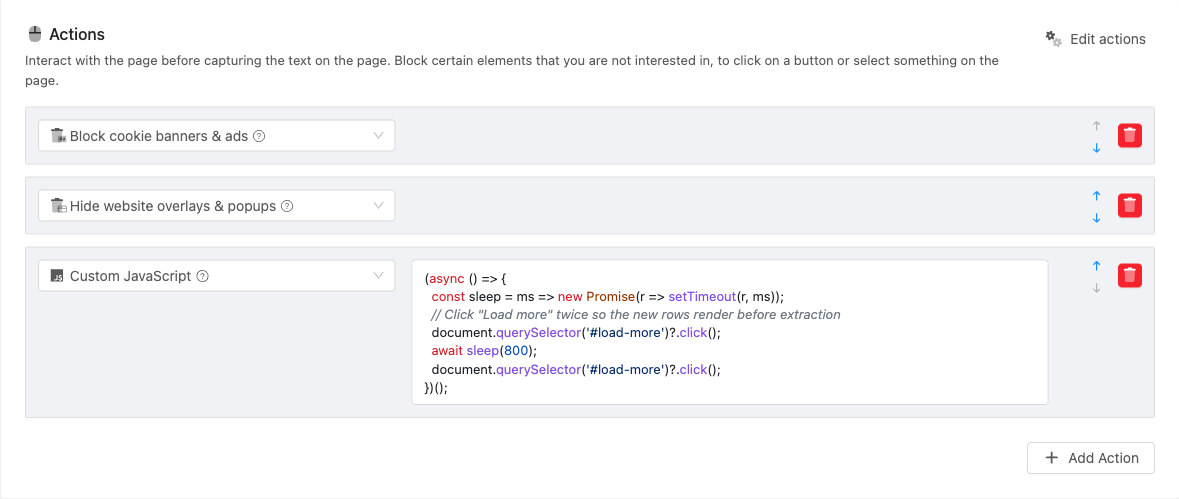
For anything beyond a single statement, write your action as a self-executed async arrow function. This is the recommended shape across the UI, MCP server, and public API because it lets you await between steps and keep a small sleep helper inline. Return values are ignored for actions; the function runs purely for its side effects.
(async () => {
  const sleep = ms => new Promise(r => setTimeout(r, ms));
  document.querySelector('#load-more')?.click();
  await sleep(800);
  document.querySelector('#load-more')?.click();
  await sleep(800);
})();
This action clicks "Load more" twice, waiting briefly between clicks so the page can render the new rows before the next click and before extraction begins. await sleep(800) is the part a sync IIFE cannot do: it lets the next line wait until the previous step has had time to settle.
while (true) or an indefinite poll loop cannot hang the check). Inside that window you can chain multiple awaits, polls, and event dispatches; just keep the total bounded. Separately, depending on your plan the overall check has its own timeout limit (Free 45 seconds, Standard 90 seconds, Enterprise and Ultimate 180 seconds).
The native action types (click, wait, wait_text, type, select) are still preferred for single-step interactions because they're shorter and the engine produces clearer logs. Reach for a custom JavaScript action when you need to sequence multiple steps with delays in between, dispatch framework events, or poll for an element that may take an unpredictable amount of time to appear.
Examples:
The examples below use the sync IIFE shape because each one is a single side-effect. Use the async IIFE pattern above whenever your action needs to wait, poll, or sequence multiple steps.
Set localStorage or sessionStorage to change page behavior:
localStorage.setItem('region', 'us-east')Set a cookie to bypass a language selector or A/B test:
document.cookie = 'lang=en; path=/; max-age=86400'Replace dynamic content (session IDs, timestamps, random tokens) with static text to reduce false positives:
document.querySelectorAll('[data-session-id], .csrf-token, .nonce').forEach(el => el.textContent = '[REDACTED]')Trigger a framework event that a regular click action does not fire (e.g., React, Vue, Angular):
(() => {
  const input = document.querySelector('#search-input');
  const nativeInputValueSetter = Object.getOwnPropertyDescriptor(window.HTMLInputElement.prototype, 'value').set;
  nativeInputValueSetter.call(input, 'monitoring keywords');
  input.dispatchEvent(new Event('input', { bubbles: true }));
})()
Toggle a checkbox and dispatch both change and click events to satisfy form validation:
(() => {
  const checkbox = document.querySelector('#agree-terms');
  checkbox.checked = true;
  checkbox.dispatchEvent(new Event('change', { bubbles: true }));
  checkbox.dispatchEvent(new Event('click', { bubbles: true }));
})()
Switch a page to a specific view mode by modifying URL parameters without a full reload:
(() => {
  const url = new URL(window.location);
  url.searchParams.set('view', 'list');
  url.searchParams.set('per_page', '100');
  window.history.replaceState({}, '', url);
  window.dispatchEvent(new PopStateEvent('popstate'));
})()
Expand all collapsed sections at once on a FAQ or documentation page:
document.querySelectorAll('details:not([open])').forEach(el => el.setAttribute('open', ''))Remove inline styles that hide content behind a paywall or login wall:
(() => {
  document.querySelectorAll('.article-body, .content-area').forEach(el => {
    el.style.maxHeight = 'none';
    el.style.overflow = 'visible';
    el.classList.remove('truncated', 'blurred', 'paywall');
  });
  document.querySelectorAll('.paywall-overlay, .signup-gate').forEach(el => el.remove());
})()
Important notes:
- Custom JavaScript actions and JavaScript tracked elements run with a 30-second safety timeout. If your code does not finish within 30 seconds, the engine aborts it and continues with the next action (so a runaway
while (true)or an indefinite poll loop cannot hang the check). Inside that window you can chain multiple awaits, polls, and event dispatches; just keep the total bounded. - In the default engine, JavaScript action errors are silently caught and the check continues. In Stealth mode, action errors will stop the remaining action sequence by default
- Actions run after the page has loaded but before elements are extracted
- You can chain multiple JavaScript actions with other action types (click, wait, type)
- JavaScript actions require a real browser engine (not compatible with Fast mode)
Difference Between JavaScript Elements and Actions
| JavaScript Tracked Element | Custom JavaScript Action | |
|---|---|---|
| Purpose | Extract and monitor a value | Manipulate the page before extraction |
| Return value | Captured and tracked for changes | Ignored |
| Error handling | Check fails if code errors | Default engine: errors silently ignored. Stealth mode: errors stop the action sequence |
| When it runs | During element extraction | Before element extraction (in action sequence) |
| Use case | "Get me this computed value" | "Set up the page so I can monitor it correctly" |
Common Patterns
Extract then monitor: Use a JavaScript action to set up the page (e.g., click "Load more"), then use a regular Text or Full Page tracked element to capture the content. This is often simpler than writing a JavaScript tracked element.
Normalize before compare: Use a JavaScript action to replace dynamic content (timestamps, session IDs, random values) with static placeholders, then track the normalized page content. This reduces false positives without needing global filters.
Complex extraction: When the value you want to monitor requires logic (math, filtering, combining multiple elements), use a JavaScript tracked element instead of trying to target it with CSS selectors.
What JavaScript Has Access To
Your code runs in the browser page context with full access to:
- DOM API -
document.querySelector(),document.body,document.title, etc. - Window object -
window.location,window.innerWidth,window.scrollTo(), etc. - Standard JavaScript - String methods, Array methods, Math, JSON, RegExp, etc.
- Browser APIs -
localStorage,sessionStorage,fetch(), etc. - Page state - Any JavaScript variables or functions defined by the page itself
Your code does not have access to Node.js APIs or the file system.