You set up a monitor on a product page. The first week, it works. Then the alerts start arriving for things you do not care about: a rotating "customers also bought" carousel, a review count ticking up, a timestamp in the footer, a banner that swaps every page load. Within a month you have a folder rule that quietly archives every notification from the tool, and you are back to checking the page by hand.
This is the single most common reason people abandon website monitoring. Not that it fails to detect changes, but that it detects too many. A monitor that fires on every pixel of movement is noise, and noise gets muted. The fix is not checking less often or watching fewer pages. The fix is telling the monitor exactly which changes deserve an alert and letting it stay silent for everything else.
This guide covers conditional alerts: rules that only notify you when a price drops below a number you set, when stock flips to "in stock", or when a specific keyword appears or disappears. We will walk through the three rule types, how to combine them, and a step-by-step PageCrawl setup that turns a noisy monitor into one you actually trust.
Why do "any change" alerts fail?
Any-change alerts fail because a modern page almost always differs between checks, so the genuine signal drowns in cosmetic noise and you learn to ignore the notifications. A naive monitor answers one question: did anything on this page differ from last time? On a real, modern web page the honest answer is almost always yes. Pages carry content that changes on every load and has nothing to do with what you are watching:
- Rotating promotional banners and hero images
- "X people are viewing this" counters and stock-pressure widgets
- Review counts, star averages, and "last updated" timestamps
- Ad slots, recommendation carousels, and personalized blocks
- Session tokens and tracking parameters baked into links
If your alert fires on any of these, the genuine signal (a price you would actually buy at, a restock, a recall notice) drowns. Conditional alerts flip the model. Instead of "tell me when anything changes", you say "tell me only when this specific condition becomes true". The monitor keeps checking the whole page or element, but the notification rule filters down to the event you care about.
There are three conditions that cover the vast majority of real use cases: a numeric threshold (price, rating, count), an availability state (in stock vs out of stock), and a keyword (a word or phrase appearing or disappearing). The rest of this guide is about writing each one well.
Rule Type 1: Numeric Thresholds
The most satisfying condition to set up is a number crossing a line you drew. You do not want an alert every time a price moves a cent. You want an alert when it drops below what you are willing to pay, or above a ceiling you set for a competitor, which is what turns price monitoring across any website from a firehose into a buy signal.

How it works
You track a value as a number rather than as raw text, the approach described in monitoring numeric values for changes to spot trends. The monitor extracts the numeric part (stripping currency symbols, commas, and surrounding words) and compares it against your rule on every check. Common operators:
- Less than: alert when price drops below 50
- Greater than: alert when a competitor raises price above 99
- Changed by percentage: alert when the value moves more than 10% in either direction
- Outside a range: alert when a metric leaves the band you consider normal
The key is that the comparison happens on the extracted number, not the string. "$1,299.00" and "$1299" and "1299 USD" all reduce to the same value, so a cosmetic formatting change on the page does not trip the alert. This is the same numeric mode behind every price drop tracker and competitor price monitoring workflow.
A worked example
Say you are watching a graphics card you will buy at $400 or less. The current price is $529. A plain change alert fires every time the retailer nudges the price, runs a flash sale on a different SKU, or updates the page. A threshold alert stays completely silent at $510, $495, $450, and only notifies you when a check finds the price below $400. You get one alert, and it is the one that means "buy now". This precision is what makes dedicated GPU price trackers and cross-retailer comparisons usable instead of overwhelming.
Note: thresholds also work in reverse for monitoring you want to stay below a ceiling. A procurement team running supply chain monitoring on supplier pricing and lead times might alert when a unit price rises above their budgeted figure, catching cost creep early.
Rule Type 2: Availability State
Stock is really a two-state value: available or not. The cleanest condition is one that fires only on the transition you care about, not on every redraw of the button.
How it works
You point the monitor at the element that carries availability (a stock badge, an "Add to Cart" button, an availability line) and write a rule on its state:
- Alert when it becomes available: notify when "Sold Out" disappears or "In Stock" appears
- Alert when it goes out of stock: useful for sellers tracking their own catalog or watching when a competitor runs dry
- Alert only on the flip: fire once on the transition, not repeatedly while the state holds
The subtlety, and it is the one that trips people up most, is which word you key off. Counterintuitively, watching for the disappearance of a negative word ("Out of Stock" leaving the page) is often cleaner than watching for the appearance of a positive one ("Add to Cart"), because many pages render the buy button even when it is greyed out and disabled. We dig into this in the keyword monitoring guide, and it is the foundation of every out of stock monitoring and restock workflow, from sneakers to LEGO sets to Nintendo Switch consoles.
Why scope it to one element
Availability rules depend on watching exactly the right element. If you match against the whole page, the words "in stock" might appear in a "Recently in stock" recommendations section, in shipping copy, or in structured data the user never sees. Point a selector at the one element that holds the real status. Writing that selector is a small skill of its own, covered in the CSS selector guide and the XPath and CSS reference. XPath is handy here because it can select by text content directly, for example //button[contains(text(), "Add to Cart")].
Rule Type 3: Keyword Conditions
The most flexible condition is the presence or absence of a word or phrase. This is what turns a 40-page document into a single yes or no: does this page now mention the thing I am responsible for?
How it works
You track a piece of text (a whole page or a specific element) and write a rule on the words:
- Contains: alert when the text gains "recall", "lawsuit", "discontinued", a competitor's name, or a new plan tier
- No longer contains: alert when a word leaves (a "Coming Soon" label vanishing means it shipped)
- Changed to a specific string: alert when a status field flips between known states, for example "Pending" to "Approved"
Keyword conditions shine for compliance and PR, where the signal lives in prose and you cannot predict which element will hold it. A regulator's guidance page gaining your product category, an FDA recall list gaining your manufacturer name, or a SaaS pricing page gaining the word "Enterprise" are all single-keyword events. They also drive brand mention alerts and broader online reputation monitoring.
Note: case sensitivity and word boundaries matter. "recall" can match inside "recalling" or "recalls", which is sometimes what you want and sometimes noise. Test your condition against real page states before you rely on it.
How do you combine conditions for precision?
You combine conditions by joining two or more rules with AND or OR in the alert settings, which is where most of the noise reduction lives. A single condition is good. Two conditions joined with AND or OR is what makes an alert trustworthy.
AND: narrow a broad signal
Use AND when one keyword alone is too noisy. A multi-item recall page mentions dozens of manufacturers. "Alert when the page contains 'recall'" fires constantly. "Alert when the page contains 'recall' AND contains our model number" fires only when it concerns you. The same logic keeps SEC EDGAR and product recall monitors readable rather than overwhelming.
OR: catch several variants of one event
Use OR when the same event can show up in different words. A restock might say "In Stock", "Available", or "Add to Cart" depending on the template. "Alert when the element contains 'In Stock' OR 'Available'" catches all of them with one rule.
Combine across types
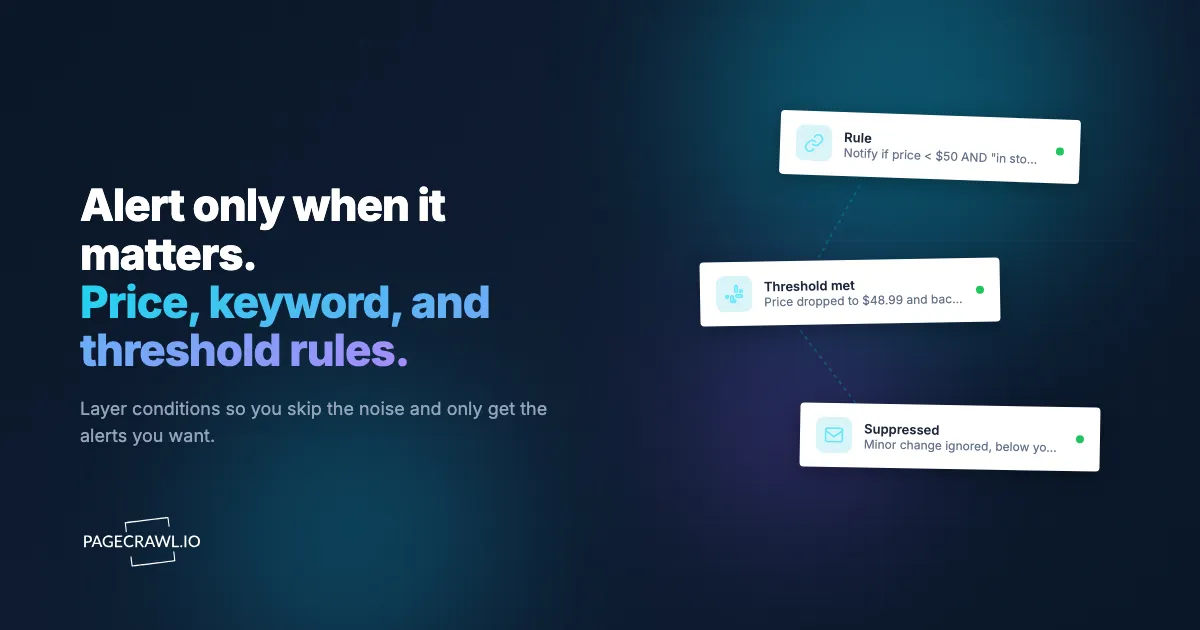
The most precise rules mix a threshold with a keyword. "Alert when price drops below $400 AND the element shows 'In Stock'" means you only hear about a deal you can actually act on, never about a discount on something that is sold out. Here is how the three rule types compare in practice.
| Condition type | Operators | Best for | Noise level |
|---|---|---|---|
| Numeric threshold | less than, greater than, % change, range | Prices, ratings, counts, metrics | Lowest |
| Availability state | becomes available, goes out of stock, flip | Stock, restock, button state | Low |
| Keyword | contains, no longer contains, changed to | Compliance, PR, status fields | Low to medium |
| Any change (no condition) | none | Quick first pass, unknown signal | Highest |
A practical default: start with the narrowest condition that captures your event, then loosen only if you find you are missing real signals.
How do you set up conditional alerts in PageCrawl?
You create a monitor, pick the tracking mode that matches your condition, write the rule, and route the alert to a channel. PageCrawl supports all three rule types and combinations of them. New monitors come with screenshots enabled and sensible default actions (cookie banner and overlay removal) already on, so the page you capture matches what a real visitor sees. Here is the full walkthrough.
Step 1: Create the monitor and pick a tracking mode
Add the page URL. The tracking mode determines which conditions are available to you.
- For a price or numeric threshold, choose price (or number) tracking mode. PageCrawl extracts the numeric value so you can compare against a number instead of matching raw text.
- For availability, point the visual selector at the stock badge or button and use element tracking. PageCrawl generates the selector for you, or you can paste your own.
- For a keyword, leave the mode on full-page text if the word could appear anywhere, or scope to a specific element if it lives in one known place.
Step 2: Write the condition
In the monitor's alert rules, covered in detail under notification conditions and filters, add the condition that matches your goal:
- Threshold: "notify when the value is less than 400" or "greater than 99" or "changes by more than 10%".
- Availability: "notify when the element no longer contains 'Sold Out'" for a restock, or "contains 'Out of Stock'" to catch a competitor running dry.
- Keyword: "notify when the page contains 'recall'" for an appearance trigger, or "no longer contains 'Coming Soon'" for a disappearance.
Step 3: Stack conditions where it helps
Add a second condition and join it with AND or OR. The compliance pattern is "contains 'recall' AND contains our brand name". The deal pattern is "price below $400 AND shows 'In Stock'". Stacking is where most of the noise reduction lives, so spend a minute here rather than accepting the first broad rule that works.
Step 4: Tune frequency to the stakes
Match the check interval to how fast you need to react and how often the page actually changes. A high-demand restock justifies the most frequent checks your plan allows. A regulatory page that updates monthly is fine on a slower cadence. Checking more often than the page changes only burns through your monthly check budget without adding signal.
Step 5: Route the alert to the right channel
Send the notification where the responsible person will see it. PageCrawl supports email, Slack, Discord, Microsoft Teams, Telegram, web push, and webhooks. For automation, route the webhook into n8n or Zapier to open a ticket, post to a channel, or trigger a downstream workflow. Because the alert only fires when your condition is met, the channel stays quiet until something real happens.
Step 6: Verify with the screenshot and change history
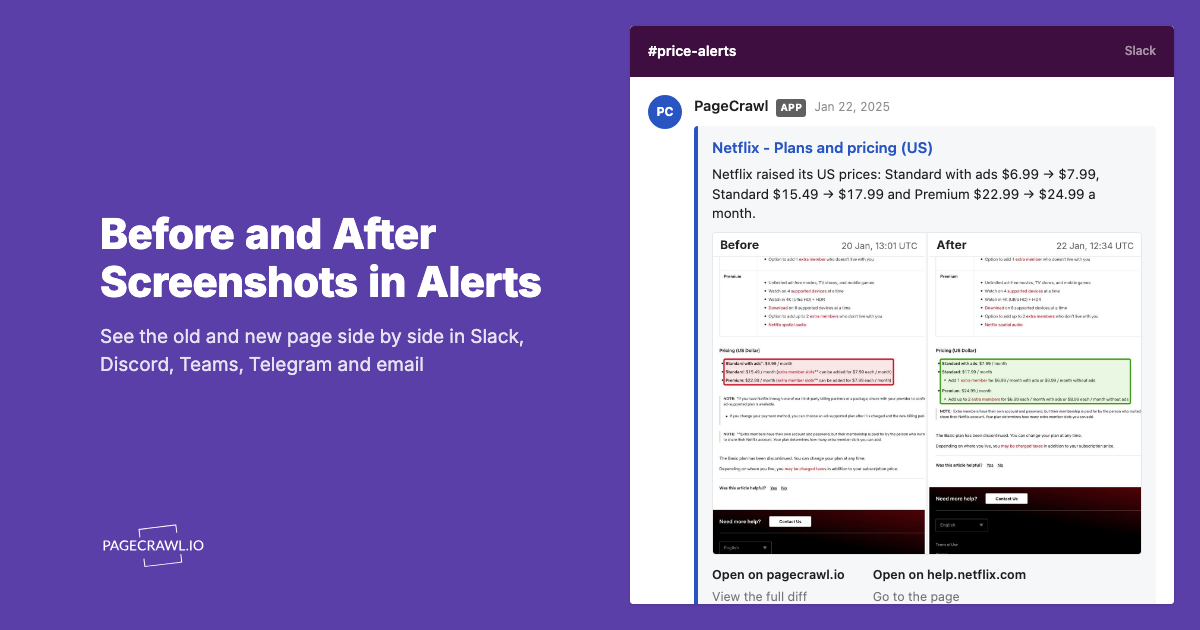
When an alert fires, open the change in PageCrawl. The screenshot shows exactly what the page looked like when the check found the condition true, and the diff highlights what changed. The change history keeps every prior state, so you have a timeline rather than a single snapshot. This matters most for compliance and PR, where you may need to prove what a page said and when.
Patterns That Keep Alerts Honest
Conditions are only as good as the way you write them. A few patterns that separate a monitor you trust from one you mute.
Anchor numeric rules to the right element
If you track price as a number on the whole page, a "compare at" or "list price" figure elsewhere on the page can confuse the extractor. Point the selector at the actual sale price element so the value you threshold against is the one a buyer pays.
Prefer disappearance for restock
The cleanest restock trigger is usually the disappearance of "Sold Out" or "Out of Stock", not the appearance of "Add to Cart", because greyed-out buy buttons still carry the cart text. Test both states on the real page before committing.
Require an identifier on shared pages
On any page that lists multiple products, SKUs, or manufacturers, add an AND condition for your specific identifier. Without it, the alert fires on changes that have nothing to do with you. This is the difference between a usable recall monitor and one you stop reading.
Watch for hidden and dynamic text
Some pages carry text in hidden elements (structured data, A/B test variants) that a user never sees but a raw text match would catch. PageCrawl renders the page in a real browser and the default overlay and cookie actions strip common noise, but if a condition fires on something invisible, narrow to a specific visible element with a selector instead of the whole page.
Start narrow, then loosen
It is easier to widen a condition that misses things than to clean up one that fires too much. Begin with the strictest rule that should capture your event. If a week of running it shows you are missing real signals, relax it one step at a time and watch what comes through.
Three Worked Examples
Only hear about a deal you can act on
Track a product in price mode and point the selector at the sale price element. Add two conditions: price less than your target number AND the availability element shows "In Stock". Route it to a channel you check often. You will never get pinged about a discount on a sold-out item or a price move that does not cross your line. This is the precise version of any restock and price workflow.
Catch a recall for your product, ignore everyone else's
Track the manufacturer's recall page, or a government list like the FDA's recalls and market withdrawals page or the CPSC recall list, as full-page text. Add "contains 'recall' AND contains your model number". Set checks to match how often the page updates and route the alert to your safety and support leads. The page can mention a dozen other recalls without making a sound, and when yours lands the next check picks it up and sends the notification plus a screenshot proving the state.
Know when a competitor raises prices
Track a competitor's pricing page in number mode on the tier you compete with. Add "notify when the value increases" or "greater than" their current figure. You skip every cosmetic page edit and hear only about an actual price move, which is the signal you would use to adjust your own positioning. Pair it with broader competitor website tracking for context.
Choosing your PageCrawl plan
PageCrawl's Free plan lets you monitor 6 pages with 220 checks per month, which is enough to validate the approach on your most critical pages. Most teams graduate to a paid plan once they see the value.
| Plan | Price | Pages | Checks / month | Frequency |
|---|---|---|---|---|
| Free | $0 | 6 | 220 | every 60 min |
| Standard | $8/mo or $80/yr | 100 | 15,000 | every 15 min |
| Enterprise | $30/mo or $300/yr | 500 | 100,000 | every 5 min |
| Ultimate | $99/mo or $999/yr | 1,000 | 100,000 | every 2 min |
Annual billing saves two months across every paid tier. Enterprise and Ultimate scale up to 100x if you need thousands of pages or multi-team access.
At an engineering hourly rate, Standard at $80/year pays for itself the first time you catch a breaking API change, a deprecated endpoint, or a silent config change before it takes down production. 100 monitored pages is enough to cover the changelogs and docs of every third-party API your stack depends on. Enterprise at $300/year adds 5-minute checks and 500 pages. All plans include the PageCrawl MCP Server, which plugs directly into Claude, Cursor, and other MCP-compatible tools. Developers can ask "what changed in the Stripe API docs this month?" and get a summary pulled from your own monitoring history. AI assistants can create monitors through conversation on every plan, including Free, turning your tracked pages into a living knowledge base instead of a pile of alert emails.
Getting Started
Pick one monitor you already mute, or one you have been meaning to set up but knew would be noisy. Decide what single event would actually change your day: a price below a number, a restock, a keyword landing on a page. That event is your condition.
Set up the monitor in the matching tracking mode, write the narrowest condition that captures the event, and stack a second condition with AND if the first is too broad. Run it for a week and judge it by one test: were the alerts you received the ones you wanted? If anything fired that should not have, tighten the rule. If you missed something real, loosen it one step. Once a single monitor is dialed in, the same discipline scales to dozens of pages without scaling the noise.
The free tier covers 6 pages and 220 checks a month, enough to prove the approach on your most important conditions before you expand. From there the same setup extends to API monitoring, competitor tracking, and full compliance coverage without changing how you work, and without rebuilding the folder rule that quietly hides your alerts.