Web monitoring becomes powerful when you can target exactly the right element on a page. Instead of tracking an entire page and getting noise from ads, timestamps, and unrelated content, CSS selectors let you pinpoint the specific price, status text, stock or seat availability, heading, or data point you care about. A well-written selector means fewer false alerts, cleaner change history, and more actionable notifications.
This guide covers the CSS selectors you need for effective web monitoring, from basic element targeting to advanced techniques for handling dynamic pages. Every example is practical and tested against real-world websites.
How do CSS selectors work in web monitoring?
When you set up a web monitor to track a specific element, you provide a CSS selector that identifies that element on the page. The monitoring tool loads the page in a browser, runs the selector to find the matching element, extracts its text content, and compares it to the previous check.
Think of CSS selectors as addresses. The more specific the address, the more reliably it points to exactly what you want. The full selector grammar is documented in MDN's CSS selectors reference, and this guide focuses on the subset that matters for monitoring.
Full page text      →  Monitor everything (noisy)
body                →  Still everything
.product-price      →  Just the price element (precise)
#main-price .value  →  The price value inside a specific container (very precise)
Basic Selectors
Element Type Selector
Selects all elements of a given HTML tag type.
h1          /* All h1 headings */
p           /* All paragraphs */
span        /* All span elements */
Use case: Rarely useful alone for monitoring because most pages have multiple elements of the same type. Combine with other selectors for precision.
Class Selector
Selects elements with a specific CSS class. Classes start with a dot (.).
.price              /* Elements with class="price" */
.product-title      /* Elements with class="product-title" */
.stock-status       /* Elements with class="stock-status" */
Use case: The most common selector for monitoring. Most websites use descriptive class names for key elements. Look for classes like price, product-name, availability, status, or total.
ID Selector
Selects the element with a specific ID. IDs start with a hash (#). IDs should be unique on a page.
#product-price      /* The element with id="product-price" */
#main-content       /* The element with id="main-content" */
#stock-indicator    /* The element with id="stock-indicator" */
Use case: The most reliable selector when available because IDs are unique. If the element you want has an ID, use it.
Attribute Selector
Selects elements based on their HTML attributes.
[data-price]                    /* Elements with a data-price attribute */
[data-testid="product-price"]   /* Elements with a specific test ID */
[itemprop="price"]              /* Schema.org price elements */
[aria-label="Current price"]    /* Elements with a specific aria label */
Use case: Very powerful for monitoring. Many e-commerce sites use itemprop attributes for Schema.org structured data, and modern web apps use data-testid attributes that are more stable than class names.
Combining Selectors
Descendant Selector (Space)
Selects elements that are descendants (children, grandchildren, etc.) of another element.
.product-info .price       /* .price elements inside .product-info */
#main-content h1           /* h1 elements inside #main-content */
.cart-summary .total-amount /* .total-amount inside .cart-summary */
Use case: Essential for monitoring. When multiple elements share a class name (like .price appearing for the product price and shipping price), the descendant selector narrows it to the right container.
Child Selector (>)
Selects only direct children, not deeper descendants.
.product-card > .price     /* .price that is a direct child of .product-card */
ul.features > li           /* li elements directly inside ul.features */
Use case: Useful when the page has nested structures and you need the price at a specific level, not a nested sub-price.
Adjacent Sibling Selector (+)
Selects the element immediately following another element.
h3 + p                     /* First paragraph after an h3 heading */
.label + .value            /* .value element right after .label */
Use case: Helpful when the element you want does not have a unique class but always follows a specific label or heading.
Multiple Classes
Select elements that have multiple classes simultaneously.
.price.current             /* Elements with both .price AND .current classes */
.btn.primary.active        /* Elements with all three classes */
Use case: When .price alone matches multiple prices on a page, combining with a second class like .current or .sale narrows it down.
Pseudo-Selectors for Monitoring
:first-child and :last-child
.price-list li:first-child    /* First item in a price list */
.reviews .review:last-child   /* Last review in a list */
:nth-child()
table tr:nth-child(2)         /* Second row in a table */
.results li:nth-child(3)      /* Third result in a list */
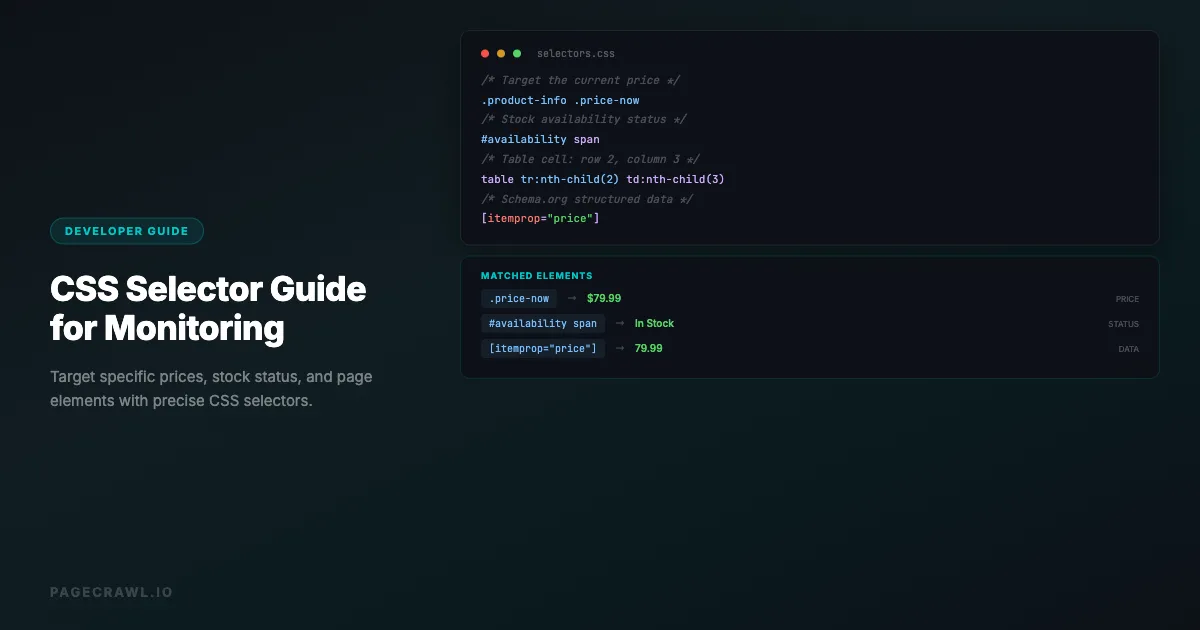
tr:nth-child(2) td:nth-child(3)  /* Cell in row 2, column 3 */
Use case: Critical for monitoring data in tables. Track a specific cell in a pricing table or a bank's savings and CD rate table, a specific row in a leaderboard, or a specific item in a ranked list.
:not()
.price:not(.old-price)        /* Prices that are NOT the old/strikethrough price */
.product:not(.sponsored)      /* Products that are not sponsored listings */
Use case: Exclude unwanted matches. If a page shows both current price and original price with similar selectors, :not() removes the one you do not want.
Real-World Selector Examples
Tracking a Product Price
Most e-commerce sites structure prices similarly:
<div class="product-info">
  <span class="price-was">$99.99</span>
  <span class="price-now">$79.99</span>
</div>Selector: .product-info .price-now
For Amazon-style pages:
.a-price .a-offscreen          /* Amazon's current price (screen reader text) */
#priceblock_ourprice           /* Amazon's price block (older layout) */
.priceToPay .a-offscreen       /* Amazon's current layout */
Tracking Stock Availability
#availability span             /* Amazon availability text */
.stock-status                  /* Generic stock status element */
[data-availability]            /* Element with availability data attribute */
.product-form__inventory       /* Shopify stock indicator */
Tracking a Specific Table Cell
For monitoring a data point in a pricing comparison table:
/* Third column of the second row */
table.pricing tr:nth-child(2) td:nth-child(3)

/* Cell in a specific plan column */
table .plan-pro .feature-api-calls
Tracking Job Listings Count
.results-count                  /* Job count display */
.search-results__header strong  /* Bold number in results header */
h1 .count                      /* Count inside the page heading */
Tracking Software Version Numbers
.release-version               /* Version number element */
.latest-release .tag-name      /* GitHub release tag */
code.version                   /* Version in a code element */
Finding the Right Selector

Using Browser DevTools
Every modern browser has built-in developer tools that help you find XPath and CSS selectors in Chrome, Firefox, and Safari:
- Right-click the element you want to monitor
- Select "Inspect" or "Inspect Element"
- The DevTools panel opens with the HTML element highlighted
- Look at the element's classes, ID, and parent structure
- Build your selector from this information
Testing Your Selector in the Console
Before using a selector in your monitoring tool, test it in the browser console:
// Test if selector finds the right element
document.querySelector('.product-price .current')

// See the text content
document.querySelector('.product-price .current').textContent

// Check how many elements match
document.querySelectorAll('.price').length
If querySelector returns the right element and textContent shows the value you want to track, the selector is correct. If querySelectorAll returns more than one match, your selector is too broad.
Using PageCrawl's Visual Selector
PageCrawl includes a point-and-click element selector. When setting up a monitor with "Element" or "Price" tracking mode, you can visually click on the element you want to track, and PageCrawl generates the CSS selector for you. This is the fastest way to get a working selector without writing it manually.
What are the most common selector pitfalls?
The most common pitfalls are auto-generated class names that change between builds, selectors that match more than one element, content inside iframes, JavaScript-rendered elements, and hidden duplicates of the value you want. Each has a reliable workaround.
Dynamic Class Names
Some websites (especially React, Angular, and Vue apps) generate random class names that change on every build:
<!-- These class names will change -->
<div class="sc-fMiknA bXJwGP">$79.99</div>
<div class="css-1a2b3c4">In Stock</div>Solution: Do not use these random classes. Instead, use:
- Parent elements with stable classes or IDs
- Data attributes (
[data-testid="price"]) - Attribute selectors (
[itemprop="price"]) - Structural selectors (nth-child, positional)
Multiple Matching Elements
If your selector matches more than one element, most monitoring tools use the first match. This may not be the element you want.
/* BAD: matches every .price on the page */
.price

/* GOOD: narrows to the specific price */
.product-detail .price-currentSolution: Make your selector more specific by including parent containers or combining multiple attributes.
Elements Inside Iframes
Some pages load content in iframes (embedded frames). CSS selectors cannot reach inside an iframe from the parent page.
Solution: If the content you want is inside an iframe, try monitoring the iframe's source URL directly. In PageCrawl, the "Full Page (with iframes)" tracking mode handles this automatically.
JavaScript-Rendered Content
Some elements only appear after JavaScript executes. A raw HTML fetch will not find them.
Solution: Use a monitoring tool that renders pages in a real browser. PageCrawl renders pages fully in a real browser, including JavaScript-generated content, before applying your selector.
Invisible Elements
Some pages include price data in hidden elements (for structured data, analytics, or A/B testing). These elements exist in the DOM but are not visible to users.
/* Might match a hidden element */
[itemprop="price"]

/* More specific: visible price display */
.product-display .price-currentSolution: Check that your selector matches the visible element, not a hidden structured data element, unless you intentionally want the structured data.
When should you use XPath instead of CSS selectors?
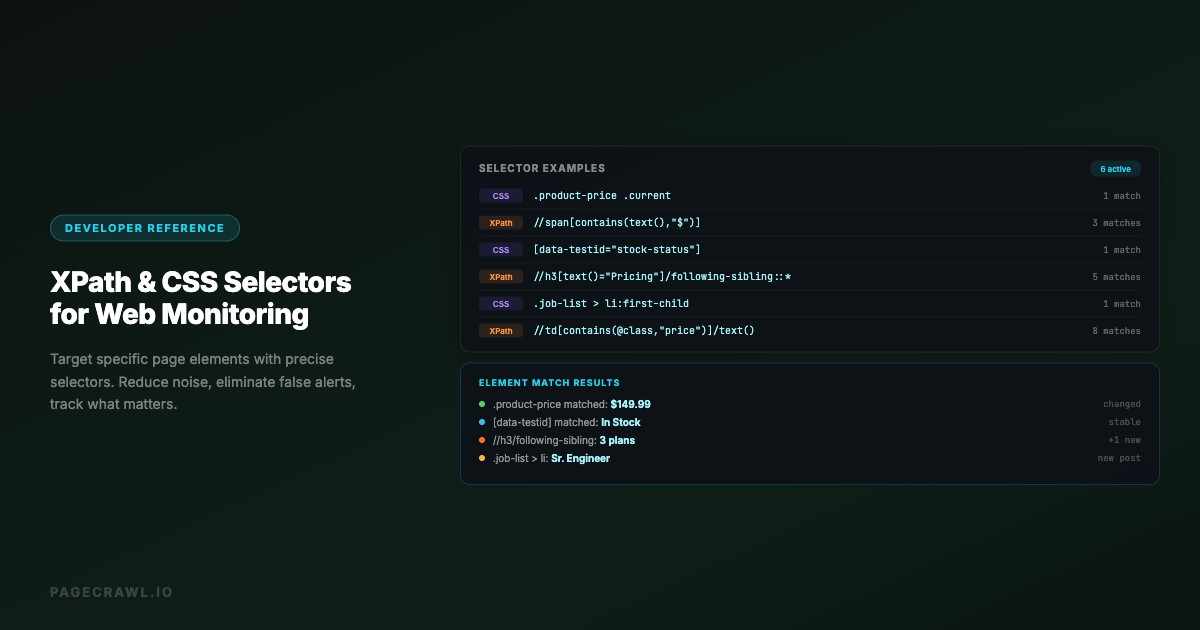
Use CSS selectors for everyday class and ID based targeting, and switch to XPath when you need to select by text content, navigate up to a parent element, or express conditional logic. For a deeper dive into XPath syntax, axes, and functions, see the complete XPath and CSS selector reference.
When CSS Selectors Are Better
- Simpler syntax for class and ID based selection
- More readable for common patterns
- Better performance in browsers
- Sufficient for the vast majority of monitoring use cases
When XPath Is Better
- Selecting by text content:
//span[contains(text(), "In Stock")] - Navigating up the DOM (selecting parents):
//span[@class="price"]/.. - Complex conditional logic:
//div[@class="product"][.//span[text()="Available"]] - Selecting by position in more flexible ways
XPath Examples for Monitoring
//span[contains(text(), "$")]                    /* Any span containing a dollar sign */
//h1[contains(@class, "product")]                /* H1 with "product" in its class */
//table//tr[2]/td[3]                             /* Row 2, column 3 of any table */
//div[@data-price]/@data-price                   /* The data-price attribute value */
//*[contains(text(), "In Stock")]                /* Any element containing "In Stock" */
PageCrawl supports both CSS selectors and XPath, so you can use whichever is more appropriate for the specific element you are targeting.
Selector Strategies by Website Type
E-commerce Sites (Shopify, WooCommerce, Magento)
Shopify stores follow consistent patterns:
.product__price .price-item--regular      /* Regular price */
.product__price .price-item--sale         /* Sale price */
.product-form__inventory                   /* Stock status */
.product__title                            /* Product name */
WooCommerce sites:
.woocommerce-Price-amount                  /* Price amount */
.price ins .amount                         /* Sale price */
.stock                                     /* Stock status (in-stock/out-of-stock) */
SaaS Pricing Pages
Pricing pages, including the plan and credit tiers for AI coding tools like Cursor and Copilot, often use tables or cards:
.pricing-card.pro .price                   /* Price for the "Pro" plan */
.plan-enterprise .monthly-cost             /* Enterprise monthly cost */
table.pricing td.plan-business             /* Business plan column in a pricing table */
Government and Regulatory Sites
These sites typically use simpler HTML:
.field-content                             /* Drupal field content */
.entry-content                             /* WordPress content area */
article .body                              /* Article body text */
main p                                     /* Main content paragraphs */
News and Blog Sites
article h1                                 /* Article headline */
.article-body                              /* Article content */
.publish-date                              /* Publication date */
.update-date                               /* Last updated date */
Testing and Maintaining Selectors
Test Before Deploying
Always verify your selector finds exactly what you expect:
- Open the page in a browser
- Open DevTools (F12)
- Go to the Console tab
- Run:
document.querySelector('your-selector').textContent - Verify the output matches what you want to track
Monitor for Selector Breakage
Websites redesign periodically, which can break your selectors. PageCrawl reports a "selector not found" status when the targeted element is missing from the page, one of the common visual selector problems and their fixes. Set up notifications for this status so you can update your selector promptly.
Build Resilient Selectors
Prefer selectors that are likely to survive redesigns:
/* FRAGILE: depends on specific nesting depth */
body > div > div:nth-child(3) > div > span

/* RESILIENT: uses semantic class names */
.product-info .current-price

/* MOST RESILIENT: uses data attributes or schema markup */
[itemprop="price"]
[data-testid="product-price"]
Keep a Selector Reference
For teams monitoring many pages, maintain a document listing:
- The URL being monitored
- The CSS selector used
- What value the selector should return
- When the selector was last verified
- Fallback selectors in case the primary breaks
Choosing your PageCrawl plan
PageCrawl's Free plan lets you monitor 6 pages with 220 checks per month, which is enough to validate the approach on your most critical pages. Most teams graduate to a paid plan once they see the value.
| Plan | Price | Pages | Checks / month | Frequency |
|---|---|---|---|---|
| Free | $0 | 6 | 220 | every 60 min |
| Standard | $8/mo or $80/yr | 100 | 15,000 | every 15 min |
| Enterprise | $30/mo or $300/yr | 500 | 100,000 | every 5 min |
| Ultimate | $99/mo or $999/yr | 1,000 | 100,000 | every 2 min |
Annual billing saves two months across every paid tier. Enterprise and Ultimate scale up to 100x if you need thousands of pages or multi-team access.
At an engineering hourly rate, Standard at $80/year pays for itself the first time element monitoring catches a silent pricing change, a deprecated field in a vendor's API documentation, or a docs update before it reaches production. 100 monitored pages covers the changelogs and release notes, pricing tables, and status pages of every third-party service your stack depends on, each with a precise selector pointing at exactly the value that matters. Enterprise at $300/year adds 5-minute checks and 500 pages for full coverage across your dependency landscape.
All plans include the PageCrawl MCP Server, which plugs directly into Claude and other MCP-compatible tools so you can ask "what changed in the Stripe API docs this month?" and get an answer drawn straight from your monitoring history. AI assistants can create monitors through conversation on every plan, including Free.
Getting Started
Pick one element you want to track on any website. Right-click it, inspect it, and build a CSS selector using the patterns in this guide. Test it in the browser console, then create a PageCrawl monitor with that selector. The entire process takes under five minutes.
For most monitoring use cases, a class-based selector like .product-price or .stock-status is all you need. Start simple, and only use advanced techniques like :nth-child() or XPath when the simple approach does not uniquely identify your target element. Once you are comfortable with selectors, you can turn any website into a structured data feed by combining element targeting with automated monitoring.