The difference between a useful web monitor and a noisy one often comes down to targeting. Monitor an entire page and you get alerts every time an ad rotates, a sidebar updates, or a timestamp changes. Monitor a specific element with a precise selector and you get alerts only when the content you actually care about changes.
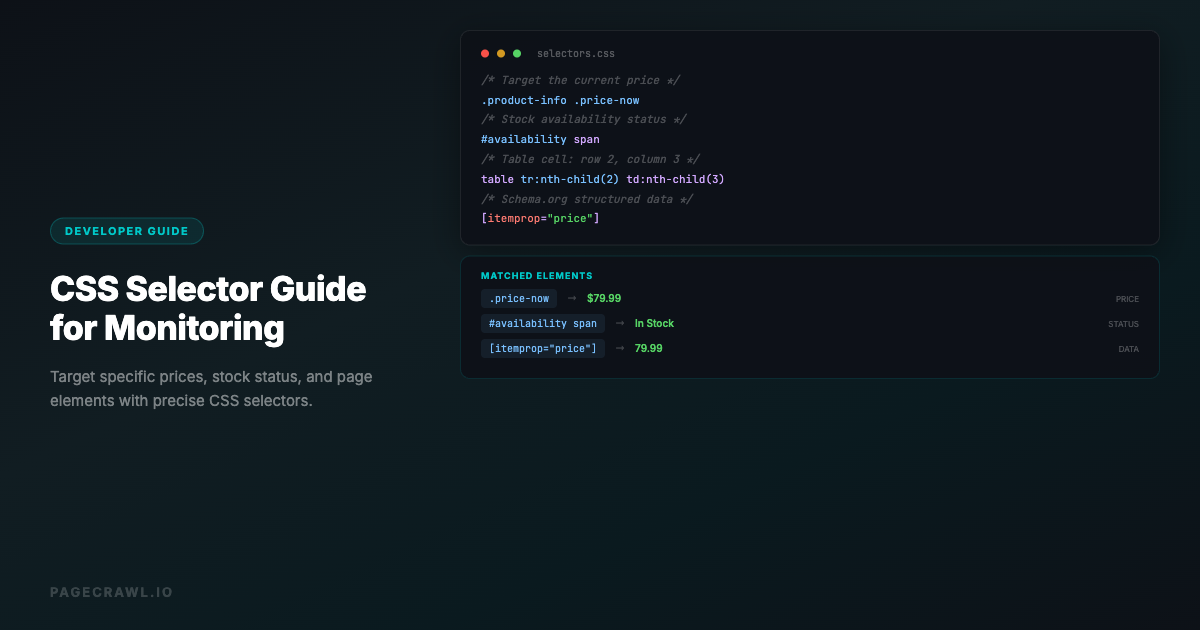
CSS selectors and XPath expressions are the two languages for targeting specific elements on a web page. Both can identify the exact div, span, table, or paragraph you want to track. Choosing the right selector means fewer false alerts, cleaner change data, and monitoring that actually serves your goals. If you are just getting started with CSS selectors, the CSS selector guide for monitoring covers the basics with step-by-step examples.
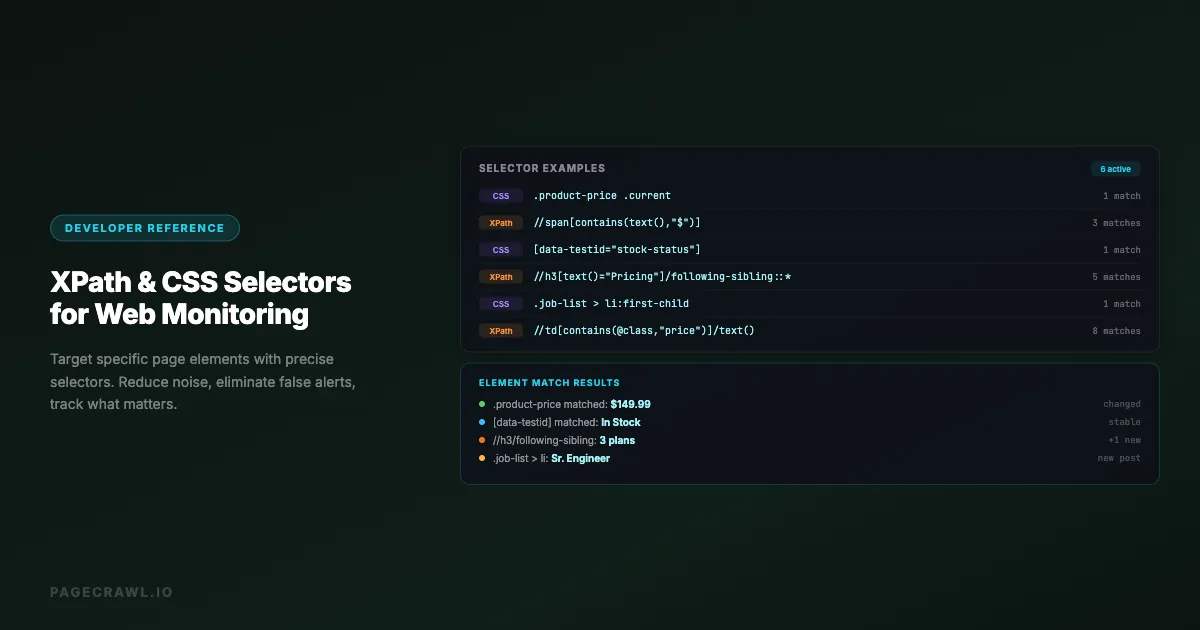
This reference covers both CSS selectors and XPath expressions, with practical examples focused on web monitoring use cases. Whether you are tracking a price on a product page, a job count on a careers page, or a policy update on a legal page, the right selector makes the difference.
CSS Selectors: The Fundamentals
CSS selectors were designed for styling web pages, but they work equally well for identifying elements to monitor. They are the more widely supported option and tend to be shorter and more readable than XPath. The syntax is standardized by the W3C in Selectors Level 4, so what you write here behaves the same in a browser and in a monitoring tool.
Basic Selectors
Element selector. Targets all elements of a given type.
h1
p
table
In monitoring: h1 selects the main heading of a page. Useful for detecting when a company changes their page title or product name.
Class selector. Targets elements with a specific CSS class.
.price
.job-listing
.company-description
In monitoring: .price selects all elements with the class "price." Most e-commerce sites use consistent class names for pricing elements, making this a reliable way to track prices.
ID selector. Targets a single element with a specific ID.
#main-content
#product-price
#job-count
In monitoring: #product-price selects the one element with that ID. IDs should be unique on a page, making this the most precise basic selector.
Attribute selector. Targets elements with specific attributes.
[data-testid="price"]
[role="main"]
[aria-label="Job listings"]
In monitoring: [data-testid="price"] is especially useful because data-testid attributes are added by developers for testing and rarely change, unlike classes that might be renamed during redesigns.
Combining Selectors
Descendant combinator. Selects elements nested inside other elements (at any depth).
.product-page .price
#content table
article p
In monitoring: .product-page .price finds price elements that are inside a product page container. This is more specific than just .price, which might also match prices in sidebar recommendations.
Child combinator. Selects only direct children (not deeper descendants).
.job-list > li
#pricing > .plan
nav > a
In monitoring: .job-list > li selects only the direct list items in a job list, ignoring nested lists within each listing. This gives you the count of top-level jobs.
Adjacent sibling combinator. Selects an element immediately following another.
h3 + p
.section-title + .section-content
In monitoring: h3 + p selects the paragraph immediately after an h3 heading. Useful for monitoring the first paragraph of a specific section without capturing the entire page.
General sibling combinator. Selects all siblings after an element.
h3 ~ pIn monitoring: h3 ~ p selects all paragraphs that follow an h3 within the same parent. This captures an entire section's text content.
Pseudo-Selectors for Monitoring
:first-child and :last-child. Select the first or last element within a parent.
.job-list li:first-child
.changelog-entry:first-child
table tbody tr:last-child
In monitoring: .changelog-entry:first-child targets the most recent changelog entry. When a new entry is added, it becomes the first child and your monitor detects the change.
:nth-child(). Selects elements by position.
table tr:nth-child(2)
.pricing-table .plan:nth-child(2)
In monitoring: table tr:nth-child(2) selects the second row of a table (often the first data row after a header). Useful for monitoring a specific row in a pricing table or data display.
:not(). Excludes elements matching a selector.
.content :not(.ad)
.page-body :not(.sidebar):not(.footer)
In monitoring: .content :not(.ad) selects content elements while excluding advertisements. This reduces false alerts from rotating ad content.
:contains() (XPath only, not standard CSS). Standard CSS does not support text content matching, but many monitoring tools extend CSS selectors with :contains() for convenience.
Attribute Selectors in Detail
These are particularly useful for monitoring because they can target elements by data attributes, ARIA roles, and other stable identifiers.
/* Exact match */
[data-product-id="12345"]

/* Starts with */
[class^="price-"]

/* Ends with */
[href$=".pdf"]

/* Contains */
[class*="price"]

/* Contains word (space-separated) */
[class~="featured"]
In monitoring:
[href$=".pdf"]finds all PDF links on a page. Monitor this to detect when new documents are published.[class*="price"]matches any element whose class contains "price," handling variations like "product-price," "price-current," and "sale-price."[data-product-id="12345"]targets a specific product element by its data attribute, which is more stable than class names.
XPath Expressions: The Fundamentals
XPath (XML Path Language) is more powerful than CSS selectors but also more verbose. Its key advantage is the ability to select elements based on their text content, navigate up the DOM tree (not just down), and use complex conditions. The W3C XPath recommendation is the authoritative definition of the functions and axes below.
Basic XPath
Select by element.
//h1
//div
//table
The // prefix means "find anywhere in the document." A single / would mean "direct child of the root."
Select by attribute.
//div[@class="price"]
//span[@id="job-count"]
//a[@href="/pricing"]
In monitoring: //div[@class="price"] is equivalent to the CSS selector div.price, targeting divs with the exact class "price."
Select by text content.
//h3[text()="Pricing"]
//span[contains(text(), "employees")]
//td[starts-with(text(), "$")]
In monitoring: //span[contains(text(), "employees")] finds any span containing the word "employees." This is XPath's biggest advantage over CSS. You can find elements by what they say, not just how they are styled. If a company page shows "1,234 employees" and you want to track that specific number, this expression targets it directly.
XPath Axes: Navigating the DOM
XPath can move in any direction through the document tree, which CSS cannot do.
Parent axis. Move up to the parent element.
//span[@class="price"]/..
//td[text()="Revenue"]/parent::tr
In monitoring: //td[text()="Revenue"]/parent::tr finds a table cell containing "Revenue" and then selects its entire row. This captures the revenue figure alongside its label, regardless of which column the number is in.
Ancestor axis. Move up through multiple levels.
//span[text()="$99"]/ancestor::div[@class="plan-card"]In monitoring: Find the $99 text and then select the entire plan card containing it. This captures the complete plan details (name, price, features) rather than just the price alone.
Following-sibling axis. Select elements that come after.
//h3[text()="Features"]/following-sibling::ul[1]
//dt[text()="Price"]/following-sibling::dd[1]
In monitoring: //h3[text()="Features"]/following-sibling::ul[1] finds the heading "Features" and then selects the first list that follows it. This is extremely useful for monitoring a specific section of a page by its heading text.
Preceding-sibling axis. Select elements that come before.
//h3[text()="Changelog"]/preceding-sibling::p[1]XPath Functions
contains(). Partial text matching.
//div[contains(@class, "price")]
//p[contains(text(), "last updated")]
In monitoring: //p[contains(text(), "last updated")] finds paragraphs mentioning "last updated," which often contain dates that indicate when content was refreshed.
starts-with(). Match the beginning of a string.
//a[starts-with(@href, "/jobs/")]
//div[starts-with(@class, "product-")]
In monitoring: //a[starts-with(@href, "/jobs/")] finds all links to job pages. Count these to track total job listings.
normalize-space(). Strips extra whitespace for cleaner matching.
//span[normalize-space(text())="In Stock"]In monitoring: Web pages often have invisible whitespace around text. normalize-space() ensures your selector matches regardless of whitespace differences.
position() and last(). Select by position in a list.
//ul[@class="results"]/li[position()<=5]
//table/tbody/tr[last()]
In monitoring: //table/tbody/tr[last()] selects the last row of a table. If the table shows chronological data, this captures the most recent entry.
CSS or XPath: which should you use?
Use CSS by default and reach for XPath only when CSS cannot do the job. CSS is shorter, more readable, and supported everywhere, so it wins whenever the element has a usable class, ID, or data attribute. XPath is the answer when you need to match on text content, walk up the DOM, or express a compound condition.
Choose CSS Selectors When
- The element has a unique class or ID.
.price,#main-content,[data-testid="headline"]are clean and simple. - You need descendant relationships.
.product-card .price .amountreads naturally. - The monitoring tool has limited XPath support. CSS selectors are more widely supported across monitoring tools.
- You want shorter, more readable selectors. CSS is typically 30-50% shorter than equivalent XPath.
Choose XPath When
- You need to select by text content. Only XPath can find elements based on what they say.
//td[contains(text(), "Revenue")]has no CSS equivalent. - You need to navigate upward. CSS can only go down the tree. XPath can go up with
parent::,ancestor::, and related axes. - You need complex conditions. XPath supports
and,or, and nested conditions.//div[@class="plan" and .//span[text()="Enterprise"]]finds a plan card that contains "Enterprise" text somewhere inside it. - The element has no useful classes or IDs. Some pages use generated class names (like
css-1a2b3c) that change on every deploy. XPath's text-based selection avoids this problem entirely.
Practical Monitoring Recipes
These are ready-to-use selector patterns for common web monitoring scenarios.

Price Monitoring
Basic product price.
/* CSS */
.price-current, .product-price, [data-testid="price"]

/* XPath */
//span[contains(@class, "price") and not(contains(@class, "was-price"))]
The XPath version excludes "was-price" elements (strikethrough original prices) to capture only the current price.
Price with currency filtering.
//span[starts-with(normalize-space(text()), "$") or starts-with(normalize-space(text()), "£")]Finds elements whose text starts with a currency symbol. Works across different price display formats.
Amazon-style pricing.
.a-price .a-offscreen
#priceblock_ourprice
.priceToPay span[aria-hidden="true"]
Amazon uses specific class patterns for pricing. The .a-offscreen class contains the accessible price text.
Job Listing Monitoring
Total job count.
//span[contains(text(), "jobs") or contains(text(), "positions") or contains(text(), "openings")]Finds the element showing total job count, regardless of whether the site says "42 jobs," "42 positions," or "42 openings."
Job listing titles.
.job-listing h3, .job-card .title, [data-testid="job-title"]Specific department jobs.
//div[contains(@class, "job") and .//span[contains(text(), "Engineering")]]Finds job cards that contain "Engineering" in their department label, the building block for job board and career page monitoring.
Content and Article Monitoring
Article body (excluding sidebar, nav, ads).
article .content, .post-body, main .article-textLast updated date.
//time[@datetime] | //span[contains(text(), "Updated") or contains(text(), "Modified")]Captures both semantic <time> elements and text-based update indicators.
Changelog or release notes (latest entry only).
.changelog-entry:first-child, .release-notes > div:first-childE-commerce Stock Monitoring
In-stock status.
//span[contains(text(), "In Stock") or contains(text(), "Available")]
//*[contains(@class, "stock") or contains(@class, "availability")]
Add to cart button presence.
button[data-testid="add-to-cart"], .add-to-cart-btn, #addToCartIf this element disappears from the page, the product is out of stock.
Shipping estimate.
//div[contains(@class, "shipping") or contains(@class, "delivery")]//span[contains(text(), "by") or contains(text(), "ships")]Legal and Compliance Monitoring
Terms of service content.
.terms-content, .legal-text, #tos-body, main .proseEffective date.
//p[contains(text(), "Effective") or contains(text(), "Last revised") or contains(text(), "Updated")]Specific clause or section.
//h2[contains(text(), "Data Retention")]/following-sibling::*[following-sibling::h2 or not(following-sibling::h2)]This advanced XPath selects all content between the "Data Retention" heading and the next h2 heading, the pattern behind terms of service and privacy policy change tracking.
Company Page Monitoring
Employee count on LinkedIn-style pages.
//span[contains(text(), "employees") or contains(text(), "team members")]Company description.
.about-section, .company-description, [data-section="about"] .text-contentHeadquarters or location.
//dt[contains(text(), "Headquarters")]/following-sibling::dd[1]Uses a definition list pattern common on company pages.
How do you write selectors that survive a redesign?
Anchor on things developers maintain deliberately: data-testid and similar data attributes, ARIA roles and labels, descriptive class names, and stable IDs. Avoid positional paths, generated hash class names, and long ancestor chains, because all three break the first time anyone touches the layout. For a deeper walkthrough of finding these anchors in a browser, see how to find an XPath or CSS selector in Chrome, Firefox, and Safari.
Avoid Fragile Selectors
Fragile selectors break when the page is redesigned. Robust selectors survive minor and even major layout changes.
Fragile (avoid these):
/* Position-dependent: breaks if elements are reordered */
body > div:nth-child(3) > div:nth-child(2) > span

/* Generated class names: change on every deploy */
.css-1x2y3z, .sc-bdnylx, ._3fKqO

/* Deeply nested paths: break if any ancestor changes */
html > body > div#app > div.layout > main > section:nth-child(2) > div.container > div.row > div.col > p
Robust (prefer these):
/* Semantic attributes: developers maintain these intentionally */
[data-testid="price"]
[role="main"]
[aria-label="Product price"]

/* Stable class names: descriptive names that reflect purpose */
.product-price
.job-listing-count
.company-description

/* ID selectors: usually stable and unique */
#main-content
#pricing-section
Handle Dynamic Class Names
Modern JavaScript frameworks (React, Vue, Angular) often generate class names that include hashes or random strings. These change with every build.
Problem:
/* These will break on next deployment */
.styles_price__2xK4f
.Price-module_current__abc123
Solutions:
/* Use attribute selectors with partial matching */
[class*="price_current"]
[class*="Price-module"]

/* Use data attributes if available */
[data-testid="price"]
[data-cy="product-price"]

/* Use structural selectors */
.product-card span:first-child
/* XPath: select by text content instead */
//*[contains(@class, "price")][number(translate(text(), "$,", "")) > 0]Test Before Deploying
Before setting a selector for long-term monitoring, verify it:
- Returns the expected element count. If your selector matches 15 elements when you expected 1, it is too broad.
- Returns the expected content. Check that the matched element contains the text or data you want to track.
- Works across page states. Test the selector when the page shows different content (in stock vs. out of stock, expanded vs. collapsed sections).
- Survives a page refresh. Some elements are rendered dynamically with different class names on each load.
Most monitoring tools with CSS and XPath support have a preview function that shows what your selector matches before you start monitoring.
Advanced Patterns
Combining Multiple Selectors
Monitor several elements at once with comma-separated CSS selectors or XPath union operators.
CSS (comma-separated):
.current-price, .stock-status, .shipping-estimateThis monitors all three elements. A change to any one triggers an alert.
XPath (union operator):
//span[@class="price"] | //div[@class="availability"] | //span[@class="shipping"]Excluding Dynamic Content
Many pages have elements that change on every load (timestamps, session tokens, random recommendations). Exclude them.
CSS:
.main-content :not(.timestamp):not(.recommendations):not(.ad-slot)XPath:
//div[@class="content"][not(contains(@class, "dynamic"))]//*[not(self::script) and not(self::style)]Extracting Numeric Values
For price or quantity monitoring, target just the numeric content.
XPath for numbers:
//span[contains(@class, "price")][translate(text(), "0123456789.$,", "") = ""]This selects price elements whose text, after removing digits, dots, dollar signs, and commas, is empty. In other words, elements that contain only price-formatted text.
Monitoring Tables
Tables are common for pricing pages, comparison charts, and data displays.
Specific cell by header text:
//table//th[text()="Price"]/ancestor::table//td[count(//table//th[text()="Price"]/preceding-sibling::th)+1]This finds the column labeled "Price" and selects all cells in that column.
Simpler table monitoring:
/* Monitor the entire table body */
table.pricing tbody

/* Monitor a specific row */
table.pricing tbody tr:nth-child(2)

/* Monitor all cells in a column */
table.pricing td:nth-child(3)
Selector Strategies by Website Type
Single-Page Applications (SPAs)
React, Vue, and Angular apps render content dynamically. Selectors must account for this.
Challenges:
- Content loads after the initial page render
- Class names may be generated and unstable
- Element structure may change based on application state
Strategies:
- Use
data-testidordata-cyattributes when available - Prefer
[role]and[aria-label]attributes that are kept for accessibility - Use text-based XPath selectors that do not depend on CSS classes
- Ensure your monitoring tool waits for JavaScript rendering before applying selectors
Static HTML Sites
Traditional server-rendered pages are the most straightforward to monitor.
Strategies:
- ID and class selectors are usually stable
- Semantic HTML elements (
<article>,<main>,<nav>) make good anchors - Page structure rarely changes between requests
WordPress and CMS Sites
Content management systems use consistent templates with predictable class patterns.
Common patterns:
/* WordPress */
.entry-content, .post-content, .article-body
.entry-title, .post-title

/* Shopify */
.product-single__price, .product__price
.product-single__description

/* Squarespace */
.sqs-block-content
.product-price
E-commerce Platforms
Major e-commerce platforms have well-known selector patterns.
General approach:
- Look for
data-testid,data-automation, ordata-qaattributes first - Fall back to semantic class names (
.price,.stock,.title) - Use XPath text matching as a last resort
How do you debug a selector that does not match?
Open the page in your browser, run the selector in the DevTools console, and compare the match count against what you expected. Zero matches usually means the content renders after page load; too many matches means the selector is too broad; the wrong match means the visual layout does not mirror the DOM.
In browser DevTools:
- Open DevTools (F12)
- Go to the Console tab
- Test CSS selectors:
document.querySelectorAll('.your-selector') - Test XPath:
$x('//your/xpath/expression') - Check the count and content of matched elements
Common issues:
- Selector matches nothing. The element may load dynamically after the page renders. Check if the content appears in the page source or only after JavaScript execution, and when the value only exists once scripts have run, a JavaScript tracked element that reads it straight from the DOM captures it without a selector at all.
- Selector matches too many elements. Add more specificity. Combine the class selector with a parent context:
.product-detail .priceinstead of just.price. - Selector matches the wrong element. Use browser DevTools to inspect the actual DOM structure. The visual layout may not match the DOM hierarchy.
- Selector works in browser but not in monitoring tool. The monitoring tool may use a different rendering engine or may not wait long enough for dynamic content to load.
Quick Reference
CSS Selector Cheat Sheet
| Pattern | Example | Description |
|---|---|---|
.class |
.price |
Element with class |
#id |
#main |
Element with ID |
[attr] |
[data-testid] |
Has attribute |
[attr="val"] |
[role="main"] |
Attribute equals |
[attr*="val"] |
[class*="price"] |
Attribute contains |
A B |
.card .price |
B inside A |
A > B |
.list > li |
B direct child of A |
A + B |
h3 + p |
B immediately after A |
:first-child |
li:first-child |
First child element |
:nth-child(n) |
tr:nth-child(2) |
Nth child element |
:not(sel) |
:not(.ad) |
Exclude matching |
XPath Cheat Sheet
For more monitoring-specific patterns, the help centre keeps a longer list of common XPath selectors for tracking website changes.
| Pattern | Example | Description |
|---|---|---|
//tag |
//div |
Find anywhere |
[@attr] |
[@class="x"] |
Attribute match |
[text()="x"] |
[text()="Price"] |
Exact text match |
[contains()] |
[contains(text(),"$")] |
Partial match |
/.. |
//span/.. |
Parent element |
/following-sibling:: |
/following-sibling::td[1] |
Next sibling |
[position()<=n] |
[position()<=5] |
First n matches |
[last()] |
tr[last()] |
Last match |
| pipe character | //a pipe //span |
Union (combine) |
[not()] |
[not(@class="ad")] |
Exclude matching |
Choosing your PageCrawl plan
PageCrawl's Free plan lets you monitor 6 pages with 220 checks per month, which is enough to validate the approach on your most critical pages. Most teams graduate to a paid plan once they see the value.
| Plan | Price | Pages | Checks / month | Frequency |
|---|---|---|---|---|
| Free | $0 | 6 | 220 | every 60 min |
| Standard | $8/mo or $80/yr | 100 | 15,000 | every 15 min |
| Enterprise | $30/mo or $300/yr | 500 | 100,000 | every 5 min |
| Ultimate | $99/mo or $999/yr | 1,000 | 100,000 | every 2 min |
Annual billing saves two months across every paid tier. Enterprise and Ultimate scale up to 100x if you need thousands of pages or multi-team access.
Standard at $80/year is worth it after the first selector you write saves you from manually checking a vendor docs page or a changelog every week. 100 monitored pages is plenty to cover the third-party APIs, SaaS dashboards, and competitor pricing pages a typical engineering team depends on, each with a precise selector so alerts fire only when the content that matters actually changes. All plans include the PageCrawl MCP Server, which connects your monitored pages directly to Claude, Cursor, and other MCP-compatible tools. Instead of searching your email for last month's Stripe changelog alert, you ask your assistant and get the answer from your own monitoring history. AI assistants can create monitors through conversation on every plan, including Free. Enterprise at $300/year adds 500 pages and higher check frequency for teams that need broader coverage.
Getting Started
If you are new to selectors for web monitoring, start with this approach:
Open the page you want to monitor in your browser. Right-click the element you care about and select "Inspect." This shows you the element's tag, classes, IDs, and attributes.
Try the simplest selector first. If the element has an ID, use
#that-id. If it has a descriptive class, use.that-class. Test it in the browser console withdocument.querySelectorAll('.that-class')to verify it matches what you expect.Add specificity if needed. If the simple selector matches too many elements, add a parent context:
.product-detail .priceinstead of.price. If it matches elements in the sidebar too, try.main-content .product-detail .price.Switch to XPath only when CSS is insufficient. If you need text-based matching, parent navigation, or complex conditions, XPath is the right tool. Otherwise, CSS selectors are simpler and more maintainable.
Set up your monitor with the selector. Configure your monitoring tool to check just that element. Run a test check to verify the selector captures the content you want. Then set your check frequency and alerts.
The right selector turns a web page into a precise data feed. Instead of monitoring "this entire page changed somehow," you get "the price of this specific product changed from $99 to $79" or "three new job listings appeared in the Engineering department." That precision is what makes web monitoring actionable. You can take this further and turn any website into an API by combining selectors with automated data extraction.