Your compliance team monitors a regulator's website. The regulator publishes a policy update at 2pm on a Tuesday. The compliance officer who checks the site manually sees the update on Thursday morning. By then, the 48-hour comment window has already closed.
If that alert had landed in the team's Microsoft Teams channel as soon as the next scheduled check picked up the update, the team could have reviewed it within the hour and submitted their comments before the deadline. The difference between "someone checks the site when they remember" and "a monitor checks every few minutes and posts to our channel" is often the difference between responding and missing out.
Microsoft Teams has become the collaboration hub for millions of organizations. When critical website changes happen (competitor pricing moves, regulatory updates, product availability shifts, content modifications), your team needs that information where they already work. Not in a separate email inbox. Not in a tool most people forget to check. In Teams, where attention already lives.
This guide covers how to connect website monitoring to Microsoft Teams, configure the integration for maximum usefulness, organize alerts across channels, and build team workflows around automated website change notifications.
Why send website change alerts to Microsoft Teams?
Because Teams is where your colleagues already are. Alerts posted into a channel get read, discussed, and acted on in the same place, without a new tool, a new login, or a separate inbox. Teams also keeps the alert and the follow-up conversation together under your organization's existing retention rules.
Enterprise Adoption
Microsoft Teams is the default communication platform for a massive share of enterprise organizations. If your company uses Microsoft 365, Teams is already deployed, configured, and integrated with your existing security and compliance infrastructure. Adding website change alerts to Teams requires no new software, no additional user accounts, and no separate security review.
Centralized Notification Hub
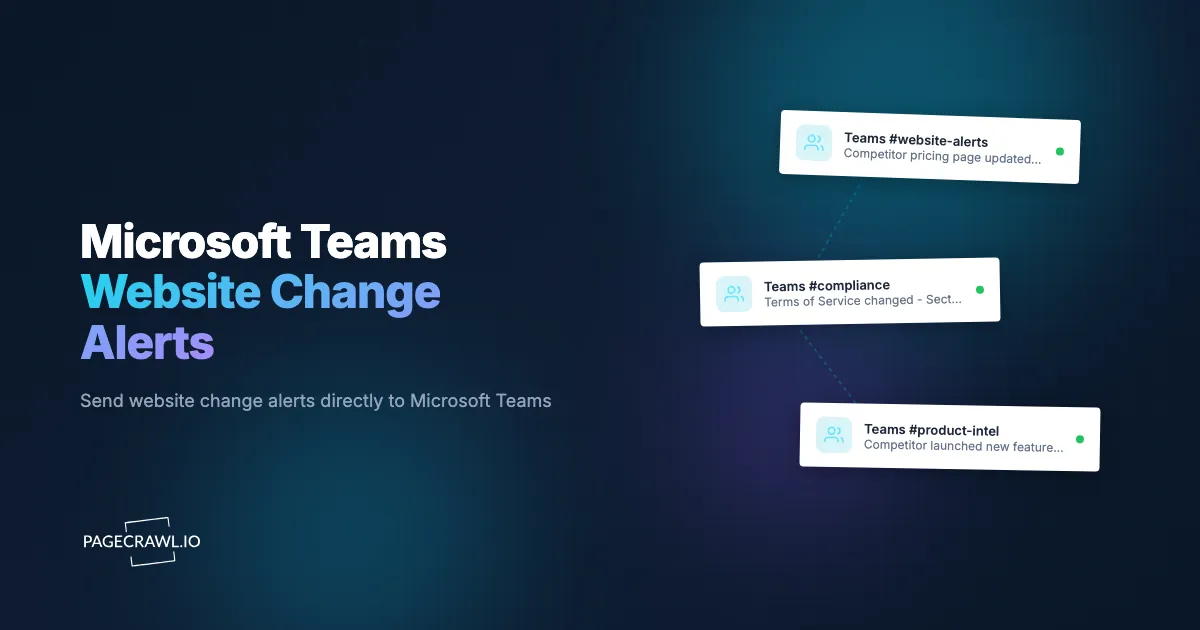
Teams channels organize communication by topic. A #competitor-updates channel collects all competitive intelligence alerts. A #compliance-alerts channel gathers regulatory changes. A #product-monitoring channel tracks product availability and pricing. When alerts arrive in the right channel, the right people see them without any manual routing.
Mobile and Desktop Presence
Teams notifications appear on desktop and mobile simultaneously. A website change alert reaches team members wherever they are, whether at their desk, in a meeting on their laptop, or on their phone during lunch. The notification follows the user across devices.
Built-in Discussion Threading
When a website change alert arrives in a Teams channel, team members can reply in a thread to discuss the change, assess its impact, and coordinate their response. The alert and the discussion live together. No context switching between an alert tool and a discussion tool.
Compliance and Audit Trail
Teams messages are retained according to your organization's retention policies. Website change alerts in Teams become part of your auditable communication record. For regulated industries where you need to demonstrate awareness of changes, Teams provides the documentation trail automatically.
Setting Up Teams Incoming Webhooks
Microsoft Teams supports incoming webhooks, which allow external services to post messages to Teams channels. This is the mechanism that connects PageCrawl to your Teams workspace. The current behaviour of connectors and workflow-based webhooks is documented in the Microsoft Teams developer documentation, which is worth checking if your tenant has already migrated.
Creating a Webhook in Teams
Step 1: Choose the target channel
Open Microsoft Teams and navigate to the channel where you want website change alerts to appear. This should be a channel where the relevant team members are already active. For example, if your competitive intelligence team has a #competitor-intel channel, that is where competitor website alerts should go.
Step 2: Access channel connectors
Click the three-dot menu next to the channel name and select "Connectors" (in classic Teams) or "Manage channel" then "Edit" then "Connectors" (in new Teams). If you do not see the Connectors option, your Teams administrator may need to enable it for your organization.
Note: Microsoft has been transitioning from Office 365 Connectors to a Workflows-based approach. If your organization uses the newer Workflows system, you can create an incoming webhook through Power Automate with a "When a Teams webhook request is received" trigger. The webhook URL works the same way.
Step 3: Add an Incoming Webhook
Search for "Incoming Webhook" in the connectors list and click "Add" or "Configure." Give the webhook a descriptive name like "PageCrawl Website Alerts" and optionally upload a custom icon. Click "Create."
Step 4: Copy the webhook URL
Teams generates a unique webhook URL. Copy this URL and save it securely. This URL is the endpoint that PageCrawl will send alerts to. Anyone with this URL can post to your channel, so treat it like a credential.
The webhook URL looks something like:
https://outlook.office.com/webhook/abc123.../IncomingWebhook/def456.../ghi789...Or for Workflows-based webhooks:
https://prod-xx.westus.logic.azure.com:443/workflows/...Testing the Webhook
Before connecting PageCrawl, verify the webhook works by sending a test message. You can use any tool that can make HTTP POST requests. A simple test confirms the webhook URL is correct and that messages appear in the expected channel.
If the test message appears in your Teams channel, the webhook is working and ready for PageCrawl.
Connecting PageCrawl to Microsoft Teams
Once you have the webhook URL, connecting PageCrawl takes just a few steps. The help centre walks through the same flow with screenshots in sending website change notifications to a Microsoft Teams channel.

Adding the Teams Webhook in PageCrawl
Step 1: Log into PageCrawl and navigate to your workspace settings.
Step 2: Go to the Notifications section.
Step 3: Click "Add Notification Channel" and select "Microsoft Teams" (or "Webhook" if configuring a custom webhook endpoint).
Step 4: Paste the Teams webhook URL you copied earlier.
Step 5: Send a test notification to verify the connection. PageCrawl sends a sample alert to your Teams channel. Verify it appears correctly.
Step 6: Save the notification channel configuration.
Configuring Which Monitors Alert to Teams
You can set Teams notifications at two levels:
Workspace level: Enable the Teams channel for all monitors in a workspace. Every detected website change across all monitors posts to your Teams channel. This is appropriate when a team wants comprehensive visibility into all monitored changes.
Per-monitor level: Enable Teams notifications on individual monitors. This gives you granular control: competitor price changes go to #competitor-intel, regulatory updates go to #compliance-alerts, and product availability changes go to #product-monitoring.
For most organizations, per-monitor notification routing provides the best signal-to-noise ratio. Team members see only the alerts relevant to their work.
Formatting Messages for Teams
PageCrawl sends structured alert messages to Teams that include the key information your team needs to assess and act on a change.
What a Teams Alert Contains
A typical PageCrawl alert in Teams includes:
- Monitor name: The descriptive name you gave the monitor
- URL: The page that changed, as a clickable link
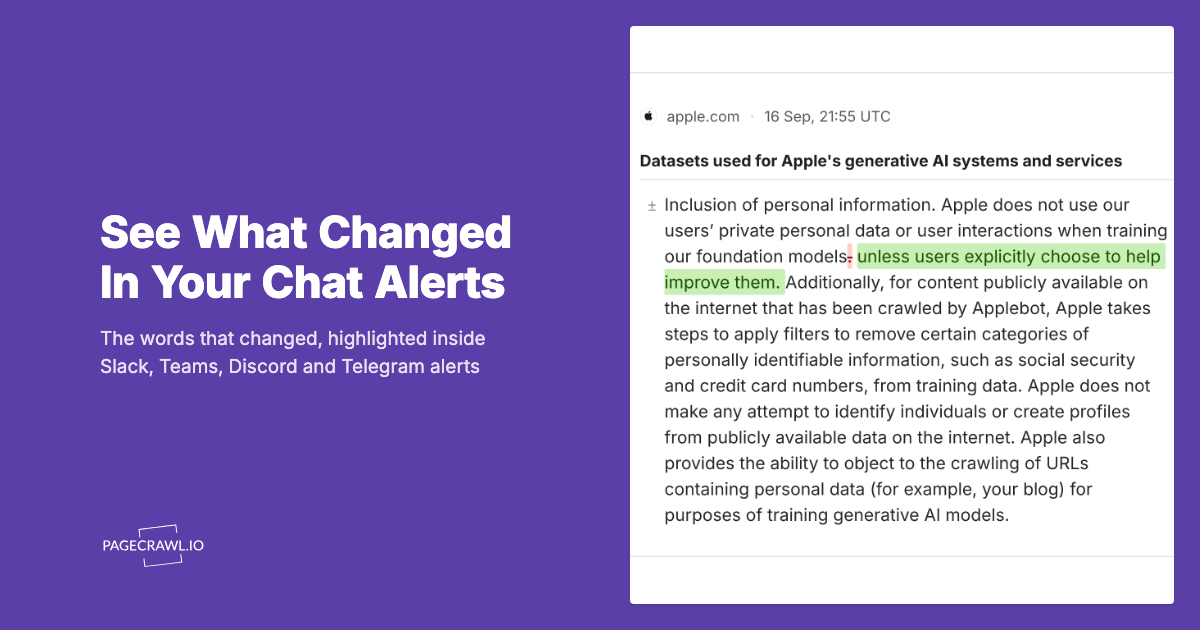
- Change summary: A description of what changed, including AI-powered analysis when enabled
- Timestamp: When the change was detected
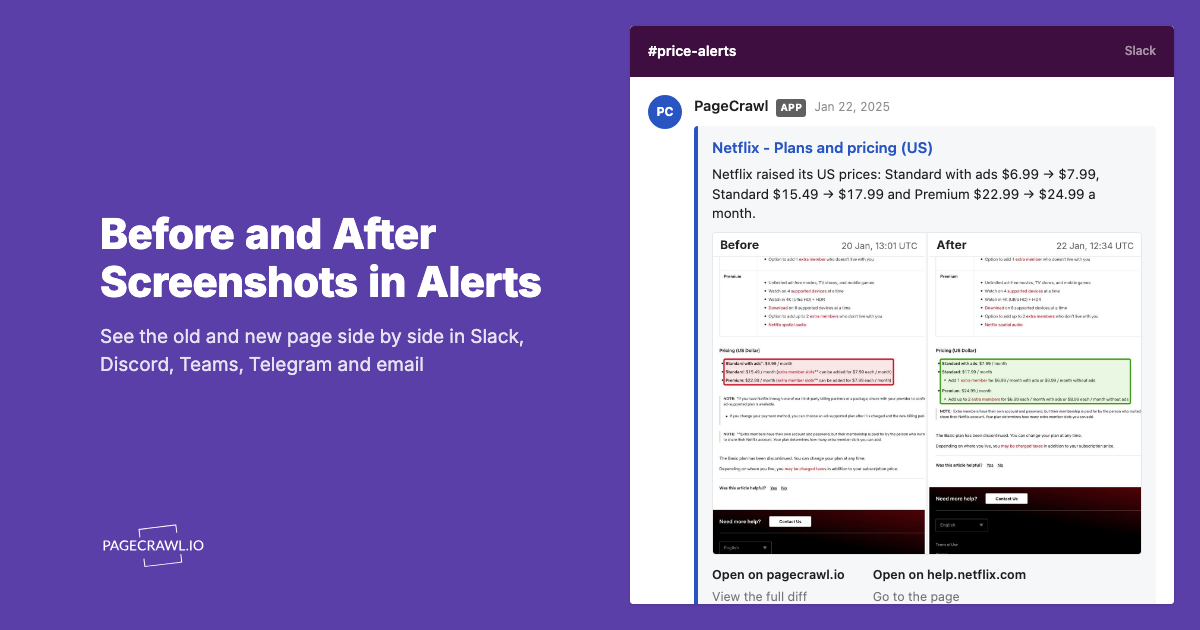
- Screenshot: A visual snapshot of the page showing the current state
- Diff details: A link to view the detailed before/after comparison in PageCrawl
The message format uses Teams' Adaptive Card or message card structure, which supports rich formatting, images, and action buttons.
Customizing Alert Content
Different types of monitors benefit from different levels of detail:
Price monitoring: The alert shows the old price, new price, and percentage change. Team members can immediately assess whether a price move is significant enough to warrant action.
Content monitoring: The alert includes a summary of what text changed on the page. AI-powered summaries condense complex content changes into actionable descriptions.
Availability monitoring: The alert shows the stock status change (e.g., "Out of Stock" to "In Stock") along with the product name and URL.
Routing Different Monitors to Different Channels
For organizations monitoring many websites, routing all alerts to a single Teams channel creates noise. Strategic channel routing keeps alerts relevant and actionable.
Channel Organization Strategy
Create dedicated Teams channels for different monitoring categories:
- #competitor-pricing: Competitor website price changes and product updates
- #regulatory-updates: Government and regulatory body website changes. See our guide to regulatory compliance monitoring for what to monitor
- #product-availability: Stock status and restock changes for products your team tracks
- #content-changes: General website content monitoring for marketing, legal, or SEO purposes
- #vendor-updates: Supplier and vendor website changes affecting procurement
Each channel has its own webhook URL. In PageCrawl, assign different monitors to different webhook endpoints. Competitor monitors send to #competitor-pricing. Regulatory monitors send to #regulatory-updates. Each team sees only the alerts relevant to their work.
Multiple Webhooks per Monitor
Some alerts are relevant to multiple teams. A regulatory change might matter to both the compliance team and the legal team. PageCrawl supports sending notifications to multiple channels simultaneously. Add both webhook URLs to the monitor's notification settings, and the alert appears in both Teams channels.
Building Team Workflows Around Website Alerts
Alerts are only valuable if they lead to action. Building workflows around your Teams alerts ensures changes get assessed and handled.
Thread-Based Triage
When an alert arrives in a Teams channel, establish a workflow where a team member replies in the thread with an assessment:
- "Reviewed. No action needed." for routine changes
- "Action required. Assigning to [name] for follow-up." for changes that need a response
- "Escalating to [manager]. This affects [project/client]." for high-priority changes
This creates a documented triage process within the Teams thread, visible to everyone in the channel.
PageCrawl's review boards complement this workflow by providing a dedicated space for the team to triage detected changes before they are marked as resolved. When a change is detected, it appears on the review board where team members can inspect the diff, add notes, and mark it as reviewed. This keeps the triage status inside PageCrawl while the discussion happens in Teams. The combination ensures nothing falls through the cracks: the Teams thread handles real-time discussion, and the review board provides a structured checklist of changes that still need attention.
Integration with Task Management
Teams integrates with Planner, Jira, Asana, and other task management tools. When a website change alert requires action, team members can create a task directly from the Teams thread, linking the alert to a trackable work item.
For automated task creation, use PageCrawl's webhook automation to send structured data to Power Automate or n8n, which then creates tasks in your project management system automatically.
Scheduled Digest Summaries
For non-urgent monitoring, a daily or weekly digest can be more appropriate than real-time alerts. Use PageCrawl's webhook output combined with Power Automate to aggregate changes and post a daily summary to your Teams channel each morning. This reduces notification fatigue for lower-priority monitoring while maintaining visibility.
For automation setup details, see our guide on n8n website monitoring and change detection.
Should you use Slack or Microsoft Teams for website alerts?
Use whichever platform your team already lives in. Both deliver the same alert content with comparable formatting and reliability, so there is no monitoring-specific reason to switch. If your organization runs both, PageCrawl can post the same change to a Slack channel and a Teams channel at once.
Native Integration
PageCrawl offers native Slack integration with OAuth-based authentication. The Teams integration uses webhooks. Both approaches deliver alerts reliably, but the Slack integration requires slightly less configuration because OAuth handles the authentication automatically. For a detailed Slack setup guide, see our article on website change alerts in Slack.
Message Formatting
Both Slack and Teams support rich message formatting with images, links, and structured layouts. Slack uses Block Kit for rich messages. Teams uses Adaptive Cards. The visual presentation is comparable, with both platforms displaying alert details, screenshots, and action links effectively.
Organizational Fit
The choice between Slack and Teams typically depends on which platform your organization already uses. There is no meaningful advantage to choosing one over the other purely for website alerts. Use whichever platform your team actively monitors throughout the day.
Using Both
Some organizations use Slack for engineering teams and Teams for business teams. PageCrawl supports sending the same alert to both platforms simultaneously. Route technical monitoring alerts to Slack and business monitoring alerts to Teams, or send critical alerts to both.
Advanced Teams Integration Patterns
Conditional Alerting
Not every website change deserves a Teams notification. For high-frequency monitoring, minor changes can create notification fatigue. Using notification conditions and filters, configure PageCrawl to only send Teams alerts when changes meet specific criteria:
- Price drops exceeding a threshold percentage
- Specific keywords appearing or disappearing from a page
- Availability changes (in stock to out of stock, or vice versa)
- Changes to specific tracked elements rather than any page change
This ensures your Teams channel receives only actionable alerts.
Power Automate Workflows
Microsoft Power Automate (formerly Flow) can process PageCrawl webhook data before posting to Teams. This enables sophisticated routing:
- Route alerts to different channels based on the type of change
- Enrich alerts with data from other systems (CRM, ERP) before posting
- Create conditional logic that escalates certain changes to management channels
- Log all alerts to a SharePoint list for reporting and audit purposes
Connect PageCrawl's webhook output to a Power Automate flow, then use the flow to process, route, and enhance the alert before it reaches Teams.
Combining with Email and Push Notifications
Teams notifications work well during business hours when team members are at their computers. For after-hours monitoring of critical pages, add email or web push notifications as backup channels. Configure critical monitors to send both a Teams message and a push notification, ensuring someone sees the alert regardless of the time.
Why are Teams alerts not arriving?
Nine times out of ten it is the webhook URL: truncated on copy, deleted in Teams, or blocked by a tenant policy. After that, check whether the specific monitor has Teams notifications enabled and whether it is actually detecting changes. The sections below work through each cause in order.
Webhook URL Not Working
If alerts are not appearing in Teams, verify:
- The webhook URL was copied completely (these URLs are long and easy to truncate)
- The webhook has not been deleted or disabled in Teams settings
- Your Teams administrator has not blocked incoming webhooks for your organization
- The channel still exists (renamed or archived channels may break the webhook)
Send a test notification from PageCrawl to confirm the connection. If the test fails, recreate the webhook in Teams and update the URL in PageCrawl.
Missing Notifications
If some alerts appear but others do not:
- Verify the specific monitor has Teams notifications enabled (workspace-level settings do not override per-monitor disable settings)
- Check that the monitor is detecting changes (view the monitor's history in PageCrawl)
- Confirm the Teams channel is not muted on your device
Delayed Notifications
Teams webhook delivery is usually fast, but occasional delays can occur during Teams service issues. Remember that the clock starts when a scheduled check detects the change, not when the page was edited, so part of any gap is simply your check interval. If you notice consistent delays beyond that:
- Check the Microsoft 365 Service Health Dashboard for Teams issues
- Verify that PageCrawl is detecting changes promptly by checking the monitor's check history
- Consider adding a backup notification channel (email or Telegram) for time-critical alerts
Rate Limiting
Microsoft Teams applies rate limits to incoming webhooks. If you send a very high volume of alerts to a single webhook (dozens per minute), some may be throttled. For high-volume monitoring:
- Distribute alerts across multiple channels and webhooks
- Increase check intervals for non-critical monitors
- Use digest mode rather than real-time alerts for lower-priority monitoring
Choosing your PageCrawl plan
PageCrawl's Free plan lets you monitor 6 pages with 220 checks per month, which is enough to validate the approach on your most critical pages. Most teams graduate to a paid plan once they see the value.
| Plan | Price | Pages | Checks / month | Frequency |
|---|---|---|---|---|
| Free | $0 | 6 | 220 | every 60 min |
| Standard | $8/mo or $80/yr | 100 | 15,000 | every 15 min |
| Enterprise | $30/mo or $300/yr | 500 | 100,000 | every 5 min |
| Ultimate | $99/mo or $999/yr | 1,000 | 100,000 | every 2 min |
Annual billing saves two months across every paid tier. Enterprise and Ultimate scale up to 100x if you need thousands of pages or multi-team access.
All plans include the PageCrawl MCP Server, so your team can ask directly in their AI tools what changed on any monitored page over the past week rather than searching through notification history. AI assistants can create monitors through conversation on every plan, including Free.
Standard at $80/year covers the 100 most important pages your teams track across all departments - competitor pricing, regulatory updates, vendor announcements, and product availability - all delivering alerts directly into Teams instead of sitting in an inbox. If automated monitoring saves your compliance team from missing a single regulatory comment deadline, the plan pays for itself from the first incident. Enterprise at $300/year handles 500 pages for larger organizations routing alerts to multiple Teams channels across departments.
Getting Started
Start with a single Teams channel and a few monitors. Choose a channel where your team is already active and connect it to PageCrawl using an incoming webhook. Set up 2-3 monitors for websites your team already checks manually (a competitor's pricing page, a regulatory body's update page, or a vendor's product page).
Run the monitors for a week. When alerts appear in your Teams channel, discuss them in threads. You will quickly see which alerts matter, which channels need dedicated routing, and how your team's response time improves compared to manual checking.
Then expand. Add more monitors, create dedicated channels for different alert categories, and build workflows that turn alerts into tracked actions. The combination of automated monitoring and team collaboration in a single platform transforms how your organization responds to web changes.
PageCrawl's free tier includes 6 monitors, enough to test the Teams integration with a small set of critical pages. The Standard plan at $80/year gives you 100 monitors for comprehensive organizational monitoring. The Enterprise plan at $300/year covers 500 monitors for large teams tracking hundreds of web sources across multiple Teams channels.
Connect your first webhook today and bring website intelligence into your team's workflow.