Website monitoring is useful on its own. But it becomes powerful when you connect it to the tools and workflows your team already uses. A Slack notification tells you something changed. A webhook lets you do something about it automatically.
Webhooks are the bridge between website change detection and everything else: your CRM, your ticketing system, your database, your custom dashboards, and any automation platform. When a monitored page changes, a webhook fires a structured payload to your endpoint, and from there, anything is possible.
This guide covers how webhooks work, how to set them up for website monitoring, and practical automation workflows you can build today.
What Is a Webhook?
A webhook is an HTTP POST request sent automatically when an event occurs. Instead of your application polling a service to ask "has anything changed?", the service pushes a payload to your application as soon as the event happens on its side.
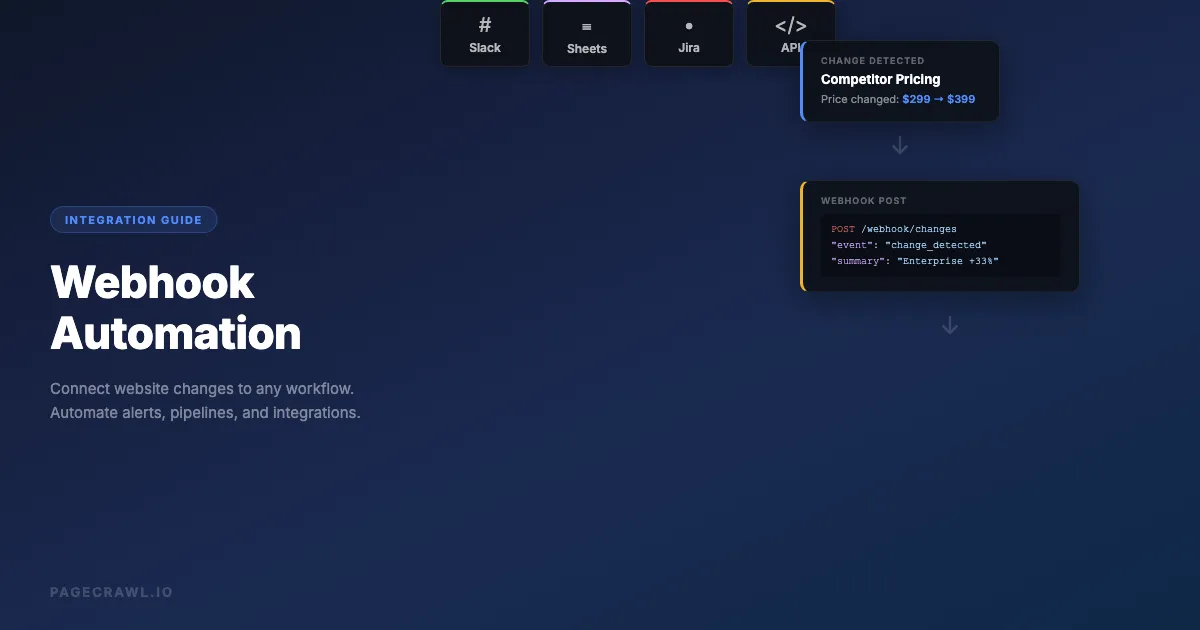
In the context of website monitoring, the event is a detected change on a monitored page. When PageCrawl detects that a page has changed, it sends a POST request to the URL you specify, with a JSON payload containing the details of the change.
Webhooks vs Polling
The traditional approach to getting data from a service is polling: your application sends a request every few seconds or minutes asking "anything new?" This works, but it wastes resources when nothing has changed and introduces delay when something does.
Webhooks flip this model. The service calls you as soon as the event occurs on its side. No wasted requests, no idle polling.
| Aspect | Polling | Webhooks |
|---|---|---|
| Latency | Minutes (depends on poll interval) | Event-driven (fires on detection) |
| Server load | High (constant requests) | Low (only on events) |
| Complexity | Simple to implement | Requires endpoint setup |
| Reliability | You control retry logic | Provider handles retries |
| Cost | Higher (many API calls) | Lower (event-driven) |
For website monitoring, webhooks are the clear winner. You only receive data when something actually changes, and the payload goes out on the check that detected the change rather than waiting for your next poll. PageCrawl checks run as often as every 2 minutes on paid plans and hourly on the free plan, so the check schedule, not the delivery, sets the pace.
Webhook Payload Structure
When PageCrawl detects a change and fires a webhook, the payload includes structured data about the change. Here is what a typical webhook payload looks like:
{
  "id": 67890,
  "title": "Competitor Pricing Page",
  "status": "ok",
  "changed_at": "2026-03-09T14:30:00Z",
  "contents": "Enterprise: $399/month",
  "difference": 4,
  "human_difference": "4% of the text changed",
  "short_summary": "Enterprise plan price increased from $299 to $399/month",
  "ai_summary": "The Enterprise plan rose from $299 to $399 a month.",
  "ai_priority_score": 82,
  "markdown_difference": "- Enterprise: $299/month\n+ Enterprise: $399/month",
  "page_screenshot_image": "https://pagecrawl.io/...",
  "page": {
    "id": 12345,
    "name": "Competitor Pricing Page",
    "url": "https://{competitor-domain}/pricing",
    "slug": "competitor-pricing-page",
    "link": "https://pagecrawl.io/app/pages/competitor-pricing-page",
    "folder": null
  }
}
Key fields:
- id: The check that found the change
- page: The monitored page (ID, name, URL, and a link to it in PageCrawl)
- status:
okfor a detected change; webhooks subscribed to errors also receive deliveries with the error status - short_summary and ai_summary: A one-line description of the change and the AI summary
- ai_priority_score: How important the change is, from 0 to 100
- markdown_difference and html_difference: The text diff itself
- page_screenshot_image: A signed link to the screenshot of the check
The webhook payload reference lists every field, including the per-element page_elements array.
This structured data is what makes webhook automations powerful. You can route, filter, and process changes based on any field in the payload.
Setting Up Webhooks in PageCrawl

Creating a Webhook Endpoint
Before configuring PageCrawl, you need somewhere to receive the webhook. Options:
1. Automation platform (easiest) Services like n8n, Zapier, Make, and Pipedream hand you a ready-made webhook URL. Create a new workflow, add a webhook trigger, and copy the URL. No server required.
2. Custom server endpoint If you have a web application, add an endpoint that accepts POST requests:
# Flask example
@app.route('/webhook/pagecrawl', methods=['POST'])
def handle_change():
    data = request.json
    monitor_url = data['page']['url']
    summary = data.get('short_summary')

    # Process the change
    process_change(monitor_url, summary)

    return jsonify({'status': 'ok'}), 200
// Express example
app.post('/webhook/pagecrawl', (req, res) => {
const { page, short_summary } = req.body;
// Process the change
processChange(page.url, short_summary);
res.status(200).json({ status: 'ok' });
});3. Serverless function Deploy a small function on AWS Lambda, Google Cloud Functions, or Cloudflare Workers to process webhooks without maintaining a server:
// Cloudflare Worker example
export default {
  async fetch(request) {
    const data = await request.json();

    // Forward to Slack
    await fetch('https://hooks.slack.com/services/...', {
      method: 'POST',
      body: JSON.stringify({
        text: `Change detected on ${data.page.url}: ${data.short_summary}`
      })
    });

    return new Response('OK', { status: 200 });
  }
};
Configuring the Webhook in PageCrawl
Once you have an endpoint:
- Go to your workspace settings in PageCrawl
- Navigate to the Hooks/Webhooks section
- Add a new webhook with your endpoint URL
- Select which events should trigger the webhook (change detected, monitor error, etc.)
- Optionally filter by specific monitors or tags
You can also set webhooks per monitor if you want different endpoints for different pages. The help centre article on webhook integration and change payloads lists the exact fields PageCrawl sends and how failed deliveries are retried.
Testing Your Webhook
After setup, trigger a test to verify your endpoint receives the payload correctly:
- Use PageCrawl's test webhook feature to send a sample payload
- Check your endpoint logs to confirm receipt
- Verify the payload structure matches your processing logic
- Test error scenarios (what happens if your endpoint is down?)
Practical Webhook Automation Workflows
Here are real workflows you can build with website monitoring webhooks.
Competitor Price Change Pipeline
Automatically update your pricing database when competitors change their prices.
Flow:
- PageCrawl monitors competitor pricing pages, or other price pages like airline and hotel award charts, with price tracking mode
- On change, webhook fires to your automation platform
- Automation extracts the new price from the payload
- Updates a Google Sheet or database with the new price and timestamp
- If the price dropped below a threshold, sends an urgent Slack alert to the pricing team
- Creates a task in your project management tool for the pricing team to review
Implementation with n8n:
- Webhook trigger node receives the PageCrawl payload
- IF node checks if the AI summary contains price-related keywords
- Google Sheets node appends a row with: date, competitor, old price, new price, URL
- Slack node posts to #pricing-alerts with formatted message
- Asana/Jira node creates a task if the price change exceeds 10%
This replaces the manual process of checking competitor prices, updating spreadsheets, and alerting the team. Once a check detects the change, the whole pipeline runs without anyone touching it.
Content Change Archiver
Create a permanent record of every change detected on important pages.
Flow:
- PageCrawl monitors regulatory pages such as EPA and state environmental regulations, terms of service, or documentation
- On change, webhook sends the diff and screenshot URLs
- Automation downloads the diff and screenshot
- Saves them to cloud storage (S3, Google Drive, Dropbox) with timestamped filenames
- Updates an Airtable or Notion database with the change record
- Sends a weekly digest email summarizing all changes
This is valuable for compliance teams that need an auditable trail of regulatory changes, legal teams tracking terms of service modifications, or communications teams tracking silent edits to news coverage of your brand.
Smart Notification Router
Route different types of changes to different teams and channels based on content analysis.
Flow:
- PageCrawl monitors multiple pages across categories (pricing, product, legal, hiring)
- On change, webhook sends the payload with AI summary
- Automation analyzes the summary for keywords:
- Price/cost/plan changes go to #pricing-team in Slack
- Feature/product/launch changes go to #product-team
- Policy/terms/compliance changes go to #legal-team
- Job/hiring/career changes go to #talent-team
- Critical changes (keywords: "breaking", "deprecated", "removed", "security") also page the on-call engineer
This prevents alert fatigue by ensuring each team only sees changes relevant to them, while critical changes are also escalated to the on-call engineer. If Slack is your primary alert channel, see our guide on setting up website change alerts in Slack for advanced patterns like threaded updates and interactive buttons.
CRM Integration
Push competitor intelligence and account expansion signals directly into your sales team's CRM.
Flow:
- PageCrawl monitors competitor product and pricing pages
- On change, webhook fires to your CRM integration
- Automation creates a note on relevant competitor records in your CRM
- Tags active deals where the competitor is mentioned
- Notifies account executives who have deals against that competitor
Example: When Competitor X raises their Enterprise plan price by 20%, every AE with an active deal against Competitor X gets an alert with the details. They can reference this in their next prospect call.
Inventory and Stock Alert System
Build fast stock alerts for e-commerce monitoring.
Flow:
- PageCrawl monitors product pages for availability changes
- Webhook fires when "Out of Stock" changes to "In Stock" (or vice versa)
- Automation checks the change summary for stock-related keywords
- If product is back in stock:
- Sends push notification via Pushover or Pushbullet
- Posts to a Discord channel for a buying group
- Triggers a purchase workflow via a shopping API
- If product went out of stock:
- Logs the event for demand analysis
- Updates inventory tracking dashboard
Custom Dashboard Data Feed
Feed website change data into your own analytics dashboard.
Flow:
- PageCrawl monitors key pages across your competitive landscape
- All change events flow through webhooks to a data pipeline
- Events are stored in a database (PostgreSQL, BigQuery, or similar)
- A dashboard (Grafana, Metabase, or custom) visualizes:
- Change frequency by competitor
- Types of changes over time
- Response time from change detection to action
- Trend analysis across competitors
This turns raw monitoring data into strategic intelligence, giving leadership a high-level view of competitive activity.
How do you build a reliable webhook integration?
A reliable webhook consumer does three things: return the right HTTP status code so the sender knows whether to retry, treat every delivery as potentially duplicated, and acknowledge fast then process the work asynchronously. Signature verification and delivery monitoring sit on top of those basics.
Handling Failures
Your webhook endpoint will sometimes fail. Network issues, server restarts, and bugs happen. Design for this:
1. Return proper status codes
PageCrawl uses HTTP status codes to determine if a webhook delivery succeeded:
- 2xx: Success, delivery confirmed
- 4xx: Client error, will not retry (fix your endpoint)
- 5xx: Server error, will retry
2. Implement idempotency
Webhooks may be delivered more than once (retries after timeout). Design your processing to handle duplicate deliveries:
def handle_webhook(data):
    check_id = data['metadata']['check_id']

    # Check if we already processed this event
    if already_processed(check_id):
        return 'Already processed', 200

    # Process the event
    process_change(data)
    mark_processed(check_id)

    return 'OK', 200
3. Process asynchronously
Do not do heavy processing in the webhook handler. Accept the webhook quickly, queue the work, and process it asynchronously:
app.post('/webhook/pagecrawl', async (req, res) => {
  // Quickly acknowledge receipt
  res.status(200).json({ status: 'queued' });

  // Process asynchronously
  await queue.add('process-change', req.body);
});
This prevents timeouts and ensures you never miss a webhook because your processing took too long.
Security
Webhook endpoints are publicly accessible URLs. Secure them:
1. Verify the source
Check that requests actually come from PageCrawl. Every delivery carries an HMAC signature in X-PageCrawl-Signature (sha256=<hex>) and a Unix timestamp in X-PageCrawl-Timestamp. The signature covers the timestamp, a dot and the exact raw body, signed with the webhook's signing secret:
import hashlib
import hmac
import os
import time

def verify_webhook(request):
    signature = request.headers.get('X-PageCrawl-Signature', '')
    timestamp = request.headers.get('X-PageCrawl-Timestamp', '')
    secret = os.environ['PAGECRAWL_SIGNING_SECRET']

    if not timestamp.isdigit() or abs(time.time() - int(timestamp)) > 300:
        return False  # missing or stale, possible replay

    expected = hmac.new(
        secret.encode(),
        f'{timestamp}.'.encode() + request.get_data(),
        hashlib.sha256
    ).hexdigest()

    return hmac.compare_digest(signature.removeprefix('sha256='), expected)
The reference implementations show the same check in Node.js and PHP. If a coding agent such as Claude Code, Codex or Cursor writes your endpoint, PageCrawl's pagecrawl-api skill teaches it this verification, so the code it produces checks every delivery.
2. Use HTTPS
Always use HTTPS for webhook endpoints. This encrypts the payload in transit and prevents tampering.
3. Validate the payload
Do not trust incoming data blindly. Validate the structure and content before processing:
def validate_payload(data):
    required_fields = ['id', 'title', 'status', 'page']
    for field in required_fields:
        if field not in data:
            raise ValueError(f'Missing required field: {field}')

    if not data['page'].get('url'):
        raise ValueError('Missing page URL')
Monitoring Your Webhooks
Ironically, you should monitor your monitoring integrations:
- Track webhook delivery success rates
- Set up alerts for failed deliveries
- Log all incoming payloads for debugging
- Monitor endpoint response times
- Set up a health check that periodically verifies the endpoint is reachable
Which automation platform should receive your webhooks?
Pick n8n if you want self-hosted control and data that never leaves your network, Zapier for the widest catalogue of ready-made app connections, Make for visual multi-branch routing, and Pipedream if you would rather write code in the workflow itself.
n8n (Self-Hosted)
n8n is an open-source automation platform that pairs well with PageCrawl:
- Create a new workflow in n8n
- Add a Webhook node as the trigger
- Copy the webhook URL to PageCrawl
- Build your processing pipeline with n8n's catalogue of hundreds of integrations
- Nodes commonly used: HTTP Request, Slack, Google Sheets, IF, Switch, Code
n8n runs on your own infrastructure, so sensitive data (like competitor pricing) never leaves your network. For a detailed walkthrough of building monitoring workflows in n8n, see our complete n8n website monitoring guide.
Zapier
Zapier provides the broadest integration catalog:
- Create a new Zap
- Choose "Webhooks by Zapier" as the trigger
- Select "Catch Hook" to receive the PageCrawl payload
- Copy the webhook URL to PageCrawl
- Add action steps from Zapier's catalogue of thousands of apps
Zapier's strength is breadth. If the tool you want to connect to exists, Zapier probably has an integration. We cover workflow templates and advanced patterns in our Zapier website monitoring guide.
Make (formerly Integromat)
Make offers visual workflow building with advanced data transformation:
- Create a new scenario
- Add a Webhooks module as the trigger
- Copy the webhook URL to PageCrawl
- Use Make's router module to fan out to multiple branches based on change type
- Advanced: Use Make's data stores for tracking historical changes
Make excels at complex, multi-branch workflows where different types of changes need different handling.
Pipedream
Pipedream is developer-friendly with native code support:
- Create a new workflow
- Add an HTTP trigger
- Copy the webhook URL to PageCrawl
- Write Node.js or Python code directly in the workflow
- Use Pipedream's built-in integrations for common services
Pipedream is ideal for developers who want code-level control over webhook processing without maintaining infrastructure.
Advanced Patterns
Webhook Chaining
Connect multiple services in sequence. PageCrawl sends a webhook to Service A, which processes the data and sends its own webhook to Service B:
PageCrawl -> n8n (process & enrich) -> Slack + Google Sheets + JiraEach service in the chain adds value: n8n categorizes the change and enriches it with historical context, then fans out to multiple destinations.
Conditional Webhooks
Not every change warrants a webhook. Use PageCrawl's filtering to control when webhooks fire:
- Keyword filters: Only fire when specific terms appear in the change (e.g., "price", "deprecated", "breaking")
- Threshold filters: Only fire when the change exceeds a certain size (e.g., more than 5% of the page changed)
- Tag-based routing: Use monitor tags to route different categories of monitors to different webhook endpoints
This reduces noise and ensures your automation pipelines only process meaningful changes. Keyword and threshold rules are configured per page, as described in the guide to notification conditions and filters.
Batch Processing
If you monitor hundreds of pages, processing each webhook individually can be overwhelming. Instead, batch changes:
- Webhook fires and stores the event in a queue (Redis, SQS, etc.)
- A scheduled job runs every 15 minutes
- The job processes all queued events in batch
- Generates a consolidated report or takes batched actions
This is especially useful for dashboard updates, digest emails, and database synchronization.
Error Recovery
Build resilience into your webhook pipeline:
def process_with_retry(data, max_retries=3):
    for attempt in range(max_retries):
        try:
            result = process_change(data)
            return result
        except TemporaryError as e:
            if attempt < max_retries - 1:
                time.sleep(2 ** attempt)  # Exponential backoff
                continue
            raise
        except PermanentError as e:
            # Log and alert, do not retry
            log_error(e, data)
            alert_team(e, data)
            return None
Distinguish between temporary errors (network issues, rate limits) that should be retried and permanent errors (invalid data, missing resources) that should be logged and escalated.
Real-World Examples
E-Commerce Price Intelligence
A retail analytics company monitors 500 product pages across 20 competitor sites. Their webhook pipeline:
- PageCrawl detects price changes across all monitored products
- Webhooks feed into an n8n instance running on their infrastructure
- n8n extracts structured price data using the AI summary
- Prices are stored in PostgreSQL with full history
- A Metabase dashboard shows the current competitive pricing landscape
- Automated alerts fire when any competitor undercuts their client's prices by more than 5%
Result: their clients respond to competitive price changes in hours rather than weeks.
API Documentation Tracking
A development team depends on 12 third-party APIs. Their webhook setup:
- PageCrawl monitors all 12 API documentation sites, changelogs, and open-source license files for relicensing
- Webhooks route through a Cloudflare Worker that categorizes changes
- Breaking changes create urgent Jira tickets and page the on-call engineer
- Minor updates post to a #api-changes Slack channel
- All changes are archived in Confluence for reference during incident post-mortems
Result: the team catches breaking API changes days before they would have discovered them through production errors.
Compliance Change Management
A financial services firm monitors regulatory filing pages across multiple jurisdictions. Their webhook pipeline:
- PageCrawl monitors 50 regulatory pages across SEC, FINRA, FCA, and other agencies, including IRS tax code updates
- Webhooks fire to a Make scenario that processes each change
- Changes are classified by regulatory body and topic
- Each change creates a compliance review task in their GRC platform
- Screenshots and diffs are archived for audit purposes
- A weekly digest goes to the compliance committee
Result: regulatory changes that used to take weeks to discover are now flagged on the check that catches them, with a full audit trail.
Choosing your PageCrawl plan
PageCrawl's Free plan lets you monitor 6 pages with 220 checks per month, which is enough to validate the approach on your most critical pages. Most teams graduate to a paid plan once they see the value.
| Plan | Price | Pages | Checks / month | Frequency |
|---|---|---|---|---|
| Free | $0 | 6 | 220 | every 60 min |
| Standard | $8/mo or $80/yr | 100 | 15,000 | every 15 min |
| Enterprise | $30/mo or $300/yr | 500 | 100,000 | every 5 min |
| Ultimate | $99/mo or $999/yr | 1,000 | 100,000 | every 2 min |
Annual billing saves two months across every paid tier. Enterprise and Ultimate scale up to 100x if you need thousands of pages or multi-team access.
The webhook is where monitoring pays for itself as automation rather than notification. Standard at $80/year covers 100 pages and includes webhook support, which is enough to build a full competitor price pipeline, a compliance change archiver, and an API changelog tracker simultaneously. One automated response to a competitor price change, or one avoided incident because a breaking API change was caught before production, covers the cost of the plan for the year. Enterprise at $300/year adds 500 pages, every-5-minute checks, SSO, and multi-team access for larger organizations.
All plans include the PageCrawl MCP Server, so teams can query their entire change history through Claude and build automation on top of natural language queries rather than manual dashboard reviews. AI assistants can create monitors through conversation on every plan, including Free.
Getting Started
Start with the simplest possible webhook integration:
- Pick a page you already monitor in PageCrawl
- Create a webhook URL using a free automation platform (n8n, Pipedream, or Zapier's free tier)
- Connect the webhook to a single destination (a Slack channel or Google Sheet)
- Let it run for a week and see how the data flows
Once you see the value, expand: add more monitors, build more complex routing, and connect additional services. The webhook is just the starting point. The automation you build on top of it is where the real value lives.
PageCrawl's webhook and REST API support is available on all plans, including the free tier. Set up your first webhook integration and turn passive monitoring into active automation.