n8n is a workflow automation platform that connects hundreds of services together. When you combine it with website change detection, you get something powerful: custom monitoring pipelines that do exactly what you need. Detect a price drop on a competitor's website, and n8n automatically creates a Jira ticket, sends a Slack message, and updates a Google Sheet. All without writing a single line of backend code.
This guide shows you how to build website monitoring workflows in n8n, from simple change-to-notification pipelines to complex multi-step automations that process, filter, and route website changes to the right people and systems.
Why use n8n for website monitoring?
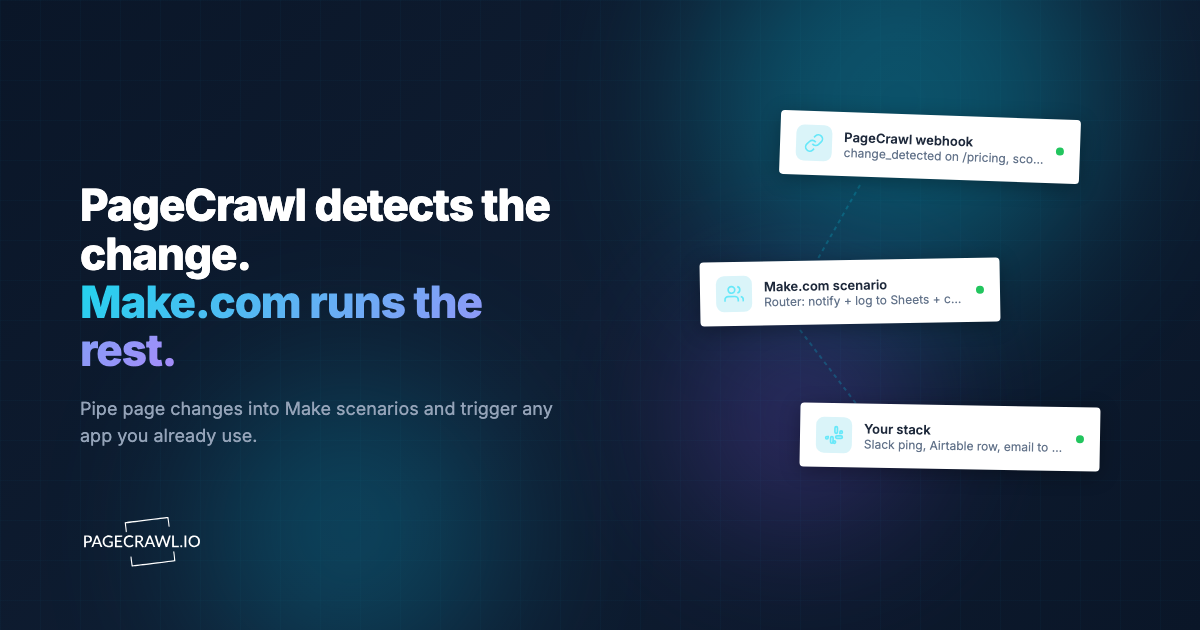
Because it turns a change notification into an action across your whole stack instead of one more message to read. n8n sits between your monitoring tool and everything else you run. While PageCrawl handles the hard part (detecting changes on websites, rendering JavaScript-heavy pages, monitoring protected sites reliably, summarizing changes with AI), n8n handles what happens next.
Custom Routing Logic
Different types of changes should go to different people. A pricing change on a competitor's site might go to the sales team, while an API documentation or changelog change goes to engineering. n8n lets you build conditional logic that routes changes based on content, keywords, or source.
Multi-System Updates
When a monitored page changes, you often need to update more than one system. n8n can simultaneously send a Slack message, create a task in your project management tool, log the change to a database, and trigger a CI/CD pipeline.
Data Transformation
Raw change data might not be in the format your downstream systems need. n8n can extract specific fields, reformat text, calculate differences, merge data from multiple sources, and transform webhook payloads before passing them along.
No Server Required
n8n Cloud runs your workflows without needing your own infrastructure. For self-hosted n8n, you can run it on any server or even a Raspberry Pi. Either way, your monitoring automations run 24/7 without maintaining custom webhook handlers.
Setting Up the PageCrawl + n8n Integration
There are two main approaches to connecting PageCrawl with n8n: using the official PageCrawl n8n node, or using webhooks. The help centre walkthrough for the PageCrawl n8n integration covers credentials and node options in more detail.

Method 1: PageCrawl n8n Node (Recommended)
PageCrawl provides an official n8n community node that integrates directly with the PageCrawl REST API and webhooks.
Installation:
- In your n8n instance, go to Settings > Community Nodes (see the n8n documentation if the menu is hidden on your plan)
- Search for
n8n-nodes-pagecrawl - Install the node
- Add your PageCrawl API credentials (found in your PageCrawl account settings)
Available Operations:
The PageCrawl node supports these operations:
- List Monitors: Get all your monitors with their current status
- Get Monitor: Retrieve details about a specific monitor
- Create Monitor: Set up new monitors programmatically
- Get Changes: Fetch recent changes detected on a monitor
- Get Screenshots: Retrieve screenshots from a monitor
- Trigger Check: Force an immediate check on a monitor
This node is ideal for polling-based workflows where you periodically check for new changes.
Method 2: Webhook Trigger
For push-based delivery, use PageCrawl's webhook notifications with n8n's Webhook trigger node so each detected change fires the workflow without polling. For a broader look at webhook concepts, payload structure, and security best practices, see our webhook automation guide.
Setup Steps:
- In n8n, create a new workflow
- Add a "Webhook" trigger node
- Set the HTTP method to POST
- Copy the webhook URL that n8n generates
- In PageCrawl, edit your monitor's notification settings
- Add a webhook notification with the n8n webhook URL
- Save and activate the n8n workflow
When PageCrawl detects a change, it sends a POST request to your n8n webhook with the change details, including the AI-generated summary.
Webhook Payload Structure:
The webhook from PageCrawl includes:
- Monitor name and URL
- Change summary (AI-generated)
- Previous and current content
- Timestamp of the change
- Change type and severity
Building Common Monitoring Workflows
Workflow 1: Change Detection to Slack with Smart Routing
This workflow receives a change notification and routes it to different Slack channels based on the content. For more Slack-specific patterns like digest mode, threaded updates, and interactive buttons, see our Slack website change alerts guide.
Nodes:
- Webhook Trigger: Receives the PageCrawl notification
- Switch Node: Routes based on change content
- If summary contains "price" or "pricing" -> #pricing-alerts channel
- If summary contains "security" or "vulnerability" -> #security channel
- If summary contains "deprecated" or "breaking" -> #engineering channel
- Default -> #website-changes channel
- Slack Node: Posts to the appropriate channel with formatted message
Switch Node Configuration:
Set up conditions based on the webhook payload:
- Condition 1:
{{ $json.summary }}contains "price" -> Output 1 - Condition 2:
{{ $json.summary }}contains "security" -> Output 2 - Condition 3:
{{ $json.summary }}contains "deprecated" -> Output 3 - Fallback -> Output 4
Each output connects to a Slack node configured for the appropriate channel.
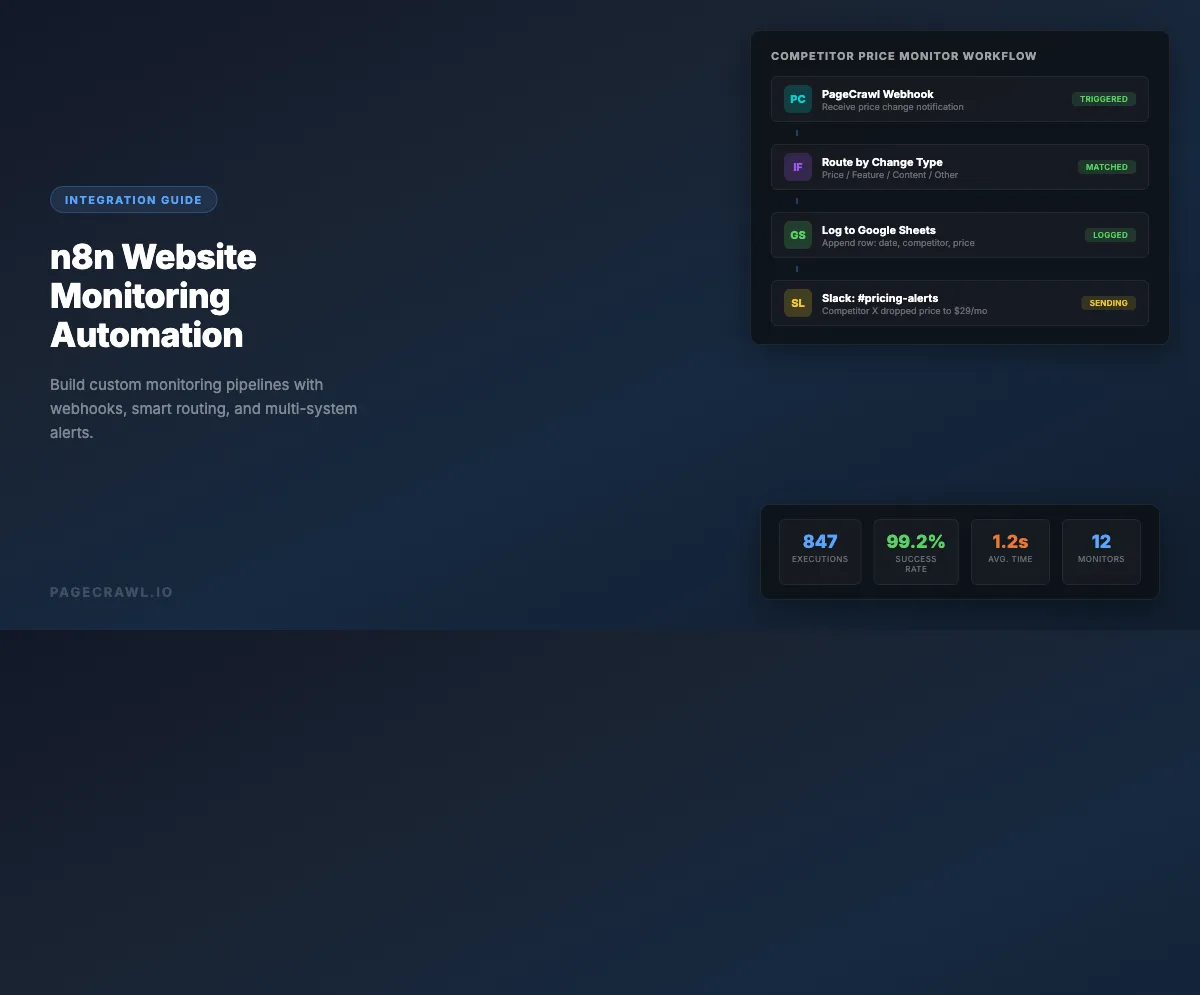
Workflow 2: Competitor Price Tracking to Google Sheets
Track competitor price changes over time by logging them to a spreadsheet.
Nodes:
- Webhook Trigger: Receives price change notification
- Set Node: Extract and format the price data
- Google Sheets Node: Append a new row with date, competitor, old price, new price, and percentage change
- IF Node: Check if price dropped more than 10%
- Slack Node: Alert the team about significant price drops
This creates a historical record of competitor pricing and only bothers the team about meaningful changes.
Workflow 3: API Documentation Change Monitoring
Monitor API documentation pages and create tickets when changes are detected.
Nodes:
- Schedule Trigger: Runs every 4 hours
- PageCrawl Node: Get recent changes for API doc monitors
- IF Node: Filter for changes that actually have new content (skip "no change" results)
- Jira Node (or Linear, Asana, etc.): Create a task titled "API Documentation Updated: [monitor name]" with the change summary in the description
- Slack Node: Notify the engineering channel
Workflow 4: Multi-Site Change Aggregation
Aggregate changes from multiple monitored sites into a daily digest.
Nodes:
- Schedule Trigger: Runs daily at 9 AM
- PageCrawl Node: Get all monitors
- Loop Node: For each monitor, get recent changes from the last 24 hours
- Filter Node: Remove monitors with no changes
- Merge Node: Combine all changes into a single list
- HTML Node: Format changes into a readable digest email
- Email Node: Send the daily digest to the team
Advanced n8n Monitoring Patterns
Pattern 1: Conditional Check Frequency
Not all pages need to be checked at the same frequency. Use n8n to implement dynamic check schedules.
How it works:
- Schedule Trigger: Runs every 15 minutes during business hours, every hour outside
- IF Node: Check current time
- PageCrawl Node: Trigger a check on the appropriate monitors based on time-of-day priority
This lets you check competitor pricing pages every 15 minutes during business hours but only hourly at night, saving your check quota for when it matters most.
Pattern 2: Change Verification
Sometimes you want to verify a change before acting on it. For example, a price might temporarily show as zero due to a page loading issue.
How it works:
- Webhook Trigger: Receives initial change notification
- Wait Node: Wait 5 minutes
- PageCrawl Node: Trigger another check
- IF Node: Compare the new check result with the original change
- Slack Node: Only send notification if the change persists
Pattern 3: Enrichment Pipeline
Add context to change notifications before routing them.
How it works:
- Webhook Trigger: Receives change notification
- HTTP Request Node: Query your CRM to identify which account the monitored URL belongs to
- HTTP Request Node: Check your internal database for the current status of that account
- Set Node: Combine all the data into an enriched notification
- Slack Node: Send notification with full context: "Competitor X (currently in negotiations with [account manager]) just increased their Enterprise pricing by 15%"
Pattern 4: Automated Response
Trigger automated actions when specific changes are detected.
How it works:
- Webhook Trigger: Receives change notification about your own website
- IF Node: Check if the change is a website defacement or unauthorized modification
- HTTP Request Node: Trigger your CDN to serve the cached version
- PagerDuty Node: Create an incident
- Slack Node: Alert the security team
- Email Node: Notify stakeholders
Should you run n8n self-hosted or on n8n Cloud?
For webhook-driven monitoring, n8n Cloud is usually the safer default because the instance has to be reachable whenever a change fires. Self-hosting from the open-source project makes sense when you already run reliable infrastructure and want full control of the data.
n8n Cloud
Advantages:
- No infrastructure to manage
- Always available for webhook reception
- Automatic updates
- Built-in execution history
Considerations:
- Monthly cost based on workflow executions
- Data passes through n8n's infrastructure
- Execution limits on lower tiers
n8n Self-Hosted
Advantages:
- Full control over data and infrastructure
- No execution limits
- Can run on existing servers
- Free (open source)
Considerations:
- You manage uptime and updates
- Need a static URL for webhook reception (use a reverse proxy or tunnel)
- Backup and security are your responsibility
For website monitoring workflows, n8n Cloud is usually the better choice because webhook reception requires the n8n instance to be constantly available. Self-hosted works well if you already have reliable infrastructure, which is also worth weighing if you are comparing open-source website change detection tools for the monitoring side.
Troubleshooting Common Issues
Webhooks Not Firing
If PageCrawl webhooks are not reaching n8n:
- Verify the webhook URL is correct (test with a simple HTTP request tool)
- Ensure the n8n workflow is activated (inactive workflows do not receive webhooks)
- Check that your n8n instance is publicly accessible (self-hosted only)
- Look at the PageCrawl notification log to see if the webhook was sent and what response it received
Duplicate Notifications
If you are receiving duplicate change notifications:
- Add a deduplication node using a unique change ID
- Use the n8n "Remove Duplicates" node to filter based on the change timestamp or content hash
- Check that you do not have multiple active workflows listening to the same webhook
Workflow Execution Timeouts
If workflows are timing out:
- Break long workflows into sub-workflows
- Use the "Execute Workflow" node to chain workflows together
- Reduce the amount of data being processed in each step
- Consider using n8n's queue mode for self-hosted instances
Example: Complete Competitor Monitoring System
Here is a complete workflow that monitors competitors and keeps your team informed.
Components:
- PageCrawl monitors on 5 competitor websites (pricing pages, feature pages, blog)
- n8n webhook workflow that receives all change notifications
- Routing logic that classifies changes by type
- Google Sheets logging for historical tracking
- Slack notifications to the appropriate channels
- Weekly digest email summarizing all competitor activity
Workflow Steps:
- Webhook receives change -> Extract monitor name and summary
- Log to Google Sheets (date, competitor, page type, summary)
- Classify the change (pricing, feature, content, other)
- If pricing change: send to #competitor-pricing with urgency flag
- If feature change: send to #product-team
- If content/blog: send to #marketing
- All changes: aggregate for the weekly digest
- Every Friday at 5 PM: compile and send the weekly competitor digest email
This system runs entirely on n8n and PageCrawl with zero custom code. The team gets an alert as soon as a check detects an urgent change, and a weekly summary for everything else.
How does n8n compare with Zapier and Make?
n8n wins on data transformation, custom code, and the option to self-host; Zapier wins on the sheer breadth of its app catalogue; Make sits in between with strong visual routing. The table below summarises the differences that matter for monitoring workflows.
| Feature | n8n | Zapier | Make (Integromat) |
|---|---|---|---|
| Self-hosted option | Yes | No | No |
| Webhook trigger | Yes | Yes | Yes |
| Custom code execution | Yes (JS, Python) | Limited | Limited |
| Conditional routing | Advanced | Basic | Advanced |
| Data transformation | Advanced | Basic | Advanced |
| Free tier | Self-hosted | 100 tasks/month | 1,000 ops/month |
| Pricing (cloud) | From $20/month | From $29.99/month | From $10.59/month |
| Open source | Yes | No | No |
n8n is the strongest choice for website monitoring workflows because of its advanced data transformation capabilities, self-hosting option, and the ability to run custom JavaScript for complex logic. If you prefer a no-code approach with the broadest app catalog, our Zapier website monitoring guide covers workflow templates and integration patterns.
Choosing your PageCrawl plan
PageCrawl's Free plan lets you monitor 6 pages with 220 checks per month, which is enough to validate the approach on your most critical pages. Most teams graduate to a paid plan once they see the value.
| Plan | Price | Pages | Checks / month | Frequency |
|---|---|---|---|---|
| Free | $0 | 6 | 220 | every 60 min |
| Standard | $8/mo or $80/yr | 100 | 15,000 | every 15 min |
| Enterprise | $30/mo or $300/yr | 500 | 100,000 | every 5 min |
| Ultimate | $99/mo or $999/yr | 1,000 | 100,000 | every 2 min |
Annual billing saves two months across every paid tier. Enterprise and Ultimate scale up to 100x if you need thousands of pages or multi-team access.
Standard at $80/year gives your n8n workflows 100 monitored pages with webhook output, which is enough to feed a complete competitor intelligence or change-detection pipeline without writing a single scraper. The PageCrawl API is available on every plan, including Free, so n8n can trigger checks on demand and retrieve structured change data directly. Enterprise at $300/year covers 500 pages with 5-minute checks, SSO, and multi-team access. All plans include the PageCrawl MCP Server, which lets you ask Claude to summarize all changes detected across a group of monitored pages over any time window and pull the raw diffs, turning your monitoring history into an on-demand research tool rather than a passive inbox. AI assistants can create monitors through conversation on every plan, including Free.
Getting Started
Start with the simplest useful workflow: a PageCrawl webhook that sends a Slack message when any monitored page changes. Once that is working, add routing logic for different change types. Then expand to include logging, ticket creation, and automated responses. Each addition takes minutes in n8n's visual editor, and you can test every step before activating the workflow. The combination of PageCrawl's AI-powered change detection and n8n's workflow automation creates a monitoring system that not only detects changes but acts on them automatically.