A website change is detected. A competitor updates their pricing. A product comes back in stock. A government agency publishes new regulations. What happens next?
If the answer is "someone checks their email and manually does something," you are leaving time and efficiency on the table. The real power of website monitoring comes when detected changes automatically trigger actions in other tools: CRM records updated, Slack messages sent, spreadsheets populated, tickets created, emails dispatched.
Zapier connects website monitoring to thousands of applications, turning detected changes into automated workflows without writing code. This guide covers how to set up Zapier integrations with website monitoring, practical workflow templates for common use cases, and strategies for building reliable automation around web change detection.
How does Zapier connect to website monitoring?
Zapier connects to website monitoring through a webhook. You create a Zap with a "Catch Hook" trigger, paste the URL Zapier gives you into your monitoring tool as a webhook notification, and every detected change arrives as structured data you can filter, transform, and route into any connected app.
The Webhook Approach
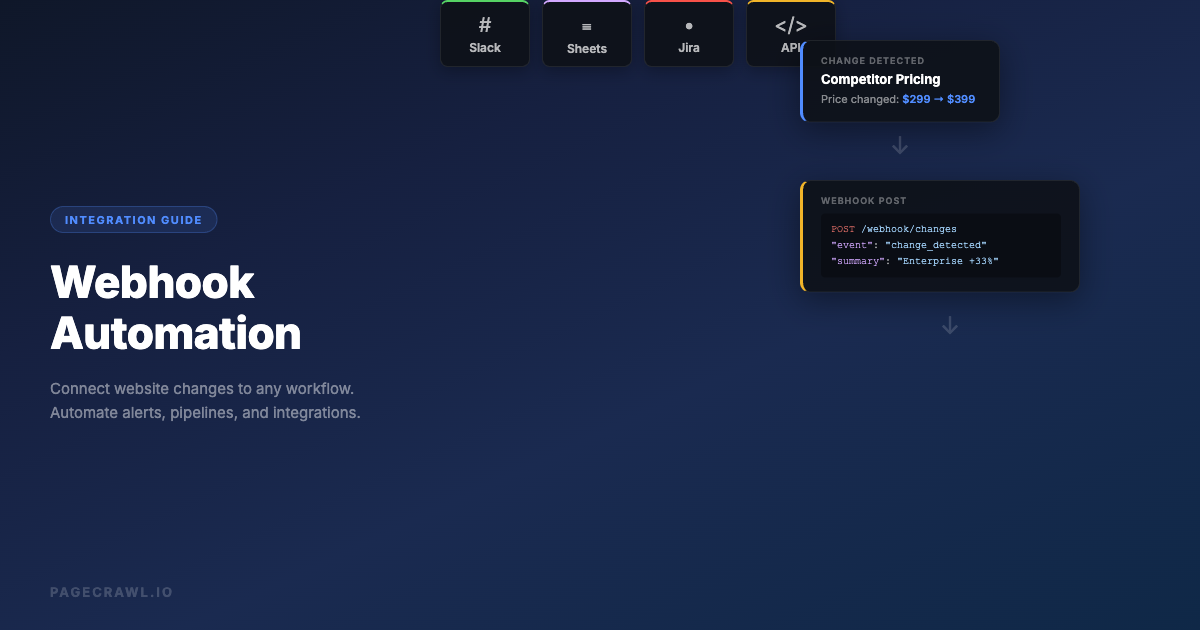
The most reliable way to connect website monitoring to Zapier is through webhooks, which PageCrawl exposes alongside its REST API and developer documentation. When a website change is detected, your monitoring tool sends a webhook (an HTTP POST request with change data) to a Zapier webhook URL. Zapier receives this data and triggers whatever workflow you have configured. If you are new to webhooks, our webhook automation guide and the help centre article on sending change data to any external service cover payload structure, security, and reliability patterns in detail.
How it works:
- In Zapier, create a new Zap with "Webhooks by Zapier" as the trigger
- Select "Catch Hook" as the trigger event
- Zapier gives you a unique webhook URL
- In your website monitoring tool, add this URL as a webhook notification endpoint
- When a change is detected, the monitoring tool sends change data to Zapier
- Zapier processes the data and runs your configured actions
What data gets sent:
A typical webhook from a website monitoring tool includes:
- The URL being monitored
- The monitor name
- What changed (old text vs. new text, or a description of the change)
- When the change was detected
- A link to view the full change details
- The AI summary of the change (if available)
This data becomes available as variables in your Zapier workflow, so you can use it in email subjects, Slack messages, spreadsheet rows, or any other action.
Why Webhooks Beat Polling
Zapier offers a "Schedule" trigger that can check a URL on a set interval, but this approach has significant limitations for website monitoring:
Webhooks fire on detection. As soon as a check detects a change, the webhook goes out with the change attached. With a schedule trigger, you are instead limited to Zapier's polling intervals, which run as short as a minute on higher paid tiers and every 15 minutes on the free tier.
Webhooks carry rich data. A webhook from a monitoring tool includes the specific change details, AI summary, and comparison data. A schedule-based approach would need to fetch and parse the page content, then somehow determine what changed.
Webhooks are event-driven. They only fire when something actually changes. Schedule triggers run whether or not anything changed, consuming Zapier tasks unnecessarily.
Webhooks handle complexity. Website monitoring tools handle JavaScript rendering, protected pages, authentication, and content extraction. A simple Zapier fetch cannot handle these.
Setting Up Your First Zap

Step 1: Create the Webhook Trigger
- Log into Zapier and click "Create Zap"
- For the trigger app, search for "Webhooks by Zapier"
- Select "Catch Hook" as the trigger event
- Zapier generates a unique webhook URL. Copy this URL.
- In your website monitoring tool, go to the monitor's notification settings (PageCrawl users can follow the PageCrawl and Zapier integration guide)
- Add a webhook notification with the Zapier URL
- Trigger a test change (or wait for the next check) to send sample data to Zapier
- In Zapier, click "Test trigger" to pull in the sample data. You should see the change data fields.
Step 2: Add Filter (Optional but Recommended)
Not every change needs to trigger the full workflow. Add a Zapier filter step to control when the workflow continues:
Filter by change significance. If your monitoring tool sends a change severity or word count, filter to only process significant changes.
Filter by content. Check if the change text contains specific keywords. For example, only continue if the change includes "price" or "availability."
Filter by monitor name or URL. If you have multiple monitors sending to the same webhook, filter by which monitor triggered the event.
Step 3: Add Actions
This is where the automation happens. After the trigger fires and passes any filters, add one or more action steps:
Single action: Send a Slack message with the change details.
Multi-step workflow: Send a Slack message AND create a task in Asana AND log the change to Google Sheets.
Conditional paths: Use Zapier's Paths feature to route different types of changes to different actions. Price changes go to the sales team, content changes go to the marketing team, availability changes go to the operations team.
Workflow Templates by Use Case
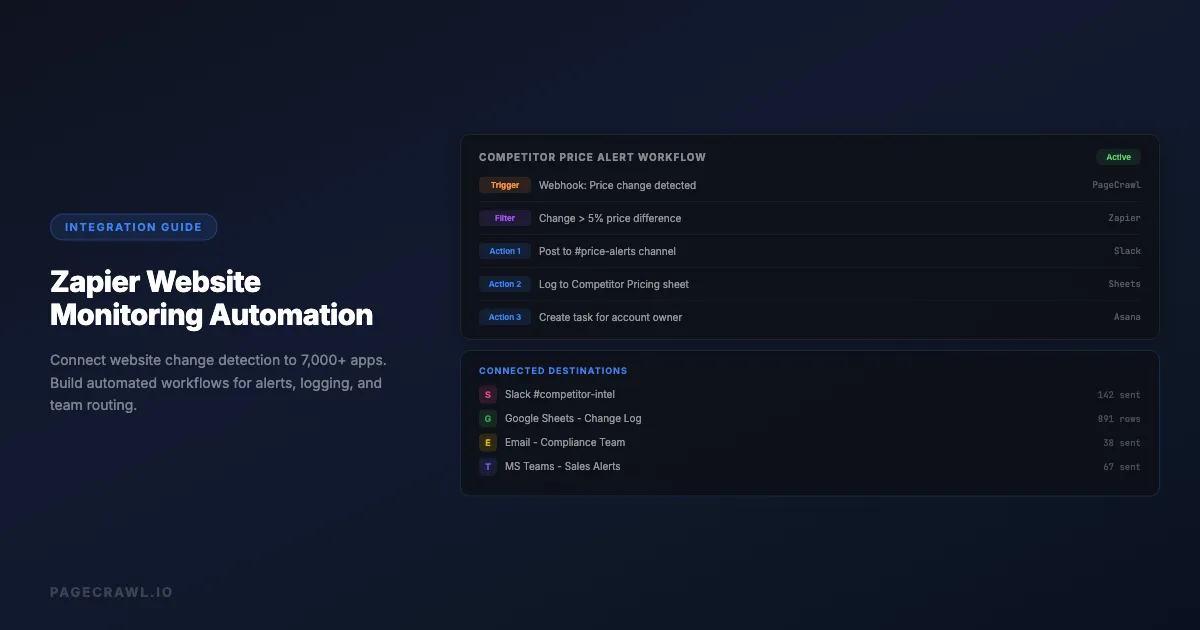
Competitor Price Change to Slack + Spreadsheet
Trigger: Webhook from price monitor on competitor product pages.
Actions:
- Google Sheets - Add a row to a "Competitor Pricing" spreadsheet with columns: Date, Competitor, Product, Old Price, New Price, Change %
- Slack - Send a message to #competitor-intel channel: "Price change detected on [Competitor]: [Product] changed from [Old Price] to [New Price]"
Why this works: Your sales team hears about competitor price moves as soon as a check detects them, and the spreadsheet builds a historical record for pricing trend analysis. Over time, you can see patterns like seasonal discounting or gradual price increases.
Spreadsheet formula tip: In your Google Sheet, add a column with a formula to calculate the percentage change: =(NewPrice-OldPrice)/OldPrice*100. This helps you quickly spot significant moves versus minor adjustments.
Product Restock Alert to SMS + Email
Trigger: Webhook from stock status monitor on product pages.
Filter: Only continue if the change text contains "In Stock" or "Available" or "Add to Cart."
Actions:
- Twilio SMS - Send a text message: "RESTOCK ALERT: [Product Name] is back in stock at [Store]. Link: [URL]"
- Gmail - Send an email to your team distribution list with the restock details
Why this works: Stock alerts are time-sensitive. By the time you check email, popular items may be sold out again. SMS reaches your phone wherever you are, without waiting for you to open an inbox. The email provides a backup and written record.
Content Change to CRM + Task Manager
Trigger: Webhook from monitors on target account websites (company pages, blog posts, press releases).
Actions:
- Salesforce/HubSpot - Create an activity or note on the matching account record: "Website change detected: [Summary]. Change details: [Link]"
- Asana/Monday/Jira - Create a task assigned to the account owner: "Review website change at [Account Name] - [Change Summary]"
Why this works: Sales teams need to know when target accounts make public changes (new products, leadership updates, expansion announcements). Creating a CRM activity ensures the information is attached to the right account, and the task ensures someone reviews it.
Regulatory Change to Email + Document
Trigger: Webhook from monitors on government agency and public records pages, regulatory body websites, and compliance portals.
Filter: Filter by monitor name or URL to categorize by regulation type.
Actions:
- Email - Send a formatted email to the compliance team: "Regulatory change detected on [Agency Website]. Summary: [AI Summary]. Full details: [Link]"
- Google Docs - Create a new document with the change details, formatted as a compliance review template with sections for analysis, impact assessment, and required actions
- Microsoft Teams - Post to the #compliance channel
Why this works: Regulatory changes require documentation and review. Creating the Google Doc automatically gives the compliance team a starting template, reducing the time from detection to response.
Job Posting Monitor to Recruiting Pipeline
Trigger: Webhook from monitors on competitor career pages.
Filter: Filter for specific job titles or departments that match your hiring targets.
Actions:
- Slack - Post to #talent-intel: "New competitor posting: [Job Title] at [Company]. This matches our open [Role] search."
- Google Sheets - Log the posting to a "Competitor Hiring Tracker" spreadsheet
- Airtable - Create a record in your recruiting intelligence base
Why this works: When competitors post roles similar to yours, it affects candidate availability and compensation expectations. Your recruiting team sees competitive hiring on the same day it is posted rather than weeks later.
SEO and Content Change to Analytics Dashboard
Trigger: Webhook from monitors on your own website pages (or competitor pages).
Filter: Only process changes to meta titles, descriptions, or content sections.
Actions:
- Google Sheets - Log the change: Date, URL, Element Changed, Old Value, New Value
- Slack - Alert the SEO team: "Content change detected on [URL]: [Summary]"
Why this works: Tracking content changes on your own site helps audit SEO modifications. Tracking competitor content changes reveals their SEO strategy. The spreadsheet becomes an audit log for correlating changes with ranking movements.
Advanced Zapier Patterns
Multi-Monitor Routing with Paths
When multiple monitors send to the same Zapier webhook, use Paths to route changes to different destinations based on the source.
Setup:
- Create a single Catch Hook trigger
- Add a Paths step
- Path A: If monitor URL contains "competitor," route to #competitor-intel Slack channel
- Path B: If monitor URL contains "pricing," route to #sales-alerts
- Path C: If monitor URL contains "regulatory," route to compliance team email
- Default path: Route to a general #monitoring channel
Benefits: One webhook URL handles all your monitors. Adding new monitors requires no Zapier changes as long as your URL naming convention matches the path conditions.
Delay and Digest for Non-Urgent Changes
Not every change needs an alert of its own. Use Zapier's Delay and Digest features to batch non-urgent notifications.
Daily digest setup:
- Trigger: Catch Hook (from any monitor)
- Action: Digest by Zapier - "Append entry and schedule digest"
- Configure digest to release daily at 9:00 AM
- When the digest releases, send a single Slack message or email containing all changes from the past 24 hours
Why this works: For monitors where you care about the changes but not urgently (weekly content reviews, gradual competitor shifts), a daily digest prevents alert fatigue while keeping you informed.
Enrichment with Formatter and Lookup Steps
Raw webhook data can be enhanced before it reaches your final action.
Price parsing:
- Use "Formatter by Zapier" to extract the numeric price from text like "Now: $149.99 (was $199.99)"
- Use a math step to calculate the percentage discount
- Include the calculated discount in your Slack message: "25% price drop on [Product]!"
Account matching:
- Use "Lookup Spreadsheet Row" in Google Sheets to find the account owner for a monitored URL
- Mention the account owner by name in the Slack notification
- Assign the follow-up task directly to them
Date formatting:
- Use "Formatter by Zapier" to convert the timestamp from the webhook into your preferred format
- This makes spreadsheet entries and notifications more readable
Error Handling and Monitoring
Zapier workflows can fail silently. Build in safeguards:
Notification on failure: Set up Zapier's built-in error notifications to alert you when a Zap fails.
Fallback paths: Add a catch-all path that logs any unhandled change data to a "review needed" spreadsheet. This prevents changes from being silently dropped.
Health check: Create a separate Zap that runs daily and checks your monitoring spreadsheet for recent entries. If no entries appear for 48 hours, send an alert that your monitoring pipeline might be broken.
Connecting to Specific Apps
Slack
Slack is the most common destination for website change alerts. For a deeper look at Slack-specific patterns including threaded alerts, digest mode, and interactive buttons, see our Slack website change alerts guide. Best practices:
Use dedicated channels. Create specific channels like #price-alerts, #competitor-changes, #compliance-updates. This prevents important alerts from getting lost in general channels.
Format messages well. Use Slack's block formatting:
- Bold the monitor name or URL
- Include the AI summary on its own line
- Add a link to view full change details
- Use relevant emoji for quick scanning (if your team uses this convention)
Thread replies for updates. If a monitor detects multiple changes to the same page, configure Zapier to reply in a thread rather than creating new messages. This keeps channels cleaner.
Google Sheets
Google Sheets is ideal for building historical records of website changes.
Spreadsheet structure:
- Column A: Timestamp
- Column B: Monitor Name
- Column C: URL
- Column D: Change Summary
- Column E: Old Value
- Column F: New Value
- Column G: Link to Details
Tips:
- Use a separate sheet (tab) for each category of monitor
- Add data validation and conditional formatting to highlight significant changes
- Create pivot tables to analyze change frequency by site or time period
- Protect the sheet from accidental edits
Microsoft Teams
For organizations on Microsoft 365, Teams is the natural alert destination.
Use Adaptive Cards. Zapier can send Teams messages with rich formatting through the "Post Message" action. Include the change summary, URL, and a button linking to the full change details.
Channel strategy. Mirror the Slack approach: use dedicated channels for different alert types. Teams channels support tabs where you can embed the monitoring dashboard for quick reference.
Email works best for critical alerts and external stakeholders who are not on your team's messaging platform.
Format for scannability. Use a clear subject line: "[Monitor Alert] Price change on [Competitor] - [Product]". In the body, lead with the summary and include details below.
Distribution lists. Create email distribution lists for each alert category so you can easily add or remove recipients without modifying the Zap.
HTML formatting. Use Zapier's email action with HTML formatting for better readability. Bold key values, use color for price direction (green for drops, red for increases), and include clickable links.
Airtable
Airtable is excellent for teams that want a structured, filterable, and visual view of website changes.
Base structure:
- Table: Changes
- Fields: Date, Monitor Name, URL, Category (dropdown), Summary, Old Value, New Value, Status (dropdown: New/Reviewed/Actioned), Assigned To
- Views: "Unreviewed" (filtered), "By Category" (grouped), "This Week" (date filtered)
Benefits over spreadsheets: Airtable's linked records, views, and automations let you build a full change management workflow. Changes can be assigned to team members, marked as reviewed, and linked to action items.
How do you make a Zapier workflow reliable?
Reliability comes from three habits: test every step with real sample data before you depend on it, plan for failure with fallback actions and Zapier's error notifications, and review your Zap history weekly. A Zap that looks "on" but silently errors is worse than no automation, because you stop checking manually.
Testing Thoroughly
Before relying on a Zap for critical alerts, test it completely:
- Send sample data. Trigger a test change on your monitor and verify the webhook fires.
- Check every action. Walk through each step in the Zap and verify the output matches expectations.
- Test edge cases. What happens when the change text is very long? What if a field is empty? What if the same change triggers twice?
- Test the filter. Send data that should be filtered out and verify the Zap stops correctly.
Handling Failures
Zapier workflows can fail for many reasons: API rate limits, expired authentication, changed spreadsheet structure, full email quotas.
Retry logic. Zapier automatically retries failed actions, but you should understand the retry behavior for your plan level.
Alternative notification. If your primary alert channel is Slack and the Slack action fails, add a fallback email notification.
Regular review. Check your Zapier dashboard weekly for failed Zaps. A "working" Zap that silently fails means missed alerts.
Performance Considerations
Zapier task limits. Each step in a multi-step Zap consumes a task. A 5-step Zap that fires 50 times per day uses 250 tasks daily. Plan your task budget accordingly.
Webhook reliability. Webhooks are fire-and-forget. If Zapier is temporarily down when a webhook fires, the data may be lost. For critical workflows, ensure your monitoring tool has webhook retry logic or stores failed deliveries.
Rate limits. If your monitoring generates many changes simultaneously (like 50 price monitors all detecting changes during a sale), the burst of webhooks may hit Zapier's rate limits. Use Zapier's built-in throttle or queue features to handle bursts.
Common Monitoring Automation Patterns
The Intelligence Pipeline
Monitor competitors → Detect change → AI summarizes change →
Webhook to Zapier → Log to spreadsheet → Alert relevant team →
Create review task → Team reviews and acts
This end-to-end pipeline turns raw website changes into reviewed intelligence. The key insight is that automation handles the detection, logging, and routing, while humans handle the analysis and response.
The Alerting Escalation
Change detected → Webhook to Zapier →
Low severity → Daily digest email
Medium severity → Slack message
High severity → Slack + SMS + Task creation
Not all changes are equal. Use Zapier's filter and path features to escalate alerts based on significance. A minor text edit gets logged. A price drop fans out to every channel on the same check.
The Compliance Audit Trail
Page change detected → Webhook to Zapier →
Log to compliance spreadsheet (timestamp, URL, change details) →
Create review document from template →
Assign to compliance officer →
Send confirmation email
For compliance monitoring, the audit trail is as important as the alert itself. This pattern creates a documented record of every change with timestamps and assigned reviewers.
What are the alternatives to Zapier?
The main alternatives are Make for complex branching logic at a lower per-operation cost, n8n for self-hosted workflows with no per-task limits, and Power Automate for organizations already standardized on Microsoft 365. Direct integrations in your monitoring tool cover the simple cases with no middleman at all.
Make (formerly Integromat). More complex workflow logic with visual branching. Better for workflows that need loops, iterators, or complex data transformations. Often less expensive per operation than Zapier.
n8n. Self-hosted option for teams that need data to stay on their own infrastructure. More technical to set up but no per-task limits. Open source with a commercial cloud option. See our n8n website monitoring guide for setup instructions and workflow examples.
Microsoft Power Automate. Best for organizations already on Microsoft 365. Deep integration with SharePoint, Teams, Outlook, and Dynamics. Free for basic flows with Microsoft 365 licenses.
Direct integrations. Many monitoring tools offer direct integrations with Slack, Teams, email, and other popular services. These are simpler to set up and do not require a middleman. Use Zapier when you need to connect to apps that your monitoring tool does not directly support, or when you need multi-step workflows with logic and data transformation.
Choosing your PageCrawl plan
PageCrawl's Free plan lets you monitor 6 pages with 220 checks per month, which is enough to validate the approach on your most critical pages. Most teams graduate to a paid plan once they see the value.
| Plan | Price | Pages | Checks / month | Frequency |
|---|---|---|---|---|
| Free | $0 | 6 | 220 | every 60 min |
| Standard | $8/mo or $80/yr | 100 | 15,000 | every 15 min |
| Enterprise | $30/mo or $300/yr | 500 | 100,000 | every 5 min |
| Ultimate | $99/mo or $999/yr | 1,000 | 100,000 | every 2 min |
Annual billing saves two months across every paid tier. Enterprise and Ultimate scale up to 100x if you need thousands of pages or multi-team access.
Standard at $80/year pays for itself when the first automated workflow replaces a task someone was doing manually each week. 100 monitored pages is enough to cover competitor pricing, a competitor careers page, a handful of regulatory portals, and your own key pages, all feeding structured webhook data into your Zaps without any manual checking. Enterprise at $300/year covers 500 monitored sources, adds higher check frequency, SSO, and 5-minute checks. All plans include the PageCrawl MCP Server, which lets you query your monitoring history directly from Claude or Cursor. AI assistants can create monitors through conversation on every plan, including Free. When your Zapier workflows need context (what else changed on that site this quarter?), the answer is already in your monitoring data.
Getting Started
Build your first monitoring automation in three steps:
Start with one high-value workflow. Pick the monitoring use case that would benefit most from automation. For most teams, this is competitor price changes to Slack or product restock alerts to SMS. Set up the webhook trigger, add the action, and test it thoroughly.
Add logging. Once the alert is working, add a Google Sheets or Airtable step to log every change. This historical record becomes valuable quickly, revealing patterns that individual alerts miss. Within a month, you can analyze trends, frequency, and timing of changes.
Build out routing. As you add more monitors, set up Paths in Zapier to route different types of changes to the right teams and channels. Create a daily digest for lower-priority changes. This keeps important alerts visible while reducing noise.
The combination of website monitoring and workflow automation transforms passive observation into active intelligence. Instead of checking dashboards and manually forwarding information, changes flow automatically to the people and systems that need them, in the format they need, as soon as the next check picks them up.