Your team lives in Slack. When a competitor changes their pricing, a regulatory page updates, a dependency pushes an open-source license change, or a product goes back in stock, you need that information where your team already works. Email notifications get buried. Browser tabs get closed. But a Slack message in the right channel gets seen within minutes.
This guide shows you how to connect website monitoring to Slack so that changes appear as notifications in your channels, complete with context about what changed and why it matters.
Why use Slack for website change alerts?
Slack puts the change in front of the people who act on it, in the tool they already have open, with enough context to decide in the thread. Email gets buried, dashboards get forgotten, and a shared channel means nobody has to forward anything.
Speed of Response
Slack pushes messages to desktop and mobile as soon as they are posted. When a competitor drops their price, adds a customer logo or case study to their site, or a government portal publishes a new filing, your team sees it as soon as the next check detects the change. Email might sit unread for hours. Slack gets attention.
Team Visibility
A Slack message in a shared channel means everyone who needs to know, knows. No forwarding emails, no "did you see this?" messages. The right people are already watching the right channel.
Actionable Context
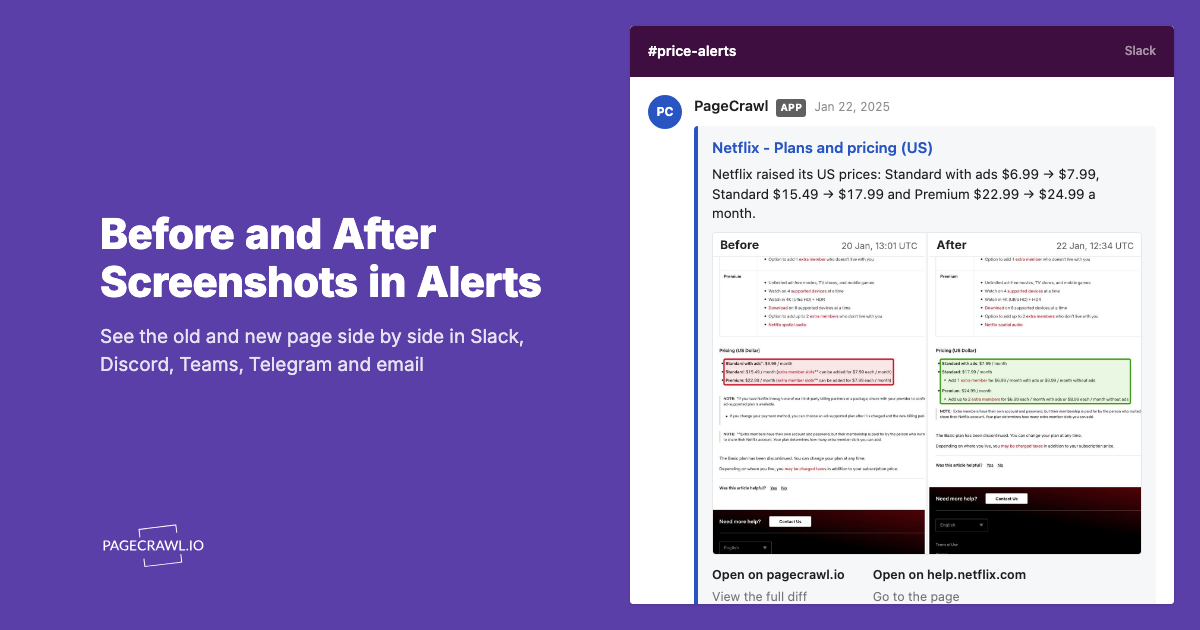
Slack messages support rich formatting, links, and threading. A website change alert in Slack can include the old text, the new text, a link to the page, a screenshot, and an AI summary of what changed. Team members can discuss the change in a thread and decide on next steps without leaving Slack.
Integration Ecosystem
Slack connects to everything. A website change alert in Slack can trigger workflows in other tools. Use Slack's Workflow Builder, Zapier, or n8n to route alerts into Jira tickets, CRM records for account expansion signals, spreadsheets, or any other system your team uses.
Method 1: Direct Slack Integration (Recommended)
The simplest approach is using a monitoring tool with built-in Slack support.

Setting Up Slack Alerts in PageCrawl
PageCrawl has native Slack integration, covered step by step in the help centre guide to sending website change notifications to a Slack channel. Here is how to set it up:
Step 1: Connect Slack to PageCrawl
- Go to your workspace settings in PageCrawl
- Navigate to the Notifications section
- Click "Add Slack Channel"
- Authorize PageCrawl to post to your Slack workspace
- Select the channel where you want alerts to appear
Step 2: Configure Which Monitors Send to Slack
You can set Slack notifications at the workspace level (all monitors) or per individual monitor:
- Workspace level: Go to workspace notification settings and enable Slack for all monitors. Every change detection across all monitors will post to your Slack channel.
- Per monitor: Edit individual monitors and add Slack to their notification channels. This is useful when you want different monitors alerting different channels.
Step 3: Organize Channels by Topic
For agencies watching many client sites and teams monitoring many pages, create dedicated Slack channels:
#competitor-alertsfor competitor website changes#price-trackingfor price monitoring alerts#compliance-updatesfor regulatory page changes#product-restocksfor stock availability alerts
Assign different monitors to different channels so the right team sees the right alerts without noise.
What the Slack Alert Includes
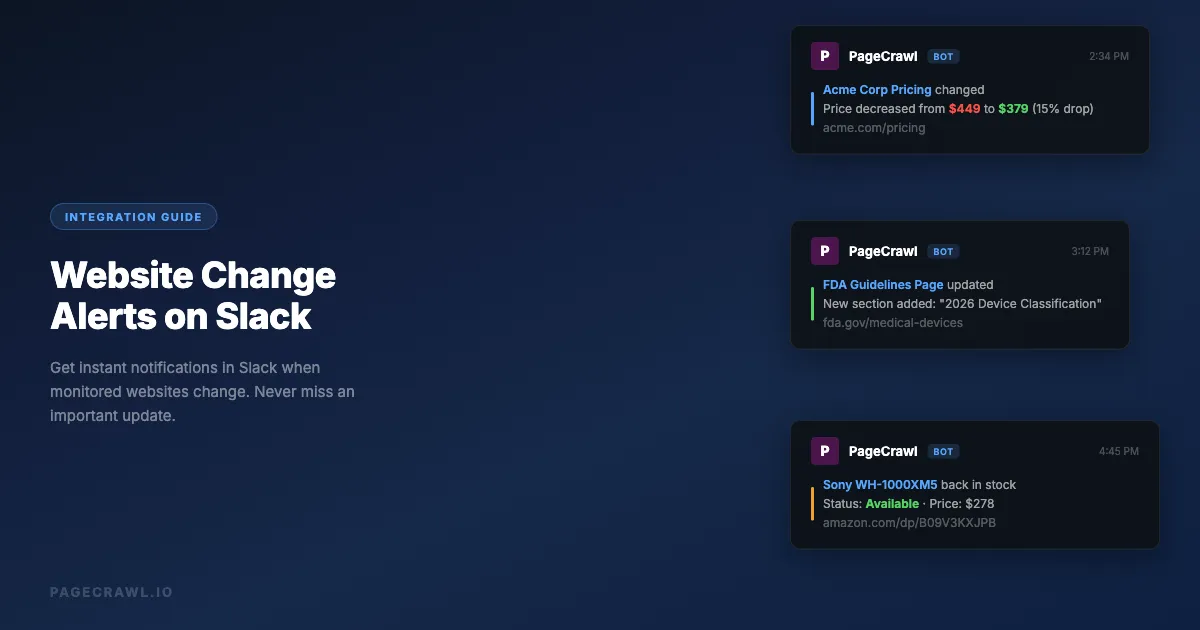
When PageCrawl detects a change, the Slack message contains:
- Monitor name and URL of the tracked page
- AI summary of what changed (e.g., "Price decreased from $449 to $379")
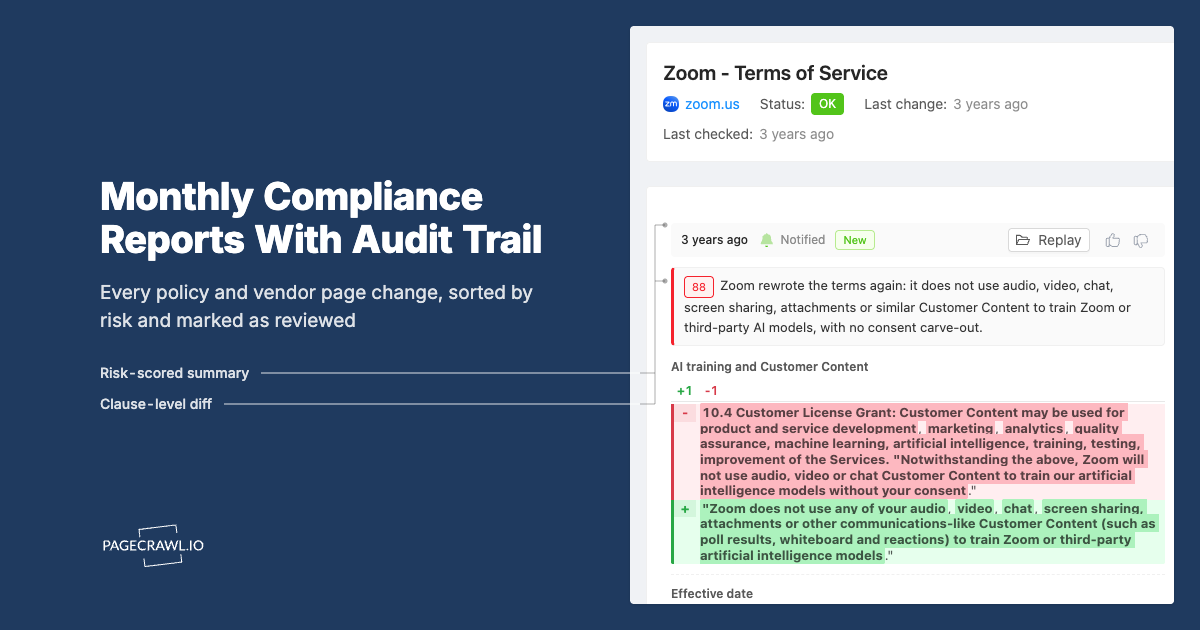
- Change details showing old vs new text
- Screenshot of the page at the time of the change
- Direct link to view the full change history in PageCrawl
This gives your team enough context in the message itself to understand the change and decide whether action is needed.
Method 2: Webhook to Slack Incoming Webhook
If you want more control over the message format, use webhooks. Our webhook automation guide covers webhook fundamentals, payload structure, and security best practices in depth.
How It Works
- PageCrawl sends a webhook when a change is detected
- A middleware service (or simple script) formats the data
- The formatted message is sent to a Slack Incoming Webhook URL
Step 1: Create a Slack Incoming Webhook
- Go to api.slack.com/apps
- Create a new app or select an existing one
- Enable "Incoming Webhooks" (Slack documents the full flow under sending messages using incoming webhooks)
- Add a new webhook to your desired channel
- Copy the webhook URL (looks like
https://hooks.slack.com/services/T.../B.../xxxx)
Step 2: Set Up the Middleware
Create a simple endpoint that receives PageCrawl webhooks and forwards them to Slack:
const express = require('express');
const axios = require('axios');
const app = express();

const SLACK_WEBHOOK_URL = process.env.SLACK_WEBHOOK_URL;

app.post('/webhook/pagecrawl', express.json(), async (req, res) => {
  const { page, changed_at, short_summary, contents, previous_check, page_screenshot_image } =
    req.body;

  // Format the Slack message
  const slackMessage = {
    blocks: [
      {
        type: 'header',
        text: {
          type: 'plain_text',
          text: `Change Detected: ${page.name}`
        }
      },
      {
        type: 'section',
        fields: [
          {
            type: 'mrkdwn',
            text: `*URL:*\n<${page.url}|${page.url}>`
          },
          {
            type: 'mrkdwn',
            text: `*Detected:*\n${changed_at}`
          }
        ]
      },
      {
        type: 'section',
        text: {
          type: 'mrkdwn',
          text: `*Summary:*\n${short_summary || 'Content changed'}`
        }
      },
      {
        type: 'divider'
      },
      {
        type: 'section',
        fields: [
          {
            type: 'mrkdwn',
            text: `*Previous:*\n${truncate(previous_check?.contents, 200)}`
          },
          {
            type: 'mrkdwn',
            text: `*Current:*\n${truncate(contents, 200)}`
          }
        ]
      }
    ]
  };

  // Add screenshot if available
  if (page_screenshot_image) {
    slackMessage.blocks.push({
      type: 'image',
      image_url: page_screenshot_image,
      alt_text: 'Page screenshot'
    });
  }

  // Send to Slack
  await axios.post(SLACK_WEBHOOK_URL, slackMessage);
  res.status(200).json({ ok: true });
});

function truncate(text, max) {
  if (!text) return 'N/A';
  return text.length > max ? text.substring(0, max) + '...' : text;
}

app.listen(3000);
Step 3: Configure PageCrawl Webhook
In PageCrawl, add a webhook notification pointing to your middleware endpoint. Every time a change is detected, your middleware receives the data and posts a formatted message to Slack.
Pros of This Approach
- Full control over message formatting and content
- Can add conditional logic (only alert on certain types of changes)
- Can enrich the message with data from other sources
- Can route to different Slack channels based on the change content
Cons
- Requires hosting a middleware service
- More setup than direct integration
- Must maintain the middleware code
Method 3: Using n8n or Zapier as Middleware
No-code automation platforms can bridge PageCrawl webhooks to Slack without writing code.
n8n Workflow
For a full walkthrough of building n8n monitoring workflows, see our n8n website monitoring guide.
- Webhook node: Receives the PageCrawl change notification
- Set node: Extracts and formats the relevant fields
- IF node (optional): Filters based on conditions (e.g., only price drops greater than 10%)
- Slack node: Posts the formatted message to your channel
This approach is particularly powerful because n8n runs locally or on your own server, keeping your data private.
Zapier Workflow
For workflow templates covering price alerts, CRM updates, and more, see our Zapier website monitoring guide.
- Webhook trigger: Catches the PageCrawl payload
- Formatter: Structures the message text
- Filter (optional): Only continue if certain conditions are met
- Slack action: Send Channel Message with the formatted content
Make (Integromat) Workflow
- Webhooks module: Custom webhook receives the data
- JSON module: Parses the payload
- Router (optional): Sends different alert types to different channels
- Slack module: Send a Message to the configured channel
Advanced Slack Alert Patterns
Pattern 1: Conditional Routing
Send different types of changes to different channels:
app.post('/webhook/pagecrawl', express.json(), async (req, res) => {
  const { page } = req.body;

  // Route on the folder the monitor sits in, which the payload carries as page.folder.
  // To route by tag instead, create one PageCrawl webhook per tag (a webhook can be
  // limited to monitors with chosen tags) and give each its own endpoint.
  let channel;

  if (page.folder === 'Competitors') {
    channel = '#competitor-alerts';
  } else if (page.folder === 'Pricing') {
    channel = '#price-tracking';
  } else if (page.folder === 'Compliance') {
    channel = '#compliance-updates';
  } else {
    channel = '#website-changes';
  }

  await postToSlack(channel, formatMessage(req.body));
  res.status(200).json({ ok: true });
});
Pattern 2: Price Drop Alerts with Threshold
Only alert when prices drop by more than a certain percentage:
// For a price monitor, contents holds the extracted number (for example "100.00")
// and previous_check.contents holds the price from the check before.
function shouldAlert(payload) {
  const oldPrice = parseFloat(payload.previous_check?.contents);
  const newPrice = parseFloat(payload.contents);

  if (Number.isNaN(oldPrice) || Number.isNaN(newPrice)) return true; // Alert on non-price changes

  const dropPercent = ((oldPrice - newPrice) / oldPrice) * 100;
  return dropPercent >= 5; // Only alert on 5%+ drops
}
Pattern 3: Digest Mode
Instead of individual alerts, collect changes and send a daily summary:
const pendingChanges = [];

app.post('/webhook/pagecrawl', express.json(), (req, res) => {
  pendingChanges.push(req.body);
  res.status(200).json({ queued: true });
});

// Run daily at 9 AM
cron.schedule('0 9 * * *', async () => {
  if (pendingChanges.length === 0) return;

  const summary = pendingChanges.map(({ page, short_summary }) =>
    `- *${page.name}*: ${short_summary || 'Content changed'}`
  ).join('\n');

  await postToSlack('#daily-digest', {
    blocks: [
      {
        type: 'header',
        text: { type: 'plain_text', text: `Daily Website Changes (${pendingChanges.length})` }
      },
      {
        type: 'section',
        text: { type: 'mrkdwn', text: summary }
      }
    ]
  });

  pendingChanges.length = 0;
});
Pattern 4: Thread Updates for the Same Monitor
Keep related changes organized in Slack threads:
const threadMap = new Map(); // monitor_id -> thread_ts

async function postOrThread(channel, monitorId, message) {
  const threadTs = threadMap.get(monitorId);

  if (threadTs) {
    // Reply in the existing thread
    await slack.chat.postMessage({
      channel,
      thread_ts: threadTs,
      ...message
    });
  } else {
    // Create a new message and save the thread ID
    const result = await slack.chat.postMessage({
      channel,
      ...message
    });
    threadMap.set(monitorId, result.ts);
  }
}
Pattern 5: Interactive Alerts with Buttons
Add action buttons to Slack messages so team members can take action directly:
const slackMessage = {
  blocks: [
    // ... change details ...
    {
      type: 'actions',
      elements: [
        {
          type: 'button',
          text: { type: 'plain_text', text: 'View Page' },
          url: page.url,
          action_id: 'view_page'
        },
        {
          type: 'button',
          text: { type: 'plain_text', text: 'View History' },
          url: page.link, // the monitor in PageCrawl, with its full history
          action_id: 'view_history'
        },
        {
          type: 'button',
          text: { type: 'plain_text', text: 'Mark as Reviewed' },
          style: 'primary',
          action_id: 'mark_reviewed'
        }
      ]
    }
  ]
};
Real-World Setups
E-Commerce Team: Competitor Price Monitoring
Setup:
- 50 monitors tracking competitor pricing pages
- PageCrawl "Price" tracking mode on each
- Slack channel:
#competitor-pricing
Workflow:
- Competitor changes a price
- PageCrawl detects the change within hours
- Slack alert appears with old price, new price, and percentage change
- Sales team discusses in thread and adjusts own pricing if needed
Result: Price response time dropped from days of manual checking to the same working day. The team caught a competitor's flash sale while it was still running and matched the offer before losing customers.
Legal Team: Regulatory Page Tracking
Setup:
- 20 monitors on government and public records portal pages
- Full-page text tracking mode
- Slack channel:
#regulatory-updates - Daily digest mode (summary at 9 AM instead of individual alerts)
Workflow:
- Government portal updates a regulation page
- PageCrawl captures the change
- At 9 AM, a digest message appears in Slack listing all changes from the past 24 hours
- Compliance team reviews each change and assigns follow-up tasks
Result: Regulatory changes that previously took weeks to discover now show up in the next morning's digest.
Product Team: Feature Launch Monitoring
Setup:
- 15 monitors on competitor product/feature pages
- Element tracking on specific feature sections
- Slack channel:
#competitive-intel
Workflow:
- Competitor launches a new feature (updates their product page)
- PageCrawl detects the content change
- AI summary in Slack explains what was added or changed
- Product team discusses competitive implications in the thread
Result: The team learns about competitor feature launches and shifts in app store review velocity the same day instead of weeks later through industry news.
What if Slack alerts are missing, duplicated, or too noisy?
Missing alerts almost always trace back to the Slack connection, channel permissions, or a monitor with Slack switched off. Duplicates mean two delivery paths are active at once. Noise means the monitor is watching more of the page than it needs to. Work through them in that order.
Alerts Not Appearing in Slack
- Check the Slack connection: Go to PageCrawl workspace settings and verify the Slack integration is active. Re-authorize if needed.
- Check the channel: Make sure PageCrawl has permission to post in the selected channel. Private channels require explicit invitation.
- Check the monitor: Verify the monitor is active and has Slack enabled in its notification settings. Also verify changes are actually occurring (check the monitor history).
Too Many Alerts
- Increase check frequency intervals: If you are checking every hour but only care about daily changes, switch to daily checks.
- Use element tracking: Instead of full-page monitoring (which catches every minor change), target specific elements with CSS selectors. This filters out noise like ads, timestamps, and unrelated content.
- Use AI focus: Set the AI Page Focus to describe what matters, helping filter out irrelevant changes.
- Use digest mode: Collect individual alerts and send a summary once or twice daily.
- Add conditions: Per-page notification conditions and filters let keyword and threshold rules decide whether a change is worth a Slack message at all.
Duplicate Alerts
If you are seeing duplicate Slack messages for the same change:
- Check if you have both direct Slack integration and a webhook pointing to Slack. Pick one.
- If using webhooks, ensure your middleware is idempotent (check for duplicate webhook deliveries using the change ID).
Message Formatting Issues
Slack's Block Kit caps a single text block at 3,000 characters. If your monitored content is longer, truncate it in your middleware:
function truncate(text, max = 2500) {
  if (!text || text.length <= max) return text || '';
  return text.substring(0, max) + '\n...(truncated)';
}
How do you keep Slack alerts worth reading?
Alert quality decays unless you maintain it. Watch specific elements rather than whole pages, name monitors so the alert explains itself, route urgent changes to a second channel, and audit the whole set monthly. A channel people mute is worse than no channel.
Separate Signal from Noise
The most common mistake is monitoring too broadly and flooding Slack with irrelevant alerts. Use element-specific tracking to monitor only the content you care about. A full-page monitor on a news site you are watching for silent edits and retractions will alert you every time the page loads new content. An element monitor on a specific product price only alerts when that price changes.
Name Your Monitors Clearly
Monitor names appear in Slack alerts. Use descriptive names that tell the team exactly what changed at a glance:
- Good: "Notion - Plus Plan Pricing", "FDA - Device Approval Page 2026"
- Bad: "Monitor 47", "competitor page", "https://example.com/page"
Set Up Escalation Paths
For critical monitors, set up multiple notification channels. Send to Slack for visibility and to email as a backup. For urgent changes (like a compliance page update), also send to a webhook that creates a Jira ticket or pages the on-call team.
Review and Clean Up Regularly
Audit your monitors monthly. Remove monitors for pages that no longer exist or matter. Adjust check frequencies based on actual change patterns. A monitor that has not detected a change in 3 months might not need hourly checks.
Document Your Monitoring Setup
Keep a shared document or wiki page listing what you monitor, which Slack channels receive which alerts, and who is responsible for acting on each type of alert. When team members join or leave, this documentation ensures coverage continuity.
Choosing your PageCrawl plan
PageCrawl's Free plan lets you monitor 6 pages with 220 checks per month, which is enough to validate the approach on your most critical pages. Most teams graduate to a paid plan once they see the value.
| Plan | Price | Pages | Checks / month | Frequency |
|---|---|---|---|---|
| Free | $0 | 6 | 220 | every 60 min |
| Standard | $8/mo or $80/yr | 100 | 15,000 | every 15 min |
| Enterprise | $30/mo or $300/yr | 500 | 100,000 | every 5 min |
| Ultimate | $99/mo or $999/yr | 1,000 | 100,000 | every 2 min |
Annual billing saves two months across every paid tier. Enterprise and Ultimate scale up to 100x if you need thousands of pages or multi-team access.
Standard at $80/year pays for itself the first time a Slack alert catches a competitor pricing change before your next sales call, or surfaces a regulatory update your compliance team would otherwise have spent hours hunting. 100 monitored pages is enough to cover your main competitors, key regulatory portals, and critical supplier pages, with separate Slack channels routing each type of alert to the team that needs it. Enterprise at $300/year adds 5-minute check frequency and 500 pages for teams that need broader coverage and faster detection.
All plans include the PageCrawl MCP Server, so your team can ask Claude directly what changed on a monitored page this week and get the answer pulled from your own history, without leaving the tools they already use. AI assistants can create monitors through conversation on every plan, including Free.
Getting Started
Start with one high-value use case. Pick the website change that would be most valuable for your team to know about quickly. Set up a PageCrawl monitor with Slack notifications. Let it run for a week.
Once you see the value of fast alerts in your team's Slack, expand to more monitors. Create dedicated channels for different alert types. Build automation workflows for recurring actions.
PageCrawl's free tier includes 6 monitors with Slack integration. That is enough to prove the concept before scaling to a paid plan.