Amazon changes prices constantly. A product you are watching might drop 30% overnight, then bounce back by morning, making it impossible to manually catch the best deals.
Whether you are a consumer waiting for the right moment to buy, a seller monitoring competitor pricing, or a business tracking supplier costs, you need automated price tracking and drop alerts. This guide covers every method for tracking Amazon prices in 2026, from simple browser extensions to advanced monitoring setups that feed data directly into your systems.
How often do Amazon prices change?
Amazon adjusts prices continuously, and popular items can change price multiple times in a single day. Its algorithm factors in demand, competitor prices, inventory levels, time of day, and purchase history, so a single product can see dozens of price changes in a week. This is not random: Amazon optimizes for revenue and conversion rate simultaneously.
Multiple Sellers, Multiple Prices
Most Amazon product pages have multiple sellers. The "Buy Box" winner (the default Add to Cart option) can change throughout the day. The price you see depends on which seller currently holds the Buy Box. Tracking the page price alone might miss better deals from other sellers listed below.
Lightning Deals and Coupons
Amazon runs time-limited Lightning Deals, Subscribe & Save discounts, coupon overlays, and Prime-exclusive prices. These temporary discounts may or may not be reflected in the main product price displayed on the page. Some deals last only hours.
Seasonal Patterns
Most product categories follow predictable seasonal pricing. Electronics drop during Prime Day (July) and Black Friday (November), when stores like Best Buy run their biggest Black Friday doorbuster deals. Back-to-school items peak in August, and bikes see model-year price drops as last season's inventory clears. Understanding these patterns helps you set realistic target prices for alerts.
Should you use a browser extension to track Amazon prices?
Browser extensions are the simplest starting point. Tools like Keepa and CamelCamelCamel inject price history charts directly into Amazon product pages, so you can see historical lows, set one-click alerts, and view trends without leaving Amazon. They suit individual consumers tracking a handful of products for personal purchases.
Pros
- Free to use for basic features
- Visual price history charts on Amazon pages
- One-click alert setup
- No technical knowledge required
Cons
- Only works when your browser is open
- Limited export options and no way to feed data into other systems
- Alert options are basic (email only for most)
- Some extensions have been removed from browser stores for data collection concerns
Do dedicated price tracking websites work for Amazon?
Yes, for simple cases. Paste an Amazon product URL into CamelCamelCamel, Keepa (web version), or PriceSpy and the service tracks the price over time, shows historical data, and emails you when the price drops below your target. They fit consumers who want a straightforward "alert me when this drops below $X" setup.
Pros
- Free for basic use
- Price history going back months or years
- Works without installing anything
- Email alerts for price drops
Cons
- Limited to email notifications (no webhook, Slack, or API output)
- Tracks the main price only, so coupon overlays and alternate seller prices are missed
- Data stays in their system (no export to your database)
- Check frequency is set by the service, not by you
- Cannot track non-price elements (stock status, shipping time, seller ratings)
Why use a web monitoring tool for Amazon price tracking?
Web monitoring provides the most flexible approach to Amazon price tracking. Instead of relying on a service that only tracks the displayed price, you configure exactly which elements to extract, how often checks run, and where alerts go, and the resulting data can flow into your own systems through webhooks and an API.
How It Works with PageCrawl
- Add the Amazon product URL as a new monitor
- Select "Price" tracking mode to auto-detect the price element
- Set your check frequency (every 2 hours, 6 hours, daily; checks can run as often as every 2 minutes on higher plans)
- Configure notifications for price changes (email, Slack, Discord, webhook)
- PageCrawl renders the page in a real browser, extracts the price, and alerts you when it changes
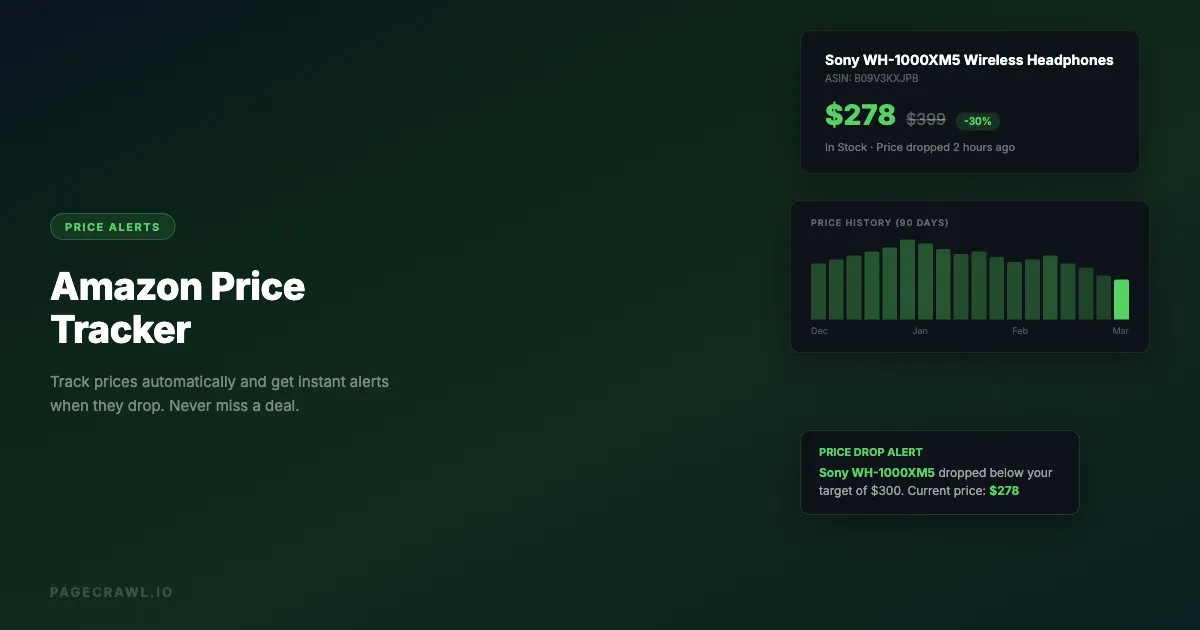
Every check adds a point to the monitor's price history chart, so Amazon's constant repricing becomes visible at a glance. This is a pair of headphones over three months: frequent small moves around $350, a deal-event dip to $278, and the current $299 level.

Why Web Monitoring Is More Powerful
Extract any element, not just price. Track the product title, stock status, seller name, shipping estimate, star rating, or review count. Use CSS selectors to target exactly what you need.
Custom check frequency. Every hour for a Lightning Deal you are watching, twice daily for a stable product category.
Multiple notification channels. Email, Slack, Discord, Microsoft Teams, Telegram, or webhook, with different alerts routed to different channels.
Webhook output for automation. Structured JSON on every price change, ready for spreadsheets, databases, dashboards, or automation workflows.
AI-powered summaries. PageCrawl summarizes what changed, so you see "Price dropped from $449 to $379 (16% decrease)" instead of raw text diffs.
Screenshot verification. Every check captures a screenshot so you can visually verify the displayed price.
Setting Up Amazon Price Tracking in PageCrawl
Step 1: Create the monitor. Copy the full Amazon product URL (including /dp/ASIN) and create a new monitor with "Price" as the tracking mode, which works the same way as monitoring numeric values to spot trends. Price mode automatically detects the primary price element, and pages render in a full browser engine so JavaScript-loaded prices appear correctly. To track additional elements (like stock status or seller name), create separate monitors with "Element" tracking mode and a CSS selector.
Step 2: Set check frequency. For most products, every 6 hours gives good coverage. For time-sensitive deals (Prime Day, Black Friday, Cyber Monday online-only drops), increase to every 1-2 hours. For stable-price items, daily checks are sufficient.
Step 3: Configure alerts. Email messages include the old price, new price, and percentage change; Slack, Discord, and Telegram deliver alerts to your channels and phone; webhooks send JSON for processing in your own systems.
Step 4: Enable cleanup actions. Turn on blocking cookie banners and ads and "Remove overlays" so Amazon's popups (location selector, sign-in prompts) do not interfere with price extraction.
Tracking Multiple Products
For tracking many Amazon products (10+), use PageCrawl's bulk import feature. Paste a list of Amazon URLs and PageCrawl creates monitors for all of them at once with your chosen settings. You can also use the PageCrawl API to create monitors programmatically from a script or spreadsheet.
Pros
- Track any element on the page, not just price
- Custom check frequencies
- Multiple notification channels including webhooks
- AI-powered change summaries
- Screenshot verification
- API access for bulk operations
- Monitors protected pages that block simpler tools
Cons
- Monthly cost for paid plans (a free tier is available to start)
- Requires initial setup per product
- Not specifically built for Amazon (general-purpose tool)
Best For
Sellers monitoring competitor prices, businesses tracking supplier costs, power users who want data in their own systems, anyone tracking more than the headline price, even bettors watching sportsbook line movements for a threshold to cross. The same approach works for Best Buy, Walmart, and Target prices, and cross-retailer price comparison groups the same product across stores so you can see which retailer is cheapest at a glance.
Can you build your own Amazon price tracker?
You can, and developers who want full control often start here. The catch is that Amazon works hard to make automated access unreliable, so a script that works today tends to break next month. Here is the basic approach, and why it rarely holds up in practice.
Basic Approach
import requests
from bs4 import BeautifulSoup

def check_amazon_price(url):
    headers = {
        'User-Agent': 'Mozilla/5.0 (Windows NT 10.0; Win64; x64) ...',
        'Accept-Language': 'en-US,en;q=0.9'
    }
    response = requests.get(url, headers=headers)
    soup = BeautifulSoup(response.content, 'html.parser')

    # Amazon's price element (changes frequently)
    price_element = soup.select_one('.a-price .a-offscreen')
    if price_element:
        price_text = price_element.get_text()
        return float(price_text.replace('$', '').replace(',', ''))
    return None
Why Custom Scripts Are Problematic for Amazon
Anti-bot detection. Amazon aggressively blocks automated requests. Simple HTTP requests get CAPTCHA pages, rate limited, or outright blocked. Handling this reliably requires significant infrastructure and ongoing maintenance.
JavaScript rendering. Many Amazon price elements load via JavaScript after the initial HTML. A simple HTTP request misses these. You need a headless browser, which adds infrastructure complexity.
Selector instability. Amazon A/B tests their page layout constantly. CSS selectors that work today may return nothing tomorrow. You need to maintain multiple fallback selectors and monitor for breakages.
The upside is complete control over extraction logic, no per-monitor costs, and data that stays entirely in your systems. Against that you carry the full development and maintenance burden, ongoing infrastructure costs, and a legal gray area around automated Amazon access. Custom scripts make sense mainly for teams with dedicated engineering resources who need very high-frequency tracking or extraction logic that no existing tool supports.
Does Amazon have its own price tracker?
Not a reliable one. Amazon has a few built-in features that touch on price tracking (Wish List emails, Subscribe & Save, seller analytics), but none give you dependable alerts, control over thresholds, or visibility into price history. They work best as a supplement to a dedicated tracker, not a replacement.
Amazon Price Alert (Wish List)
Add items to your Amazon Wish List. Amazon sometimes sends email alerts when prices drop on wish list items. This is not reliable. Amazon does not guarantee alerts, the timing is unpredictable, and you have no control over the threshold.
Amazon Subscribe & Save
For consumable products, Subscribe & Save locks in a discounted price. This is not really price tracking, but it guarantees a lower price for recurring purchases.
Amazon Business Analytics
If you sell on Amazon, Seller Central provides competitor pricing data through the Business Reports section. This only covers products in your category and requires an active seller account.
Which Amazon price tracking method is best?
For personal shopping, a browser extension or a free tracking site covers the basics. For anything beyond that (multiple products, team alerts, webhook output, non-price elements), web monitoring offers the best balance of capability and effort. Custom scripts only pay off when dedicated engineering time is available. The full comparison:
| Feature | Browser Extension | Price Tracking Site | Web Monitoring (PageCrawl) | Custom Script | Amazon Built-in |
|---|---|---|---|---|---|
| Setup time | 2 minutes | 5 minutes | 10 minutes | Hours to days | 1 minute |
| Cost | Free | Free | Free tier / paid plans | Dev time + infrastructure | Free |
| Check frequency | Manual/hourly | Service-controlled | You choose (down to every 2 min on higher plans) | You choose | Unpredictable |
| Notification channels | Email, Slack, Discord, Teams, Telegram, Webhook | Whatever you build | Email (maybe) | ||
| Track non-price elements | No | No | Yes (any CSS selector) | Yes | No |
| API/webhook output | No | Limited | Yes | Yes | No |
| Handles protected pages | N/A (uses your browser) | Yes | Yes | Must build yourself | N/A |
| Historical data | Yes | Yes (limited) | Yes (full history) | Must store yourself | No |
| Maintenance | None | None | Minimal | High | None |
| Scale (100+ products) | Impractical | Limited | Yes (bulk import, API) | Possible but complex | No |
How do you get Amazon price drop alerts?
Add the product page to a monitoring tool, set a check frequency, and pick a notification channel (email, Slack, Discord, Telegram, or webhook). Alerts arrive when the next check detects the change, and checks can run as often as every 2 minutes depending on plan. For a complete system, route webhook output into n8n, Zapier, or a custom handler.

Architecture
Amazon Product Pages
        |
    PageCrawl Monitors (check every 6 hours)
        |
    Webhook (on price change)
        |
    n8n / Zapier / Custom Handler
        |
    ┌───────────────────┐
    |  Store in database |
    |  Send Slack alert  |
    |  Update spreadsheet|
    |  Trigger purchase  |
    └───────────────────┘
Tips for Effective Amazon Price Tracking
Use the Full Product URL
Always use the canonical Amazon product URL format: https://www.amazon.com/dp/ASIN. Avoid URLs with tracking parameters, referral tags, or search result formatting. The canonical URL is more stable and less likely to redirect.
Track the Right Price Element
Amazon product pages display multiple prices: the main price, the "Was" price, Subscribe & Save price, and used/renewed prices. Make sure your tracking targets the specific price you care about.
Account for Regional Pricing
Amazon prices vary by country (.com, .co.uk, .de, .co.jp). If you are comparing across regions, set up separate monitors per regional Amazon domain.
Watch for "Currently Unavailable"
When products go out of stock on Amazon, the price element often disappears entirely. Your tracking should handle this case. PageCrawl's "selector not found" status tells you when the tracked element is missing from the page. If availability matters as much as price, pair price tracking with Amazon in-stock alerts so restocks do not slip past you.
Combine with Historical Data
One data point is not actionable. Track prices over weeks or months to understand the normal price range. A "30% off" badge means nothing if the price was inflated before the sale. Historical data reveals whether a deal is genuinely good.
Track Competitor Products Together
If you are a seller, do not track competitor prices in isolation. Monitor your own listing alongside competitors, the core of any competitive intelligence setup, so you can see relative pricing changes. Group related monitors in PageCrawl folders to keep them organized. For a deeper look at building a competitive pricing strategy, see our guide to competitor price tracking tools.
Common Challenges
CAPTCHA and Bot Detection
Amazon is one of the most aggressive sites for bot detection. Browser extensions avoid this because they run in your real browser. PageCrawl reliably monitors protected pages that block simpler tools, and for heavily protected pages, Enterprise plans add premium options. Custom scripts hit CAPTCHAs frequently unless you build and maintain serious infrastructure yourself.
Price Not Displayed
Some Amazon products show "See price in cart" or require sign-in to view the price. PageCrawl can reach both: it logs in with a saved session that gets reused across checks, and it can run a click action (like adding to cart) before capturing, so the revealed price is extracted even when it is hidden on the public page.
Multiple Sellers and Price Variance
The price you see may differ from what another user sees based on location, Prime status, and purchase history. Web monitoring tools like PageCrawl default to the non-logged-in price, which is a consistent baseline for comparison. PageCrawl can also log in with a saved session to capture Prime or account-specific pricing when you want that view instead.
Product Page Redesigns
Amazon periodically redesigns product page layouts. When this happens, CSS selectors may break. PageCrawl's "Price" tracking mode uses intelligent price detection that adapts to layout changes better than fixed CSS selectors.
Choosing your PageCrawl plan
PageCrawl's Free plan (with hourly checks) is enough to validate the approach on your most critical pages. Most teams graduate to a paid plan once they see the value.
| Plan | Price | Pages | Checks / month | Frequency |
|---|---|---|---|---|
| Standard | $8/mo or $80/yr | 100 | 15,000 | every 15 min |
| Enterprise | $30/mo or $300/yr | 500 | 100,000 | every 5 min |
| Ultimate | $99/mo or $999/yr | 1,000 | 100,000 | every 2 min |
Annual billing saves two months across every paid tier. Enterprise and Ultimate scale up to 100x if you need thousands of pages or multi-team access.
For consumers, Standard at $80/year pays for itself the first time you catch a meaningful price drop on a single electronics purchase, and 100 monitored pages covers your full wishlist plus competitor products across Amazon, Best Buy, and Walmart. For sellers and sourcing teams, Enterprise at $300/year covers 500 SKUs with 5-minute checks, enough reaction time to adjust your own pricing before a competitor undercut affects your Buy Box position.
Getting Started
Start simple. Pick 3-5 Amazon products you are actively watching. Set up monitors with PageCrawl's "Price" tracking mode and configure email or Slack notifications. Run it for two weeks to see price movement patterns.
Once you see the value, expand to more products. Use the API for bulk imports, set up webhook integrations for automation, and build historical price databases for deeper analysis.
PageCrawl's free tier is enough to track a handful of products and prove the concept before scaling up.