Your email inbox has 47 unread messages, three of which are urgent price drop alerts buried between newsletters and spam. By the time you see them, the deal is gone. Email is where monitoring alerts go to die.
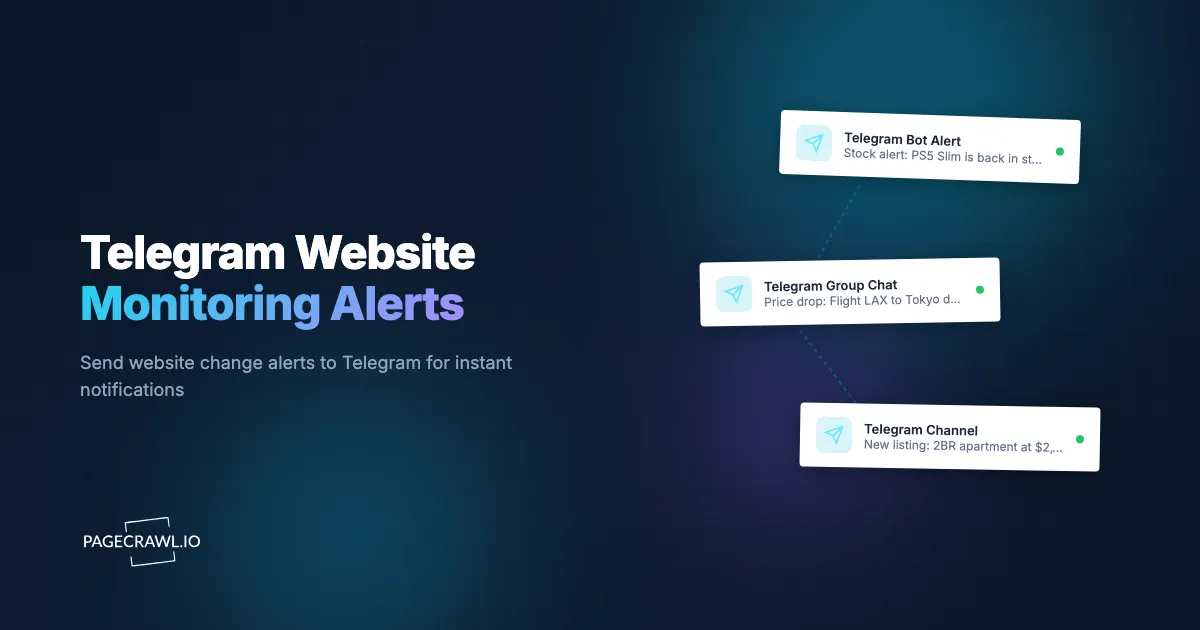
Telegram fixes this. An alert still goes out when the next scheduled check detects a change, but from that point Telegram pushes it straight to your phone instead of leaving it to compete with an inbox. Messages are persistent, searchable, and do not get buried in spam folders. You can create dedicated channels for different alert types, share them with a team, and even build automated workflows with bots. For time-sensitive monitoring like restock alerts, price-drop and sale alerts, and competitive changes, Telegram is the fastest notification channel available.
This guide covers everything from creating your first Telegram bot to building sophisticated multi-channel alert systems that route different types of website changes to different audiences.
Why use Telegram for monitoring alerts?
Telegram is the fastest hop between a detected change and your attention: the app holds a persistent connection, so there is no polling delay, no spam filter, and no promotions tab. It also works on every platform, supports rich formatting, and scales from a private chat to a team channel for free.
Speed and Reliability
Once a check detects a change, the Telegram push is delivered without the queuing and filtering that slow email down. The app maintains a persistent connection to Telegram's servers, so there is no polling delay. Compare this to email, which can take minutes to land depending on your provider, and may be delayed further by spam filters, batching, or server load. What Telegram does not change is detection time: alerts still fire on the next scheduled check, which runs as often as every 2 minutes on paid plans and hourly on the free plan.
For monitoring scenarios where minutes matter (concert presale codes, limited-edition product restocks, flash sales, or a status change on a public inmate locator), Telegram is consistently the fastest channel to get alerts into your hands.
Works Everywhere
Telegram runs on iOS, Android, Windows, macOS, Linux, and in any web browser. Your alerts follow you across all devices. Start reading an alert on your phone, continue on your desktop. Unlike SMS, which is tied to a phone number and carrier, Telegram works anywhere you have an internet connection, which is why it is our recommended stand-in for SMS notifications.
No Spam Filtering
Email alerts get caught in spam filters, promotions tabs, and focus filters. Telegram messages always arrive. There is no algorithm deciding whether your price drop alert is important enough to show you. Every message from a bot you have explicitly subscribed to appears in your chat.
Rich Formatting
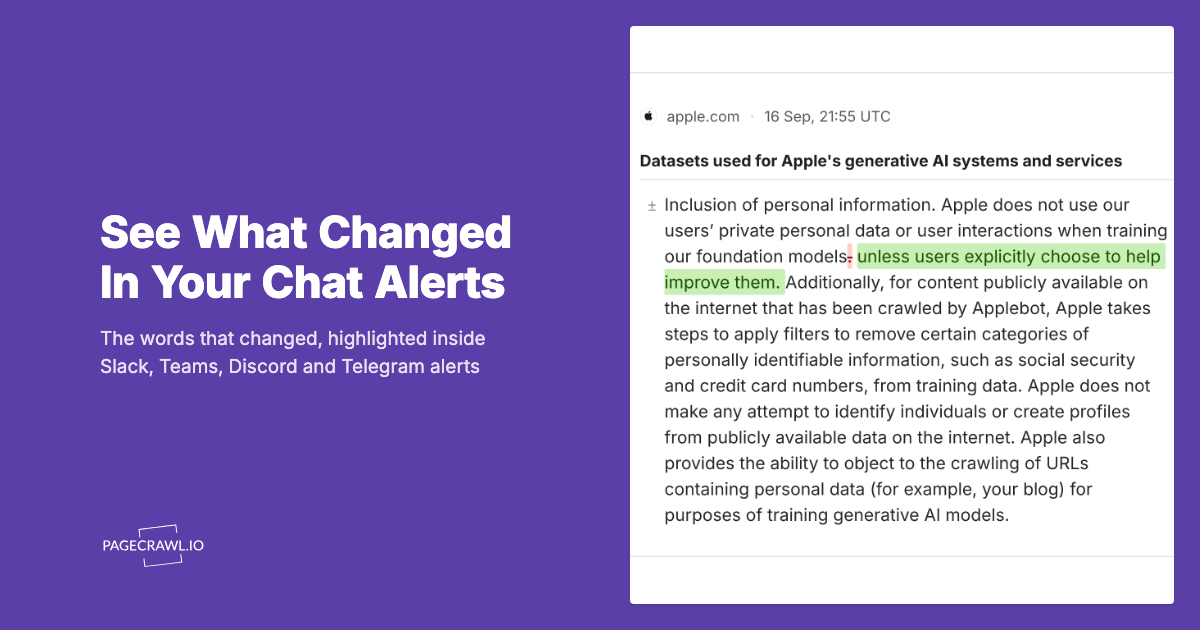
Telegram supports formatted text, links, images, and inline buttons in bot messages. A monitoring alert can include the page title, what changed, a direct link to the page, and even a screenshot of the change. This is far richer than a plain-text SMS or a basic email subject line.
Groups and Channels
Telegram groups support up to 200,000 members. Channels have unlimited subscribers. This makes Telegram ideal for team monitoring setups where multiple people need to see the same alerts. You do not need to manage a mailing list or worry about someone missing an email thread.
Free and No API Limits for Bots
The Telegram Bot API is free to use with generous rate limits (around 30 messages per second across different chats). There are no per-message charges, no monthly fees, and no feature gates. This matters when you are sending dozens of monitoring alerts per day.
Setting Up a Telegram Bot
Before connecting PageCrawl to Telegram, you need to create a Telegram bot and get its API token.
Step 1: Create a Bot with BotFather
BotFather is Telegram's official tool for creating and managing bots.
- Open Telegram and search for "@BotFather"
- Start a conversation with BotFather by clicking "Start"
- Send the command
/newbot - BotFather will ask for a display name. Enter something descriptive like "PageCrawl Alerts"
- BotFather will ask for a username. This must end in "bot" (for example, "pagecrawl_alerts_bot")
- BotFather responds with your bot's API token. It looks like:
7123456789:AAHdqTcvCH1vGWJxfSeofSAs0K5PALDsaw
Important: Keep this token private. Anyone with the token can send messages as your bot.
Step 2: Get Your Chat ID
PageCrawl needs to know where to send messages. This requires your Telegram chat ID.
For personal alerts (sending to yourself):
- Search for "@userinfobot" in Telegram and start a conversation
- It will reply with your user ID (a number like
123456789) - This is your chat ID for personal notifications
For group alerts:
- Create a Telegram group
- Add your bot to the group
- Send any message in the group
- Visit
https://api.telegram.org/bot<YOUR_TOKEN>/getUpdatesin a browser - Find the "chat" object in the JSON response. The "id" field (usually a negative number like
-1001234567890) is your group chat ID
For channel alerts:
- Create a Telegram channel
- Add your bot as an administrator of the channel
- The chat ID is your channel's @username (like
@my_monitoring_alerts) or the numeric channel ID
Step 3: Test the Connection
Before configuring PageCrawl, verify your bot works by sending a test message. Open this URL in your browser (replacing the token and chat ID with your own):
https://api.telegram.org/bot<TOKEN>/sendMessage?chat_id=<CHAT_ID>&text=Test%20alert%20from%20PageCrawlIf you receive the message in Telegram, your bot is working correctly.
Connecting PageCrawl to Telegram

Adding Telegram as a Notification Channel
The help centre walkthrough on sending change notifications to a Telegram group or channel covers the same steps with screenshots if you get stuck.
- In PageCrawl, go to your workspace notification settings
- Select "Telegram" as a notification channel
- Enter your bot token and chat ID
- Send a test notification to verify the connection
- Save the configuration
Configuring Per-Monitor Alerts
Once Telegram is connected at the workspace level, you can enable it for individual monitors:
- Open any monitor's settings
- Navigate to the notifications section
- Enable Telegram notifications
- Choose which types of changes should trigger a Telegram alert (any change, price changes only, content changes, etc.) using notification conditions and filters
You can enable Telegram alongside other channels. Many users configure Telegram for urgent alerts (price drops, restocks) and email for routine change summaries.
Creating Telegram Channels for Team Alerts
For teams that need shared visibility into website changes, Telegram channels provide a broadcast-style alert system.
When to Use Channels vs Groups
Channels are one-way broadcasts. Only admins (your bot) can post. Subscribers receive alerts silently without the ability to respond in the channel. Use channels when you want clean, uncluttered alert feeds.
Groups are interactive. Members can discuss alerts, ask questions, and share context. Use groups when the team needs to coordinate responses to alerts (for example, a pricing team that discusses competitor price changes).
Setting Up a Team Alert Channel
- Create a Telegram channel with a descriptive name (like "Competitor Price Alerts" or "Website Downtime Alerts")
- Add your PageCrawl bot as a channel administrator
- Share the channel invite link with team members
- In PageCrawl, use the channel's chat ID when configuring notifications
- Configure which monitors send alerts to this channel
Organizing Multiple Channels
For larger monitoring setups, create separate channels for different alert categories:
- #price-alerts: All price change monitors
- #restock-alerts: Out-of-stock and availability monitors
- #competitor-updates: Competitor website change monitors
- #compliance-alerts: Regulatory and policy change monitors
- #seo-changes: SEO ranking and SERP monitors
This separation lets team members subscribe only to the channels relevant to their role. Your pricing analyst does not need restock alerts, and your compliance officer does not need price drop notifications.
Formatting Options for Rich Notifications
PageCrawl sends structured alerts to Telegram that include key information at a glance.
What a Typical Alert Includes
A PageCrawl Telegram notification includes:
- Monitor name: The name you gave the monitor
- Change summary: A brief description of what changed (AI-generated when enabled)
- Direct link: A clickable link to the monitored page
- Timestamp: When the change was detected
Customizing Alert Content
You can influence what appears in your Telegram alerts through monitor configuration:
- AI summaries: Enable AI-powered change summaries for natural-language descriptions like "Price dropped from $299 to $249 (17% decrease)" instead of raw diff output
- Monitor naming: Use descriptive monitor names since they appear in every alert. "Nike Air Max 90 - Size 10" is more useful than "Nike product page"
- Focus areas: Set AI focus areas to filter which changes trigger alerts and what the summary emphasizes
Organizing Alerts with Multiple Bots
For advanced setups, you can create separate Telegram bots for different monitoring categories.
Why Multiple Bots
Each bot appears as a separate conversation in Telegram. If all your alerts come from one bot, you have a single stream of mixed alerts. With multiple bots, you can:
- Mute low-priority bots while keeping high-priority ones active
- Pin the most important bot conversation to the top of your chat list
- Quickly scan a specific category of alerts by opening that bot's conversation
- Set different notification sounds for different bots
Example Multi-Bot Setup
- @price_watch_bot: Price monitoring alerts (configure with aggressive notification sound)
- @restock_alert_bot: Out-of-stock and availability alerts
- @competitor_bot: Competitor website changes (can be muted during off-hours)
- @compliance_bot: Regulatory and legal page changes
Create each bot through BotFather following the same process, and use each bot's unique token when configuring different monitor groups in PageCrawl.
How does Telegram compare to email, Slack, and Discord?
Telegram is the best default for personal and small-team monitoring: setup takes about five minutes, delivery is push-based with no spam filtering, and groups and channels are built in. Slack fits teams already living in Slack, Discord fits open communities, and email remains better for detailed reports and audit trails.
Telegram vs Email
| Factor | Telegram | |
|---|---|---|
| Speed | Push delivery right after a check | Minutes to hours (spam filters, batching) |
| Visibility | Always visible, no spam folder | Can be buried or filtered |
| Rich content | Formatted text, links, images | Full HTML, but varies by client |
| Searchability | Full message search | Full search with labels/folders |
| Team sharing | Groups and channels built-in | Requires mailing lists |
| Cost | Free | Free |
Best for: Telegram wins for time-sensitive alerts. Email wins for detailed reports and audit trails.
Telegram vs Slack
| Factor | Telegram | Slack |
|---|---|---|
| Speed | Push delivery right after a check | Push delivery right after a check |
| Personal use | Designed for personal and team | Primarily team/workspace |
| Mobile experience | Excellent native app | Good, but notification fatigue in busy workspaces |
| Setup complexity | Simple (BotFather, 5 minutes) | Moderate (webhook URL or app installation) |
| Cost | Free | Free tier with message limits |
Best for: Telegram wins for personal monitoring and small teams. Slack wins for organizations already using Slack where monitoring alerts should live alongside work conversations. For Slack setup details, see our Slack website monitoring guide.
Telegram vs Discord
| Factor | Telegram | Discord |
|---|---|---|
| Speed | Push delivery right after a check | Push delivery right after a check |
| Bot ecosystem | Extensive | Extensive |
| Community features | Groups up to 200K | Servers with channels, roles |
| Mobile notifications | Reliable | Can be inconsistent |
| Setup | BotFather (simple) | Developer portal (moderate) |
Best for: Telegram wins for reliability and simplicity. Discord wins for community monitoring setups where non-technical users need an easy join link.
Telegram vs Web Push Notifications
| Factor | Telegram | Web Push |
|---|---|---|
| Requires app | Yes (Telegram app) | No (browser only) |
| Persistence | Messages saved permanently | Dismissed and gone |
| Cross-device | All devices with Telegram | Per browser/device |
| Offline delivery | Queued and delivered when online | May be lost |
Best for: Telegram wins for persistent, cross-device alerts. Web push notifications win when you do not want to install any app.
Advanced Patterns
Telegram Groups for Community Monitoring
Some monitoring setups serve a community rather than an individual or team. For example, a group of sneaker enthusiasts tracking restocks, a group of cyclists watching for bike restocks in their frame size, or a group of investors tracking company website changes.
Telegram groups work well for this:
- Create a group for your monitoring community
- Add your PageCrawl bot
- Configure monitors to send alerts to the group
- Members see alerts as they arrive and can discuss them
- Pin important alerts for visibility
Note: Be mindful of alert volume. A group with 50 monitors checking every 2 hours will generate significant message traffic. Use AI focus areas to filter out minor changes and only alert on meaningful ones.
Forwarding and Routing
Telegram makes it easy to forward alerts between conversations. If you receive an alert in your personal bot chat that is relevant to your team, you can forward it to a group or channel with one tap. This manual routing complements the automated routing you set up in PageCrawl.
Silent Notifications for Low-Priority Alerts
Telegram allows bots to send "silent" messages that arrive without a notification sound. For monitors that track routine changes (weekly content updates, minor text changes), you can configure quiet delivery so you see the alerts when you check Telegram but are not interrupted by every minor change.
On PageCrawl's side, noise filtering complements Telegram's silent delivery. PageCrawl's AI-powered filtering can distinguish between meaningful content changes and routine page noise like rotating ads, session tokens, timestamps, and cookie banner variations. By filtering these out before they ever reach Telegram, you keep your alert channels clean. The combination of PageCrawl noise filtering and Telegram's silent notifications means your high-priority channel only buzzes for changes that actually matter, while routine updates arrive quietly in a separate chat.
Combining Telegram with Webhooks
For the most flexible setup, use PageCrawl's webhook integration to send structured change data to your own server, then use a simple script to format and route messages to different Telegram chats based on the content. This gives you full control over which changes go where and how they are formatted.
For example, a webhook handler could:
- Send price decreases greater than 10% to a high-priority channel with an urgent notification
- Send minor content changes to a low-priority channel with silent delivery
- Send out-of-stock alerts only during business hours
- Include historical price data in the message by querying your own database
Why are my Telegram alerts not arriving?
In almost every case it is one of four things: the bot token was pasted with a typo, the monitor itself never had Telegram enabled (workspace setup alone is not enough), the chat ID is wrong (personal IDs are positive, group IDs negative), or the bot was blocked or removed from the group. Work through the checks below in that order.
"Bot Not Found" Error
If PageCrawl cannot find your bot, verify that:
- The bot token is copied correctly (no extra spaces or missing characters)
- The bot has not been deleted or deactivated via BotFather
- You are using the full token including the numeric prefix
Messages Not Arriving
If the test connection works but alerts are not arriving:
- Check that the monitor has Telegram notifications enabled (workspace-level setup is not enough, each monitor must opt in)
- Verify the chat ID is correct (personal IDs are positive numbers, group IDs are negative)
- For channels, ensure the bot is added as an administrator
- Check that the monitor is detecting changes (view the monitor's history in PageCrawl)
"Forbidden: Bot Was Blocked by the User"
This error means you (or someone in the group) blocked the bot. Unblock it by:
- Finding the bot in your Telegram conversations
- Tapping the bot's name to open its profile
- Selecting "Unblock" or "Restart"
Group Alerts Not Working
For group alerts, the bot must be a member of the group. If the group has privacy mode enabled (the default for bots), the bot cannot read messages but can still send them. If alerts still fail:
- Remove the bot from the group and re-add it
- Ensure the group has not exceeded Telegram's member limit
- Check that no group admin has restricted bot posting
Rate Limiting
Telegram limits bots to 30 messages per second across all chats. If you have many monitors triggering simultaneously, some messages may be delayed. This is rarely an issue for normal monitoring setups but could affect large-scale deployments with hundreds of monitors.
Real-World Setup Examples
Example 1: Personal Price Drop Alerts
A consumer tracking prices on 5 products across Amazon, Best Buy, and Walmart:
- Create one Telegram bot ("My Price Alerts")
- Create 5 monitors with price tracking mode
- Enable Telegram notifications for all monitors
- Alerts arrive directly in the bot conversation on your phone
Total setup time: 20 minutes. Cost: Free (within PageCrawl's 6-monitor free tier).
Example 2: E-commerce Competitor Monitoring
A pricing team running competitive intelligence monitoring on 50 competitor product pages:
- Create a Telegram channel "#competitor-prices"
- Add the monitoring bot as channel admin
- Create monitors for each competitor product page
- Enable Telegram notifications routed to the channel
- All team members subscribe to the channel
Total setup time: 1-2 hours for initial configuration. Ongoing cost: PageCrawl Standard plan ($80/year) for up to 100 monitors.
Example 3: Restock Alert Community
A group of collectors tracking limited-edition product restocks:
- Create a Telegram group "Restock Alerts"
- Add monitoring bot to the group
- Create monitors for product pages with out-of-stock monitoring
- Set check frequency to every 1-2 hours
- Group members see alerts and can discuss purchasing strategies
Example 4: Multi-Department Enterprise Monitoring
A company with compliance, marketing, and product teams each needing different alerts:
- Create three Telegram channels: "#compliance-changes", "#competitor-updates", "#product-page-monitoring"
- Create a separate bot for each department (or use one bot across channels)
- Route different monitor groups to different channels
- Department heads manage channel membership
Choosing your PageCrawl plan
PageCrawl's Free plan lets you monitor 6 pages with 220 checks per month, which is enough to validate the approach on your most critical pages. Most teams graduate to a paid plan once they see the value.
| Plan | Price | Pages | Checks / month | Frequency |
|---|---|---|---|---|
| Free | $0 | 6 | 220 | every 60 min |
| Standard | $8/mo or $80/yr | 100 | 15,000 | every 15 min |
| Enterprise | $30/mo or $300/yr | 500 | 100,000 | every 5 min |
| Ultimate | $99/mo or $999/yr | 1,000 | 100,000 | every 2 min |
Annual billing saves two months across every paid tier. Enterprise and Ultimate scale up to 100x if you need thousands of pages or multi-team access.
The plan pays for itself the first time a Telegram push gets you to a flash sale or restock before it sells out, covering the $80/year Standard cost with a single purchase at the right moment. Standard covers 100 monitored pages with 15-minute checks, which is enough to run a full competitor price setup, a restock alert channel, and a compliance feed all routing to separate Telegram channels simultaneously. For teams routing alerts across multiple departments or channels, Enterprise at $300/year adds 500 pages and 5-minute checks.
All plans include the PageCrawl MCP Server, so your team can query monitoring history conversationally in Claude rather than scrolling back through weeks of alerts in Telegram. AI assistants can create monitors through conversation on every plan, including Free.
Getting Started
Create a Telegram bot with BotFather. It takes two minutes. Copy the bot token, get your chat ID, and connect it to PageCrawl in your notification settings. Send a test notification to confirm everything works.
Start with one or two monitors that you care about most, whether that is a product price, a competitor page, or a career page you want new job listings from. Enable Telegram notifications and experience the difference between waiting for an email and getting a push on your phone as soon as a check finds the change.
PageCrawl's free tier includes 6 monitors with full Telegram integration. No feature is gated behind a paid plan when it comes to notification channels. Every plan, including free, supports Telegram, Slack, Discord, email, and webhooks. The only difference is how many pages you can monitor: 6 on Free, 100 on Standard ($80/year), and 500 on Enterprise ($300/year).