It is 9:14 a.m. on a Tuesday and your best-selling ASIN just went quiet. Orders that normally arrive every few minutes have stopped cold. You refresh the listing and the Add to Cart button is gone, replaced by a gray "See All Buying Options" link. A reseller you have never authorized is now the Featured Offer, priced three dollars under you, shipping from a warehouse you do not control. By the time you notice at lunch, you have lost five hours of Buy Box ownership, and roughly four out of five orders on that listing have quietly routed to someone else.
The Buy Box (Amazon now calls it the Featured Offer) is the single most valuable piece of real estate on any product detail page. Industry estimates put 80 to 90 percent of Amazon sales through the Buy Box, with the mobile app sending an even higher share, because the "Add to Cart" and "Buy Now" buttons purchase from whichever seller currently owns it. Ownership is not permanent. It can flip several times a day based on landed price, stock status, seller rating, fulfillment method, and how many sellers are competing on the same listing. If you sell on Amazon, the question is not whether the Buy Box will move, but whether you find out in minutes or in hours.
This guide explains what the Buy Box looks like on the page, which on-listing signals are worth watching, how Buy Box monitoring differs from plain price tracking, how unauthorized sellers slip onto your ASINs, and how to set up reliable Buy Box alerts in PageCrawl step by step.
What is the Amazon Buy Box and why does it matter so much?
The Buy Box is the boxed "Add to Cart" and "Buy Now" panel on the right side of an Amazon product page that routes a purchase to one specific seller. Because most shoppers never open the offer list, the seller holding the Buy Box captures the majority of sales for that ASIN, commonly estimated at 80 to 90 percent.
Amazon decides Buy Box ownership with a rotating algorithm that weighs landed price (item price plus shipping), fulfillment method (Fulfillment by Amazon usually beats merchant-fulfilled), stock availability, seller feedback and account health, and delivery speed. A single listing can have one Featured Offer at a time, and Amazon can also "suppress" the Buy Box entirely when no offer meets its bar, showing "See All Buying Options" instead of a purchase button. For brand owners and resellers, losing the Buy Box does not just dent margin, it can silence a top product completely while every other metric on your dashboard still looks normal.
What does losing the Buy Box actually look like on the listing page?
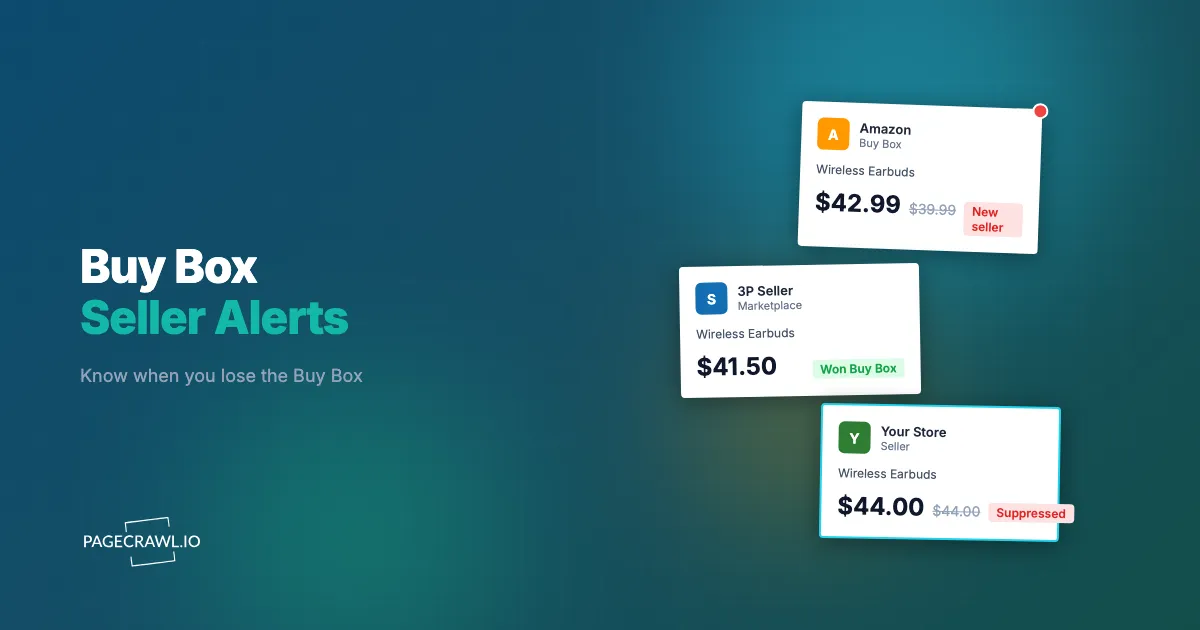
Losing the Buy Box shows up as visible changes in a few specific elements: the "Sold by" seller name changes to another merchant, the "Ships from" line changes (often from Amazon to a third party), the price in the Buy Box jumps to a competing offer, or the button switches from "Add to Cart" to "See All Buying Options."
Each of these is a discrete element that product page monitoring can read directly off the rendered page:
The "Sold by" and "Ships from" fields
Just below the Buy Box price, Amazon prints "Ships from" and "Sold by" lines. When you own the Featured Offer, "Sold by" shows your store name. When you lose it, that text changes to a competitor's name. This is the cleanest single signal of Buy Box ownership, and it is plain text you can track word for word.
The offer count and "Other Sellers on Amazon" block
Listings show a count such as "12 offers from $24.99" or a "Buy used and new from" line, plus an "Other Sellers on Amazon" or "New & Used" panel. A jump from 3 sellers to 7 overnight is a strong early warning that resellers have piggybacked onto your ASIN, often before any of them has actually taken the Buy Box.
A suppressed or hijacked Buy Box
When the purchase button changes to "See All Buying Options," the Buy Box is suppressed, frequently because every available offer is priced above Amazon's reference price or fulfillment is weak. Catching that transition tells you sales on that ASIN have effectively stopped, which is exactly the kind of revenue gap you want surfaced within minutes, not hours.
Which Buy Box signals should you monitor on each ASIN?
Watch four signals per listing: the Buy Box winner name ("Sold by"), the fulfillment source ("Ships from"), the Featured Offer price, and the total seller/offer count. Together these tell you whether you own the Buy Box, who took it if you do not, whether they are an authorized seller, and whether new competitors are massing on your ASIN.
A practical priority order looks like this:
- Buy Box winner ("Sold by") is the highest-value signal. Any change from your store name to another name warrants a top-priority alert.
- "Ships from" / fulfillment flags whether the new winner is FBA or merchant-fulfilled, which affects how aggressively they can compete and how a customer experiences your brand.
- Featured Offer price tells you how far the winning offer undercut you, which matters for repricing decisions and ties directly into ordinary Amazon price-drop tracking on your own listings.
- Seller count / offer count is your leading indicator. New sellers appearing is often the first visible sign of a coming Buy Box fight or a counterfeit problem.
Note: monitor these on your highest-revenue ASINs first. You do not need to watch your entire catalog on day one. Six to twelve flagship listings usually cover the bulk of the risk, and you can expand from there.
How is Buy Box monitoring different from regular Amazon price tracking?
Price tracking answers "what does this product cost right now," while Buy Box monitoring answers "who is selling it and are they allowed to." A price can stay flat while the Buy Box flips to an unauthorized reseller, and a new seller can appear on your ASIN without changing the displayed price at all.
Standard competitor price monitoring for ecommerce watches a numeric value and alerts on movement. Buy Box monitoring is identity and count based: it watches a seller name (text), a fulfillment label (text), and an offer count (number), and it alerts on a change in who or how many rather than how much. You usually want both running on the same ASIN, because a price drop on a competing offer is frequently the cause and the Buy Box change is the effect.
There is also a fulfillment-cost dimension. The Buy Box weighs landed price, not sticker price, so a seller with cheaper or free shipping can win even at a higher item price. If your competitors play games with shipping fees, pairing Buy Box alerts with free-shipping threshold and landed-price monitoring gives you the full picture of why the box moved.
Why do unauthorized sellers win the Buy Box, and how do you catch them?
Unauthorized sellers win the Buy Box by listing on your ASIN with gray-market or counterfeit stock, then undercutting your landed price. Because Amazon's algorithm rewards the lowest compliant offer, a reseller priced under you can seize the Featured Offer within minutes. You catch them by alerting on any new "Sold by" name and any rise in seller count.
This is where Buy Box monitoring overlaps with brand and reputation protection. A new merchant on your ASIN may be a legitimate authorized partner, or it may be a hijacker who will damage your reviews, ignore your MAP policy, and erode customer trust. Tracking the seller list turns an invisible problem into a timestamped event you can act on. If you own the brand, enrolling in Amazon Brand Registry gives you formal reporting and takedown tools, and the same signals feed naturally into broader unauthorized seller and counterfeit listing monitoring across your catalog.
Pricing enforcement is the other half. When a reseller wins the Buy Box by breaking your minimum advertised price, you want evidence and you want it fast. Buy Box alerts give you the trigger, and pairing them with MAP violation detection documents the offending price and seller so your brand-control or legal team can issue a takedown or enforce reseller agreements with a clean record.
How do you set up Amazon Buy Box monitoring with PageCrawl?
You set it up by creating one monitor per ASIN that watches the Buy Box elements, choosing a check frequency that matches how fast the box moves, and routing alerts to a channel your team reads. PageCrawl reads the "Sold by," "Ships from," price, and seller-count values straight from the live product page. Here is the step-by-step.

Step 1: Add the listing and pick your tracking mode
Create a new monitor and paste the full Amazon product URL (the canonical /dp/ASIN form is cleanest). For the Buy Box winner and the "Ships from" line, use keyword/text tracking on those specific elements so you capture the seller name and fulfillment label exactly. Add a second tracked element using price/number tracking for the Featured Offer price and another number element for the offer count (the "X offers from" figure). PageCrawl can isolate just these regions so day-to-day noise elsewhere on the page does not trigger alerts.
Step 2: Set the check frequency to match how fast the Buy Box flips
The Buy Box can change many times a day on competitive listings, so frequency matters more here than on a slow-moving content page. On the Standard plan you can check every 15 minutes; on Enterprise every 5 minutes; on Ultimate every 2 minutes. For flagship ASINs in a hot category, a 5-minute or 2-minute cadence means you learn about a lost Buy Box almost as it happens rather than at lunch. For a long tail of lower-volume listings, hourly checks keep your check budget under control.
Step 3: Choose your notification channel
Route alerts to where your team works. PageCrawl supports Slack alerts, Telegram, Discord, email, and outbound webhooks. Buy Box loss is a "drop everything" event, so most sellers send it to a dedicated Slack or Telegram channel watched during business hours. If you run repricing or ticketing automation, send the event to a webhook so downstream systems react automatically, for example to reprice, open a case, or log the change to a sheet.
Step 4: Keep screenshots on for evidence
New monitors capture visual change screenshots by default, and you should leave that on for Buy Box monitoring. A timestamped image of the listing showing the offending seller, their price, and the suppressed or hijacked Buy Box is exactly the evidence you need for an Amazon case, a reseller dispute, or a MAP enforcement letter. The screenshot history gives you a visual record of every flip, not just the text values.
Step 5: Set thresholds and conditions so alerts mean something
Configure rules so you are only pinged on events that matter. For the seller-name element, alert on any change away from your store name. For the offer-count element, set a numeric threshold and direction so a rise (for example, +1 seller or count crossing a value you choose) fires an alert while normal noise does not. PageCrawl's conditional price, keyword, and threshold rules let you combine these, so you can require both "Sold by changed" and "price dropped below your floor" before escalating to a high-priority alert.
Step 6: Handle login-gated and protected pages, then scale out
Most Buy Box data is on the public product page, so no login is needed. If you want to monitor a Seller Central report or any view behind authentication, PageCrawl supports monitoring password-protected pages so it can reach pages only your account sees. Once one ASIN is dialed in, clone the monitor across your top listings. For a large catalog, set the seller-name and seller-count behavior as monitor defaults so every new ASIN you add inherits the right tracking mode, frequency, and screenshot setting.
What alert thresholds and rules keep Buy Box monitoring from getting noisy?
Use identity-based rules for who is selling and threshold-based rules for how many. Alert on any "Sold by" value that is not your store name, ignore cosmetic page changes by tracking only the Buy Box elements, and put a numeric threshold and direction on the seller count so fluctuations stay quiet while new-entrant spikes break through.
A few patterns that work well in practice:
- Tiered severity. Treat "Buy Box lost to an unknown seller" as critical and route it to a phone-friendly channel, while "seller count rose by one but you still own the box" goes to a lower-priority digest.
- Direction-aware counts. On the offer-count element, alert on increases (new competitors) and optionally on the count returning to baseline (a hijacker removed), so you see both the attack and the resolution.
- Combine signals. Require a seller-name change plus a price below your MAP before triggering an enforcement-grade alert, which filters out authorized partners winning the box at a fair price.
- Whitelist your own and approved sellers. If you know your authorized reseller names, treat changes to those as informational rather than critical so you reserve loud alerts for genuine intruders.
Note: start slightly noisy, then tighten. It is safer to see a few extra alerts in week one and dial in your thresholds than to miss the first hijack because your rules were too strict.
How fast can you actually react when you lose the Buy Box?
Your reaction speed is capped by your check frequency plus your notification path, so a 2-to-5-minute monitor with a Slack or webhook alert can put a lost-Buy-Box event in front of you within minutes of it happening. From there, response is a matter of having a playbook ready: reprice, restock, escalate, or file a case.
A typical fast-response flow looks like this:
- The monitor detects "Sold by" changed and the Featured Offer price dropped below your floor.
- An alert lands in your Buy Box channel with the new seller name, the price, and a screenshot.
- If the new seller is unauthorized, you trigger an enforcement action and, where relevant, a test buy to gather counterfeit evidence.
- If it is a legitimate price competition, your repricing logic adjusts your landed price to reclaim the box.
- You confirm recovery when the monitor reports "Sold by" back to your store name.
The whole loop can run in well under an hour when monitoring is tight, versus the half-day blind spot that a manual check schedule leaves open. For teams tracking many ASINs at once, batching these monitors and piping their results into a live dashboard or Google Sheet turns scattered alerts into a single Buy Box health view across your catalog.
Can you compare every seller's price on one ASIN in a single view?
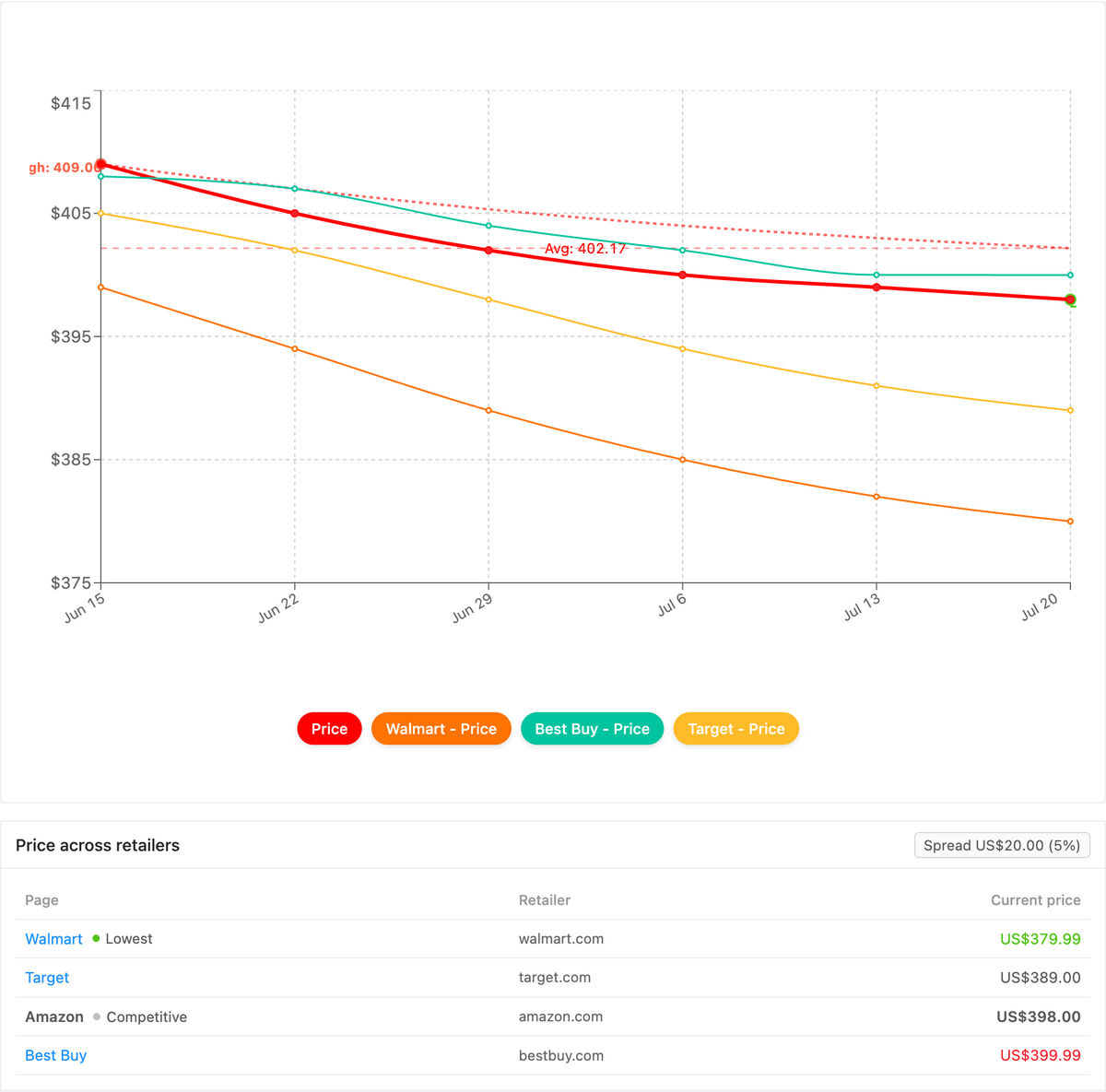
Yes. PageCrawl's Product Comparison capability groups the monitors for one product across every seller into a single view, highlights the cheapest advertised price, and tracks the spread between the lowest and highest offer. For a hijacked or contested Buy Box, that turns an unauthorized reseller's below-floor price into an obvious outlier instead of a number buried on one ASIN's offer list.
Once your per-listing Buy Box and price monitors are running, Product Comparison stitches together the ones that share a product (by ASIN, GTIN, UPC, or your own reference tag) into one grouped comparison. Every seller on that ASIN, plus the same product on other marketplaces or your own store, lines up side by side, the lowest advertised price is flagged, and the spread between cheapest and most expensive is a live figure. When a reseller undercuts your MAP while authorized sellers hold the line, the gap widens and a spread-threshold alert fires on the next check, routed to email, Slack, or a webhook. You can also export the whole grid as a spreadsheet. The full walkthrough lives in the cross-retailer price comparison guide, and Product Comparison is a custom capability we enable on request.
Choosing your PageCrawl plan
PageCrawl's Free plan lets you monitor 6 pages with 220 checks per month, which is enough to validate the approach on your most critical pages. Most teams graduate to a paid plan once they see the value.
| Plan | Price | Pages | Checks / month | Frequency |
|---|---|---|---|---|
| Free | $0 | 6 | 220 | every 60 min |
| Standard | $8/mo or $80/yr | 100 | 15,000 | every 15 min |
| Enterprise | $30/mo or $300/yr | 500 | 100,000 | every 5 min |
| Ultimate | $99/mo or $999/yr | 1,000 | 100,000 | every 2 min |
Annual billing saves two months across every paid tier. Enterprise and Ultimate scale up to 100x if you need thousands of pages or multi-team access.
How do you get started with Buy Box monitoring?
Start with your single highest-revenue ASIN. Create a monitor that watches the "Sold by" name, the "Ships from" line, the Featured Offer price, and the offer count, then point the alert at the Slack or Telegram channel your team lives in. Within one check cycle you will have a baseline.
The next time the Buy Box flips you will know in minutes instead of finding out when sales mysteriously dried up. Start free on six listings today, prove the value on the products that matter most, and scale across your catalog from there. Own your Buy Box on purpose, not by luck.