Your Discord server has 500 members who are all trying to buy the same limited-edition sneaker. The restock happens at 2:37 AM on a random Tuesday. One member who happened to be refreshing the page at the right moment posts "IT'S LIVE" in the general chat. By the time most members see the message, the sneaker is sold out. Now imagine instead that an automated bot posts the restock alert as soon as a monitoring check detects the product page change, pinging the appropriate role so everyone gets a push notification on their phone simultaneously.
Discord has become the hub for communities organized around shared interests that require real-time information: resale groups, price tracking communities, stock monitoring servers, side-income communities chasing newly posted paid studies, development teams tracking deployment status, and compliance teams monitoring regulatory changes. The platform's combination of push notifications, channel organization, role-based mentions, and mobile accessibility makes it a natural destination for automated alerts.
This guide covers how to connect website monitoring to Discord using webhooks, how to organize your server for effective alert delivery, and how to build automated monitoring workflows that serve different community and team use cases.
Why use Discord for monitoring alerts?
Discord suits monitoring alerts because it is free for any number of members, delivers mobile and desktop push notifications, and lets you organize alerts into channels and target them with self-assigned roles. Email, Slack, and standalone notification apps each offer part of that; Discord combines all of it in one place.
Real-Time Push Notifications
Discord delivers push notifications to mobile devices and desktop apps with minimal delay. When a webhook message arrives in a channel, members who have notifications enabled see it promptly. For time-sensitive alerts like restocks, price drops, ticket on-sale alerts, and breaking changes, that delivery speed matters. Keep in mind the alert itself fires when the next scheduled check detects the change (as often as every 2 minutes on paid PageCrawl plans); Discord's job is getting that detection in front of members quickly.
Channel-Based Organization
Discord servers can have dozens or hundreds of channels organized by category. This lets you separate alerts by type (price drops, restocks, regulatory updates), by source (Amazon, Steam, Xbox, competitor websites), or by urgency (critical alerts, routine updates). Members subscribe to the channels relevant to them and mute the rest.
Role-Based Targeting
Discord roles let you ping specific groups of members for specific types of alerts. A @sneaker-alerts role gets mentioned for sneaker restocks. A @compliance-team role gets pinged for regulatory updates. Members opt into roles that match their interests, and the monitoring system targets the right audience for each alert type.
Community Context
Unlike email or Slack (which tend to be individual or small-team tools), Discord servers create a shared context around alerts. When a price drop notification arrives, members can discuss on the spot whether it is a good deal, share additional context, and coordinate purchases. The alert becomes a conversation starter, not just a notification.
Free for All Members
Discord is free to use. There is no per-seat licensing cost, making it accessible for communities of any size. Server boosts add features like higher upload limits and better audio quality, but the core webhook and notification functionality works on any server.
Setting Up Discord Webhooks
Discord webhooks are the mechanism that allows external services to post messages into Discord channels, as described in Discord's official Intro to Webhooks guide. Setting up a webhook takes about two minutes.
Step 1: Open Server Settings
You need "Manage Webhooks" permission on the Discord server. If you are the server owner or an administrator, you have this permission by default.
Right-click (or long-press on mobile) the channel where you want alerts to appear. Select "Edit Channel" from the menu.
Step 2: Navigate to Integrations
In the channel settings, click "Integrations" in the left sidebar. You will see a "Webhooks" section. Click "Create Webhook" (or "View Webhooks" if webhooks already exist for this channel).
Step 3: Configure the Webhook
Give the webhook a descriptive name. This name appears as the "sender" of webhook messages in the channel. Use something clear like "PageCrawl Alerts" or "Price Monitor" so members know the source of automated messages.
You can also set a custom avatar for the webhook, which helps distinguish automated messages from human ones in the channel.
Step 4: Copy the Webhook URL
Click "Copy Webhook URL." This URL is what you will paste into PageCrawl (or any service) to send messages to this channel. The URL looks like:
https://discord.com/api/webhooks/1234567890/abcdefghijklmnop...Keep this URL private. Anyone with the webhook URL can post messages to your channel.
Step 5: Save Changes
Click "Save Changes" in the channel settings. The webhook is now active and ready to receive messages.
Connecting PageCrawl to Discord
Once you have a Discord webhook URL, connecting it to your PageCrawl monitors takes just a few clicks.

Adding Discord as a Notification Channel
In PageCrawl, navigate to the monitor you want to send alerts to Discord. In the notification settings, add Discord as a notification channel and paste the webhook URL you copied from Discord, following the Discord notification setup steps.
When this monitor detects a change, PageCrawl sends a formatted message to the Discord channel via the webhook. The message includes the monitored URL, a description of what changed, and a timestamp.
Formatting of Discord Alerts
PageCrawl's Discord notifications are formatted for readability in the Discord interface. Messages include:
- The name of the monitor
- The URL that was checked
- A summary of what changed
- A link to view the full change details
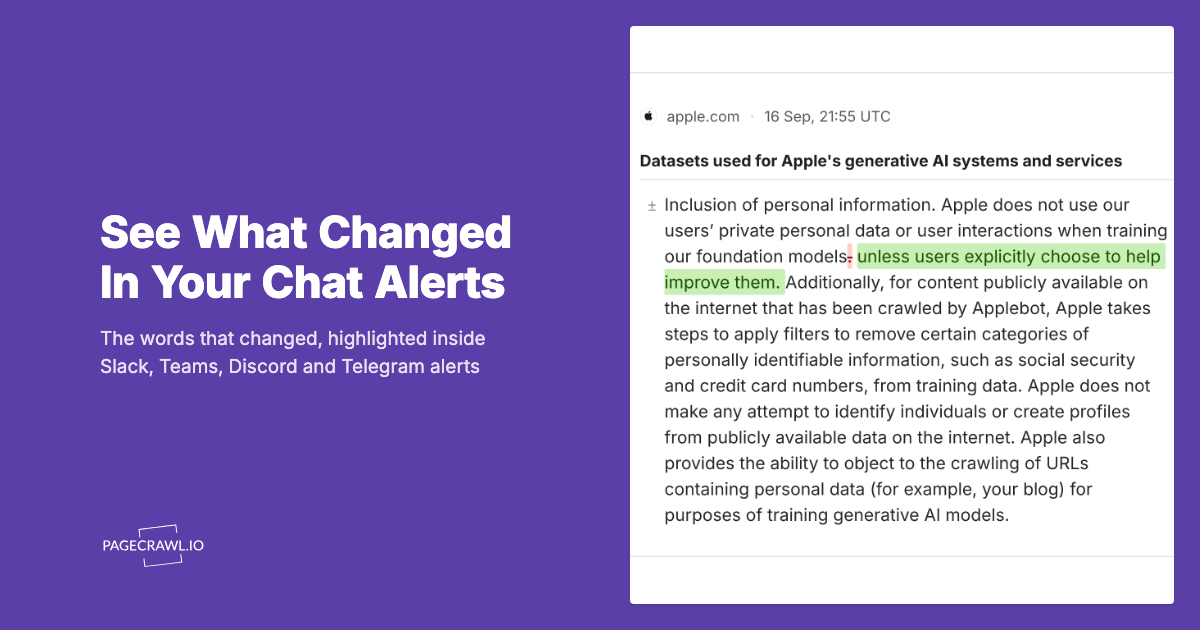
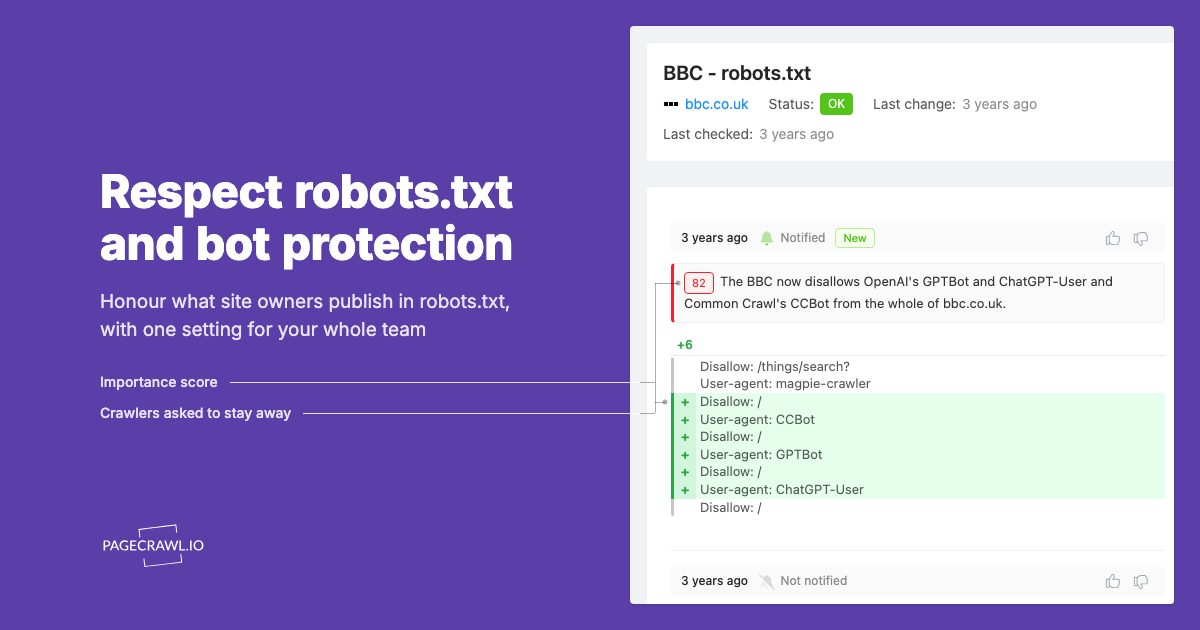
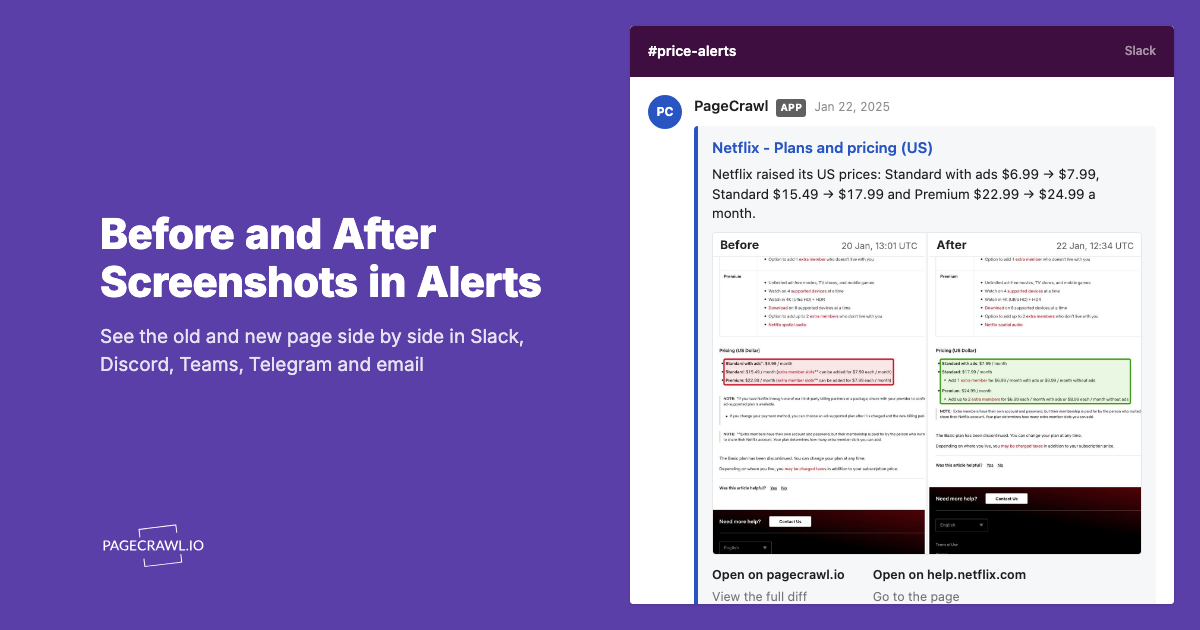
If AI summaries are enabled on the monitor, the Discord message includes the AI-generated plain-language description of the change. Instead of seeing a raw text diff, your Discord channel receives something like: "The price of [Product Name] dropped from $59.99 to $39.99, a 33% discount." PageCrawl's AI importance scoring adds another layer by rating how significant each change is, so your Discord community can quickly tell which alerts are worth immediate attention and which are routine updates. A major price drop or restock scores high, while a minor text edit on a product description scores low.
Testing the Connection
After setting up the webhook, trigger a test notification or wait for the next scheduled check. Verify that the message appears in the correct Discord channel with proper formatting. If the message does not appear, double-check the webhook URL and ensure the webhook has not been deleted or the channel changed.
Channel Organization for Monitoring Alerts
Thoughtful channel organization prevents alert fatigue and ensures the right people see the right notifications.
Category-Based Structure
Create a Discord category (channel group) specifically for monitoring alerts. Within this category, create channels for different alert types:
MONITORING ALERTS
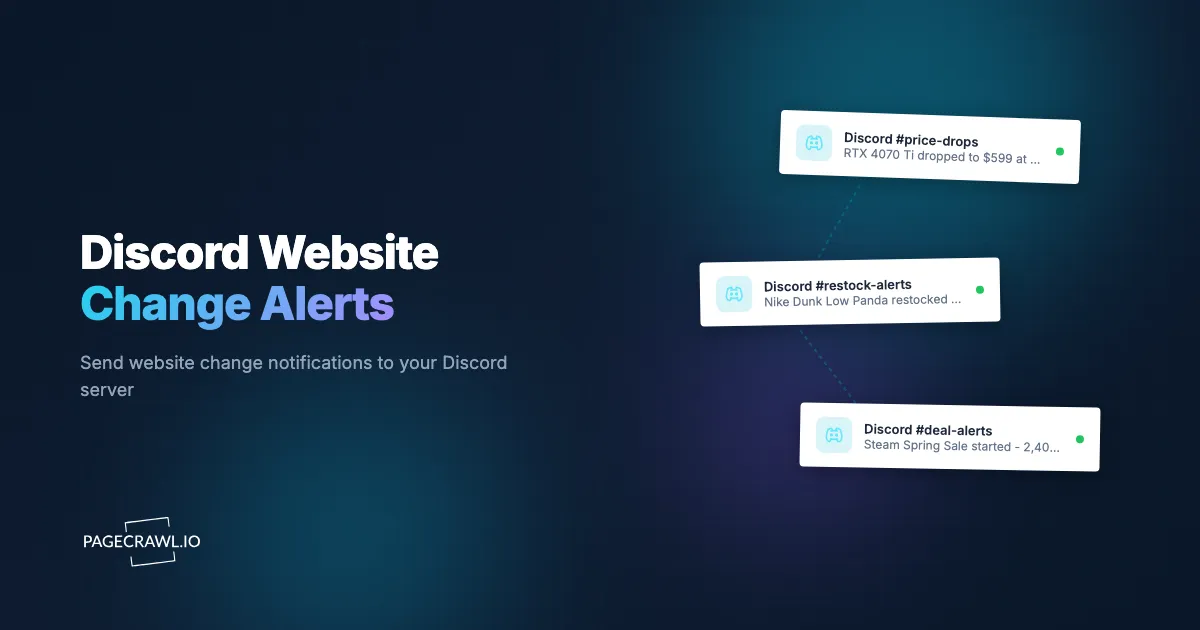
  #price-drops
  #restock-alerts
  #competitor-updates
  #regulatory-changes
  #website-changes
Each channel gets its own webhook URL, and each PageCrawl monitor sends to the appropriate channel based on what it tracks.
Source-Based Structure
Alternatively, organize channels by the source being monitored:
PRICE TRACKING
  #amazon-deals
  #steam-sales
  #xbox-deals
  #best-buy-alerts
This structure works well for communities focused on a specific activity (deal hunting, resale) where members want to follow specific retailers.
Urgency-Based Structure
For professional use cases (compliance, development), organize by urgency:
COMPLIANCE
  #critical-alerts
  #daily-updates
  #weekly-digest
Route different monitors to different channels based on how urgently the information needs attention.
Hybrid Approach
Most active servers benefit from a combination. Use categories to group related channels, and use naming conventions that make the content clear at a glance. Members can then mute entire categories or individual channels based on their interests.
Role Mentions for Urgent Alerts
Discord roles combined with webhook messages enable targeted push notifications for specific alert types.
Creating Alert Roles
Create roles for each type of alert that members might want:
@sneaker-alertsfor footwear restock notifications@gpu-dealsfor graphics card price drops@compliance-criticalfor urgent regulatory updates@price-watchersfor general price drop alerts
Make these roles self-assignable (using a role selection bot or Discord's built-in community onboarding feature) so members can opt in and out.
Mentioning Roles in Webhook Messages
To mention a role in a webhook message, you need the role's ID. In Discord, enable Developer Mode (User Settings, Advanced, Developer Mode), then right-click the role and select "Copy Role ID."
The role mention format in webhook messages is <@&ROLE_ID>. When PageCrawl sends the webhook message containing a role mention, every member with that role receives a push notification regardless of their channel notification settings.
For advanced webhook formatting including role mentions, use PageCrawl's webhook output to send to an intermediary automation that constructs the Discord message with the appropriate role mention, then forwards it to the Discord webhook.
Preventing Notification Fatigue
Role mentions generate push notifications, which can become annoying if overused. Reserve role mentions for genuinely urgent or important alerts:
- Use
@rolementions for: restock alerts on high-demand items, critical compliance updates, price drops below target thresholds - Use plain messages (no mentions) for: routine price change logging, minor website updates, informational changes
This distinction ensures that members keep their role notifications enabled because they trust that a ping means something worth their attention.
Use Cases by Community Type
Different communities use Discord monitoring alerts in different ways.
Resale and Restock Communities
Resale communities are among the most active Discord monitoring users. These servers track product restocks, price drops, new releases, and limited collectible drops across multiple retailers.
Setup: Create channels per retailer (Amazon, Best Buy, Target, Walmart) and per product category (sneakers, electronics, collectibles). Each channel has its own webhook. PageCrawl monitors for each retailer feed into the appropriate channel.
Alert flow: Monitor detects restock, sends alert to Discord channel, role mention pings members, members rush to purchase. Speed is everything in this workflow.
Community value: Members share real-time feedback on whether a deal is legitimate, whether checkout is working, and whether the restock is significant or just a few units. This crowdsourced verification adds value beyond the raw alert.
For Amazon-specific restock monitoring, see the Amazon in-stock alerts guide. For a broader approach to availability monitoring, the out-of-stock monitoring guide covers strategies across multiple retailers.
Gaming Deal Communities
Gaming communities use Discord to share price drops across Steam, Xbox, PlayStation, and Nintendo stores, driven by price monitoring and stock alerts on individual store pages.
Setup: Channels per platform (#steam-deals, #xbox-deals, #playstation-deals, #switch-deals) with monitors on store deal pages and individual game store pages.
Alert flow: Price change detected, formatted alert posted to platform channel, members discuss whether the deal is an all-time low, share additional context from price history sites.
Community value: Collective knowledge about historical pricing, quality assessment of games, and recommendations enhance the raw price data.
Development and DevOps Teams
Development teams use Discord servers as informal communication hubs and can benefit from automated monitoring alerts.
Setup: Channels for different monitoring categories (#staging-health, #production-alerts, #dependency-updates, #competitor-changes).
Alert flow: Website change detected (competitor launches a new feature, a dependency page updates, a status page shows an incident), alert posted to the relevant channel, team discusses implications.
Community value: Shared awareness of external changes that affect the team's work, without requiring everyone to manually check multiple sources.
Compliance and Regulatory Teams
Smaller compliance teams or independent professionals use Discord as the delivery channel for regulatory intelligence monitoring.
Setup: Channels organized by regulator (#sec-updates, #finra-notices, #cfpb-actions) or by urgency (#critical-compliance, #routine-updates).
Alert flow: Regulatory page change detected, AI summary posted to the appropriate channel, team discusses impact and assigns action items.
For comprehensive regulatory monitoring setup, see the regulatory compliance monitoring guide.
Should you use Discord or Slack for monitoring alerts?
Choose Discord for community-based monitoring where members do not share an employer, and Slack for workplace teams that already communicate there. Both platforms receive PageCrawl alerts through webhooks, so the mechanics are identical; the real difference is audience, cost, and admin features.
When Discord Is Better
- Community-based monitoring: Groups of people who do not work together but share an interest (deal hunters, collectors, gaming communities)
- Free access for all members: No per-seat costs regardless of community size
- Mobile-first audience: Discord's mobile app is well-suited for consumer use cases where members primarily access via phone
- Role-based opt-in: Self-assignable roles let members choose their notification preferences without admin involvement
When Slack Is Better
- Workplace teams: Teams that already use Slack for work communication and want monitoring alerts in the same tool
- Enterprise features: SSO, compliance, data retention policies, and admin controls that enterprise organizations require
- Workflow integration: Slack's Workflow Builder and app ecosystem offer deeper automation within the Slack environment
- Thread-based discussion: Slack threads are more structured than Discord thread conversations for detailed follow-up on alerts
When to Use Both
Some organizations use both. Development teams might receive alerts in Slack during work hours for immediate action, while a broader community Discord server receives the same alerts for awareness and discussion. PageCrawl supports sending the same monitor's alerts to multiple webhook destinations, so both channels can receive simultaneous notifications.
Advanced Discord Webhook Patterns
Beyond basic alerts, webhooks enable sophisticated monitoring workflows within Discord.
Embed-Based Messages
Discord webhooks support rich embeds, documented in the Discord webhook developer reference: formatted messages with colored sidebars, titles, fields, thumbnails, and footers. For monitoring alerts, embeds can display structured information cleanly:
- A colored sidebar (green for price drops, red for price increases, blue for content changes)
- Title with the monitor name
- Fields for old value, new value, and change percentage
- Footer with the timestamp
- Thumbnail with a screenshot if available
Building embed-formatted messages requires an intermediary automation between PageCrawl's webhook output and Discord's webhook input. The automation transforms PageCrawl's JSON payload into Discord's embed format.
Dedicated Channels per Monitor
For high-priority items, create a dedicated Discord channel for a single monitor. This creates a running history of all changes to that specific page in one place. Scrolling back through the channel shows the complete change timeline.
This works well for: a specific product you are tracking for restock, a competitor's pricing page, or a regulatory page where you want a complete audit trail.
Thread-Based Updates
Discord's thread feature can organize related updates. When a monitor detects a change, an automation can create a new thread in the alerts channel for that specific update. Team members discuss and take action within the thread, keeping the main channel clean for new alerts.
This pattern is particularly useful for compliance teams where each regulatory update requires discussion, assessment, and action tracking.
Scheduled Digest Messages
Instead of real-time alerts for every change, some use cases benefit from a daily or weekly digest, which PageCrawl's scheduled reports can bundle and deliver to Discord. An automation collects all PageCrawl webhook payloads throughout the day, then posts a formatted summary to Discord at a scheduled time (e.g., 9 AM every morning).
This reduces noise while ensuring nothing is missed. It works well for routine monitoring (competitor website changes, content updates) where immediate action is not required.
How do you keep Discord webhooks secure?
Keep webhooks secure by treating each webhook URL like a password: anyone who has it can post messages to your channel. Store URLs in environment variables rather than shared documents, never publish them, and delete and recreate any webhook whose URL may have leaked.
Protect Webhook URLs
Do not share webhook URLs publicly. Anyone with the URL can post messages to your channel. If a webhook URL is compromised, delete it in Discord and create a new one.
Do not commit webhook URLs to public code repositories. If using automation scripts that reference webhook URLs, store them in environment variables or secure configuration files.
Channel Permissions
Configure the channel where webhooks post so that regular members cannot post messages, only the webhook. This prevents confusion between automated alerts and human messages. Set channel permissions to allow the webhook to send messages but restrict member posting (or create a read-only channel for alerts).
Webhook Audit
Periodically review the webhooks configured on your server. Remove any webhooks that are no longer in use. Discord shows the last time each webhook was used, making it easy to identify inactive ones.
Troubleshooting Common Issues
Messages Not Appearing
If webhook messages are not showing up in your Discord channel:
- Verify the webhook URL is correct and has not been deleted
- Check that the channel still exists (renaming or moving channels does not break webhooks, but deleting does)
- Confirm that PageCrawl's notification settings are saved correctly
- Check Discord's rate limits, which throttle how many webhook messages a channel can receive per minute
Rate Limiting
If you have many monitors sending alerts to the same Discord channel simultaneously, Discord's rate limit may queue or drop messages. Distribute high-volume alerts across multiple channels to avoid this.
For monitoring systems with dozens of active monitors, create separate channels and webhooks for different monitor groups rather than funneling everything through a single channel.
Notification Settings
Members who report not receiving push notifications should check:
- Discord notification settings for the specific channel (not muted)
- Discord notification settings for the server (not suppressed)
- Device notification settings for the Discord app (enabled)
- Role notification settings (if using role mentions)
Discord's notification stack has multiple layers, and a setting at any layer can suppress alerts.
Webhook Message Formatting
If messages appear with broken formatting, check that the webhook payload is properly structured. Discord webhooks accept plain text, markdown, and embed objects. Ensure that special characters in the alert content (particularly markdown syntax characters like *, _, ~, and `) are properly escaped if they are not intended as formatting.
Building a Monitoring Discord Server from Scratch
If you are creating a new Discord server specifically for monitoring alerts, here is a recommended structure.
Server Structure
INFORMATION
  #welcome (read-only, server purpose and instructions)
  #role-selection (self-assign alert roles)

PRICE ALERTS
  #electronics-deals
  #gaming-deals
  #general-price-drops

RESTOCK ALERTS
  #high-demand-restocks
  #general-restocks

WEBSITE CHANGES
  #competitor-updates
  #industry-news

DISCUSSION
  #general-chat
  #deal-discussion
  #suggestions
Role Setup
Create roles for each alert category and make them self-assignable. Members choose which types of alerts they want push notifications for.
Notification Defaults
Set the server-wide default notification to "Only @mentions" so members are not overwhelmed by every message across all channels. Members who want all messages in a specific channel can override this per-channel.
Moderation
For community servers, establish clear rules about what constitutes appropriate discussion in alert channels versus general channels. Keep alert channels focused on alerts and brief commentary to preserve signal quality.
Choosing your PageCrawl plan
PageCrawl's Free plan lets you monitor 6 pages with 220 checks per month, which is enough to validate the approach on your most critical pages. Most teams graduate to a paid plan once they see the value.
| Plan | Price | Pages | Checks / month | Frequency |
|---|---|---|---|---|
| Free | $0 | 6 | 220 | every 60 min |
| Standard | $8/mo or $80/yr | 100 | 15,000 | every 15 min |
| Enterprise | $30/mo or $300/yr | 500 | 100,000 | every 5 min |
| Ultimate | $99/mo or $999/yr | 1,000 | 100,000 | every 2 min |
Annual billing saves two months across every paid tier. Enterprise and Ultimate scale up to 100x if you need thousands of pages or multi-team access.
Discord is where your team already lives, so the value of routing change alerts there shows up on day one. All plans include the PageCrawl MCP Server, so team members can query your monitoring history from Claude or Cursor without leaving their workflow. AI assistants can create monitors through conversation on every plan, including Free. Standard at $80/year covers 100 monitored pages checked every 15 minutes, enough to pipe alerts into dedicated channels for competitors, docs, and infrastructure changes without any extra tooling. Enterprise at $300/year unlocks 500 pages at 5-minute checks. If your community or team relies on real-time intel to stay ahead, that frequency alone justifies the cost well before year end.
Getting Started
Create a Discord webhook in the channel where you want alerts. Copy the webhook URL, then add it as a Discord notification channel on any PageCrawl monitor. Start with one or two monitors to verify the connection works and the message formatting meets your needs.
From there, expand by adding more monitors, creating separate channels for different alert categories, and setting up roles for targeted push notifications. The combination of PageCrawl's monitoring with Discord's notification and community features creates a powerful real-time alert system for any use case.
PageCrawl's free tier includes 6 monitors, enough to set up Discord alerts for a handful of pages. Paid plans start at $80/year for 100 monitors (Standard) and $300/year for 500 monitors (Enterprise), providing capacity for comprehensive monitoring across many sources, all feeding into your organized Discord server.