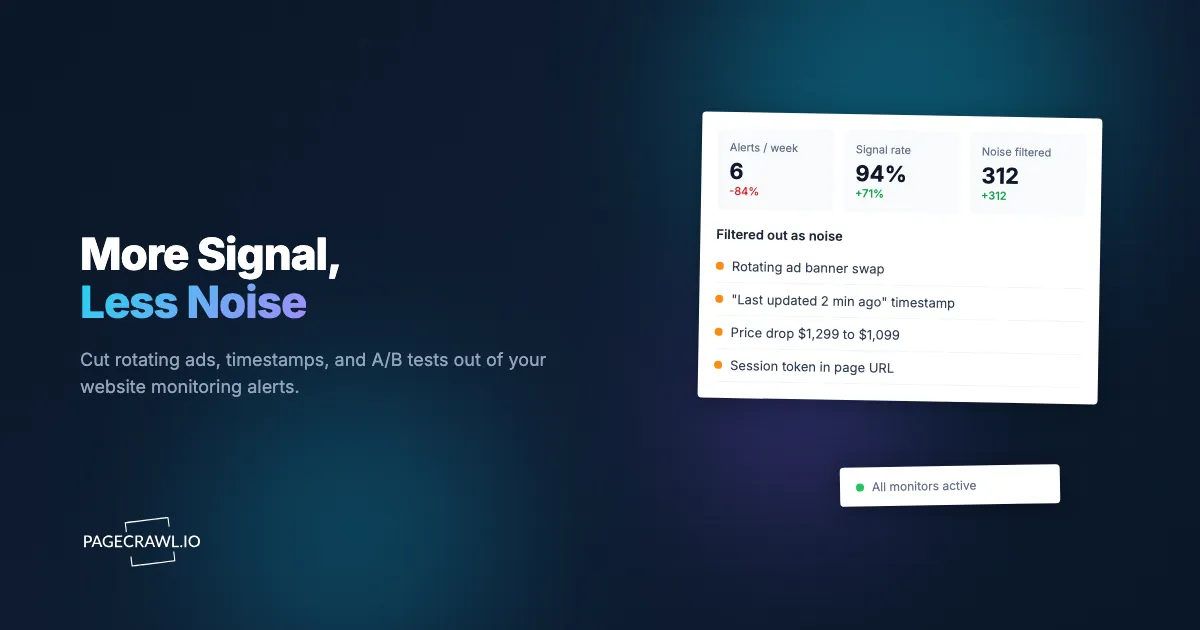
You set up a monitor on a competitor's pricing page on a Monday. By Friday you have 38 alerts waiting. You open the first one: a rotating testimonial swapped names. The second: a timestamp that now reads "updated 2 minutes ago." The third: an ad banner flipped from a cruise deal to a credit card offer. None of them matter. By the next Monday you have stopped opening the emails. Three weeks later you miss the one alert that did matter, a quiet price cut from $1,299 to $1,099 on the exact product you compete against.
This is the single most common way website monitoring fails. Not because the tool stopped detecting changes, but because it detected too many. Alert noise (false positives) trains you to ignore your own alerts. The industry term is alert fatigue, and in our experience it is one of the most common reasons people abandon monitoring altogether.
The good news is that false positives are almost always fixable, and usually with a few minutes of configuration rather than a different tool. This guide is a practical playbook: what causes noise, how to target only the part of a page you care about, when to use text versus visual comparison, how ignore rules and conditions work, and how frequency and AI judgment keep your alerts meaningful.
What causes false positives in website monitoring?
False positives come from page content that changes on its own without any meaningful update behind it. The biggest sources are rotating ads, "last updated" timestamps, carousels and sliders, view or comment counters, randomized A/B test variants, session tokens in URLs, and personalized recommendation blocks. A monitor watching the whole page treats every one of these as a real change.
The core problem is scope. By default, a naive monitor compares the entire rendered page from one check to the next. Modern web pages are full of dynamic regions that update independently of the content you care about, so a full-page comparison flags dozens of irrelevant differences. Reducing false positives is mostly the work of narrowing what you compare and adding rules about what counts.
The usual suspects
It helps to recognize the specific patterns that generate the most noise:
- Rotating ad slots and sponsored banners that cycle on every page load.
- Timestamps and relative dates like "Posted 3 hours ago" or "Last checked at 14:02."
- Carousels, sliders, and "featured" widgets that rotate testimonials, products, or hero images.
- Engagement counters: view counts, comment counts, like counts, "12 people are looking at this."
- A/B tests and personalization that serve different layouts or copy to different visitors.
- Session tokens, tracking parameters, and CSRF fields embedded in URLs and hidden form inputs.
- Cart and stock micro-copy like "Only 3 left" that flickers as inventory shifts.
None of these reflect the decision you set up the monitor to catch. Every one of them can fire an alert if you compare the whole page.
Why noise drives abandonment
A monitor's real job is not to detect change. It is to detect change that deserves your attention. A system that emails you about a swapped ad banner is technically accurate and practically useless, because each false positive carries a small cost: you open it, you read it, you confirm it does not matter, and you trust the next alert a little less. After enough of these, you mute the channel. The fix is not to lower sensitivity across the board (that creates false negatives, where you miss real changes). The fix is to make each alert precise.
How do you target only the part of the page that matters?
Target a specific element instead of the whole page. Use a CSS selector to point your monitor at the exact region you care about, such as the price, the headline, the stock label, or the changelog body. Everything outside that selector, including ads, footers, carousels, and timestamps, is ignored entirely. This is the single highest-impact change for reducing false positives.
Think of a selector as drawing a box around the content that matters and telling the monitor to watch only inside that box. On a product page you might target .product-price or [data-testid="price"]. On a documentation page you target the main article body, not the navigation sidebar that changes whenever a new doc is published elsewhere. On a pricing page you target the plan card, not the promotional banner above it.
Picking a stable selector
The trick is choosing a selector that survives small site changes. Prefer stable, semantic hooks over brittle ones:
- Good: IDs and custom data attributes (
#main-price,[data-product-price]), semantic class names (.price,.availability), and roles. - Risky: deeply nested positional selectors (
div > div:nth-child(4) > span) that break the moment the layout shifts by one element.
Attribute selectors, structural pseudo-classes, and everything else you can put in a selector are defined in the W3C Selectors Level 4 specification, and MDN's CSS reference is the friendlier day-to-day lookup.
If you are new to selectors, our CSS selector guide for targeting elements walks through how to find a reliable one using your browser's inspector, and the companion guide on XPath and CSS selectors for web monitoring covers the cases where XPath reaches content that CSS cannot, such as selecting an element by the text it contains.
One page, several focused monitors
You do not have to watch a whole page with a single monitor. It is often cleaner to create two or three narrow monitors on the same URL, each watching a different element: one on the price, one on the "in stock" label, one on the shipping estimate. Each fires only for its own region, so an alert tells you what changed before you even open it. This pattern also makes out-of-stock and restock alerts far cleaner, because the availability monitor never trips on a price tweak.
Should you use text or visual monitoring to cut noise?
Use text mode for almost everything, and reserve visual mode for design and layout changes you cannot describe in words. Text comparison extracts the readable content and ignores invisible markup, styling, and pixel-level rendering noise, so it is naturally resistant to false positives. Visual comparison is powerful but far noisier, because it reacts to any rendering difference, including font smoothing and a one-pixel shift.
Text monitoring answers "did the words change?" That is what you want for prices, stock status, headlines, policy text, changelogs, job postings, and visa bulletin priority dates. It strips out the things that wreck pixel comparisons: web fonts loading at slightly different times, anti-aliasing, lazy-loaded images, and animations mid-render.
Visual monitoring answers "does the page look different?" That is the right tool when the meaningful change is the design itself, the domain of website QA and visual regression monitoring: a competitor relaunching a landing page, a checkout flow adding a step, or a logo and color refresh. The trade-off is sensitivity. Because it compares rendered pixels, a rotating hero carousel or an animated banner can trip it on every check. When you do need it, scope it tightly to a region and expect to tune thresholds. Our guide on visual regression monitoring for UI changes covers how to keep visual checks from drowning you, including watching a specific element rather than the full viewport.
Note: the rule of thumb is text first, visual only when the change you care about is genuinely visual. Most "my monitor is too noisy" problems are really "I used visual mode where text mode would have worked."
How do ignore rules and noise filtering work?
Ignore rules tell the monitor to skip specific content even when it changes, so the change never counts as an alert. You add a rule for a word, phrase, line, or region that you know is noise, such as a timestamp string or a "people viewing now" counter, and the monitor subtracts it before comparing. This is how you handle noise that lives inside the element you otherwise want to watch.
Selectors decide what you look at; ignore rules decide what you forgive inside it. They work together. Sometimes you cannot cleanly isolate the good content with a selector because the noisy bit is woven into the same block. For example, an article body that ends with "Last updated: 14 August 2026." You want the body but not the date. An ignore rule for that timestamp line keeps the monitor quiet until the actual article text changes.
What to put in ignore rules
- Timestamps and dates that update on every load.
- Counters: views, comments, "X people are looking at this."
- Rotating microcopy: shuffled testimonials, "trending now" labels, randomized product picks.
- Session and tracking noise: query-string tokens, cache-busting parameters, CSRF values.
Build these rules incrementally. The most efficient workflow is to let a monitor run for a day, look at the first few alerts, and add an ignore rule for each piece of noise you see. After two or three rounds, most monitors settle into firing only on real changes. You are effectively teaching the monitor what "boring" looks like for that specific page. Dates are the single most common offender, and the help centre walkthrough on stopping dates from triggering notifications shows how to skip them with one filter rather than writing a rule per format.
How do keyword and threshold conditions reduce false alerts?
Conditions only let an alert through when it meets a rule you define, so changes that fall outside the rule are detected but stay silent. A keyword condition fires only when specific words appear (or disappear), and a threshold condition fires only when a number crosses a boundary you set. Together they convert "something changed" into "the thing I care about changed."
The monitor can detect everything; the condition decides what is worth interrupting you for, which is also how you keep an HTML record of a page without being notified of minor changes. Conditions are set per page, so the same site can be loud on one element and silent on another. The reference on notification conditions and filters lists the operators available for keywords, numbers, and change size.
Threshold conditions for numbers
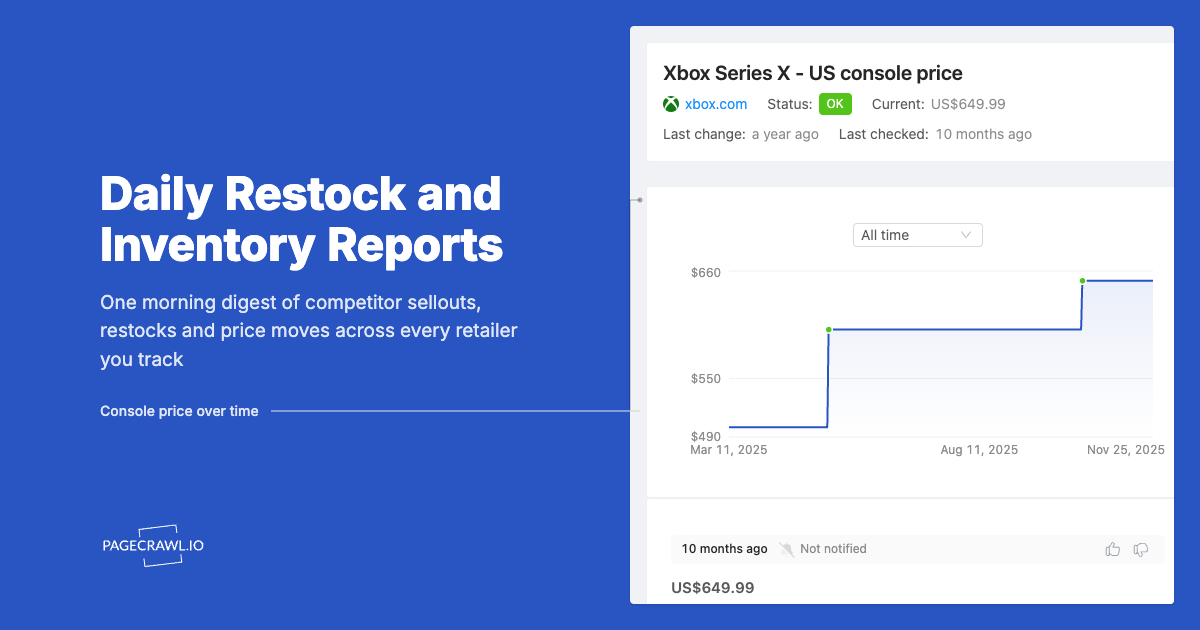
For anything numeric (price, rate, stock count, rating), set a threshold so tiny wiggles stay quiet. A price monitor that alerts on any change will fire on a $0.01 fluctuation or a currency-rounding blip. A condition like "alert only when the price drops by 5% or more" or "alert only when it falls below $1,100" cuts the volume dramatically while still catching the moves that matter. You can also set direction, so a price tracker only pings you on decreases and ignores increases. Our guide on conditional alerts with price, keyword, and threshold rules covers the full set of operators and how to combine them.
Keyword conditions for text
For text, trigger on the words that signal a real event. Watch a status page and alert only when "degraded" or "outage" appears. Watch a careers page and alert only when "Senior" or a specific team name shows up. Watch a terms-of-service page with legal and policy change tracking and alert only when "arbitration" or "data sharing" changes. Everything else on the page can churn freely without bothering you. The keyword and trigger-word monitoring guide shows how to build allowlists (alert only when these words appear) and blocklists (never alert on these) so the same page can serve very different alerting needs.
Does check frequency affect false positives?
Yes, indirectly. Checking too often increases your exposure to transient noise: short-lived A/B variants, mid-deploy half-rendered pages, flickering inventory counters, and personalized content that differs check to check. Matching your frequency to how fast the underlying content actually moves removes a whole class of false positives that only exist because you looked during a moment of flux.
A page that updates once a day does not need a check every five minutes. Over-checking such a page mostly samples noise: the carousel happened to be on slide three, the "viewing now" counter happened to read 12, an experiment happened to serve variant B. Slower, well-timed checks land on a more settled version of the page.
The exception is genuinely fast-moving, high-stakes content like flash-sale stock or limited drops, where you accept more noise as the cost of speed and lean harder on selectors and conditions to keep alerts clean. As a starting point: daily checks for policies and docs, hourly for pricing and competitor pages, and every few minutes only for time-critical availability. You can always tighten frequency later once a monitor proves it fires cleanly.
Can AI judge whether a change actually matters?
Yes. AI change summaries read the before-and-after and tell you in plain language what changed and whether it looks important, so you can triage an alert in two seconds instead of opening a diff. This adds a judgment layer on top of detection: even when a change slips through your selectors and rules, the summary tells you "a rotating banner image was swapped" versus "the monthly price increased from $8 to $10," so trivial changes stop stealing your attention.
PageCrawl reads each change and produces a short, human summary plus a sense of how significant it is, then surfaces the meaningful ones first. The practical effect: the occasional false positive that survives your filters no longer costs you a full investigation. You glance at the one-line summary and move on. It also catches the inverse problem: a small but important wording change buried in a long policy page gets called out instead of being lost in a wall of unchanged text.
This layer does not replace selectors, ignore rules, and conditions; it backstops them. Configure your monitor to be precise, and let the AI summary handle the rest, so a stray alert is a two-second skim rather than a derailment.
Setting up low-noise monitoring in PageCrawl
PageCrawl is built so the precise setup is the easy setup. Here is a clean, low-noise configuration from scratch. The free plan covers 6 monitors and 220 checks per month, plenty to dial in your approach before scaling.

Step 1: Add the page. Create a free account, click New Monitor, and paste the URL. PageCrawl renders the page fully like a real browser, just as Chrome-based monitoring does, so dynamic, JavaScript-heavy content loads the way a visitor sees it.
Step 2: Target the element, not the page. In the visual element picker, click the exact region you care about (the price, the headline, the stock label). PageCrawl generates a stable selector for you. This one step removes most ad, footer, and carousel noise before you have written a single rule.
Step 3: Choose text mode (default). Leave the monitor in text mode unless the change you need is visual. Text comparison ignores styling and rendering noise out of the box. Switch to visual only for design and layout monitoring, and scope it to an element if you do.
Step 4: Add ignore rules for residual noise. Let the monitor run once or twice, look at what it flags, and add an ignore rule for each piece of noise (a timestamp line, a "viewing now" counter). Two or three rounds of this usually gets a monitor to near-zero false positives.
Step 5: Set conditions. For numbers, add a threshold (for example, alert only on a drop of 5% or more, or below a set price). For text, add keyword conditions so the alert fires only on the words that signal a real event.
Step 6: Match the frequency to the content. Pick daily for slow pages, hourly for competitor and pricing pages, faster only for time-critical availability. Slower checks on slow pages mean fewer transient false positives.
Step 7: Route alerts where you will see them. Connect email alerts for low-volume monitors and a Slack channel for team-visible ones. For many monitors at once, batch them into a scheduled change briefing so you get one clean digest instead of a stream of individual pings, a powerful noise-reduction move in its own right.
Step 8: Review and tune. After a few days, scan the AI summaries. Any alert that was not useful points to one more ignore rule or a tighter condition. Monitoring quality compounds: a few minutes of tuning per monitor pays back every week.
Choosing your PageCrawl plan
PageCrawl's Free plan lets you monitor 6 pages with 220 checks per month, which is enough to validate the approach on your most critical pages. Most teams graduate to a paid plan once they see the value.
| Plan | Price | Pages | Checks / month | Frequency |
|---|---|---|---|---|
| Free | $0 | 6 | 220 | every 60 min |
| Standard | $8/mo or $80/yr | 100 | 15,000 | every 15 min |
| Enterprise | $30/mo or $300/yr | 500 | 100,000 | every 5 min |
| Ultimate | $99/mo or $999/yr | 1,000 | 100,000 | every 2 min |
Annual billing saves two months across every paid tier. Enterprise and Ultimate scale up to 100x if you need thousands of pages or multi-team access.
Noise reduction is what makes higher volume usable. Standard at $80/year covers 100 pages with 15-minute checks, and because each monitor is targeted and condition-filtered, those 100 monitors produce a manageable stream of real alerts rather than a flood. Enterprise at $300/year covers 500 pages with 5-minute checks for large competitor sets or compliance surfaces. The precision techniques in this guide are exactly what let you run hundreds of monitors without drowning, so a bigger plan adds coverage, not chaos.
Getting Started
Pick your single noisiest monitor, the one whose alerts you have started ignoring, and fix it today. Target the element with a selector, switch it to text mode, add an ignore rule for the timestamp or counter that keeps tripping it, and set one condition. That one monitor will go from noise to signal in about five minutes, and it will show you exactly how to fix the rest.
A monitor you trust is worth a hundred you ignore. Make every alert mean something.