Most monitoring tools start the same way. Every change becomes its own alert, every alert lands in someone's inbox, and within a week the recipient mutes the channel. The signal that mattered when the program was set up is now noise the team scrolls past.
Stakeholders did not stop caring about the changes. They stopped caring about the format. A timestamped email per change is the wrong unit of work for an executive, a board member, or a compliance reviewer. The right unit is a weekly briefing: a single digest that lists what happened, scores what mattered, and ends in time for them to do something about it.
This post walks through how to design that briefing using PageCrawl's scheduled reports, including AI summary styles, cadence choices, and the escalation path you still need for the rare urgent item.
What is a change briefing?
A change briefing is a scheduled, AI-summarized digest of every relevant page change in a defined scope of monitors, delivered to a defined audience on a fixed cadence.
It is not a notification. Notifications fire when something happens. A briefing fires on a schedule you set, and reads like a status update.
The shape is consistent:
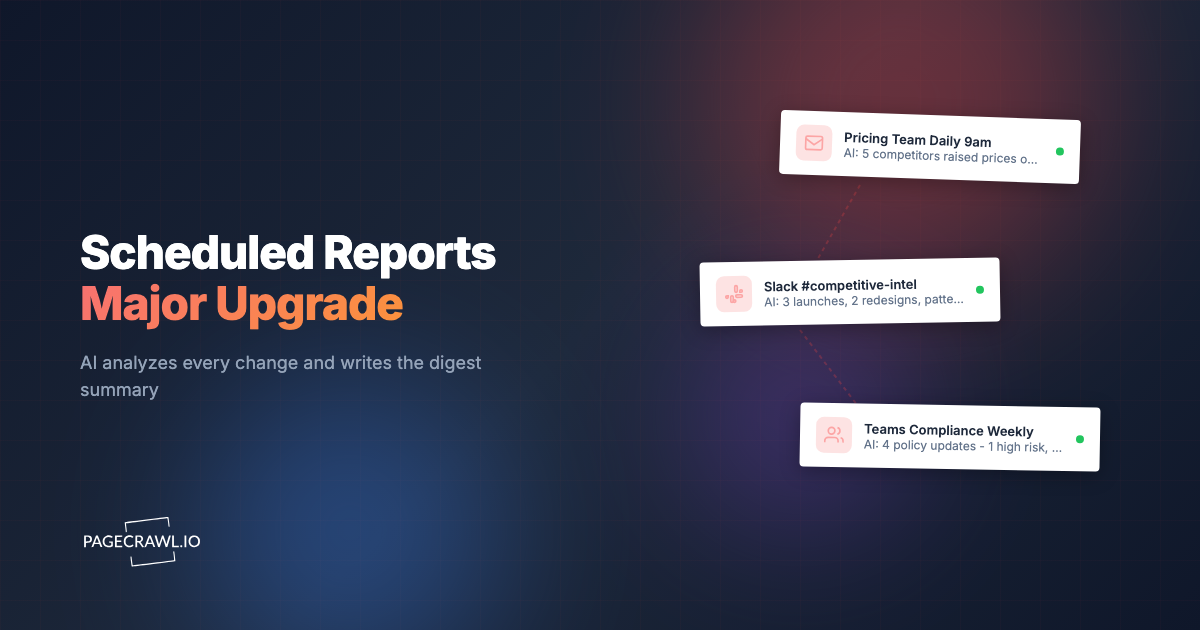
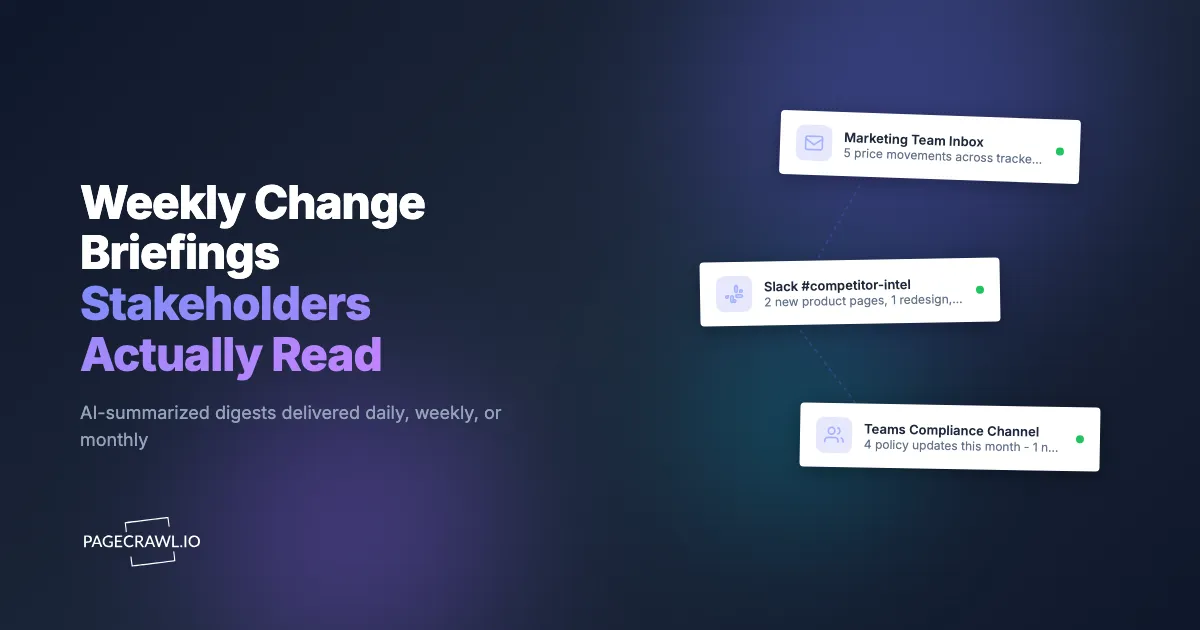
- A short, AI-generated headline at the top, like "5 price movements across tracked SKUs" or "2 new pages, 1 redesign, 1 announcement".
- A paragraph or bulleted summary of cross-monitor patterns, written by AI from the underlying changes.
- A grouped list of every change, scored by importance, with the highest-priority items first.
- A "currently failing" section showing monitors that did not check successfully, so a quiet inbox does not falsely imply nothing changed.
A good briefing answers three questions in less than 60 seconds: what changed, what matters, and what should I do about it.
Why do per-change alerts fail at the stakeholder level?
Per-change alerts fail because they arrive one at a time, unsorted by importance, on a cadence the recipient never chose. The math is simple: if you monitor 100 competitor and policy pages across multiple regulators with even a 1% daily change rate, a stakeholder receives one alert per day, every day. Weeks one and two, they read them. Week three, they skim. Week four, they filter to a folder and stop opening it.
Three patterns break per-change alerts as a stakeholder format:
- Mixed importance. One urgent pricing change is buried among dozens of cosmetic header tweaks. The recipient cannot tell which is which without reading every email.
- No synthesis. Each alert is a single change. An executive needs to know "three competitors raised prices this week", not three separate emails about three separate competitor price changes.
- Wrong cadence per audience. Marketing wants Monday morning. Legal wants a monthly roundup. Operations wants real-time. One channel cannot serve all three.
Scheduled reports fix all three. Importance is scored by AI and surfaced in priority order. A cross-monitor summary is generated each delivery. Each audience picks its own cadence.
How do scheduled reports work?
A scheduled report has four moving parts: scope (which monitors it covers), schedule (when it fires), recipients (who receives it and where), and content (summary style, importance threshold, attachments). When the schedule fires, everything in scope since the last digest is gathered, scored, summarized, and delivered as one message.

- Scope. Which monitors are included. Match by tag, folder, domain, specific monitors, or all monitors in the workspace.
- Schedule. Daily, weekdays only, weekly, monthly, or on-demand.
- Recipients. Workspace members, additional Cc emails (no PageCrawl account required), Slack, Teams, Discord, Telegram, or a custom webhook.
- Content. AI summary style, importance threshold, failing pages section, escalation rules, attachments.
When the schedule fires, PageCrawl gathers every change in scope since the last digest, scores them by importance, generates an AI summary in the chosen style, writes a content-aware title, and ships the digest to every configured channel. Each digest also gets a unique public URL so stakeholders can view it in a browser without signing in, and you can attach Excel or PDF for archiving (or use the print-friendly digest page directly).
For the full feature reference, see the Monitoring Reports article.
Which cadence fits each audience?
Match the cadence to the audience's response loop: daily for sales and pricing analysts, weekly for marketing, competitive intelligence, and product, monthly for legal, vendor management, and the board. The cadence should follow how fast that audience can act, not your operations team's preference.
| Audience | Suggested cadence | Why |
|---|---|---|
| Sales and pricing analysts | Daily, weekdays only | Pricing moves and promotions are time-sensitive |
| Marketing and competitive intelligence | Weekly, Monday morning | Sets up the week's narrative |
| Product and engineering | Weekly, Friday afternoon | Catches launches and changelog updates from the week |
| Legal and compliance | Monthly | Policy changes rarely warrant urgent action |
| Executives and board | Monthly | Aggregated, high-signal updates only |
| Vendor management | Monthly | Vendor terms, DPA changes, pricing |
Daily is rarely the right cadence for executives. Monthly is rarely the right cadence for sales. Pick the cadence that matches the response loop and you will see open rates climb. The help centre article on bundling change notifications into digests covers the scheduling options in full.
Eight AI Summary Styles
Different audiences want different summaries. A one-line headline reads well in a Slack channel. A risk assessment reads well to a general counsel. A bullet list reads well to operations.
PageCrawl ships eight styles you can pick per report:
- Headline. One sentence. Best for chat notifications.
- Patterns. A 2 to 4 sentence paragraph focused on cross-monitor trends. The default.
- Action briefing. Leads with what to do (review, respond, monitor, ignore). Best for sales and ops.
- Detailed executive summary. Multi-paragraph with section headings. Best for weekly and monthly executive briefings.
- Bullets. A 5 to 10 item bullet list with bolded categories. Best for scanning.
- Changelog. Chronological log, newest first. Best for product and engineering.
- Risk assessment. Groups changes into High / Medium / Low risk. Best for legal and compliance.
- Brief. Plain-text under 280 characters. Best for SMS, push notifications, and chat headers.
The same set of underlying changes can ship to four reports in four different styles. Marketing reads bullets, the CMO reads the executive summary, legal reads the risk assessment, the channel-monitoring intern gets the headline.
Real-World Briefing Setups
Marketing competitor briefing (weekly)
Scope: tag #competitors. Schedule: weekly, Monday 8am. Recipients: marketing team plus CMO. Style: detailed executive summary. Escalation: enabled, threshold 90, channel Slack #competitor-intel.
The CMO opens one email per week, reads three paragraphs, and forwards relevant items to product. The detailed style works because the audience has the context to interpret nuance.
Sales pricing watch (daily)
Scope: tag #pricing. Schedule: daily, weekdays only, 7am. Recipients: VP Sales and RevOps lead. Style: bullets. Importance threshold: 50. Group by domain: on.
Sales reads bullet lists in the morning standup. Threshold 50 cuts cosmetic noise. Group-by-domain makes it easy to scan vendor by vendor. A 30 percent or larger drop on the tracked price and availability monitors escalates straight to Slack on the check that detects it, so the sales team can use it on a call that day.
Legal compliance roundup (monthly)
Scope: folder /vendor-legal. Schedule: monthly, 1st of the month, 9am. Recipients: General Counsel and compliance@. Style: risk assessment. Excel attachment: on.
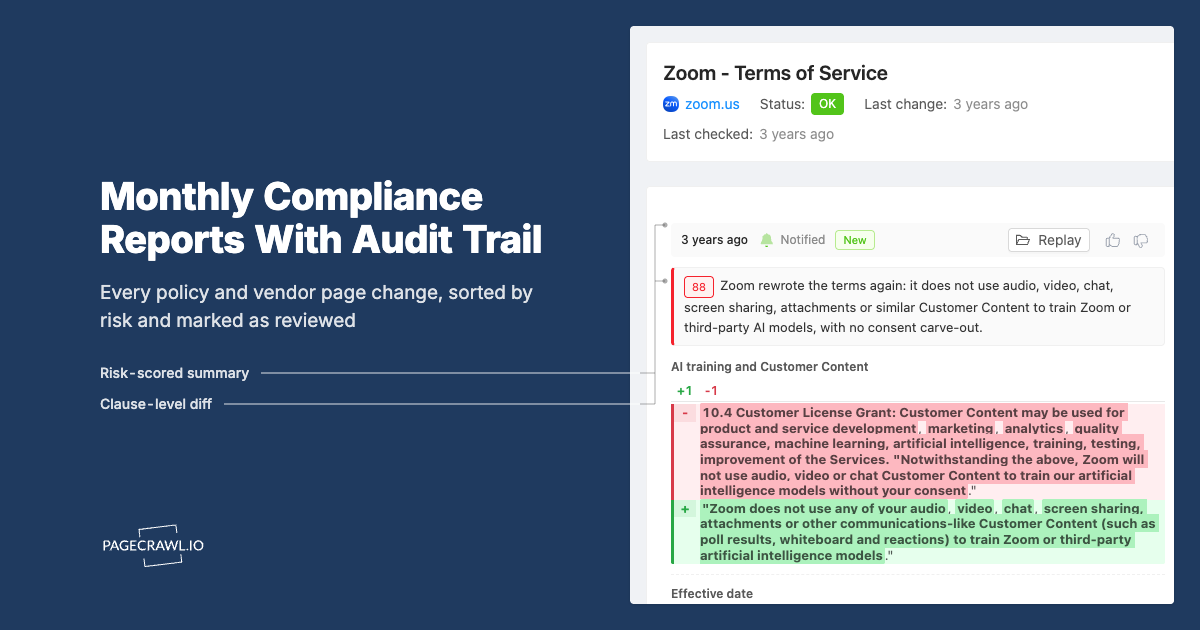
Risk assessment style sorts the month's changes into High, Medium, and Low risk with explanations. The Excel attachment is the audit trail for the next compliance and regulatory monitoring review. Most months, the digest is one paragraph plus a few low-risk updates.
Product launch radar (weekly)
Scope: domains slack.com, notion.com, linear.app. Schedule: weekly, Friday 4pm. Recipients: product team and CEO. Style: action briefing.
Friday afternoon is the right time for product. The action briefing leads with what to do about each launch, which is exactly the question a product team asks in Monday's planning. Escalation is on for new product-page launches because those rarely happen and always matter.
Executive monthly board pack
Scope: all monitors. Schedule: monthly, last Friday. Recipients: board distribution (Bcc). Style: detailed executive summary. Failing pages: on.
Bcc protects the board distribution list. The failing pages section adds a footer like "3 monitors are currently in error" so the board knows the data is honest about its blind spots.
Priority Escalation: Keeping Urgency Without the Spam
Batching changes into a digest is the right default. But some changes are urgent enough that next Monday is too late. A competitor cuts pricing 35 percent. A vendor takes down a critical doc. A policy goes into effect tomorrow.
Priority escalation handles this. When you enable it on a report, every change is scored by AI for importance. If the score crosses your threshold (e.g., 90), a notification fires as soon as the check detects the change, through your chosen escalation channel: Slack, Teams, email, Discord, Telegram, or a custom webhook. The change still appears in the next digest, with a label indicating it was already escalated.
This is the only reason single-change alerts still belong in a briefing-driven workflow. The team operating on the data sees the urgent item on the check that finds it. The audience reading the weekly briefing sees it again with full context two days later. Both audiences are served correctly.
What Recipients See
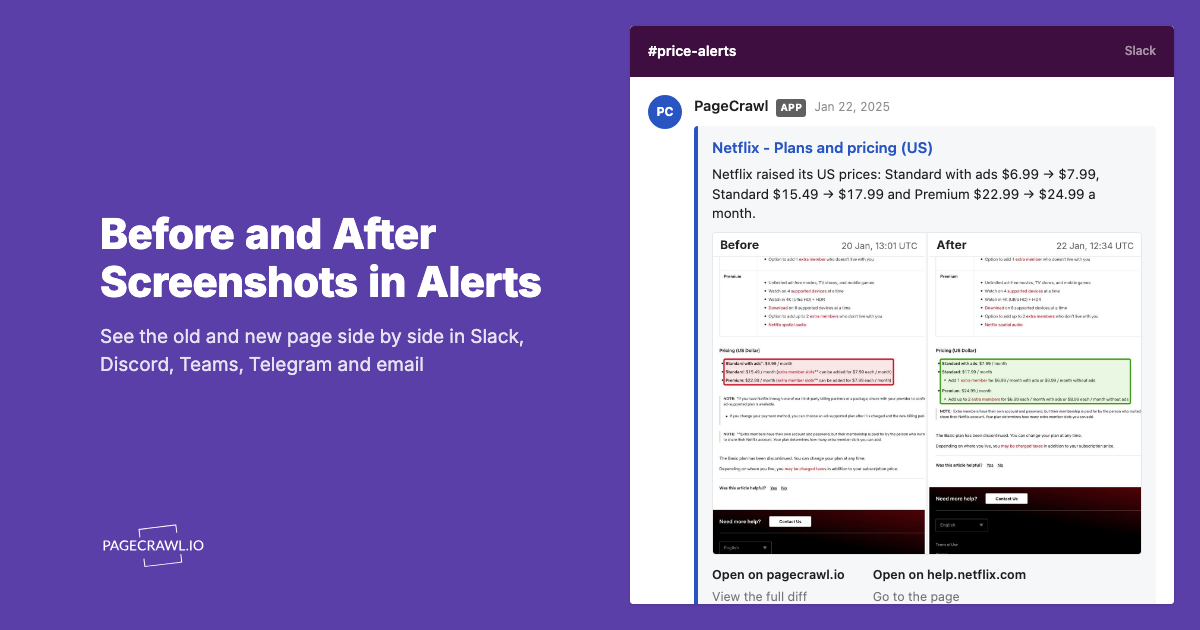
Every digest opens with the report name, the AI-generated title (a content-aware headline like "5 price movements across tracked SKUs"), and the period range. Below that is the AI summary in your chosen style, then the changes themselves grouped by priority tier, each with a screenshot thumbnail, a short summary, the page URL, the date, and links to "View diff" and "Open in PageCrawl".
Two interactive elements live on every change: a thumbs-up / thumbs-down pair and a comment field. Recipients (whether they have a PageCrawl account or not) can:
- Mark a change as important (thumbs up). The AI uses this signal to bias future scoring on similar changes.
- Mark a change as noise (thumbs down). Future similar changes get a lower priority and may be filtered automatically.
- Leave a comment on a specific change or on the digest as a whole. Other recipients see comments inline when they open the digest.
For teams that want a structured workflow, enable review board actions on the report. Each change gets a board selector (To Review / Flagged / Reviewed) so triage happens directly inside the digest, no dashboard hop required.
Sharing Briefings With Non-PageCrawl Users
Every digest gets a unique public URL anyone can open in a browser, no PageCrawl account needed. The URL is included in every email and printed on the digest page itself.
Three sharing options:
- Email. The digest itself is the email, no link required.
- Public share link. Pasteable URL for Slack, Notion, board decks, client emails.
- Authenticated share link. Only signed-in workspace members can view.
Beyond the link, every digest can be exported as PDF (one click from the page) or Excel (full data plus an overview sheet), and there is a print-friendly version of the digest page itself. The Excel attachment can be sent automatically with the email if the file is small enough; oversized attachments are dropped without bouncing the email so delivery never fails because of the spreadsheet.
Best Practices
- Start with one report per audience, not per monitor set. Reports are cheap to add. Adding more later is easier than collapsing too-granular ones.
- Use tags to slice across folders. Tags don't conflict with your folder hierarchy and can express cross-cutting concerns (
#enterprise-watch,#regulatory). - Match the AI summary style to the audience. Headlines for chat, bullets for ops, risk assessment for legal, action briefing for sales.
- Always enable priority escalation on operational reports. Even daily digests can miss things that need a same-hour response.
- Use Cc for accountability, Bcc for distribution. Cc keeps the recipient list visible; Bcc protects long lists.
- Test with "Generate now" before going live. A dry run catches misconfigured webhooks and unexpected scope before stakeholders see it.
- Keep "Pages currently failing" enabled by default. A quiet digest does not mean nothing changed; it might mean your monitors are silently broken.
Choosing your PageCrawl plan
PageCrawl's Free plan lets you monitor 6 pages with 220 checks per month, which is enough to validate the approach on your most critical pages. Scheduled reports are a paid feature, so you'll need at least the Standard plan to ship digests on a schedule.
| Plan | Price | Pages | Checks / month | Frequency | Reports |
|---|---|---|---|---|---|
| Free | $0 | 6 | 220 | every 60 min | – |
| Standard | $8/mo or $80/yr | 100 | 15,000 | every 15 min | ✓ |
| Enterprise | $30/mo or $300/yr | 500 | 100,000 | every 5 min | ✓ |
| Ultimate | $99/mo or $999/yr | 1,000 | 100,000 | every 2 min | ✓ |
Annual billing saves two months across every paid tier. Enterprise and Ultimate scale up to 100x if you need thousands of pages or multi-team access.
One competitive signal caught early can swing a deal worth more than a decade of Enterprise. If you win one additional deal per year because you spotted a pricing change, a product launch, or a messaging shift before your competitors did, $300/year is a rounding error. Standard at $80/year handles 100 monitored pages, enough for a Tier 1 and Tier 2 competitor program. Enterprise adds 500 pages and SSO. All plans include the PageCrawl MCP Server for AI assistants like Claude and Cursor. Your sales and product teams can ask "summarize every change to Competitor X's pricing page over the last quarter" and get an answer pulled straight from your own archive. AI assistants can create monitors through conversation on every plan, including Free, turning the tracked pages into a living competitor database, not just an alert feed.
Getting Started

Sign up for a free PageCrawl account, set up your first monitors, and create a report under Settings → Workspace → Alerts & Reports → Scheduled Summary Reports. Pick the audience you want to serve, choose the cadence and AI summary style, and use Generate now to preview the digest before going live.
For the full feature reference, see the Monitoring Reports help article. For the underlying tech, see how PageCrawl handles AI-powered change detection and webhook integrations for piping briefings into your own automations.