Notifications are the part of monitoring that breaks first when you scale up. The pages still get checked. The diffs still land. But somewhere between ten and a hundred monitors, the alert stream stops being useful.
We first shipped Summary Reports in August 2023 in a simpler form. You had two options back then: an alert for every change as each check detected it, or one daily or weekly summary for the whole workspace. It worked, and you could split monitors across multiple workspaces to get separate digests, but it never fully solved the problem. You still couldn't run a daily digest for one team and a weekly digest for another inside the same workspace, send different audiences different versions of the same monitoring data, or set different urgency thresholds per group of pages. The new version handles all of that.
The old setup, briefly
Two modes per workspace.
One-alert-per-change works fine at twenty or thirty pages, struggles past a hundred, and becomes unusable past three hundred. Past that point most teams quietly mute the channel.
The single workspace summary was better than the wall of email but lumped everything together: Tier 1 competitor pricing in the same email as a Tier 3 footer tweak, regulation and policy page changes next to product launch posts. Different audiences, different urgencies, all merged into one message.
What changed in the Scheduled Reports upgrade?
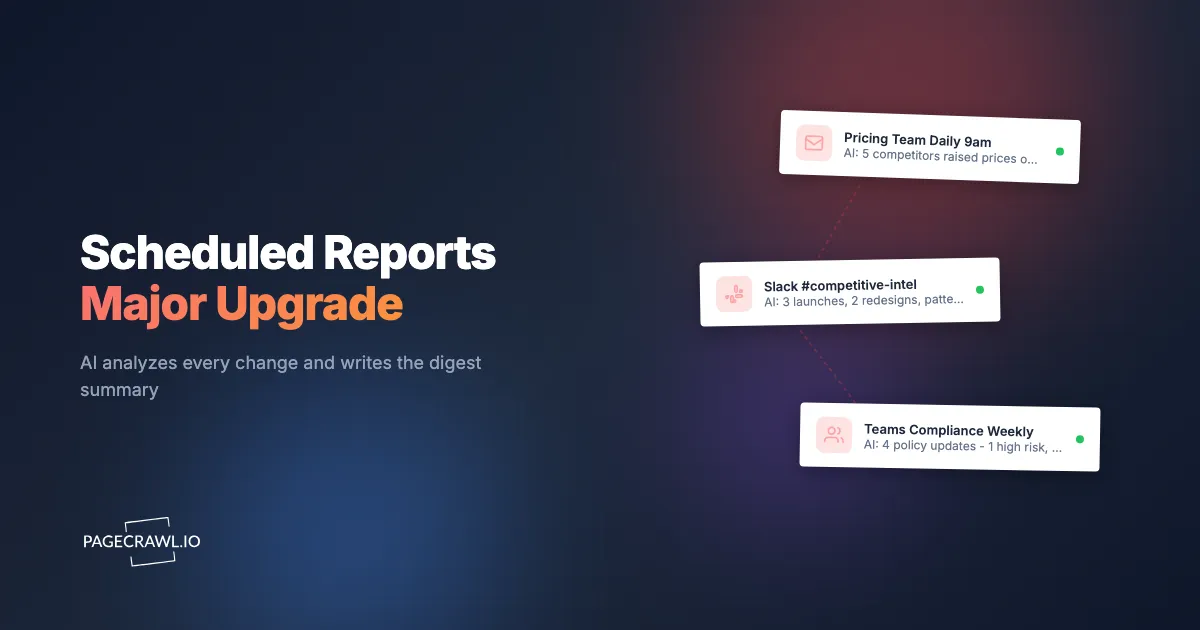
You can now create as many reports as you want per workspace, instead of a single summary covering everything. Each one is independent, with its own monitors, schedule, channels, recipients, AI summary style, and escalation threshold.

- Group monitors however you think about them: tag, folder, domain, or hand-pick. The same monitor can live in several reports.
- Per-report schedule: daily, weekdays, weekends, weekly, monthly. Pick the hour and day.
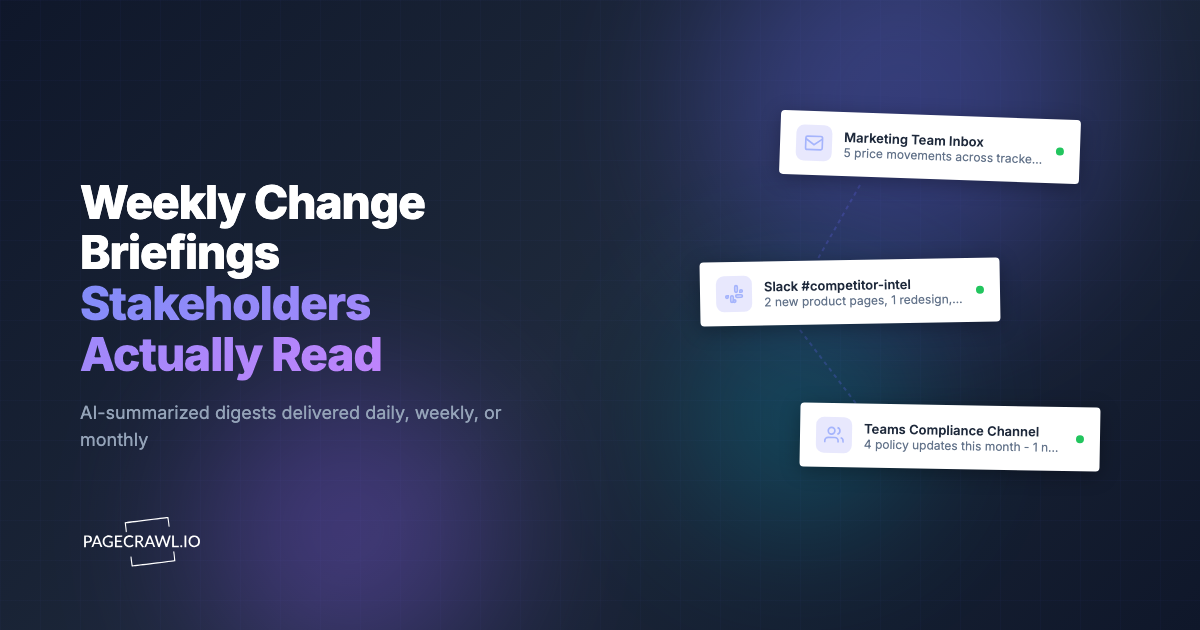
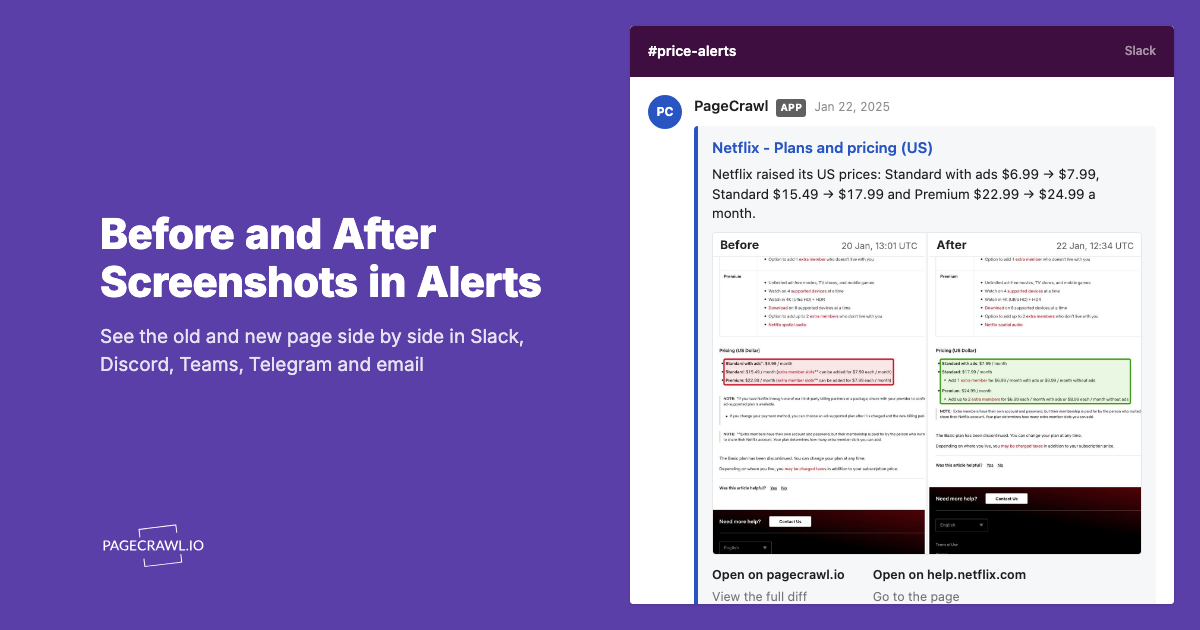
- Per-report channels and recipients: email, Slack, Discord, Teams, Telegram, web push. Recipients can include external email addresses, no PageCrawl seat required.
- Per-report AI summary in a style you pick. More on this below.
- Priority escalation: a change above your threshold skips the digest and pings a separate channel as soon as the check that found it finishes. So you don't have to choose between "wait until tomorrow" and "one message per change". The per-page rules behind that threshold are documented in notification conditions and filters.
- Optional Excel attachment and shareable digest link for stakeholders without a PageCrawl account.
If you were using the old workspace summary, we migrated it for you. You'll see a "Workspace Summary" report already sitting there with your old schedule, recipients, and channels.
How do per-report AI summaries work?
Each report now gets its own AI summary, written across only that report's changes, in one of eight styles you choose. AI summaries aren't new, the old workspace digest already opened with one. The shift is what they're summarizing.
Before, one summary covered everything in the workspace for a given period. With 150 monitors and a daily digest, that summary was averaging across pricing tweaks, footer edits, policy updates, and product launches all at once. No single 80-change recap reads well to both a pricing analyst and a legal counsel.
Now every report has its own AI summary across just that report's changes, in a style you pick:
- Headline: one-line summary
- Action items: framed as "here's what to do"
- Detailed: multi-paragraph brief
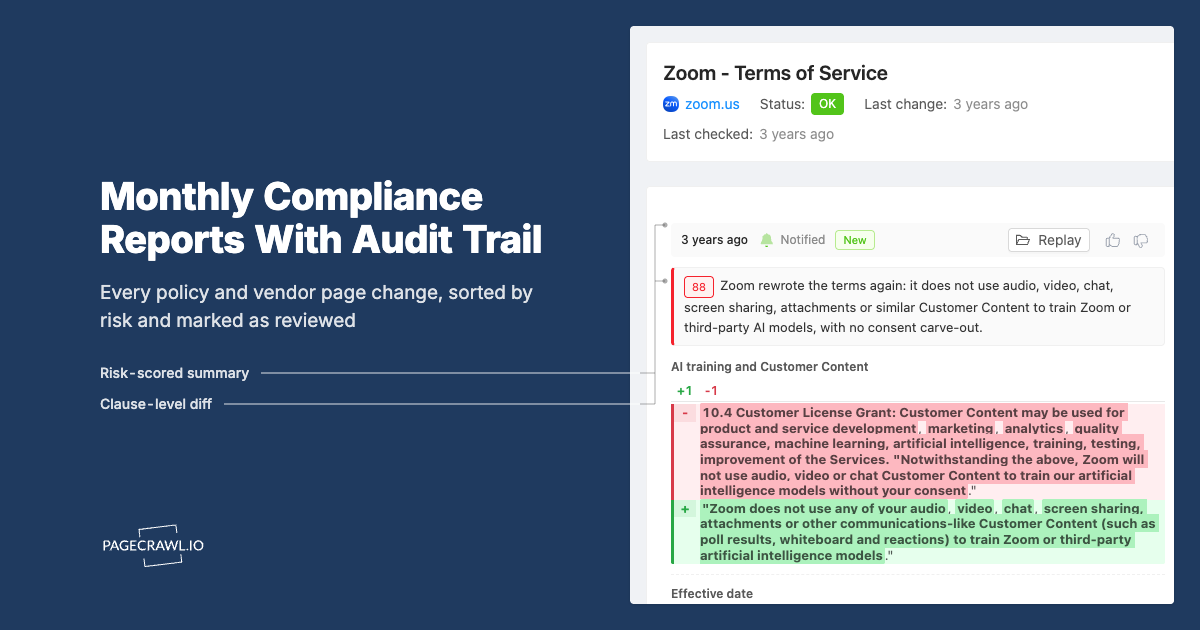
- Risk: by severity and impact
- Patterns: themes across the batch
- Changelog: technical format
- Bullets: short, scan-friendly
- Brief: tight executive summary
A daily Tier 1 competitor digest can read like an analyst note while the compliance digest going to legal reads like a risk brief. Same AI, focused batch, style tuned per audience.
Before and after
A concrete example. A competitive intelligence team monitors 150 pages across 12 retailers.
Before: one email per detected change. 30 to 60 PageCrawl emails per week, mostly skimmed.
After: three reports.
- Tier 1 daily, 9am weekdays, action-items style, priority escalation at 85 to a separate Slack channel.
- Tier 2 weekly Monday, patterns style, to the wider distribution list.
- Long-tail monthly, brief style, with a shareable digest link forwarded to leadership.
Same pages, same detection. The notification load drops from a stream into three predictable touchpoints, plus the occasional priority escalation when something material lands.
How do you set up a scheduled report?
Open Settings, then Workspace, Notifications, Digests, and click Add Report. There are five fields to fill in, and a working report takes about two minutes.
- Name and monitors (tag, folder, domain, or pick).
- Schedule (daily, weekdays, weekends, weekly, monthly, plus hour and day).
- Channels and recipients.
- AI summary on or off, and style.
- Priority escalation on or off, threshold, and channel.

The full walkthrough with screenshots and a per-field reference is in the Scheduled Reports help article.
Tell us how it's going
We'd love to hear how you're using these reports and any feedback to make them even better. Drop us a line at help@pagecrawl.io or use the in-app feedback form.