You have a Chrome tab pinned to a supplier page, another to a competitor's pricing, and a third to a product that keeps selling out. Every twenty minutes you tab over, hit Ctrl+R, scan for anything new, and tab back. By the end of the day you have refreshed those pages forty times and caught exactly one change, which you found four hours after it happened because you were in a meeting.
Chrome is where most people start when they want to watch a web page for changes, and that makes sense. It is already open, you already trust it, and the change you care about is right there in a tab. The problem is that Chrome was built to load pages, not to watch them. The moment you close the tab, sleep your laptop, or step away, the watching stops.
This guide walks through every realistic way to monitor a website for changes from Chrome in 2026, from quick browser extensions to a cloud setup that keeps checking around the clock with your browser closed. We will compare the trade-offs honestly, then build a reliable monitor step by step.
Can Chrome monitor a website for changes on its own?
No, Chrome cannot detect or alert you to website changes by itself. Out of the box it only reloads a page when you tell it to, and it has no memory of what the page looked like a minute ago. To actually compare versions and notify you, you need either a browser extension layered on top of Chrome or a separate monitoring service that does the watching for you.
This is the single most important thing to understand before you pick a method. "Monitoring in Chrome" really means one of two things. Either you add software inside Chrome (an extension) that compares page snapshots while the browser runs, or you point a website change monitoring tool at the same URL and let it do the work from the cloud. The first keeps everything local but depends on Chrome staying open, since an extension only runs inside the browser session, as Chrome's extension platform documentation describes. The second runs independently, even while your computer is off. Both start from the same place, a URL you currently check by hand, and differ on who does the checking and how soon after a change you actually hear about it.
What are your options for watching a page from Chrome?
You have four practical options for monitoring a website you currently track in Chrome: an auto-refresh extension, a change-detection extension, a manual scripted check, or a cloud monitoring service. They range from zero setup to fully automated, and they differ most in whether they keep working after you close the tab.
Here is what each one actually does.
Auto-refresh extensions
The lightest option reloads your tab on a timer so the content stays fresh without you pressing anything. It does not detect changes or alert you, it just keeps the page current so you notice updates faster when you glance over. This is useful for live dashboards, scoreboards, and queue pages. We cover the full range of timer tricks in our guide to auto-refreshing any web page. The catch: you still have to look at the tab to see what changed, and it does nothing once Chrome is closed.
Change-detection extensions
A step up, these extensions store a snapshot of the page, reload it periodically, and highlight or alert you when the content differs from the saved version. Some let you select a specific region to watch. You install them like any other add-on from the Chrome Web Store, and this is genuinely useful for casual, short-term monitoring of a handful of pages. The limitation is structural: the extension only runs while Chrome (and usually that exact profile) is running, so an overnight restock or a 3am policy update slips by until you wake up and reopen the browser.
PageCrawl takes a hybrid position here. Its browser extension for adding pages to monitoring in one click lives in Chrome where you browse, as does a bookmarklet that starts a monitor from your browser bar, but the checking itself happens in the cloud, so closing the tab does not stop the watch.
Manual or scripted checks
Developers sometimes wire up a small script to fetch a page and diff it. This gives total control but also total maintenance: you handle scheduling, storage, comparison, and alerting yourself, and JavaScript-heavy pages that only render in a real browser will defeat a simple fetch. For most people this is more plumbing than the problem is worth.
Cloud monitoring services
The most reliable option moves the watching off your machine entirely. You hand a URL to a service, it loads the page on a schedule using real browser rendering in the cloud, compares each version to the last, and sends you an alert as soon as a check detects the difference. Because it does not depend on your laptop, it catches overnight and weekend changes that any Chrome-bound method misses. This is the approach we build out below.
Chrome extensions vs cloud monitoring: which should you use?
Use a Chrome extension when you are watching one or two pages for a short time and you tend to keep your browser open all day. Use a cloud monitoring service when the change matters, when it could happen overnight, or when you are tracking more than a couple of pages. The deciding factor is almost always whether you can afford to miss a change that happens while Chrome is closed.
Here is the honest comparison:
| Factor | Chrome extension | Cloud monitoring |
|---|---|---|
| Runs with browser closed | No | Yes |
| Catches overnight changes | No | Yes |
| Setup effort | Very low | Low |
| JavaScript-heavy pages | Sometimes | Yes |
| Alerts off your device | Rarely | Email, Slack, Discord, push, webhook |
| Pages behind a login | Hard | Supported with login steps |
| Scales to many pages | Painful | Designed for it |
| History of past changes | Limited | Full timeline |
| Cost | Usually free | Free tier, paid for scale |
Extensions win on immediacy and privacy: nothing leaves your machine, and you can be watching a page within thirty seconds. That is a real advantage for one-off curiosity. But the structural weakness is unavoidable. An extension is a guest inside Chrome, so when Chrome sleeps, so does your monitoring. If you have ever closed your laptop and missed a ticket drop, you have felt the limit firsthand.
Cloud monitoring trades a little setup for independence. It runs whether or not you are at your desk, renders complex pages a simple request would choke on, and can fan an alert out to email, Slack, or your phone. Many people run both: an extension for live tabs they are actively staring at, and a cloud monitor for the changes that matter even at 2am.
How do you monitor a website without keeping Chrome open?
To monitor a page without keeping Chrome open, point a cloud monitoring service at the URL instead of watching it in a tab. The service loads the page on its own schedule from its own infrastructure, compares each new version against the previous one, and notifies you when the content changes. Your browser, and even your computer, can be completely off.
This is the workflow that finally breaks the manual-refresh habit. Instead of you being the scheduler, the comparison engine, and the alarm clock, the service handles all three. It checks at the interval you set (as often as every few minutes), keeps a running history of every version it has seen, and only interrupts you when there is a real, filtered change worth your attention.
The practical wins stack up quickly. You stop losing changes that happen while you sleep, stop pinning fragile tabs that vanish on a crash, and can watch a hundred pages without a hundred open tabs. You also get a permanent record, so when a vendor quietly edits their terms or a competitor walks back a price, you have the before and after on file. Let's set one up.
How do you set up website monitoring from Chrome step by step?
Setting up cloud monitoring takes about two minutes: copy the URL from your Chrome address bar, paste it into a monitor, choose what to track, set how often to check, and pick where alerts go. We will use PageCrawl as the example because its free tier (6 monitors and 220 checks per month) is enough to replace the pages you currently babysit in Chrome.

Step 1: Copy the URL from Chrome
Open the exact page you want to watch in Chrome and copy the full URL from the address bar, or on an Android phone share the page into PageCrawl straight from Chrome's share menu. Use the real, final URL, not a search results page or a shortened link. If the content you care about only appears after you log in or apply a filter, note that. We will handle authenticated pages in the advanced section below.
Step 2: Create a monitor and paste the URL
Sign up for a free PageCrawl account and click to add a new monitor. Paste the URL. PageCrawl fetches the page with full browser rendering and shows you a live preview of what it sees. Because it renders the page the way Chrome does, JavaScript-driven content, lazy-loaded sections, and dynamic prices all show up in the preview rather than appearing blank.
Note: If the preview looks different from your Chrome tab, the page may show different content based on location or login. Check the preview before saving so you are monitoring what you actually expect.
Step 3: Choose what to track on the page
Decide whether you care about the whole page or one specific part:
- Full page text: Watches all visible text. Good for policies, articles, documentation, and general "tell me if anything changes" monitoring.
- Specific element: Targets one part of the page with a CSS selector, like a single price, a stock badge, or a version number. This cuts noise dramatically.
- Price tracking: Auto-detects the main price and tracks the number over time, with optional threshold alerts.
- Visual (screenshot): Compares how the page looks, catching layout and image changes that text monitoring misses.
For most pages you used to refresh in Chrome, full page text or a single targeted element is the right starting point.
Step 4: Set how often to check
Choose a check frequency that matches how time-sensitive the change is:
- Every 5 to 15 minutes: restocks, ticket drops, flash sales, breaking updates
- Every 1 to 2 hours: competitor pricing, active job listings
- Daily: documentation, policies, blog and content monitoring
Frequent checks consume more of your monthly quota, so reserve the fastest intervals for the pages that truly need them. The free tier's 220 monthly checks comfortably covers several pages on an hourly or daily cadence.
Step 5: Filter out the noise
Raw page monitoring can flag rotating ads, timestamps, and cookie banners as "changes." Turn on filters so you only hear about what matters: ignore dates and counters, exclude regions that always change, set a percentage threshold so tiny edits stay quiet, or add keyword triggers so you are only alerted when specific words appear or disappear. Our guide to reducing false positives walks through tuning this well.
Step 6: Choose where alerts go
Pick how you want to be notified, since this is where cloud monitoring leaves a Chrome tab in the dust:
- Email: the reliable default. See our email alert setup walkthrough.
- Push notifications: fast, lightweight pings to your desktop and phone, built on the W3C Push API and covered in our guide to web push notifications.
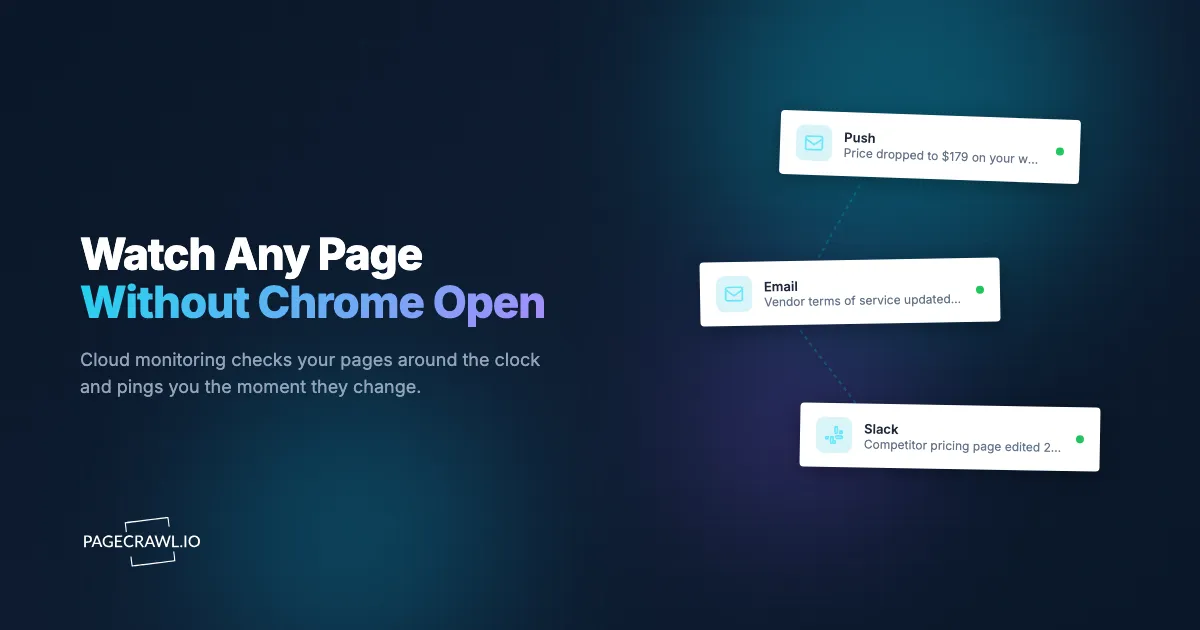
- Slack, Discord, or Teams: drop changes straight into a channel your team already watches.
- Webhooks: send change data into any automation or internal system.
You can combine channels, for example a Slack message for every change plus an email only for high-priority monitors.
Step 7: Save and let it run
Save the monitor and you are done. PageCrawl checks the page on schedule from the cloud, compares each version, and alerts you when something changes, whether your Chrome window is open, minimized, or shut down for the night. Give it a few days, then review and adjust filters or frequency based on the alerts you actually receive.
What kinds of changes can you track from a page?
You can track full page text changes, a single element or value, numeric and price movements, and visual or layout changes. The right mode depends on whether you care about everything on the page or one precise detail, and choosing well is what separates a useful alert from a noisy one.
Full page text changes
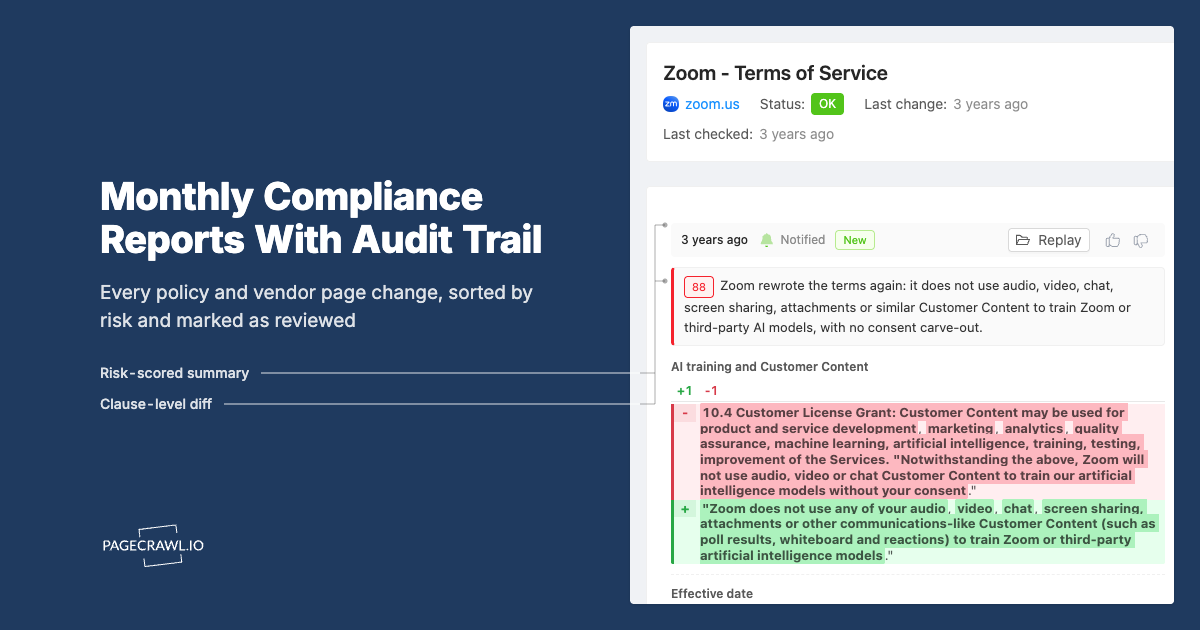
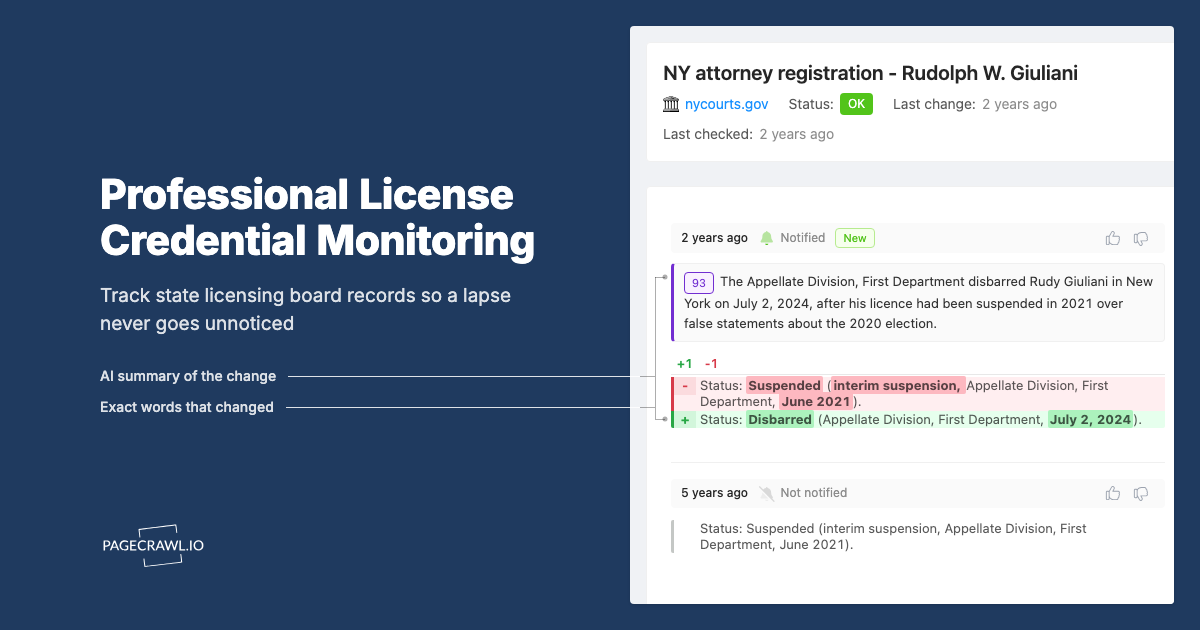
The default mode renders the page, extracts all visible text, and shows a clean diff of what was added or removed, similar to a code diff. It is ideal for terms of service, privacy policies, documentation, and editorial pages where any wording change could matter. Filters strip predictable noise so a "last updated" timestamp does not wake you up.
A single element or value
When you only care about one thing, monitor just that element: a price, an "in stock" badge, a headline, or a published version number. Narrowing the watch to one region eliminates false alerts from unrelated parts of the page. This is the difference between "the site changed" and "the price dropped."
Numbers and prices over time
Price and number tracking pulls the numeric value out of the page and follows it as a series rather than a text blob. You can chart the history, see the trend, and trigger alerts on a drop, a rise, or any movement past a threshold. This is the preferred approach for price tracking and stock alerts on any retailer, the exact pages people most often pin in Chrome.
Visual and layout changes
Screenshot comparison watches how the page looks, not just what it says, catching image swaps, layout shifts, and styling changes that text extraction cannot see. Use it for brand monitoring, design QA, or any page where the presentation carries the meaning.
Can you monitor a page that needs a login?
Yes, you can monitor pages behind a login, even though those are exactly the pages a Chrome extension struggles with most. A capable cloud monitor signs in for you using stored credentials, or runs a short sequence of steps (navigate, type a username, type a password, click sign in) before each check, so it reaches the same view you would after logging in.
This unlocks the pages that matter most: client portals, partner dashboards, internal pricing, account-only inventory. Instead of you logging in and refreshing by hand, the monitor handles authentication and watches the protected content for you. Our guide to monitoring password-protected websites covers the setup and the security considerations, and the help centre article on monitoring password-protected pages shows exactly where to enter form logins and HTTP Basic credentials. The same actions system handles pages that need a button click, a cookie dismissal, or a dropdown selection before the content you want appears.
For pages that load content dynamically, full browser rendering means the monitor waits for the real page to finish before comparing, so single-page apps and JavaScript-heavy sites are captured accurately rather than as empty shells.
What do people most often monitor from Chrome?
The most common reasons people move a page out of a Chrome tab and into a monitor are price tracking, restock alerts, policy and terms watching, competitor research, and job or listing alerts. Each shares the same root frustration: the change is unpredictable, it matters, and refreshing by hand is a losing game.
A few patterns worth copying:
- Price and restock watching: monitor a product's price element or stock badge every 15 minutes with push notifications, so a drop or restock reaches you on the next check rather than hours later.
- Terms and policy monitoring: full page text on a vendor's terms or privacy policy, checked daily, so a quiet edit becomes a logged, diffed alert instead of a surprise.
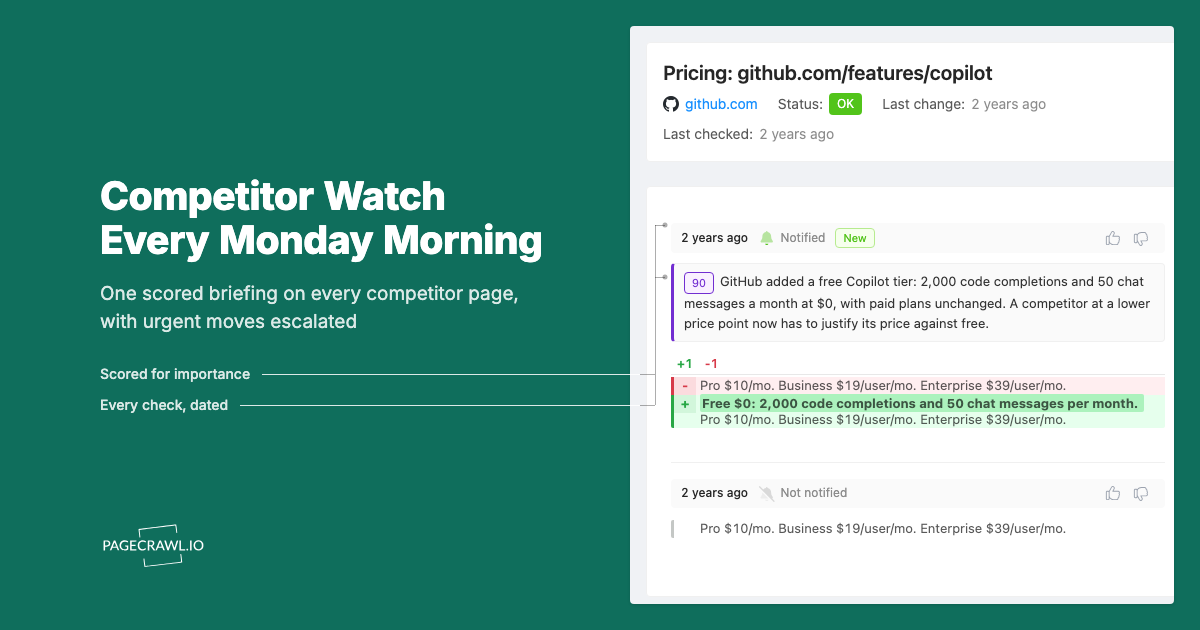
- Competitor pages: track pricing, feature lists, and announcements across several competitors, routed to a shared Slack channel.
- Listings and openings: watch a job board, marketplace, or directory for new entries before they get buried.
In every case the upgrade is the same: you stop being the scheduler and the alarm clock, and the monitor does the watching while Chrome does what it is good at, being the place you act once the alert arrives. If you are weighing dedicated tools, our VisualPing comparison breaks down how the cloud options stack up.
Choosing your PageCrawl plan
PageCrawl's Free plan lets you monitor 6 pages with 220 checks per month, which is plenty to retire the handful of tabs you currently refresh by hand and prove the approach works. Most people upgrade once they see how many changes they were quietly missing.
| Plan | Price | Pages | Checks / month | Frequency |
|---|---|---|---|---|
| Free | $0 | 6 | 220 | every 60 min |
| Standard | $8/mo or $80/yr | 100 | 15,000 | every 15 min |
| Enterprise | $30/mo or $300/yr | 500 | 100,000 | every 5 min |
| Ultimate | $99/mo or $999/yr | 1,000 | 100,000 | every 2 min |
Annual billing saves two months across every paid tier. Enterprise and Ultimate scale up to 100x if you need thousands of pages or multi-team access.
Standard at $80/year is the natural next step once a few Chrome tabs turn into a real monitoring habit. 100 pages covers a serious watchlist (competitor pricing, a set of products, the policies and dashboards you care about), and 15-minute checks are fast enough to act on restocks and price drops. Enterprise at $300/year adds 500 pages, 5-minute checks, and the full API for teams running monitoring at scale. Every plan, Free included, connects to the PageCrawl MCP Server, so AI assistants like Claude and Cursor can create monitors and answer questions about your change history through plain conversation.
Getting Started
You already know which pages you keep refreshing in Chrome. Pick the three you check most, copy their URLs, and turn them into monitors in the next five minutes. Run them for a week, watch the alerts arrive while your laptop is closed, and you will wonder why you ever did it by hand.
Stop babysitting tabs and let the page tell you when it changes.