Manually refreshing web pages to check for updates is a waste of time. Whether you are tracking competitor pricing, monitoring regulatory pages, watching for product restocks, or keeping tabs on job postings, you need an automated way to detect changes and get notified.
Website change monitoring tools do exactly this: they check web pages on a schedule, compare the current version to the previous one, and alert you when something changes. Some tools go further with AI-powered summaries, visual comparisons, and smart noise filtering.
This guide covers everything you need to know about monitoring websites for changes in 2026, from basic methods to advanced techniques used by competitive intelligence teams, compliance departments, and developers.
Why Monitor Websites for Changes?
Website monitoring is not just about curiosity. It is a core workflow for dozens of industries and use cases:
- Competitive intelligence: Track competitor pricing, product launches, feature updates, and marketing messaging changes
- Regulatory compliance: Monitor government agencies, regulatory bodies, and legal documents for policy updates
- E-commerce: Watch competitor prices, detect stock availability, and track promotions across multiple retailers
- Investing and finance: Monitor SEC filings, earnings reports, company pages, and financial disclosures
- Legal teams: Track terms of service changes, privacy policy updates, and court document publications
- DevOps and engineering: Watch API documentation and changelogs, status pages, and release notes for breaking changes
- Brand protection: Monitor for unauthorized use of your brand, domain squatting, or content scraping (and weigh surface versus dark web monitoring for fuller coverage)
- Job seekers: Get alerts when new positions are posted on company career pages
The common thread: information that changes on the web affects your decisions, and you need to know about those changes quickly.
How does website change detection work?
Website change detection runs a loop: a tool fetches the page on a schedule, extracts the content you care about, compares it to the last stored version, and notifies you when the two differ. The alert arrives when the next scheduled check picks up the difference, not the second the site edits the page.
At a high level, that loop looks like this:
- Fetch the page at a set interval (every 5 minutes, hourly, daily, etc.)
- Extract the content you care about (full page text, a specific element, a price, a number)
- Compare the current version to the previous version
- Alert you if something has changed (via email, Slack, Discord, webhook, or push notification)
The implementation details matter a lot. A naive approach (comparing raw HTML) would flag every page load as a "change" because of dynamic ads, timestamps, session tokens, and other noise. Good monitoring tools solve this with text extraction, noise filtering, thresholds, and AI-powered analysis.
Full Page Text Monitoring
The most common approach. The tool renders the page in a browser, extracts all visible text, and compares it to the previous version. Changes are shown as a text diff, similar to how code diffs work in Git.
This works well for content-heavy pages like news articles, documentation, policy pages, and blog posts. Most tools offer options to filter out common noise like dates, cookie banners, and navigation elements.
Element-Specific Monitoring
Instead of watching the entire page, you target a specific element using a CSS selector or XPath expression. For example, you might monitor just the price element on a product page, or just the main content area of a documentation page.
This dramatically reduces noise and makes alerts more actionable. If you only care about the price changing, you do not want to be notified when the site updates a banner ad.
Visual Monitoring
Some tools take screenshots and compare them pixel-by-pixel. This catches changes that text extraction might miss, like layout shifts, image swaps, or styling changes.
Visual monitoring is particularly useful for brand monitoring (detecting unauthorized changes to your website), QA testing (catching visual regressions), and monitoring pages where the text does not change but the presentation does.
Price and Number Tracking
Specialized tracking that extracts numeric values from pages. Instead of showing a text diff, it tracks the value over time and can alert you when the price drops below a threshold, increases by a certain percentage, or changes at all.
This is the preferred method for e-commerce price monitoring, inventory tracking, airline and hotel award chart devaluations, and any scenario where you care about a specific number rather than general content changes.
Choosing the Right Monitoring Method
The best method depends on what you are monitoring:
| Use Case | Recommended Method | Why |
|---|---|---|
| Competitor pricing | Price/number tracking | Clean data, threshold alerts, historical charts |
| News and articles | Full page text with reader mode | Strips navigation, focuses on article content |
| Legal documents and policies | Full page text | Captures every word change, provides diff |
| Product availability | Element monitoring (stock status) | Targets the specific "in stock" indicator |
| API documentation | Full page text or element monitoring | Catches both content and structural changes |
| Visual branding | Screenshot comparison | Detects layout and visual changes |
| Job postings | Page discovery (sitemap monitoring) | Detects new pages, not just changes to existing ones |
Setting Up Website Monitoring: Step by Step
Here is how to set up monitoring for any website. We will use PageCrawl as the example, but the general steps apply to most tools.

Step 1: Add the URL
Paste the URL of the page you want to monitor. The tool will fetch the page and show you a preview of what it sees.
Note: Some pages require JavaScript rendering. If the preview looks empty or different from what you see in your browser, make sure the tool supports JavaScript rendering rather than only making simple HTTP requests.
Step 2: Choose What to Track
Decide what type of change you care about:
- Full page text: Monitors all visible text on the page. Good for general monitoring.
- Specific element: Select a CSS selector or XPath to target a specific part of the page. Good for prices, status indicators, or specific content sections.
- Reader mode: Strips navigation, ads, and sidebars to focus on the main content. Ideal for articles and blog posts.
- Price tracking: Automatically detects and tracks the primary price on the page. Good for e-commerce.
- Visual (screenshot): Compares visual appearance of the page. Good for design monitoring.
Step 3: Set the Check Frequency
How often should the tool check the page? This depends on how time-sensitive the information is:
- Every 5-15 minutes: Stock alerts, flash sales, breaking news
- Every 1-2 hours: Competitor pricing, active job postings
- Daily: Documentation updates, policy changes, blog monitoring
- Weekly: Low-priority monitoring, archival purposes
More frequent checks use more resources, so most tools tie check frequency to pricing tiers. PageCrawl's free tier checks every 60 minutes, while paid plans go down to 2-minute intervals (or even 1 minute on request).
Step 4: Configure Noise Filters
Raw page monitoring generates a lot of false positives. Configure filters to reduce noise:
- Ignore dates and timestamps: Prevent alerts every time a "Last updated" field changes
- Remove cookie banners: These change frequently and are rarely relevant
- Ignore numbers: Useful when you care about text content but not view counts or counters
- Set a change threshold: Only alert when more than X% of the content has changed, filtering out minor tweaks
- Keyword triggers: Only alert when specific words appear or disappear
If a monitor keeps firing on content you do not care about, the complete guide to reducing false positive notifications covers the full set of filters, exclusions, and threshold settings in order of impact.
Step 5: Set Up Notifications
Choose how you want to be notified:
- Email: The default for most tools. Good for daily digests.
- Slack/Discord/Teams: Fast alerts in your team's communication channel.
- Webhooks: Push change data to any system, API, or automation platform.
- Push notifications: Browser notifications for fast, lightweight alerts.
- Telegram: Popular for personal monitoring setups.
Most tools let you combine multiple notification channels. For example, you might send all changes to Slack for your team, but only send email alerts for high-priority monitors. PageCrawl's guide to email notifications for website change detection walks through what each alert email contains, including diffs, screenshots, and AI summaries.
Whichever channel you pick, remember that an alert fires when a check runs and finds a difference, so your check frequency sets the floor on how quickly you hear about anything.
Step 6: Review and Refine
After running for a few days, review the alerts you are receiving:
- Are you getting too many false positives? Tighten your filters or switch to element-specific monitoring.
- Are you missing changes? Loosen your threshold or check more frequently.
- Are the diffs hard to read? Try reader mode or AI summaries.
The first week of monitoring is a calibration period. Expect to adjust your settings.
Advanced Techniques
Monitoring Behind Logins
Many valuable pages are behind authentication walls: client portals, internal dashboards, partner programs. Most basic tools cannot handle this.
Advanced tools support pre-actions, which are automated steps that run before each check: filling in a username, entering a password, clicking a login button, and then navigating to the target page.
PageCrawl supports login sequences through its actions system. You define a series of steps (navigate, fill, click, wait) that the browser performs before capturing the page content.
Monitoring Dynamic and JavaScript-Heavy Pages
Single-page applications (SPAs), pages built with React/Angular/Vue, and sites that load content dynamically via JavaScript require a real browser to render properly.
Make sure your monitoring tool supports JavaScript rendering. If the tool only makes HTTP requests, it will see raw HTML without any JavaScript-rendered content. PageCrawl handles JavaScript rendering, lazy loading, and dynamic content by default.
You may also need to add wait conditions. For example: "Wait until the element with class .product-price is visible" or "Wait 5 seconds after page load for dynamic content to render."
Monitoring Multiple Pages at Scale
If you are monitoring hundreds of pages (common in competitive intelligence, compliance, and agency client website monitoring), manual setup is impractical. Look for tools that support:
- Bulk import: Upload a CSV of URLs to monitor
- Templates: Define monitoring settings once and apply to many pages
- Page discovery: Automatically detect new pages on a site via sitemap monitoring, using the XML files described by the sitemaps.org protocol
- API access: Programmatically create and manage monitors
- Folder organization: Group monitors by category, client, or project
Using AI to Reduce Noise
AI-powered monitoring is a significant advancement in 2026. If you are evaluating tools with these capabilities, see our comparison of the best AI website monitoring tools. Instead of showing raw diffs, AI can:
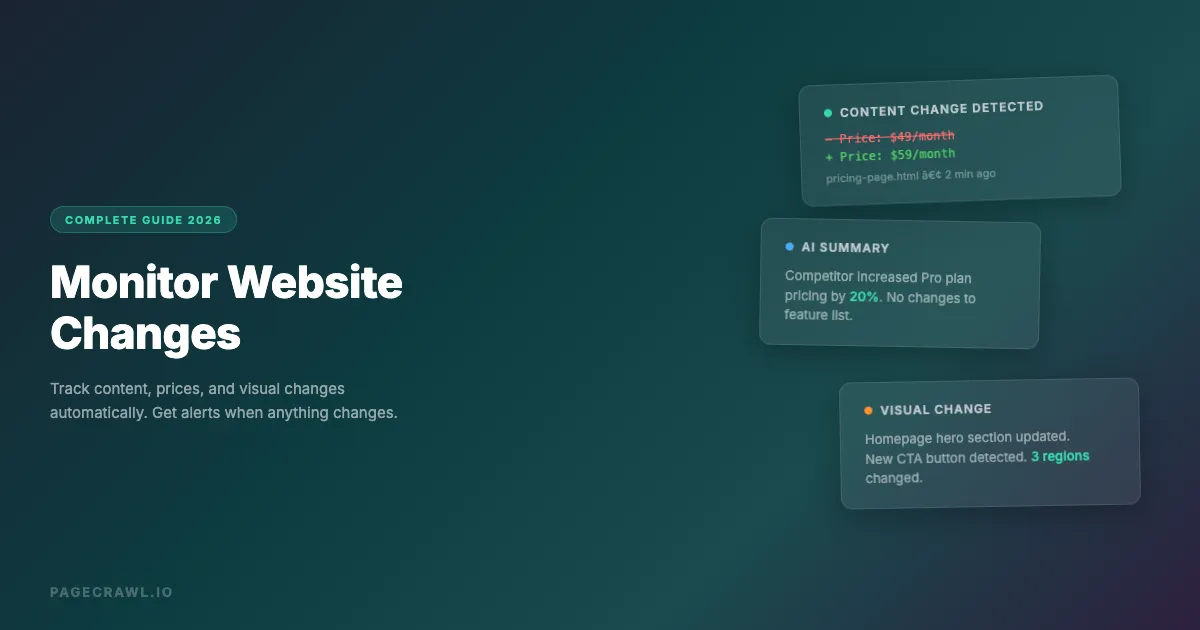
- Summarize changes: "The pricing page was updated to increase the Pro plan from $49 to $59/month"
- Flag importance: Distinguish between meaningful changes and cosmetic updates
- Categorize changes: Label changes as pricing, content, legal, design, etc.
- Answer questions: "Did the competitor add any new features this week?"
PageCrawl includes AI summaries that analyze each change automatically, so you can scan your dashboard without reading every diff. You can also set an AI focus to tell the system what you care about: "Focus on pricing changes and new feature announcements."
Common Monitoring Use Cases
Competitor Price Monitoring
Track competitor prices across multiple retailers and product pages. Set up price-type monitors on each competitor's product pages. PageCrawl automatically detects the primary price, tracks it over time, and alerts you when it changes.
A typical setup for an e-commerce company monitoring 50 competitor products across 5 competitors:
- 250 monitors total
- Price tracking mode on each
- Hourly check frequency
- Slack notifications grouped by competitor
- Weekly AI summary of all price changes
Regulatory and Compliance Monitoring
Government agencies and regulatory bodies publish updates on their websites before official announcements reach you through other channels. Monitor these pages, along with the regulatory filing pages where new documents appear, to get early warning of regulatory changes.
Key pages to monitor:
- Federal Register publications
- SEC EDGAR filings
- State regulatory agency websites
- Industry body publications
- International regulatory equivalents
Use full-page text monitoring with AI summaries for these. The AI can flag which changes are relevant to your industry and which are routine updates.
Brand and Reputation Monitoring
Monitor your own website for unauthorized changes (especially important for detecting security breaches, defacement, or broken analytics tags). Monitor review sites for new reviews. Monitor social media profiles for content changes.
Combine text monitoring for content changes with visual (screenshot) monitoring for layout or appearance changes.
Developer and API Monitoring
Monitor API documentation pages, changelog/release notes, open-source license files, and status pages for the services you depend on. Get alerted on the next check after a breaking change is documented, a new version is released, or a service outage is reported.
Element-specific monitoring works well here. Target the changelog section or the "latest version" element rather than monitoring the entire documentation page.
How do you choose a website monitoring tool?
Choose on six things: real browser rendering, the check frequency you actually need, the depth of noise filtering, the notification channels your team lives in, how well it scales to many pages, and AI summaries. Price matters last, because a cheap tool that floods you with false positives gets abandoned.
Here is what to look for in each area:
Browser Rendering
Does the tool use a real browser engine? This is critical for JavaScript-heavy sites, SPAs, and pages that require interaction.
Check Frequency
How often can it check? For time-sensitive monitoring (stock alerts, competitive pricing), you need 5-15 minute intervals. For general monitoring, hourly or daily is fine.
Noise Filtering
What filtering options are available? Look for: element targeting, text exclusions, change thresholds, keyword triggers, and AI-powered noise reduction.
Notification Channels
Does it support the channels your team uses? Email, Slack, Discord, Teams, Telegram, webhooks, and push notifications cover most needs.
Scale and Organization
Can it handle the number of pages you need to monitor? Look for bulk import, templates, folders, and API access.
AI Features
Does it offer AI-powered summaries, importance flagging, or natural language queries? These features save significant time when monitoring many pages.
Pricing
Most tools offer a free tier for basic monitoring (5-10 pages with daily checks). For a detailed comparison of what each tool offers at no cost, see our guide to the best free website change monitoring tools. Paid plans typically start at $10-20/month for more pages and more frequent checks. Enterprise plans for large-scale monitoring range from $100-1000+/month.
PageCrawl offers a free tier with 6 monitors and 60-minute check frequency, a Standard plan at $80/year with 100 monitors and 15-minute checks, and Enterprise plans for larger needs.
Choosing your PageCrawl plan
PageCrawl's Free plan lets you monitor 6 pages with 220 checks per month, which is enough to validate the approach on your most critical pages. Most teams graduate to a paid plan once they see the value.
| Plan | Price | Pages | Checks / month | Frequency |
|---|---|---|---|---|
| Free | $0 | 6 | 220 | every 60 min |
| Standard | $8/mo or $80/yr | 100 | 15,000 | every 15 min |
| Enterprise | $30/mo or $300/yr | 500 | 100,000 | every 5 min |
| Ultimate | $99/mo or $999/yr | 1,000 | 100,000 | every 2 min |
Annual billing saves two months across every paid tier. Enterprise and Ultimate scale up to 100x if you need thousands of pages or multi-team access.
Standard at $80/year pays for itself the first time automated monitoring catches a change that manual checking would have missed, whether that is a price drop, a regulatory update, or a competitor announcement. 100 pages covers most practical monitoring programs: a handful of competitors, a set of industry news sources, and a collection of compliance or pricing pages relevant to your work. Checking every 15 minutes means you are notified quickly enough to act on what you find. Enterprise at $300/year adds 500 pages, higher check frequency, and the full API. All plans include the PageCrawl MCP Server, which connects directly to Claude, Cursor, and other MCP-compatible tools so you can query your monitoring history from inside the tools you already use. AI assistants can create monitors through conversation on every plan, including Free.
Getting Started
The best way to learn website monitoring is to start with a few pages that matter to you:
- Pick 3-5 pages you currently check manually
- Set up monitors with the appropriate tracking method for each
- Run for a week and review the alerts
- Refine your settings based on what you see
- Expand to more pages as you get comfortable
You do not need to monitor everything at once. Start small, learn what works, and scale up.
Sign up for a free PageCrawl account, add your first monitor, and stop manually refreshing pages. If you need help choosing the right settings for your use case, reach out at hey@pagecrawl.io.