Web pages do not update themselves in your browser. If you are watching a stock ticker, waiting for concert tickets to go on sale, monitoring a live scoreboard, or keeping an eye on a dashboard, you need to manually hit refresh to see the latest content. For pages you check repeatedly throughout the day, this gets tedious fast.
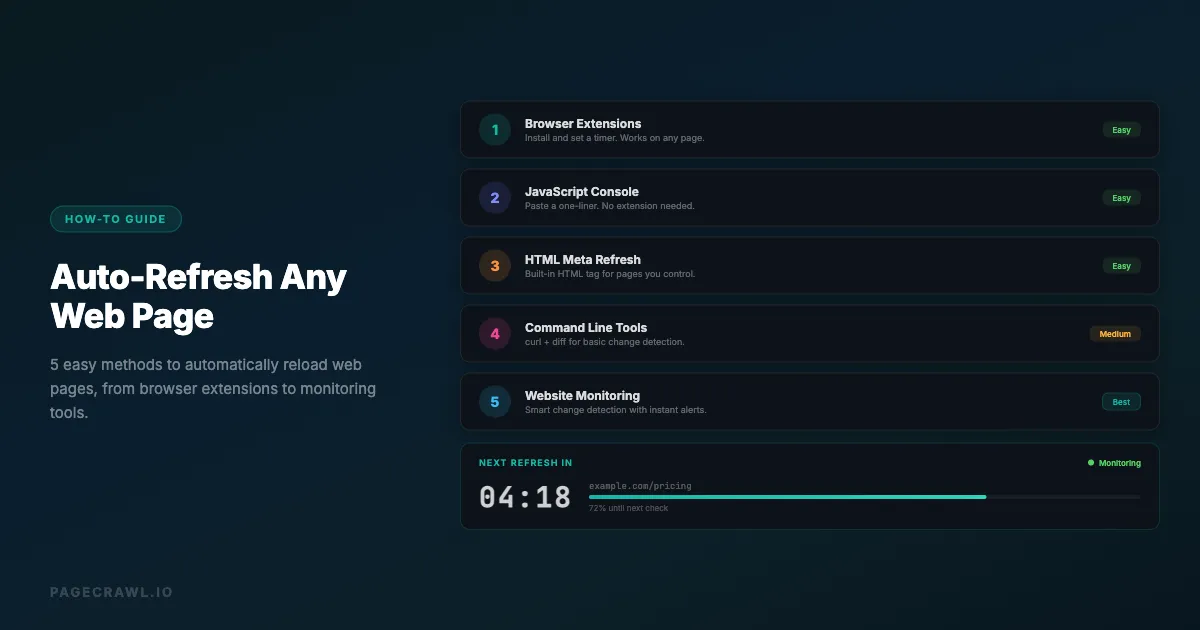
Auto-refreshing a web page means having it reload automatically at set intervals without you pressing anything. There are several ways to accomplish this, from simple browser features to dedicated monitoring tools that alert you when something actually changes.
This guide covers four methods, from the simplest (no setup required) to the most powerful (automated change detection with alerts), including a console script that pings you when a keyword appears.
Method 1: Browser Extensions
The simplest approach is a browser extension that reloads the current tab on a timer.
How It Works
Install an auto-refresh extension from the Chrome Web Store or Firefox Add-ons. Set the refresh interval (e.g., every 30 seconds, every 5 minutes), and the extension reloads the page automatically in the background.
Popular Extensions
For Chrome/Chromium browsers:
- Easy Auto Refresh: Simple timer-based refresh with customizable intervals
- Super Auto Refresh Plus: Supports multiple tabs with different intervals
- Tab Reloader: Lightweight extension with per-tab refresh settings
For Firefox:
- Tab Auto Refresh: Configurable per-tab auto-refresh
- Auto Refresh: Simple refresh timer with notification support
Setup Steps
- Install the extension from your browser's extension store
- Navigate to the page you want to auto-refresh
- Click the extension icon and set your refresh interval
- Leave the tab open
Pros
- Easy to set up, no technical knowledge required
- Works on any website
- Free to use
- Customizable refresh intervals
Cons
- Only works while the browser tab is open and your computer is running
- Consumes browser resources (memory, CPU) for each refreshing tab
- No notification when content actually changes, just continuous reloading
- May trigger anti-bot protections on some websites if the interval is too aggressive
- Cannot detect whether anything actually changed between refreshes
Method 2: JavaScript Console Watcher
A step up from blindly reloading: instead of refreshing the page and eyeballing it yourself, have the browser's developer console watch the page and alert you when a keyword appears or the text changes. No extension, no coding beyond a single paste.
The Code
Open Developer Tools (F12, or Cmd+Option+I on Mac), open the Console tab, edit the first two lines, and paste:
// Alert me when KEYWORD appears on this page (set KEYWORD = '' to alert on ANY text change).
const KEYWORD = 'in stock';   // the text to watch for
const EVERY = 60000;          // how often to check, in milliseconds (60000 = 60s)

Notification.requestPermission();
let previous = null;

setInterval(async () => {
  try {
    const html = await (await fetch(location.href, { cache: 'no-store' })).text();
    const text = new DOMParser().parseFromString(html, 'text/html').body.innerText;
    if (previous !== null) {
      const hit = KEYWORD
        ? text.includes(KEYWORD) && !previous.includes(KEYWORD)
        : text !== previous;
      if (hit) {
        const msg = KEYWORD ? `"${KEYWORD}" appeared on the page` : 'The page text changed';
        console.log('%c🔔 ' + msg, 'color:#2955c3;font-weight:bold');
        document.title = '🔔 ' + document.title.replace(/^🔔 /, '');
        if (Notification.permission === 'granted') new Notification('Page watch', { body: msg });
      }
    }
    previous = text;
  } catch (e) {
    console.warn('Check failed:', e.message);
  }
}, EVERY);
Set KEYWORD to the text you are waiting for ("In Stock", "Tickets available", "Approved"), or set it to an empty string ('') to be alerted on any change to the page text. When it triggers you get a browser notification, a bell in the tab title, and a line in the console. The first check just records a baseline, so alerts start from the next interval.
Stop the Watch
Reload the tab (Cmd/Ctrl+R) or close it, which clears the timer.
Pros
- No extension needed, one paste in the console
- Actually detects a keyword or text change instead of just reloading
- Alerts you with a browser notification and a tab-title bell
Cons
- Only runs while the tab is open and your computer is on
- Must re-paste every time you open the page
- Reads the server HTML, so it can miss content that is drawn in later by JavaScript
- One page at a time; for many pages or 24/7 watching, use a monitoring tool (Method 4)
Method 3: Command Line Tools
For technical users, command-line tools like curl provide auto-refresh capabilities with more control and the ability to run in the background without a browser.
Using watch (Linux; on macOS install it first with brew install watch)
The watch command runs any command repeatedly at a specified interval:
# Fetch a page every 30 seconds and display it
watch -n 30 curl -s https://example.com/status
Using curl in a Loop
# Check a page every 60 seconds, save the output
while true; do
  curl -s https://example.com/pricing > /tmp/page_content.txt
  echo "Checked at $(date)"
  sleep 60
done
Combining with diff for Change Detection
This is where command-line tools become more powerful than simple browser refresh. You can detect actual changes:
#!/bin/bash
# Check for changes every 5 minutes
URL="https://example.com/page"
PREV="/tmp/prev_content.txt"
CURR="/tmp/curr_content.txt"

curl -s "$URL" > "$PREV"

while true; do
  sleep 300
  curl -s "$URL" > "$CURR"
  if ! diff -q "$PREV" "$CURR" > /dev/null 2>&1; then
    echo "Change detected at $(date)!"
    # Add notification command here
  fi
  cp "$CURR" "$PREV"
done
Pros
- Runs without a browser
- Can detect actual changes, not just reload blindly
- Scriptable and automatable
- Low resource usage
Cons
- Requires command-line familiarity
- Only fetches raw HTML (misses JavaScript-rendered content)
- No visual rendering of the page
- Must run on a machine that stays on
- Building robust change detection from scratch takes effort
Method 4: Automated Website Monitoring
For serious use cases where you need reliable auto-refresh with actual change detection and alerts, a website monitoring tool is the most effective approach. For a full overview of how these tools work, see our guide to monitoring website changes. Instead of blindly reloading a page, monitoring tools check the page on a schedule, compare the content to the previous version, and alert you only when something actually changes.

How It Works
- You provide the URL you want to monitor
- The tool checks the page on your chosen schedule (every 15 minutes, hourly, daily)
- It compares the page content to the previous check
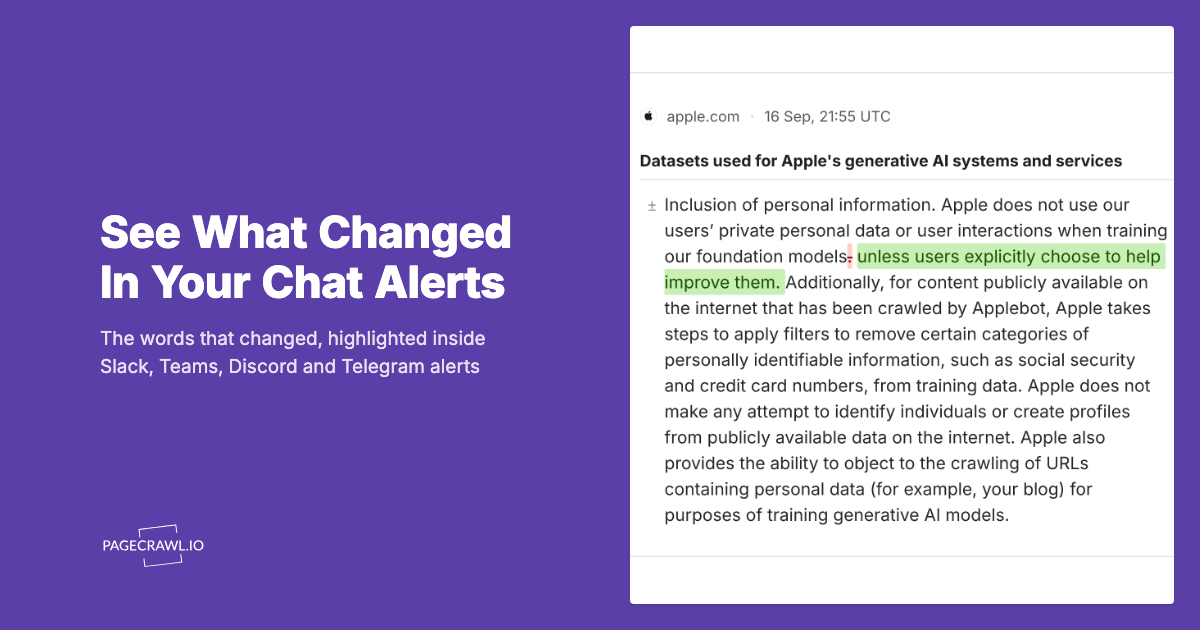
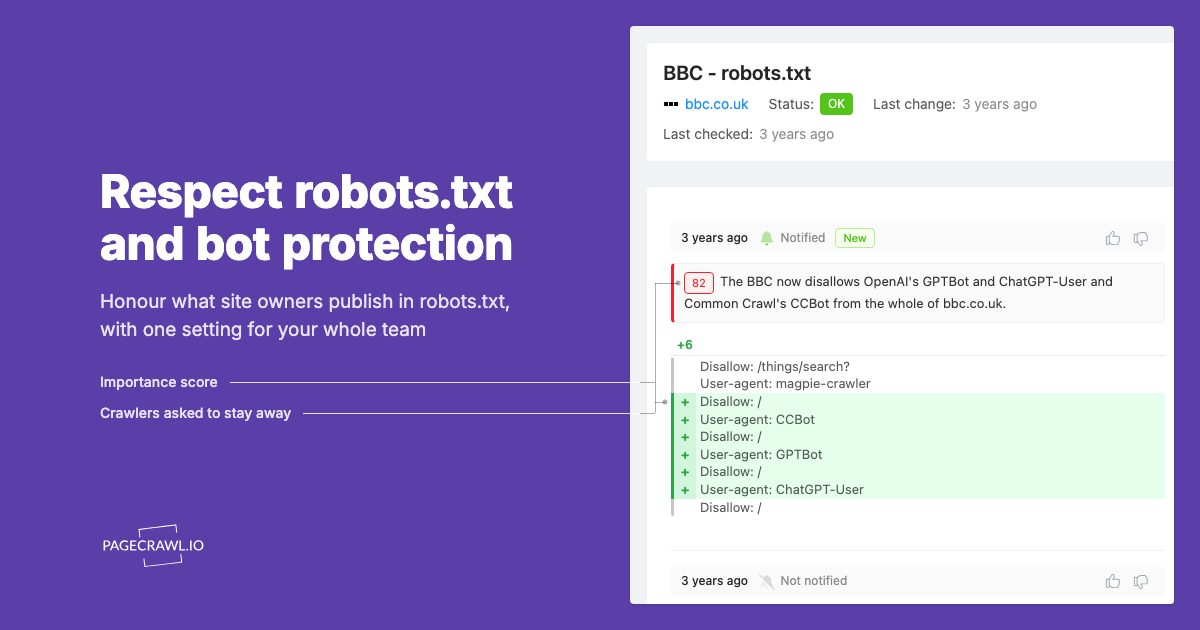
- If something changed, it sends you a notification (email, Slack, Discord, webhook)
- Optionally, it provides a summary of what changed
This approach solves the fundamental problem with the do-it-yourself methods above: instead of tying the watch to a browser tab on your own machine, it runs on a schedule in the cloud, renders JavaScript-heavy pages, tracks many URLs at once, and alerts you when a check detects a change, with no coding required.
Setting Up with PageCrawl
- Add the URL you want to monitor, either by pasting it or by saving the page with the bookmarklet that adds any page from your browser bar
- Choose what to track from the available tracked element types: full page text, a specific element (using CSS selector), or a visual screenshot
- Set the check frequency
- Configure your notification channels
- Optionally enable AI summaries to get a plain-language description of each change
Use Cases Where Monitoring Beats Auto-Refresh
Waiting for a product restock: Instead of refreshing the page every few minutes, set up a monitor that alerts you when the availability text changes from "Out of Stock" to "In Stock."
Tracking price changes: Monitor the price element on a product page. Get notified only when the price actually changes, not on every page reload.
Watching a competitor's website: Track changes to competitor pricing pages, feature lists, or blog posts. Get a summary of what changed.
Monitoring a government or regulatory page: Track policy pages, form updates, or announcement pages that change infrequently. Monitoring is far more efficient than manually refreshing daily.
Dashboard monitoring: If you need to keep an eye on an external dashboard or status page, monitoring with alerts lets you focus on other work and only check the page when something changes.
How do the four auto-refresh methods compare?
Browser extensions reload a tab without detecting changes, the console watcher adds keyword alerts while a tab stays open, command-line scripts add basic diffing on a machine you keep running, and a monitoring tool runs 24/7 in the cloud with real change detection and alerts.
| Method | Setup | Change Detection | Alerts | Works 24/7 | No Browser Needed |
|---|---|---|---|---|---|
| Browser Extension | Easy | No | No | No | No |
| Console Watcher | Easy | Keyword / text | Yes | No | No |
| Command Line | Medium | Basic | Custom | If server running | Yes |
| Monitoring Tool | Easy | Yes | Yes | Yes | Yes |
Which Method Should You Use?
Use a browser extension for short live-watching sessions, the console watcher when you are waiting for one keyword on one page, command-line tools for scriptable checks on a server, and a monitoring tool when you need round-the-clock change detection with alerts across multiple pages.
Use browser extensions when:
- You are watching a page in real time (sports scores, auction)
- You only need to monitor during your active browsing session
- You will be looking at the screen to spot changes yourself
Use the console watcher when:
- You are waiting for one page to show a specific keyword or to change at all
- You do not want to install an extension
- You will keep the tab open while you wait
Use command line tools when:
- You are technically comfortable with scripting
- You need basic change detection without a GUI
- You want to integrate with other command-line tools
Use a monitoring tool when:
- You need to know when a page changes, not just see it reload
- You cannot watch the screen constantly
- You want alerts on your phone, email, or Slack
- You need monitoring to run 24/7, even when your computer is off
- You are tracking changes across multiple pages
Optimizing Your Refresh Strategy
Choose the Right Interval
Refreshing too frequently wastes resources and may trigger anti-bot protections. Refreshing too rarely means you miss time-sensitive changes.
Guidelines:
- Real-time data (sports, stocks): 10-30 seconds with a browser extension
- Ticket sales or product restocks: 1-5 minutes with monitoring tool
- Competitor pricing: Every 1-4 hours with monitoring tool
- Policy or documentation pages: Daily or weekly with monitoring tool
- General awareness: Daily with monitoring tool
Avoid Getting Blocked
Aggressive auto-refreshing can trigger websites' anti-bot protections:
- Space refreshes at least 10-30 seconds apart for browser-based methods
- For monitoring tools, 15-minute intervals work well for most sites
- If you see CAPTCHA pages appearing with browser-based methods, increase the interval
- Some websites explicitly block rapid automated access in their terms of service
Reduce False Positives
If you are using a monitoring tool, you may get alerts for minor changes that do not matter (ad changes, timestamp updates, dynamic content). The complete guide to reducing false positive notifications covers the full toolkit, but the quickest wins are:
- Monitoring specific elements instead of the full page
- Using CSS selectors to target just the content you care about
- Setting change thresholds to ignore minor text differences
Common Auto-Refresh Scenarios
Keeping a Dashboard Updated
If you run a dashboard on a wall-mounted screen or kiosk, use a browser extension that reloads every 5 to 10 minutes with the screen always on. For dashboards you do not control, add the console watcher so you are alerted when the numbers actually move.
Monitoring Ticket Sales
Set up a monitoring tool to watch the ticket page starting a few days before the expected on-sale date, and the same approach covers event schedule monitoring when dates, venues, or line-ups shift. Use a 5-minute check frequency with Slack notifications. This way you get alerted as soon as a check detects the ticket link going live, even if you are away from your computer.
Watching for Website Updates
For pages that change infrequently (blog posts, documentation, changelog pages), where you mainly want to know when a page was last updated, use a monitoring tool with daily checks. You will get an email when the page updates, with a summary of what changed.
Tracking Multiple Pages
If you need to auto-refresh multiple pages, browser extensions become impractical (each tab uses memory and resources). A monitoring tool handles dozens or hundreds of URLs efficiently, checking them on schedule and alerting you only when changes occur.
Choosing your PageCrawl plan
PageCrawl's Free plan lets you monitor 6 pages with 220 checks per month, which is enough to validate the approach on your most critical pages. Most teams graduate to a paid plan once they see the value.
| Plan | Price | Pages | Checks / month | Frequency |
|---|---|---|---|---|
| Free | $0 | 6 | 220 | every 60 min |
| Standard | $8/mo or $80/yr | 100 | 15,000 | every 15 min |
| Enterprise | $30/mo or $300/yr | 500 | 100,000 | every 5 min |
| Ultimate | $99/mo or $999/yr | 1,000 | 100,000 | every 2 min |
Annual billing saves two months across every paid tier. Need more than 1,000 pages? Higher tiers scale up to 10,000 pages, all self-serve, no sales call or service agreement required.
For anyone who currently keeps browser tabs open and refreshes them by hand throughout the day, Standard at $80/year pays for itself in saved time within the first month. 100 monitored pages covers every live dashboard, stock ticker, or data feed you care about, and 15-minute check intervals mean you get notified of changes rather than discovering them by chance. Enterprise at $300/year brings checks down to every 5 minutes across 500 pages, which is the right level for high-frequency data like sports scores, auction countdowns, or inventory pages.
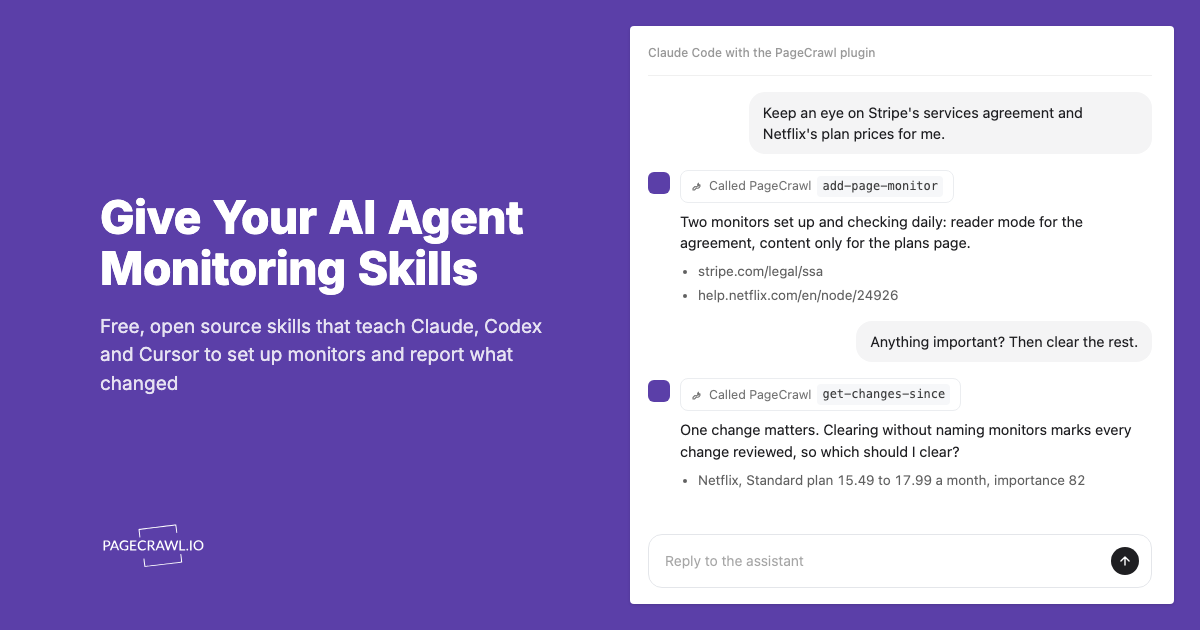
All plans include the PageCrawl MCP Server, so you can ask Claude to pull up the last 10 changes to a specific page and summarize what shifted, without leaving your AI tool to dig through notification history. AI assistants can create monitors through conversation on every plan, including Free.
Getting Started
For a quick, temporary auto-refresh: install a browser extension, or paste the console watcher to be alerted when a keyword appears or the page changes.
For reliable, ongoing monitoring with change detection and alerts: set up a monitoring tool. Several tools offer generous free plans; see our comparison of the best free website change monitoring tools. It takes about two minutes to add a URL, set your check frequency, and configure notifications. From that point on, you get alerted when the page actually changes, without needing to keep a browser tab open or manually refresh throughout the day.