Some of the most valuable content on the web lives behind login walls. Client portals, partner dashboards, internal wikis, vendor pricing pages, regulatory databases, and SaaS admin panels all require authentication to access. Standard website monitoring tools cannot see this content because they do not know how to log in.
Monitoring password-protected websites requires a tool that can automate the login process before checking for changes. If you are new to website monitoring, start with our complete guide to monitoring website changes for the fundamentals. This guide covers the techniques, tools, and best practices for monitoring content behind authentication.
Why Monitor Behind Logins?
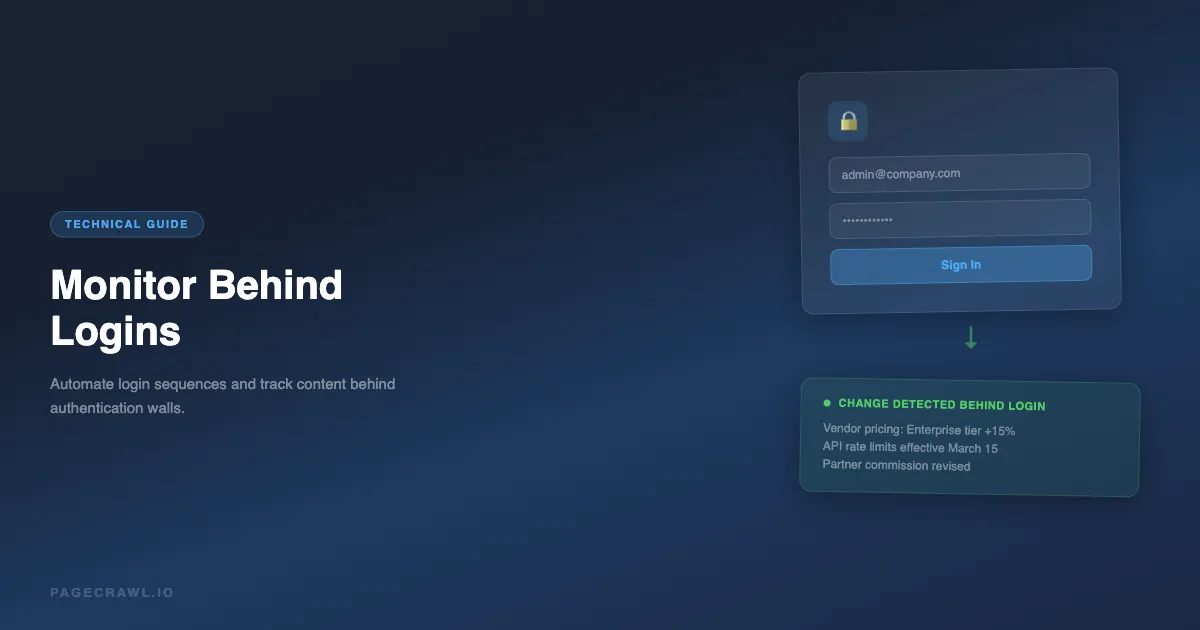
Because the pages worth watching are usually the ones a site keeps private. Prices, contract terms, partner tiers, filings, and system status often exist only inside an account, and nobody sends you a notice when they change. The pages that require authentication are often the ones that matter most:
- Vendor portals: Track pricing changes, contract terms, and product availability in your supplier's portal, the authenticated half of supplier and supply chain monitoring
- Client dashboards: Monitor data feeds, report updates, and system status in tools you depend on
- Partner programs: Watch for changes to commission rates, partner tiers, program requirements, and marketing materials
- Regulatory databases: Some regulatory filings and compliance databases require registration to access
- Internal tools: Monitor your own staging environments, admin dashboards, or internal wikis for unauthorized changes
- SaaS pricing: Some B2B tools only show actual pricing after you log into a demo or trial account
- Academic databases: Track research publications, journal updates, and grant listings behind institutional logins
- Government portals: Monitor procurement opportunities, permit statuses, and regulatory submissions
How does login-based monitoring work?
The monitoring tool signs in for you before it looks at the page. It runs a short series of automated actions that replicate the human login process, then loads the target URL and compares it to the previous capture, exactly as it would for a public page. Our help centre guide to monitoring password-protected pages walks through the same flow in the app.
The Login Sequence
A typical login sequence looks like this:
- Navigate to the login page
- Wait for the login form to load
- Fill the username/email field
- Fill the password field
- Click the login/submit button
- Wait for the redirect to complete
- Navigate to the target page you want to monitor
- Check the page content for changes
This login sequence runs whenever PageCrawl needs to sign in. Because PageCrawl saves and reuses the signed-in session between checks, it does not have to log in fresh on every check, only when the session expires.
Browser-Based Automation
This only works with tools that use a real browser engine. The login process involves rendering JavaScript, handling form validation, processing cookies, and following redirects. Simple HTTP-based monitoring tools cannot handle this.
PageCrawl uses a full browser engine to render pages, which means it can handle any login flow that works in a regular browser like Chrome: JavaScript-heavy login forms, logins that present a CAPTCHA challenge (paid plans can connect an optional third-party CAPTCHA-solving service to answer it), OAuth 2.0 redirects, multi-step wizards, and cookie-based sessions.
Setting Up Login Monitoring in PageCrawl
PageCrawl supports login sequences through its "Actions" system. Actions are automated steps that run before each page check, and the reference for browser actions you can automate before monitoring lists every available step type.

Basic Username/Password Login
For a standard login form with username and password fields:
- Add the target URL (the page you want to monitor after logging in)
- Open the Actions panel
- Add a "Navigate" action to go to the login page URL
- Add a "Fill" action for the username field:
- Selector: The CSS selector for the email/username input (e.g.,
input[name="email"],#username,input[type="email"]) - Value: Your username or email
- Selector: The CSS selector for the email/username input (e.g.,
- Add a "Fill" action for the password field:
- Selector: The CSS selector for the password input (e.g.,
input[name="password"],#password,input[type="password"]) - Value: Your password
- Selector: The CSS selector for the password input (e.g.,
- Add a "Click" action for the submit button:
- Selector: The CSS selector for the login button (e.g.,
button[type="submit"],.login-btn,#login-submit)
- Selector: The CSS selector for the login button (e.g.,
- Add a "Wait" action to wait for the page to load after login (2-5 seconds is usually sufficient)
The monitor will then check the original target URL for changes after completing the login sequence.
Finding CSS Selectors
To find the right CSS selectors for form fields:
- Open the login page in your browser
- Right-click on the username field and select "Inspect"
- Look for identifying attributes:
idattribute: Use#the-id(e.g.,#email-input)nameattribute: Useinput[name="the-name"](e.g.,input[name="email"])typeattribute: Useinput[type="email"]orinput[type="password"]classattribute: Use.the-class(e.g.,.login-email)placeholderattribute: Useinput[placeholder="Enter email"]
The most reliable selectors use id or name attributes, as these rarely change. Avoid selectors based on class names that look auto-generated (e.g., .css-1a2b3c), as these change when the site rebuilds. For a thorough overview of selector strategies, see our CSS selector guide for web monitoring.
Handling Multi-Step Logins
Some login flows use multiple pages or steps:
Step 1: Enter email, click "Next" Step 2: Enter password, click "Sign In"
For these, chain the actions:
- Navigate to login page
- Fill email field
- Click "Next" button
- Wait 2-3 seconds for the password step to load
- Fill password field
- Click "Sign In" button
- Wait for redirect
Handling Cookie Consent Banners
Many sites show a cookie consent banner that can interfere with the login form. Add a "Click" action to dismiss the cookie banner before attempting to fill the login form:
- Click cookie accept button (e.g.,
button.cookie-accept,#accept-cookies) - Wait 1 second
- Then proceed with login steps
PageCrawl's built-in "Remove Cookies" and "Remove Overlays" actions can also handle this automatically without manual configuration.
Handling "Remember Me" Checkboxes
If the login form has a "Remember Me" checkbox and you want to check it:
- Add a "Click" action targeting the checkbox (e.g.,
input[name="remember"],#remember-me) - Place this before the submit button click
This is optional and usually not necessary, since PageCrawl saves and reuses its own signed-in session between checks regardless.
Common Login Patterns and How to Handle Them
Basic Form (Most Common)
Navigate to: [your login page URL]
Fill: input[name="email"] -> your@email.com
Fill: input[name="password"] -> yourpassword
Click: button[type="submit"]
Wait: 3 seconds
This covers the majority of login forms (WordPress, SaaS apps, custom web applications).
HTTP Basic Authentication
Some sites use HTTP Basic Auth (the browser popup asking for username/password). PageCrawl supports this through HTTP authentication settings rather than form-filling actions. Enter the username and password in the authentication section of the monitor settings.
Emailed One-Time Login Codes
Plenty of sites email you a one-time code at sign-in and ask you to enter it before you reach the page. PageCrawl can now complete this step for you and keep monitoring the page behind it. When the site sends a code, PageCrawl picks it up, enters it, and continues the check.
There is just one setup step. You give PageCrawl the login-code emails to read, in one of two ways:
- Add a forwarding rule in your inbox so specific login-code email is forwarded to an address PageCrawl gives you.
- Or set the site account's email to that address directly, so the codes arrive there in the first place.
Because PageCrawl reuses your signed-in session between checks, the code step only comes up occasionally (the first sign-in, or when the session expires), not on every single check. Most checks run without ever needing a code.
Note: This is available on paid plans, alongside the other authenticated monitoring features. It works for sites that email a code, and PageCrawl also handles authenticator-app codes (TOTP from Google Authenticator, Authy, or 1Password). It cannot handle physical security keys or codes sent by SMS text message.
OAuth / SSO Logins ("Sign in with Google")
OAuth flows redirect through a third-party provider (Google, Microsoft, GitHub). These are more complex to automate:
- Click "Sign in with Google" on the target site
- Google's login page loads
- Fill email, click Next
- Fill password, click Next
- Handle any consent screens
- Redirect back to the target site
This requires more actions in the sequence, and Google specifically may challenge automated logins with additional verification. Where possible, use a direct username/password login instead of OAuth.
Single Sign-On (Enterprise SSO)
Enterprise SSO systems (Okta, Azure AD, Auth0) redirect through a corporate identity provider. The action sequence needs to handle the redirect:
- Navigate to the target app's login page
- The app redirects to the SSO provider
- Fill credentials on the SSO page
- The SSO provider redirects back to the app
- Wait for the final page to load
Add appropriate wait times between steps to account for redirects.
How do you keep monitoring credentials secure?
Use a dedicated, read-only account with a unique strong password, review what that account can reach, and watch its activity in the target system's audit log. The principle is least privilege, the same idea documented across the OWASP security guidance. Storing login credentials in a monitoring tool requires careful security consideration on both sides, so read how PageCrawl secures your data alongside these account practices:
Use Dedicated Monitoring Accounts
Create a separate account specifically for monitoring, with minimal permissions (read-only if possible). Do not use your personal admin account.
Benefits:
- You can track monitoring access separately in the target system's audit logs
- You can revoke access without affecting your personal account
- The account can have 2FA disabled safely if it only has read access
Use Strong, Unique Passwords
Generate a unique, strong password for the monitoring account. Do not reuse passwords from other services.
Review Permissions
The monitoring account should have the minimum permissions needed to view the content you want to track. It should not have write, delete, or admin access.
Monitor the Monitoring Account
Keep an eye on the activity of your monitoring account in the target system's audit logs. Unusual access patterns could indicate a problem.
Understand the Terms of Service
Some services prohibit automated access in their terms of service. Review the ToS of any service you plan to monitor, especially if you are monitoring a competitor's platform.
Real-World Use Cases
Monitoring Vendor Pricing Portals
A procurement team monitors their vendors' B2B pricing portals to catch price increases early. They set up login monitoring on 12 vendor portals, checking daily. When a vendor updates pricing, the team gets a Slack notification with the AI summary of what changed, giving them time to negotiate or find alternatives before the new prices take effect.
Tracking Regulatory Database Updates
A compliance team monitors state regulatory databases that require registration to access. New filings and rule changes are posted behind the login. Daily monitoring with AI summaries flags which updates are relevant to their industry, reducing the manual review time from hours to minutes.
Monitoring Partner Program Changes
A partnerships team tracks changes to three technology partner programs. Commission structures, tier requirements, and program benefits are all behind partner portal logins. Weekly monitoring catches changes before the quarterly business review, keeping the team prepared.
Choosing your PageCrawl plan
PageCrawl's Free plan lets you monitor 6 pages with 220 checks per month, which is enough to validate the approach on your most critical pages. Most teams graduate to a paid plan once they see the value.
| Plan | Price | Pages | Checks / month | Frequency |
|---|---|---|---|---|
| Free | $0 | 6 | 220 | every 60 min |
| Standard | $8/mo or $80/yr | 100 | 15,000 | every 15 min |
| Enterprise | $30/mo or $300/yr | 500 | 100,000 | every 5 min |
| Ultimate | $99/mo or $999/yr | 1,000 | 100,000 | every 2 min |
Annual billing saves two months across every paid tier. Enterprise and Ultimate scale up to 100x if you need thousands of pages or multi-team access.
Standard at $80/year pays for itself the first time it catches a vendor portal price increase or a partner program commission cut before your next quarterly review. 100 pages is enough to cover authenticated portals across 20 to 30 vendors, each with its own login sequence. Enterprise at $300/year adds higher check frequency and 500 pages. All plans include the PageCrawl MCP Server, which lets you ask an MCP-compatible tool like Claude or Cursor "what changed in my vendor portals this week?" and get a summary drawn directly from your monitoring history rather than manually logging in to check each one. AI assistants can create monitors through conversation on every plan, including Free.
Proving the login works before you trust it
Everything above assumes the sign-in succeeds. It is worth confirming that once rather than assuming it, because a rejected password returns a perfectly normal-looking login page rather than an error. A guided setup now signs in for real and reports each step, so you can see the sign-in reach the account before you rely on it. See how to test a website login before you rely on it.
Getting Started
Set up your first authenticated monitor and stop manually logging in to check for updates.