A compliance officer at a financial services firm monitors 47 regulatory websites for policy changes. Each morning, she opens her inbox to find a neatly organized set of email alerts from the previous 24 hours: three changes flagged as high importance, twelve routine updates summarized in a single digest, and zero noise from minor formatting tweaks that do not affect her work. She spends 15 minutes reviewing the alerts, flags two items for her legal team, and moves on to the rest of her day.
That level of precision did not happen by accident. It took deliberate configuration of email alert filters, importance thresholds, and digest schedules. Without that setup, the same monitoring would produce dozens of daily emails, many irrelevant, making it easy to miss the few that actually matter.
Email remains the most universal notification channel for website monitoring. Everyone has email. Every organization runs on email. Email is searchable, archivable, forwardable, and integrated with virtually every workflow tool. But email alerts only work when they are configured to deliver the right information at the right frequency with the right level of detail.
This guide covers how to set up email alerts for website changes in PageCrawl, how to use filters and digests to manage alert volume, and how to configure alerts that deliver actionable information without overwhelming your inbox.
Why do email alerts still matter?
Email alerts still matter because they are universal, searchable, and asynchronous. Everyone you work with has an address, every alert becomes a permanent record you can search months later, and email suits the many changes you need to know about without dropping what you are doing. Chat channels scroll away; email persists.
Universal Accessibility
Email works across every device, operating system, and organization. You do not need to install an app, join a server, or configure a webhook. Every person you work with has an email address. When you need to share monitoring alerts with colleagues, clients, or stakeholders, email is the one channel you can guarantee they have access to.
Searchable Archive
Email creates a permanent, searchable record of every change detected. Six months from now, when someone asks "when did that regulatory page last change?", you can search your email and find the alert with the timestamp, the description of the change, and the link to the full diff. Real-time channels like Slack scroll away. Email persists.
Integration with Existing Workflows
Most professionals already organize their work through email. Filtering rules, labels, folders, and priority inboxes are built-in tools that millions of people already use. Email alerts plug into workflows that already exist rather than requiring new habits or new tools.
Asynchronous by Design
Not every website change demands immediate action. Many changes are informational: a competitor updated their pricing page, a vendor changed their terms, a government agency published new guidance. Email is the appropriate channel for changes where you need to know, but not right now. For time-critical alerts, pair email with faster channels like Telegram or Slack. For comprehensive guidance on Slack integration, see our guide on website change alerts in Slack.
Setting Up Email Alerts in PageCrawl
PageCrawl sends email notifications by default when a check detects a change on a monitored page. Here is how the system works and how to configure it for your needs, and the help centre has a walkthrough of email notification settings and what each alert contains.

Default Email Behavior
When you create a monitor in PageCrawl and enable notifications, email alerts are sent to your account email address on the check that detects a change. Checks run as often as every 2 minutes on paid plans and hourly on the free plan, so the alert follows the change by roughly one check interval. The default email includes:
- The monitor name and URL
- A summary of what changed (AI-generated description)
- A link to view the full change diff in PageCrawl
- A screenshot of the current page state (if screenshot capture is enabled)
- The timestamp of when the change was detected
This default behavior works well for simple monitoring setups with a handful of monitors. As you add more monitors, you need filters and configuration to keep alerts manageable.
Per-Monitor Email Settings
Each monitor in PageCrawl has its own notification settings. You can enable or disable email alerts on a per-monitor basis, which lets you use email for some monitors and other channels for others.
For each monitor, you can configure:
Notification on/off. Disable email for monitors where you only want Slack or webhook notifications.
AI summary inclusion. Choose whether the email includes an AI-powered summary of the change. Summaries add context but increase email length. For monitors where you always want to click through to see the full diff, disabling summaries keeps emails shorter.
Screenshot attachment. Include a screenshot of the changed page in the email. Screenshots provide immediate visual context, but increase email size. Enable screenshots for visual monitoring (design changes, layout tracking) and disable them for text-only content monitoring.
Multiple Email Recipients
If you need alerts sent to multiple people, you have several options:
Team workspace. PageCrawl workspaces allow multiple team members, each receiving their own notification preferences. Team members can individually choose which monitors they receive emails for.
Email forwarding rules. Use your email client's forwarding rules to send PageCrawl alerts to distribution lists, shared inboxes, or specific colleagues. This works with any email provider and does not require additional PageCrawl configuration.
Webhook to email. For advanced routing, use PageCrawl webhooks to trigger email sends through your own email system (SendGrid, Mailgun, or similar). This gives you full control over formatting, recipient lists, and conditional routing.
Smart Filtering to Reduce Noise
The biggest challenge with email alerts is noise. If every minor change triggers an email, important changes get buried in a flood of irrelevant notifications. PageCrawl provides several filtering mechanisms to ensure you only receive emails for changes that matter, all configured per page under notification conditions and filters.
Importance Thresholds
PageCrawl assigns an importance level to each detected change based on the magnitude and nature of the change. You can set a minimum importance threshold for email notifications:
High importance only. Receive emails only for significant changes: large content additions or removals, price changes above a certain percentage, availability status changes, custody-status changes on public records pages, or structural page modifications. Minor changes (timestamp updates, ad rotation, small text tweaks) are suppressed.
Medium and above. A balanced setting that catches substantive changes while filtering out trivial ones. This works well for most monitoring use cases.
All changes. Every detected change triggers an email. Use this for critical monitors where even minor changes matter (legal documents, compliance pages, contract terms).
Choose the threshold based on the purpose of each monitor. Regulatory compliance monitoring might warrant "all changes," while competitor website monitoring might work best with "high importance only."
PageCrawl's AI importance scoring goes beyond simple change-size thresholds. It analyzes the content of each change and assigns an importance level based on what actually changed, not just how much text moved. A one-line price change on a competitor's page scores higher than a paragraph of boilerplate being reformatted. This means your email alerts surface the changes that matter to your business, even when the raw diff is small, and suppress the ones that do not, even when the diff is large.
Keyword Filters
Keyword filters let you receive emails only when specific words or phrases appear in the change. This is useful for targeted monitoring.
Examples:
- Monitor a competitor's product page, even one that sometimes returns 403 access-denied errors, but only get emailed when the word "price" or "discount" appears in the change
- Monitor a government agency page, but only receive alerts when changes mention your industry or specific regulation numbers
- Monitor a job board or career page for new and removed listings, but only get notified when listings contain specific job titles or skills
Keyword filters work with the change content, not the entire page. If a page changes and the changed portion contains your keyword, you get the alert. If the change does not involve your keyword, the email is suppressed (though the change is still recorded in PageCrawl for later review).
Change Size Filters
Sometimes the best indicator of importance is the size of the change. A single-word edit is rarely important. A paragraph-level addition or removal usually is.
Change size filters let you set a minimum change magnitude (measured in characters or percentage of page content) below which emails are not sent. This effectively filters out:
- Timestamp or date updates
- Minor formatting changes
- Ad content rotation
- Session-specific dynamic content
- Tiny text corrections
For content-heavy pages where you care about substantive updates but not minor edits, change size filters dramatically reduce noise.
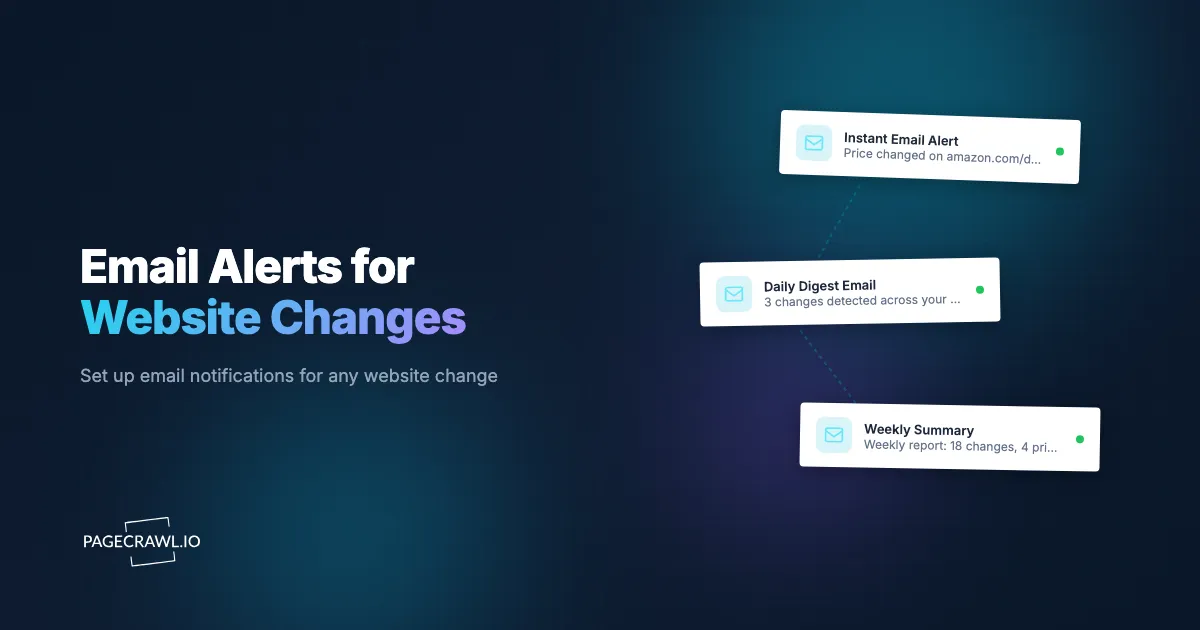
Should you use daily digests or per-change alerts?
Use per-change emails for a small set of time-sensitive monitors and daily digests for everything else. A per-change email goes out on the check that detects the change, while a digest bundles the last 24 hours into one message. Most people end up combining the two.
When to Use Per-Change Alerts
Per-change alerts make sense when:
Time sensitivity matters. If you need to act on changes quickly (stock availability, pricing changes, regulatory deadlines), a per-change alert reaches you on the check that spots the change instead of waiting for the next digest.
Low volume monitors. If you only have a few monitors and changes are infrequent, per-change alerts do not create volume problems. You might receive a handful of emails per week.
Critical individual monitors. Even if most monitors use digests, certain high-priority monitors (a key competitor, a critical regulatory page, a vendor SLA page) might warrant per-change delivery on a short check interval.
When to Use Daily Digests
Daily digests are better when:
High monitor volume. If you monitor dozens or hundreds of pages, a separate email for each change quickly overwhelms your inbox. A daily digest condenses everything into one email you can review in a few minutes.
Informational monitoring. When changes are "good to know" rather than "need to act now," a daily summary is more efficient than individual alerts interrupting your workflow.
Team reporting. Daily digests work well for sharing monitoring summaries with managers or stakeholders who want visibility without granularity.
Noise reduction. For pages that change frequently (news sites, social media pages, dynamic content), a daily digest that summarizes the day's changes is vastly more useful than 20 individual emails.
Combining Both
The most effective approach for many users is combining per-change alerts for a few critical monitors with daily digests for everything else. This ensures urgency for the monitors that demand it while keeping overall email volume manageable.
For example, a pricing analyst might configure:
- Per-change alerts on a short check interval for the top 5 competitor product pages (price changes require same-day response)
- Daily digest for 50 secondary competitor pages (important trends but not time-critical)
- No email for informational monitors (industry news pages reviewed directly in the PageCrawl dashboard)
Email Formatting for Readability
The usefulness of an email alert depends partly on how quickly you can parse it. PageCrawl formats emails to surface the most important information first.
AI Change Summaries
Every email alert includes an AI-generated summary of what changed on the page. Instead of raw diff output (lines added, lines removed), the summary describes the change in plain language:
- "The price for Product X was reduced from $149 to $129"
- "A new section was added describing updated return policies"
- "The hiring page now lists 3 new engineering positions"
- "The SEC filing page shows a new 8-K filing dated March 15"
These summaries let you assess the importance of a change without clicking through to the full diff. For many alerts, the summary is all you need.
Change Highlights
For text-based monitoring, email alerts highlight the specific content that was added or removed. Added content appears in green, removed content in red (in email clients that support HTML formatting). This visual formatting lets you scan changes quickly.
Screenshot Previews
When screenshot capture is enabled, the email includes a visual snapshot of the page as it appeared when the change was detected. Screenshots are particularly useful for:
- Design and layout monitoring (visual changes that text diffs cannot capture)
- Availability monitoring (seeing the actual product page state)
- Evidence collection (timestamped visual proof of page content)
Screenshots increase email size, which matters if you receive many alerts. Enable screenshots selectively for monitors where visual context adds value.
Action Links
Every alert email includes direct links to:
- View the full diff in PageCrawl (side-by-side comparison of old and new content)
- View the live page (go directly to the monitored URL)
- Manage the monitor's settings (adjust frequency, filters, or notifications)
- Mark the change as reviewed (clear it from your unread changes list)
These links reduce the friction between receiving an alert and taking action on it.
Managing Email Alerts at Scale
When monitoring hundreds of pages, email management becomes a workflow challenge in itself. Here are strategies for keeping alerts organized and actionable.
Email Client Organization
Dedicated folder or label. Create a folder (Outlook) or label (Gmail) specifically for PageCrawl alerts. Use email rules to automatically file incoming alerts. This keeps monitoring emails separate from your regular inbox and allows batch processing.
Priority flagging. Configure email rules to flag alerts from specific monitors as important. If your email client supports it, create rules based on the monitor name or keywords in the subject line to surface critical alerts.
Color coding. Some email clients allow color-coded labels or categories. Use different colors for different monitoring categories: red for competitors, blue for regulatory, green for pricing, and so on.
Processing Workflow
Develop a consistent routine for processing monitoring emails:
Morning review. Start each day by reviewing overnight digests and any per-change alerts that arrived. Triage changes into three categories: requires immediate action, requires review this week, informational only.
Quick scan technique. Read the AI summary first. If the summary indicates a relevant change, click through to the full diff. If not, move to the next alert. This approach lets you process dozens of alerts in minutes.
Batch processing. For daily digests, set aside a dedicated 15-30 minute block to review all changes. Processing alerts in a batch is more efficient than responding to each one individually throughout the day.
Delegation. Forward relevant alerts to the person best positioned to act on them. A pricing change goes to the pricing team, a competitor product update goes to product management, a regulatory change goes to compliance.
Reducing Volume Without Missing Changes
If you are receiving too many emails, adjust these settings before disabling email entirely:
Increase importance thresholds. Switch from "all changes" to "medium importance and above." On noisy pages this single setting usually removes the bulk of the low-value alerts.
Switch to digests. Move non-critical monitors from per-change to daily digest delivery. One email per day replaces dozens.
Add keyword filters. If certain monitors generate changes you do not care about, add keyword filters to restrict alerts to relevant changes only.
Adjust check frequency. Less frequent checks mean fewer detected changes. If a page changes multiple times per day but you only need to know once, reducing check frequency from hourly to daily reduces alerts.
Use the dashboard for browse monitoring. Not every monitor needs email. For monitors you review manually in the PageCrawl dashboard, disable email entirely and use the dashboard's unread changes indicator instead.
Combining Email with Other Channels
Email works best as part of a multi-channel notification strategy. Different channels serve different purposes.
Escalation Patterns
A common pattern is to use email as the default channel and escalate to faster channels for specific conditions:
Tier 1: Email digest. All changes, delivered daily. This creates a comprehensive record and a daily review touchpoint.
Tier 2: Per-change email. Important changes, sent on the check that detects them. The change is significant enough to warrant interrupting your workflow, but not so urgent that it requires a push notification.
Tier 3: Push notification. Critical changes where minutes matter. Stock availability, competitor price drops, or regulatory deadlines. Push channels such as Telegram or web push notifications reach you as soon as a check detects the change, even when you are not looking at email.
Tier 4: Webhook automation. Changes that should trigger automated workflows without human intervention. Price changes that update a spreadsheet, competitor updates that create tasks in a project management tool, or regulatory changes that file tickets in a compliance system. For webhook setup details, see our guide on webhook automation for website changes.
Channel Selection by Use Case
Competitor monitoring. Email digest for routine tracking. Per-change email for major changes (new products, significant pricing shifts). Push notification for time-sensitive competitive moves.
Regulatory compliance. Per-change email for all changes (regulatory changes are rarely trivial). Webhook to compliance tracking system for audit trail. Slack notification to the compliance team channel.
Price monitoring. Push notification for price drops on products you want to buy, including local gas and fuel prices. Email digest for competitive pricing intelligence. Webhook to pricing database for automated analysis.
Content monitoring. Email digest for tracked publications, blogs and knowledge bases. Per-change email for specific high-value pages. No email needed for informational monitoring reviewed in the dashboard.
For a comprehensive overview of all monitoring approaches, see our guide on monitoring changes in websites.
Why are my email alerts not arriving?
Four causes explain almost every missing alert: a spam filter or corporate gateway quarantined the message, your provider throttled a burst of automated mail, notifications are switched off globally or on that specific monitor, or an importance threshold or keyword filter is suppressing the change. Work through them in that order.
Spam Filters
Automated monitoring emails can trigger spam filters, especially in corporate email environments. If alerts are going to spam:
- Add PageCrawl's sending address to your email contacts or safe sender list
- Create an email rule that prevents PageCrawl emails from being marked as spam
- Check your organization's email gateway settings (ask IT to whitelist PageCrawl's sending domain)
- Check the spam/junk folder regularly during initial setup to catch any misdirected alerts
Email Client Throttling
Some email providers throttle notifications from automated systems. If you are receiving large batches of per-change alerts, some may be delayed or grouped by your email provider. Switching to daily digests avoids this issue for high-volume monitoring.
Notification Settings in PageCrawl
If you are not receiving emails at all:
- Verify that email notifications are enabled globally in your PageCrawl account settings
- Check per-monitor notification settings to ensure email is enabled for the specific monitors
- Confirm your email address is correct in your account profile
- Check that importance thresholds and keyword filters are not inadvertently suppressing all alerts
- Test by manually triggering a check on a monitor and verifying the email arrives
Corporate Email Restrictions
Some organizations block external automated emails. If your corporate email blocks PageCrawl alerts:
- Use a personal email address for monitoring alerts and forward relevant ones to your work email
- Use webhook integration to route alerts through your organization's approved email system
- Ask IT to create an exception for PageCrawl's sending domain
Practical Email Alert Configurations
Here are ready-to-use configurations for common monitoring scenarios.
Small Business Competitor Monitoring
- 5-10 monitors tracking competitor pricing and product pages
- Per-change email for all changes (low volume, every change matters)
- Screenshots enabled for visual comparison
- AI summaries enabled for quick scanning
PageCrawl's free plan includes 6 monitors, enough for a small business to track key competitor pages with email alerts.
Enterprise Regulatory Monitoring
- 50-200 monitors across regulatory agency pages
- Daily digest for routine changes
- Per-change email for high-importance changes only
- Keyword filters for industry-specific terms
- Webhook integration with compliance tracking system
The Standard plan at $80/year supports 100 monitors. The Enterprise plan at $300/year supports 500 monitors, covering comprehensive multi-jurisdiction regulatory monitoring.
E-commerce Price Tracking
- 20-100 monitors on competitor product pages
- Price tracking mode for automated price extraction
- Per-change email for price drops below specific thresholds
- Daily digest for general price movement tracking
- Screenshots disabled (price data is more useful than page visuals)
For more on price tracking setup, see our guide on competitor price monitoring for ecommerce.
Personal Use
- 3-6 monitors for products, job listings, or pages of interest
- Per-change email for all changes
- AI summaries for quick reading
- Screenshots enabled for visual changes
- No filtering needed at low volume
Choosing your PageCrawl plan
PageCrawl's Free plan lets you monitor 6 pages with 220 checks per month, which is enough to validate the approach on your most critical pages. Most teams graduate to a paid plan once they see the value.
| Plan | Price | Pages | Checks / month | Frequency |
|---|---|---|---|---|
| Free | $0 | 6 | 220 | every 60 min |
| Standard | $8/mo or $80/yr | 100 | 15,000 | every 15 min |
| Enterprise | $30/mo or $300/yr | 500 | 100,000 | every 5 min |
| Ultimate | $99/mo or $999/yr | 1,000 | 100,000 | every 2 min |
Annual billing saves two months across every paid tier. Enterprise and Ultimate scale up to 100x if you need thousands of pages or multi-team access.
Standard at $80/year pays for itself the first time a timely email alert lets you act on something you would otherwise have caught days late, whether that is a price drop, a policy update, or a competitor announcement. 100 pages is enough to cover every high-priority source most individuals or small teams actually need to follow. Enterprise at $300/year extends to 500 pages with 5-minute checks and timestamped screenshots for teams that need deeper coverage.
All plans include the PageCrawl MCP Server, which connects your monitoring history to Claude and other MCP-compatible tools so you can ask "what changed on this page last week?" and get the answer directly from your archive rather than digging through an inbox. AI assistants can create monitors through conversation on every plan, including Free.
Getting Started
Set up your first email alert in under two minutes. Create a free account, add the URL you want to monitor, and email notifications are enabled by default. Your first change detection email will arrive the next time the page changes. From there, adjust importance thresholds, switch to digests, or add keyword filters as your monitoring needs evolve. PageCrawl's free plan includes 6 monitors with full email alert functionality.