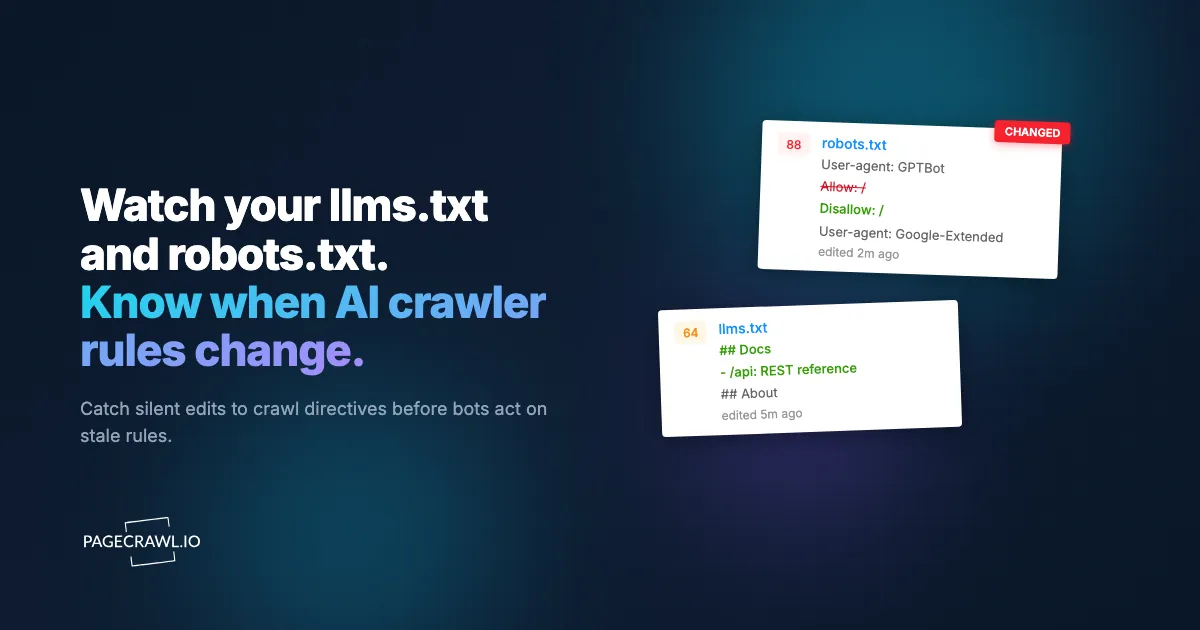
A single line in a config file decides whether ChatGPT, Claude, and Perplexity can read your content. One day GPTBot is allowed and your pages show up in AI answers. The next day a developer adds Disallow: / for User-agent: GPTBot during a "let's lock things down" cleanup, and your brand quietly disappears from AI search results. Nobody gets an alert, because nothing on the visible site changed.
The reverse happens too. A competitor who used to block every AI crawler suddenly opens up GPTBot and ClaudeBot, betting on visibility in AI answers. That is a strategic signal, and it shows up only in a file most people never look at: robots.txt. The newer llms.txt standard adds another layer, a curated map of your most important content written specifically for large language models.
This guide covers how to monitor your own llms.txt and robots.txt for accidental changes, how to track competitor AI crawler policies as a GEO and AEO signal, and how to set up diff alerts so you find out on the first check after an AI crawler is allowed or blocked.
Why does AI crawler access matter now?
Because access control sits upstream of every other AI-visibility tactic: if a crawler cannot fetch your pages, no amount of content work puts you in an AI answer. Generative Engine Optimization (GEO) and Answer Engine Optimization (AEO) are about being visible inside AI answers, not just on a search results page, and neither works if robots.txt shuts the door on the crawler that feeds ChatGPT or Perplexity.
One File Controls Your AI Visibility
robots.txt is the gatekeeper, and the robots exclusion protocol it implements is the same decades-old convention search engines have followed all along. Major AI companies publish named user agents that respect it: OpenAI's GPTBot, Anthropic's ClaudeBot, Google's Google-Extended, and Perplexity's PerplexityBot. A rule for any of these can flip your content from indexable to invisible for that platform. Because the file is plain text and rarely reviewed, mistakes ship silently and stay live for months.
Accidental Blocks Are Common
The most frequent failure is collateral damage. A team blocks a misbehaving scraper, copies an overly broad Disallow from a Stack Overflow answer, or migrates a CMS that ships a default robots.txt, and an AI crawler gets caught in the blast radius. Without monitoring, the first sign is a slow decline in referral traffic from AI tools that you cannot easily attribute to anything.
Competitor Policy Is a Strategy Signal
Whether a competitor allows or blocks AI crawlers tells you how they are playing the AI search game. A competitor who opens up GPTBot and publishes a detailed llms.txt is investing in AI visibility. One who blocks everything is either protecting content or has not noticed the shift yet. Tracking these files across your competitive set is a cheap competitive intelligence signal, similar to tracking competitor websites for pricing and positioning.
llms.txt Is an Emerging Standard
llms.txt is a Markdown file at your site root that points language models to your highest-value content, with clean links and short descriptions. It is not enforced the way robots.txt is, but adoption is growing, and the contents reveal what a company considers its canonical, AI-facing material. Changes to it signal product launches, repositioning, and new documentation worth watching.
What is inside robots.txt and llms.txt?
robots.txt holds per-user-agent allow and disallow rules, which is where AI crawler access is granted or revoked. llms.txt holds a curated Markdown map of a site's most important pages, written for language models. One is a gate, the other is a guide, and both are plain text at a fixed path.
robots.txt for AI Crawlers
robots.txt lives at https://example.com/robots.txt. AI access is controlled by user-agent blocks. A site that allows search indexing but blocks AI training might look like this:
User-agent: GPTBot
Disallow: /

User-agent: ClaudeBot
Disallow: /

User-agent: Google-Extended
Disallow: /

User-agent: PerplexityBot
Disallow: /

User-agent: *
Allow: /
A site that wants maximum AI visibility allows them explicitly or simply omits any disallow:
User-agent: GPTBot
Allow: /

User-agent: ClaudeBot
Allow: /
The crawlers worth watching:
| Bot | Operator | Purpose |
|---|---|---|
| GPTBot | OpenAI | Crawls content for model training and ChatGPT browsing |
| OAI-SearchBot | OpenAI | Powers ChatGPT search results |
| ChatGPT-User | OpenAI | Fetches pages a user references in a prompt |
| ClaudeBot | Anthropic | Crawls content for Claude |
| Google-Extended | Controls use in Gemini and AI features (separate from Googlebot) | |
| PerplexityBot | Perplexity | Indexes content for Perplexity answers |
| Applebot-Extended | Apple | Controls use in Apple Intelligence |
| CCBot | Common Crawl | Open dataset many models train on |
| Bytespider | ByteDance | Crawls content for ByteDance AI products |
Note: Google-Extended only governs AI use. Blocking it does not remove you from regular Google Search, which still uses Googlebot. Mixing those up is a common and expensive mistake.
Fetchers that act on a person's request, like ChatGPT-User, are a grey area, because each operator decides whether robots.txt applies to them; whether website monitoring should respect robots.txt compares their positions.
llms.txt and llms-full.txt
llms.txt lives at https://example.com/llms.txt. It is structured Markdown:
# Example Company

> Short description of what the company does.

## Docs
- [Getting Started](https://example.com/docs/start): How to set up the product
- [API Reference](https://example.com/docs/api): Full REST API documentation

## Products
- [Pricing](https://example.com/pricing): Plans and pricing details
Some sites also publish llms-full.txt, an expanded version with full page content inlined. Both are worth monitoring on competitor sites, because the link list is effectively a curated map of what they consider their most important pages.
Method 1: Manual Checks
The zero-cost approach is opening the files in a browser or with curl:
curl -s https://example.com/robots.txt
curl -s https://example.com/llms.txt
You can grep for a specific bot to confirm its status:
curl -s https://example.com/robots.txt | grep -A2 -i "gptbot"Pros:
- Free and immediate
- Useful for a one-time audit
Cons:
- No history, so you cannot tell what changed or when
- No alerting, you only see what is there the moment you look
- Does not scale past a handful of sites
- Easy to forget until traffic has already dropped
Best for: A first audit of your own files before you set up ongoing monitoring.
Method 2: A Scheduled Script
If you run infrastructure already, a cron job plus a diff is a reasonable DIY path. Store a baseline, fetch on a schedule, and alert on any difference.
import requests
import hashlib
import json
import os

TARGETS = {
    "your-site-robots": "https://yourcompany.com/robots.txt",
    "stripe-docs-robots": "https://docs.stripe.com/robots.txt",
    "stripe-docs-llms": "https://docs.stripe.com/llms.txt",
}

STATE_FILE = "ai_crawler_state.json"
WATCHED_BOTS = ["GPTBot", "ClaudeBot", "Google-Extended", "PerplexityBot"]


def fetch(url):
    resp = requests.get(url, timeout=20, headers={"User-Agent": "policy-monitor/1.0"})
    resp.raise_for_status()
    return resp.text


def load_state():
    if os.path.exists(STATE_FILE):
        with open(STATE_FILE) as f:
            return json.load(f)
    return {}


def save_state(state):
    with open(STATE_FILE, "w") as f:
        json.dump(state, f, indent=2)


def main():
    state = load_state()
    for name, url in TARGETS.items():
        try:
            body = fetch(url)
        except requests.RequestException as exc:
            print(f"[error] {name}: {exc}")
            continue

        digest = hashlib.sha256(body.encode()).hexdigest()
        previous = state.get(name)

        if previous and previous != digest:
            print(f"[CHANGED] {name} ({url})")
            for bot in WATCHED_BOTS:
                mentioned = bot.lower() in body.lower()
                print(f"  {bot}: {'referenced' if mentioned else 'not referenced'}")
            # send to Slack, email, etc.

        state[name] = digest

    save_state(state)


if __name__ == "__main__":
    main()
Pros:
- Full control over logic and parsing
- No third-party tool
Cons:
- You build and maintain the fetching, hashing, scheduling, and alerting yourself
- A hash diff tells you something changed, not what changed in human-readable form
- No screenshots or stored history unless you add it
- Bot fetches can be blocked by IP blocks or served different content, and you have to handle that
Best for: Teams that already operate scheduled jobs and want everything in their own stack. For most people this is more upkeep than it is worth, which is the same tradeoff covered in web scraping versus monitoring.
Method 3: Web Change Monitoring
A change-monitoring tool removes the build-and-maintain overhead. You point it at the file URLs, it checks on a schedule, stores every version, and alerts you with a readable diff when anything changes. This is the same workflow people use to monitor robots.txt and other site files as part of an ongoing SEO change monitoring program.

Setting It Up with PageCrawl
PageCrawl can monitor robots.txt and llms.txt like any other page, with full version history and diff alerts.
Step 1: Add the file URLs as monitors. Create a monitor for each file you care about:
https://yourcompany.com/robots.txt
https://yourcompany.com/llms.txt
https://docs.stripe.com/robots.txt
https://docs.stripe.com/llms.txt
These are plain text files, so use the Text or Content Only tracking mode rather than visual capture. That keeps the diff focused on the actual rules.
Step 2: Set the check frequency. For your own files, a daily check catches accidental changes fast without being noisy. For competitors, daily or every few hours is plenty since these files change rarely. The free tier checks every 60 minutes, which is more than enough for files like this.
Step 3: Connect notifications. Route alerts to the channels your team already uses: email, Slack, Discord, Microsoft Teams, Telegram, or a webhook. An SEO or growth channel works well so the right people see a policy change the same day it lands. See the Slack alerts guide for setup, or the help-centre walkthrough for sending change notifications to a Slack channel.
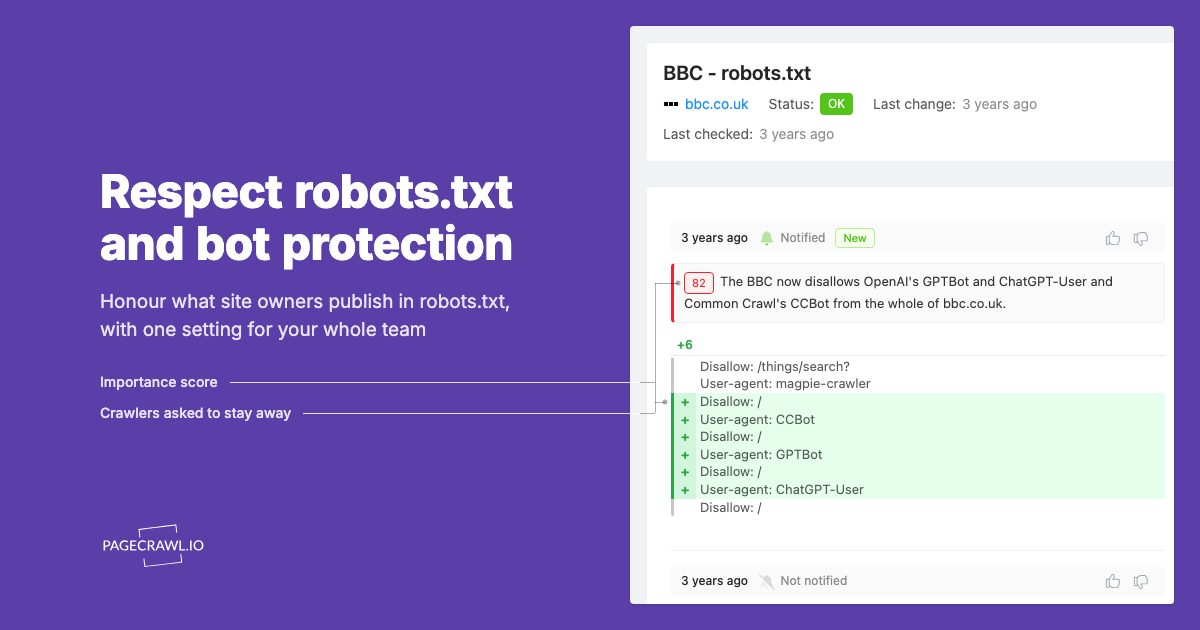
Step 4: Read the diff. When a file changes, PageCrawl sends the before-and-after with the changed lines highlighted and an AI summary of what changed in plain language, for example: "GPTBot changed from Allow to Disallow across the entire site; ClaudeBot and PerplexityBot rules unchanged." You see exactly which bot was affected, not just that the file is different.
Step 5: Watch specific lines with tracked elements. If you only care about whether a particular bot is allowed, you can narrow a monitor to the relevant text so you are alerted only when that specific rule flips, rather than on every whitespace edit. The CSS selector guide covers targeting precise content, and the help centre lists every option in available tracked element types.
Why Monitoring Beats a Script Here
- Every version is stored, so you can see the full history of how a policy evolved
- Diffs are human-readable, with an AI summary that names the affected bot
- Multi-channel alerts reach the team without you wiring up integrations
- Works across dozens of competitor sites without per-site code
- New monitors come with screenshots on by default, useful when a file is served as a styled page rather than raw text
Method 4: Webhook Automation
For programmatic reactions, send PageCrawl change events to a webhook and act on them. This is useful for logging policy changes to a database, opening a ticket, or posting an enriched message to chat.
const express = require('express');
const app = express();

const WATCHED_BOTS = ['GPTBot', 'ClaudeBot', 'Google-Extended', 'PerplexityBot'];

app.post('/ai-crawler-webhook', express.json(), (req, res) => {
  const change = req.body;
  const text = (change.contents || '').toLowerCase();

  const affected = WATCHED_BOTS.filter((bot) => {
    const block = text.split('user-agent:').find((b) => b.includes(bot.toLowerCase()));
    return block && block.includes('disallow: /');
  });

  if (affected.length) {
    notifyTeam({
      site: change.page.name,
      url: change.page.url,
      blocked: affected,
      summary: change.ai_summary || change.short_summary,
    });
  }

  res.sendStatus(200);
});

app.listen(3000);
This pattern fits naturally into a broader webhook automation workflow, and if you prefer no-code, the same events flow through n8n or Zapier.
Comparison: Ways to Monitor AI Crawler Access
| Feature | Manual curl | Scheduled script | Web monitoring (PageCrawl) |
|---|---|---|---|
| Setup effort | None | High | Low |
| Change history | No | If you build it | Yes |
| Human-readable diff | No | No | Yes |
| AI change summary | No | No | Yes |
| Alerting | No | If you build it | Email, Slack, Discord, webhook |
| Scales to many sites | No | With work | Yes |
| Per-bot line tracking | Manual | If you build it | Yes |
| Ongoing maintenance | None | High | None |
Practical Monitoring Setups
For Your Own Site
- Monitor
robots.txtandllms.txtwith a daily check - Route alerts to an SEO or growth channel
- Add a tracked element on each AI bot rule you depend on, so an accidental
Disallow: /triggers an alert on the next check - Review any change within the day, since the longer an accidental block stays live, the more AI visibility you lose
For Competitive Intelligence
- Monitor
robots.txtandllms.txtfor your top 5 to 10 competitors - Watch for a competitor opening up
GPTBotorClaudeBot, which signals a push for AI visibility - Watch their
llms.txtlink list, since added entries reveal new docs, products, or repositioning - Combine with SaaS pricing page monitoring to build a fuller picture of competitor moves
For Agencies Managing Many Clients
- Add
robots.txtandllms.txtmonitors for every client domain at onboarding - Use a webhook to log every change to a shared dashboard
- Treat an unexpected AI-bot block as an incident, because a developer or CMS update is the usual cause
What goes wrong when monitoring AI crawler rules?
Four recurring traps: confusing Google-Extended with Googlebot, a CMS migration overwriting a tuned robots.txt with a default one, wildcard rules that interact with bot-specific blocks in ways that are easy to misread, and files served as HTML or a soft 404 instead of plain text.
Confusing Google-Extended with Googlebot
Blocking Google-Extended removes you from Gemini and Google AI features but leaves regular Search untouched. Blocking Googlebot removes you from Search entirely. Monitor both lines so you can tell which one moved.
Default CMS robots.txt
A platform migration or a fresh install can ship a default robots.txt that overwrites your carefully tuned one. Monitoring catches this on the next check instead of weeks later when you notice the traffic dip. The same risk applies to any documentation or content site migration.
Conflicting Wildcard Rules
A broad User-agent: * Disallow can interact with bot-specific blocks in ways that are easy to misread. When the file changes, read the full diff rather than assuming the bot you care about is unaffected.
Files Served as HTML
Some sites serve robots.txt or llms.txt through a CMS that wraps them in HTML or returns a soft 404. Text tracking mode plus the stored history makes it obvious when a file stops being served correctly.
Choosing your PageCrawl plan
PageCrawl's Free plan lets you monitor 6 pages with 220 checks per month, which is enough to validate the approach on your most critical pages. Most teams graduate to a paid plan once they see the value.
| Plan | Price | Pages | Checks / month | Frequency |
|---|---|---|---|---|
| Free | $0 | 6 | 220 | every 60 min |
| Standard | $8/mo or $80/yr | 100 | 15,000 | every 15 min |
| Enterprise | $30/mo or $300/yr | 500 | 100,000 | every 5 min |
| Ultimate | $99/mo or $999/yr | 1,000 | 100,000 | every 2 min |
Annual billing saves two months across every paid tier. Enterprise and Ultimate scale up to 100x if you need thousands of pages or multi-team access.
At an engineering hourly rate, Standard at $80/year pays for itself the first time you catch a breaking API change, a deprecated endpoint, or a silent config change before it takes down production. 100 monitored pages is enough to cover the changelogs and docs of every third-party API your stack depends on. Enterprise at $300/year adds 5-minute checks and 500 pages. All plans include the PageCrawl MCP Server, which plugs directly into Claude, Cursor, and other MCP-compatible tools. Developers can ask "what changed in the Stripe API docs this month?" and get a summary pulled from your own monitoring history. AI assistants can create monitors through conversation on every plan, including Free, turning your tracked pages into a living knowledge base instead of a pile of alert emails.
Getting Started
Start with your own files. Add two monitors, one for https://yourcompany.com/robots.txt and one for https://yourcompany.com/llms.txt, set a daily check, and connect them to your team's Slack or email. That alone protects you from the most common and costly mistake: a developer or CMS update silently blocking GPTBot or ClaudeBot.
Run it for a week, then add your top three competitors so you can see when they change how they handle AI crawlers. Once the workflow proves itself, expand to the rest of your competitive set and layer in pricing and SEO monitoring for a complete view. PageCrawl's free tier includes 6 monitors, enough to cover your own files and a few competitors before scaling up.