You set up a monitor on a vendor portal or an internal dashboard. It works for a week. Then one morning every check comes back showing the login screen instead of the page you care about. The site started asking for a one-time code at sign-in, emailed to the account on file, and your monitor has no way to read it.
This is the wall almost every website monitoring tool hits. A stored username and password is a fixed script a tool can replay forever. A one-time code (OTP) is the opposite: single-use, unpredictable, and delivered to an inbox the monitor cannot see. Most tools simply stop at "we can type your password," and the moment a site turns on email-based two-factor authentication, the monitoring breaks silently.
This guide is about clearing that wall. It covers what a one-time code is, why it defeats normal monitoring, how PageCrawl gets past both kinds of two-factor login (an emailed code it reads for you, or an authenticator-app code it generates itself), which methods are and are not supported, and how to set it up step by step. If you only need a simple credentials box or a multi-step form login without a code, start with the guide to monitoring password-protected websites and the multi-step login form guide first. This post is the two-factor sequel.
Can you monitor a website that emails a login code?
Yes. PageCrawl can monitor pages behind a login that emails a one-time code as part of sign-in. You forward those login-code emails to a dedicated address PageCrawl gives you (or set the site account's email to that address), and PageCrawl reads the code, enters it, and continues the check. The feature is available on a paid plan.
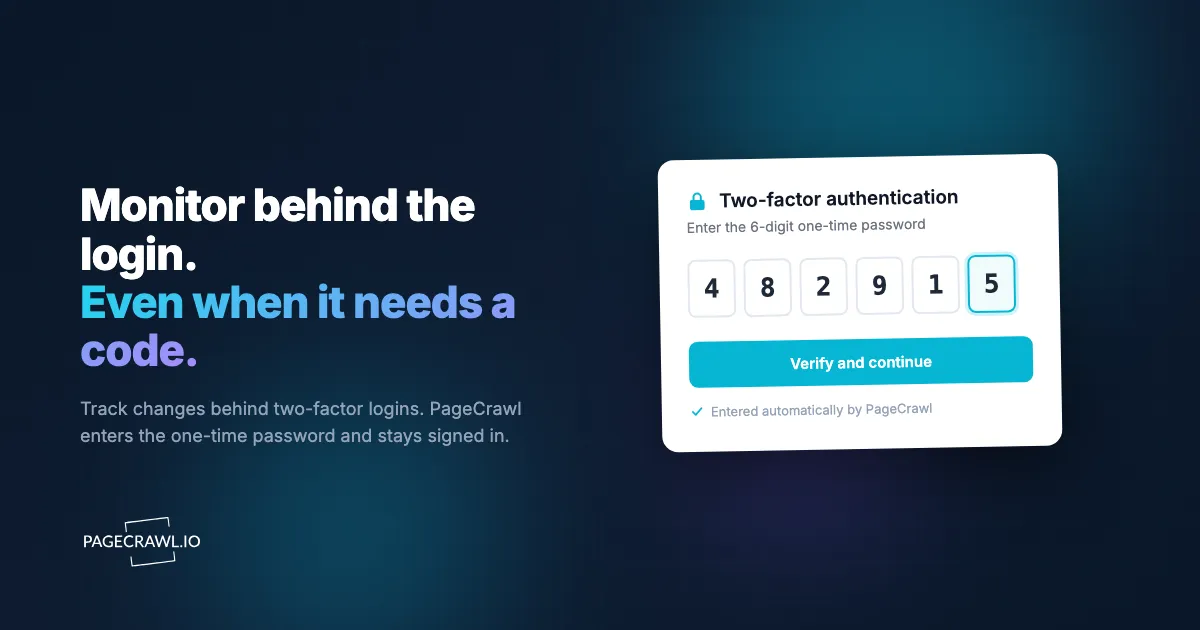
This is the part that sets it apart from a normal "stored password" login. PageCrawl does not just fill a username and password and hope the page loads. When the site responds with a "we emailed you a code" step, PageCrawl waits for that code to arrive at the address you control, pulls the code out of the email, types it into the verification field, and submits, all without you touching anything. From your side it looks like the monitor is simply logged in and watching the page, the same as any other monitor.
Why do most monitoring tools break on two-factor logins?
Most tools break because they treat login as a fixed, repeatable script, and an emailed code is none of those things. To clear a one-time code, a tool needs three abilities ordinary monitors lack: a way to receive the email, logic to extract the right code from it in real time, and a way to feed that code back into the live login before it expires, all unattended.
Username and password are static, so a monitor can store them once and replay the same form fill on every check. An emailed code is generated fresh by the site, sent out of band to a mailbox, and only valid for a few minutes. A crawler that can only drive a web page has no inbox and no way to get the code, so most tools stop at one of two points: they fill your stored username and password and then stall on the code screen, or they ask you to sign in by hand in your own browser and capture the resulting session, which means logging in again every time that session expires.
The short version: typing a password is common, reading the code that arrives afterward is not. That gap is the whole point of this feature.
How does PageCrawl sign in with an emailed one-time code?
You point the code emails at an address PageCrawl controls, and it handles the rest. When a check needs to sign in, PageCrawl submits your username and password, sees the "enter your code" step, waits for the code email to land at your dedicated address, reads the code, types it into the verification field, and submits to finish the login. Then it loads your tracked page and compares it as normal.
There are two ways to route the code emails, and you pick whichever fits your account:
- Forward the codes. Keep your own email on the site account, and add a rule in your inbox that auto-forwards just the login-code emails to the PageCrawl address. Most providers support this, including Gmail's filters and forwarding settings. You still receive the codes yourself.
- Use the address directly. Set the site account's email to the PageCrawl address, so the codes go straight there.
Two things make this practical rather than fragile. First, PageCrawl figures out the verification field on the page automatically, so you usually do not have to point at anything by hand. Second, you can tell it how the code looks (how many digits, or a custom pattern) and restrict which sender the code is allowed to come from, so an unrelated email can never be mistaken for a login code.
Note: an emailed code adds a short wait to each sign-in while the forwarded message arrives. The Standard plan has a tighter per-check time budget, so a slow email can run the check out of time before the code lands. For emailed codes, the Enterprise or Ultimate plans (which allow longer checks) are the safer choice. Authenticator-app codes, covered next, are generated on the spot with no inbox to wait for, so they work well on any paid plan, including Standard.
Can PageCrawl handle authenticator-app codes like Google Authenticator?
Yes. When a site's two-factor method is an authenticator app (Google Authenticator, Authy, 1Password, and anything else using the time-based one-time password algorithm described in RFC 6238), PageCrawl generates the code itself. You paste the authenticator secret once, the same key the site gives you when you set up 2FA, and PageCrawl produces the current six-digit code at sign-in, exactly like the app on your phone would.
This path is even simpler than the emailed one, because there is no inbox involved. An authenticator code is derived from a shared secret plus the current time, so once PageCrawl has the secret it never needs to receive anything, no forwarding rule, no waiting for an email. Where do you find the secret? In the site's security or two-factor settings, choose the authenticator-app option. Under the QR code there is almost always a "Can't scan?" or "Enter this key manually" link, and that text key is your secret. Paste it into PageCrawl (the full otpauth:// link works too). It is encrypted at rest and used only to generate the code when signing in.
Note: this covers authenticator apps only. SMS text-message codes and physical security keys (hardware tokens, passkeys) are not supported.
Do you have to receive a new code on every check?
No, and this is the key design choice. The code step only runs on the first sign-in, or later when the session has expired. After a successful login, PageCrawl reuses the signed-in session on following checks, so it stays logged in instead of authenticating from scratch every time. A monitor checking every 15 minutes does not need a code every 15 minutes.
This matters for three reasons. It keeps the code step rare, whether that means emails to forward or codes to generate, rather than firing on every check. It is gentler on the site, since hammering a login form on every check is exactly what triggers security prompts and temporary account lockouts. And it makes the whole thing faster and more reliable, because most checks skip the login entirely and go straight to the page. Reusing the session is a prerequisite for the code feature for this reason: the one-time step is meant to be occasional, not constant.
What kinds of login codes can PageCrawl handle, and which can't it?
PageCrawl handles the two kinds of one-time code that do not need a physical device: a code emailed to the account (it reads the email), and a code from an authenticator app (it generates the code from your secret). It does not read SMS text-message codes or use a hardware security key. So if your site's two-factor method is an emailed code or an authenticator app, you are covered; if it texts you the code or expects a physical key, this feature is not the right fit.
Here is the full picture:
Supported
- Emailed one-time codes. A numeric code sent to the account's email as a second step. You forward the email; PageCrawl reads the code.
- Authenticator-app codes (TOTP). Google Authenticator, Authy, 1Password, and other standard time-based apps. You paste the secret once; PageCrawl generates the code.
- Username and password form logins. The standard case, covered in depth in the password-protected pages guide.
- HTTP Basic Authentication. The browser credential popup, set under a monitored page's Advanced Settings.
- Files behind a login. PDFs, spreadsheets, CSVs, and Word documents that sit behind the same login can be tracked too.
Not supported
- SMS and text-message codes. There is no inbox or secret to read, so a texted code cannot be captured.
- Physical security keys and passkeys. Hardware tokens and the device-bound passkeys standardised by the FIDO Alliance require a physical device at sign-in.
If your site only offers SMS two-factor or a hardware key, the usual workaround still applies: create a dedicated read-only monitoring account and, where your security policy allows, switch its two-factor method to an authenticator app or email, or monitor an authenticated API endpoint instead of the web page.
How do you set up OTP login monitoring in PageCrawl?
You build it once as an authentication configuration, then attach it to any monitor on that site. The whole thing lives under Authentication in your workspace settings, and the code step is a toggle inside it. The help centre reference on monitoring password-protected pages describes every field in that screen, including the HTTP Basic Auth variant. Here is the full sequence.

Step 1: Create the authentication configuration. Go to Settings, then Workspace, then Authentication, and add a new authentication configuration. Give it a recognisable label and enter the login page URL.
Step 2: Set the login fields and credentials. Point PageCrawl at the username/email field, the password field, and the login button. You can scan the page to auto-detect them, pick them visually, or enter selectors by hand. For selectors that survive a redeploy, see the CSS selector guide. Then enter the account's username and password. The password is encrypted with AES-256 and only decrypted at sign-in.
Step 3: Add a login verification check. Under Advanced settings, set "Verify login" to look for something that only appears once you are signed in, like the text "Dashboard" or a profile selector. This makes a broken login fail loudly as "Login verification failed" instead of silently comparing the login screen, and it helps PageCrawl tell when a reused session has expired.
Step 4: Turn on Reuse login session. This keeps PageCrawl signed in between checks. It is also required for the next step.
Step 5: Turn on Sign in with OTP and pick a code source. This toggle reveals a Code source choice: an emailed code or an authenticator app.
Step 6 (authenticator app): Paste your secret. Choose Authenticator app and paste the secret from the site's two-factor settings (the "Enter this key manually" text under the QR code, or the full otpauth:// link). PageCrawl generates the code at sign-in, so there is no inbox or forwarding to set up, and you can skip to Step 8.
Step 7 (emailed code): Set up forwarding and lock down the sender. Choose Emailed code and save to generate your dedicated forwarding address. Add an auto-forward rule in your inbox for the login-code emails, or set the site account's email to this address. Then fill in "Only accept codes from" with the sender email or domain so nothing else can be read as a code, and optionally set the code format and how long to wait for the code (default 90 seconds).
Step 8: Attach it to a monitor and test. When adding or editing a monitored page on that domain, choose this configuration under the Login Authentication option. Leave screenshots on (new monitors capture one on every check by default) and run a manual check. The screenshot is how you confirm the login actually worked. If you see the real page, you are done. If you see the login or code screen, adjust the configuration; the troubleshooting guide to pages that fail to load, including selector and blocked-access errors covers the usual causes.
What kinds of pages is this for?
Any page you can only see after logging in, especially when the account is protected by a one-time code. The pattern shows up most in vendor portals, member areas, and internal tools, the kinds of pages that hold real operational value and are exactly the ones teams forget to watch because logging in by hand is tedious.
Common cases:
- Private dashboards and analytics portals where a metric, quota, or status only appears after sign-in.
- Membership sites and paywalled content behind a subscriber login.
- Internal admin panels and back-office pages you want to watch for unexpected configuration changes.
- Account pages for billing, plan, usage, or order status.
- Supplier, reseller, and partner extranets where terms, pricing, or program details change without notice, the same ground covered by supplier and supply chain monitoring.
- Finance and banking-style portals that email a verification code at login.
For internal tools, this pairs naturally with watching the changelogs of the SaaS products your team depends on, so you catch both your own data shifting and the upstream tools changing under you.
Is it safe to give a monitoring tool your login?
Putting credentials into any tool deserves a moment of thought, and a few habits keep the risk low. The single most important one is to never use your personal admin login. Create a dedicated, read-only monitoring account scoped to just the pages you watch, so you can revoke it independently and trace its activity in an audit log.
Practical rules:
- Use a dedicated, read-only account, not your personal login. The monitor only needs to view a page, never to write, delete, or administer.
- Use a unique, strong password generated for this account alone and reused nowhere else.
- Set a sender filter on the code source. Restricting which sender a code can come from means an unrelated email cannot be mistaken for a login code.
- Rotate the code address if you need to. PageCrawl lets you regenerate the forwarding address; just update your inbox rule afterward.
- Check the terms of service. Some platforms restrict automated access, especially competitor-owned ones. Know the rules before pointing a monitor at a portal you do not own.
On PageCrawl's side, the stored password is encrypted with AES-256 and only decrypted during sign-in, and the signed-in session is stored encrypted and reused rather than logging in repeatedly.
What login methods can get past a one-time code?
Plenty of monitoring approaches can fill a username and password. Almost none can get past the one-time code that comes next. The difference comes down to login method, not price, so it helps to compare by approach rather than by tool.
| Login approach | Handles username and password? | Gets past a one-time code (2FA)? |
|---|---|---|
| Stored form login (replay a saved fill) | Yes | No, the script stalls on the code screen |
| Browser-session capture (sign in by hand) | Yes, manually | No, and the session must be recreated when it expires |
| PageCrawl one-time-code sign-in | Yes | Yes, it reads an emailed code or generates an authenticator-app code |
For the narrow job of getting past a one-time code unattended, stored-credential and session-capture approaches both stop short. Clearing the code and finishing the login on its own is the gap this feature fills.
What happens after a change is detected?
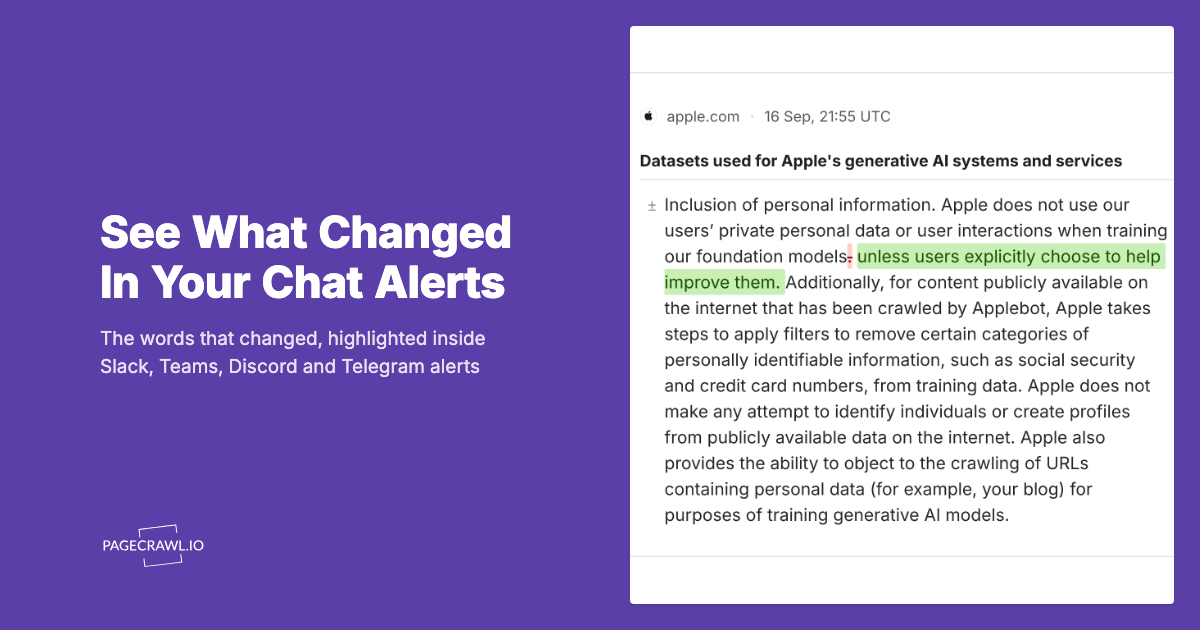
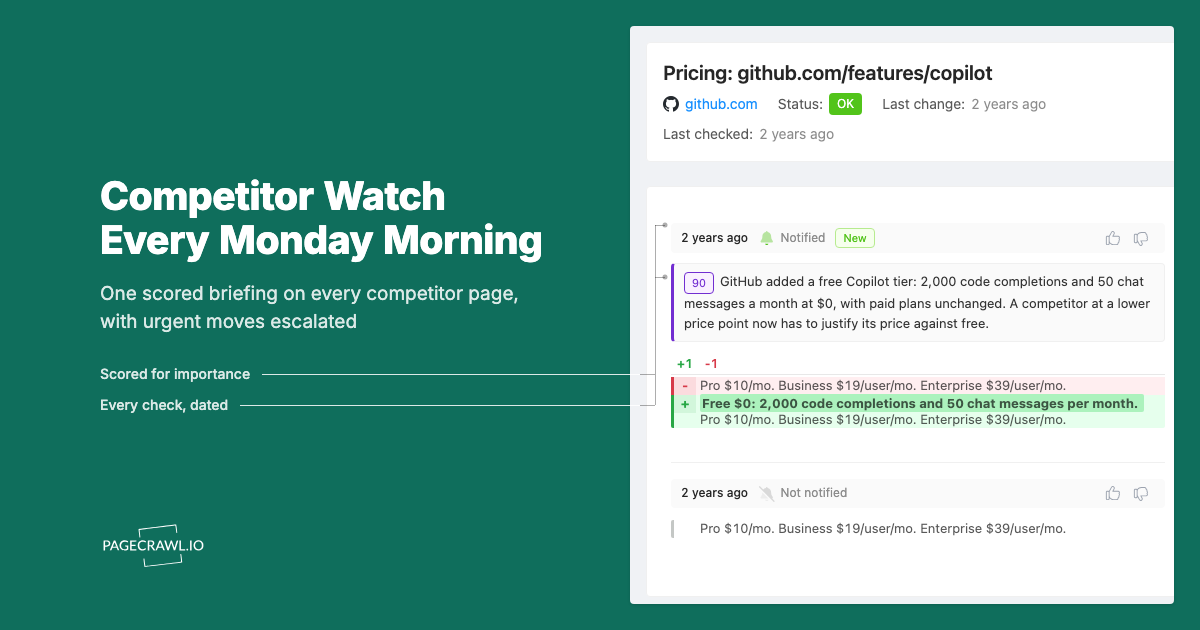
Once PageCrawl is signed in and watching the page, a detected change behaves like any other monitor: you get an alert with a summary of what moved and a screenshot to verify it. From there you can route it wherever your team already works, or push it into a pipeline.
- Send alerts to email, Slack, Discord, Teams, or Telegram.
- Fire a webhook into your own systems.
- Build flows in n8n, Make.com, or Zapier.
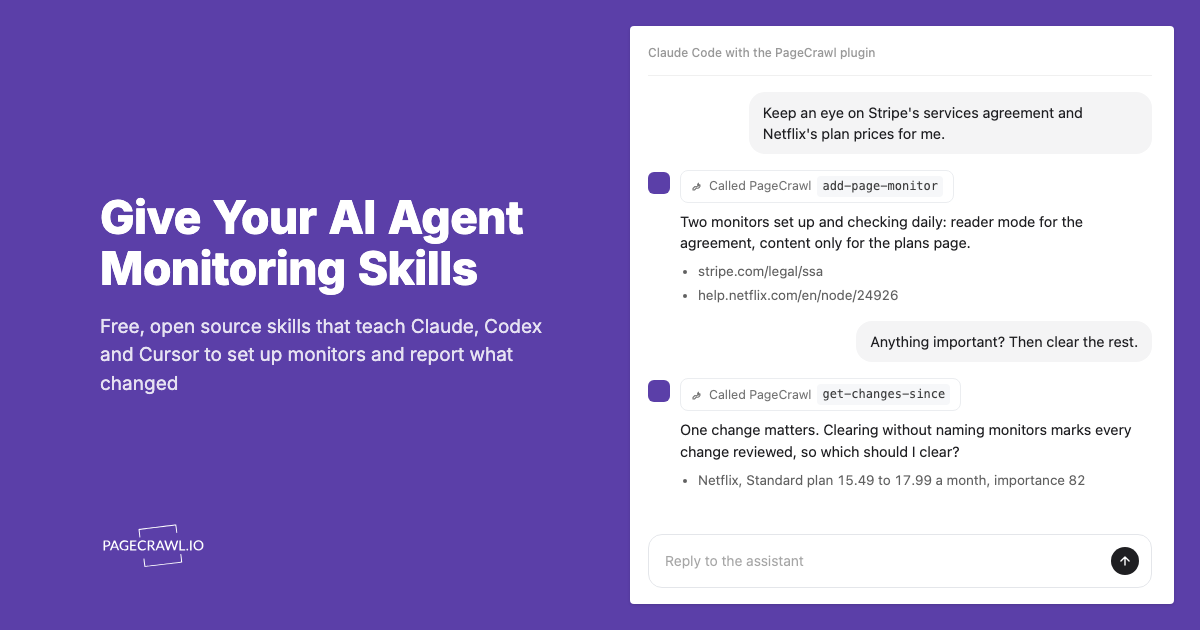
- Wire up AI agents that react to website changes automatically.
If you only care about one value on the page, like a quota, a balance, or a status label, point a tracked element at it so you are alerted on that specific value instead of every cosmetic change. You can also layer conditional alert rules so a notification only fires when the change actually matters.
Choosing your PageCrawl plan
PageCrawl's Free plan lets you monitor 6 pages with 220 checks per month, which is enough to validate the approach on your most critical pages. Most teams graduate to a paid plan once they see the value.
| Plan | Price | Pages | Checks / month | Frequency |
|---|---|---|---|---|
| Free | $0 | 6 | 220 | every 60 min |
| Standard | $8/mo or $80/yr | 100 | 15,000 | every 15 min |
| Enterprise | $30/mo or $300/yr | 500 | 100,000 | every 5 min |
| Ultimate | $99/mo or $999/yr | 1,000 | 100,000 | every 2 min |
Annual billing saves two months across every paid tier. Enterprise and Ultimate scale up to 100x if you need thousands of pages or multi-team access.
At an engineering hourly rate, Standard at $80/year pays for itself the first time you catch a breaking API change, a deprecated endpoint, or a silent config change before it takes down production. 100 monitored pages is enough to cover the changelogs and docs of every third-party API your stack depends on. Enterprise at $300/year adds 5-minute checks and 500 pages. All plans include the PageCrawl MCP Server, which plugs directly into Claude, Cursor, and other MCP-compatible tools. Developers can ask "what changed in the Stripe API docs this month?" and get a summary pulled from your own monitoring history. AI assistants can create monitors through conversation on every plan, including Free, turning your tracked pages into a living knowledge base instead of a pile of alert emails.
Note: authentication, session reuse, and the one-time-code (OTP) feature, both emailed codes and authenticator-app codes, are available on any paid plan. The Free plan cannot configure authentication, so login monitoring starts at Standard. One caveat: emailed codes wait for a forwarded message to arrive, which fits the longer checks on Enterprise and Ultimate better than the tighter Standard budget, so prefer those tiers for emailed codes. Authenticator-app codes need no inbox at all and run fine on Standard.
Finding out a site wants a code in the first place
You do not always know in advance that a login asks for a code. Testing the sign-in surfaces it: the credentials go in, every mechanical step succeeds, and the sign-in stops at a code screen rather than reaching the account. That turns a confusing result into an obvious next step. See how to test a website login before you rely on it.
Getting Started
Start with one authenticated page you currently check by hand, ideally an account or portal that asks for a code at login. Build the authentication configuration once: set the login fields, add a verification check so a broken login fails loudly, turn on session reuse, then turn on Sign in with OTP and pick your code source. For an authenticator app, paste the secret; for an emailed code, route the emails to the address PageCrawl gives you and set a sender filter. Run a manual check, and confirm the screenshot shows the real page rather than the login screen.
Once that first monitor proves out, add the rest of your portals one login at a time. The code step only runs occasionally thanks to session reuse, so a page behind two-factor authentication is no harder to keep running than a plain password login once it is set up. The free tier covers 6 monitored pages with screenshots on by default, which is enough to wrap your most important authenticated pages before you decide whether to scale up.