At 9:14 on a Tuesday morning, a revenue analyst opened the monitor that was supposed to watch her vendor's billing portal. It had reported no changes for eleven days straight. That should have been reassuring. It was not. The vendor had quietly shipped a redesigned login screen the week before, renamed the Sign in button, and the monitor's recorded click sequence had been failing on every single check since. Each check landed back on the login form, compared one login screen against the next identical login screen, and faithfully reported "nothing new" while a new cost tier sat live and unwatched.
That failure mode is the single biggest hazard in monitoring pages behind a login, and it has almost nothing to do with the page you actually care about. Most monitoring tools authenticate by replaying a recorded sequence of UI steps: open the login page, type the username, type the password, click submit, click a confirmation. The sequence works beautifully until the site changes. One redesign, one renamed button, one added field, and the steps break silently. The monitor keeps running, keeps reporting green, and stops telling you the truth.
This guide takes the opposite default. It shows how PageCrawl's resilient, low-configuration login keeps working through routine login-UI changes, why one saved session beats re-running a click path on every check, when explicit steps are still the right tool, and how to set the whole thing up in a couple of minutes. If all you need is a simple credentials box (HTTP Basic Auth), the guide to monitoring password-protected websites covers that case. This post is about real form logins and the pages that hide behind them.
Why do logins block most website monitoring?
A login wall blocks monitoring because the content you care about, a billing total, a partner commission tier, an internal config page, only renders after you are authenticated. A tool that fetches raw HTML sees the login form, not your data. You need a monitor that signs in like a real person and reads the page behind the wall.
The pages worth monitoring almost always sit in this category. A vendor's pricing console, a partner program portal, a SaaS billing dashboard, an internal admin panel. None of them respond to a quick credentials popup. They render a form with JavaScript, sometimes split login across two screens (email first, password second), and frequently hide the real numbers behind a tab, a filter, or a date range you have to select after you are in. Monitoring any of them means first solving authentication, then solving navigation, and doing both reliably enough that the monitor still works months later when nobody is watching it.
Why do recorded login step sequences break?
Recorded step sequences break because they encode the exact shape of a login form, and the site is free to change that shape at any time. When the site renames a button, moves a field, adds a confirmation, or inserts an interstitial screen, the recorded path no longer matches and the login quietly stops working with no warning.
The triggers are mundane and constant:
- A login redesign moves or renames the Sign in button.
- A new field appears (a consent checkbox, a region picker, a captcha).
- An extra confirmation or interstitial screen gets inserted mid-flow.
- The submit button's class name regenerates on the next build.
- An A/B test serves a different layout to the monitor than to you.
None of these change the page you set out to monitor. They change the door you walk through to reach it. The worst part is the silence. A broken click path does not throw an obvious error to anyone watching the alert channel. The monitor keeps checking, keeps comparing the login screen to itself, and keeps reporting that nothing changed. You only find out when you finally log in by hand and realize the real page moved weeks ago. Brittle login automation does not just fail; it fails in the one way that defeats the entire point of monitoring, by hiding the fact that it failed.
How does PageCrawl's resilient login keep working?
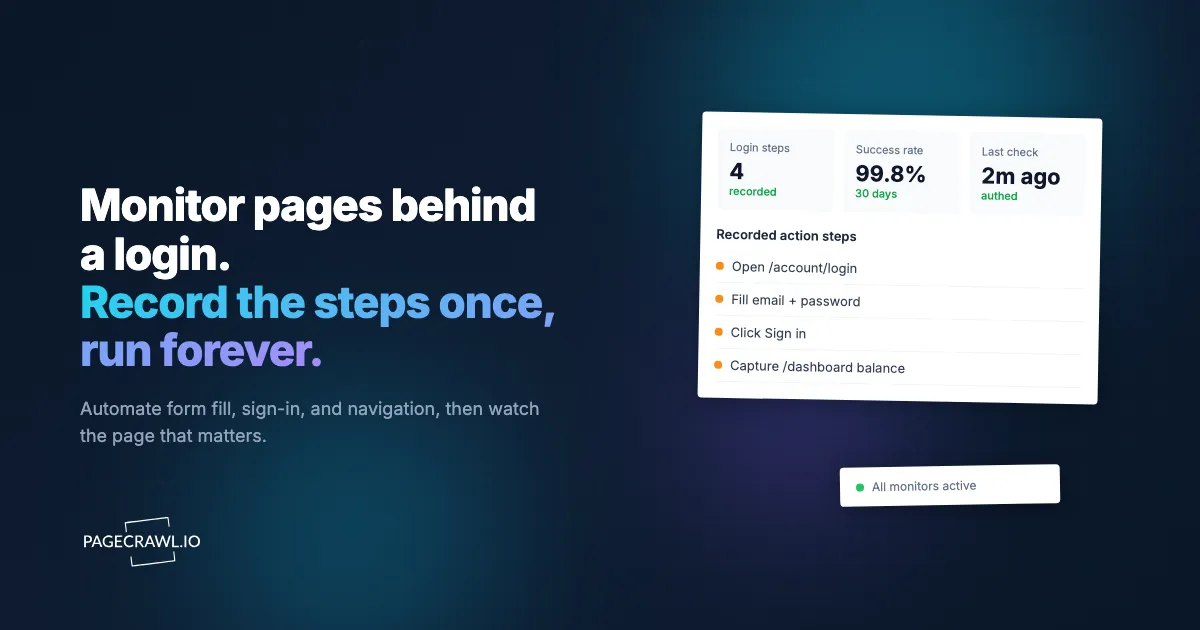
PageCrawl flips the model. You set up one configuration per page: provide the login URL and credentials once, and PageCrawl opens the login page, signs in, keeps that authenticated session active, and continues to the page you want to watch. Because the signed-in state is reused, no fragile click path runs on every check.
The difference is where the intelligence lives. With a recorded sequence, you are the parser: you name every field and button, and you own every breakage. With PageCrawl's resilient login, you hand over the destination and the credentials, and PageCrawl handles the sign-in. It locates the login fields on the page, enters your credentials, submits, and carries the authenticated session forward to the deeper page you actually monitor. When the vendor renames a button or shuffles the form, there is no hardcoded label to miss, so the login keeps succeeding.
That is why it is lower maintenance by a wide margin:
- One config, not a script. You set the login URL and credentials and walk away. There is nothing to re-record when the form shifts.
- The session carries forward. PageCrawl signs in once and reuses that authenticated state to reach and re-check your target pages, instead of re-running a brittle login on every single check.
- Routine redesigns are survivable. A moved field, a renamed button, an added confirmation step, the kinds of changes that silently kill a recorded sequence, do not break a configuration that was never pinned to those exact elements.
- Failures surface honestly. With screenshots on, a check that ever lands on the login screen is visible at a glance, so you catch a real problem instead of trusting a false green.
For the large majority of login-gated pages, this resilient one-config approach is the right default. It is more robust and far less work, and it removes the exact failure that the 9:14 anecdote describes.
When are explicit login steps still worth using?
Explicit step sequences are not wrong, and PageCrawl still supports them fully. They are the right tool for unusual or multi-stage flows the one-config login cannot express on its own: a workspace picker between screens, a deliberately non-standard form, or content that appears only after you click a specific tab once you are signed in.
Reach for explicit steps when you need to drive the page into a precise state, not just to get past the door. When you do use them, PageCrawl gives you four action primitives, and nearly any flow is built from them:
- Navigate to a URL (the login page first, your target page after).
- Fill a value into a field, identified by a CSS selector.
- Click a button, tab, or toggle.
- Wait for a fixed duration or, more robustly, for a specific selector to appear before the next step runs.
The most common reason to add explicit steps is click-gated content. Logging in is only half the job; the other half is getting the page into the state where your value is visible. Tabbed dashboards hide your metric under "Usage" or "Billing." Collapsed panels keep the real numbers behind a "Show details" toggle. Lazy tables render empty until you change a filter. Date-range views only show the current figure after you pick "This month." A short Click plus a Wait for the resulting element handles each of these.
If you watch a single value on the page (a quota, a balance, a count), point a tracked element at it so you are alerted on that number specifically rather than on every cosmetic change elsewhere. When you do write selectors for explicit steps, prefer stable hooks (id, name, data-testid, input type) over generated class names or positional paths that break on the next layout tweak. The CSS selector guide covers how to pick targets that survive a redeploy, and MDN's CSS selectors reference is the canonical description of what each selector actually matches. The help centre article on configuring actions such as clicking, typing, scrolling and waiting walks through building these sequences in the interface. Keep explicit steps lean, because every step you add is a step that can drift.
How do you set up login monitoring in PageCrawl, step by step?
Setting up resilient login monitoring takes about two minutes. You create the monitor on the deep page you want to watch, give PageCrawl the login URL and credentials once, turn on screenshots to verify the result, run a manual check, and route alerts. PageCrawl handles the sign-in and keeps the session live, so there is no click path to maintain.

- Create the monitor with the final URL. Enter the deep page you ultimately want to watch (for example the billing or usage page), not the login page. That is the page PageCrawl compares for changes once you are authenticated.
- Add the login URL and credentials once. In the authentication setup, provide the login page URL, the username, and the password. This is the one configuration that replaces an entire recorded click sequence. PageCrawl signs in and carries the session forward to your target page. The help centre guide to monitoring password-protected pages shows where each field lives, including the HTTP Basic Auth variant.
- Turn on screenshots. New monitors capture a screenshot on every check by default, and you should leave it on here. The screenshot is how you confirm the login actually worked. If a check ever shows the login form instead of your dashboard, that check's capture makes it obvious at a glance instead of leaving you to trust a silent green check.
- Run a manual check and inspect. Trigger one check and look at the captured screenshot and content. If you see the authenticated page, you are done. If you see a login form or an error, adjust the login URL or credentials.
- Add explicit steps only if needed. If your value is click-gated (a tab, a panel, a filtered view), add a short Click and Wait sequence after login to expose it, following the explicit-steps section above.
- Choose notification channels. Route alerts to email, Slack, or a webhook. For pipelines, push changes into n8n or Zapier, or build custom logic with AI agents that react to website changes.
That is the whole flow. The maintenance burden afterward is close to zero, because you never recorded a fragile path in the first place.
What does login monitoring look like in practice?
In practice, login monitoring shines on the recurring, high-stakes pages a team checks by hand today. Once authentication is configured and the session is reused, the monitor watches the page on a schedule and only speaks up when the value that matters actually moves. Three patterns come up again and again.
Authenticated billing dashboard. A finance team watches a cloud provider's billing console for unexpected cost spikes. PageCrawl signs in, lands on the cost-breakdown page, and a tracked element follows the month-to-date total. When the number jumps, the team gets a Slack alert with the before and after values, days before the invoice arrives. No recorded click path to babysit when the provider tweaks its login.
Partner program console. A partnerships lead monitors three vendor portals for changes to commission tiers and program terms. Each portal gets its own login configuration and points at the "Program details" page. Weekly checks surface changes ahead of quarterly reviews, with an AI summary of what actually moved so nobody reads the whole page line by line.
Internal admin dashboard. An ops team watches its own staging admin panel for unauthorized configuration changes. The monitor signs in with a read-only account, opens the settings page, and compares it daily. Any unexpected diff is a signal to investigate. Because the login is resilient rather than recorded, an internal UI refresh does not knock the monitor offline.
What about MFA, two-factor, and credential security?
Credentials you give PageCrawl are handled securely, as the overview of how PageCrawl encrypts and protects stored data sets out, and entered once, not pasted into a script you then maintain or re-typed on every change. You set them one time, and PageCrawl signs in on your behalf. The security advice is the same as for any automated access: minimize what the account can do, and treat two-factor as a special case.
A few rules keep the risk low:
- Use a dedicated monitoring account, not your personal admin login. You can revoke it independently and trace its activity in audit logs.
- Scope it to read-only. A monitor never needs write, delete, or admin rights to compare a page.
- Use a unique, strong password generated for this account alone, never reused elsewhere. The OWASP Cheat Sheet Series is a solid reference for how to think about credentials used by automated clients.
- Read the terms of service. Some platforms restrict automated access, especially competitor-owned ones. Know the rules before you point a monitor at a portal you do not own.
Two-factor authentication used to be the hard case, but PageCrawl handles the two kinds that do not need a physical device. When a site emails a one-time code, PageCrawl reads that email and submits the code automatically; when the site uses an authenticator app (Google Authenticator, Authy, 1Password), PageCrawl generates the time-based one-time password defined in RFC 6238 itself from the secret you paste in once. Either way a 2FA-gated page gets monitored like any other, and because the signed-in session is reused, the code step only runs on the first sign-in, not on every check. The only factors it cannot handle are SMS text codes and physical security keys or passkeys. For those, create a dedicated monitoring account set to email or an authenticator app, or skip the interactive login and monitor an authenticated API instead. If the service exposes a JSON endpoint with a long-lived token, the API monitoring guide shows how to track structured responses without any sign-in at all.
Choosing your PageCrawl plan
PageCrawl's Free plan lets you monitor 6 pages with 220 checks per month, which is enough to validate the approach on your most critical pages. Most teams graduate to a paid plan once they see the value.
| Plan | Price | Pages | Checks / month | Frequency |
|---|---|---|---|---|
| Free | $0 | 6 | 220 | every 60 min |
| Standard | $8/mo or $80/yr | 100 | 15,000 | every 15 min |
| Enterprise | $30/mo or $300/yr | 500 | 100,000 | every 5 min |
| Ultimate | $99/mo or $999/yr | 1,000 | 100,000 | every 2 min |
Annual billing saves two months across every paid tier. Enterprise and Ultimate scale up to 100x if you need thousands of pages or multi-team access.
Confirming the session actually carried
The argument for one resilient configuration over a recorded click path only holds if the sign-in worked. Testing it reports each step separately and shows a screenshot of where the sign-in landed, which answers the question a step list cannot: is this the dashboard, or the login page again? See how to test a website login before you rely on it.
Getting Started
Start with one authenticated page you currently check by hand. Create the monitor on the deep page you care about, add the login URL and credentials once, and let PageCrawl handle the sign-in and carry the session forward. Turn on screenshots, run a manual check, and confirm the capture shows the real page and not a login form. Then let it run for a week.
Once that first monitor proves out, expand to the rest of your portals, one login configuration at a time. Lean on the resilient one-config approach by default, reserve explicit steps for the genuinely unusual or click-gated flows, and route alerts to wherever your team already works. The free tier covers 6 monitored pages with screenshots on by default, which is enough to wrap your most important authenticated dashboards before you decide whether to scale up. The goal is simple: never again open a monitor at 9:14 on a Tuesday and discover it stopped telling you the truth two weeks ago.