It is 6:43 a.m. and you are already on your phone, typing your thirteen-character receipt number into the USCIS case status checker before you have even had coffee. "Case Was Received." Same as yesterday. Same as the 47 days before that. You will check again at lunch, again after dinner, and probably once more at midnight, because the only thing standing between you and a work permit, a green card, or citizenship is a single line of text that updates on USCIS's schedule, not yours.
The frustrating part is that USCIS does not tell you when something changes. There is no push notification when your status flips from "Case Was Received" to "Request for Additional Evidence Was Sent." A Request for Additional Evidence (RFE) often comes with a hard deadline, and the clock starts when the notice is mailed, not when you happen to refresh and notice. People miss approvals, miss biometrics appointments, and burn weeks of an RFE response window simply because nobody was watching the page for them.
This guide shows you how to monitor your USCIS case status automatically, so the page checks itself every hour and pings you as soon as a check finds the status text has changed. We will cover the case status checker, your my.uscis.gov dashboard, the processing-times page on uscis.gov, and the State Department Visa Bulletin, then walk through a setup you can finish in about five minutes on a free account.
Why does refreshing your USCIS case status manually fail you?
Manual checking fails because immigration timelines are measured in months but the change you are waiting for lands without warning, and you are almost never looking at the screen when it does. The cost of missing a status change is not mild annoyance. It can be a forfeited RFE deadline, a missed interview, or weeks of needless anxiety while an approval sits unread.
Three things make manual checking especially unreliable for USCIS cases. First, the cadence mismatch: a case can sit unchanged for 90 days and then move twice in one afternoon, so refreshing on a human schedule means you catch the change late or not at all. Second, RFEs and Notices of Intent to Deny carry response deadlines (commonly 30, 60, or 87 days), so every day you do not notice is a day stolen from your response window. Third, the page is deceptively static: the text changes by only a few words, so even when you load it, tired eyes skim past "New Card Is Being Produced" because it looks almost identical to the previous status.
Automated monitoring removes all three failure modes. A tool loads the page on a fixed schedule, compares the new status text to the last one it saw, and alerts you only when the words actually change. This is the same government agency and public records monitoring approach that works for any agency workflow, which is why people use it for government permit and license status pages too.
What USCIS pages are worth monitoring?
The pages worth watching fall into four buckets: your individual case status, your account dashboard, the processing times for your form and office, and the monthly Visa Bulletin if you are waiting on a priority date. Each answers a different question, and most applicants monitor two or three at once.
The USCIS case status checker
The public case status tool on egov.uscis.gov, where you enter a receipt number, is the single most important page to monitor. It shows the current status string for one case: "Case Was Received," "Case Was Approved," "Card Was Mailed To Me," and so on. The text is short and structured, which makes it ideal for change detection. You target the status heading and message paragraph, and the tool alerts you on the first check after those words change.
Receipt numbers start with a three-letter prefix (IOE, EAC, WAC, LIN, SRC, MSC, YSC, NBC) followed by ten digits. If you have several cases running at once, each receipt number is its own monitor.
Your my.uscis.gov account dashboard
If you filed online, your my.uscis.gov account dashboard often shows richer detail than the public checker: document uploads, secure messages, and appointment notices. The catch is that it sits behind a login, and many basic monitoring tools cannot get past the sign-in screen. Tools that support automated login sequences sign in for you before each check; see our guide to monitoring pages behind a login form. USCIS accounts also use one-time codes, so pick a tool that can handle two-factor authentication during sign-in.
USCIS processing times
The USCIS processing-times page tells you the current estimate for your specific form and the office handling it (for example, "I-485 employment-based, Texas Service Center, 14.5 months"). These estimates move month to month and quietly reset the date when you become eligible to submit a case inquiry. Monitoring this page flags when your form's estimate shifts, a leading indicator of how fast that office is clearing its backlog.
The State Department Visa Bulletin
If you are in a family-based or employment-based category with a backlog, the monthly Visa Bulletin controls everything: your priority date has to be "current" before USCIS can approve your green card. The bulletin is published each month by the State Department on travel.state.gov, and a single category can jump forward (or retrogress) by weeks or years. Watching the Final Action Dates and Dates for Filing charts for your category and country of chargeability tells you when your date becomes current. This is the same pattern people use for broader visa appointment slot monitoring when a consulate releases new openings.
What case status changes should trigger an alert?
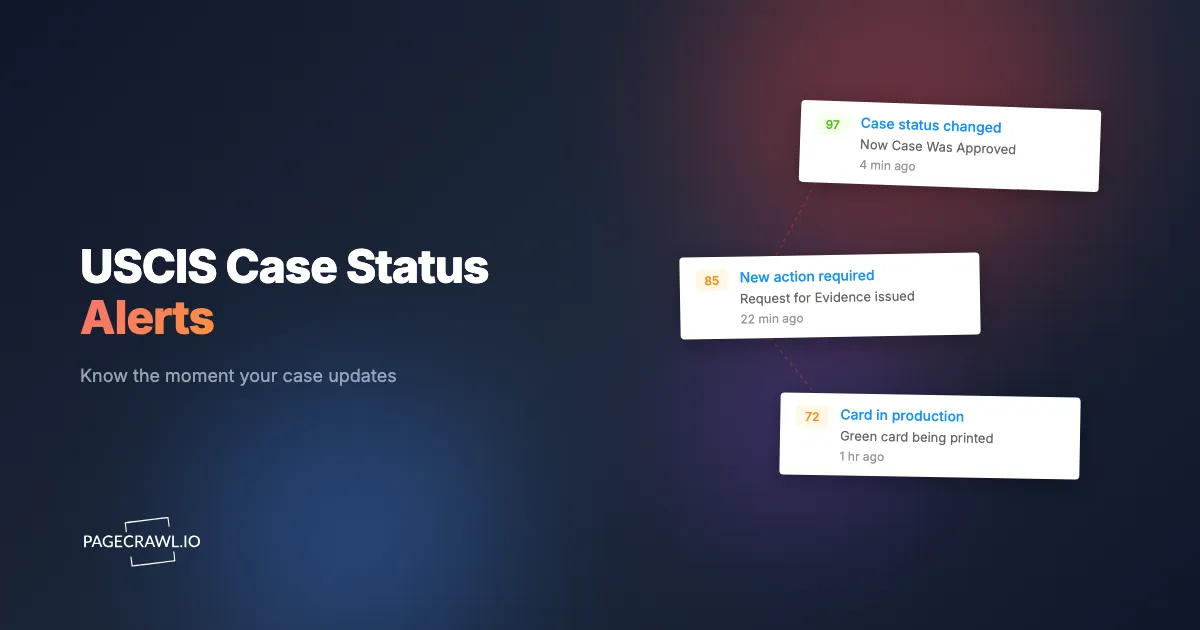
Any change to the status string is worth knowing about, but a handful of transitions are genuinely time-sensitive and deserve a high-priority push alert rather than a daily digest. The status text USCIS uses is consistent, so you can treat specific phrases as triggers.
These are the high-priority transitions to watch for:
- Request for Additional Evidence Was Sent (or "Request for Initial Evidence Was Sent"): an RFE with a response deadline. This is the most important one to catch early.
- Interview Was Scheduled and Fingerprint/Biometrics appointment notices: time-sensitive, often with a fixed date you cannot easily reschedule.
- Case Was Approved: the outcome you have been waiting for, and the start of the next stage.
- New Card Is Being Produced and Card Was Mailed To Me: your green card or work permit is physically on its way.
- Case Was Transferred And A New Office Has Jurisdiction: explains a sudden processing-time change and tells you which office to track next.
- Notice Was Mailed and Case Was Denied: outcomes you want to see the same day, not a week later.
Because these are specific words appearing or disappearing, keyword and trigger-word monitoring lets you escalate certain phrases above others. You might route any change to email, but send an "RFE" or "Interview" status straight to your phone as a high-priority push notification. Whatever the status text says, confirm the details and any response deadline on the official USCIS notice or with a licensed immigration attorney; this article is informational and not legal advice.
How do you monitor a page that needs a receipt number or login?
You handle it with pre-actions, which are automated steps the monitor runs before it captures the page: typing your receipt number, clicking the check button, or signing in with your credentials. A basic tool that only fetches a raw URL cannot do this, because the USCIS status only appears after you submit the form.
For the public case status checker, the monitor navigates to the page, fills your receipt number into the input field, clicks the button, waits for the result to render, and captures the status text. You define those steps once, and every scheduled check repeats them automatically, including on JavaScript-heavy pages where the result loads dynamically after submission. The help centre article on automating browser actions before monitoring lists every action type you can chain together.
For your my.uscis.gov dashboard, the pre-actions extend to a full login sequence: enter your email, enter your password, submit any one-time code, and land on the dashboard before capturing content. Our guide to monitoring pages behind a login form walks through the exact action sequence. Note: always use a tool you trust with credentials, and prefer the public checker when it gives you the status you need, since it requires only a receipt number.
How do you set up USCIS case status alerts in PageCrawl?
You set it up by adding the USCIS case status page as a monitor, teaching it to enter your receipt number, targeting the status text, and choosing how you want to be alerted. The whole process takes about five minutes, and the free tier (6 monitors and 220 checks per month) is enough to watch a couple of cases at an hourly cadence. Here is the exact walkthrough.

Step 1: Add the USCIS case status page
Create a free PageCrawl account and add a new monitor pointing at the USCIS case status checker URL. The tool loads the page and shows a preview of what it sees, which at this point is the empty receipt-number form.
Step 2: Add pre-actions to enter your receipt number
In the monitor's actions, add a "fill" step that types your thirteen-character receipt number into the field, a "click" step on the check-status button, then a short "wait" step so the result renders. Save and run a test: the preview should now show your live case status instead of the empty form.
Step 3: Track the status text, not the whole page
Choose element-specific tracking and target the status heading and message (the line that reads "Case Was Received" plus the paragraph beneath it). Targeting just the status block, rather than the full page, keeps your alerts clean. You will not get pinged when USCIS rotates a banner or footer link. If you prefer, full-page reader mode also works, but a precise CSS selector gives you the tightest, least noisy result.
Step 4: Set the check frequency
For an active case, hourly is the sweet spot. USCIS rarely updates more than once or twice a day, so hourly catches changes quickly without wasting checks, and a single hourly monitor fits inside the free tier's 220 checks per month. For a slower-moving page like processing times, daily is plenty.
Step 5: Choose your notification channels
Decide where alerts land. Email is the reliable default and you can read more in our email alert setup guide. For anything time-sensitive like an RFE or interview notice, add web push alerts so the change reaches your phone or desktop as soon as the check completes, following the setup steps for browser push notifications. You can combine channels: a calm daily email for routine movement, plus a push alert for the status words you flagged as urgent.
Step 6: Duplicate for each case and page
Repeat the setup for every receipt number you are tracking, plus one monitor for your form's processing-times page and, if relevant, one for the Visa Bulletin chart covering your category. With six free monitors you can cover an I-485, an I-765, an I-130, processing times, and the bulletin all at once.
Step 7: Run for a few days and refine
Let it run. The first time the status changes, you get an alert and a clear before-and-after diff showing exactly which words changed. If you see any noise, tighten the element you are targeting. After a short first-week calibration, the monitor simply works in the background.
How do you keep USCIS alerts from becoming noise?
You keep them clean by targeting only the status text and filtering out the parts of the page that change for reasons unrelated to your case. A well-scoped monitor on the USCIS status block should alert you a handful of times over the life of a case, and every one of those alerts should matter.
Two settings do most of the work. First, element targeting: when you track only the status heading and message, you ignore the surrounding navigation, session tokens, and "last updated" timestamps that would otherwise trip a full-page monitor on every load. Second, exclusions: tell the monitor to ignore dynamic timestamps so a refreshed date does not register as a change. Our guide to reducing false positives covers the full toolkit, and conditional alert rules let you fire only when a specific phrase appears, so deadline-bearing statuses (RFE, NOID, Interview Was Scheduled) reach a push channel while routine progress arrives by email.
How fast will you actually find out about a change?
With hourly checks and a push channel, you will typically know within an hour of USCIS updating the page, which is dramatically faster than the once-or-twice-a-day rhythm of manual checking and fast enough to act on every deadline. Two settings control the speed: check frequency and notification channel.
Check frequency sets the worst-case delay. An hourly monitor means you wait at most about 60 minutes after USCIS posts the change; paid plans drop that to every 5 minutes for a critical window like the days around an expected approval. The notification channel sets how quickly the alert reaches you: email is reliable but can sit unread, while a push or chat alert lands on your phone as soon as the check finishes. For most applicants, hourly checks plus push notifications hits the balance: quick enough to never miss an RFE deadline, light enough to run several cases on a free plan.
What are the most common USCIS monitoring setups?
The right setup depends on which benefit you are waiting on, but four configurations cover most applicants. Each pairs a case status monitor with the supporting page that matters for that stage.
Adjustment of status (I-485, green card)
Monitor the I-485 receipt number for the full status arc from "Case Was Received" through "Interview Was Scheduled" to "Case Was Approved" and "New Card Is Being Produced." Pair it with the processing-times page for your field office, and, if you are in a backlogged category, the Visa Bulletin so you can see when your priority date becomes current.
Work permit (I-765, EAD)
Monitor the I-765 receipt number with hourly checks and a push alert on "New Card Is Being Produced" and "Card Was Mailed To Me." Work-permit timing is often the difference between staying employed and a gap, so this is the case where fast notification pays off most directly.
Naturalization (N-400)
Monitor the N-400 receipt number for the citizenship sequence: biometrics, "Interview Was Scheduled," "Case Was Approved," and "Oath Ceremony Will Be Scheduled." The interview and oath notices are the time-sensitive ones, so route those phrases to a push channel and let routine progress arrive by email.
Family petitions and priority dates
If you filed an I-130 for a relative in a backlogged category, the receipt number tells you when the petition is approved, but the Visa Bulletin tells you when a visa is actually available. Run both, because the two can be years apart and you want an alert on the next check after either one moves.
Choosing your PageCrawl plan
PageCrawl's Free plan lets you monitor 6 pages with 220 checks per month, which is enough to watch a couple of active cases plus your processing-times and Visa Bulletin pages without spending a cent. Most applicants never need more than the free tier for a single filing, but if you are tracking a whole family's cases or want 5-minute checks during a critical window, a paid plan helps.
| Plan | Price | Pages | Checks / month | Frequency |
|---|---|---|---|---|
| Free | $0 | 6 | 220 | every 60 min |
| Standard | $8/mo or $80/yr | 100 | 15,000 | every 15 min |
| Enterprise | $30/mo or $300/yr | 500 | 100,000 | every 5 min |
| Ultimate | $99/mo or $999/yr | 1,000 | 100,000 | every 2 min |
Annual billing saves two months across every paid tier. Enterprise and Ultimate scale up to 100x if you need thousands of pages or multi-team access.
For most individual applicants the Free plan is genuinely enough: one or two receipt numbers checked every hour, plus a processing-times page and the Visa Bulletin, fits inside 6 monitors and 220 checks. Immigration attorneys and large families graduate to Standard, where 100 pages and 15-minute checks track every client or relative at once, a cost that is trivial against missing a single RFE deadline. Enterprise and Ultimate add higher check frequencies and the full API for wiring case updates into a practice-management system or shared dashboard.
Getting Started
Pick the case that is keeping you up at night, grab its receipt number, and set up your first monitor in the next five minutes. Add the USCIS status page, teach it your receipt number, target the status text, and turn on web push alerts. Then close the tab and stop refreshing. The page will watch itself and tap you on the shoulder when a check finds something new.
Your case moves on USCIS's schedule. Make sure you are the first to know when it does.