Every company you care about publishes news somewhere: a newsroom page, a press release archive, an investor relations section, a blog, an RSS feed. Watching all of those one alert at a time is tiring, and most of what they publish is routine. A funding round, a new CEO or a named customer win matters. The fifth "join us at our webinar" post does not.
The News & Press Coverage report turns that stream into one email on Monday morning. It gathers everything that changed on your news monitors during the week, writes a one-sentence headline about the biggest story, groups the rest by company, and gives you a link you can pass to anyone who needs the briefing.
This guide covers how to set it up, what the digest contains, how to share it with people outside PageCrawl, and how to tune it so the stories that matter rise to the top.
What is the News & Press Coverage report?
The News & Press Coverage report is a scheduled PageCrawl digest that collects changes from every monitor tagged news and sends them as one weekly email every Monday at 08:00. It opens with an AI-written headline, orders changes by importance, groups them by website and shows only the latest change per monitor.
It is one of the ready-made templates for scheduled reports. The template fills in:
| Setting | Default |
|---|---|
| Include changes from | By tag, suggested tag news |
| Send | Weekly, Monday |
| Time | 08:00 in your workspace timezone |
| Delivery | |
| AI executive summary | On, Headline style |
| What matters in this report | Funding, leadership changes, layoffs, partnerships, named customer wins and major launches; ignore routine SEO content and cosmetic updates |
| Show only most recent change per monitor | On |
| Group by domain | On |
Everything can be changed before you save.
Why use a weekly report instead of news alerts?
Company news is important but rarely urgent for most readers, and newsrooms publish a lot of routine material. A weekly report batches a week of announcements into one message, scores each change by importance and summarises the week in a sentence, so readers see funding rounds and leadership moves instead of scrolling past event promotions.
Per-change alerts work well for a small number of pages where you need to react the same day, such as a competitor's press release page during a launch week. They break down when you follow 20 or 50 companies:
- Volume. A busy newsroom publishes several items a week. Multiply that across your watch list and alerts become background noise.
- Mixed importance. A partnership announcement and a conference recap look the same in an inbox.
- Wrong audience. Leadership, sales and investors want a summary, not a feed.
A weekly digest keeps the full record while presenting it at the pace people actually read.
What should you monitor for a news report?
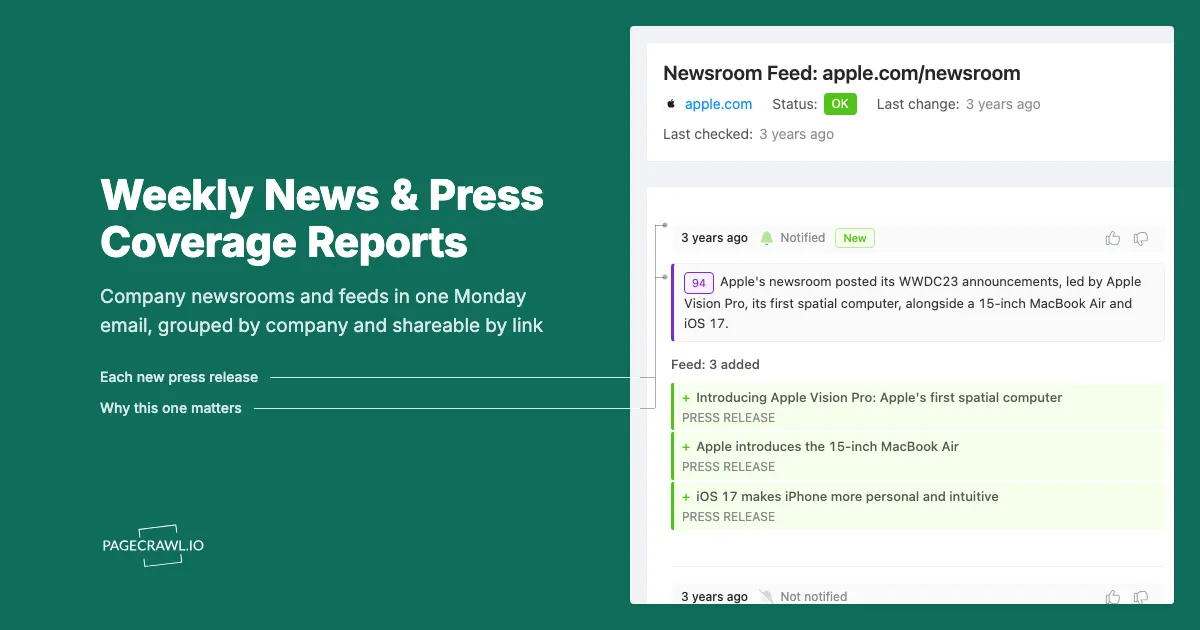
Monitor the pages where companies publish first: newsroom and press release pages, investor relations news, company blogs, and RSS or Atom feeds where they exist. Tag each monitor news so the report picks it up automatically. Feeds are the cleanest source because each new item arrives with its title, link and date.
Good sources per company:
- RSS or Atom feeds. Most newsrooms and blogs publish one. PageCrawl's feed tracking mode records each item with its title, link, description and date, so a new press release shows up as a new entry rather than a wall of changed text. The formats are defined in the RSS 2.0 specification and RFC 4287 for Atom. Our guide to monitoring news sites and blogs with feeds covers setup.
- Newsroom and press pages. When there is no feed, track the list of releases on the press page itself.
- Investor relations pages. For public companies, the IR news page often carries results and material announcements. Official filings are also searchable on SEC EDGAR for US-listed companies.
- Leadership and about pages. New executives often appear on the team page before a press release. See monitoring executive leadership changes.
Tags are dynamic. Any monitor you tag news later joins the next digest with no change to the report.
How do you set up the News & Press Coverage report?
Open Settings, choose Notifications, scroll to Scheduled Summary Reports and click Add Report. Pick the News & Press Coverage template, choose the tag your news monitors use, add recipients, and click Create report. PageCrawl then offers to generate a sample digest from past changes so you can check it straight away.
Step by step:
- Go to Settings > Notifications and find Scheduled Summary Reports.
- Click + Add Report. The Pick a starting point window opens.
- Choose News & Press Coverage.
- Under Include changes from, confirm By tag and select your
newstag (or whichever tag you use). - Under Delivery, pick the team members in Send to. Use + Add Cc / Bcc for verified outside addresses.
- Review What matters in this report in the AI executive summary card and edit it for your market (more on that below).
- Click Create report.
- When asked Generate a sample digest?, pick a period (7 to 90 days) and click Generate sample.
Scheduled reports are available on paid plans. The Headline summary style used by this template is available on every plan that includes reports.
What does the weekly news digest contain?
Each digest opens with a count of changes and an AI headline naming the week's biggest story. Changes are then ordered into Critical, Important, Medium Priority and Low Priority tiers, grouped by website, with a short AI summary, the page link and a link to the full change. Only the latest change per monitor is shown.
The parts, top to bottom:
- Headline. One newspaper-style sentence with the single biggest takeaway, for example "Anthropic raised $13 billion in a Series F round at a $183 billion post-money valuation this week."
- Priority tiers. Every change is scored for importance, and the digest lists the most important first. This is where your What matters in this report instructions do their work.
- Grouped by website. With Group by domain on, all of one company's news sits together, which is how people naturally read a competitor briefing.
- Latest change only. With Show only most recent change per monitor on, a newsroom that updated six times this week appears once, with its current state.
- New pages discovered. If you use page discovery on a company's site, new pages found during the period (a new press release URL, for example) appear in their own section.
Every digest is saved in the report's History, where you can open it or export it as a PDF or Excel file.
How do you tell the AI which news matters?
Use the What matters in this report field in the AI executive summary card. It tells the AI what to emphasise and what to deprioritise when it scores and summarises the week. The template starts with funding, leadership, layoffs, partnerships, customer wins and launches, and you can rewrite it for your own industry.
Examples of focused instructions:
- Competitive intelligence: "Focus on pricing announcements, new products, acquisitions and named customer wins. Ignore event promotions, award announcements and hiring posts."
- Investor watch: "Focus on funding rounds, earnings, guidance changes, executive departures and restructuring. Ignore product tips and marketing blog posts."
- Partner and supplier risk: "Focus on layoffs, leadership exits, acquisitions, security incidents and service discontinuations. Ignore thought leadership content."
The field allows 300 characters, or 1,000 on Enterprise plans. Short, concrete lists of topics work better than long descriptions.
Scoring improves with use, too. The thumbs up and thumbs down on each change in the digest tell PageCrawl which stories you consider important and which are noise, and that feedback shapes how similar changes are scored later. The help article on thumbs up and thumbs down feedback explains how it works.
How do you share the news digest with people outside PageCrawl?
Every digest has its own web page with a unique link. With Access set to Anyone with the link, anyone who opens it can read the report, leave comments and give thumbs up or down feedback without a PageCrawl account. Set Access to Team members only to require a signed-in team member instead.
How the sharing options work:
| Option | Who can open the digest | Notes |
|---|---|---|
| Anyone with the link | Anyone who has the URL | Guests can view, comment and give feedback |
| Team members only | Signed-in members of your workspace | Others are sent to the login page |
If the report emails any outside address (Cc or Bcc), Access is set to Anyone with the link automatically, because those recipients have no account to sign in with.
This makes the weekly news report easy to distribute. Forward the link to your leadership channel, paste it into a board pre-read, or add your PR agency as a Cc recipient so they receive the email directly.
How do comments on the digest work?
Anyone who can open the digest can comment on it. Guests enter a name with their comment, and team members comment under their account. Each new comment is sent to the report's email recipients, keeping the same To, Cc and Bcc roles as the digest, and posted to any Slack, Discord, Teams or Telegram channel the report delivers to.
That turns a static briefing into a short conversation around the week's news:
- A sales lead comments that a competitor's new customer is one of their open deals.
- Product notes that a partner's announced integration overlaps with the roadmap.
- The PR agency adds context on how a rival's story is being picked up.
Everyone on the report sees the thread without a separate email chain, and the comments stay attached to that week's digest in History.
How can you customise the news report?
Change the scope, cadence, channels and filters to fit each audience. Common variations are one report per competitor group, a daily version during a busy period, a minimum importance level for executive readers, and delivery to a Slack channel or Notion page alongside email.
Scope
- By tag:
newsfor everything, or narrower tags likenews-competitorsandnews-partnersfor separate reports. - By website: pick specific company domains for a focused watch list.
- By folder: if your monitors are already organised per company or per client.
Schedule
Send supports Daily, Weekdays only, Weekends only, Weekly, Monthly and On-demand only. Weekly on Monday suits most teams. Switch to Weekdays only during an acquisition, a funding cycle or a crisis, then back again.
Minimum change importance
For executive readers, set Minimum change importance to Important & up (60+) so only significant stories appear. Keep All changes for analysts who want the full record.
Delivery
A report can deliver to Email, Slack, Discord, Teams, Telegram, Browser notifications and Notion at the same time. Chat messages carry the AI summary and a link to the full digest. With Notion, each digest becomes a page under the Notion page you choose, which works well as a running news archive for the team.
Priority escalation
The template leaves escalation off, since news rarely needs a same-hour response. If one kind of story does (a security incident at a key supplier, say), turn on priority escalation in the report settings and set a high threshold, so only top-scoring changes go out on the check that detects them and everything else waits for Monday.
Who uses a weekly news and press report?
Competitive intelligence, marketing, sales leadership, investor relations and agency teams use it most. Each reads the same kind of source, company announcements, but cares about different stories, which is why a tag per audience and a tailored "what matters" prompt work better than one report for everyone.
| Team | Watches | Tuning |
|---|---|---|
| Competitive intelligence | Competitor newsrooms, blogs, leadership pages | Launches, pricing, customer wins |
| Marketing and PR | Competitor and industry press pages | Campaigns, partnerships, awards worth responding to |
| Sales leadership | Competitors and top prospects | Customer wins, funding, new executives |
| Investors and corporate development | Portfolio and target companies | Funding, earnings, acquisitions, departures |
| Agencies | Each client's competitors | One report per client folder, shared by link |
For funding and acquisition signals specifically, see tracking private competitor funding and acquisitions.
Frequently asked questions about news and press reports
Does the report include news from sites that do not have RSS feeds?
Yes. Any monitored page can feed the report, including newsroom pages without a feed. Feeds give cleaner, per-item changes, but a tracked press release list works too.
Can recipients without a PageCrawl account read and comment on the digest?
Yes, when Access is set to Anyone with the link. They can read the digest, comment with their name and mark changes as important or noise. Moving a change on the review board requires a signed-in team member.
What happens in a week with no news?
No email is sent. A scheduled digest is skipped when no monitor in scope changed during the period, so a quiet week stays quiet. Running Generate now by hand always creates a digest in History.
Can I get a longer summary than one headline?
Yes. Change the Style in the AI executive summary card. Patterns and Action briefing give a short paragraph on every plan with reports; Detailed and Bullets are available on Enterprise plans.
Start with one tag and one Monday email
Tag your first ten company newsrooms and feeds news, add the News & Press Coverage template, and generate a sample from the past 30 days to see what it would have told you. Adjust What matters in this report until the headline names the story you would have picked, then share the link with the people who need it. For the complete reference on report settings, see Monitoring Reports.