A supplier changes its API documentation. PageCrawl detects the update, but the alert still has to become someone's task. If your engineering team works in Jira, forwarding a message to a chat channel just adds a handoff, and the follow-up ends up in a thread nobody tracks.
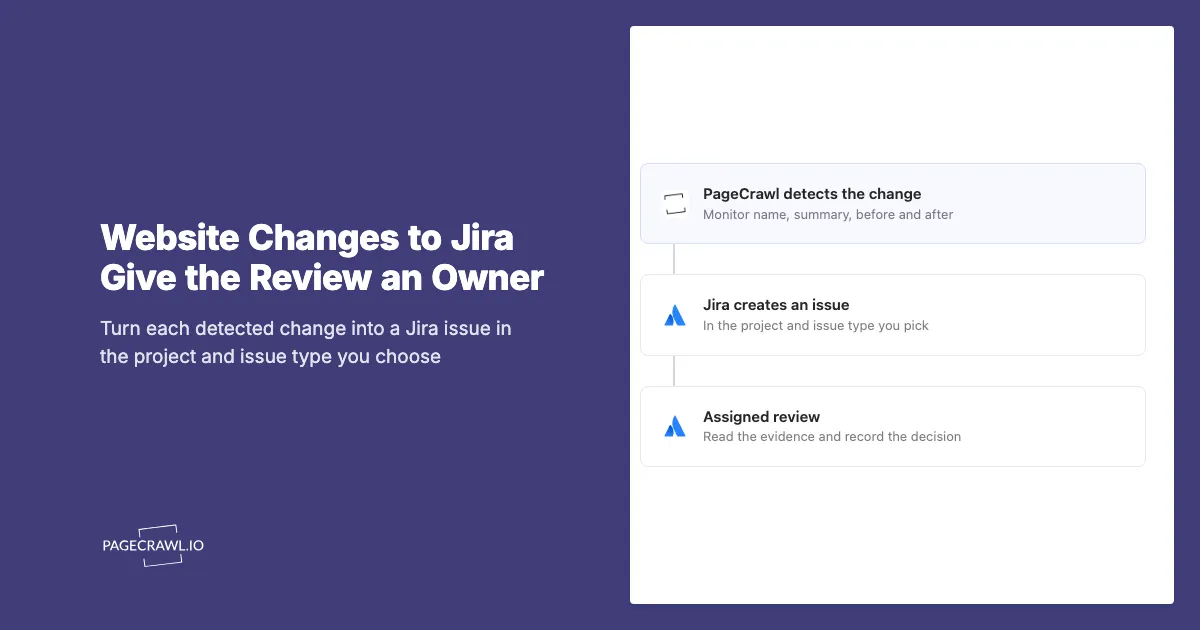
Connect your Jira Cloud site to PageCrawl and each relevant change creates an issue in the project you choose, with the page name, a summary of what changed, the before and after, and links back to the monitor's history and the source page. Your team assigns it, discusses it, and tracks the work in the same board as everything else.
The connection uses Jira's standard OAuth, so you approve it once in your Atlassian account and PageCrawl writes issues on your behalf. Start with one project and one folder of monitors, then route other folders, labels or websites to the projects that own them.
Which website changes are worth turning into Jira issues?
Create an issue when a change needs somebody to investigate it or do something about it. API deprecations, supplier terms, and competitor releases usually fit that pattern. PageCrawl watches the source pages; Jira gives the resulting work an assignee, a discussion, and a place in the team's existing backlog.
For an engineering team, a good starting point is a folder of documentation pages for the services the application depends on. When a page changes, the issue asks a specific question: does this affect an endpoint, parameter, or version we use? The reviewer closes it with a short answer or turns it into implementation work.
The same pattern works for procurement reviewing delivery terms or product managers following competitor announcements. Keep each destination focused enough that a single project and issue type make sense. A project filled with unrelated changes quickly becomes another inbox to sort.
You do not need to send every monitor to Jira. Use scheduled reports for sources the team mainly wants to read together, and create issues for the changes that need individual follow-up.
How do you connect PageCrawl to Jira Cloud?
Open Settings > Workspace > Integrations, find the Jira card, and choose Connect. You approve access in your Atlassian account, then pick the project and issue type the changes should land in. The connection uses Jira's OAuth 2.0 (3LO) authorization, so no API token or webhook URL is involved, and you can disconnect from the same card at any time.
You need edit access to the workspace to connect it, because the connection acts on the whole workspace. If your Atlassian login has more than one Jira site, choose the site on the card before you add a destination.
After connecting, PageCrawl does nothing on its own. A change only becomes an issue once you add at least one destination that says which project, which issue type, and which monitors feed it.
Add a destination
Choose Add destination and fill in the modal:
- Where it goes. Pick the Project (any project you can create issues in) and the Issue type, then give the destination a name you will recognise in the list.
- Which monitors. Send All monitors, or narrow to specific Folders, Tags, Websites, or hand-picked monitors. This is how you route different work to different projects.
- Minimum importance (optional). Set a score from 0 to 100 and only changes PageCrawl scores at least that high create an issue. Changes without a score are then skipped. Leave it empty to create an issue for every change.
- Jira labels (optional). Add one or more single-word labels that go on every issue this destination creates, so your team can filter the board for them.
Choose Add, and from then on each detected change that matches the destination becomes one new Jira issue.
What does the Jira issue contain?
Each issue's summary is the monitor name followed by a short description of what changed, so the board is readable at a glance. The description then carries a plain-language summary, the before and after for each changed element, and links back to the change in PageCrawl and to the monitored page. PageCrawl also attaches the change's evidence to the issue, the highlighted diff image, the before and after comparison, and the full page screenshot, and you choose which to include, so the reviewer sees it in Jira without opening PageCrawl.

If AI summaries are enabled on the monitor, the description leads with the AI-written summary, so the issue says something like "The returns window changed from 30 days to 14 days" rather than a raw text diff. Numeric monitors (a price or a count) do not get an AI summary, so for those the issue shows the tracked value that moved.
PageCrawl does not sync back. Editing, assigning, commenting or closing an issue is entirely your team's workflow; PageCrawl never reopens or overwrites it, so each issue stays tied to a specific moment in the page's history.
How does PageCrawl keep several changes to one page together?
PageCrawl groups changes by the page they came from. For each monitored page it keeps one parent issue and files every detected change as a sub-task under it, so a reviewer opens the page's issue and sees every change in one place instead of hunting through separate tickets. It mirrors how PageCrawl's own review board groups a page's changes.

Each sub-task is a single detected change with its own summary, before and after, importance and status, so your team assigns and closes them one by one while the parent keeps the page's history in one thread. Grouping is on by default; turn it off on the destination if you would rather have one standalone issue per change.
How do you route different teams to different projects?
Add one destination per team, each pointing at its own project and issue type, and narrow each to the folders, labels or websites that team owns. The monitors can overlap or stay separate; PageCrawl evaluates every destination against each change, so one important change can open issues in two projects when both teams need it.
Engineering: review an API documentation update
Send a documentation folder to an engineering project as a Task. Keep the API name in the monitor name, and the issue asks whether the changed endpoint or parameter is one you use. If work is needed, the reviewer links an implementation issue; otherwise a short comment closes the review without adding unnecessary development work.
Procurement: follow a supplier's delivery changes
Route delivery and returns pages to an operations project. A change from one to two working days can prompt someone to check the delivery estimate shown to customers. The supplier's wording is in the issue, and Jira tracks the storefront or purchasing task it creates.
Product: collect competitor release follow-up
Send release notes to a product research project. The issue collects a product manager's assessment, a sales question, and a link to an updated comparison page, so the result is a discussion attached to a specific release rather than a vague "watch this competitor" task that never closes.
How do you keep the Jira board from filling with noise?
Use the minimum importance score and a focused monitor selection so only changes that matter reach the board. Importance scoring rates how significant each change is, so a destination set to a higher threshold skips routine edits and opens issues for the ones worth a reviewer's time.
A destination that sends a busy folder with no threshold will create a lot of issues. Start narrow: one documentation folder, a sensible importance floor, and a label so the team can find PageCrawl issues at a glance. Widen it once you see which changes are worth a ticket. For sources where the team wants an overview rather than a ticket each, a weekly report is the better destination.
Why did a change not create an issue?
Check the destination's status on the Jira card first. A destination shows Active, Off, or Paused, and the Last issue column shows when it last wrote one. If PageCrawl loses access to your Jira site (someone revoked the app, or the project is gone), the destination pauses itself and the card shows why, rather than failing quietly on every change.
| What you see | What to check |
|---|---|
| Destination is Off | It is disabled; enable it or edit its settings |
| Destination is Paused | The reason on the card; disconnect and connect again to restore access |
| Last issue says Never | The monitor selection and the importance threshold |
| Issues stop after a project move | The project still exists and you can create its issue type |
When a destination pauses because the Atlassian app was revoked or the token expired, reconnect from the card and choose Resume on the destination. Issues already created stay exactly where they are; removing a destination only stops new ones.
For teams that need request signing, idempotency keys, or a custom issue shape that the native connection does not offer, PageCrawl's webhooks still send the raw change to a receiver you control, and the reliable webhook guide covers that pattern.
Start with the documentation page your team already checks by hand. Put it in a small PageCrawl folder, connect Jira, add one destination pointing at a test project, and give the next change a place in the backlog where somebody can act on it.