Your competitor published three blog posts last week. Your PR team found out when a journalist mentioned one of them in a pitch email. By then, two of the posts had already been picked up by industry newsletters and the third had an active LinkedIn thread with 400 reactions.
News and media monitoring is not a new problem. The challenge is that most of the tools built for it are either too noisy (getting a daily digest that nobody reads) or too manual (someone on the team is supposed to check a reader each morning and flag relevant posts). Neither scales past a handful of sources.
This guide walks through a different approach: treat RSS and Atom feeds as structured item lists, wire them directly into the team's Slack or Discord, and let the monitoring tool do the noisy work of figuring out which items are actually new.
Why do feed-level alerts beat page-level alerts?
Feed-level alerts win because a feed only changes when content is published, and a feed tracker can name the individual items that were added. Page-level monitoring of a blog index fires on carousels, sidebars, and footer years, and even when it is right it can only tell you that something changed.
The naive way to monitor a blog is to watch the blog index page for changes. When something on example.com/blog looks different, an alert fires. This works, but it triggers constantly for all the wrong reasons: a sidebar widget changed, a "featured post" carousel rotated, a footer year incremented.
Monitoring the feed URL instead is better because the feed itself only changes when content is published. But until recently, even that approach had a weakness: most monitoring tools treated the feed as a blob of text. You got "the feed changed" alerts with no context about which items were added, removed, or updated.
Feed tracking mode changes this. Instead of comparing the raw XML of the feed file, a proper feed tracker:
- Parses the feed into individual items (posts, entries, episodes)
- Assigns each item a stable key (guid, id, or link)
- Compares the current list against the previous list
- Reports the specific differences: "2 new posts: [title and link for each]"
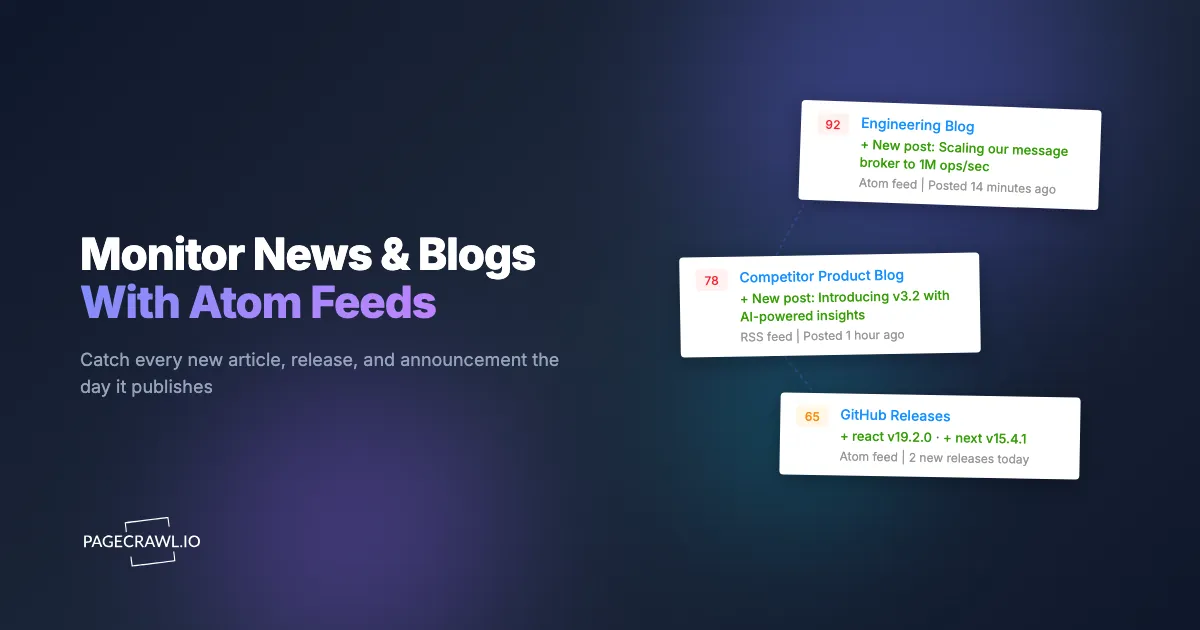
The end result: an alert that says "Competitor published: 'Our Series B funding' and 'New AI features in v3.2'" instead of "Something on the feed changed."
What is the difference between Atom, RSS, and JSON Feed?
For monitoring purposes there is almost no difference: all three publish the same thing, a dated list of items with titles and links. The distinction is mostly historical, since RSS 2.0 and Atom 1.0 are XML formats while JSON Feed carries the same structure as JSON.
Three formats dominate:
| Format | Root Element | Common Extensions | Used By |
|---|---|---|---|
| RSS 2.0 | <rss> |
.rss, .xml, /feed |
WordPress, Substack, most CMS platforms |
| Atom 1.0 | <feed> |
.atom, /feed/atom |
GitHub, Google services, Jekyll, Hugo |
| JSON Feed | JSON object | /feed.json |
Modern indie blogs, some tools |
For monitoring purposes, they are interchangeable. A good feed tracker handles all three plus RSS 1.0 (RDF) and XML sitemaps. The differences matter for the publisher, not the reader.
A few practical notes:
- GitHub uses Atom for releases (
github.com/{owner}/{repo}/releases.atom) and commits (/commits.atom). Both are stable, reliable sources. - WordPress defaults to RSS 2.0 at
/feed/. Virtually every WordPress site has this URL working. - Substack publishes RSS at
/feedon every publication. This is how you monitor specific newsletter writers without signing up for their email list. - Medium publishes RSS per publication at
medium.com/feed/@usernameor/feed/publication-name.
Setting Up a Feed Monitor
The workflow is the same regardless of format:

Step 1: Find the feed URL. Most sites do not prominently link to their feed, but it is almost always at a predictable path. Try /feed, /rss, /atom.xml, /feed.xml, /feeds/posts/default, or /index.xml. For a specific article you want to subscribe to updates from, view the page source and search for application/rss+xml or application/atom+xml in a <link rel="alternate"> tag.
Step 2: Paste the URL into PageCrawl. The Track New Page flow auto-detects feeds. When you paste a feed URL, the interface switches to Feed tracking mode and shows you a preview of the items it found. If the URL is not a feed, you get the standard full-page tracking options.
Step 3: Confirm the item limit. By default, feed mode tracks the first 10 items. This is usually what you want, since the first 10 entries are almost always the freshest. You can raise this to any number up to your plan cap, but for most blog-style feeds, 10 is plenty and keeps notifications clean.
Step 4: Pick a check frequency. For a busy news site, every 15 to 30 minutes makes sense. For a personal blog that posts weekly, daily is fine. For security advisory feeds, every 15 minutes is the usual target. Feed monitoring is cheap (no browser required for XML feeds), so you can check more frequently than you would for page monitoring without running out of plan quota.
Step 5: Route alerts to the right channel. Each monitor has its own notification settings. You can send alerts to Slack, Discord, Microsoft Teams, Telegram, webhooks, or email; the setup steps for sending change notifications to a Slack channel take about two minutes. For team-wide awareness, a shared Slack channel per monitoring category (competitors, security, industry news) works better than individual email inboxes.
Example: Monitoring a Competitor's Engineering Blog
Engineering blogs are a goldmine for competitive intelligence. Engineers write about what they are actually building, what infrastructure choices they made, and what problems they solved. The signal-to-noise ratio is much better than marketing blogs, which makes them a high-value target for blog and editorial content monitoring.
A typical setup:
- Paste an engineering blog feed such as
https://slack.engineering/feed/into Track New Page - Confirm Feed mode is selected (it auto-detects)
- Leave the item limit at 10
- Set the frequency to every 4 hours
- Route alerts to a private
#intel-engineeringSlack channel with two or three viewers
When the blog publishes a new post, the next check picks it up. The Slack alert shows the title, publication date, and a direct link. The team sees it the same day, not a month later when a reference to it shows up in someone's conference talk.
Example: Monitoring GitHub Release Feeds for Dependencies
For engineering teams, tracking GitHub release feeds is cheap security insurance. When a dependency publishes a patch for a known CVE, you want to know now, not next week.
- Get the release feed URL:
https://github.com/{owner}/{repo}/releases.atom - Paste into Track New Page (auto-detects as Atom feed)
- Set frequency to every hour
- Send alerts to
#eng-depschannel
Do this for the five to ten dependencies you care about most. That covers the 80 percent case for dependency update awareness without needing a full SCA tool.
Expect pre-releases (betas and release candidates) and tags pushed without a Release in the same feed. The help centre guide to monitoring GitHub and GitLab repositories lists the tag and commit feeds, raw file addresses, and their GitLab equivalents.
Example: Monitoring Sitemaps for New Pages
XML sitemaps are not strictly feeds, but they behave similarly: a list of URLs that updates when the site changes. Feed tracking mode handles them the same way as RSS and Atom.
This is particularly useful for competitive sites that do not publish an RSS feed of their own. Most serious websites maintain a sitemap because search engines use it for discovery, and the format is standardised by the Sitemaps protocol, so even if the company blog does not have /feed/, their sitemap at /sitemap.xml will include new blog posts, product pages, and landing pages.
- Paste the site's sitemap URL, for example
https://www.notion.com/sitemap.xml - Confirm Feed mode is selected (auto-detected)
- Set the item limit to the first 10 or 20 most recent URLs
- Frequency: every few hours
You will see new URLs flagged the day they appear.
What About Pages Without Feeds?
Some sites do not publish any feed at all. For those, feed tracking mode falls back to DOM pattern detection: it looks at the HTML page and tries to identify a list of repeating items (cards, rows, articles) that behave like a feed.
This works surprisingly well for inventory pages, job boards, news aggregators, and similar list-based pages. The item limit matters even more here: pages with aggressive scrolling or infinite-scroll loading can reveal an unbounded number of items, and capping at the first N prevents you from accidentally tracking everything.
For completely unstructured pages, full-page text tracking with reader mode is still the right choice. Feed mode is for lists.
Tuning the Item Limit
The "Track first N items" setting is more important than it looks. The right value depends on what you want alerts about:
Lower limits (5 to 10) are good when:
- You only care about the newest content (competitor blogs, news sites)
- The page has a variable number of items between checks (some infinite-scroll pages)
- You want minimal notification noise
Higher limits (50 to 1000) make sense when:
- You are tracking a complete inventory or catalog
- The feed moves quickly and you do not want to miss items between checks
- You want to maintain a running archive of recent content
- You are monitoring a large XML sitemap and want to capture every URL
Per-plan caps:
| Plan | Cap |
|---|---|
| Free | 10 |
| Standard | 100 |
| Enterprise | 1,000 |
| Ultimate | 10,000 |
The default is 10 across all plans. For most blog and news monitoring, the default is plenty and keeps notifications clean.
How should you route feed alerts across channels?
Split feed alerts by category and urgency, one channel per group, rather than pointing everything at a single firehose. Security and status feeds belong in a channel people are expected to react to; competitor and industry feeds belong in a daily-awareness channel; release and job feeds can sit in a weekly-review channel.
One mistake teams make is routing all feed alerts to the same channel. A busy engineering team might end up with a #monitoring channel that gets 50 alerts per day, which means nobody reads it.
A better pattern is separating by category and urgency:
High-urgency channels (immediate attention):
- Security advisory feeds
- Production status page feeds
- CEO / exec mention feeds
Medium-urgency channels (daily awareness):
- Competitor blog feeds
- Industry news feeds
- Regulatory update feeds
Low-urgency channels (weekly review):
- Software release feeds
- Job posting feeds
- General industry blog feeds
Each monitor can have its own notification rule, so you can wire this up in a single monitoring dashboard without needing multiple tools.
Common Mistakes
Monitoring every feed you can find. The value of monitoring comes from acting on alerts. If nobody reads them, you are generating noise. Start with three to five feeds that genuinely matter and expand only when you have the attention to match.
Using full-page text tracking on feed URLs. This works but it is worse in every dimension. You lose item-level context, get false positives on feed reordering, and burn more plan resources per check. Switch to feed mode.
Setting frequency too high for low-traffic feeds. If a blog publishes weekly, checking it every five minutes is wasteful. Match the frequency to the cadence of the source. Weekly blog, daily check. Hourly news site, 30-minute check.
Ignoring the item limit on noisy pages. For pages with fluctuating item counts (SPAs, inventory grids), leaving the limit at the default 10 prevents dozens of false "items added" alerts when the page just happened to load more cards this time.
Choosing your PageCrawl plan
PageCrawl's Free plan lets you monitor 6 pages with 220 checks per month, which is enough to validate the approach on your most critical pages. Most teams graduate to a paid plan once they see the value.
| Plan | Price | Pages | Checks / month | Frequency |
|---|---|---|---|---|
| Free | $0 | 6 | 220 | every 60 min |
| Standard | $8/mo or $80/yr | 100 | 15,000 | every 15 min |
| Enterprise | $30/mo or $300/yr | 500 | 100,000 | every 5 min |
| Ultimate | $99/mo or $999/yr | 1,000 | 100,000 | every 2 min |
Annual billing saves two months across every paid tier. Enterprise and Ultimate scale up to 100x if you need thousands of pages or multi-team access.
Standard at $80/year pays for itself the first time a monitored security advisory feed catches a CVE the same day it is published rather than a week later. With 100 pages you can cover your top competitor blogs, every dependency release feed your team cares about, and a handful of industry news sources, all wired directly into Slack so the right people see each alert. Enterprise at $300/year supports large feed portfolios with up to 1,000 items per feed, 500 pages, 5-minute checks, and multi-team access.
All plans include the PageCrawl MCP Server, so you can ask "what did our competitors publish last week?" and get a structured summary from your monitoring archive without searching through alert history manually. AI assistants can create monitors through conversation on every plan, including Free.
Getting Started
- Pick the three feeds you care about most: one competitor blog, one security or dependency source, one news or industry feed
- Paste each URL into Track New Page and confirm Feed mode was auto-detected
- Route each to the appropriate Slack or Discord channel
- Run for a week and see which alerts drive action
Once you have a clear picture of which sources actually generate signal, you can add more feeds and fine-tune the routing. PageCrawl's free plan includes enough monitors and checks to cover a serious starter set of feeds, including security feeds at short intervals.