Your Google Business Profile is often the first thing a potential customer sees when they search for your business. It shows your hours, address, phone number, reviews, and photos directly in Google Search and Maps. When that information is wrong, customers show up to a closed store, call a disconnected number, or choose a competitor instead.
The problem is that Google Business Profile data changes without your permission more often than most businesses realize. Google itself can override your edits based on third-party data sources. Random users can "suggest edits" that Google auto-applies. Competitors can submit misleading corrections. And if you manage multiple locations, keeping track of all these changes across dozens or hundreds of profiles becomes nearly impossible without a system in place.
This guide covers why Google Business Profile monitoring matters, what specific elements to track, how to monitor both your own listings and your competitors, and how to set up automated alerts so you catch changes before they affect your business.
Why should you monitor your Google Business Profile?
Because the profile changes without you. Google applies user-suggested edits automatically, overrides your entries with data pulled from directories and aggregators, and sends no notification when it does. Add competitor activity and multi-location drift, and the listing customers see can quietly stop matching the business you actually run.
Unauthorized Edits and Google Overrides
Google allows anyone to suggest edits to a business listing. In many cases, Google applies these suggestions automatically without notifying the business owner. This means a competitor, a disgruntled customer, or even a well-meaning stranger can change your business hours, phone number, website URL, or category, and you may not find out until a customer complains.
Google also pulls business data from aggregators and directories. If those sources have outdated information, Google may override your profile to match them. A common scenario: a business moves to a new address, updates their profile, but an old directory still shows the previous address. Weeks later, Google reverts the profile because it considers the conflicting data "more reliable."
These changes are silent. Google does not notify you when a user-suggested edit is applied, and the Google Business Profile Help centre is where you go to appeal one after the fact. You need automated monitoring to catch them in the first place.
Competitor Tracking for Local SEO
In local search, small differences in profile completeness and accuracy can determine who shows up in the Google Maps 3-pack (the top three local results). Monitoring competitor profiles gives you visibility into their local SEO strategy:
Category changes. When a competitor adds or changes their primary business category, it signals a deliberate local SEO push. If a rival dentist adds "cosmetic dentist" as a primary category and starts ranking above you for those terms, you want to know about it quickly.
New photos and posts. Competitors who regularly add Google Posts and fresh photos tend to rank better in local results. Monitoring lets you see how active your competitors are and whether you need to increase your own posting frequency.
Review velocity. A sudden spike in positive reviews on a competitor's profile often indicates an active review solicitation campaign. Understanding their review trajectory helps you calibrate your own efforts.
Service area changes. If a competitor expands their service area to include neighborhoods you serve, that directly affects your visibility in those areas.
For broader competitive intelligence beyond local listings, see our guide on how to track competitor websites.
Multi-Location Management
Businesses with multiple locations face an amplified version of every monitoring challenge. A single unauthorized edit on one of fifty locations can go unnoticed for months. Staff at individual locations may make profile changes without coordinating with the marketing team. Franchisees might update their own listings inconsistently.
Common problems include inconsistent business hours after holiday schedule updates, phone numbers changed by user-suggested edits, different locations using different primary categories, and temporarily closed statuses that were never removed after reopening. Without systematic monitoring, these inconsistencies accumulate and erode local search performance across the entire brand.
What should you track on a Google Business Profile?
Track the fields that cost you customers when they are wrong and the fields that move rankings: business hours (including special hours and temporarily-closed status), the description and categories, attributes, review count and rating, photos, the public Q&A section, and Google Posts. Hours and categories deserve the tightest watch.
Business Hours
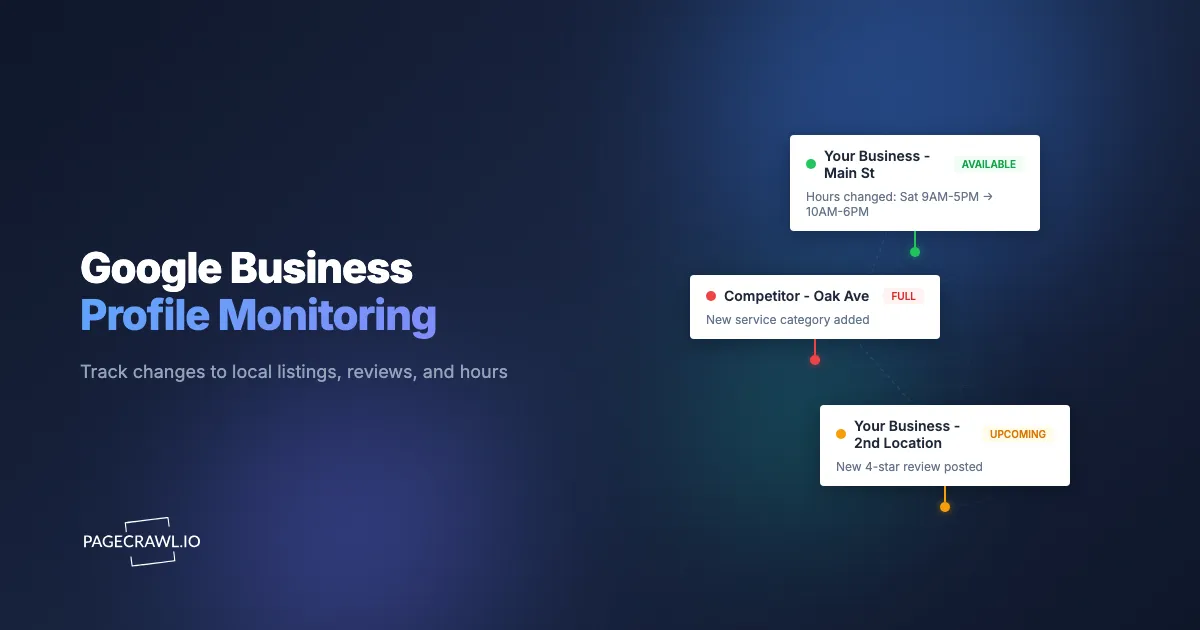
Hours are the most frequently changed element on Google Business Profiles, and incorrect hours are one of the most damaging errors. When a customer drives to your business based on the hours shown in Google Maps and finds the door locked, they do not come back.
Monitor for:
- Regular business hours. Changes to your standard operating hours, especially if Google overrides your entries based on third-party data.
- Special hours. Holiday hours, seasonal adjustments, and temporary changes. These often revert incorrectly or fail to clear after the holiday passes.
- Temporarily closed status. Google sometimes marks businesses as temporarily closed based on user reports. This status dramatically reduces visibility in local search.
Business Description and Attributes
Your business description and attributes affect both how Google categorizes your business and how customers perceive it.
- Business description. The 750-character description that appears on your profile. Changes here can affect which searches your listing appears for.
- Business categories. Primary and secondary categories are critical ranking factors. An unauthorized category change can cause your listing to stop appearing for your most important search terms.
- Attributes. Details like "wheelchair accessible," "free Wi-Fi," "outdoor seating," or "women-owned." These appear as filters in Google Maps searches, so incorrect attributes can remove your business from filtered results.
Reviews and Ratings
Review monitoring goes beyond vanity metrics. Reviews directly influence local search rankings, and the content of reviews affects how Google categorizes your business.
- Review count. Track the total number of reviews over time. A sudden drop could mean Google removed reviews (which happens during periodic review purges).
- Average rating. Even a fractional drop in your average rating can affect your position in local results, especially in competitive markets.
- Review content. New reviews may mention specific products, services, or issues that require a response. Fast response times improve both the reviewer's perception and how future customers view your business.
For a complete approach to managing your online reviews across all platforms, see our guide on online reputation monitoring.
Photos and Visual Content
Google Business Profile photos influence click-through rates and customer decisions. Monitor for:
- Owner-uploaded photos. Verify that your photos remain on the listing and have not been removed or flagged.
- Customer-uploaded photos. Track new photos added by customers. Inappropriate or misleading photos can hurt your business image.
- Cover photo and logo. These high-visibility images are sometimes changed by Google or through user suggestions.
Q&A Section
The Google Business Profile Q&A section is publicly editable. Anyone can ask a question, and anyone can answer it. This means competitors or bad actors can post misleading questions and answers on your profile. Monitor for new questions (you want to answer first, before someone provides incorrect information), answers posted by people not associated with your business, and vote manipulation that pushes incorrect answers to the top.
Google Posts
Google Posts are short updates that appear on your profile. They expire after seven days (or after an event ends), but monitoring them is useful for:
- Your own posts. Confirm that posts you publish actually appear and remain visible for their full duration.
- Competitor posts. Track what your competitors promote through Google Posts, including offers, events, and product announcements.
How does monitoring your own listing differ from watching competitors?
Your own listing is an accuracy problem, so you check it daily and alert on any change to hours, phone, address, website, or category. A competitor's listing is an intelligence problem, so you check weekly and watch categories, review velocity, and posts for signs of strategy rather than errors.
Monitoring Your Own Google Business Profile
Monitoring your own listings is primarily about catching unauthorized changes and ensuring data accuracy. The approach is straightforward: you know what your listing should say, so you set up monitoring to alert you when it says something different.
Frequency. Check your own profiles daily. Hours and contact information can change at any time through user-suggested edits, and the faster you catch an error, the less customer impact it has.
What to alert on. Any change to hours, phone number, website URL, address, or primary category warrants a high-priority alert. These are high-impact fields where an error directly costs you customers or revenue.
Review monitoring. Track new reviews at least daily. Fast responses (within 24 hours) to negative reviews help limit reputation damage. For details on configuring alert channels, see our guide on setting up email alerts for website changes.
Monitoring Competitor Listings
Competitor monitoring is about gathering intelligence and spotting opportunities. You are tracking trends and strategy rather than catching errors.
Frequency. Weekly checks are typically sufficient for competitor profiles. Local SEO changes tend to happen gradually, and you do not need fast alerts on competitor edits.
What to focus on. Track categories (to understand their SEO targeting), review velocity (to gauge their reputation campaign activity), and posts (to see what promotions they run). These elements reveal the most about a competitor's local strategy.
How many competitors to track. Focus on the businesses that appear alongside you in the local 3-pack for your most important search terms. For most businesses, this means 5 to 10 competitor profiles.
Setting Up Automated Monitoring with PageCrawl
Manual checking does not scale. Even with a single location, remembering to check every element daily is unrealistic. PageCrawl automates this by tracking your Google Business Profile pages and alerting you when changes occur.

Step 1: Identify Your Profile URLs
Your Google Business Profile has a public URL that looks like https://www.google.com/maps/place/Your+Business+Name/.... Find this by searching for your business in Google Maps and copying the URL from your browser. You will need one URL per location.
For competitor profiles, search for the competitor in Google Maps and copy their profile URL the same way.
Step 2: Create Monitors
Add each profile URL as a monitor in PageCrawl. For your own listings, set the check frequency to daily. For competitor listings, weekly is usually sufficient.
Use the "fullpage" tracking mode to capture the complete profile content, including hours, description, reviews count, photos, and posts. This gives you a comprehensive view of everything on the listing.
For specific elements like review count or business hours, you can also set up individual tracked elements with "specific text" or "specific number" mode. This is useful when you want alerts only for particular fields rather than any change on the page.
Step 3: Configure Alerts
Set up notifications through the channels your team actually uses. PageCrawl supports email, Slack, Discord, Microsoft Teams, Telegram, and webhooks. For your own listings, route alerts to whoever manages your local SEO. For competitor monitoring, a weekly digest is usually more appropriate than an alert per change, which is what scheduled reports are for. For advanced automation workflows, see our guide on webhook automation for website changes.
Step 4: Review and Respond
When you receive a change alert for your own listing, verify the change straight away. If someone has altered your hours, phone number, or other critical information, correct it through your Google Business Profile dashboard right away.
For competitor changes, log them in your competitive analysis and decide whether a response is needed. If a competitor adds a new category and starts outranking you, consider whether you should add that category too.
Multi-Location Monitoring at Scale
Businesses with many locations need a structured approach to avoid being overwhelmed by alerts while still catching every important change.
Organize by Region or Market
Group your locations by region, market, or management structure. This lets you assign monitoring responsibilities to the right teams. In PageCrawl, use workspaces and folders to organize monitors by location group, as described in the help article on organizing monitored pages with labels, folders, and workspaces. Tag monitors by region, brand, or priority level so you can filter and sort them efficiently.
Prioritize High-Impact Locations
Not all locations need the same monitoring intensity. Flag your highest-revenue locations, newest locations (which are most vulnerable to unauthorized edits), and locations in competitive markets for daily monitoring. Lower-priority locations can be checked weekly.
Standardize Your Baseline
Before you start monitoring, audit all your profiles and document what each field should contain: business name, address, phone number, website URL, hours, categories, description, and key attributes. This baseline becomes your reference point when evaluating change alerts. Without it, you may not be able to tell whether a detected change is an unauthorized edit or simply a field that was already incorrect.
Track Patterns Across Locations
When you receive alerts, look for patterns. If multiple locations have their hours changed on the same day, it likely indicates a Google data update rather than individual user edits. If one location repeatedly gets unauthorized edits, it may be a targeted issue that requires contacting Google support.
Integrating with Your Local SEO Workflow
Google Business Profile monitoring is most valuable when it feeds into your broader local SEO and digital marketing workflow, next to the SEO monitoring and change detection you run on your own site.
Connect to Your SEO Strategy
Changes to your Google Business Profile can impact your rankings in local search. When you detect a profile change, cross-reference it with your SEO monitoring data. Did a category change coincide with a ranking drop? Did a competitor's new posts correlate with them climbing in the local 3-pack?
Feed Into Domain and Brand Monitoring
Your Google Business Profile links to your website, and your website links back to your profile. Changes on either side can affect the other. If your profile's website URL is changed to an incorrect domain, that is both a GBP issue and a domain monitoring issue. Keep your profile monitoring aligned with your broader brand and reputation monitoring strategy.
Build a Response Playbook
Document your process for handling different types of changes:
- Unauthorized hours change. Correct it in the GBP dashboard the same day. Check third-party directories for conflicting data.
- Negative review. Respond within 24 hours. Escalate to the customer service team if the issue requires resolution.
- Competitor category change. Evaluate whether you should update your own categories.
- Photo removal or addition. Verify owner-uploaded photos are intact. Flag inappropriate customer photos for removal.
- Q&A activity. Answer new questions the same day. Report misleading questions or answers.
Report on Changes Over Time
Monthly or quarterly reports on profile changes give you a long-term view of your local presence health. Track the number of unauthorized edits detected and corrected, review growth rate compared to competitors, response time to new reviews and Q&A, and frequency of Google overrides on your profile data. These reports help justify continued investment in local SEO monitoring and identify trends that require strategic adjustments.
Choosing your PageCrawl plan
PageCrawl's Free plan lets you monitor 6 pages with 220 checks per month, which is enough to validate the approach on your most critical pages. Most teams graduate to a paid plan once they see the value.
| Plan | Price | Pages | Checks / month | Frequency |
|---|---|---|---|---|
| Free | $0 | 6 | 220 | every 60 min |
| Standard | $8/mo or $80/yr | 100 | 15,000 | every 15 min |
| Enterprise | $30/mo or $300/yr | 500 | 100,000 | every 5 min |
| Ultimate | $99/mo or $999/yr | 1,000 | 100,000 | every 2 min |
Annual billing saves two months across every paid tier. Enterprise and Ultimate scale up to 100x if you need thousands of pages or multi-team access.
A single unauthorized hours change that sends customers to a closed store, or an incorrect phone number that routes calls to a disconnected line, costs far more in lost business than a year of monitoring. Standard at $80/year covers 100 profile pages, which is enough to watch all your own locations plus your top local competitors at daily frequency. Enterprise at $300/year scales to 500 pages for large multi-location brands with 5-minute checks and multi-team access.
All plans include the PageCrawl MCP Server, so your local SEO team can ask Claude to summarize every change detected across all locations this month and see which profiles have had the most unauthorized edits, turning your monitoring history into an actionable audit of your brand's local presence. AI assistants can create monitors through conversation on every plan, including Free.
Getting Started
Start by adding your own Google Business Profile URL as a monitor in PageCrawl. Set it to daily checks and enable notifications on your preferred channel. This single monitor will alert you whenever anything on your listing changes, whether it is a review, an hours edit, or a category modification.
From there, add your top three to five local competitors so you can see how their profiles evolve alongside yours. Use weekly check frequency for competitors to keep things manageable.
PageCrawl's free tier includes 6 monitors, enough to cover your own listing plus several competitors. If you manage multiple locations, the Standard plan at $8/month covers up to 100 pages, and the Business plan at $30/month supports up to 500 pages, which is sufficient for large multi-location brands with comprehensive competitor tracking.
The businesses that consistently rank in the local 3-pack are the ones paying attention to their profiles. Automated monitoring makes that attention sustainable, even as your location count and competitor landscape grow.