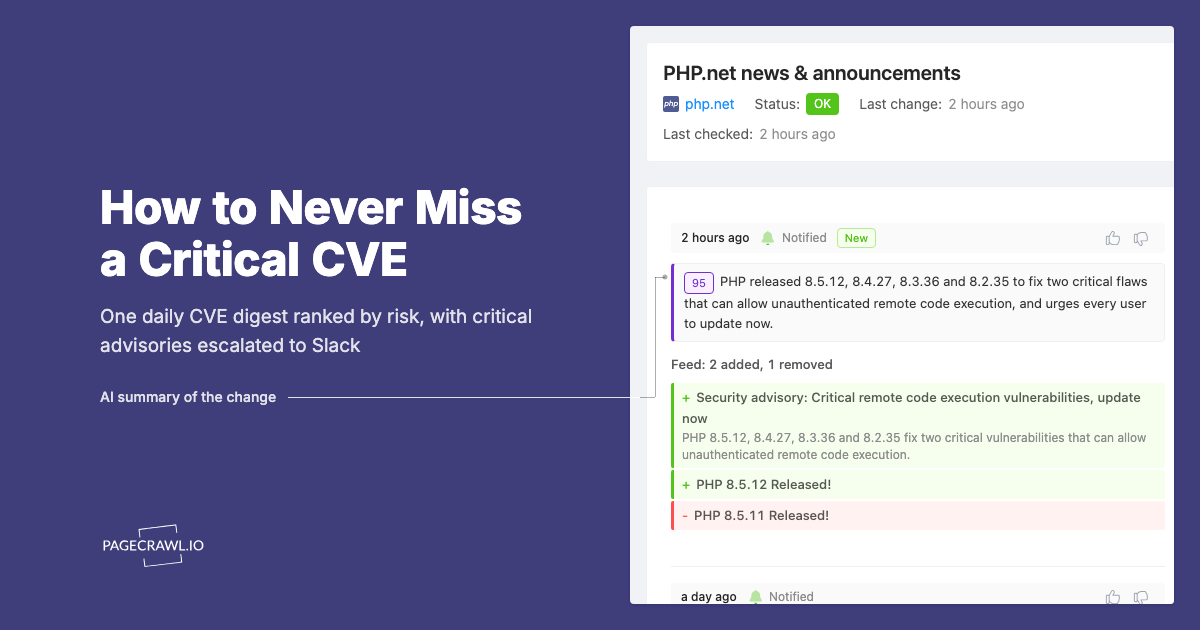
Security teams do not lack sources. Every vendor in the stack publishes advisories somewhere: a security bulletin page, a release notes page with a "security fixes" heading, a trust center, a status page, a GitHub advisories tab. On top of that sit the public catalogues, such as the CISA Known Exploited Vulnerabilities catalog and the National Vulnerability Database.
The problem is the shape of the information, not the amount. Alerts that land one page at a time get muted. Checking twenty vendor pages by hand every morning gets skipped on busy days, which are exactly the days it matters.
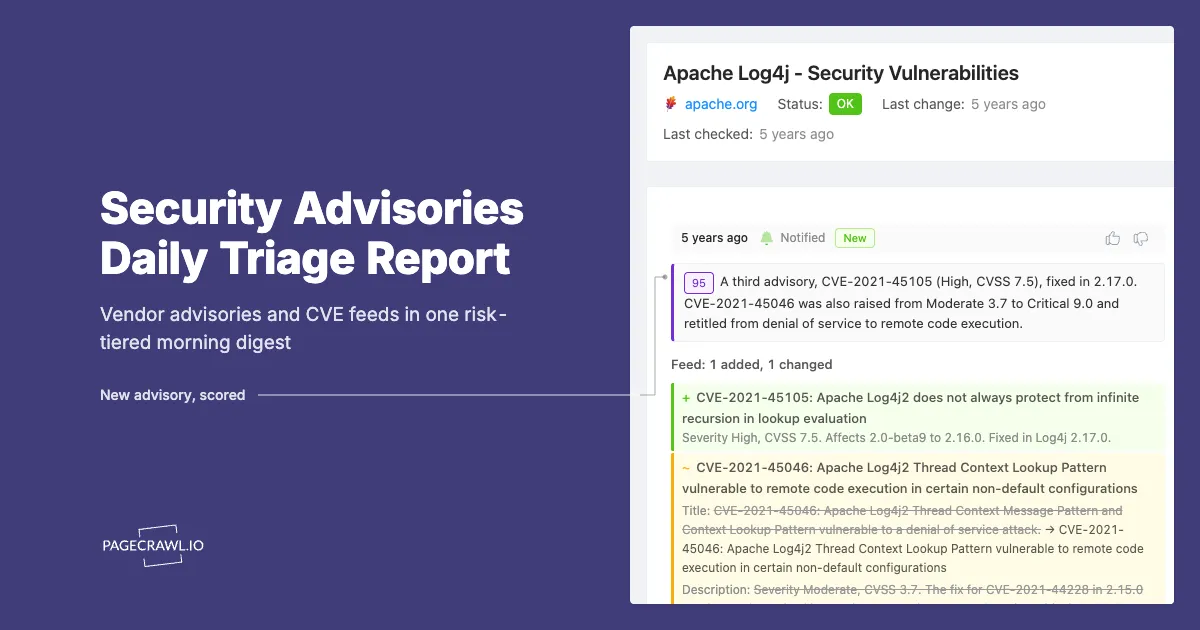
The Security Advisories report turns all of those sources into one daily digest. Changes are scored for importance, the AI summary sorts them into high, medium and low risk, urgent items are pushed out on the check that finds them, and each change can be moved through a review board so nothing gets triaged twice or not at all.
This guide covers how to set it up, what the digest shows, and how to tune it for your team.
What is a Security Advisories report?
A Security Advisories report is a scheduled PageCrawl digest covering every monitor with a chosen tag, typically your vendor security pages, advisory feeds and release notes. It runs daily, scores each change for importance, groups changes by website, summarises them by risk level and can escalate high-priority changes outside the daily schedule.
It is one of the report templates in PageCrawl, built on the same scheduled reports engine as every other digest. What makes it a security report is the combination of settings the template chooses:
- Scope by tag, so you decide which monitors count as security sources.
- Daily at 08:00, including weekends, because advisories do not wait for Monday.
- A focus prompt that tells the AI what matters: new CVEs and vulnerabilities, security incidents, patch releases, breaking security changes and end-of-life notices, while dropping generic policy boilerplate and routine doc edits.
- Every change listed, not just the latest per monitor, so a vendor that publishes three advisories in a day shows all three.
- Grouped by domain, so each vendor's changes sit together.
- Failing pages included, so a blocked or broken advisory page is not mistaken for a quiet one.
- Review board actions and priority escalation switched on.
Why use a digest for security advisories instead of per-page alerts?
A digest gives a security team one place to start each morning, with changes already ranked by risk, while escalation keeps urgent items from waiting for the schedule. Per-page alerts treat a typo fix on a vendor's bulletin page the same as a new critical advisory, and teams stop reading them within weeks.
Vendor security pages are noisy in ways that have nothing to do with security:
- Advisory index pages reorder, paginate or update "last modified" dates.
- Trust centers refresh marketing copy around the parts that matter.
- Release notes mix feature announcements with the one line that says "fixes a remote code execution issue".
Scoring and the focus prompt handle that noise. The digest shows the changes that look like new vulnerabilities, patches or end-of-life notices near the top, and moves routine edits down or out. Escalation covers the rare item that should not wait until tomorrow morning.
How do you set up a Security Advisories report?
Tag your security monitors, then open Settings > Notifications, go to Scheduled Summary Reports, click + Add Report and choose Security Advisories. Pick your tag in the scope, check the summary style, then click Create report. It takes a few minutes once the monitors exist.
Step 1: Tag the pages you want covered
Add monitors for each source and give them a shared tag, for example security. Good sources include:
- Vendor security advisory and bulletin pages
- Vendor release notes and changelogs
- Trust centers and security pages (see trust center monitoring)
- Package release pages for the libraries you depend on (see npm and PyPI release monitoring)
- Public catalogues such as CISA KEV (see CISA KEV catalog monitoring)
- Advisory RSS or Atom feeds, which PageCrawl tracks item by item (see monitoring RSS feeds)
Tag scopes are dynamic. A monitor that gets the tag later joins the next digest automatically.
Step 2: Create the report from the template
- Go to Settings > Notifications and scroll to Scheduled Summary Reports.
- Click + Add Report. The Pick a starting point window opens.
- Choose Security Advisories ("Daily watch on vendor security pages, CVE feeds, and advisories. Risk-tiered for triage.").
Step 3: Check the settings the template leaves to you
The template fills in most of the form, but a few choices depend on your workspace:
- Include changes from: the template selects By tag. Pick your security tag.
- Delivery: Email is switched on, plus Slack when your workspace has a Slack webhook. Choose who receives the email under Send to, or tick Slack and paste a webhook for this report.
- Content filters: Minimum change importance starts at Medium & up (30+), which skips the lowest-scoring edits. Choose All changes if you would rather see everything.
- AI executive summary: the template picks the Risk assessment style. That style is available on Enterprise and Ultimate plans; on other paid plans, choose Patterns or Action briefing instead. The focus prompt is pre-filled under What matters in this report and you can edit it.
- Priority escalation: escalation is switched on with a threshold of 70, sending to email and, when a Slack webhook is set up, Slack. Adjust the Escalation channels if urgent findings belong somewhere else.
Then click Create report. When PageCrawl offers Generate a sample digest?, cover the past 7 or 14 days to see what the report would have looked like with your current monitors.
Scheduled reports are available on paid plans.
What does the Security Advisories digest show?
Each digest opens with the AI summary, then lists every change in scope grouped by priority: Critical, Important, Medium Priority, Low Priority and Other Changes. Each change carries its importance score, a short summary of what changed, a link to the change in PageCrawl and a link to the live page. Below the changes, the digest lists any monitors that are currently failing.
In more detail:
| Part of the digest | What it tells your team |
|---|---|
| AI summary | The day's security picture at a glance. In Risk assessment style, changes are grouped into high, medium and low risk with a short explanation for each |
| Priority groups | Where to start. Critical and Important changes come first |
| Per-change summary and score | What the vendor actually published, without opening the page first |
| Grouping by domain | All of one vendor's changes together, which helps when a vendor ships several advisories at once |
| Review board selector | Who has looked at what (when review board actions are on) |
| Pages Currently Failing | Sources that could not be checked, so silence from them is not taken as good news |
| Missing Pages | Advisory URLs that now return 404, with suggested replacement URLs when similar pages are found |
The email links to a full web version of the digest. Recipients can give each change a thumbs up or thumbs down, which feeds back into future scoring, and leave comments on individual changes or on the digest as a whole.
The Slack message is shorter by design: a count of changes and the period, the AI summary, and the top five changes with a link to each. The full list lives in the email and the web digest.
How does escalation work for urgent advisories?
When a change in the report's scope scores at or above the escalation threshold, PageCrawl sends it through the report's escalation channels on the check that detects it, instead of holding it for the next digest. The change still appears in the daily digest, so the morning review keeps the complete record.
The template sets the threshold at 70, which sits in the Important band. Scores follow the same scale everywhere in PageCrawl:
| Score | Band | Typical security example |
|---|---|---|
| 90-100 | Critical | A new advisory with a large rewrite of the bulletin page |
| 60-89 | Important | A new section listing affected versions and fixes |
| 30-59 | Medium | A partial update to an existing advisory |
| 0-29 | Low | Formatting or date stamp changes |
Tuning tips:
- Too many escalations? Raise the threshold to 80 or 90 and let the digest carry the rest.
- Missed something urgent? Lower it, and add a sentence to What matters in this report naming the products you run, so the summary emphasises them.
- Separate on-call and daily channels. Escalation channels can use their own webhook overrides, so digests can post to a
#security-digestchannel while escalations go to#security-oncall.
Escalation alerts arrive when a check finds the change, so how quickly they arrive depends on each monitor's check frequency. For the sources that matter most, use a shorter check interval.
How does the review board help with triage?
With review board actions switched on, every change in the digest shows a selector for the board's lanes, such as To Review, Flagged and Reviewed. Team members move a change to Flagged when it needs action and to Reviewed once it has been assessed, so the whole team can see what has been handled.
This matters for security in two ways:
- No duplicate work. When two analysts read the same digest, the lane shows who already picked something up.
- An audit trail. The Review Board keeps each change's status, so you can show that an advisory was seen and assessed.
The option appears under Content filters as Enable review board actions when your workspace uses the Review Board. Moving a change between lanes requires signing in to PageCrawl.
What can your team learn from the report over time?
Beyond the daily triage, a few weeks of digests show which vendors publish most often, which advisories tend to reach the Critical band, and which sources go quiet or break. The report history keeps every digest, so these patterns are easy to review in a monthly security meeting.
Patterns worth watching:
- Vendors with frequent high-risk changes. Useful input for vendor risk assessments and renewal conversations.
- End-of-life notices. They are in the template's focus prompt for a reason. They arrive quietly, often months before they bite.
- Sources that keep failing. An advisory page that is blocked every day is a blind spot. Fix the monitor or find another source for that vendor.
- Advisories that never score high. If a vendor's real security fixes keep landing in the Low band, use thumbs up on them and sharpen the focus prompt.
How can you customise the Security Advisories report?
Everything the template fills in can be changed. The most useful adjustments are splitting reports by audience, tightening the focus prompt around the products you actually run, and adjusting the schedule and threshold to your team's response process.
Split by audience
Run more than one Security Advisories report:
- Infrastructure: cloud, network and operating system vendors, sent to the platform team.
- Application: libraries, frameworks and SaaS tools, sent to engineering leads.
- Third-party risk: trust centers and vendor security pages, sent to the GRC team on a slower schedule. The third-party risk management guide covers what to track.
Each report uses its own tag, recipients and escalation channels.
Tighten the focus prompt
The pre-filled prompt is general. A version that names your stack scores better, for example:
"Focus on vulnerabilities affecting the products and versions we run: our reverse proxy, our database version, our CI runners and our identity provider. Treat end-of-life notices for these as high risk. Ignore marketing copy and webinar announcements."
The prompt allows 300 characters, or 1000 characters on Enterprise and Ultimate plans.
Adjust the schedule
| Team setup | Suggested schedule |
|---|---|
| Dedicated security team with on-call | Daily, with escalation at 70 to 80 |
| Small team, security is one of many jobs | Weekdays only, with escalation at 90 |
| GRC or vendor management | Weekly, escalation off |
Add delivery channels
Besides email and Slack, a report can deliver to Microsoft Teams, Discord, Telegram, browser push notifications and Notion, where each digest becomes a page. Leave every channel off to keep the report on the Overview page only.
Frequently asked questions about Security Advisories reports
Does PageCrawl read CVSS scores from advisories?
No. PageCrawl scores how important each change is to your report, based on what changed and your focus prompt. It does not calculate or extract CVSS severity. If a vendor page lists a CVSS score, that score appears in the change itself.
Will a quiet day still send a digest?
No. A scheduled run with no changes in scope is skipped, even if a source is failing at the time. Failing sources are listed in the Pages Currently Failing section of days that do send, and for a report that lists failing monitors on their own, add a Site Health report alongside it.
Can people outside PageCrawl read the digest?
Yes. With Access set to Anyone with the link, anyone with the digest link can open it in a browser, give feedback and comment. Set it to Team members only for internal security findings. Review board actions always require signing in.
Can I use it for my own product's security page?
Yes. Monitoring your own advisory and trust pages catches accidental edits and confirms that a published advisory is actually live. Scope those monitors with a separate tag so they do not mix with vendor advisories.
Start with your ten most critical vendors
Pick the ten vendors whose advisories would change your week, add their security pages with a security tag, and create the Security Advisories report. Run a sample digest over the past 14 days, adjust the importance filter and escalation threshold, and add the rest of your stack once the daily digest reads the way you want. For the full reference on reports, see Monitoring Reports.