Most companies do not run their own job pages. Their careers page is a window onto a hiring platform such as Workday, Greenhouse or Lever, and that is where a new role usually appears first, before it reaches any job board. Very few of these pages send alerts, and the ones that do ask you to create an account on that one company's site.
Watching the page yourself is harder than it looks, because a careers page rarely shows the whole list. In October 2026 Anthropic's Greenhouse board held 683 open roles but showed them 50 to a page, grouped by department. NVIDIA's Workday site added about 80 roles in two days while showing 20 at a time. Whatever sits beyond the first screen is easy to miss.
This guide shows how to get an alert for each new role at the companies you care about, whether you are recruiting for them, selling to them or hoping to work there, and how to keep dozens of companies manageable. Every step below was tested against live company boards in October 2026.
How do you get an alert when a company posts a new job?
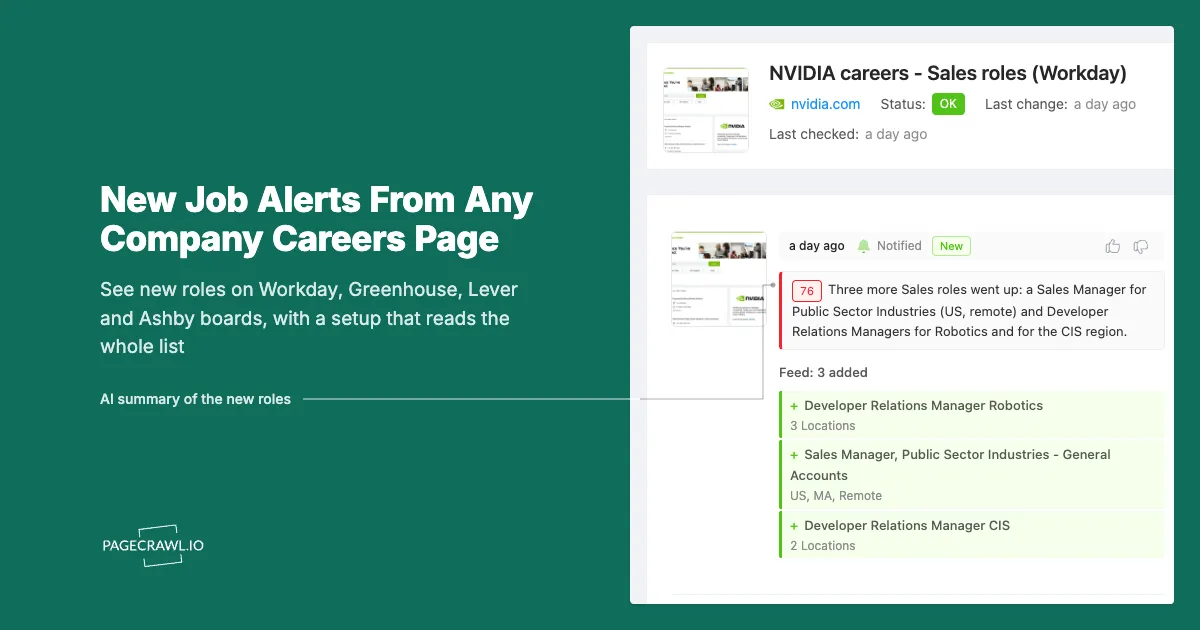
Copy the address of the company's careers page, paste it into PageCrawl and start monitoring it as a feed. PageCrawl checks the company's list of open roles on a schedule and sends an alert for each role that was not there before, with its title, its location and a link straight to the posting.
- Open the list of open roles. Go to the company's careers page. If you are looking at a single job, go back to the list it belongs to.
- Paste it into PageCrawl. Open Track New Page, paste the address into Enter URL and click Load Page.
- Check what is tracked. Under What to Track, Feed should be selected, and the preview lists the company's roles. If it shows Full Page Text with a note that repeating items were detected, click Track as a feed instead.
- Choose how often to check. Check Frequency starts at Daily, which suits most companies. Pick Twice a day for a large employer that posts every day.
- Click Start Tracking.
From then on, each new role arrives as an alert with its title, location and link, and the history shows the roles each check added. The feed tracking guide explains what Feed mode compares and which other changes it can alert on.
Why does a careers page miss new roles?
A careers page shows a slice of the company's roles, not all of them, and rarely puts the newest first. Some platforms page the list and group it by department, so a new role lands somewhere in the middle; others sort by date but fill their first page within hours at a busy employer.
Three patterns account for almost every role a page-watcher misses:
- Pagination. Anthropic's Greenhouse board showed its first 50 roles out of 683. A new role on page seven never reaches page one.
- Grouping instead of dates. Greenhouse, Lever and Ashby pages group roles by department or team. A new "Account Executive" sits with the other sales roles, not at the top.
- Search ranks by relevance. Workday lists the newest roles first, but typing into its search box switches the order to relevance. A Workday search for "robotics" on NVIDIA's site put a role posted more than 30 days earlier second in the list.
This is why PageCrawl reads the company's complete list of open roles wherever the platform publishes one, sorted by posting date, instead of the first screen of the page.
Which address does PageCrawl watch on each platform?
Five of the large hiring platforms publish each company's complete list of open roles at a public address, with no account or key. PageCrawl watches that list, so a new role is seen wherever the careers page would have put it. Pasting the careers page works too: PageCrawl moves to the list for you.
| Platform | Careers page | Complete list of open roles |
|---|---|---|
| Greenhouse | job-boards.greenhouse.io/anthropic |
boards-api.greenhouse.io/v1/boards/anthropic/jobs |
| Lever | jobs.lever.co/spotify |
api.lever.co/v0/postings/spotify?mode=json |
| Ashby | jobs.ashbyhq.com/linear |
api.ashbyhq.com/posting-api/job-board/linear |
| SmartRecruiters | jobs.smartrecruiters.com/Ubisoft2 |
api.smartrecruiters.com/v1/companies/Ubisoft2/postings?limit=100 |
| Workable | apply.workable.com/huggingface |
apply.workable.com/api/v1/widget/accounts/huggingface |
| Workday | nvidia.wd5.myworkdayjobs.com/NVIDIAExternalCareerSite |
no public list: the page itself, newest first |
The platforms document these lists themselves. The Greenhouse Job Board API states that "authentication is not required for any GET endpoints", the Lever postings API describes its list and filters, Ashby documents its public job posting API, and Workable's help centre describes the public address for published jobs.
A few details worth knowing:
- The newest roles come first. PageCrawl keeps the newest roles from the list (50 on paid plans), so a busy week between checks still fits.
- SmartRecruiters alerts name the role and its location. Its public list carries no link to each posting, so open the company's careers page from the alert.
- Many companies wrap the platform in their own branded page, such as careers.example.com. Click any job there: the job's own address usually reveals the platform and the company's board name.
How do you watch a Workday careers page?
Open the company's Workday site, narrow it with the filters on the page, such as Location or Job Category, and click View Jobs. Copy the address from your browser and paste it into PageCrawl. Workday adds your filters to the address and keeps the list newest first, so new roles appear at the top.
- Use Workday's filters, not its search box. On NVIDIA's site, for example, open Location, tick a country and click View Jobs. The address gains the filter, and the list stays in date order. A search term switches Workday to relevance order, which buries new roles under older matches.
- Paste the filtered address into Track New Page and click Load Page. Feed is selected and the preview lists the first 20 roles, the whole first page.
- Match the check frequency to the employer. NVIDIA's Sales category added 11 roles across two days, well within one page, so Daily covers it. The unfiltered NVIDIA site added about 80 roles in the same two days, more than a page holds between daily checks. Filter a busy employer down, or check it Twice a day or more often.
How do you only get alerts for the roles you care about?
Narrow the list on the careers page first, by location, team or category, and paste the address you end up on. When a filter cannot be carried into the company's complete list, PageCrawl watches the filtered page itself, which is usually short enough to show every matching role. For anything finer, add a keyword condition.
Filter on the careers page
- Workday: the Location and Job Category filters carry over, as described above.
- Lever: choosing a team, location or commitment on the board carries over to the list, for example
jobs.lever.co/spotify?location=London. A location filter also returns roles that list that city among several. - Other boards: a filtered page is watched as it is, so you get the roles that match the filter.
Alert only when a role mentions certain words
- Open the monitor, click Edit, then Advanced Setup.
- In Conditions & Filters, click Add Condition and choose Keyword appeared.
- Type the words that matter, separated by commas, for example
Engineer, Remote. - A feed monitor created from Track New Page already alerts on every new item through its Items added condition. Remove that condition, or turn on Match all conditions, so only roles containing your words alert.
The notification conditions guide covers the other condition types and how they combine.
How do you watch dozens of companies without drowning in alerts?
Give each company its own monitor, group the monitors in a folder for each purpose, such as target accounts, dream employers or competitors, and replace per-role alerts with a scheduled report. One weekly email listing every new role across 40 companies is easier to act on than 40 separate notifications.
- One monitor per company. Each alert stays readable, and a company that changes hiring platform affects only its own monitor.
- Folders and labels. A folder per purpose and labels such as "Tier 1" or "Fintech" let you filter the dashboard and scope reports. See organising monitors with labels, folders and workspaces.
- A scheduled report. In Settings, open Notifications and click + Add Report under Scheduled Summary Reports, then point the report at the folder. The scheduled reports guide covers cadence, recipients and the AI summary.
- Shared review. Recruiting and sales teams can work through new roles on the Review Board, marking each one as reviewed so two people never chase the same lead.
What happens when a role closes, moves or is reposted?
A closed role is recorded but does not alert unless you turn on Items removed under Alert me about:. An older role that moves into view when another closes is not reported as new, because PageCrawl knows when each role was posted. A role that is closed and posted again usually counts as new.
- Closed roles. Turn on Items removed in the monitor's Feed settings if you want to know when a role is filled or withdrawn.
- Older roles moving into view. PageCrawl keeps the newest roles, so when one of them closes, the next one moves up. On the complete lists from the table above that role is recognised by its posting date and stays quiet. Workday pages show no posting dates, so there an older role that moves onto the first page can occasionally appear as new; a filtered Workday view keeps this rare.
- Reposts. A role closed and published again gets a new posting, so it shows up as new. That is usually useful: the company is hiring for it again.
- Evergreen postings. Entries such as "Expression of Interest" or a general application stay open for months. They appear once, in the first check, and then stay quiet.
- Platform changes. When a company moves to another platform, the old list starts failing or empties. PageCrawl flags a monitor that keeps failing, which is your cue to add the company's new careers page.
How do recruiters, sales teams and job seekers use these alerts?
The setup is the same; the question each team asks of it is different. Recruiters and agencies watch target clients to reach the hiring manager before a role is filled, sales teams read new roles as buying signals, and job seekers apply while a posting is days old rather than weeks.
- Agency recruiters. A new requisition at a target client is a reason to call that week. Filter to the functions you place, and route alerts to the account owner.
- Sales and partnerships. A company hiring its first "Head of Data Platform", or five "Salesforce Administrators", is telling you what it is about to buy. Our guide to reading competitor hiring signals goes deeper on interpreting them.
- Job seekers. Applying in the first days of a posting matters when a role draws hundreds of applicants. Filter to your function and location so every alert is worth opening.
Frequently asked questions
Do I need an account on the company's site or on the hiring platform?
No. The lists in this guide are public and need no account or key, and Workday careers pages are public too. You need a PageCrawl account to run the monitors, and nothing else.
Why not rely on LinkedIn or Indeed job alerts?
Job board alerts depend on the company posting the role to that board and on the board's own matching. The careers page is where the role is published first. Watching it removes both dependencies, and each alert links straight to the company's own posting.
Can I use the complete lists directly, for example in my own tools?
Yes. The list addresses in the table answer with JSON that any script can read. To track one value from such a list, such as the number of open roles, see our guide to monitoring a JSON field.
Does PageCrawl apply for jobs or contact anyone?
No. PageCrawl only reads the public list of open roles and tells you what changed. Applying, outreach and follow-up stay with you.
Start with three companies
Pick the three employers or accounts you care about most, paste each careers page into PageCrawl and give it a week. Once the alerts prove useful, move the rest of your list into a folder and switch to a weekly report.