Every product depends on APIs someone else owns. Payment providers, auth services, cloud SDKs, email platforms and data vendors all publish changes on their own schedule, in their own changelog format, on pages nobody on your team reads every day. The deprecation notice goes up months before the cutoff, and it is usually noticed the week something breaks.
Watching those pages is the easy part. The hard part is getting the results in front of engineers in a form they will actually read: one message a day, sorted by what can break production, without a stream of alerts for typo fixes and reformatted docs.
That is what the API & Vendor Changelogs report does. This guide covers how to set it up, what the daily digest contains, how to tune it for your stack, and how to make sure a real breaking change does not wait for tomorrow morning.
What is the API & Vendor Changelogs report?
The API & Vendor Changelogs report is a PageCrawl report template that collects every change detected on your tagged API docs, changelogs and release pages into one weekday digest. AI scores each change for impact, focusing on breaking changes, deprecations and auth changes, and anything scoring 80 or more can be escalated on its own.
The template comes pre-filled with settings chosen for engineering teams:
| Setting | Template default |
|---|---|
| Include changes from | By tag (the template suggests an api tag) |
| Send | Weekdays only, 09:00 in your workspace timezone |
| Delivery | Email, plus Slack when your workspace has a Slack webhook |
| AI executive summary | On, Changelog style |
| What matters in this report | Breaking changes, deprecations, new endpoints, version migrations, authentication or permission changes, and rate-limit changes. Typos, stylistic doc edits and link reformatting are dropped |
| Minimum change importance | Medium & up (30+) |
| Group by domain | On |
| Show only most recent change per monitor | On |
| Include failing pages | On |
| Priority escalation | On, threshold 80 |
Every value can be changed before you save.
Why use a report instead of per-change alerts for API changes?
Vendor docs change constantly, and most edits are harmless. Per-change alerts treat a corrected code sample the same as a removed endpoint, so engineers learn to ignore them. A daily report filters out low-impact edits, groups the rest by vendor, and summarises them, while escalation still surfaces the rare change that cannot wait for the next digest.
The volume adds up quickly. Watch the changelog, the API reference and the SDK release page for each integration, and even a modest stack means dozens of pages, many of them edited every week. Most of those edits are clarifications.
Three things make a report the better format:
- Filtering by impact. Changes scoring below the minimum importance are left out of the digest, so a day of doc tweaks produces no email at all.
- Synthesis. A changelog-style summary tells you "the billing vendor added an optional field, the auth provider shortened token lifetimes" in one read, instead of ten separate notifications.
- One routing decision. Monitors covered by a report deliver through that report. Their individual per-change notifications stop, so the same change does not reach engineers twice.
How do you set up the API changelog report?
Tag your API and changelog monitors with a tag such as api, then go to Settings > Notifications > Scheduled Summary Reports, click Add Report and pick API & Vendor Changelogs. Select your tag under Include changes from, check the delivery channels and escalation settings, and click Create report.
Step by step:
- Monitor the right pages. For each vendor, add the changelog, the API reference or migration guide, and the release page for any SDK you depend on. Our guides on monitoring GitHub releases and documentation and tracking SaaS changelogs cover which pages are worth watching.
- Tag them. Add the same tag (for example
api) to every monitor. Tag scopes are dynamic, so monitors you tag later join the report automatically. - Open the template. Go to Settings > Notifications, find Scheduled Summary Reports, click + Add Report and choose API & Vendor Changelogs in the Pick a starting point window.
- Pick the tag. The template sets Include changes from to By tag, but you choose which tag. Select
api(or whichever tag you used). - Check the AI style. The Changelog style is available on Enterprise and Ultimate plans. On other plans, switch Style to Patterns or Action briefing before saving, otherwise the form will ask you to.
- Set delivery. Choose who receives the email under Send to. Slack is ticked when your workspace has a Slack webhook; otherwise tick it and paste a webhook for this report.
- Check escalation channels. Under Priority escalation, the template sends high-priority changes to email and, when available, Slack. You can give escalation its own Slack webhook, so the daily digest lands in
#vendor-changeswhile escalations go to#oncall. - Save and preview. Click Create report, then Generate sample to see a digest built from the past 7 to 90 days of changes.
Scheduled reports are available on paid plans.
What does the daily API changelog digest contain?
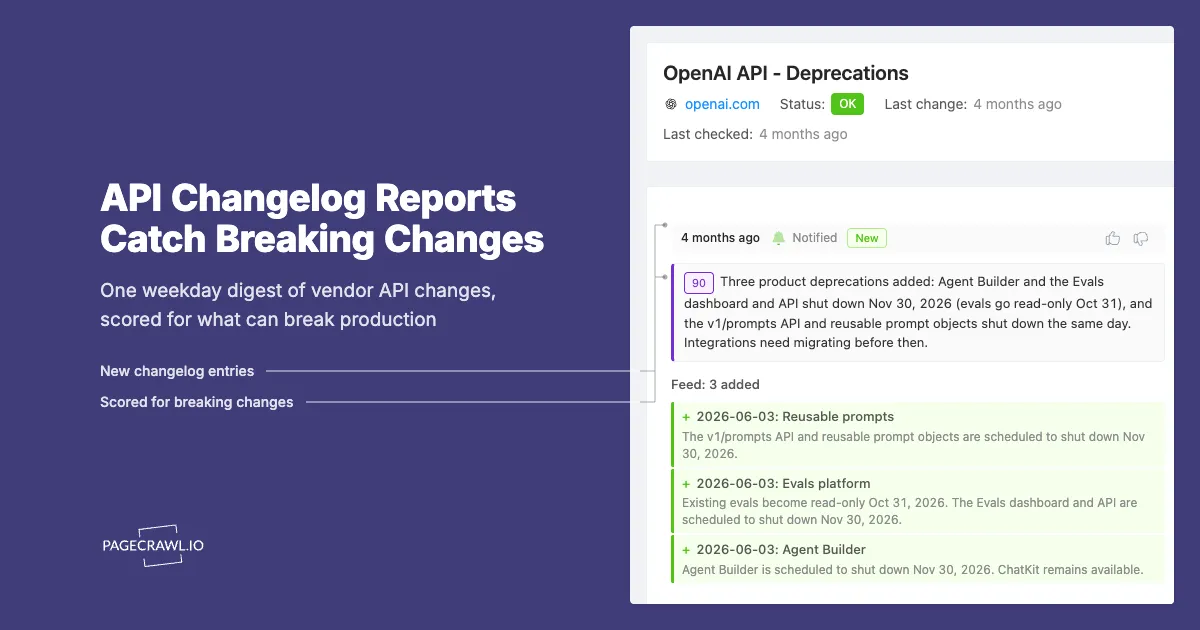
Each digest opens with the report name, an AI-written title and the period covered, then the changelog-style summary, then every qualifying change grouped by vendor website and sorted by importance. Each change shows its score, a short AI summary, and links to the diff and the monitor, followed by any monitors that are currently failing.
In more detail:
- AI executive summary. In the Changelog style, a chronological list of what changed and where, one line per vendor. The What matters in this report instructions steer it towards breaking changes and away from cosmetic edits.
- Changes grouped by domain. All changes from one vendor sit together, which is how engineers think about integrations ("what did the payments provider do this week?").
- Importance scores. Each change carries a 0 to 100 score. With the template's threshold of 30, low-impact edits never reach the digest.
- The latest change per monitor. When a page changed several times since the last digest, only the most recent change is listed. Turn this off if you want every intermediate edit.
- Pages currently failing. Monitors that could not load their page, such as a docs site that moved or started blocking automated visits, are listed at the bottom, so a silent gap in coverage does not look like a quiet week.
Days with nothing above the threshold, and no failing monitors, send nothing.
Recipients can react to each change with thumbs up (important) or thumbs down (noise), which feeds back into how similar changes are scored later, and leave comments on a change or on the whole digest.
Which delivery channels work best for engineering teams?
Email carries the full digest, while Slack, Discord, Teams and Telegram receive a compact version: the AI summary, the top changes with links, and a link to the full digest page. Notion can create a page for every digest, which works well as a searchable log of vendor changes. Pick the channel your team already triages in.
| Channel | What arrives | Best for |
|---|---|---|
| The complete digest with every change, scores, diffs and failing pages | Tech leads, platform owners | |
| Slack, Discord, Teams, Telegram | The summary, the top changes with links, and a link to the full digest | Team channels like #vendor-changes |
| Notion | One page per digest (requires a connected Notion workspace, Standard plan or above) | A permanent, searchable changelog of your dependencies |
| Browser | A browser push notification | Individuals who live in PageCrawl |
You can also leave every channel off. The report still runs and its digests appear on the Overview page and in the report's History.
How does escalation catch breaking changes between digests?
Escalation sends a single change straight to its own channels when the check that detects it scores at or above the escalation threshold. The template sets that threshold to 80, which in practice means removals, breaking changes and hard deprecation dates. The same change still appears in the next daily digest with the rest of the day's context.
A few tips for the threshold:
- 80 is a good starting point. It leaves routine additions ("new optional parameter") in the digest and escalates changes that require work.
- Lower it for critical vendors. Put payments and auth monitors in a second report with a threshold around 60, so even medium-impact changes get attention.
- Use a separate channel. Point escalations at the channel your on-call or platform team watches, not the channel where the digest lands.
Escalation depends on how often the monitor checks. A change on a page checked every hour is escalated after the next hourly check, not before, so set shorter check intervals on the handful of pages where timing matters.
What can you learn from an API changelog report over time?
Over weeks, the report history shows which vendors change most often, which ones break things, and which deprecations are approaching. That turns vendor risk from a gut feeling into a record you can point to when planning migrations, negotiating contracts or deciding whether a dependency is worth keeping.
Patterns worth watching in the History:
- Frequent high scores from one vendor. A dependency that ships breaking changes every quarter costs real engineering time. That belongs in your next build-versus-buy discussion.
- Deprecation notices with dates. Most well-run APIs announce removals ahead of time, often using Semantic Versioning to signal breaking releases. Collect them as they appear and schedule the migration work before the cutoff, not after.
- Standard signals in API responses. Some providers now mark deprecated endpoints with the
Deprecationheader (RFC 9745) and removal dates with theSunsetheader (RFC 8594). The changelog is still where most vendors explain what to do about it. - Silence from a vendor. A changelog that has not changed in six months, combined with a failing monitor, may mean the page moved, not that nothing shipped.
The report's History keeps every digest with its period, change count and status, and lets you export any of them as PDF or Excel, which is useful for change-management records and post-incident reviews.
How can you customise the report for your stack?
Everything in the template is a starting point. You can split vendors across several reports, rewrite the focus instructions for your architecture, change the schedule, or scope by website instead of tag. The most useful change is usually the What matters in this report text, because it tells the AI what counts as impact for your product specifically.
Rewrite the focus for your integrations
The default instructions are generic. Make them specific:
- "We use the REST API only; ignore GraphQL and SDK-only changes."
- "Flag any change to webhook payloads, signature verification or retry behaviour."
- "Anything mentioning API version 2023-10 or earlier is high impact for us."
The field accepts up to 300 characters, or 1,000 on Enterprise and Ultimate plans.
Split by team or criticality
- One report per owning team. Payments integrations go to the billing team, identity providers to the platform team.
- Critical vendors in their own report with a lower escalation threshold, as described above.
- By website instead of tag when a vendor publishes docs across several pages you monitor individually.
Track structured sources precisely
Not every change source is a web page. Vendors often publish a changelog feed or a machine-readable API specification:
- Feeds. Changelog RSS or Atom feeds can be monitored as a feed, so new entries show up as a clean list rather than a page diff. See monitoring RSS feeds.
- JSON specifications. An OpenAPI document can be monitored with a JSON path so only the parts you care about are compared. The JSONPath and jq filters guide shows how.
- Your own API responses. The API monitoring guide covers watching live endpoints for changes in the fields you depend on.
For cloud platforms specifically, the cloud SDK and API deprecation guide lists the notice pages worth adding to this report.
Frequently asked questions about API changelog reports
Will my monitors still send their own notifications?
No. When a monitor is included in a report, the report controls its delivery. Changes are held for the digest, and only changes scoring at or above the escalation threshold are sent on their own. Monitors outside every report keep notifying as before.
What happens on a day with no meaningful changes?
Nothing is sent. A scheduled digest is skipped when no change passes the minimum importance and no monitor in scope is failing. Use Generate now from the report list any time you want to check the report is working.
Can I use the Changelog summary style on any plan?
The Changelog style, along with Detailed, Bullets and Risk assessment, is available on Enterprise and Ultimate plans. Other paid plans can use Brief, Headline, Patterns or Action briefing, and Action briefing works well for engineering teams.
Can people outside the team read the digest?
Yes. Each digest has its own link. With Access set to Anyone with the link, anyone can open it in a browser without an account. Set it to Team members only to keep vendor analysis internal.
Start with your five most critical vendors
Pick the five integrations whose breakage would hurt most, add their changelog, API reference and SDK release pages, tag them, and create the API & Vendor Changelogs report. Run it for two weeks, adjust the focus instructions based on what showed up, and then add the rest of your dependencies. For every scope, schedule and delivery option, see the Monitoring Reports reference.