RSS feeds are one of the oldest and most reliable ways to track content updates across the web. Despite being decades old, RSS remains the backbone of content syndication. News sites, blogs, podcasts, government agencies, academic journals, and software projects all publish RSS feeds that update every time new content is added.
The challenge is that most people have stopped using traditional RSS readers. The feeds still exist, but nobody is watching them. Meanwhile, the content those feeds announce (competitor blog posts, regulatory updates, security advisories, crypto exchange listings, release notes) often requires timely action.
This guide covers how to monitor RSS feeds effectively, route alerts to the channels your team uses, and turn passive content tracking into an active monitoring workflow.
What are RSS feeds and why do they still matter?
An RSS feed is a machine-readable list of a site's most recent content, and it still matters because it is the cleanest change signal a website publishes about itself. RSS (Really Simple Syndication) is a standardized XML format, defined in the RSS 2.0 specification, that websites use to publish lists of their recent content. When a blog publishes a new post, the RSS feed updates to include that post's title, summary, URL, and publication date.
Most websites still offer RSS feeds even if they do not prominently link to them. Common feed URL patterns include:
/feedor/rss(WordPress sites)/feed.xmlor/atom.xml(static sites, Jekyll, Hugo)/rss.xml(many CMS platforms)/feeds/posts/default(Blogger)/index.xml(some static site generators)
RSS feeds matter for monitoring because they are structured, machine-readable, and updated in near real-time. Unlike monitoring an entire web page for changes (which can trigger on irrelevant updates like sidebar ads or footer changes), an RSS feed only changes when actual content is published.
Use Cases for RSS Feed Monitoring
Competitor Content Tracking
Monitor your competitors' blog feeds so a new post surfaces on the next check after it goes live. This lets your marketing team:
- Respond quickly to competitor announcements
- Identify topics competitors are investing in
- Track their publishing frequency and content strategy
- Discover new keywords they are targeting
Without RSS monitoring, you might not notice a competitor's new guide until it starts outranking your content weeks later.
Security Advisory Monitoring
Security teams need to know about vulnerabilities as soon as they are disclosed. Many vulnerability databases and security organizations publish RSS feeds:
- National Vulnerability Database (NVD) feeds
- GitHub Security Advisories (GitHub publishes no feed for these, so monitor the advisory page itself)
- Vendor-specific security bulletins (Microsoft, Apple, Google)
- CERT/CC advisories
- Package-specific advisory feeds (npm, PyPI, RubyGems)
Monitoring these feeds means your team can evaluate and patch vulnerabilities hours after disclosure instead of days.
Regulatory and Government Updates
Government agencies and regulatory bodies publish updates via RSS:
- Federal Register notices
- SEC filings and announcements
- FDA approvals and recalls
- Patent office publications
- Legislative tracking feeds
For regulated industries, catching these updates early can be the difference between proactive compliance and reactive scrambling, and the same applies to patent database and IP registry monitoring if your business depends on filings.
Software Release Monitoring
Track when tools and dependencies your team relies on publish new versions:
- GitHub release feeds (
https://github.com/{owner}/{repo}/releases.atom) - Package registry feeds
- Changelog feeds for SaaS tools
- Docker image update feeds
This is especially valuable for security patches. When a critical dependency publishes a security fix, you want to know within hours. For a deeper look at this use case, see our guide on monitoring GitHub releases, changelogs, and documentation.
News and Industry Monitoring
Stay current with industry developments by monitoring news feeds:
- Industry publication feeds
- Google News topic feeds
- Reddit subreddit feeds (
https://www.reddit.com/r/subreddit/.rss) - Hacker News feeds
- Stack Overflow tag feeds
Podcast and Media Monitoring
Podcast feeds are RSS feeds with audio enclosures. Monitor podcast feeds in your industry to track:
- New episode releases from competitors
- Industry expert discussions
- Mentions of your brand or products
Methods for Monitoring RSS Feeds
Traditional RSS Readers
Tools like Feedly, Inoreader, and NewsBlur aggregate feeds into a reading interface. These work well for personal consumption but have limitations for team monitoring:
- Alerts typically go to the app itself, not your team's communication channels
- No webhook or automation support in free tiers
- Designed for reading, not alerting
- Individual accounts, not team workflows
RSS readers are best for personal awareness. For team alerting, you need a monitoring approach that pushes notifications to shared channels, which is why teams end up evaluating PageCrawl as a Feedly alternative.
RSS-to-Email Services
Services that convert RSS updates into email digests. While simple, email-based approaches have drawbacks:
- Emails get lost in busy inboxes
- No per-change alerting (usually digest-based)
- Difficult to share with a team
- No integration with other tools
Web Monitoring Tools
A more flexible approach is to monitor the RSS feed URL directly using a web monitoring tool. The best tools offer a dedicated Feed tracking mode that understands the structure of RSS, Atom, and XML sitemaps, so you get told about specific items being added or removed rather than generic "something changed" alerts.
Advantages of this approach:
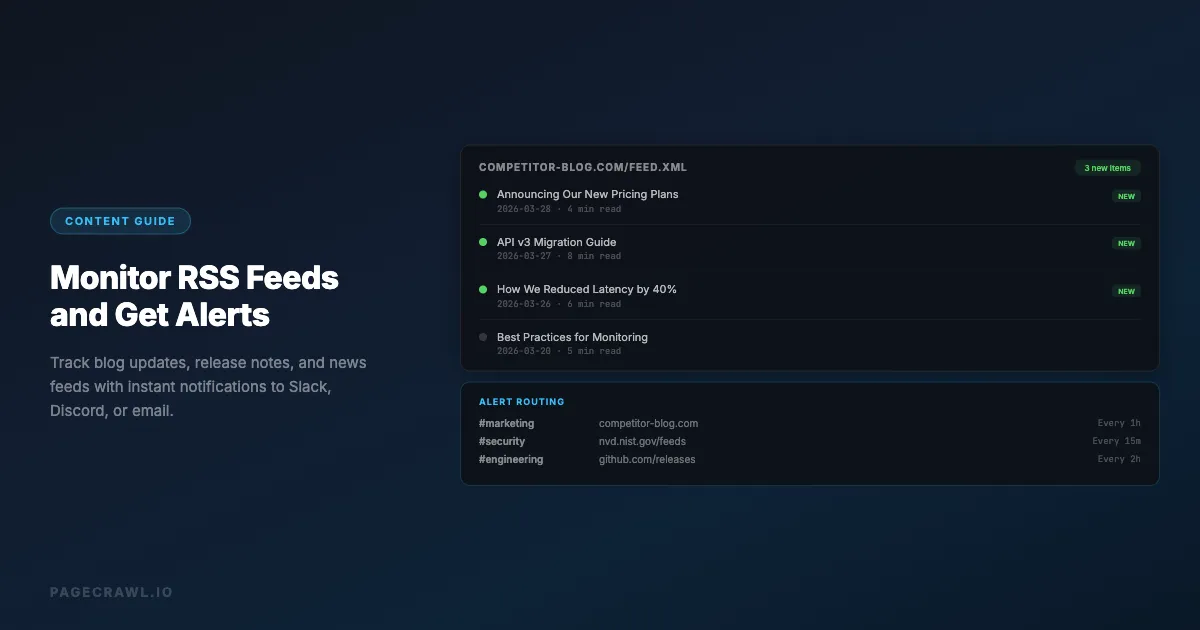
- Structured alerts: Instead of "the page changed", you get "3 new posts: [titles and links]". No parsing needed.
- Multi-channel delivery: Send notifications to Slack, Discord, email, webhooks, or any combination
- AI summaries: Get intelligent context about what changed, including item titles, authors, and excerpts
- Flexible frequency: Check every 5 minutes or every 24 hours depending on urgency
- Unified monitoring: RSS feeds alongside website changes, API endpoints, and other monitoring in one dashboard
- Automation: Trigger webhooks that connect to Zapier, n8n, Make, or custom workflows. See our guide on webhook automation for website changes for setup details
How to set it up with PageCrawl:
- Paste the RSS, Atom, or sitemap URL into Track New Page
- PageCrawl auto-detects that it is a feed and switches the tracking mode to Feed with sensible defaults
- Confirm the preview shows your items and adjust the "Track first N items" cap if you want to focus on the most recent entries
- Pick a check frequency: every 15 minutes for security feeds, every 1-4 hours for most blogs, daily for low-volume sources
- Route alerts to the appropriate Slack channel, Discord server, or email group
Feed mode reads the XML directly, so it is fast and efficient. A feed monitor uses a fraction of the resources a full browser check would use, which means you can check feeds more frequently without burning through your plan limits.
Why feed mode is better than text mode for feeds:
| Feature | Full page text | Feed mode |
|---|---|---|
| Parses feed structure | No (compares raw XML) | Yes (extracts title, link, date per item) |
| Reports specific items | No ("page changed") | Yes ("2 new posts: [titles]") |
| Handles reordering | Triggers false alerts | Ignores position changes |
| Item-level deduplication | No | Yes (uses GUID or link) |
| Engine efficiency | Requires full browser | Lightweight HTTP fetch |
Custom Scripts
For developers who want full control, a simple script can poll RSS feeds and send notifications:
#!/bin/bash
FEED_URL="https://example.com/feed.xml"
HASH_FILE="/tmp/feed-hash.txt"

CURRENT_HASH=$(curl -s "$FEED_URL" | md5)

if [ -f "$HASH_FILE" ]; then
  PREVIOUS_HASH=$(cat "$HASH_FILE")
  if [ "$CURRENT_HASH" != "$PREVIOUS_HASH" ]; then
    # Feed changed - send notification
    curl -X POST "https://hooks.slack.com/services/YOUR/WEBHOOK/URL" \
      -H 'Content-type: application/json' \
      -d '{"text":"RSS feed updated: '"$FEED_URL"'"}'
  fi
fi

echo "$CURRENT_HASH" > "$HASH_FILE"
Run this with cron on a schedule. The downside is maintaining the script, handling errors, managing state, and parsing feed content yourself.
Automation Platforms
Zapier, n8n, and Make all have RSS trigger modules that can start workflows when new feed items appear:
- Zapier: "RSS by Zapier" trigger
- n8n: "RSS Feed Read" node
- Make: "RSS" module
These work well but add another platform to manage and are limited by the platform's pricing and rate limits.
Setting Up Effective RSS Monitoring

Finding RSS Feed URLs
Not every site prominently links to its RSS feed. Here are reliable ways to find them:
Check the page source: Look for <link rel="alternate" type="application/rss+xml"> in the HTML head. This is the standard way to declare an RSS feed.
Try common URLs: Append /feed, /rss, /feed.xml, /atom.xml, or /rss.xml to the site's domain.
Use browser extensions: Extensions like "RSS Feed Reader" or "Feedbro" can detect feeds on any page.
Check robots.txt or sitemap: Some sites list their feed URLs in these files.
GitHub repositories: Every GitHub repo has an Atom feed at https://github.com/{owner}/{repo}/releases.atom for releases and https://github.com/{owner}/{repo}/commits.atom for commits.
WordPress sites: Almost all WordPress sites have feeds at /feed/ and /comments/feed/.
Choosing Check Frequency
Match your check frequency to the urgency of the content:
| Content Type | Recommended Frequency |
|---|---|
| Security advisories | Every 15-30 minutes |
| Competitor blogs | Every 1-4 hours |
| News feeds | Every 30-60 minutes |
| Software releases | Every 1-2 hours |
| Government/regulatory | Every 1-4 hours |
| Podcast feeds | Every 6-12 hours |
| Low-priority blogs | Daily |
More frequent checking catches updates faster but consumes more monitoring resources. For most use cases, checking every 1-4 hours provides a good balance between timeliness and efficiency.
Routing Alerts to the Right Channels
Different feed updates should go to different teams and channels:
Engineering team Slack channel:
- Dependency release feeds
- Security advisory feeds
- Infrastructure status feeds
Marketing team Slack channel:
- Competitor blog feeds
- Industry news feeds
- Social media mention feeds
Legal/compliance channel:
- Regulatory update feeds
- Government notice feeds
- Patent publication feeds
General company channel:
- Company blog feeds (to verify publishing)
- Industry award and recognition feeds
How do you monitor a site with no RSS feed?
Watch the page that behaves like a feed instead. The blog index, the XML sitemap, or a specific list section on the page all change when new content appears, so a standard page monitor gives you the same signal. Not every website offers an RSS feed, but every site exposes one of these:
Monitor the blog listing page: Set up a monitor on the site's blog index page (like example.com/blog). When a new post is published, the listing page changes. This approach also works well for monitoring documentation sites that lack RSS feeds.
Monitor sitemaps: Many sites publish XML sitemaps that update when new pages are added. Monitoring the sitemap catches new content regardless of whether the site has an RSS feed.
Monitor specific sections: Use CSS selectors to target the content area of a listing page, ignoring sidebars and navigation that change independently.
Use reader mode: Reader mode extracts the main content from a page, filtering out navigation, ads, and other noise. This makes change detection more focused on actual content updates.
Advanced RSS Monitoring Patterns
Filtered Feed Monitoring
Some RSS feeds are noisy, publishing dozens of items per day. You can focus on the relevant updates by:
Reading the AI summaries: In a feed monitor set up in Track New Page, every new item still sends an alert, and AI summaries categorize the new items and highlight the ones matching your criteria. A summary like "2 new posts: one about pricing changes, one about product updates" lets you quickly decide what needs attention.
Using element-specific monitoring: If the feed is rendered as HTML, monitor specific elements to focus on particular categories or tags.
Setting up keyword-based webhooks: Use your monitoring tool's webhook feature to trigger automation, then filter based on keywords in the webhook payload.
Cross-Feed Correlation
Monitor multiple feeds from the same source to build a complete picture:
- Monitor a competitor's blog feed AND their changelog feed
- Monitor both the main blog and the engineering blog
- Track a vendor's status page feed alongside their release feed
When changes happen across multiple feeds simultaneously, it usually indicates a significant event like a product launch or incident.
Feed Archiving
RSS feeds typically only show recent items. Once an item scrolls off the feed, it is gone. Monitoring tools that track change history effectively archive feed content over time, giving you a historical record of every item that appeared in the feed.
This is valuable for:
- Tracking publishing frequency over time
- Identifying content that was published then removed
- Building a competitive intelligence timeline
- Documenting regulatory changes for compliance
Common Scenarios
Monitoring GitHub Releases
GitHub provides Atom feeds for releases at predictable URLs. To monitor a project's releases:
- Find the feed URL:
https://github.com/{owner}/{repo}/releases.atom - Create a monitor for this URL
- Set check frequency to every 1-2 hours
- Route alerts to your engineering team's Slack channel
When a new release is published (especially security patches), your team gets the alert on the next check. The feed also lists pre-releases (betas and release candidates) and tags pushed without a Release, so those show up too. For tag and commit feeds, raw file addresses, and the GitLab equivalents, see the help centre guide to monitoring GitHub and GitLab repositories.
Monitoring WordPress Blogs
WordPress powers roughly 40% of all websites according to W3Techs, and virtually all WordPress sites have RSS feeds at /feed/. To monitor a WordPress blog:
- Navigate to
https://example.com/feed/ - Verify the feed loads (you will see XML content)
- Create a monitor for the feed URL
- Enable AI summaries to get the post title and summary in your notification
Monitoring Google News Topics
Google News provides RSS feeds for custom topics and search queries. While the exact format changes periodically, you can typically find feeds by:
- Going to Google News and searching for your topic
- Looking for an RSS link or constructing the feed URL
- Monitoring the resulting feed for new articles
This gives you fast alerts for news coverage of topics you care about, delivered on the check that first sees the new article.
Monitoring Reddit
Every Reddit subreddit has an RSS feed at https://www.reddit.com/r/subreddit/.rss. Monitor these to track discussions about your product, industry, or competitors:
- Identify relevant subreddits
- Create monitors for each subreddit's RSS feed
- Set check frequency to every 30-60 minutes
- Read the AI summary in each alert to spot the relevant posts
How do you troubleshoot an RSS monitor?
Start with the feed itself: open the URL in a browser and confirm the new item is actually there, since a cached or paginated feed is the most common cause of a silent monitor. If the problem is the opposite, too many alerts, widen the check interval or move to a digest instead of tightening the feed.
Feed Not Updating
If your monitor reports no changes but you know new content was published:
- Check the feed directly: Visit the feed URL in your browser to verify it includes recent content
- Verify the URL: Some sites have multiple feeds. Make sure you are monitoring the correct one
- Check for caching: Some feeds use aggressive caching. The feed URL might not reflect the latest content immediately
- Look for pagination: Some feeds only show the most recent items. If the new item pushed an old item off the feed, both additions and removals might cancel each other out in change detection
Too Many Alerts
If a feed generates too many alerts:
- Increase check frequency interval: Checking less frequently means each check captures more changes, resulting in fewer (but larger) notifications
- Switch to digest mode: Some monitoring tools can batch changes into periodic digests instead of per-change alerts. PageCrawl does this with scheduled reports that bundle changes into digests
- Filter the feed: If the feed includes multiple categories, see if there is a category-specific feed you can monitor instead
- Use AI summaries: AI can highlight the important changes, so you can quickly skip irrelevant ones
Feed Format Issues
Some feeds use non-standard formats or include unusual content:
- Atom vs RSS: Both formats work for monitoring. The key difference is the XML structure, but change detection works the same way
- JSON Feed: Some modern sites use JSON Feed format instead of XML. These can be monitored the same way
- Partial content feeds: Some feeds only include excerpts. Monitor the feed for new item detection, then use the linked URL for full content
Choosing your PageCrawl plan
PageCrawl's Free plan lets you monitor 6 pages with 220 checks per month, which is enough to validate the approach on your most critical pages. Most teams graduate to a paid plan once they see the value.
| Plan | Price | Pages | Checks / month | Frequency |
|---|---|---|---|---|
| Free | $0 | 6 | 220 | every 60 min |
| Standard | $8/mo or $80/yr | 100 | 15,000 | every 15 min |
| Enterprise | $30/mo or $300/yr | 500 | 100,000 | every 5 min |
| Ultimate | $99/mo or $999/yr | 1,000 | 100,000 | every 2 min |
Annual billing saves two months across every paid tier. Enterprise and Ultimate scale up to 100x if you need thousands of pages or multi-team access.
Standard at $80/year pays for itself quickly if you are monitoring competitor blogs, security advisory feeds, or release feeds for your dependencies. Feed checks are lightweight, so 100 monitored feeds go a long way - that covers your top competitors, a dozen security advisory sources, and the release feeds for every library your team maintains. Enterprise at $300/year adds 500 feeds and higher frequency checks.
All plans include the PageCrawl MCP Server, which lets you query your feed monitoring history through Claude or Cursor to get summaries of what competitors published or what security advisories dropped over any time period. AI assistants can create monitors through conversation on every plan, including Free.
Getting Started
Set up your first RSS monitoring in three steps:
- Pick 3-5 feeds that matter most to your team: a competitor blog, a dependency release feed, and a security advisory feed are good starting points
- Create monitors for each feed URL with appropriate check frequencies (every 1-4 hours for most, every 15-30 minutes for security)
- Route alerts to the Slack channel or Discord server where the relevant team members will see them
Within a few days, you will have a clear picture of how much content these sources publish and which alerts drive action. From there, expand your monitoring to cover more feeds and fine-tune your alert routing.