You open a supplier's product page before placing an order. Lead time now says fifteen days. Last week it was five. PageCrawl is watching the page, but there is no alert in your inbox, and purchasing is already working with the old delivery date.
Checking more often is the obvious fix. It only helps if the schedule was the problem. If the monitor is watching the price instead of the lead time, or its alerts are going into Friday's digest, a faster interval leaves you with the same blind spot.
PageCrawl's saved content and change history let you work backward from the missing email. Start there, find where the new lead time disappeared from the chain, and change the setting responsible.
Where should you look first when a change alert is missing?
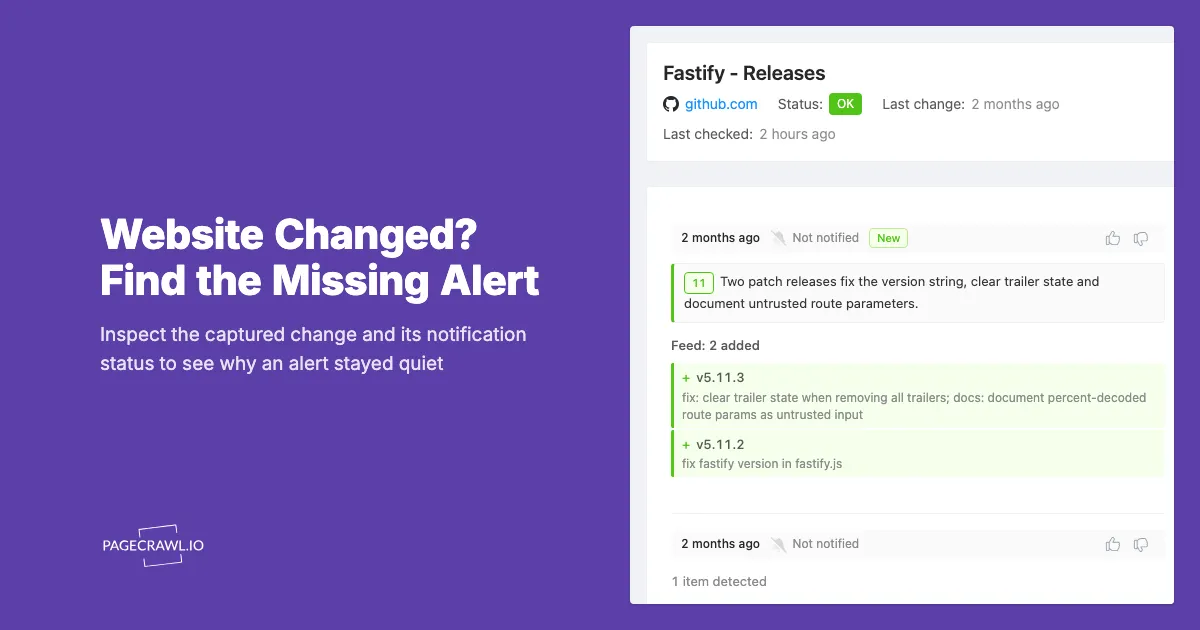
Open the monitor's history before changing its settings. Find the latest successful check, look at the content it saved, and compare that with the detail you expected an alert about. This separates a page the monitor has not seen from a change it saw but kept quiet.
An empty inbox tells you very little on its own. The supplier may have changed the page after the last check. The saved login may have expired. A condition may be waiting for a price below 100 while the current price is 105. Each explanation calls for a different fix.
Follow this decision tree until you reach the first missing step:
| Question | If yes | If no |
|---|---|---|
| Did a successful check run after the edit? | Look at the saved content | Check the schedule, status, usage, and errors |
| Does it contain the changed detail? | Compare it with the previous value | Fix the selected content, page variant, or login |
| Is the change in history? | Read its status | Check the baseline and condition-recording settings |
| Did it qualify for an alert? | Check the delivery route | Adjust the condition or filter responsible |
| Is the monitor covered by a report? | Look at the report's timing and recipients | Check the individual notification channels |
| Did the message reach that destination? | Make sure the right person receives it | Test that channel and inspect its settings |
Keep the supplier's lead time in mind as you work. You are trying to answer a specific question: why did a change from five days to fifteen fail to reach purchasing? That is much easier to diagnose than “notifications seem unreliable.”
Has PageCrawl checked the page since it changed?
Compare the latest successful check with the time you first saw the edit. If the check came first, the monitor has not yet had a chance to find it. If a later check failed, fix that failure before investigating the email or chat channel.
An hourly schedule leaves gaps between visits. A supplier can update its page at 09:05 when the next check is due at 10:00. A weekday-only workspace schedule can leave a Friday evening update until the next active period. Look at the next check time instead of assuming that the selected interval means a recent visit.
Also look for Checks paused, Reduced check frequency, or a disabled monitor. Check allowances and scheduling affect when pages are visited; the fact that a URL remains in your list does not mean it is running at its original cadence.
A failed check deserves attention of its own. The supplier's site may be unavailable, the selected part of the page may have moved, or the saved sign-in may need renewing. PageCrawl cannot compare a lead time it has not loaded.
After correcting the problem, use Check Now to see the current page. For a larger supplier list, the Site Health report helps you find failing monitors together. A fresh check gets monitoring moving again, although it cannot retrieve a temporary change that disappeared before any successful visit.
Is the monitor watching the detail that changed?
Look at the tracked value, not just the screenshot. A monitor can load the correct product page while comparing only its price, leaving changes to lead time, stock, or packaging outside the comparison. Add the missing field or select the section that contains the information your team needs.
Supplier pages often put several buying decisions on one screen. Unit price tells purchasing what the part costs. Lead time tells production when it can arrive. Pack quantity tells receiving how many units a line item represents. Watching one of these does not automatically watch the others.
In PageCrawl, use multiple tracked elements to keep those values separate. A price element can produce a numeric history while a text element follows “Ships in fifteen business days.” Give each a clear name so that a lead-time alert is recognizable without opening the page.
The page itself can also differ from the one in your browser:
- Product variant: your browser shows the 250-unit pack, while the saved URL opens the 50-unit pack.
- Market: the monitor loads the UK store, while you are reading an Irish delivery promise.
- Account: your browser is signed in to negotiated pricing, while the saved login has expired.
- Hidden content: the lead time appears only after opening a delivery tab.
- Redesign: the selected region still exists but now contains a different piece of information.
Open the monitor's setup and compare the selected content with the actual business question. For a portal, follow the saved-login testing guide. For regional differences, check the language, currency, and country together.
A screenshot showing the new lead time is useful, but the text or numeric value being compared is what matters for that alert.
What does the change's history status tell you?
Use Show all in the history when some entries are hidden, then read the status beside the change. It can tell you that a rule kept the alert quiet, that no channel was available, or that the entry was a baseline rather than a new edit.
These labels narrow the search:
| Status | What happened |
|---|---|
| Initial check | This is the first captured value, with no earlier version to compare |
| Config updated | A configuration change caused the first notification to be skipped |
| Not notified | A change was detected, but the alert rules did not match |
| No new lines | An added-only or removed-only setting found no change in that direction |
| No alert sent | Conditions matched, but no notification channel was available |
| Low importance | AI importance filtering kept the change quiet |
| Marked not useful | Feedback about similar changes affected the alert decision |
The baseline explains a common surprise. If you add the supplier page after its lead time has already increased, fifteen days becomes the starting value. PageCrawl needs a later difference to report a change.
An absent entry also deserves a closer look. Ordinary conditions can leave unmatched changes unrecorded unless Always record change detections is enabled. That is different from AI importance filtering, where low-importance changes remain available in history.
Finally, a short-lived edit can fall between checks. If the page says five days at 09:00 and again at 10:00, a temporary fifteen-day message at 09:20 may never reach history. A shorter interval can help with pages that change briefly, but filtering settings cannot recover a version the monitor never saw.
Could a condition be keeping the right change quiet?
Read the condition as literally as the monitor does. Check its threshold, keyword mode, and whether every condition must match. A rule can work correctly while being narrower than the purchasing decision behind it, particularly when several conditions or broad ignore filters have accumulated over time.
Check the exact wording
Less than 100 excludes 100. Less than or equals includes it. A keyword appearing in newly added content is different from that word remaining somewhere on the page.
Under Conditions & Filters, Match all conditions means every rule must match. Requiring both a price decrease and the word “sale” to appear will stay quiet when the supplier lowers its price without adding “sale.” Decide whether either event should be sufficient, then use the conditions reference to set the matching logic.
Keep the return journey in history
A “Keyword appeared” rule needs to see the keyword disappear before it can recognize another appearance. Without Always record change detections, ordinary unmatched changes may not be saved, and a later comparison can still use the last qualifying version.
Enable that setting when you need the complete sequence while keeping unwanted notifications quiet. It is particularly useful for recurring stock messages, maintenance notices, and other one-direction conditions.
Look at what you told the monitor to ignore
A number filter that removes a footer counter may also remove the lead-time number you care about if applied too broadly. A date filter can hide an important delivery cutoff. Narrow the selected content first, then remove the remaining noise.
For text monitors, inspect the change's importance decision and Minimum importance setting. Numeric-only monitors do not receive AI summaries or importance scores, so look at their numeric conditions directly. Our false-positive guide explains how to quiet distractions without losing the useful part of a page.
Is the alert waiting in a scheduled report?
An active scheduled report replaces individual change alerts for the monitors it covers. Their changes go into the digest instead, with Priority escalation available for qualifying changes that need to arrive sooner. Check the report's coverage and next delivery time before treating a quiet inbox as a delivery failure.
This often follows an innocent organizational change. Someone adds the supplier monitor to a folder or label covered by a weekly report. The page keeps getting checked, but purchasing now hears about its changes in that report.
Open the covering report and look at its recipients, channels, importance threshold, and next delivery time. If it shows only the latest change per monitor, several edits during the reporting period may not appear as separate items.
For a critical lead-time page, choose delivery that fits the buying decision. A weekly digest may suit a strategic supplier review; it is less useful when today's purchase order depends on the new date. Use a per-change route outside report coverage or suitable Priority escalation. Both still depend on a successful check finding a qualifying change.
The scheduled reports guide covers these controls. You can fix one monitor's routing without dismantling the team's reporting setup.
How do you fix the destination and confirm the alert works?
Once history shows a qualifying change, test the channel that should receive it. Check the recipient or chat destination, use Send test where available, and confirm the message arrives. Then test a known page edit so you have checked both the destination and the monitor feeding it.
For email, look at selected channels, workspace notification preferences, the recipient address, spam or quarantine, and inbox rules. Domain grouping can place several changes in one message. A report can also have different recipients from the people expecting individual alerts.
For chat, check that the integration still has access to the channel, especially after a rename or archive. For an automation, inspect the receiving system's run history. A message accepted by an automation is not necessarily a completed downstream task.
Browser notifications have another setting to check: the browser's permission for PageCrawl. Chrome can remove notification permission from sites that have not been visited for a while. Google's notification instructions show where to restore it.
For a simple end-to-end check, use a page your team controls. Set a numeric value to 120, add a Less than 100 condition, enable Always record change detections, and choose a test destination outside report coverage. Let the baseline complete, change the value to 115, then to 95, allowing each value to be captured. The first change should stay quiet; the second should match the condition. The team testing guide expands this into a fuller exercise.
If the result still differs from what you expect, share the monitor link, the relevant times and timezone, the old and new values, the history status, and the destination with your teammate or support. That is enough to begin a useful investigation without including passwords or private integration credentials.
Start with the monitor behind the missed supplier update. Find its latest successful check, open the saved lead time, and follow that change to its destination. Fixing the specific break gives purchasing a monitor it can use again, and gives you a clear place to look the next time an inbox stays quiet.