A chat alert gets a few seconds of attention. "The pricing page changed" sends you off to open the page and hunt for the difference yourself, and a long text diff gets cut short by the app's message limits before it reaches the part you care about.
Alerts in Slack, Microsoft Teams, Discord and Telegram now carry Highlighted changes by default: an image of just what changed, with removed words crossed out in red and added words marked in green. Each app also has an Attachment setting, so you can choose Before and after screenshots instead, a full-page screenshot, or no attachment at all.

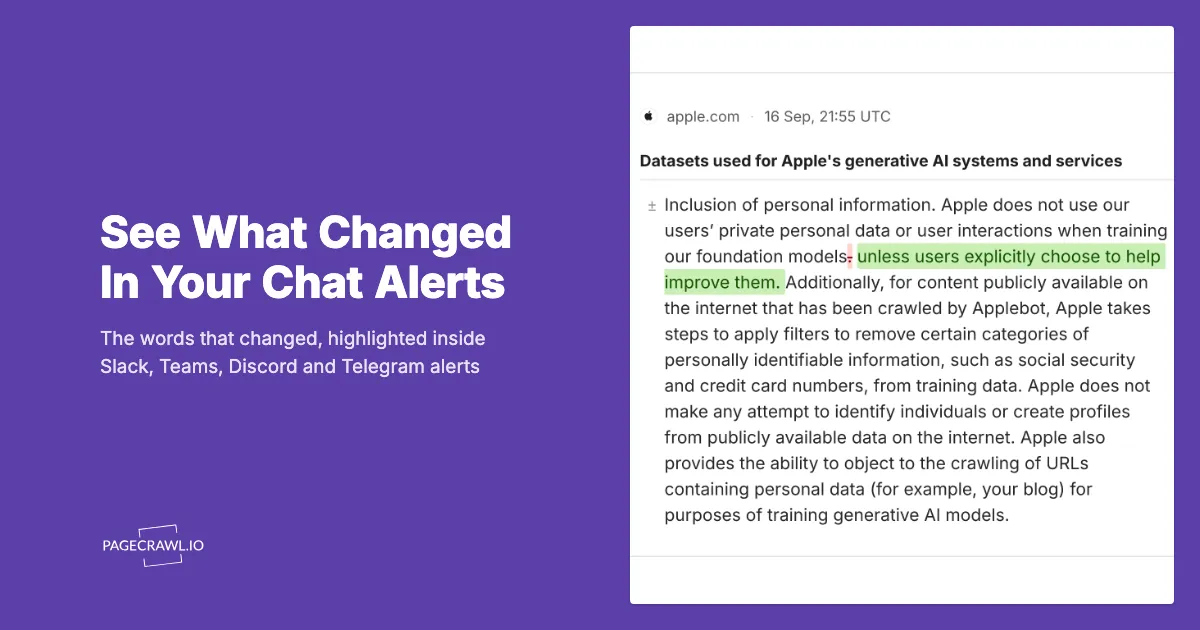
This is Highlighted changes for a real change to Apple's page "Datasets used for Apple's generative AI systems and services", built from Internet Archive copies captured on 14 July 2026 at 18:24 UTC and 16 September 2026 at 21:55 UTC, the time shown on the image.
What can a Slack, Teams, Discord or Telegram alert show?
Every chat alert names the page and describes the change in text. It can also carry one attachment, chosen per app under Attachment: Highlighted changes shows just what changed, Before and after shows the page on both sides of the change, and Page screenshot shows the whole page as it looks now.
- Highlighted changes (marked Recommended): an image of only the changed lines, with removed and added words marked. It is the default for every chat app.
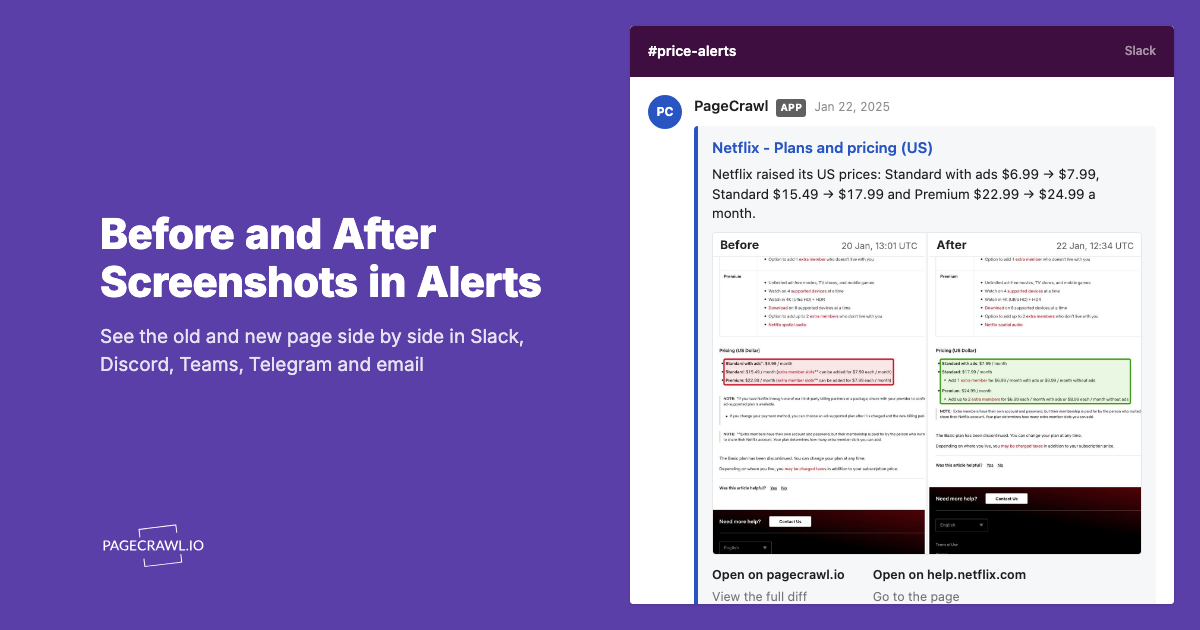
- Before and after: screenshots of the page from before and after the change, side by side, zoomed in on the change when PageCrawl can find it.
- Page screenshot: a full-page screenshot of the latest capture.
- Text file (Telegram only): the page's captured text as a file.
- No attachment: the alert text alone.
Why do my chat alerts now include an image?
Highlighted changes is now the default attachment for Slack, Microsoft Teams, Discord and Telegram. Every channel that was still on No attachment, the old default, was switched to it, while channels set to Page screenshot, Before and after or Text file kept their choice. You can go back to text-only alerts at any time.
- Open Settings and choose Integrations under your workspace.
- Under Notification Channels, choose Manage on the app.
- Open Attachment and choose No attachment.
- Choose Save Changes.
Each app keeps its own setting, so you can keep the image in one app and turn it off in another.
What does the Highlighted changes image show?
Highlighted changes is an image of only the parts of the page that changed. Removed words are crossed out in red, added words are marked in green, and long runs of unchanged lines are collapsed. A changed price or number shows the new value in large type with the old value crossed out beside it.
- Word-level marks. When a sentence is reworded rather than replaced, only the words that changed are marked, so a one-word edit in a long clause still stands out.
- Feeds and listings. Items are tagged New, Removed or Changed.
- Keywords. Words from your notification conditions appear in a Keywords row.
- Long changes. When a change is too long for the image, it ends with a line saying how many more lines were left out, such as "12 more lines not shown".
- Where and when. The top row shows the site, when the change was found, and the monitor's folder and labels.
The summary stays in the message as text, so it still shows in notification previews and search, and the changed lines are not repeated under the image. The image is drawn from the page's text, so it needs no screenshots and works for documents as well as web pages.
For example, Apple's page "Datasets used for Apple's generative AI systems and services" said "Apple does not use our users’ private personal data or user interactions when training our foundation models." In September 2026, the sentence gained a new ending: "unless users explicitly choose to help improve them." Highlighted changes for that update marks the new clause in green and crosses out in red the full stop that ended the old sentence, and Apple's support article on the Improve Siri & Apple Intelligence setting describes the opt-in behind it.
Why send the change as an image instead of text?
Chat apps cap how much text one alert can hold, so a long text diff gets cut off. Telegram allows 1,024 characters in a photo caption and Discord allows 1,024 in an embed field. An image fits more of the change into the space each app gives it, keeps the words marked, and says how many lines it left out.
The image is also shaped for each app, so it reads at the size the app shows it. In Discord it is no taller than 4:3, so it fills the embed's preview. In Telegram it is no taller than a square. Slack and Microsoft Teams get a taller image, so opening it shows more of a long change.
When is Before and after the better choice?
Choose Before and after when where a change sits on the page matters as much as the words: a pricing table, a product page or a layout change. It puts screenshots from before and after the change side by side, zoomed in on the change when PageCrawl can find it, so you see the context the words leave out.

This is Before and after for Tesla's UK driver-assistance page, built from Internet Archive copies captured on 8 July 2026 at 20:11 UTC and 9 October 2026 at 09:36 UTC, the times on each side.
Tesla renamed Full Self-Driving (Supervised) on its UK and European pages after Germany's Federal Ministry of Transport said in a statement of 6 October 2026 (in German) that the name "FSD" was somewhat misleading and that Tesla had offered to rename the system "Tesla Assisted Driving". On the UK page, the photo at the top stayed the same and the heading over it changed. The image outlines the old name in red on the Before side and the new name in green on the After side.
| On the page | Before (captured 8 July 2026) | After (captured 9 October 2026) |
|---|---|---|
| Heading | Full Self-Driving (Supervised) | Tesla Assisted Driving |
| Page address | tesla.com/en_gb/fsd | tesla.com/en_gb/tesla-assisted-driving |
| Availability note | Full Self-Driving (Supervised) is only available for activation and use in regulatory-approved markets. | Tesla Assisted Driving is only available for activation and use in regulatory-approved markets. |
Before and after needs a screenshot on both sides of the change. Screenshots must be on for your team and for the monitor, and there must be an earlier capture of the page to compare with. Before and after screenshots in website change alerts explains how the image finds and outlines a change.
How does each chat app show the image?
Each app shows the image inside the alert and opens it full size when you click or tap it. Slack, Discord and Microsoft Teams place it below the summary. Telegram sends the alert as a photo with the summary as its caption, which is why Highlighted changes is marked as working best there.
| App | Where the image appears | Shape of Highlighted changes | To see it full size |
|---|---|---|---|
| Slack | Inside the alert, below the summary | Up to a tall image, so a long change has room | Click the image |
| Microsoft Teams | In the alert card, below the summary | Up to a tall image, with larger type | Click the image to expand it |
| Discord | In the alert's embed, below the summary | No taller than 4:3, the shape of the embed's preview | Click the image |
| Telegram | As a photo, with the alert text as its caption | No taller than a square | Tap the photo |
On Telegram, the caption keeps the summary. With Before and after or Page screenshot, it also carries as much of the text diff as fits.
How do you choose the attachment for each app?
Open Integrations in your workspace settings, choose Manage on the app under Notification Channels, pick an option under Attachment and choose Save Changes. Each app has its own setting, so a Slack channel can show Before and after while Telegram shows Highlighted changes. The setting covers change alerts, not scheduled summary reports.
- Open Settings and choose Integrations under your workspace.
- Under Notification Channels, choose Manage on Slack, Discord, Telegram or Microsoft Teams. An app that is not connected yet shows Setup instead. The Slack, Microsoft Teams, Discord and Telegram guides cover connecting it.
- Open Attachment and choose Highlighted changes, Before and after, Page screenshot or No attachment. Telegram also offers Text file.
- Choose Save Changes, or Connect when you are connecting the app for the first time.
Microsoft Teams receives alerts through a Workflows webhook, which posts to the channel or chat you picked when you created it. The guide to choosing what your chat alerts show covers every option in detail.
Email has its own switches, and one email can carry several attachments. Open Notifications & Reports in your workspace, switch on Highlighted changes, Before and after or another option under Email attachments, and choose Update. The email notifications guide describes each one.
Why did an alert arrive without the image?
An alert goes out without its image when its monitor is checked very often or there is nothing to draw. Monitors checked more often than every 15 minutes send alerts without attachments, so those alerts are not slowed down by preparing an image. Before and after also needs screenshots from both sides of the change.
- Frequent checks. A monitor checked more often than every 15 minutes never carries attachments, in chat apps or in email. Check it every 15 minutes or less often to get them.
- AI summary only. When Changes to show is set to AI summary only, chat alerts leave out Highlighted changes, because the summary is the alert. Page screenshot and Before and after still arrive.
- No screenshots. Before and after and Page screenshot need screenshots turned on for your team and the monitor. Files such as PDFs, and monitors that use the Fast engine, take no screenshots, so Highlighted changes suits them better.
- Scheduled reports. Changes delivered in a scheduled summary report do not include attachments.
Alerts go out when a check detects a change. Preparing an attachment takes a moment, so an alert with one can arrive a little later than it would without it.
Which attachment fits which kind of page?
Use Highlighted changes for pages where the words decide what happens next: terms, policies, release notes, job listings and prices. Use Before and after for pages where the layout carries the meaning, such as pricing tables, product pages and visual monitors. You can mix them, one choice per app.
| Page | Attachment | Why |
|---|---|---|
| Terms of service and privacy policies | Highlighted changes | The exact wording is the change |
| Release notes and changelogs | Highlighted changes | New lines are marked as added |
| Job listings and other feeds | Highlighted changes | Items are tagged New, Removed or Changed |
| Product prices | Highlighted changes | The new price is shown large next to the old one |
| Documents and PDFs | Highlighted changes | No screenshots needed |
| Pricing tables | Before and after | Shows which plan each price belongs to |
| Product and landing pages | Before and after | Badges, images and layout read at a glance |
| Visual monitors | Before and after | The look of the page is the change |
Getting started
Open Integrations, check what each chat app is set to send, and judge the next change from the alert itself. If you do not have an account yet, you can create one for free and connect Slack, Microsoft Teams, Discord or Telegram from the same page.
Sources for the two example images, both rendered by PageCrawl from archived copies of the real pages:
- Apple (Highlighted changes): Internet Archive captures of apple.com/legal/ai-regulations/training-data from 14 July 2026, 18:24 UTC and 16 September 2026, 21:55 UTC. Apple records the update in a footnote to its Machine Learning Research article "Introducing the Third Generation of Apple’s Foundation Models" ("Updated September 9, 2026, to reflect that people can now opt in to help improve Siri and Apple Intelligence.") and in its Improve Siri & Apple Intelligence support article. The change was reported by heise on 13 September 2026 and by 9to5Mac and AppleInsider on 14 September 2026.
- Tesla (Before and after): Internet Archive captures of tesla.com/en_gb/fsd from 8 July 2026, 20:11 UTC and tesla.com/en_gb/tesla-assisted-driving from 9 October 2026, 09:36 UTC, and the statement Germany's Federal Ministry of Transport published on 6 October 2026. TechCrunch, Electrek and CNBC reported the rename on 9 October 2026.