A public page loads through your home connection, but the same URL gives your monitor an access error or a different regional version. PageCrawl Relay lets you send that monitor's checks through an Android phone on the connection you want to use.
The phone supplies the network connection. PageCrawl handles the check schedule, captures, comparisons, history and notifications. You may already have the device: an old Android phone sitting unused in a cupboard. If it meets Relay's device requirements, you can leave it on a charger and use it as a dedicated connection for your personal monitors.
Relay is available on every PageCrawl plan, including Free. It mainly suits personal monitoring and users who can supply the device, power and bandwidth. For business monitoring, we recommend Enterprise or Ultimate and their included managed connection options. Relay remains available when you specifically need your own connection.
Why use an Android Relay instead of a proxy location?
Use a managed location when it already captures the data you need and its cost fits your plan. Choose an Android Relay when supplying your own connection makes sense for a personal monitoring budget, or when a public source specifically accepts your own IP. Selecting a proxy country alone does not provide that exact connection.
- A small personal collector using bandwidth you already have. You track a few product prices or public used-item searches, and the pages need a different connection to load correctly. You already have a supported spare phone and home bandwidth to spare. If a PageCrawl check through that phone captures the expected data, Relay lets you reuse the device and connection with no PageCrawl Relay fee, including on Free. You supply the electricity and bandwidth, and your normal page and check limits still apply.
- A public-facing data source that accepts your exact IP. You have authorized access to a catalogue or research feed whose allowlist includes your home public IP. A proxy in the same country supplies another address, so it does not meet that access rule. Keep the phone on home Wi-Fi, select it by name as the monitor's Location, and configure any required login in PageCrawl. Choose a waiting offline policy to retain that connection when the phone is unavailable. Relay supports public destinations; private intranets and local router pages remain blocked.
For business monitoring, Enterprise or Ultimate and their included managed connection options are usually simpler than maintaining a phone. Those included options do not consume optional Web Unblocker bandwidth, which is billed separately. The connection guide explains the choices. A need for another country's page version alone is a reason to select an available location, rather than to set up an Android Relay.
What does the Android monitoring tunnel do?
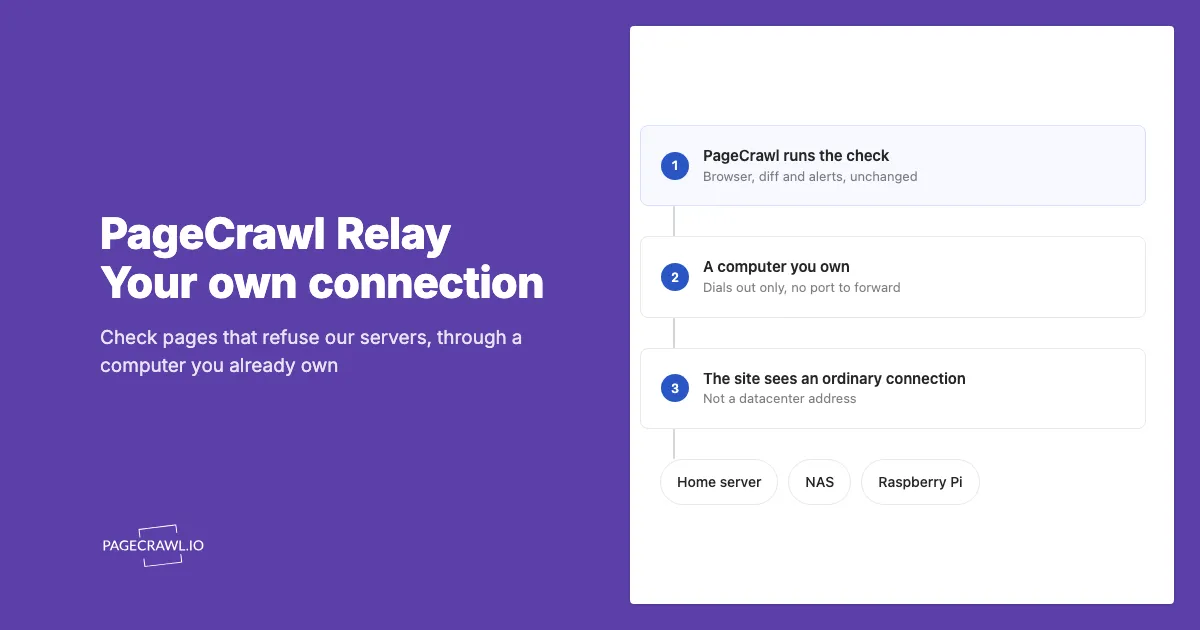
PageCrawl Relay opens a secure outbound connection from your phone to PageCrawl. Checks assigned to that relay reach public websites through the phone's network, and the responses return to PageCrawl for monitoring. The website sees the phone's internet connection. Your other phone apps continue to use their normal connections.
PageCrawl ↔ secure connection ↔ Android phone ↔ public website
Because the phone starts the connection, you do not need a static public IP, router port forwarding or an inbound firewall rule. The same principle applies behind carrier-grade NAT: the phone needs working outbound access, without being directly reachable from the internet.
This gives you a way to change a monitor's network origin while keeping its tracked elements, history and alert settings. It may help when a public website serves your connection differently. It does not guarantee that every site will load.
Should the phone use Wi-Fi or mobile data?
Start with the connection that already loads the public page correctly. Relay uses unmetered Wi-Fi or Ethernet by default and waits when only mobile data or a metered connection is available. Enable Also use mobile data if you want it to carry checks on those networks as well.
Metered Wi-Fi matters here. A hotspot can look like Wi-Fi while using someone else's mobile allowance. If Android marks that network as metered, Relay treats it like mobile data and waits unless you have opted in.
Also use mobile data permits that connection; it does not force traffic onto cellular while the phone is using Wi-Fi. To test a cellular route, turn off Wi-Fi, confirm that mobile data works, and check the monitor again.
Changing networks can change the public IP address and the version of a page you receive. If a public site has approved your home IP, keep the phone on that home connection. A cellular connection should not be treated as a fixed address or a guaranteed way to improve access.
How do you connect an Android phone to PageCrawl?
Install the separate PageCrawl Relay Android app, enroll the phone in your PageCrawl account, and enable Relay checks. Then select the phone as a monitor's Location. Connecting the app makes the relay available; the Location setting determines which monitors use it. Use a supported 64-bit device running Android 8.0 or later.
- In PageCrawl, open Settings → More → Relays and choose Add machine. Give it a useful name, such as
Android home Wi-Fi. - Install PageCrawl Relay from Google Play. If your phone does not have Google Play or you prefer a direct download, the official Relay releases also provide the Android APK.
- Open PageCrawl Relay on the phone. Scan the enrollment QR code, or paste the key and tap Use this key.
- Switch on Relay checks and wait for Relaying checks.
- Edit one monitor and set its Location to the phone's name. Run a check and inspect the captured result.
Choose the named phone when a particular connection matters. Any of my machines allows PageCrawl to use another available relay, which may be on a different network or in a different country.
Keep the enrollment key and QR code private. The key is shown once when you add the machine. You can stop relaying with the switch or the notification's Turn off action. Remove key from this phone also forgets the saved key; remove the machine in PageCrawl when you want to revoke its enrollment.
Should you install Relay from Google Play or an APK?
Install PageCrawl Relay from Google Play for the simplest setup and automatic updates according to your Play settings. The official Android APK remains available on GitHub for compatible phones without Google Play, or if you prefer to download and install releases yourself.
An APK is an Android installation file. Installing it directly requires allowing installation from the browser or file manager you use to open it. You also manage updates yourself by downloading and installing a newer official APK.
| What changes? | Google Play | Official APK download |
|---|---|---|
| Installation | Open the listing and tap Install. | Download the APK and open it. Android asks you to allow installs from the browser or file manager used to open it. |
| Updates | Play can update the app automatically according to your update settings. | Download and install a newer official APK when you want to update. |
| Availability | Available through the Play Store on supported devices and in supported regions. | Available for compatible phones that permit direct app installation, including phones without Google Play. |
| Version choice | Install the version available to your device on Play. | Choose an APK from the official release you want to install. |
Google documents both automatic app updates and allowing APK installation from a particular source. For direct downloads, use the official Relay releases, rather than an APK from an unrelated download site. On phones with Google Play Protect, apps installed outside Play can still be scanned.
The installed version determines the features, regardless of where you install it. Version v0.1.12 or later supports the optional fixed reconnect interval and coordinated pause described here. Installing Relay does not grant root access or select it as your digital assistant. Experimental Assistant mode needs your explicit assistant selection and a supported phone.
Note: If you already installed Relay from an APK, open its Play listing and check whether an update is offered. Android accepts an update only when the package name, signing identity and version meet its requirements. Android's update guide explains these conditions. If you uninstall Relay, its saved enrollment key is removed and you need to enroll the phone again.
How do you verify that monitoring uses the phone?
Test the relay connection and the actual monitor separately. Run self-check verifies enrollment, connectivity and local network protection without interrupting a running relay. Passing diagnostics do not mean checks are being relayed: also confirm Relaying checks. Then test the monitor's assignment and captured content, since diagnostics cannot establish that a particular website loads correctly.
Use three checks before moving more monitors:
- Connection: run the app's self-check and resolve any failures. Confirm that the app reaches Relaying checks.
- Capture: select the named phone as the monitor's Location, run a check, and inspect the saved page or tracked value. Check that it contains the intended regional content rather than an error or sign-in page.
- Continuity: turn the screen off and leave the phone in its intended operating state. Let scheduled checks run, then inspect their results in PageCrawl. Repeat after a reboot or network change.
For a controlled comparison, use the same URL and monitor settings while changing only the Location. If switching connections changes the result, you have useful evidence about the network's effect. If both captures show the same access error, changing the connection has not solved that page's problem.
A page opening in the phone's browser is a useful starting point, but that browser may already have a signed-in session. Relay does not import its cookies. Configure any required website login in PageCrawl, then test the resulting capture.
What happens when the phone goes offline?
An unavailable relay follows the offline policy in PageCrawl's Relays settings. The default allows checks through PageCrawl's own connections. That keeps monitoring running, but may capture different content if the page depends on your connection. Choose a waiting policy when preserving the intended network origin matters more than completing a check while the phone is unavailable.
| Offline policy | Result when the selected relay is unavailable |
|---|---|
| Check from PageCrawl instead | The check can run through PageCrawl's connections. This is the default. |
| Wait and try again later | Content checks wait for an available relay. |
| Wait, and mark the monitor as failed | Content checks wait, and the monitor shows the relay failure under your usual alert rules. |
This setting applies to relayed monitors across your team's workspaces, so review its effect on the other monitors using Relay. Reaching the relay's monthly data limit can also make it unavailable and invoke this policy.
For example, a public product page might serve one price through home Wi-Fi and another through a different connection. Falling back could record a price change caused by the connection rather than a change to the version you intended to track. A waiting policy keeps that unavailable period out of the content comparison.
Can you reconnect mobile data to get a new public IP?
Relay's experimental Assistant mode can reconnect mobile data without rooting a supported phone. In v0.1.12 or later, reconnect manually or choose a fixed interval, such as every 30 minutes. Each attempt waits for Relay to become idle. Your carrier may still reuse the same public IP or shared carrier-grade NAT (CGNAT) exit.
How do you use Relay's optional Assistant mode?
Install or update Relay through Google Play, or use the official Android APK on a phone without Play. The schedule and coordinated pause below require v0.1.12 or later. PageCrawl must confirm each pause before the phone disconnects. Selecting Relay as Android's digital assistant replaces your current assistant. Ordinary relaying does not require that selection, and Android versions and device manufacturers can limit Assistant support.
- Tap Set up Assistant mode and choose PageCrawl Relay in Android's assistant selection. Wait for the card to report that Assistant mode is ready.
- Turn Wi-Fi off and confirm that mobile data works. Turn on Relay checks and Also use mobile data, then wait for Relaying checks. Both manual and scheduled reconnects need an enrolled, connected Relay.
- Set Wait for idle (seconds) to a value from 5 to 300. The default is 30 seconds of no active Relay connections or Relay traffic. New activity restarts this wait.
- Set Airplane mode pause (seconds) to a value from 1 to 120. The default is 10 seconds. This is the time disconnected, not the idle wait or a reconnect interval; a longer pause does not guarantee a new address.
- Tap Reconnect mobile data and confirm. Keep Relay open and the phone unlocked. Its screen stays on during the cycle. After the idle wait, Relay enables airplane mode, waits for the chosen pause, disables airplane mode and waits for cellular internet to return.
- Read the public IPv4 result and wait for Relaying checks before running another monitor check.
How often can Relay reconnect mobile data?
In v0.1.12, enable a fixed interval from 5 to 1,440 minutes. The initial interval is 30 minutes, and scheduling is off by default. For example, a 30-minute interval makes an attempt due after that wait; Relay then checks that the phone is ready and waits for the configured idle window before disconnecting.
After testing a manual reconnect, set Reconnect interval (minutes) in the Assistant mode card, turn on Scheduled reconnects and confirm Enable schedule. Keep Relay checks and Also use mobile data on, turn Wi-Fi off and confirm that Relay is connected. The phone must be awake and unlocked, with Relay still selected as its digital assistant. The schedule waits when those conditions are unavailable, and the card shows the next due time or the reason it is waiting.
The next interval starts after an attempt finishes, including a manual reconnect. A delayed attempt does not trigger several missed reconnects in succession. Idle waits, mobile coverage and the phone's state can move the actual reconnect time, so this is an interval between attempts rather than a promise to disconnect at a particular minute.
Relay's running service can handle a scheduled attempt while another app is in the foreground, but it cannot unlock the phone. For a dedicated spare phone, leave Relay open on a charger; the app keeps its screen on while relaying and the schedule are enabled and Assistant mode is ready. Ordinary relaying can continue with the screen off.
Turn off Scheduled reconnects to stop automatic attempts and any current scheduled cycle. Cancel reconnect stops the current cycle while leaving the schedule enabled.
Can Relay wait until it is idle before reconnecting?
Yes. Wait for idle (seconds) requires a continuous quiet period with no active Relay connections or Relay traffic before a manual or scheduled reconnect. The default is 30 seconds, adjustable from 5 to 300 seconds. New Relay activity resets the timer. If Relay never becomes idle within 10 minutes, the attempt stops without enabling airplane mode.
Use Cancel reconnect to stop while waiting, before the phone disconnects. The idle check covers Relay activity only, so it does not check calls or traffic from other apps. A new monitor check can also start after the quiet period. Reconnecting still temporarily disconnects the whole phone and can interrupt checks and calls.
Outside the confirmed reconnect pause, checks follow the team's offline policy while the relay is unavailable. Choose a waiting policy if checks must keep that cellular route. The idle wait reduces the chance of interrupting Relay traffic, but it does not guarantee an uninterrupted check.
Test a reconnect and verify that scheduled monitoring resumes before leaving the phone unattended.
Before changing the connection, Relay asks PageCrawl to briefly hold checks for this phone. If PageCrawl cannot confirm the pause, the phone keeps its connection. The pause ends when mobile internet returns and expires automatically within five minutes if the phone stops responding. Your normal offline policy then applies if the phone remains unavailable.
The app compares public IPv4 before and after using HTTPS requests to ipify through the cellular connection. It reports a changed address, the same address or an unverified result if the comparison could not be completed. This test does not measure IPv6 or prove that a particular website will load.
Use Cancel reconnect to stop a cycle. If recovery is needed, use Turn airplane mode off or Open airplane mode settings to restore connectivity. Android versions and device manufacturers can limit Assistant support; the card reports when the control is unsupported or not ready. Use Assistant settings to restore your previous assistant when you no longer need this mode.
Keep the phone awake and unlocked throughout the wait and reconnect. If Android stops Relay during the cycle, check airplane mode in Settings; recovery resumes when Relay opens or its selected assistant service restarts. If you changed assistants during the cycle, select Relay again to complete its pending recovery check before starting another reconnect.
Can you schedule reconnects with an external automation app?
Automate's airplane mode block can enable and disable airplane mode when Automate is configured as the phone's default digital Assistant. This changes which app handles the phone's assistant role. Support varies by device, so test the block on your phone before relying on it unattended.
Choosing Automate as Assistant replaces Relay's Assistant selection, so Relay's own reconnect controls and schedule cannot run through that role. Ordinary relaying can continue without it. Use an external automation app when its other conditions or actions suit your setup; Relay's built-in schedule covers a fixed reconnect interval with an idle wait.
Build a flow with this sequence:
Airplane mode on
→ Delay, for example 10 seconds
→ Airplane mode off
→ Wait for cellular internet to return
→ Verify the public IP and Relay status
Start with a manually triggered flow. Test recovery with the screen off before adding a schedule. The delay is a starting point; a longer pause may be needed, and no pause guarantees a different address.
There are other options if you want to keep your existing assistant. Automate supports an ADB-authorized privileged service, and Tasker supports Shizuku for airplane mode control. These require additional setup. Shizuku's startup guide covers starting it without root and restarting it after a reboot.
How can you reconnect from a rooted phone's terminal?
On Android builds supporting the airplane mode shell command, run this example from a root-enabled terminal on the phone:
su -c 'cmd connectivity airplane-mode enable'
sleep 10
su -c 'cmd connectivity airplane-mode disable'
The pause is illustrative. Wait for cellular internet to return and for Relay to show Relaying checks before running another check. Command availability depends on the Android version and ROM. Use an on-device terminal or USB ADB for control, since airplane mode can disconnect wireless ADB.
How do you verify that the public IP changed?
- Turn Wi-Fi off, enable Also use mobile data, and record the phone's public IP using an IP-check page. Relay's native reconnect comparison checks public IPv4 only.
- Assign your test monitor to the phone by name. Choose a waiting offline policy if checks should retain that cellular route during the interruption.
- Reconnect, wait for relaying to resume, and compare the public IP using the same IP-check page. Check IPv4 and IPv6 separately if both are available. The phone's local address is not proof that its public address changed.
Carrier address mapping can keep subscribers on one public IPv4 address or use a pool, as described in the CGNAT addressing reference. Verify each reconnect rather than assuming it produces a fresh address.
Reconnect between checks: interrupting the network can break a check already in progress. Restore the previous offline policy if you changed it for testing, since it affects your team's other relayed monitors. A different address also does not guarantee that a website will load or serve the same regional content.
How much bandwidth does a monitoring tunnel use?
Every relayed page consumes download traffic from the website and upload traffic back to PageCrawl. A useful estimate is the total page size multiplied by the number of checks, then doubled for those two network legs. Images and other page resources count too, so a small tracked text value can still require a much larger transfer.
For a 30-day month, one page transferring 2 MB per check and checked hourly gives:
1 monitor × 24 checks/day × 30 days × 2 MB × 2
= 2,880 MB, roughly 2.9 GB of combined download and upload
Five monitors with the same assumptions would use roughly 14.4 GB. These are estimates before connection overhead and retries; actual page weight varies.
The traffic total shown in the Android app counts forwarded traffic once and resets when the app restarts. Your network carries both legs, so the combined network usage is roughly twice that total, plus overhead. Use Android's network statistics or your carrier's usage report when checking a mobile allowance.
Set a monthly limit for the relay in Settings → More → Relays, and start with a few monitors at the frequency you need. Treat that limit as a monitoring control rather than a guaranteed cap on the carrier's billing total. Upload capacity also matters: the phone must send the responses onward, even when downloading them is fast.
How do you keep Relay available in the background?
Keep the phone on a charger, enable Relay's Keep running in the background option, and allow notifications so you can see its ongoing status and stop action. Then test scheduled checks with the screen off. These settings help the relay stay available, but the phone's power management and network still determine whether it can carry checks.
Using a spare phone keeps your main phone free for everyday use. For a home Wi-Fi relay, the spare phone does not need a SIM or another mobile subscription. Connect it to the intended Wi-Fi network, give it a descriptive relay name, and test scheduled checks with the screen off before leaving it to run.
Android's Doze and App Standby documentation explains how power saving can defer background network activity. Charging and the app's background setting help address that, while a test on your actual device catches restrictions that a successful foreground check would miss.
Relay reconnects when an allowed network returns and can resume after a restart when left enabled. If you force-stop the app, open it again before expecting it to relay. Include a reboot and a Wi-Fi reconnection in your setup test, especially if the phone will sit unattended for long periods.
How can you test idle behavior with ADB?
For a controlled test, follow Android's documented idle test. With ADB configured for one connected test phone and Relay running, force idle mode:
adb shell dumpsys deviceidle force-idleRun a monitor check from PageCrawl while the phone is idle. Assign the monitor to this phone by name and use a waiting offline policy during the test, so another connection cannot conceal an unavailable relay. Forced idle affects the whole phone, so use a test device.
After testing, restore normal operation:
adb shell dumpsys deviceidle unforce
adb shell dumpsys battery reset
Check that relaying recovers and restore your previous offline policy if you changed it for testing. Then repeat the normal screen-off test. Scheduled checks over several hours show how your everyday setup behaves.
What can the tunnel access, and who can see the content?
Relay is for public websites and blocks private and local network addresses. That includes router administration pages, localhost and private intranets. For HTTPS destinations, page content remains encrypted between PageCrawl and the website, while the relay can see the destinations contacted. Plain HTTP does not provide that content protection.
The phone provides the connection; monitored content is processed and stored in PageCrawl under your normal plan limits. Running Relay does not move monitoring history onto the phone or make the monitoring service local.
Local-network protection also applies to public names that resolve to private addresses. A public address that your network routes to a private service may still be reachable. The Relay setup and security guide explains the boundary.
An Android relay is a practical option for a few personal monitors that specifically benefit from your connection. Start with one page, verify the capture and the offline policy, then measure traffic before adding more. If you need business monitoring without depending on a phone's power and connectivity, use Enterprise or Ultimate with their included managed connections. Optional Web Unblocker bandwidth is billed separately.