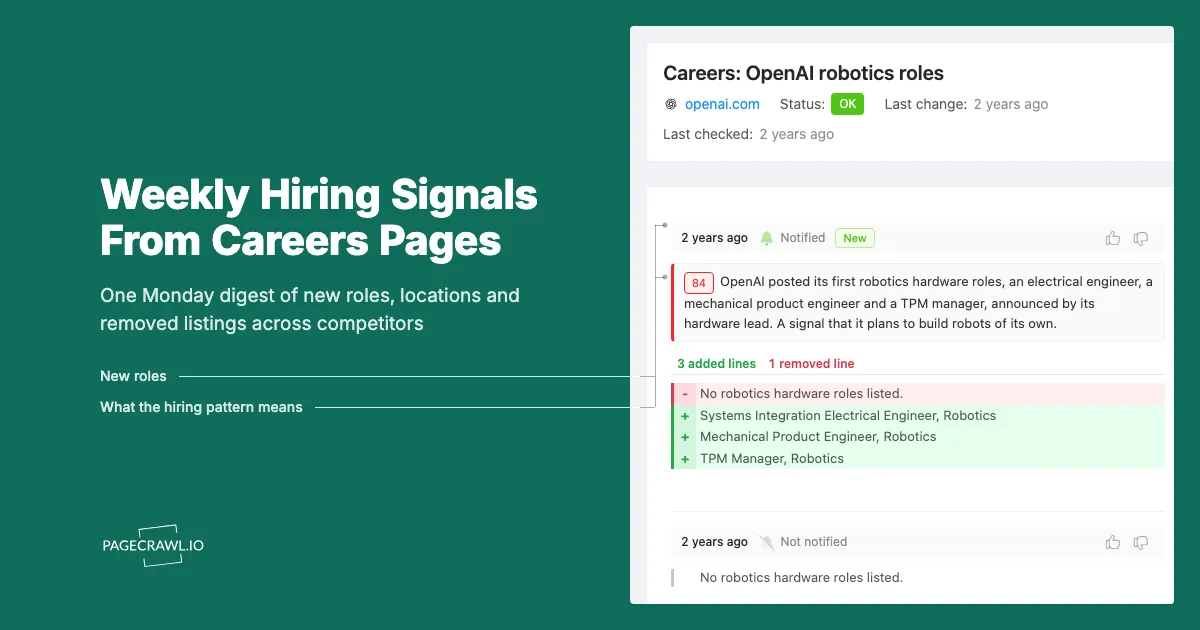
Careers pages are some of the most honest pages a company publishes. A new "Head of Payments" role, ten sales openings in a city where the company has no office, or a whole engineering team's listings disappearing at once all say something about strategy long before a press release does.
The trouble is volume. A dozen competitors can post and remove hundreds of roles a month, and a per-change alert for each one buries the three listings that actually matter. The answer is a weekly digest that reads the whole set and tells you what the pattern was.
This guide shows how to set up PageCrawl's Hiring & Job Listings report, what each setting does, and how to read the digest. If you are still deciding which roles and companies to watch, start with our guide to reading competitor job postings as hiring signals, then come back here to automate the weekly review.
What is a Hiring Signals report?
A Hiring Signals report is a weekly PageCrawl digest covering every monitor with a careers tag. Each Monday it collects the week's changes to those careers pages, groups them by company website, and opens with a short AI summary of cross-company hiring patterns, such as new senior roles, hiring sprees, new locations or removed roles.
It is built from the Hiring & Job Listings template, which fills in a tested starting point:
| Setting | Template value |
|---|---|
| Include changes from | By tag (the template suggests a careers tag) |
| Send | Weekly, Monday at 08:00 in your workspace timezone |
| Delivery | Email, plus Slack when your workspace has a Slack webhook |
| AI executive summary | On, Patterns style |
| What matters in this report | New senior or strategic engineering roles, large hiring sprees, new office locations and removed roles; ignore wording edits and benefits-page updates |
| Minimum change importance | Medium & up (30+) |
| Group by domain | On |
| Show only most recent change per monitor | On |
| Priority escalation | Off |
Every value can be changed before you save.
Why use a weekly report instead of job posting alerts?
Hiring signals are patterns, not events. One new listing rarely means anything, but five similar listings across two weeks usually does. A weekly report matches that rhythm: it batches every careers page change into one message, and the AI summary looks across companies to name the pattern instead of reporting each listing on its own.
Three practical reasons the weekly format works:
- Volume stays readable. Large employers change their job boards daily. A digest turns that churn into one email per week.
- Cross-company comparison. The Patterns summary is written across every monitor in the report, so "two competitors opened data engineering roles in Berlin" shows up as one observation instead of two unrelated alerts.
- It suits how the signal is used. Hiring intelligence feeds planning, sales positioning and investor research. Those conversations happen weekly, not hourly.
For wider context on how much hiring activity moves month to month, the US Bureau of Labor Statistics publishes openings and hires in its Job Openings and Labor Turnover Survey (JOLTS). Your report is the company-level version of that picture, limited to the companies you care about.
How do you set up the Hiring & Job Listings report?
First tag your careers page monitors, for example with careers. Then open Settings > Notifications, go to Scheduled Summary Reports, click + Add Report and choose Hiring & Job Listings. Select your tag under Include changes from, check the recipients and click Create report.
Step by step:
- Monitor the careers pages. Add a monitor for each company's jobs page. Tracking the list of job links works well for job boards, because each new or removed listing shows up as its own line in the change.
- Tag them. Give every careers monitor the same tag, such as
careers. Tags are dynamic, so any monitor you tag later joins the report automatically. - Open reports. Go to Settings > Notifications and scroll to Scheduled Summary Reports.
- Pick the template. Click + Add Report, and in Pick a starting point choose Hiring & Job Listings.
- Choose the tag. The scope is already set to By tag, but the tag itself is not filled in. Select your
careerstag. - Check the importance filter. Under Content filters, Minimum change importance starts at Medium & up (30+), so trivial edits are skipped. Choose All changes to see every edit.
- Check delivery. Email recipients default to your team. Slack is ticked when your workspace has a Slack webhook.
- Save and preview. Click Create report, then Generate sample to build a digest from past changes (up to 90 days back) and see what your first Monday email will look like.
Scheduled reports are available on paid plans. The Patterns summary style is available on every plan that includes reports.
What does the weekly hiring digest show?
The digest opens with the report name, an AI-written title and the date range, followed by a short Patterns summary of the week's hiring trends. Below that, changes are grouped by company website, with each careers page showing what was added or removed, an importance score, and links to the full diff and the live page.
What each part tells you:
| Part of the digest | What you learn |
|---|---|
| Patterns summary | The cross-company story: who is expanding, into what, and who is contracting |
| Grouping by website | Each competitor's week at a glance, sorted alphabetically by domain |
| Most recent change per monitor | One entry per careers page, so a board that changed daily does not appear seven times |
| Importance score | How much the AI thinks a change matters, guided by the "What matters in this report" prompt |
| View diff | The exact listings added and removed |
In Slack, the report posts the AI summary, up to five top changes and a link to the full digest. Open the link when you need the complete list for every company.
How do you read hiring signals in the digest?
Read the Patterns summary first, then check the companies it names. Treat a signal as real when it repeats across weeks or across several roles, such as a cluster of senior hires in one function or a new city appearing in multiple listings. Treat single listings and one-week removals as tentative until the next digest confirms them.
Signals the template is tuned to surface:
- New senior or strategic roles. A first "Head of" or "Director" hire in a function often marks a new product line or a new market.
- Hiring sprees. Many similar openings in one team suggest a funded push, a launch or catch-up after attrition.
- New locations. Roles listed in a new city or country usually come before an office or market entry.
- Removed roles. Listings taken down in bulk can signal a hiring freeze or a team being cut. Compare against official sources before drawing conclusions. In the US, larger layoffs usually require WARN Act notices, which our guide to WARN notice monitoring covers.
Be careful with removed listings: a role can disappear because it was filled, not cut. The weekly view helps here, because a filled role usually disappears on its own, while a freeze takes down many listings at once.
How can you customise the Hiring Signals report?
Change the scope, cadence, focus prompt and filters to fit who reads it. Common changes include splitting the report by competitor group, switching to a monthly roundup for leadership, rewriting the "What matters in this report" prompt around your market, and adding recipients outside PageCrawl through Cc or a shared link.
Scope
Include changes from accepts All monitors, By tag, By folder, By website or Specific monitors. Useful splits:
- Direct competitors vs partners. Two tags, two reports, so sales sees competitor hiring and partnerships sees partner hiring.
- One report per market. A folder per region keeps location signals relevant to the team that owns that region.
Focus prompt
The "What matters in this report" field tells the AI what to score higher and what to play down. It holds 300 characters (1,000 on Enterprise plans). Examples:
- Focus on AI, machine learning and data platform roles. Ignore internships and retail store roles.
- Highlight any role based in Germany, France or the Nordics. Ignore customer support openings.
Cadence and style
- Weekly, Monday is the default and fits most intelligence workflows.
- Monthly suits a leadership roundup. Enterprise plans can switch the style to Detailed for a multi-paragraph executive summary.
- Headline or Brief styles suit a Slack channel where people only want the one-line takeaway.
Filters and escalation
- Minimum change importance: raise it to Important & up (60+) if the digest is still too long.
- Group by domain: turn it off if you would rather read one combined list instead of a section per company.
- Priority escalation: off in the template, since hiring rarely needs same-day action. Turn it on with a high threshold if one specific move, such as a competitor hiring for a product you are about to launch, needs to reach you on the check that finds it.
Who can receive the hiring report?
Anyone who needs the intelligence, with or without a PageCrawl account. Workspace members receive it by email, verified outside addresses can be added as Cc or Bcc, and every digest has a shareable link that opens in a browser. Readers can mark changes as important or noise, which guides how similar changes are scored later.
Typical recipients:
- Sales and account teams, who use competitor expansion and contraction in positioning.
- Product and strategy, who read senior and technical hires as roadmap signals.
- Recruiting, who watch where competitors are hiring the same profiles.
- Investors and analysts, who track headcount direction across a portfolio or a sector, alongside competitor funding signals.
Frequently asked questions about Hiring Signals reports
Do I need a special monitor type for careers pages?
No. Any monitor on a careers page works. For job boards, tracking the list of job links makes each added or removed role easy to read in the diff. Many careers pages also publish job details as JobPosting structured data, which is why titles and locations are usually easy to capture.
Can the report include careers pages hosted on a separate job board domain?
Yes. Scope the report by tag or folder rather than by website, since many companies host listings on a job board provider's domain. Group by domain then shows those listings under the job board's hostname.
What happens in a week with no careers page changes?
The scheduled report is skipped, so nobody receives an empty digest. You can still use Generate now from the report list at any time to build a digest for a custom period, for example the last 30 days before a planning meeting.
Can I get the hiring data as a spreadsheet?
Yes. Turn on Attach Excel report under Content filters, or export a past digest from the report's History. The template leaves Excel off because most readers only need the summary.
Start with five companies
Tag the careers pages of your five closest competitors, create the Hiring & Job Listings report, and read two or three Monday digests before adding more companies. Refine the focus prompt once you see which signals your team acts on. The scheduled reports guide covers every scope, schedule and delivery option in detail.