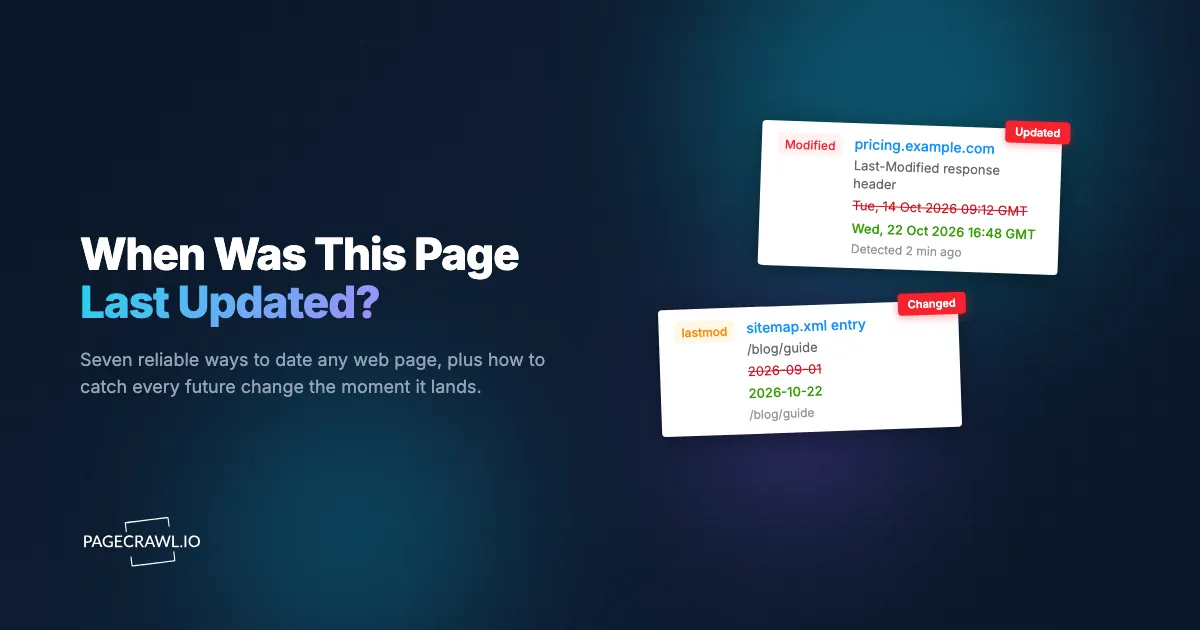
You are about to cite a statistic from a research page in a report due tomorrow, and a small doubt creeps in: is this number current, or did the author write it three years ago and never touch it again? The page says "2026 Industry Benchmarks" at the top, but the footer copyright reads 2021. Somewhere between those two dates is the truth, and the page itself will not tell you directly.
This problem shows up everywhere. A competitor's pricing page that may or may not reflect their latest rates. A government policy document on an agency or public records page that might have been quietly amended last week. A vendor's terms of service that could have changed the week after you signed. A Wikipedia entry, a product spec sheet, a job posting that may already be filled. In every case the same question applies: when was this web page actually last updated?
This guide walks through seven reliable methods, ordered from the quickest checks you can run in your browser right now to the only approach that tells you about future changes as soon as a check detects them. Some methods give you an exact timestamp, some give you a rough era, and some are easy to fake or auto-generate, so we will be clear about how much to trust each one.
Why does the last-updated date matter?
The last-updated date matters because the freshness of a page determines whether you can act on it. A price, a regulation, a deadline, or a spec is only useful if it is current. Knowing when a page changed tells you whether the information is trustworthy, whether a competitor moved, and whether your own records are stale.
There are three distinct questions hiding inside "when was this updated," and the right method depends on which one you mean. The first is forensic: you want a defensible record that a page said something specific on a specific date, which matters for legal disputes, compliance audits, and preserving web evidence. The second is investigative: you want to estimate how fresh a page is before you rely on it. The third is operational: you want to be told whenever a page changes from now on, so you never have to ask the question again. The first six methods below answer the backward-looking questions. The seventh answers the forward-looking one, and it is the only method that scales.
Method 1: What do view-source and meta tags reveal?
Viewing a page's source and reading its meta tags is the fastest first check, and on well-built sites it gives you an exact update timestamp. Press Ctrl+U (Cmd+Option+U on Mac) to open the raw HTML, then search for date-related tags. Many content management systems embed the publish and modified dates directly in the markup, even when nothing visible on the page shows them.
The tags worth searching for are specific. Open Graph metadata often includes article:modified_time and og:updated_time, which most publishing platforms populate automatically. Structured data in JSON-LD frequently carries a dateModified field alongside datePublished, following the schema.org standard that search engines read. Some sites still include a legacy <meta name="last-modified"> tag. To search the source quickly, use your browser's find function (Ctrl+F) inside the view-source tab and look for "modified," "updated," or "date."
The caveat: these fields are set by the site, so they are only as honest as the site chooses to be. A page can ship a dateModified of today while the actual content is years old, or omit the field entirely. Treat a meta date as a strong hint, not proof, and corroborate it with one of the methods below when accuracy matters.
Method 2: Can HTTP headers like Last-Modified tell you the update date?
HTTP response headers can reveal an update date through the Last-Modified field, which the server sends with the page. It works best for static files (PDFs, images, plain HTML) where the header reflects the file's real modification time. For dynamic, database-driven pages it is often missing or set to the current moment, so its reliability varies sharply by site type.
To read it, open your browser's developer tools (F12), go to the Network tab, reload the page, click the top document request, and look under Response Headers for Last-Modified, ETag, and Date. From a terminal you can run curl -I https://example.com to print just the headers without downloading the body. The Last-Modified value, when present and meaningful, gives you a precise timestamp down to the second. The ETag is a content fingerprint: if it changes between two visits, the underlying resource changed even if no date is shown.
The reliability problem is structural. A CDN or cache layer can rewrite Last-Modified to the time it cached the page rather than the time the author edited it. Server-rendered applications often regenerate the page on every request and stamp the header with "now." So a Last-Modified that is days or weeks old is usually trustworthy, but one that matches the current minute tells you almost nothing. For documents specifically, the header is reliable enough that it underpins serious website archiving workflows.
Method 3: How do you read a sitemap's lastmod date?
A site's XML sitemap can show the last-updated date for every page through the <lastmod> element defined by the sitemaps.org protocol, which sits next to each URL. Visit https://example.com/sitemap.xml (or check /robots.txt for the sitemap location) and search for the URL you care about. If the site maintains its sitemap properly, <lastmod> gives you a clean per-page date without touching the page itself.
This method shines when you want to date many pages at once or spot which sections of a large site changed recently. A documentation site, a news outlet, or an e-commerce catalog will often expose hundreds of URLs each with its own <lastmod>, letting you scan for the freshest entries in seconds. Large sites split their sitemaps into an index file that points to several child sitemaps, so you may need to open the index first and follow the link to the relevant section.
The honesty caveat returns here too. Some platforms regenerate every <lastmod> to the current date on each rebuild, which makes the whole sitemap look freshly updated even when individual pages have not changed in months. Others omit <lastmod> entirely. When the dates look plausible and varied across pages, trust them. When every URL shares the same recent timestamp, the sitemap is auto-stamped and useless for dating. This same sitemap data is what powers sitemap monitoring for new pages, which flags additions and changes across a whole domain automatically.
Method 4: How does the Wayback Machine show a page's history?
The Wayback Machine at the Internet Archive shows when a page changed by storing dated snapshots of it over time. Enter a URL and you get a calendar with every capture marked, so you can compare two snapshots and see exactly what was added or removed between them. It is the best free method for reconstructing a page's history when the site itself hides its update dates.
The calendar view is the key feature. Each highlighted day represents a capture, and clicking one loads the page exactly as it looked then. By opening an older snapshot next to a newer one you can pinpoint when a price changed, when a clause was added to a policy, or when a claim first appeared. The "Changes" comparison tool inside the Wayback Machine even highlights the differences between two captures directly, which saves you from eyeballing two tabs.
The limitation is coverage. The Wayback Machine only knows about a page if its crawler happened to capture it, and popular pages are snapshotted far more often than obscure ones. A niche page might have two captures a year apart, leaving a huge blind spot in between. It also struggles with pages behind logins, paywalls, or heavy JavaScript. For pages the public archive misses, or for captures on your own schedule, see our roundup of Wayback Machine alternatives for web archiving.
Method 5: Is Google's cache still a way to date a page?
No, Google's cache is no longer a reliable way to date a page. Google retired its public cache: search operator and the "Cached" link in search results in 2024, a change reflected in the current Google Search Central documentation, ending a method that researchers relied on for years. The era of pulling up Google's stored copy to check a page's recent state is effectively over, and Bing's cache has grown unreliable too.
This matters because a lot of older advice still tells you to type cache:example.com into Google or click the cached link beside a result. Those instructions no longer work, and you should not waste time on them. The closest modern substitute is checking whether the page appears in search with a date shown in the snippet, since search engines sometimes display a "published" or "updated" date next to results for time-sensitive content. That date comes from the same meta tags covered in Method 1, so it carries the same trust caveats.
The practical takeaway: where you once had two independent archives (Google's cache and the Wayback Machine) to cross-check, you now effectively have one. That makes the Wayback Machine and dedicated web archives you control more important, and it makes the on-page signals in the next method worth a closer look.
Method 6: What on-page signals reveal the real last-updated date?
On-page signals are the visible clues the page itself shows, and read together they often reveal the real update date better than any single timestamp. Look for an explicit "Last updated" line, the byline or publish date on articles, the date on the newest comment, version numbers, and any "as of" qualifiers in the body text. No one of these is conclusive, but combined they triangulate the truth.
Run through the page methodically. Articles and blog posts usually carry a visible date near the headline or byline, and many now show both "Published" and "Updated." A comments section sorted by newest gives you a hard floor: the page existed and was being read at least as recently as the latest comment. Documentation and changelog pages often state a version and a release date, which is the most trustworthy signal of all because it is the content authors actually maintain. Pricing and product pages sometimes include an "effective date" or "prices as of" note in the fine print.
Beware the false signal everyone trusts: the copyright year in the footer. It is almost always auto-generated by a script that prints the current year, so "© 2026" means the server's clock works, not that anyone touched the content. Treat the footer year as meaningless for dating. When you need a defensible answer rather than an estimate, combine these visible signals with a header check and an archive snapshot, the approach we describe for monitoring documentation sites where staleness has real consequences. For domains themselves, registration and update dates live in a separate record you can pull with WHOIS domain monitoring.
Method 7: How do you track every future change to a page?
The only way to know about future changes with certainty is continuous monitoring: a tool checks the page on a schedule, compares each version to the last, and alerts you as soon as a check detects a difference. Checks can run as often as every 2 minutes on paid plans and hourly on the free plan, so the gap between a change and your alert is one check interval. The previous six methods reconstruct the past, which is always incomplete and sometimes faked. Monitoring records the present as it happens, giving you an exact, trustworthy timeline of every update going forward.

This flips the whole problem. Instead of asking "when was this last updated" and getting a fuzzy answer, you ask "tell me whenever this updates" and get a precise one. Every check becomes a timestamped data point, so a month from now you will know not just that the page changed but exactly when, what changed, and how many times. That is the difference between guessing a page's freshness and owning a verified history of it. Manually reloading a tab to watch for changes, the analog version of this, does not scale past a page or two, which is why people auto-refresh web pages and still miss the change that happens overnight.
Continuous monitoring also solves the trust problems that plague the other methods. It does not rely on the site honestly setting a dateModified, does not depend on whether an archive crawler happened to visit, and does not care that the footer year is auto-generated. It simply captures what the page actually says, every interval, and flags the difference. To go deeper on the mechanics, our complete guide to monitoring website changes covers tracking modes, filtering, and alert channels in detail.
Which method should you use?
The right method depends on whether you want to date the past or watch the future, and how much you can trust the site to tell the truth. Here is a quick comparison:
| Method | Gives you | Reliability | Best for |
|---|---|---|---|
| View-source / meta tags | Exact timestamp (if present) | Site-controlled, can be faked | A fast first check on any page |
| HTTP Last-Modified header | Exact timestamp | High for files, low for dynamic pages | PDFs, images, static documents |
| Sitemap lastmod | Per-page date | Good unless auto-stamped | Dating many pages at once |
| Wayback Machine | Dated snapshots + diffs | Limited by crawl coverage | Reconstructing a page's history |
| Google cache | Nothing (retired 2024) | Discontinued | No longer usable |
| On-page signals | Estimated era | Mixed, ignore the footer year | Articles, docs, changelogs |
| Continuous monitoring | Exact future timeline | Highest, captures reality | Knowing every change going forward |
For a one-off question, combine Methods 1, 2, and 4 and you will usually get a confident answer. For anything you will need to ask more than once, skip straight to Method 7.
Setting up continuous monitoring: step by step
Here is how to set up monitoring so you never have to guess a page's update date again. We will use PageCrawl as the example. The free tier gives you 6 monitors and 220 checks per month, which is plenty to start.
Step 1: Add the page URL
Paste the URL of the page you want to track. PageCrawl fetches it, renders the full page including content that loads after the initial response, and shows you a preview of exactly what it sees before you commit.
Step 2: Choose what to track
Pick the tracking mode that fits the page. Full page text watches every visible word, which is ideal for policy pages, articles, and documentation. Element targeting watches one specific part, such as a "Last updated" line or a version number, using a CSS selector. Reader mode strips navigation and ads to focus on the main content.
Step 3: Set the check frequency
Decide how quickly you need to know. The free tier checks every 60 minutes, which catches most updates the same hour they happen. Paid plans go down to every 5 minutes for time-sensitive pages like pricing or stock. For a slow-moving documentation page, or for terms of service and policy tracking, hourly is more than enough.
Step 4: Filter out the noise
Turn on filters so you only hear about real changes. Add the Ignore dates filter so a rotating "Last updated" widget does not alert you every hour; the help centre covers ignoring dates on monitored pages. Set a change threshold to ignore tiny cosmetic edits. Targeting a single element instead of the whole page is the most effective filter of all. Our guide to reducing monitoring false positives covers the full toolkit.
Step 5: Choose your alerts
Pick where updates land: email, Slack, Discord, Teams, Telegram, a webhook into your own systems, or browser push. Most people send routine changes to email and urgent ones to Slack. See email notifications for website change detection for what a change email contains, including AI summaries, screenshots, and diffs. Every alert is timestamped, so over time you build the exact change history that no single backward-looking method could give you.
Choosing your PageCrawl plan
PageCrawl's Free plan lets you monitor 6 pages with 220 checks per month, which is enough to validate the approach on your most critical pages. Most teams graduate to a paid plan once they see the value.
| Plan | Price | Pages | Checks / month | Frequency |
|---|---|---|---|---|
| Free | $0 | 6 | 220 | every 60 min |
| Standard | $8/mo or $80/yr | 100 | 15,000 | every 15 min |
| Enterprise | $30/mo or $300/yr | 500 | 100,000 | every 5 min |
| Ultimate | $99/mo or $999/yr | 1,000 | 100,000 | every 2 min |
Annual billing saves two months across every paid tier. Enterprise and Ultimate scale up to 100x if you need thousands of pages or multi-team access.
Standard at $80/year is the sweet spot for most people who have outgrown manual checking: 100 pages covers a realistic set of competitors, policy documents, and reference pages, and 15-minute checks mean you learn about an update within minutes rather than hours. Enterprise and Ultimate add the headroom and faster intervals that competitive intelligence and compliance teams need when stale information carries real cost.
Getting Started
You can answer "when was this last updated" for a single page in about two minutes with view-source, an HTTP header check, and a Wayback Machine snapshot. But the question keeps coming back, and every backward-looking method has a blind spot the site can exploit. The durable fix is to stop asking and start watching.
Pick the three pages whose freshness you care about most, set up monitors on the free tier, and let the timestamps come to you. Stop guessing when a page changed, and start hearing about it on the next check.