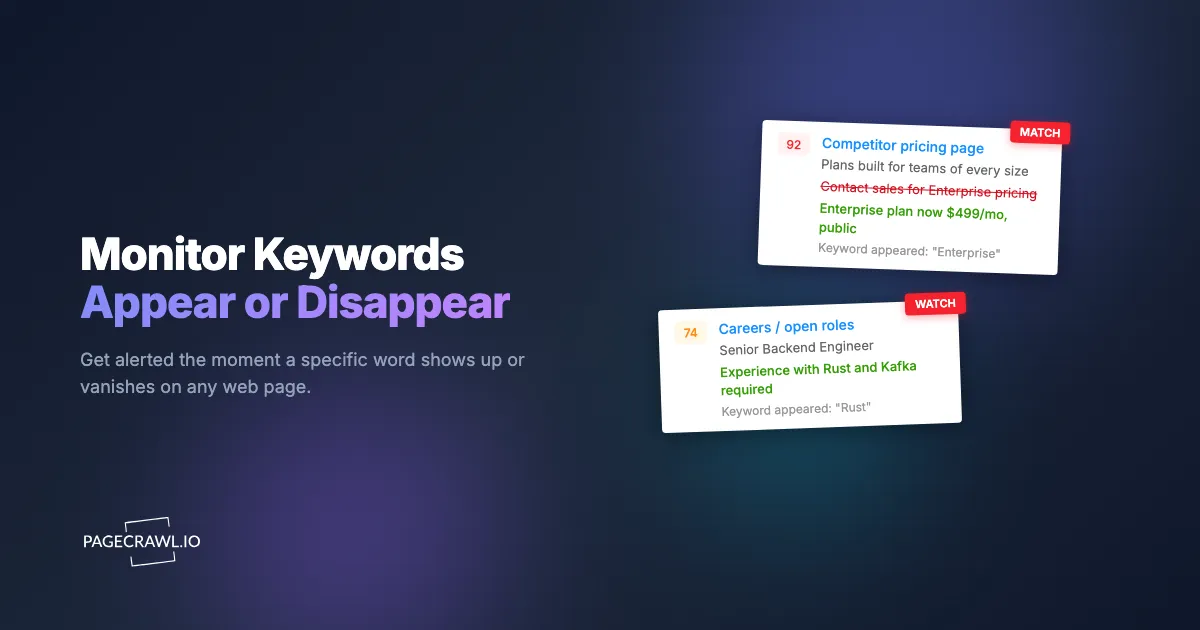
A competitor's pricing page has read "Contact sales for Enterprise pricing" for two years. One Tuesday morning the word "Enterprise" quietly disappears and a public price takes its place. If you find out three weeks later from a sales rep losing a deal, you have already lost three weeks of strategic response time. A single word changed, and it told you everything about their go-to-market shift, but nobody was watching for it.
This is the gap that keyword monitoring fills. Instead of reading every diff a page produces, you tell a tool exactly which word or phrase matters, and you only hear from it when that specific term shows up or vanishes. The word "arbitration" appearing in a terms-of-service page. The word "Rust" appearing in a job listing. The phrase "out of stock" disappearing from a product page. Each one is a signal buried inside a page full of noise.
This guide shows you how to set up appear and disappear alerts for any keyword on any web page, how to write rules that fire only when they should, and how to avoid the false-positive flood that makes most people give up on monitoring. We will use PageCrawl for the walkthrough, including its free tier (6 monitors and 220 checks per month), but the principles apply to any capable monitoring tool.
What does it mean to monitor keywords on a website?
Monitoring keywords means watching a page for a specific word or phrase and getting alerted on the first check that finds it has appeared, disappeared, or changed count, rather than hearing about every edit to the page. You define the trigger term, the tool checks the page on a schedule, and it stays silent unless your keyword condition is actually met.
This is fundamentally different from monitoring a whole page for changes. Full-page monitoring tells you "something changed," then leaves you to find out what. Keyword monitoring inverts that: it ignores everything except the term you care about. A retailer's homepage might update twenty times a day with new banners, rotating reviews, and dynamic timestamps, but if you only want to know when "back in stock" appears, none of that other churn ever reaches your inbox. The page does the talking, and you only listen for one word.
Why monitor for a keyword appearing or disappearing?
Because a single word often carries the entire signal. Pages are designed for humans skimming the whole layout, but the meaningful change is usually one term: a feature name added, a disclaimer removed, a technology mentioned, a status flipped. Watching for that one term turns a noisy page into a clean, high-confidence alert you can act on.
The appear-versus-disappear distinction matters more than people expect, because the two directions mean opposite things:
- A keyword appearing signals something new entered the world. "Now hiring" on a careers page. "Available in your area" on a service page. "Series B" on an about page. "Waitlist" on a launch page. The term showing up is the event.
- A keyword disappearing signals something was retired or hidden. "Free plan" vanishing from a pricing page (a sign they are killing the free tier). "In stock" disappearing from a product listing. "Beta" dropping from a feature name (it went generally available). "Sponsored by" leaving a page. Absence is the event.
You can monitor both directions at once on the same page. A SaaS pricing page is a perfect example: you want to know if "Enterprise" appears (they launched a new tier) and if "Free" disappears (they cut the entry point). That combination tells a strategic story no single price number could.
Which keywords are actually worth monitoring?
The keywords worth your attention are the ones tied to a decision you would make differently if you knew. If a word appearing or disappearing would change what you do next (respond, buy, apply, escalate, comply), it is worth a monitor. If it would just be interesting trivia, skip it. Specificity beats coverage every time.
Here are proven trigger terms by use case:
- Competitive intelligence: "Enterprise," "SSO," "SOC 2" (the AICPA audit standard buyers ask for), "now available," "deprecated," "sunset," a competitor's new product name. These map cleanly onto the work in our competitor website analysis tools guide, where individual phrases are often the earliest hint of a strategy shift.
- Hiring and growth signals: a programming language, framework, or cloud platform appearing on a careers page tells you what a rival is building before they announce it. This is the core of competitor job posting and hiring-signal monitoring, and the same idea extends to a competitor's technology stack changing.
- Legal and compliance: "arbitration," "class action waiver," "as-is," "we may share," "subprocessor," "effective date." A clause appearing in a vendor's terms of service can quietly reshape your obligations, and the same trigger words are worth watching on primary sources such as the Federal Register where the official text is published.
- E-commerce and availability: "in stock," "sold out," "pre-order," "ships in," "final sale," "MAP." The arrival or removal of one phrase is the entire alert, which is the whole basis of stock availability and restock monitoring.
- Brand and PR: your company name appearing on a news page, a regulator's site, or a competitor's comparison page, the same surfaces covered by brand and reputation monitoring.
The rule of thumb: pick the shortest phrase that is unambiguous on that specific page. "Enterprise" is great on a pricing page where it only appears in one context, but risky on a page that says "enterprise software" in every paragraph.
How do appear and disappear alerts actually work?
Appear and disappear alerts work by combining page monitoring with a conditional rule. The tool captures the page text on each check, then evaluates your condition against it: does the page now contain the keyword, has it stopped containing it, or has the number of occurrences crossed a line? The alert fires only when the condition flips from false to true.
The four conditions you will use most:
- Contains keyword (appear): alert the first time the term shows up. Best for new features, new roles, "back in stock."
- Does not contain keyword (disappear): alert when a term that was present is now gone. Best for retired plans, removed disclaimers, items going out of stock.
- Count crosses a threshold: alert when the keyword appears more than N times, or fewer than N times. Useful for catalog pages where "sold out" appearing five times instead of one signals a broad inventory problem.
- Keyword plus value: alert when a term appears near a number, like "discount" within sight of a percentage. This shades into conditional price and threshold rules, which combine keyword logic with numeric triggers.
The key behavior to understand is edge-triggering. A good keyword alert fires on the transition, not on every check. If "in stock" is present and stays present for a week, you get one alert when it first appears, not seven daily reminders that it is still there. This is what separates a useful keyword monitor from an annoying one.
How do you set up keyword monitoring in PageCrawl?
You add the page, capture its text, attach a keyword condition, and choose where the alert goes. The whole setup takes a few minutes, and you can validate it on the free tier (6 monitors, 220 checks per month) before committing to anything. Here is the full walkthrough.

Step 1: Add the page you want to watch
Paste the URL of the page that contains your keyword and let PageCrawl fetch a preview. Confirm the preview shows the actual content you care about, including anything that loads dynamically. If the word you want to track is visible in the preview text, you are in good shape. If the page looks empty, the content may render after load, so give it a moment or add a short wait before capture.
Step 2: Choose what the monitor captures
For most keyword use cases, full page text is the right capture mode because your term could appear anywhere on the page. If your keyword only ever appears in one region (a pricing table, a job list, a status banner), narrow the capture to that element instead. Targeting a region is the single biggest noise reducer available, and our CSS selector guide for targeting elements walks through exactly how to pick the right one.
Step 3: Add your keyword condition
Open the conditional alert settings and define your trigger. Set the condition type (contains, does not contain, or a count threshold) and type the exact keyword or phrase. The help centre documents how notification conditions and filters work per page, including keyword matching and numeric thresholds. Decide whether the match should be case-sensitive (usually no) and whether it should match whole words only (often yes, to stop "art" from matching inside "start"). If you are tracking both a launch and a retirement on the same page, add two conditions: one "contains" and one "does not contain."
Step 4: Set the check frequency
Match the cadence to how time-sensitive the keyword is. A restock phrase or a flash-launch term deserves frequent checks; a legal clause or a slow policy change is fine on a daily rhythm. On the free tier you get checks roughly every 60 minutes, which is plenty for keyword signals that play out over hours or days. Faster intervals are available on paid plans for the time-critical cases.
Step 5: Connect a notification channel
Choose where the alert lands. Email is the default and works well for individual tracking. For team-wide signals, send the alert to a shared channel so the right person sees it without waiting for a forwarded email; setting up website change alerts in Slack takes about a minute and keeps competitive and compliance signals in front of the whole team. You can attach multiple channels to one monitor, so a high-stakes keyword can hit both email and chat.
Step 6: Run it, then tune
Let the monitor run for a few days and watch what comes through. If you get a false alert, look at exactly which occurrence of the keyword triggered it and tighten the rule (narrow the region, switch on whole-word matching, or make the phrase longer and more specific). If you suspect you missed a change, loosen the threshold or check more often. The first week is calibration; after that, a well-tuned keyword monitor runs silently until it has something real to say.
How do you write keyword rules that do not cry wolf?
You write specific, anchored rules and scope them to the smallest region that contains the keyword. Most false positives come from a term that appears in multiple unrelated places on the page, or from a phrase short enough to match inside other words. Tightening both of those almost always fixes the noise. Our full guide to reducing website monitoring false positives covers the broader playbook.
Practical tactics, in order of impact:
- Scope to a region first. A keyword rule on the pricing table will never fire because the word appeared in a footer link. Narrowing the capture area eliminates the majority of false matches before you touch the keyword text, and the help centre has a complete guide to reducing false positive notifications covering excluded sections, dates, and cookie banners.
- Use whole-word matching. It stops "AI" from matching inside "available" and "free" from matching inside "freedom." This one toggle removes a surprising amount of noise.
- Prefer phrases over single words. "free plan" is far more precise than "free." "back in stock" beats "stock." The longer and more contextual the phrase, the fewer accidental matches.
- Pick a direction deliberately. If you only care about a launch, use "contains" and ignore disappearances. Watching both directions when you only need one doubles your alert volume.
- Account for synonyms separately. If a site might say "sold out" or "out of stock," create two conditions rather than a vague rule, so each one stays precise.
If you want a deeper treatment of trigger-word strategy, including matching modes and edge cases, our companion piece on keyword and trigger-word alerts goes further into the mechanics.
How is keyword monitoring different from full-text change monitoring?
Full-text monitoring alerts you to any change on the page and shows you a diff; keyword monitoring alerts you only when a specific term appears or disappears and stays silent for everything else. The first is a wide net for "tell me what changed here," the second is a sniper rifle for "tell me when this exact thing happens." They solve different problems and work best together.
Use full-text monitoring when you do not yet know what to watch for, when the page is high-value enough that any edit deserves a look, or when you want a complete record of how a document evolves over time. A vendor's terms of service or a regulator's guidance page often warrants full-text capture because you cannot predict which clause will move.
Use keyword monitoring when you know precisely what would change your decision, when the page is noisy enough that full diffs would be unreadable, or when many people would otherwise get alerted to changes that do not concern them. A high-traffic homepage, a busy careers board, or a sprawling catalog page are all better served by a sharp keyword rule than by a firehose of diffs.
A common pattern is to layer them: run full-text monitoring on a page during the period when you are still learning what matters, identify the recurring signal, then replace the broad monitor with a precise keyword rule once you know the word that counts.
Choosing your PageCrawl plan
PageCrawl's Free plan lets you monitor 6 pages with 220 checks per month, which is enough to set up a handful of keyword alerts on the pages that matter most and prove the approach before you scale it.
| Plan | Price | Pages | Checks / month | Frequency |
|---|---|---|---|---|
| Free | $0 | 6 | 220 | every 60 min |
| Standard | $8/mo or $80/yr | 100 | 15,000 | every 15 min |
| Enterprise | $30/mo or $300/yr | 500 | 100,000 | every 5 min |
| Ultimate | $99/mo or $999/yr | 1,000 | 100,000 | every 2 min |
Annual billing saves two months across every paid tier. Enterprise and Ultimate scale up to 100x if you need thousands of pages or multi-team access.
Standard at $80/year is the sweet spot for most keyword programs. 100 pages covers a realistic watchlist: a set of competitor pricing and careers pages, a few vendor policy documents, and a collection of availability or compliance pages, each with its own appear or disappear rule. Checking every 15 minutes means you catch fast-moving signals like a launch or a restock while they still matter. Enterprise at $300/year adds 500 pages, faster checks, and the full API for teams running keyword monitoring at scale. Every plan, including Free, includes AI-assisted setup so you can describe the keyword you want in plain language and let the system build the rule.
Getting Started
Keyword monitoring rewards starting small and specific. Pick the one word that would have changed a decision you made too late, set a single appear or disappear alert on the page that carries it, and let it run. Within a week you will trust the signal, and you will start spotting words worth watching everywhere.
Sign up for a free PageCrawl account, point it at the page that matters, and let the right word find you instead of the other way around.