Tracking competitors is easy to start and hard to keep reading. You add their pricing pages, homepages, product pages and comparison pages, and within a month the alerts blur together. A footer tweak arrives next to a price rise, a blog post next to a new enterprise plan, and the one change that should have reached the sales team sits unread in someone's inbox.
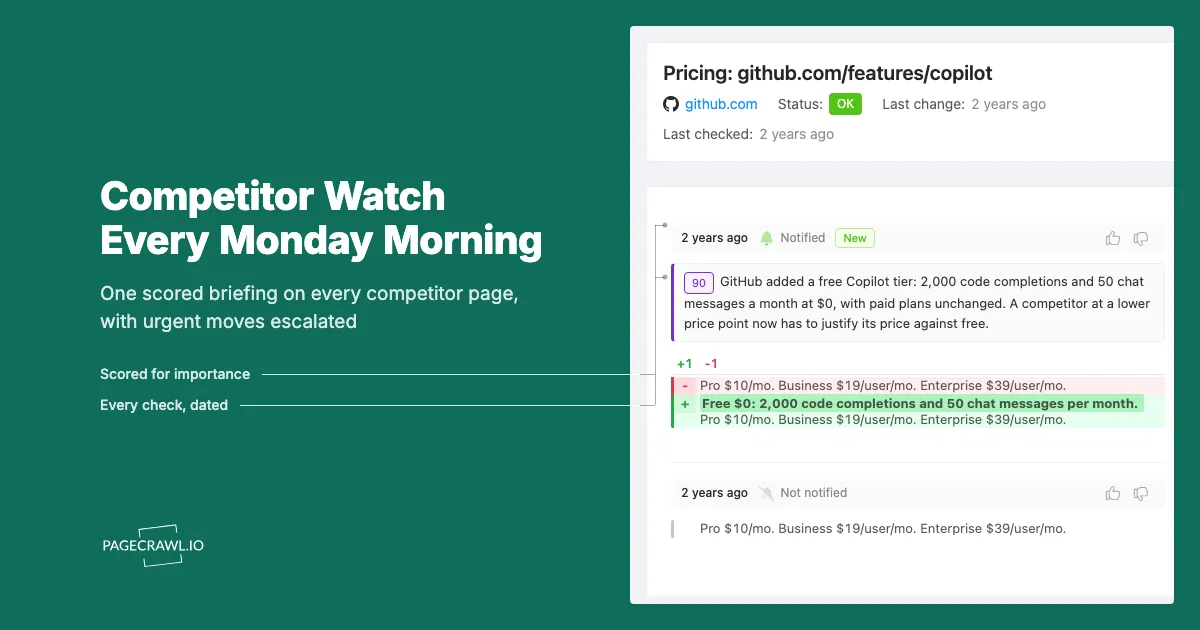
The Competitor Watch report fixes the format rather than the monitoring. It collects every change across the competitor pages you track into one Monday briefing, scores each change by importance, opens with an AI-written summary of what moved, and still sends the rare urgent change on its own, as soon as the check detects it.
This guide covers how to set it up, what the briefing contains, what you can learn from a few months of them, and how to tune it for different audiences.
What is the Competitor Watch report?
Competitor Watch is a PageCrawl report template that sends a weekly briefing covering every monitor with a chosen tag, such as #competitors. Each digest opens with an AI summary focused on competitive positioning, lists the week's changes grouped by importance, and escalates changes scoring 90 or higher on their own as soon as they are detected.
The template fills in a tested starting configuration:
| Setting | Template value |
|---|---|
| Include changes from | By tag (you pick the tag) |
| Send | Weekly, Monday at 08:00 in your workspace timezone |
| Delivery | Email, plus Slack when your workspace has a Slack webhook |
| AI executive summary | On, Detailed style |
| What matters in this report | Pricing, packaging, messaging, product launches, leadership changes and named customers; drop minor visual tweaks, blog posts and routine content updates |
| Minimum change importance | All changes |
| Show only most recent change per monitor | On |
| Priority escalation | On, threshold 90, to email and Slack (Slack only with a webhook) |
Everything can be changed before you save. It is built on the same scheduled reports engine as every other PageCrawl digest.
Why use a weekly report instead of per-change alerts?
Per-change alerts treat a changed footer and a new pricing tier the same way: one message each, in the order they happened. A weekly report sorts the same changes by importance, summarises the pattern across competitors, and arrives once, so the people who act on competitive moves read it instead of filtering it away.
Competitor pages change constantly for reasons that do not matter: cookie banners, testimonial rotations, blog teasers, seasonal images. The changes that do matter (a price rise, a new plan, a repositioned headline, a new customer logo) are rare and easy to miss among them. A weekly report helps in three ways:
- Importance first. Changes are grouped into Critical, Important, Medium Priority and Low Priority, so the few that matter sit at the top.
- Synthesis. "Two competitors raised entry prices this week" is more useful than two separate alerts about two separate pages.
- A cadence people plan around. Monday morning is when marketing, sales and product set their week. A briefing that arrives then gets read.
Once a monitor is covered by a scheduled report, its changes go to that report instead of being sent one by one. Escalation is what keeps the urgent exceptions fast.
How do you set up a Competitor Watch report?
Tag the competitor monitors you want covered, then open Settings, choose Notifications, scroll to Scheduled Summary Reports, click + Add Report and pick Competitor Watch. Select your tag, check the recipients, and click Create report. Generate a sample digest to preview it straight away.
Step by step:
- Tag your competitor monitors. Add a tag such as
competitorsto every monitor that should be covered. Tag scope is dynamic, so monitors you tag later join the report automatically. The competitor website tracking guide covers which pages are worth monitoring. - Go to Settings > Notifications and scroll to Scheduled Summary Reports.
- Click + Add Report. In Pick a starting point, choose Competitor Watch.
- Under Include changes from, the scope is set to By tag. Select your competitor tag. The form will not save without one.
- Under Delivery, choose who receives the email in Send to. For Slack, the report uses your workspace Slack webhook unless you paste a different Webhook URL for this report. See Slack's guide to incoming webhooks if you have not set one up.
- Under AI executive summary, check the Style. The template chooses Detailed, which is available on Enterprise and Ultimate plans. On other plans, choose Patterns (a short paragraph on trends across competitors) or Action briefing.
- Under Priority escalation, check the Escalation channels. The template ticks email and, when your workspace has a Slack webhook, Slack. Add or remove channels to match where urgent changes should land.
- Click Create report. When asked Generate a sample digest?, choose a period (7 to 90 days) and click Generate sample to see what last week or last month would have looked like.
Scheduled reports are available on paid plans.
What does the weekly Competitor Watch briefing show?
The email opens with the number of changes detected (and, when anything important happened, how many were critical, important, medium or low priority), followed by the AI summary written with your "What matters" focus. Below that, changes are listed under Critical, Important, Medium Priority and Low Priority, each with the page, a short summary of what changed and a link to the change in PageCrawl.
What each part is for:
| Part | What it tells you |
|---|---|
| Change counts | How busy the week was, and whether anything critical or important happened |
| AI executive summary | The cross-competitor story: who moved on price, who launched, who repositioned |
| Priority groups | Where to spend your time, highest importance first |
| Per-change summary | What changed on that page, in a sentence, without opening it |
| View full digest | The browser version, with feedback and comments |
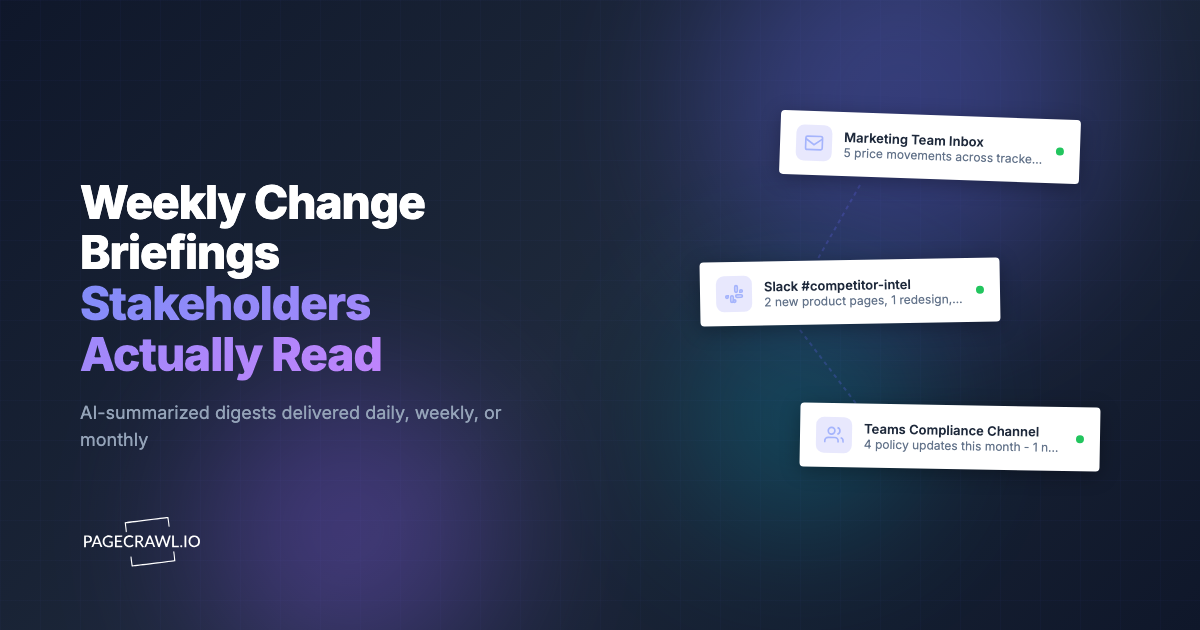
Slack receives a shorter version: the AI summary, the top five changes with links, and a link to the full digest. That is usually the right size for a channel, with the detail one click away.
Every digest also gets its own page. Recipients can open it in a browser, give a change a thumbs up or thumbs down to teach scoring what matters to your team, and leave comments. Past digests stay in the report's History, with PDF and Excel export.
How does priority escalation work for competitor changes?
Every detected change gets an importance score from 0 to 100. With escalation on, any change in the report's scope that scores at or above your threshold is sent through the escalation channels as soon as the check detects it. The change still appears in Monday's briefing, so the weekly picture stays complete.
Score ranges, as shown in the form:
- 90-100 (Critical): major rewrites, large data shifts, significant structural changes.
- 60-89 (Important): notable content updates, new sections, meaningful edits.
- 30-59 (Medium): moderate edits, partial updates, routine changes.
- 0-29 (Low): minor tweaks, formatting, small text adjustments.
The template's threshold of 90 means escalations are rare, which keeps them trusted. Escalation channels can differ from delivery, so a common setup is the briefing by email to the wider team and escalations in a Slack channel the competitive intelligence owner watches. Each escalation channel can use its own webhook, so critical changes can land in a different Slack channel from the weekly digest.
How fast an escalation arrives depends on how often the monitor checks. A competitor pricing page checked every few hours will escalate within a few hours of the change.
What can you learn from Competitor Watch reports over time?
One briefing tells you what happened last week. A quarter of briefings shows how each competitor behaves: how often they change prices, which messages they test, which segments they chase, and which moves come before a launch. The report history turns a pile of page changes into a timeline of strategy.
Patterns worth looking for:
- Pricing rhythm. Some competitors change prices every quarter, others only at launches. Knowing the rhythm tells you when to expect the next move. The competitive pricing analysis guide covers how to read it.
- Messaging tests. A homepage headline that changes three times in six weeks is being tested. The version that stays is the one that won. See tracking competitor messaging and positioning.
- Launch lead-up. New docs pages, pricing page edits and careers listings for a new team often arrive in the weeks before an announcement.
- Who they target. New customer logos and case studies show which segments a competitor is winning. The customer wins and logo monitoring post goes deeper.
- Comparison pages. A new "vs" page aimed at you is a direct signal of who they see as the threat. See monitoring competitor comparison and alternatives pages.
- Quiet weeks. A short briefing is useful information too. It means nothing structural moved.
For public companies, pair the report with their filings. SEC EDGAR makes 10-K and 8-K filings searchable, and a pricing change in your briefing often lines up with commentary in the next earnings materials.
How can you customise the Competitor Watch report?
Change the scope, schedule, summary focus, filters and escalation to fit each audience. The most useful change is usually splitting one report into several: a detailed weekly briefing for leadership, a daily pricing digest for sales, and a report per competitor tier, each reading from the same monitors through different tags.
Scope
Include changes from accepts All monitors, By tag, By folder, By website or Specific monitors.
- By tag works best for competitors, because a page can carry several tags (
competitors,pricing,tier-1) and belong to several reports. - By website suits a report on one or two named competitors, covering every monitor on their domains.
- By folder fits if you already keep one folder per competitor.
Summary focus
The What matters in this report field steers the AI summary. The template's prompt focuses on competitive positioning. Rewrite it for the audience:
- Sales: "Focus on pricing, discounts, free trials, packaging changes and new integrations. Ignore blog posts and careers pages."
- Product: "Focus on new features, docs pages, changelog entries and deprecations. Ignore marketing copy."
- Leadership: "Focus on pricing strategy, new markets, acquisitions announced on the site and leadership page changes."
The field allows 300 characters, or 1,000 on Enterprise and Ultimate plans.
Filters
| Option | When to use it |
|---|---|
| Minimum change importance | Raise to Medium & up (30+) or Important & up (60+) when the briefing gets long |
| Show only most recent change per monitor | Keep on for weekly reports, so a page edited five times appears once |
| Group by domain | Turn on to read the briefing competitor by competitor |
| Attach Excel report | Turn on when someone keeps a competitor tracking spreadsheet |
Schedule and audiences
| Audience | Suggested setup |
|---|---|
| Leadership | Weekly, Monday, Detailed or Patterns style, escalation off |
| Marketing and product marketing | Weekly, Monday, group by domain on |
| Sales | Weekdays only, Action briefing style, Important & up |
| Product | Weekly, Friday, focus prompt on features and docs |
| Competitive intelligence owner | Weekly, escalation on at 80 to 90 to a Slack channel |
Delivery can go to email, Slack, Discord, Teams, Telegram, browser push or a Notion page per digest. For email, you can Cc or Bcc verified addresses outside the workspace.
Frequently asked questions about the Competitor Watch report
Do I need an Enterprise plan to use the template?
No. Scheduled reports are available on paid plans. The template chooses the Detailed summary style, which is available on Enterprise and Ultimate plans; on other plans, choose Patterns or Action briefing before saving.
Will I still get alerts for each competitor change?
Monitors covered by a scheduled report send their changes to the digest instead of one alert per change. Changes that score at or above your escalation threshold are still sent on their own through the escalation channels you choose.
Can people outside my team read the briefing?
Yes. Add their verified email as Cc or Bcc, or share the digest link. The link can be set to anyone with the link or team members only.
How do I stop low-value changes filling the briefing?
Raise the minimum change importance, tighten the "What matters" prompt, and give changes a thumbs down in the digest. The false positives guide covers ignoring noisy page areas at the monitor level.
Start with one tag and one Monday
Tag your ten most important competitor pages, create the Competitor Watch report, and generate a 30-day sample to check the scope and summary. Let it run for a month before splitting it by audience. For the full reference on report options, see Monitoring Reports, and for building the wider programme, the competitive intelligence strategy guide.